

Power Your Software Testing with AI Agents and Cloud
The Native AI-Agentic Cloud Platform to Supercharge Quality Engineering. Test Intelligently and Ship Faster.


- TestMu AI (Formerly LambdaTest)
- /
- Blog
- /
- How to install IPA on iPhone
How to Install an IPA on iPhone
Sideload safely: install IPA files on your iPhone with AltStore or Sideloadly, no jailbreak needed. Clear, beginner-friendly steps that work in 2026.
Last Updated on:
Installing an IPA file on your iPhone is a common need for developers, testers, and teams working on iOS apps. Whether you’re trying out an internal build, testing before release, or distributing an app outside the App Store, there are several safe and effective ways to get it done.
If you’re looking for How to Install an IPA on iPhone, this guide walks you through the most reliable methods like using AltStore, Xcode, Apple Configurator 2, and even cloud-based solutions like TestMu AI helps you to install and test IPA files with ease.
TL;DR
- AltStore signs and installs an IPA on a non-jailbroken iPhone using an Apple ID, renewing the certificate automatically.
- Sideloadly installs an IPA over USB or Wi-Fi and can change an app's name, icon or bundle ID.
- Xcode installs an IPA onto a connected iPhone through its Devices and Simulators window, which suits iOS developers.
- Apple Configurator 2 deploys an IPA to connected devices by drag and drop, which suits enterprise and internal apps.
- iTunes 12.7 removed IPA installation and Finder never supported it, so the iTunes route is obsolete.
- An IPA must be signed with a provisioning profile containing the device UDID, and the certificate trusted afterwards in Settings.
What is an IPA File?
An IPA file (iOS App Store Package) format is used to distribute iOS applications. Much like an APK in the Android ecosystem, an IPA contains all the necessary elements for an app to run on an Apple device. Internally, it’s a ZIP archive that includes a compiled app binary, resource files, and metadata such as the Info.plist.
Unlike APKs, IPAs are tightly integrated into Apple’s security ecosystem and must be signed using a valid provisioning profile before installation.
Prerequisites Before Installing
To successfully install an IPA on an iPhone, several requirements must be in place:
- iOS Compatibility: Ensure the device’s OS version aligns with the minimum deployment target specified in the IPA.
- Provisioning Profile: The IPA must be signed with a provisioning profile that includes the device’s UDID.
- Apple ID: A valid Apple ID (free or paid) is necessary for code signing or certificate trust.
- Device Trust: After installation, the device must be configured to trust the developer or certificate authority in system settings.
Methods to Install IPA on iPhone
Using AltStore
AltStore provides a user-friendly method to install IPA files without jailbreaking. It works by creating a developer-signed app with your Apple ID and manages certificate expiration with regular renewals.
Steps:
- Install AltServer on a Mac or Windows PC.
- Connect your iPhone and install AltStore via AltServer.
- On the iPhone, open AltStore and sign in with your Apple ID.
- Use Safari or the Files app to open the IPA and select “Copy to AltStore.”
- The app will be signed and installed automatically.
Using Sideloadly
Sideloadly is the other common desktop route, and it is the one to reach for when you want the install to go over Wi-Fi or you need to change an app's name, icon or bundle ID on the way in. Like AltStore it signs the app with your Apple ID rather than jailbreaking the device.
A free Apple ID signs the build for seven days, and Sideloadly can re-sign it automatically before it lapses. A paid Apple Developer account extends that window to a year.
Steps:
- Install Sideloadly on macOS 10.12 or later, or Windows 7 or later.
- On Windows, install the web versions of iTunes and iCloud first. The Microsoft Store builds will not work.
- Connect your iPhone over USB, or pair it once so later installs can run over Wi-Fi.
- Drag the IPA into the Sideloadly window and enter your Apple ID.
- Start the install, then trust the certificate on the iPhone under Settings > General > VPN & Device Management.
Using iTunes or Finder
Legacy versions of iTunes (12.6.x and earlier) allowed direct IPA installation. Apple removed the Apps section in iTunes 12.7 in 2017, so this route only works on an old iTunes install.
Steps with iTunes:
- Open iTunes and connect your iPhone.
- Drag the IPA file into the device window under the “Apps” section.
- Sync to complete installation.
What about Finder?
Finder cannot install an IPA. On macOS Catalina and later, the Files tab only shares documents with apps that already support file sharing, so there is nowhere to drop an app package. Use Xcode, Apple Configurator 2 or AltStore instead.
Limitations: Current versions of iTunes and Finder cannot install third-party IPA files at all, so treat this route as obsolete.
Using Xcode or Apple Configurator
Developers with access to Xcode can manually install IPA files via the “Devices and Simulators” interface.
Using Xcode:
- Connect the iPhone to your Mac.
- Open Xcode, then Window > Devices and Simulators.
- Select your device and drag the IPA file into the installed apps list.
Using Apple Configurator:
- Open Apple Configurator 2.
- Connect your device and drag the IPA file onto its icon for installation.
This method is suitable for enterprise app deployment or development scenarios.
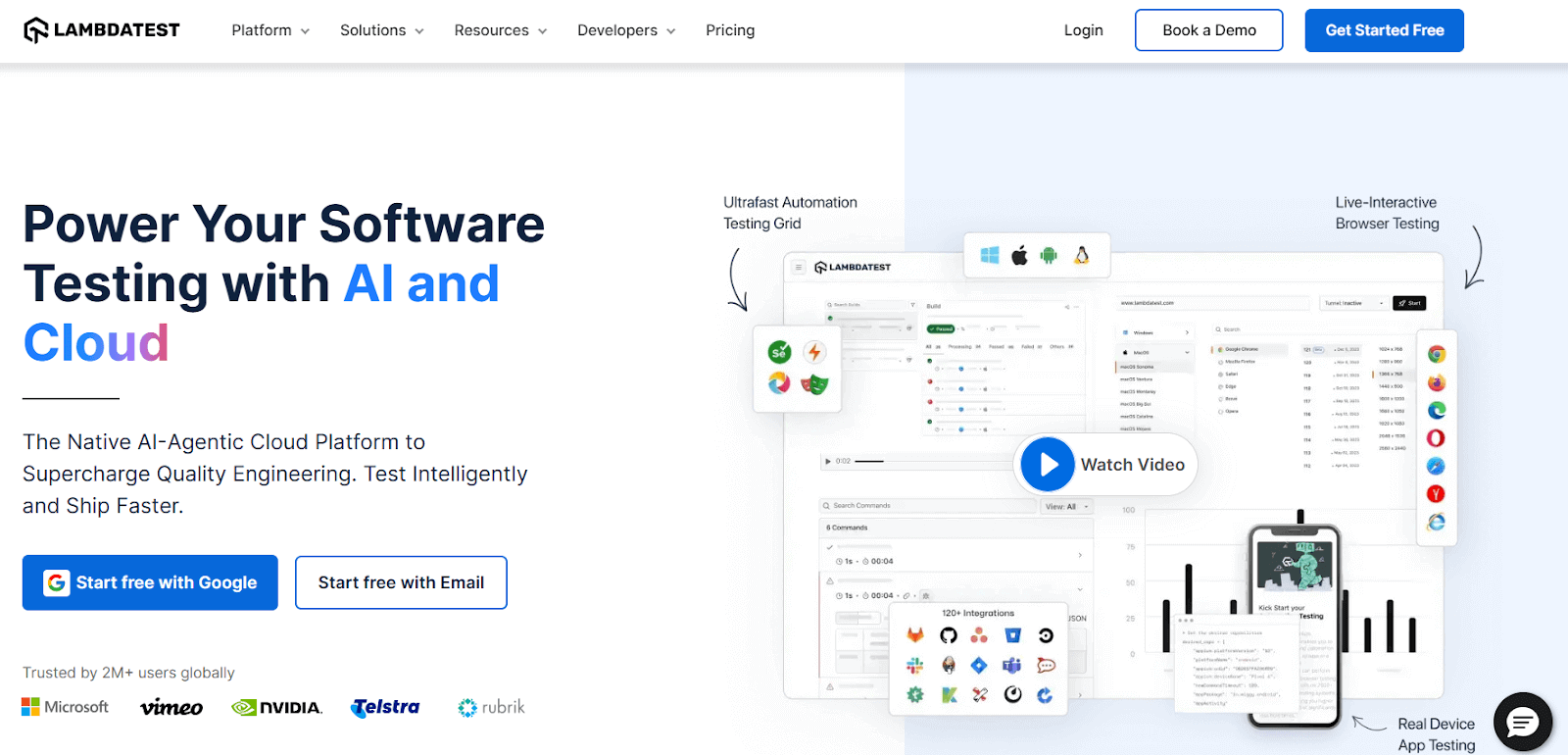
How to Install .IPA Test Files on iPhone Using TestMu AI
TestMu AI offers a seamless way to install and test .ipa files on real iOS devices directly from the cloud. This eliminates the need for physical hardware, complex provisioning, or local environment configuration.
Follow the steps below to get started:
Step 1: Log in to Your TestMu AI Account
- Visit testmuai.com
- Sign in to your existing account, or create a new one if you’re a first-time user.
Step 2: Upload Your IPA File
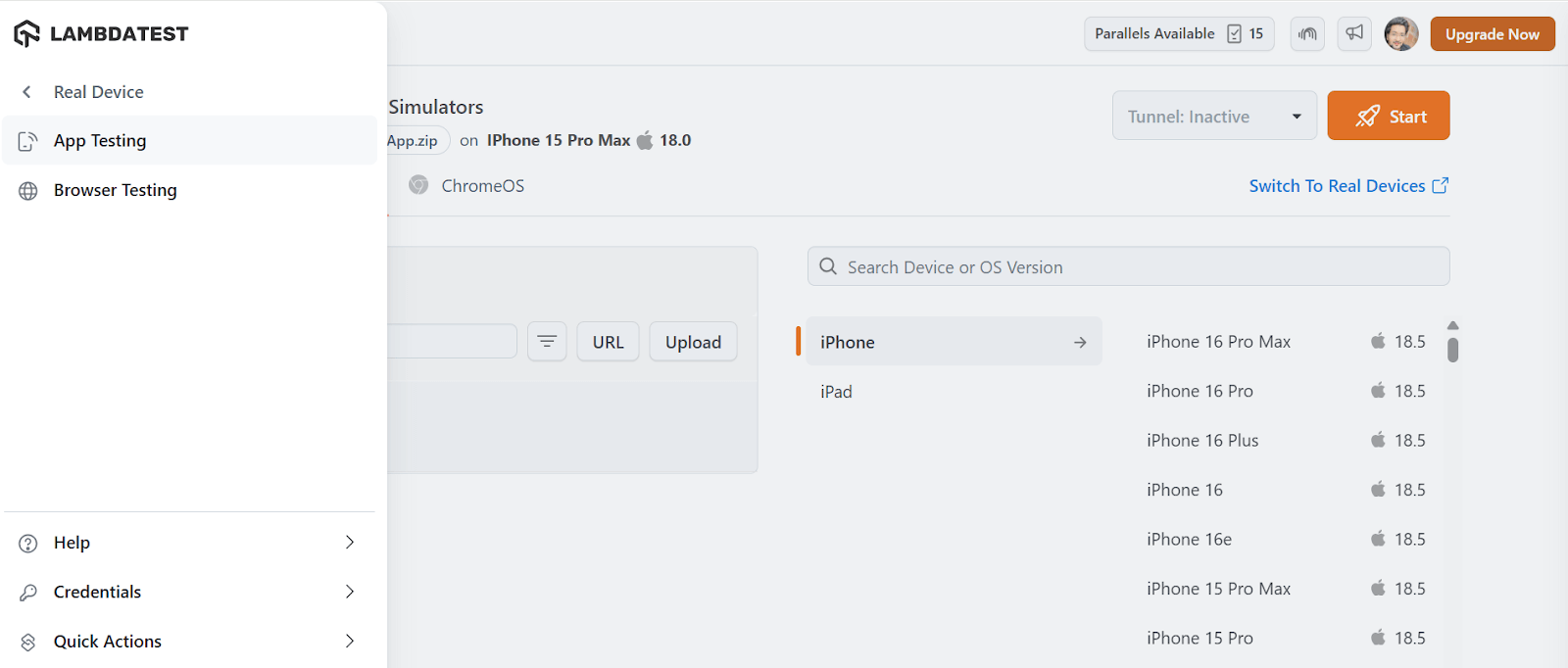
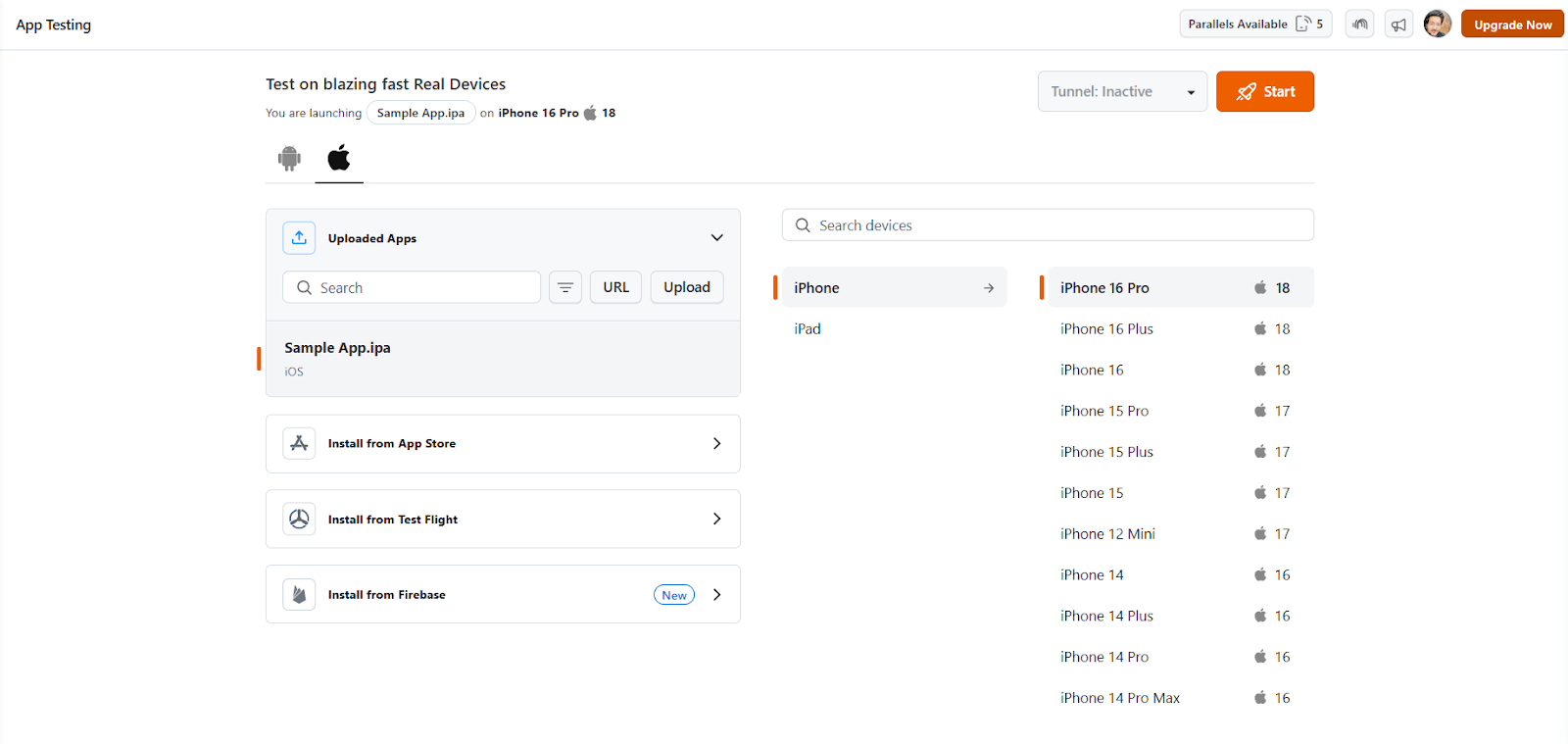
- Navigate to Real Device > App Testing in the dashboard.
- Click Upload App and select the .ipa file from your local system.
- The uploaded app will appear in your application list for easy access.
Note: Ensure the .ipa file is correctly signed with a valid Apple Developer or Enterprise certificate before upload.
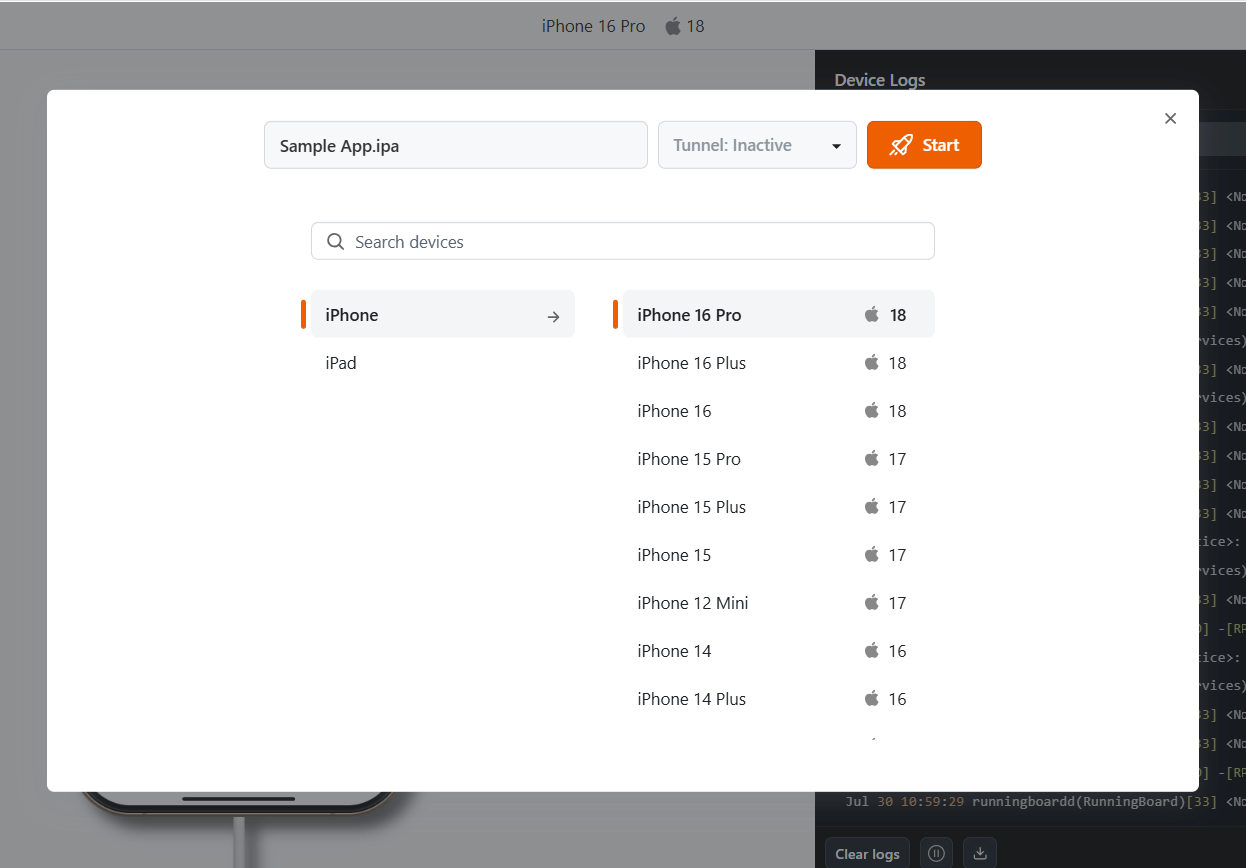
Step 3: Select a Real iOS Device
- Choose from a wide range of iPhones and iPads available in TestMu AI’s real device cloud.
- You can filter by device model and iOS version to test under specific configurations
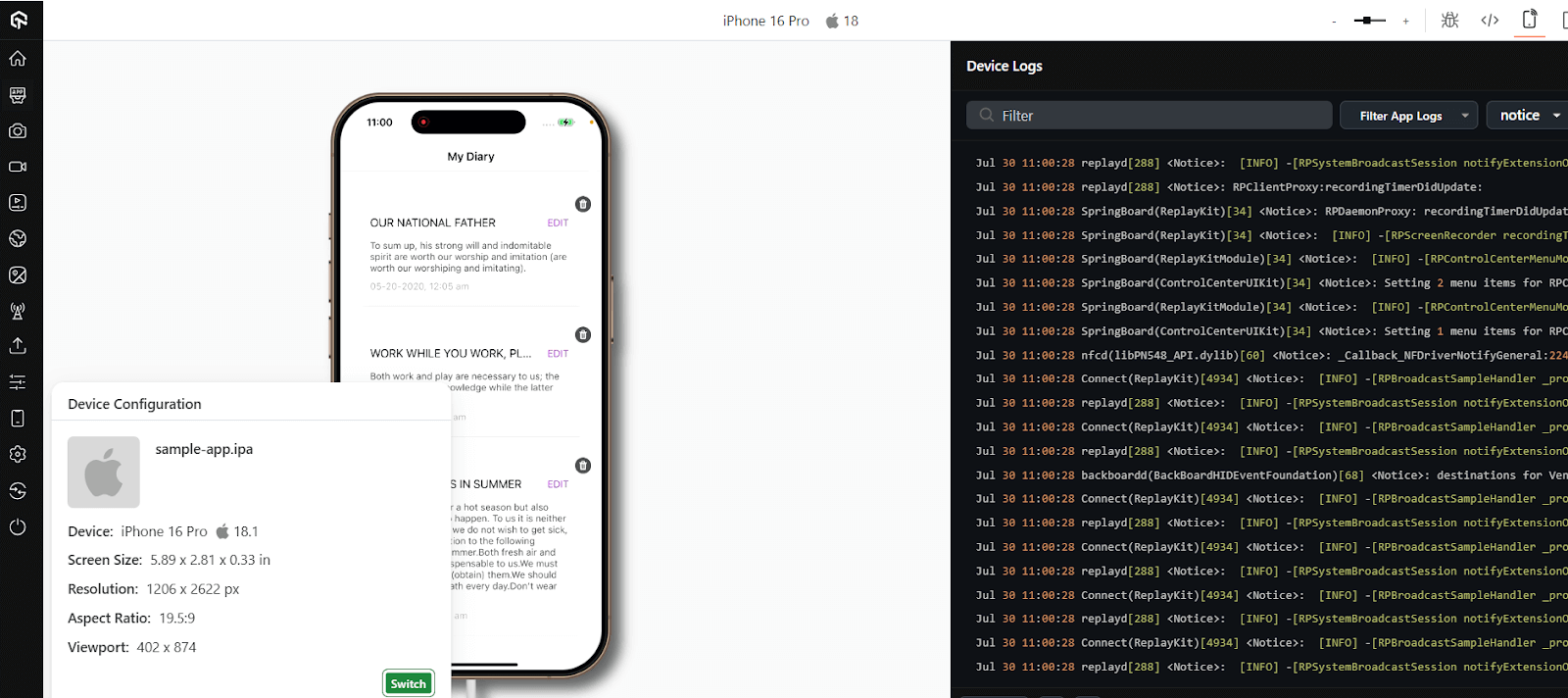
Step 4: Start the Testing Session
- Once the device boots up in the session, the .ipa file will automatically install
- Begin interacting with the app in real time through your browser
- Use built-in tools to:
- Simulate touch gestures and device rotation
- Throttle network conditions (3G/4G/Offline)
- Change geolocation
- Capture logs, screenshots, and video recordings
This workflow enables teams to test iOS applications in real-world scenarios without managing physical hardware or dealing with provisioning complexities.

Who Should Use TestMu AI for IPA Testing?
- iOS Developers: Easily tested IPA builds on a wide range of real iOS devices to ensure compatibility, performance, and functionality across multiple versions and models.
- QA Engineers: Conduct comprehensive manual, UI, and regression testing on real devices to identify issues early and maintain app quality throughout the development cycle.
- Startups & Product Teams: Quickly validate app behavior in real-world environments, gather actionable insights, and accelerate time-to-market without investing in physical device labs.
- Enterprises: Optimize release cycles, reduce testing infrastructure overhead, and ensure scalable, secure IPA testing across global teams and multiple environments.
How Do AI Coding Agents Automate IPA Installs in 2026?
In 2026, AI coding agents remove some of the manual steps around sideloading, but they still work inside Apple's signing rules.
- In-editor completion: GitHub Copilot for Xcode suggests provisioning and signing configuration changes as you edit a project's build settings, cutting down the trial and error around signing.
- Command-line install agents: Claude Code and Cursor can run a terminal command such as xcrun devicectl device install app against a connected iPhone, so a tester can ask for the latest build to be sideloaded instead of opening the Devices and Simulators window by hand.
- CI-triggered reinstalls: An agent wired into a build pipeline can re-sign and reinstall an app before a free Apple ID certificate reaches its 7-day expiry, which keeps an internal test build running without someone checking a calendar.
The real limitation: none of these agents can skip Apple's code-signing requirement. If the certificate lapses or the device UDID is missing from the provisioning profile, the agent's install command fails the same way a manual one would, because the restriction lives in iOS, not in the tool driving it. This makes an agent useful for saving time on repeat installs, not for working around Apple's sideloading limits.
Conclusion
Thorough testing of .ipa files on real iOS devices is vital for ensuring app quality and compatibility. Traditional methods like Xcode or iTunes often lack scalability and efficiency. TestMu AI offers a cloud-based solution that simplifies .ipa installation and iPhone app testing across real iPhones and iPads. It eliminates complex setups, enhances test coverage, and accelerates release cycles. Ideal for developers, QA teams, and enterprises aiming for reliable iOS app delivery.
Author

Anupam Pal Singh
Blogs: 11


Anupam is a Community Contributor at TestMu AI with 4+ years of experience in software testing, AI, and web development. At TestMu AI, he creates technical content across blogs, tool pages, and video scripts, with a focus on CI/CD, test automation, and AI-powered testing. He has authored 25+ in-depth technical articles on the TestMu AI Learning Hub and holds certifications in Automation Testing, Selenium, Appium, Playwright, Cypress, and KaneAI.
Reviewer

Siddhant Sinha
Reviewer
Siddhant Sinha is a Lead Member of Technical Staff at TestMu AI architecting Kane CLI, the command-line tool for browser automation from the terminal, where natural-language flows run in a real Chrome browser and return pass or fail with shareable proof. He has spent over three years at TestMu AI (formerly LambdaTest) building scalable platforms that run tests at scale on real Android and iOS devices. His expertise covers platform architecture, large-scale distributed systems, and CLI design, shaped by earlier cloud-native engineering at Semut.io, including building Elasticsearch as a service.


Installing IPA on iPhone FAQs
Did you find this page helpful?
More Related Blogs
TestMu AI forEnterprise
Get access to solutions built on Enterprise
grade security, privacy, & compliance
- Advanced access controls
- Advanced data retention rules
- Advanced Local Testing
- Premium Support options
- Early access to beta features
- Private Slack Channel
- Unlimited Manual Accessibility DevTools Tests