When running automated tests with Selenium WebDriver, testers might encounter ElementNotInteractableException or ElementNotVisibleException if the web page elements are hidden or can’t be interacted with.
This happens because the elements exist in the Document Object Model (DOM) but aren’t visible on the web page. In such cases, testers can use JavaScriptExecuter to handle hidden elements in Selenium WebDriver.
Overview
To handle hidden elements in Selenium WebDriver, use JavaScriptExecutor to execute clicks directly on the DOM or modify CSS properties, and retrieve hidden text using getAttribute with textContent or innerHTML. This avoids ElementNotInteractableException and allows interaction with elements that are present in the DOM but not visible on the page.
- JavaScriptExecutor: Execute clicks directly on the DOM node using arguments[0].click(), or use JavaScriptExecutor to temporarily change the CSS display property from none to block to perform a standard Selenium click.
- getAttribute(): Retrieve hidden text using getAttribute("textContent") or getAttribute("innerHTML") because the standard getText() method returns an empty string for elements that are not rendered on the page.
- isDisplayed(): Combine the isDisplayed() method, which returns false for hidden elements, with findElements() to safely check visibility without throwing a NoSuchElementException if the element is completely absent from the DOM.
- TestMu AI automation cloud: Execute Selenium Java tests across more than 3,000 real browser and operating system combinations on the TestMu AI automation cloud to validate hidden element behavior across different user environments.
- KaneAI: Use this GenAI native test assistant by TestMu AI to author, manage, and debug complex test cases using natural language without requiring deep test automation expertise.
What Are Hidden Elements?
Hidden elements are the ones that are present in the DOM but not visible on the web page. Usually, hidden elements are defined by the CSS property style=display:none.
In case an element is a part of the < form > tag, it can be hidden by setting the attribute type to the value hidden.
Hiding the elements can be done using the following ways:
- Using the style attribute and display:none value.
- Using a block value for the display property within the style attribute.
- Using a hidden value for visibility property.
- Giving a hidden value to the type attribute in the HTML code.
What is DOM Implementation of Hidden Elements?
If an element is only hidden until a specific action, such as clicking a link or button, it can be displayed on the web page after the action is performed.
I have created the below web page for the demo of hidden elements:
<!DOCTYPE html>
<html>
<head>
    <meta name="viewport" content="width=device-width, initial-scale=1">
    <script>
        function showMe(id) {
            var element = document.getElementById(id);
            if (element.style.display === 'block') {
                element.style.display = 'none';
            } else {
                element.style.display = 'block';
            }
        }
    </script>
</head>
<body>
    <center>
        <button type="button" onclick="showMe('widget');">Click Me!</button>
        <div id="widget" style="display:none;">
            <h3>I am Hidden. Click on Hide Me! to hide me again.</h3>
            <button type="button" onclick="showMe('widget');">Hide Me!</button>
        </div>
    </center>
</body>
</html>
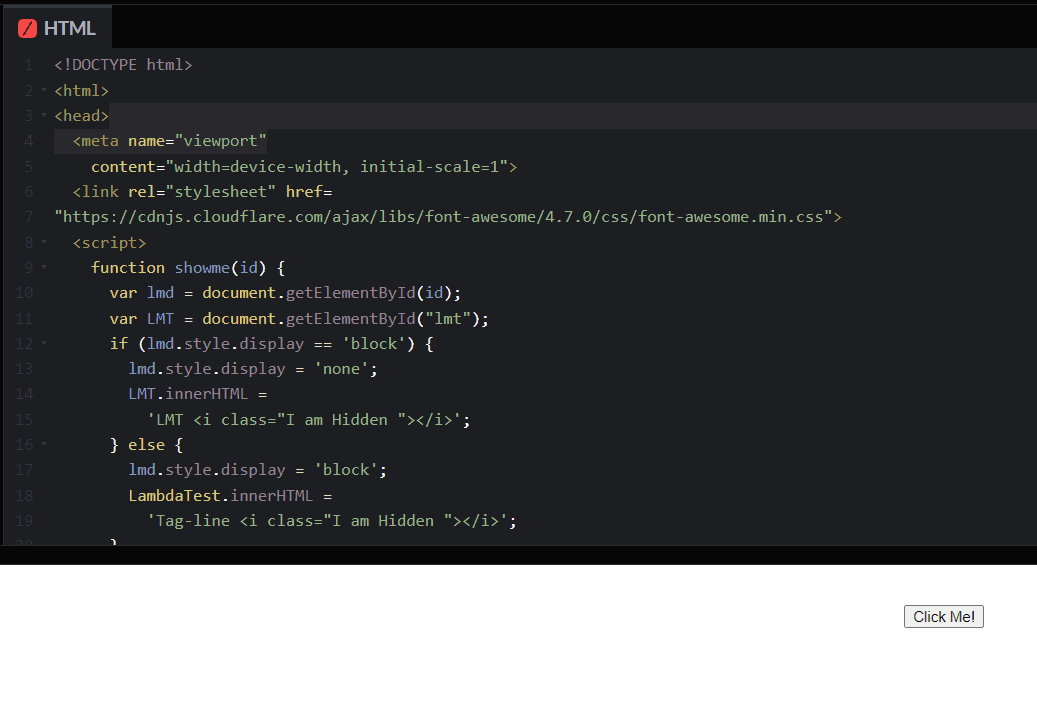
Here, I have used style.display = ‘block’; and style=”display:none;” for hiding the Hide Me button.
Output (before clicking on the Click Me! button):
Output (after clicking on the Click Me! button):
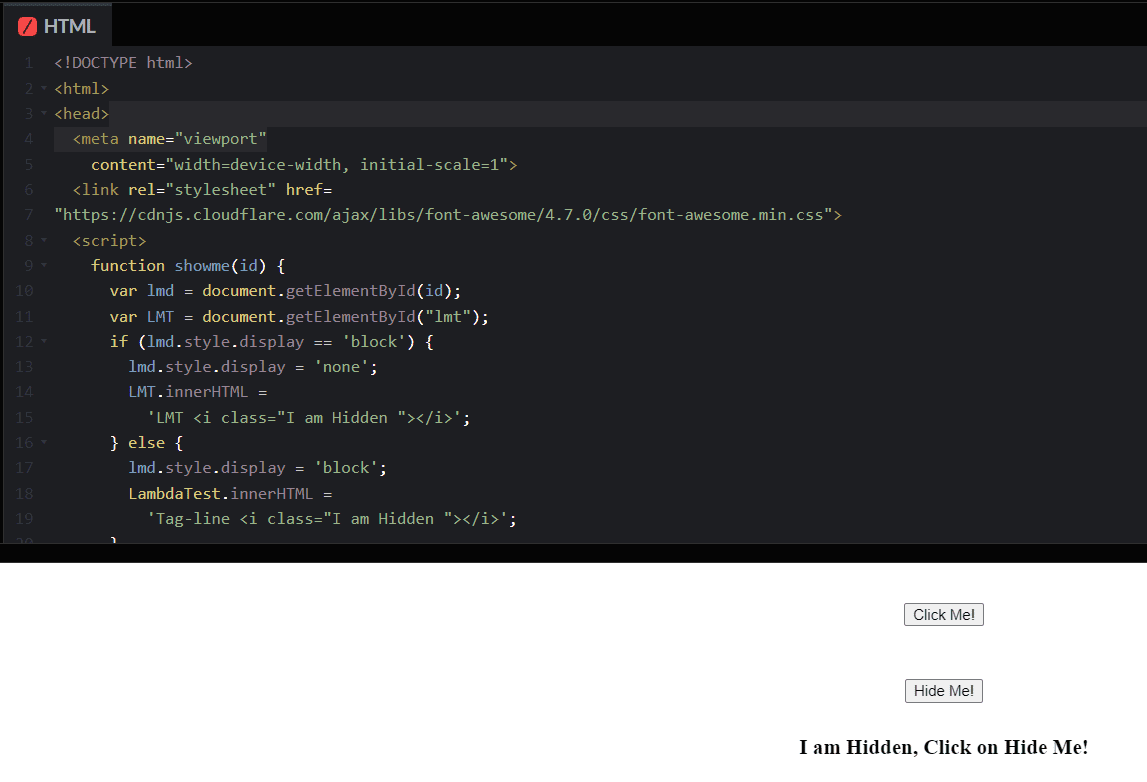
Since these elements are hidden, they are not visible to Selenium WebDriver.
From the above output, there are two buttons: Click Me! and Hide Me! Here, we do the following checks:
- Check if the Click Me! button is displayed.
- Click on the Click Me! button and the Hide Me! button will be displayed.
- Click on the Hide Me! button and the text and Hide Me! button will be hidden.
While handling hidden elements, you can enhance your Selenium testing process with AI-driven test agents like KaneAI.
KaneAI by TestMu AI is an innovative GenAI native test assistant built for fast-paced quality engineering teams, offering unique AI-powered features for test authoring, management, and debugging. It allows users to easily create and update complex test cases using natural language, making it much easier and faster to get started with test automation without needing deep expertise.
Can Selenium WebDriver Interact With Hidden Elements?
Now you have a gist of the DOM implementation of hidden elements, let’s look at how to handle hidden elements in Selenium WebDriver.
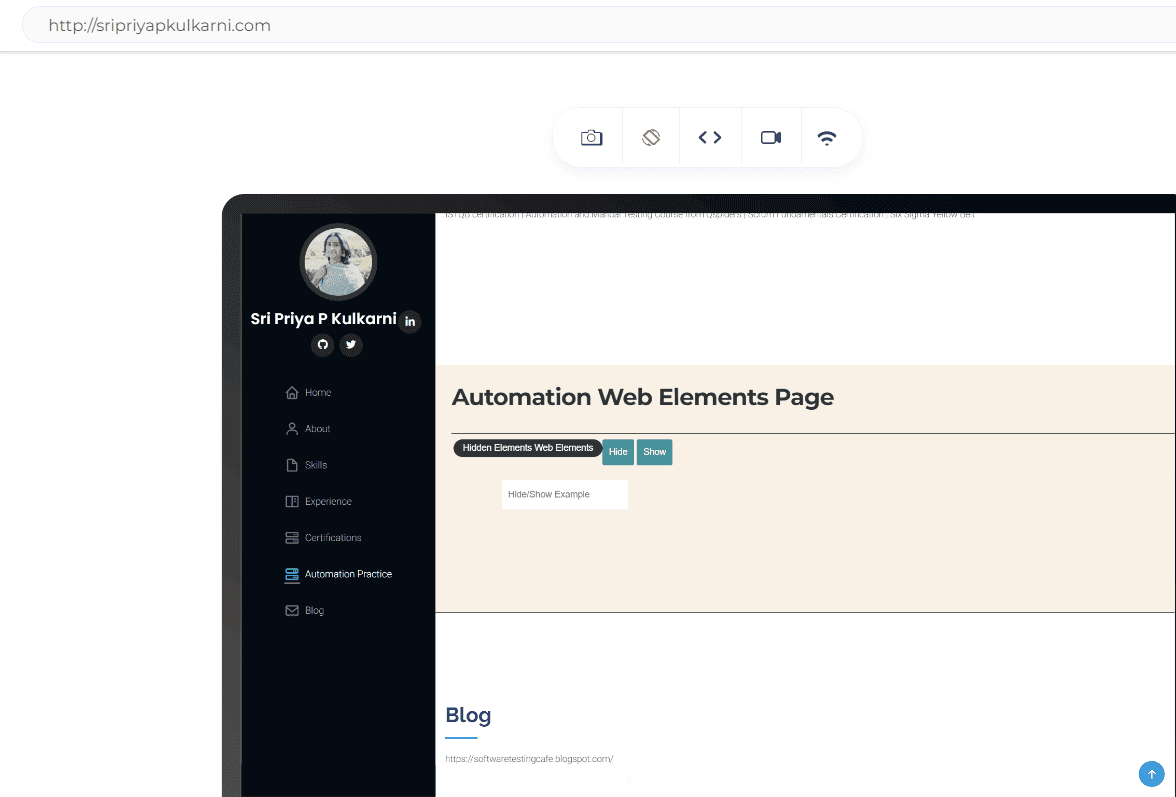
To check if Selenium WebDriver can interact with hidden elements, I will use my portfolio website.
For this, we will use JavaScriptExecutor to handle the hidden elements in Selenium WebDriver. The attribute of the hidden element is changed, making the element visible using visibility:visible.
Subscribe to the TestMu AI YouTube Channel for quick updates on the tutorials on Selenium testing, Selenium Java, and more.
Let’s take a scenario - there are two buttons, Hide and Show. The Hide and Show button and the text box appear when the page is loaded. Once we click on the Hide button, the text box will be hidden. Again, the text box will appear when we click the Show button.
Implementation:
package com.lambdatest.automation;


import org.openqa.selenium.By;
import org.openqa.selenium.WebDriver;
import org.openqa.selenium.chrome.ChromeDriver;
import org.openqa.selenium.chrome.ChromeOptions;
import org.openqa.selenium.remote.RemoteWebDriver;
import org.openqa.selenium.support.ui.ExpectedConditions;
import org.openqa.selenium.support.ui.WebDriverWait;
import org.testng.ITestContext;
import org.testng.annotations.AfterMethod;
import org.testng.annotations.BeforeMethod;
import org.testng.annotations.Test;


import java.lang.reflect.Method;
import java.net.MalformedURLException;
import java.net.URL;
import java.time.Duration;
import java.util.HashMap;
import java.util.concurrent.TimeUnit;


public class HiddenElementsException {


    WebDriver driver=new ChromeDriver();


    @Test
    public void basicTest() throws InterruptedException {
        // navigating to the application under test
        driver.get("https://sripriyakulkarni.com/");


        // maximize window
        driver.manage().window().maximize();


        // explicit wait - to wait for the link to be click-able
        WebDriverWait wait =new WebDriverWait(driver, Duration.ofSeconds(30));
        wait.until(ExpectedConditions
                .visibilityOfElementLocated(By.xpath("//span[normalize-space()='Automation Practice']"))).click();


        // navigating to section of hidden element
        driver.findElement(By.xpath("//span[normalize-space()='Automation Practice']")).click();
        Thread.sleep(1000);


        // Clicking on the Hide button
        driver.findElement(By.xpath("//input[@id='hide-textbox']")).click();
        driver.manage().timeouts().implicitlyWait(10, TimeUnit.SECONDS);


        Thread.sleep(1000);
        driver.findElement(By.xpath("/html/body/main/section[7]/div[2]/div[2]/div/div/div/div[1]/div[2]/fieldset/input[3]")).click();
    }
}

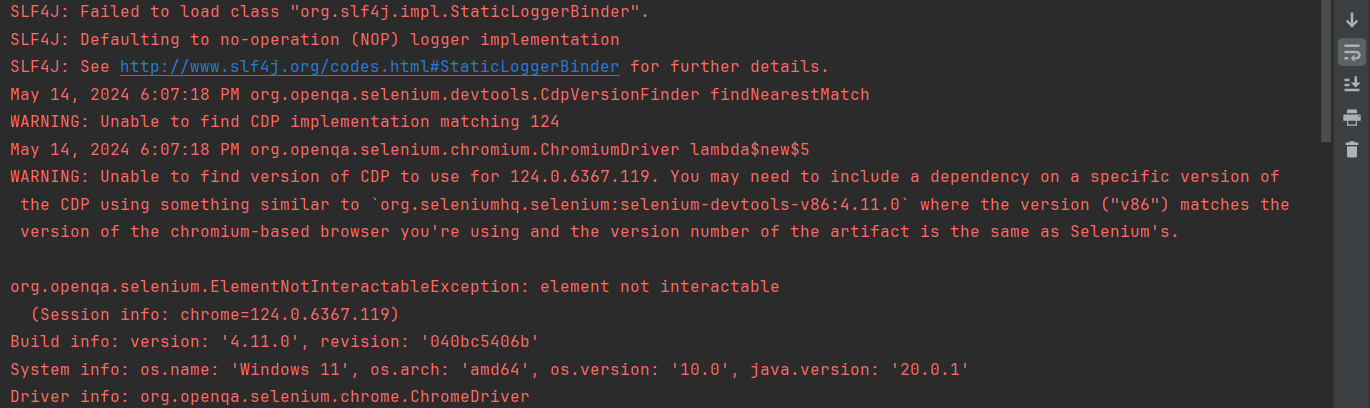
Selenium does not allow us to perform any action on the hidden elements on the web page. In the above case, I clicked on the Hide button, and then I tried entering the text TestMu AI in the text field, so it threw ElementNotInteractableException.
So, how do we interact with the hidden element so that we do not encounter any exceptions? Let’s look into how to handle hidden elements in Selenium WebDriver.
Demonstration: Handle Hidden Elements in Selenium WebDriver
We will use JavaScriptExecutor, tweaking the display:none; for the style attribute to visibility:visible; so that we can make the hidden element visible to the Selenium script.
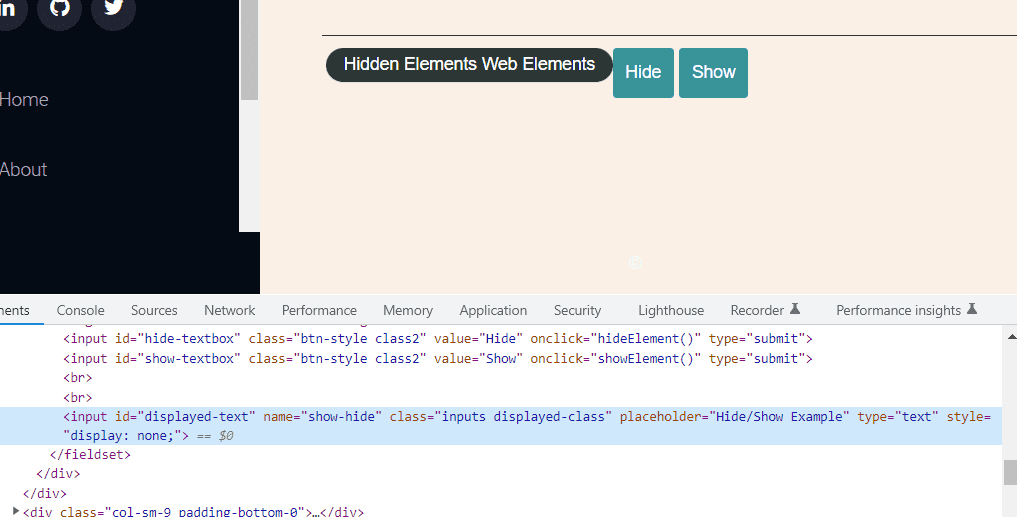
We can change the display:none value of the style attribute to visibility:visible at run time while running the tests.
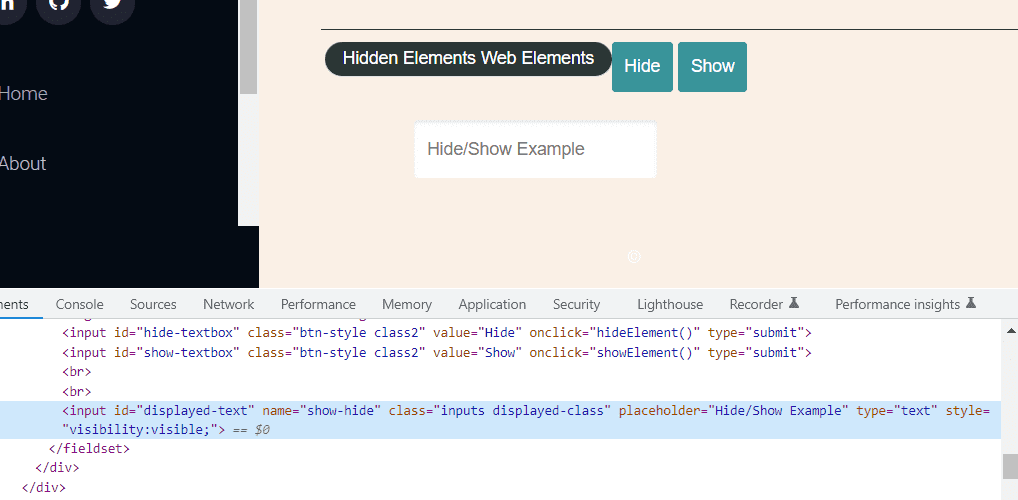
Changing the style attribute will change the style of the page, but it will make it visible to the Selenium scripts. Here, we again use the execute_script() method to execute the script.
driver.execute_script("arguments[0].setAttribute('style','visibility:visible;');",element)
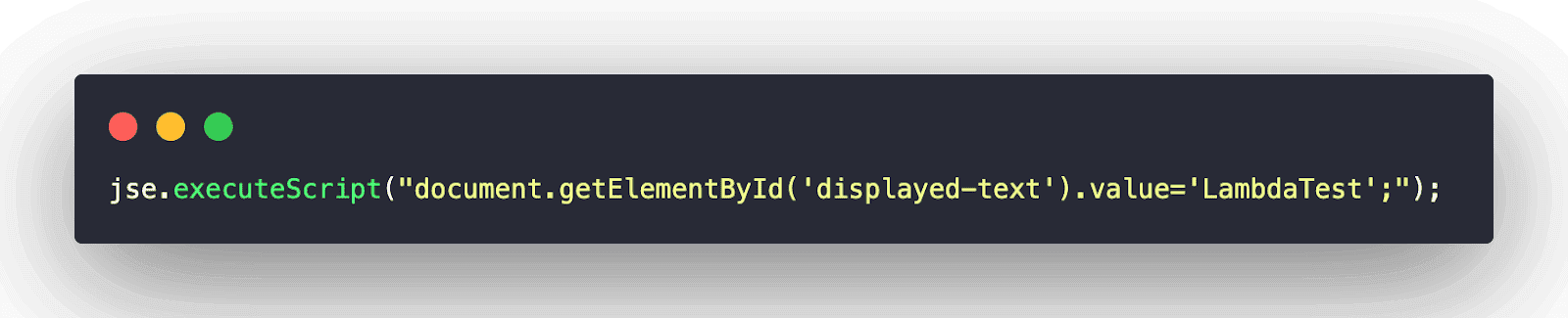
We will be using the getElementById() method of JavaScript and pass the ID as in the below syntax:
JavascriptExecutor jse=(JavascriptExecutor) driver;
jse.executeScript("document.getElementById('displayed-text').value='LambdaTest';");
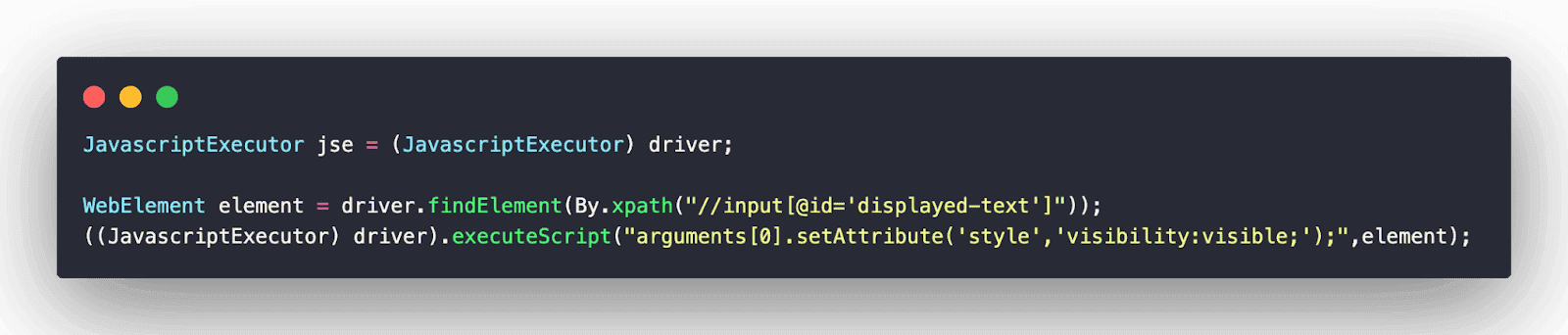
We often will not get the elements with unique IDs or names for them. In that case, we can use XPath and use it in the JavaScriptExecutor methods as below:
We use arguments[0].click() as it holds the web element in the first line of code, which is hidden on the web page.
Apart from the direct use of JavaScriptExecutor, we also have another way to make the element unhidden for the Selenium tests. As we discussed, we use CSS to hide the element. We can tweak the identical CSS to unhide the element as well.
We have used the display:none property for the style attribute to hide this element.
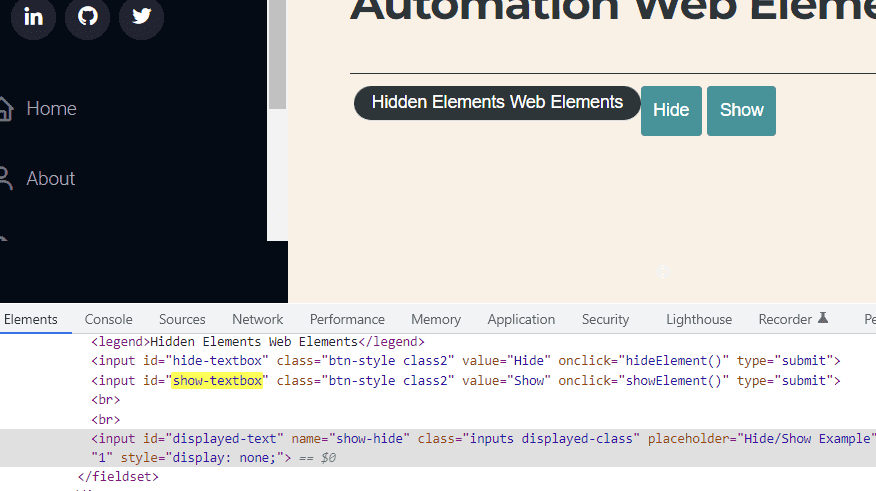
We can change the display:none value of the style attribute to visibility:visible while running the Selenium test.
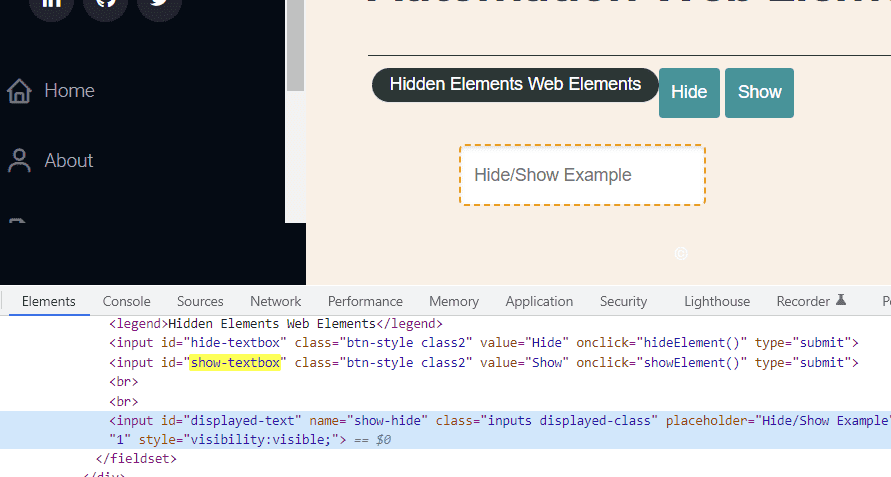
Changing the style attribute will change the CSS of the text field, and the element will be visible to the Selenium tests at run time.
Here, we will also use JavaScriptExecutor and the setAttribute() method to make the element unhidden or not hidden. We use the below code to make it.
WebElement element=driver.findElement(By.xpath("//input[@id='displayed-text']"));
((JavascriptExecutor)driver).executeScript("arguments[0].setAttribute('style','visibility:visible;');",element);
Next, we will run tests to handle hidden elements in Selenium WebDriver. Testing on a cloud grid is feasible to achieve better scalability and reliability. For this, we leverage cloud-based testing platforms such as TestMu AI.
It is an AI-powered test orchestration and execution platform that allows you to perform automation testing with Selenium WebDriver on a remote test lab of different browsers and operating systems.
Implementation:
package com.lambdatest.automation;
import java.lang.reflect.Method;
import java.net.MalformedURLException;
import java.net.URL;
import java.util.HashMap;
import java.util.concurrent.TimeUnit;

import org.openqa.selenium.By;
import org.openqa.selenium.JavascriptExecutor;
import org.openqa.selenium.WebElement;
import org.openqa.selenium.support.ui.ExpectedConditions;
import org.openqa.selenium.support.ui.WebDriverWait;
import org.openqa.selenium.remote.DesiredCapabilities;
import org.openqa.selenium.remote.RemoteWebDriver;
import org.testng.ITestContext;
import org.testng.annotations.AfterMethod;
import org.testng.annotations.BeforeMethod;
import org.testng.annotations.BeforeSuite;
import org.testng.annotations.Test;
import org.openqa.selenium.chrome.ChromeOptions;
import java.time.Duration;

public class HiddenElementsDemo {


    public String username = "LT_USERNAME";
    public String accesskey = "LT_ACCESS_KEY";


    public static RemoteWebDriver driver;
    public String gridURL = "@hub.lambdatest.com/wd/hub";
    boolean status = false;

    @BeforeMethod
    public void setup(Method m, ITestContext ctx) throws MalformedURLException {


        String hub = "@hub.lambdatest.com/wd/hub";

        ChromeOptions browserOptions = new ChromeOptions();
        browserOptions.setPlatformName("Windows 11");
        browserOptions.setBrowserVersion("124.0");
        HashMap<String, Object> ltOptions = new HashMap<String, Object>();
        ltOptions.put("username", "LT_USERNAME");
        ltOptions.put("accessKey", "LT_ACCESS_KEY");
        ltOptions.put("project", "Untitled");
        ltOptions.put("w3c", true);
        ltOptions.put("plugin", "java-testNG");
        browserOptions.setCapability("LT:Options", ltOptions);
        try {
            driver = new RemoteWebDriver(new URL("https://" + username + ":" + accesskey + gridURL), browserOptions);
        } catch (MalformedURLException e) {
            System.out.println("Invalid grid URL");
        } catch (Exception e) {
            System.out.println(e.getMessage());
        }

    }

    @Test
    public void basicTest() throws InterruptedException {
        // navigating to the application under test
        driver.get("http://sripriyakulkarni.com/");

        // maximize window
        driver.manage().window().maximize();

         // explicit wait - to wait for the link to be click-able
        WebDriverWait wait =new WebDriverWait(driver, Duration.ofSeconds(30));
        wait.until(ExpectedConditions
        .visibilityOfElementLocated(By.xpath("//span[normalize-space()='Automation Practice']"))).click();

        // navigating to section of hidden element
        driver.findElement(By.xpath("//span[normalize-space()='Automation Practice']")).click();
        Thread.sleep(1000);

        // Clicking on the Hide button
        driver.findElement(By.xpath("//input[@id='hide-textbox']")).click();
        driver.manage().timeouts().implicitlyWait(10, TimeUnit.SECONDS);

        JavascriptExecutor jse = (JavascriptExecutor) driver;

        WebElement element = driver.findElement(By.xpath("//input[@id='displayed-text']"));
        ((JavascriptExecutor) driver).executeScript("arguments[0].setAttribute('style','visibility:visible;');",
                element);

        jse.executeScript("document.getElementById('displayed-text').value='LambdaTest';");

        driver.findElement(By.id("show-textbox")).click();

    }

    @AfterMethod
    public void tearDown() {

        driver.quit();
    }
}
Code Walkthrough:
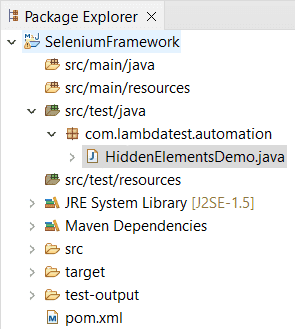
The below snap shows the structure of our web project.
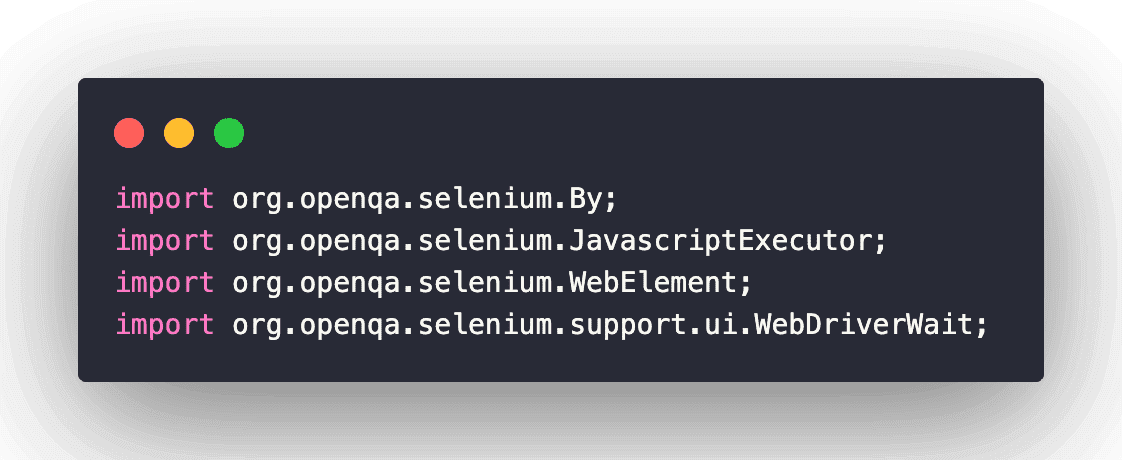
Import packages using JavaScriptExecutor and other methods.
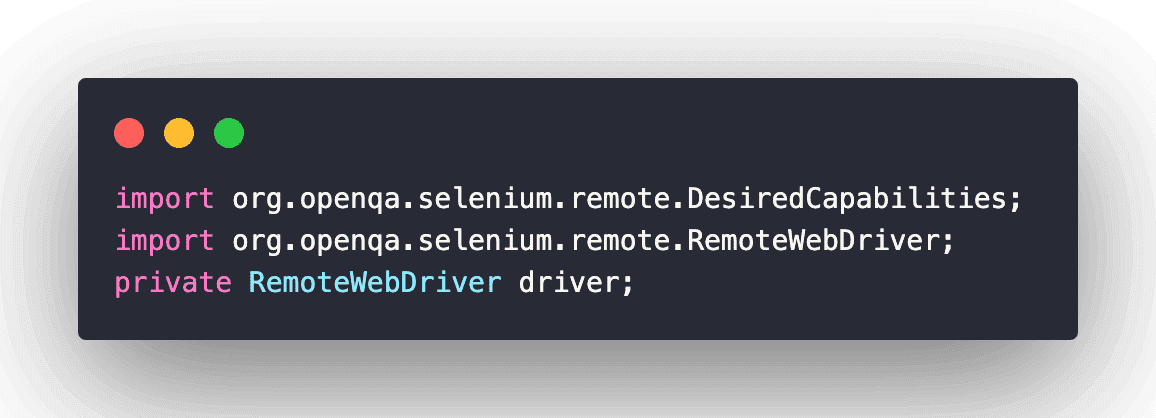
Create the RemoteWebDriver class that implements the WebDriver interface to execute the tests on the Remote WebDriver server on a remote machine. It is implemented under the package below:
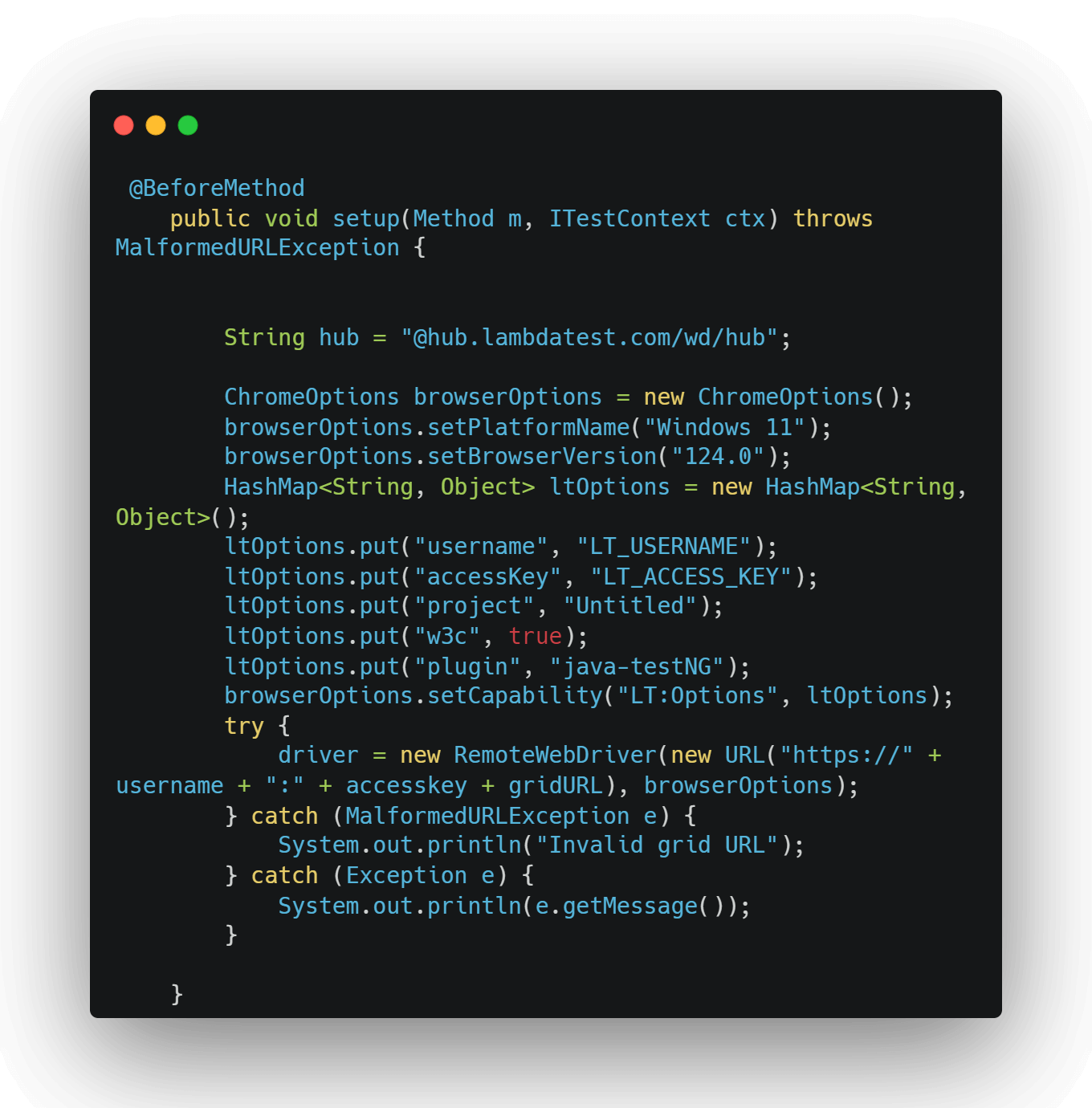
@BeforeMethod annotation in TestNG sets the browser’s capabilities. A RemoteWebDriver instance is created with the desired browser capabilities, with the Selenium Grid URL ([@hub.lambdatest.com/wd/hub]) set to the cloud-based Selenium Grid on TestMu AI.
All the test navigation steps are implemented under the @Test annotation. Here is how we navigate to the desired URL:
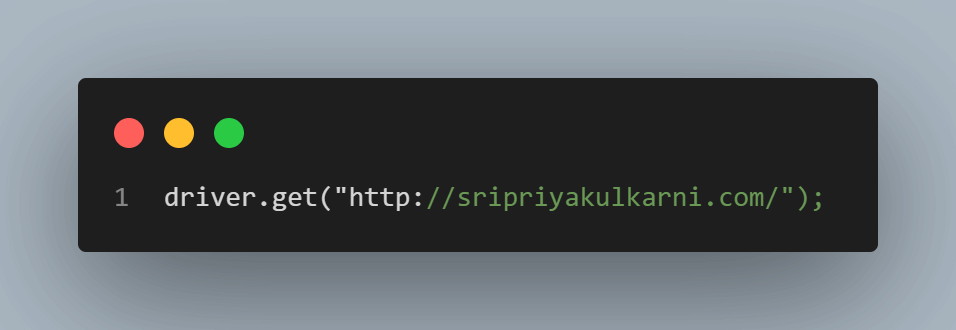
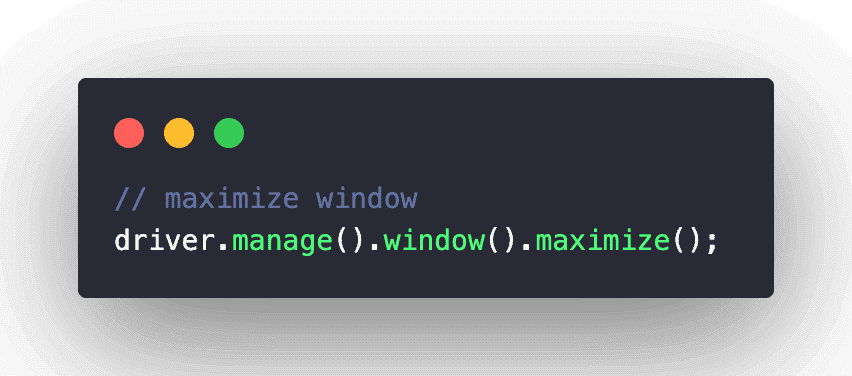
Maximize the window and wait for the page to load using the explicit wait in Selenium. Selenium WebDriver must wait until the specified condition occurs before executing the code.
Use the maximize() method to maximize the window in Selenium:
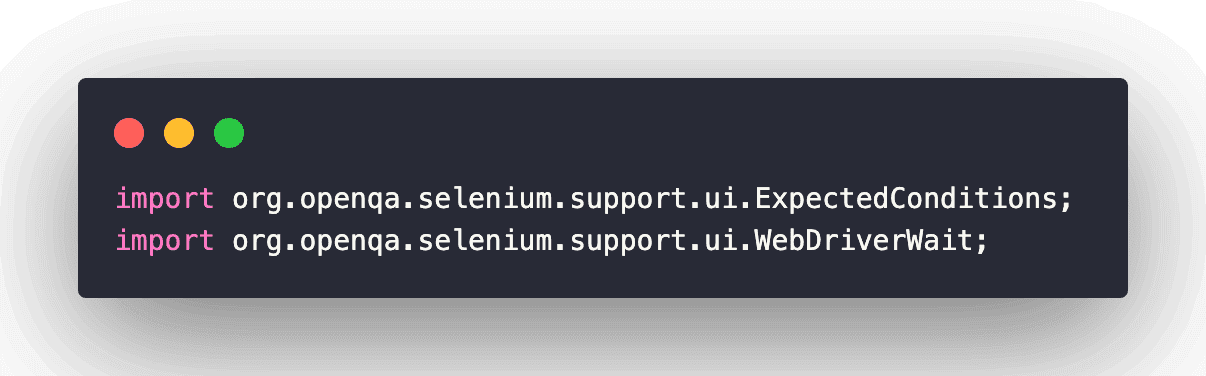
To use explicit wait, use ExpectedConditions in Selenium.
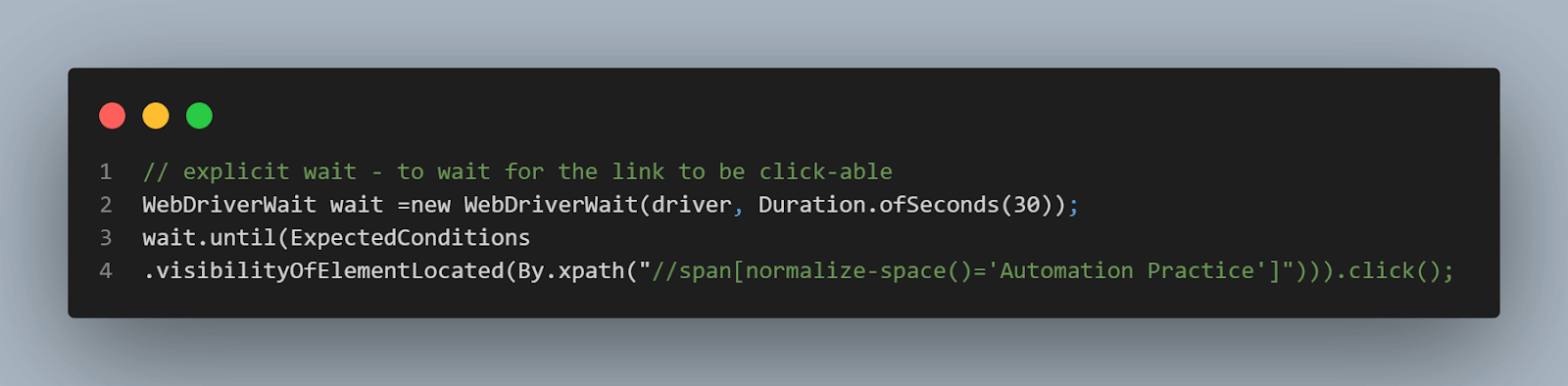
Initialize the wait object using the Selenium WebDriverWait class.
Create an object of JavaScriptExecutor and pass the element to the script to interact with the element to send text.
The executeScript() method executes the test script in the context of the currently selected window or frame.
Send the text through JavascriptExecutor. The document.getElementById() method returns the element of the specified id. The document refers to a web page that is the Document Object Model of the web page. If we want to access any element in an HTML page, we need to access the document object.
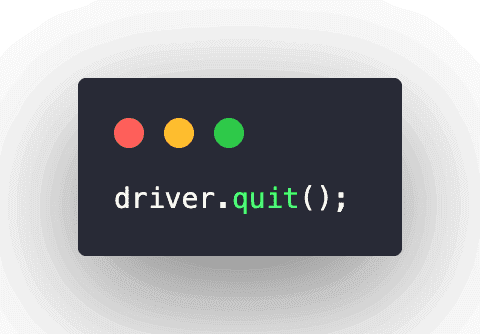
Close the driver instance using the quit() method.
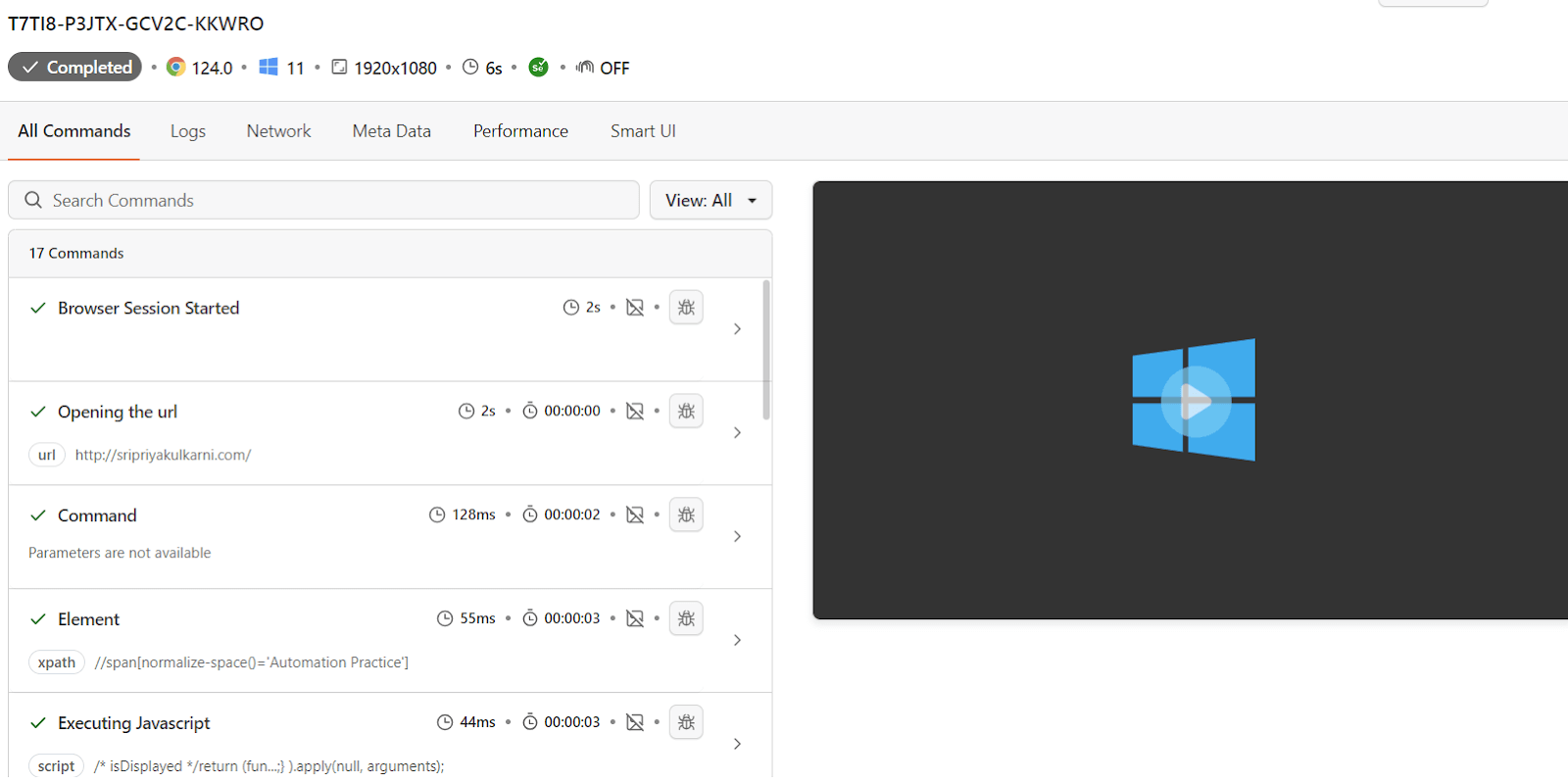
Test Execution:
Once you run the test, navigate to the TestMu AI Web Automation Dashboard to view your test results.
How to Click Hidden Elements in Selenium (with Java Code)
When an element is hidden, a normal element.click() throws ElementNotInteractableException. There are two reliable ways to click it with Java.
1. Click directly through JavaScriptExecutor. This fires the click on the DOM node itself, so the element does not need to be visible on the page.
WebElement hiddenButton = driver.findElement(By.id("hidden-button"));
JavascriptExecutor js = (JavascriptExecutor) driver;
js.executeScript("arguments[0].click();", hiddenButton);
2. Make it visible first, then click. If you want the click to behave exactly as a user's would, flip the CSS from display: none to display: block before clicking.
WebElement hiddenButton = driver.findElement(By.id("hidden-button"));
JavascriptExecutor js = (JavascriptExecutor) driver;
js.executeScript("arguments[0].style.display='block';", hiddenButton);
hiddenButton.click();
Use the direct JavaScript click when you only need the action to fire. Use the style change when later assertions depend on the element actually being rendered on screen.
How to Get Text from Hidden Elements in Selenium
By design, the WebDriver specification returns only rendered text, so calling getText() on a hidden element returns an empty string. To read the text anyway, pull it straight from the DOM node with getAttribute().
WebElement hidden = driver.findElement(By.id("hidden-text"));

// Returns "" because the element is not visible
String visible = hidden.getText();

// Reads the text directly from the DOM node
String textContent = hidden.getAttribute("textContent");
String innerHtml   = hidden.getAttribute("innerHTML");
The two attributes differ: textContent returns only the text of the element and its descendants, while innerHTML returns that text plus any nested HTML tags. Choose textContent for a clean string and innerHTML when you need the markup. You can do the same with JavaScriptExecutor:
JavascriptExecutor js = (JavascriptExecutor) driver;
String text = (String) js.executeScript("return arguments[0].textContent;", hidden);
How to Verify an Element Is Hidden in Selenium
Use isDisplayed() to check whether an element that exists in the DOM is actually visible. It returns true when the element is rendered and false when it is hidden with display: none or visibility: hidden.
WebElement element = driver.findElement(By.id("target"));
boolean isHidden = !element.isDisplayed();
System.out.println("Element hidden? " + isHidden);
One caveat: isDisplayed() throws NoSuchElementException if the element is not in the DOM at all. To tell "hidden" apart from "absent" safely, locate with findElements() (plural) and check the list, or wait for it to disappear with ExpectedConditions.invisibilityOfElementLocated.
// Present in the DOM but hidden, without risking an exception
boolean hidden = driver.findElements(By.id("target")).size() > 0
        && !driver.findElement(By.id("target")).isDisplayed();
Handling Hidden Dropdowns in Selenium WebDriver
Modern UI libraries rarely use a native <select>. Custom dropdowns render a styled wrapper and hide the real control, so Selenium's Select class will not work on them. Instead, click the wrapper to reveal the options, then click the one you want.
// Custom dropdown (Bootstrap, React Select, and similar)
driver.findElement(By.cssSelector(".dropdown-toggle")).click();

WebDriverWait wait = new WebDriverWait(driver, Duration.ofSeconds(10));
WebElement option = wait.until(ExpectedConditions
        .visibilityOfElementLocated(By.xpath("//li[normalize-space()='India']")));
option.click();
If the underlying control is a genuine but hidden <select>, set its value directly through JavaScriptExecutor and dispatch a change event so the framework registers the selection.
JavascriptExecutor js = (JavascriptExecutor) driver;
js.executeScript(
    "var s=document.getElementById('country'); s.value='IN';" +
    "s.dispatchEvent(new Event('change'));");
How to Handle Dynamic Elements That Change Visibility
Elements loaded through AJAX, or revealed after an animation, are hidden one moment and visible the next. Interacting too early throws an exception. An explicit WebDriverWait paired with ExpectedConditions.visibilityOfElementLocated pauses only until the element is both present and visible.
WebDriverWait wait = new WebDriverWait(driver, Duration.ofSeconds(15));
WebElement element = wait.until(ExpectedConditions
        .visibilityOfElementLocated(By.cssSelector(".ajax-loaded")));
element.click();
Mind the difference between conditions: presenceOfElementLocated waits only until the element is in the DOM (it may still be hidden), whereas visibilityOfElementLocated waits until it is in the DOM and displayed. For elements with dynamic IDs, avoid brittle absolute locators and match on a stable attribute instead, for example By.cssSelector("[data-testid='submit']").
Final Thoughts!
In this blog, we learned how to handle hidden elements in Selenium WebDriver. To summarize, hidden elements are HTML elements not visible to the user when a web page is displayed in a web browser. They can be created using the hidden attribute in HTML or CSS to set the element’s display property to none.
When performing Java automation testing on hidden elements, it is important to ensure that the elements are accessible to the test script and that interacting with them does not cause any unexpected behavior in the web application.