

Power Your Software Testing with AI Agents and Cloud
The Native AI-Agentic Cloud Platform to Supercharge Quality Engineering. Test Intelligently and Ship Faster.


- TestMu AI (Formerly LambdaTest)
- /
- Blog
- /
- Fix "Element Not Clickable at Point" in Selenium
Fix "Element Not Clickable at Point" in Selenium
Fix the "Element Not Clickable at Point" error in Selenium. Learn causes like overlaps, delays, and proven solutions with examples.
Last Updated on:
In Selenium automation testing, locators help identify and interact with any element on the web page. For example, ID, Name, ClassName, XPath, CSS Selector, TagName, LinkText, and Partial LinkText are widely used to help you interact with the elements on the web page.
Identifying the elements may be an easy task, but your tests might fail due to the state of the WebElement (e.g., the element is not visible or the element is not clickable at point, etc.). In such cases, the tests might throw different Selenium exceptions such as NoSuchElementException, ElementNotVisibleException, etc.
This tutorial covers the root causes of the "element is not clickable at point" exception and five proven fixes, with runnable Java code examples for each.
Why is an Element Not Interactable in Selenium?
When automated tests run, a WebElement may be located successfully by its selector but still fail to accept interactions. Three root causes account for most cases:
- WebElement is disabled: Based on the feature or the functionality of the web application, some of the fields or buttons remain disabled until a certain condition is met. The WebElement is not interactable when it is disabled. Hence, when running the tests, if it tries to click on the WebElement, it will show an "element is not clickable at point" exception.
- WebElement is not visible: Another cause of WebElement not being interactable is that it may not be visible on the page. This may be due to WebElement being overlapped by another WebElement, for example a pop-up covering the button so it is not clickable.
- WebElement loading time: It may take some time for the WebElements to load on the page due to the scripts running on the page. If the test is not using waits correctly, it may try to click on the WebElement before it is completely loaded on the web page.

What is the "Element is Not Clickable at Point" Exception?
The "element is not clickable at point" exception typically arises when the targeted WebElement cannot be clicked at its current position. This means attempting to click it will trigger an ElementClickInterceptedException.
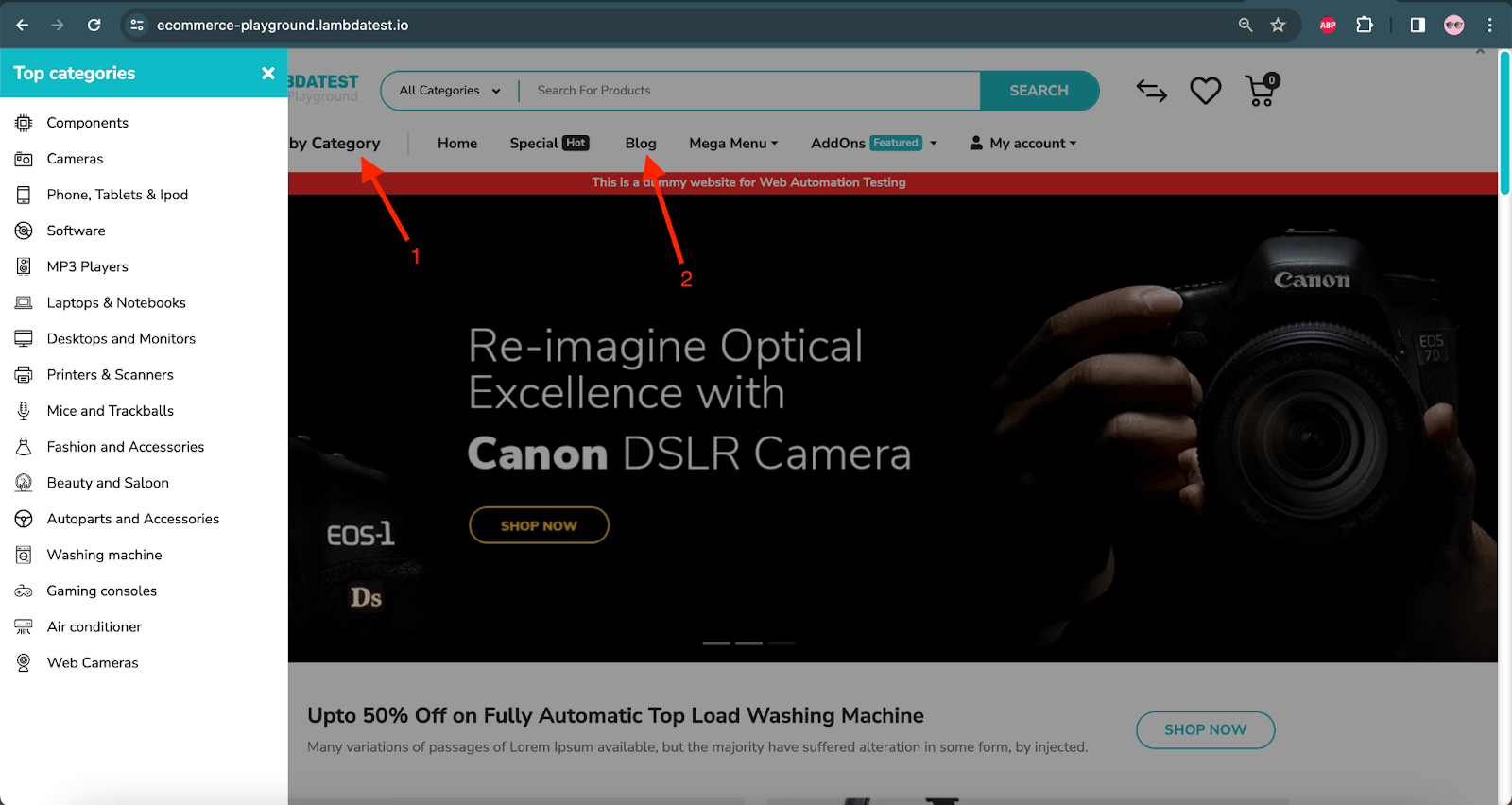
Let's take an example of the home page of the TestMu AI eCommerce Playground website. Here, while running the automated tests using Selenium WebDriver, when you try to click on the Blog menu on the menu bar when the Shop by Category side menu bar is already open, you will get the "element is not clickable at point" exception.
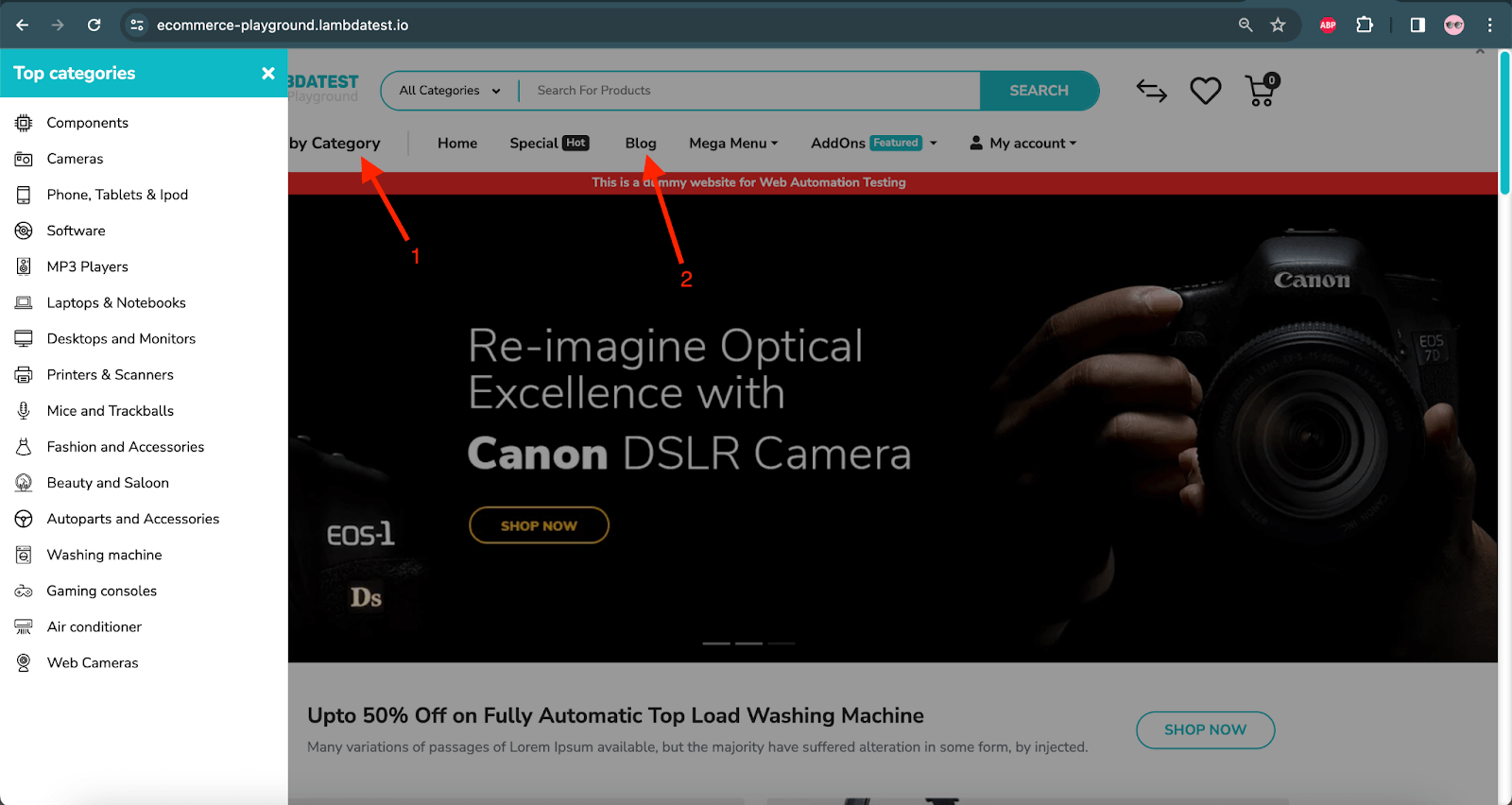
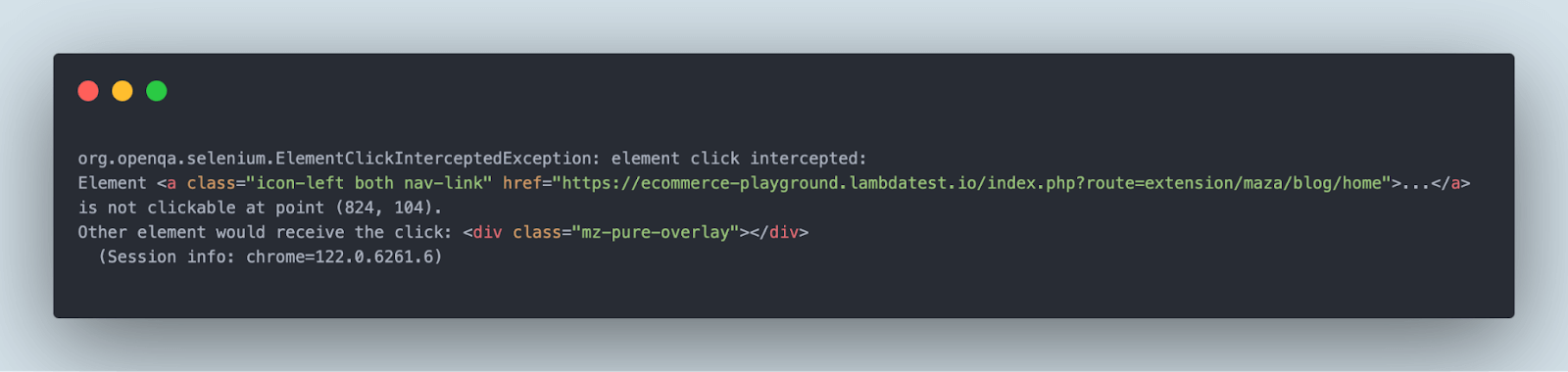
Below is the excerpt of the exception that was thrown by Selenium as it was unable to click on the Blog menu:
org.openqa.selenium.ElementClickInterceptedException: element click intercepted: Element <a class="icon-left both nav-link" href="https://ecommerce-playground.lambdatest.io/index.php?route=extension/maza/blog/home">...</a> is not clickable at point (493, 100). Other element would receive the click: <div class="mz-pure-overlay"></div>
The error message is self-explanatory: Selenium was unable to click the element because another element intercepted the click.
There is a higher probability of getting this exception with the Chrome browser, as Chrome never calculates the exact location of any WebElement. Instead, it tries to perform a click in the middle of the WebElement. Hence, you might get the "element is not clickable at point" exception when running tests on Chrome.
The underlying implementation differs from one browser to another. You may also encounter this exception when clicking an element at a specific point (or coordinate) in Firefox, Microsoft Edge, or other browsers.
To assist with such browser-specific challenges, KaneAI, offered by TestMu AI, is a GenAI-native testing assistant that analyzes failed tests and surfaces actionable insights to reduce time spent troubleshooting exceptions like "element is not clickable at point" across Chrome, Firefox, and Edge.
TestMu AI: LambdaTest’s New Home — the same platform you trust, with AI-powered capabilities at its core.

Causes of the "Element is Not Clickable at Point" Exception
- WebElement to be clicked is disabled.
- WebElement is not yet available (or loaded) on the web page.
- WebElements overlap with each other.
- Failure in locating WebElement using coordinates on the page.
Cause 1: WebElement to be Clicked is Disabled
In a web application, if you skip filling out any mandatory fields in a form or while creating an account, you will come across the submit (or create account) WebElement in a disabled state.
When trying to interact with such a WebElement, the "element is not clickable at point" exception pops up.
Cause 2: WebElement is not yet Available (or Loaded)
Most websites use AJAX for the dynamic loading of web content. Therefore, the test cases should be implemented considering this dynamism. You will encounter the said exception if the test script is trying to interact with the WebElement, which is not yet available in the Document Object Model (DOM).
Cause 3: WebElements Overlap With Each Other
You might have overlapping WebElements on a webpage, which poses significant challenges when running Selenium automated tests on the page. For example, when trying to interact with an element with another element overlapping, it would throw the exception "element is not clickable at point".
Since this makes an interesting scenario, let's look at this with an example. We will run the tests on an online Selenium Grid by TestMu AI.
TestMu AI is an AI-powered test orchestration and execution platform that lets developers and testers perform automation testing using Selenium at scale, thereby attaining better browser coverage, faster test execution, and accelerated software release cycles. Furthermore, parallel test execution is one of the major advantages of running tests on a cloud-based platform like TestMu AI.
The following test scenario will be used for demonstration purposes.
Test Scenario
- Navigate to the TestMu AI eCommerce Playground website.
- Click on the Shop by Category menu.
- Try clicking on the Blog menu on the home page.
- It should throw the "element is not clickable at point" exception.
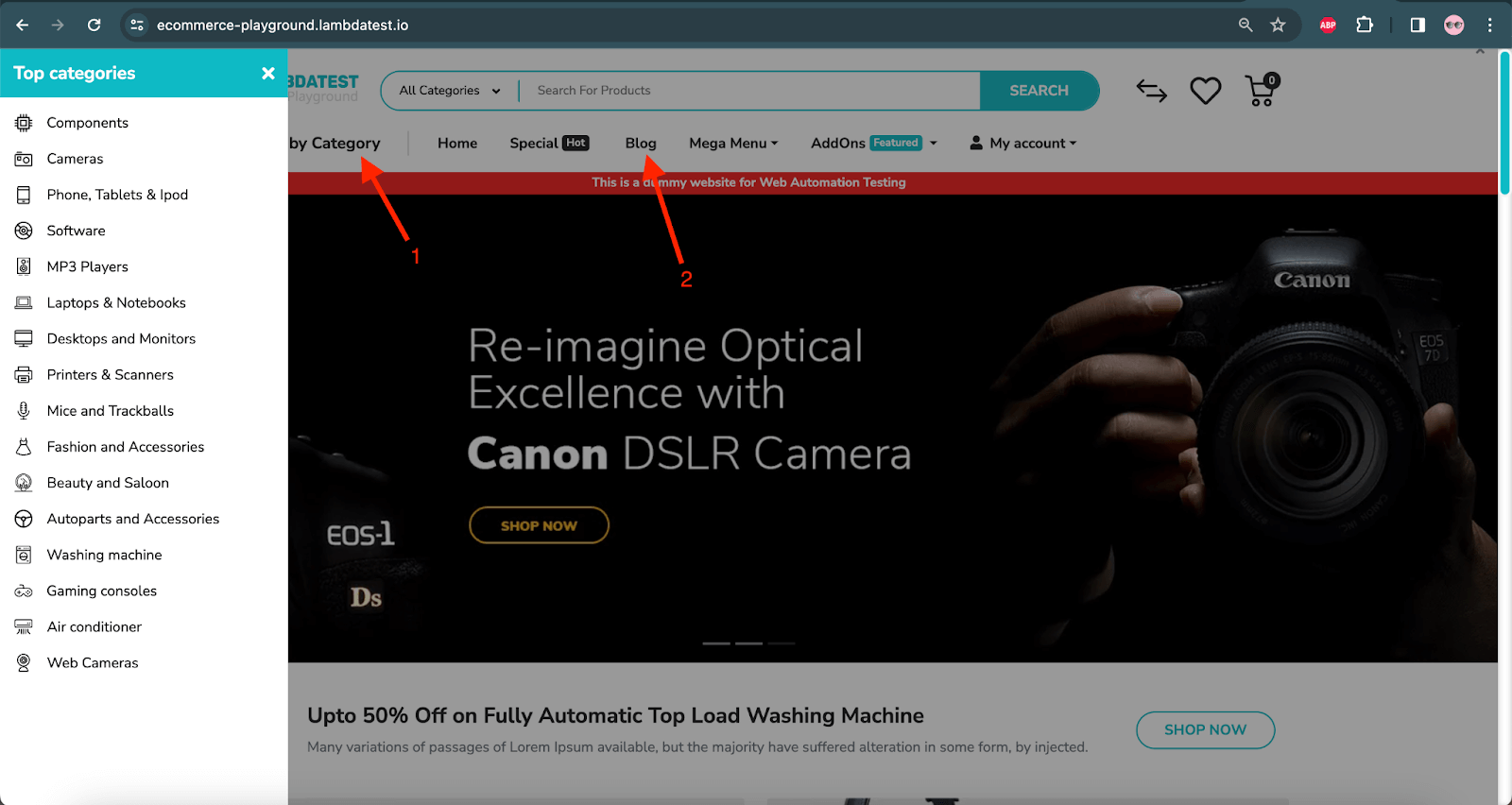
The following code will run the test scenario using Selenium WebDriver on Chrome 122 and Windows 10 on the TestMu AI cloud platform.
public class ExceptionsDemoTest {
    WebDriver driver;
    private final String USERNAME = System.getenv("LT_USERNAME") == null ? "LT_USERNAME" : System.getenv("LT_USERNAME");
    private final String ACCESS_KEY = System.getenv("LT_ACCESS_KEY") == null ? "LT_ACCESS_KEY" : System.getenv("LT_ACCESS_KEY");
    private final String GRID_URL = "@hub.lambdatest.com/wd/hub";

    @BeforeTest
    public void setup() {
        try {
            driver = new RemoteWebDriver(new URL("http://" + USERNAME + ":" + ACCESS_KEY + GRID_URL), getChromeOptions());
        } catch (MalformedURLException e) {
            System.out.println("Could not start the remote session on LambdaTest cloud grid");
        }
        driver.manage().timeouts().implicitlyWait(Duration.ofSeconds(20));
    }

    @Test
    public void testElementNotClickableException() {

        driver.get("https://ecommerce-playground.lambdatest.io/");
        WebElement shopByCategory = driver.findElement(By.linkText("Shop by Category"));
        shopByCategory.click();

        WebElement blogLink = driver.findElement(By.linkText("Blog"));
        blogLink.click();

    }


    public ChromeOptions getChromeOptions() {
        final var browserOptions = new ChromeOptions();
        browserOptions.setPlatformName("Windows 10");
        browserOptions.setBrowserVersion("122.0");
        HashMap<String, Object> ltOptions = new HashMap<String, Object>();
        ltOptions.put("project", "Selenium LambdaTest Demo");
        ltOptions.put("build", "[Java] How to Deal with Element is not clickable at point Exception");
        ltOptions.put("name", "[Java] How to Deal with Element is not clickable at point Exception");
        ltOptions.put("w3c", true);
        ltOptions.put("plugin", "java-testNG");

        browserOptions.setCapability("LT:Options", ltOptions);

        return browserOptions;
    }

    @AfterTest
    public void tearDown() {
        driver.quit();
    }

}

Code Walkthrough:
As the tests are run on the TestMu AI cloud platform, it is mandatory to provide the required capabilities. These capabilities can be generated from the TestMu AI Automation Capabilities Generator.
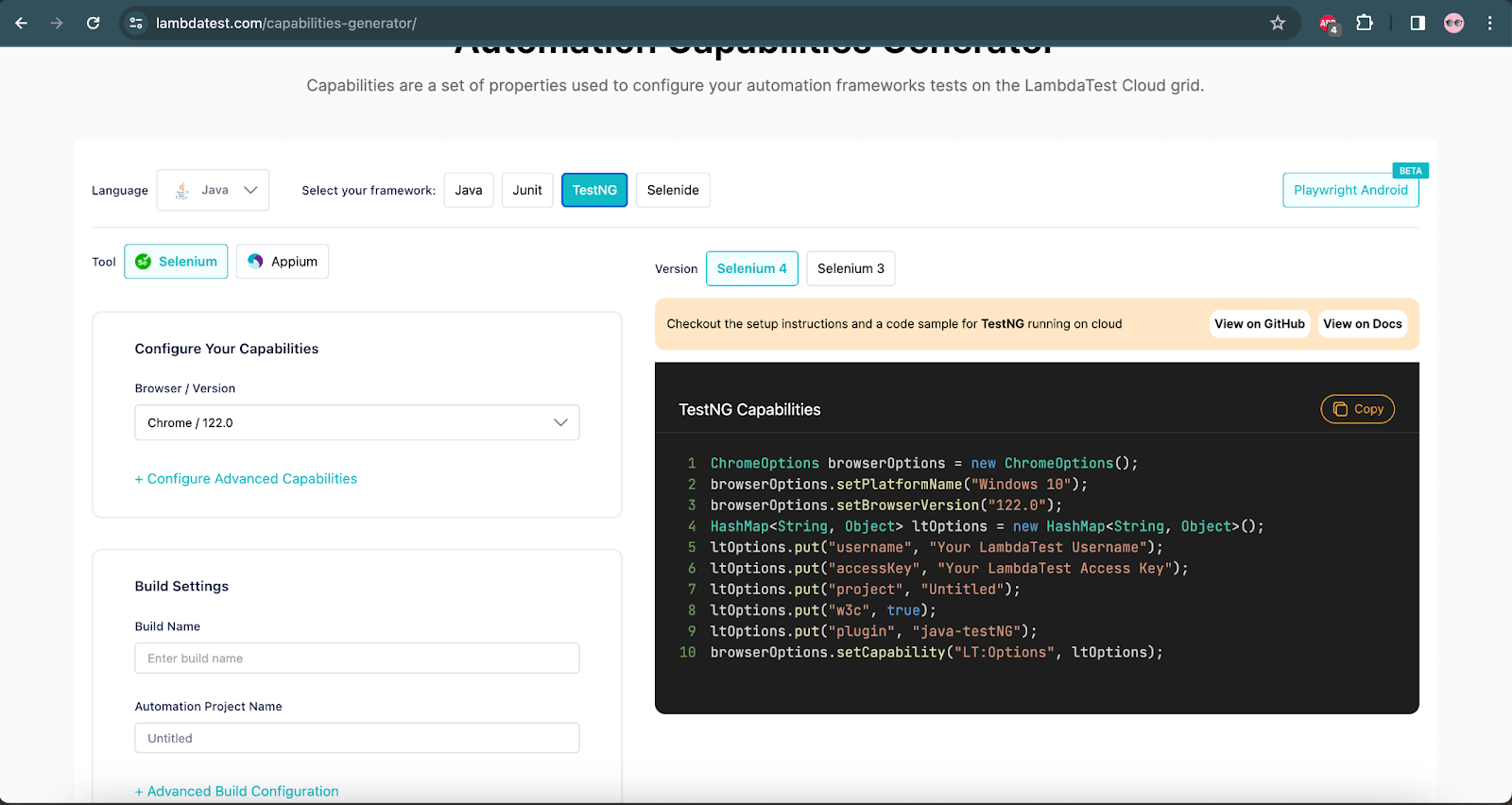
Based on the capabilities selected, the capabilities generator website automatically generates the required configuration code to help us run the code on the TestMu AI cloud grid.
Next, the TestMu AI Username and Access Key are required. These can be found on the Profile > Account Settings > Password & Security page once you log into TestMu AI.
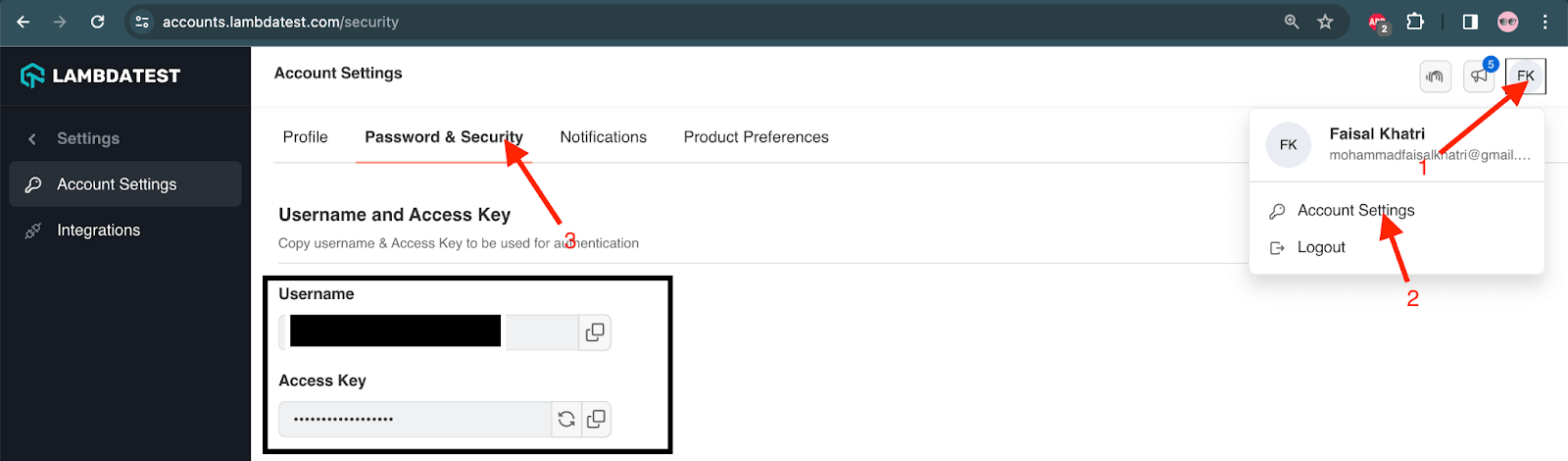
As the Username and Access Key are confidential values, you should not hardcode them within the code. Therefore, it is recommended to set the Username and Access Key in the environment variables.
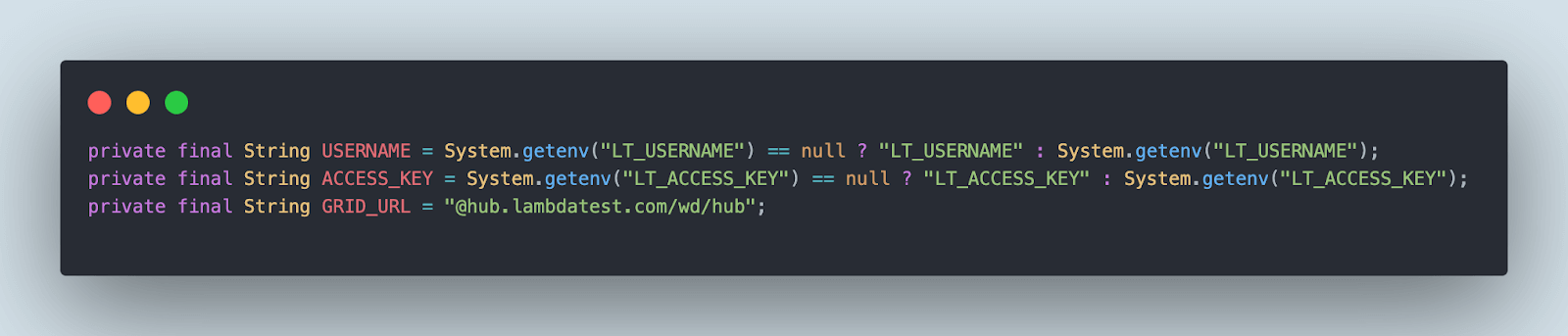
Next, the capabilities need to be provided for which the getChromeOption() method is created. It has all the required capabilities to run the test successfully on Chrome Browser 122 version on the Windows 10 platform.

We will use the RemoteWebDriver() instance to instantiate the WebDriver instance using the setup() method to run the test on the TestMu AI platform.
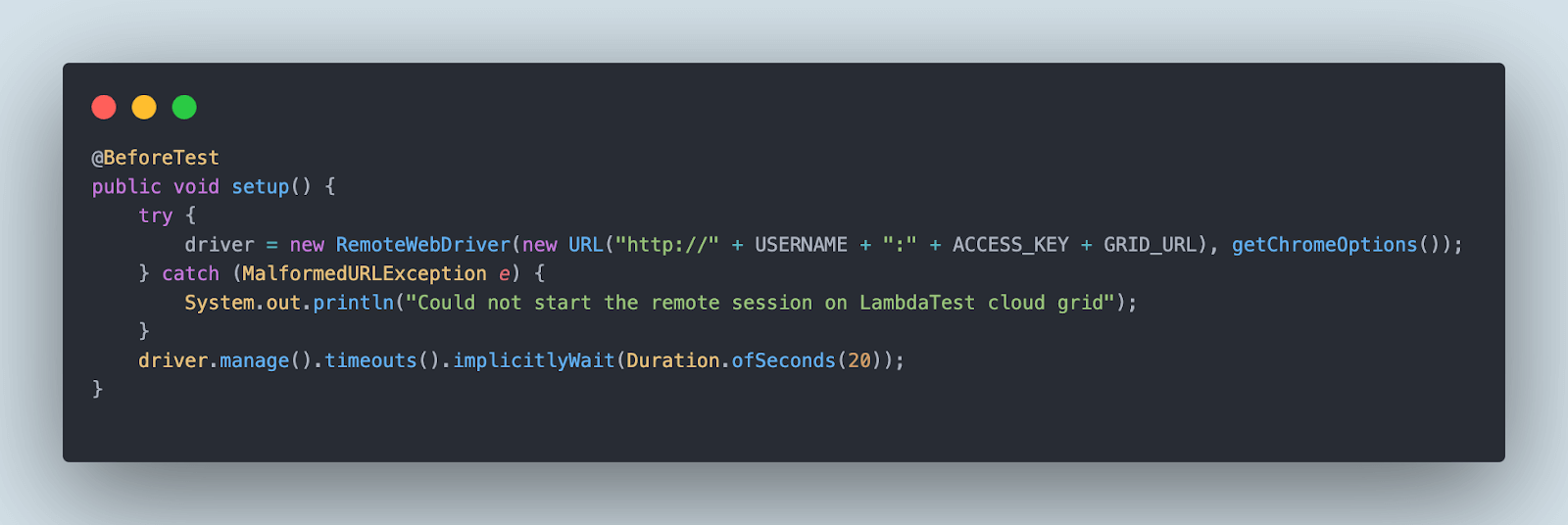
This method also implements implicit waits so all WebElements load correctly before the actual test execution begins.
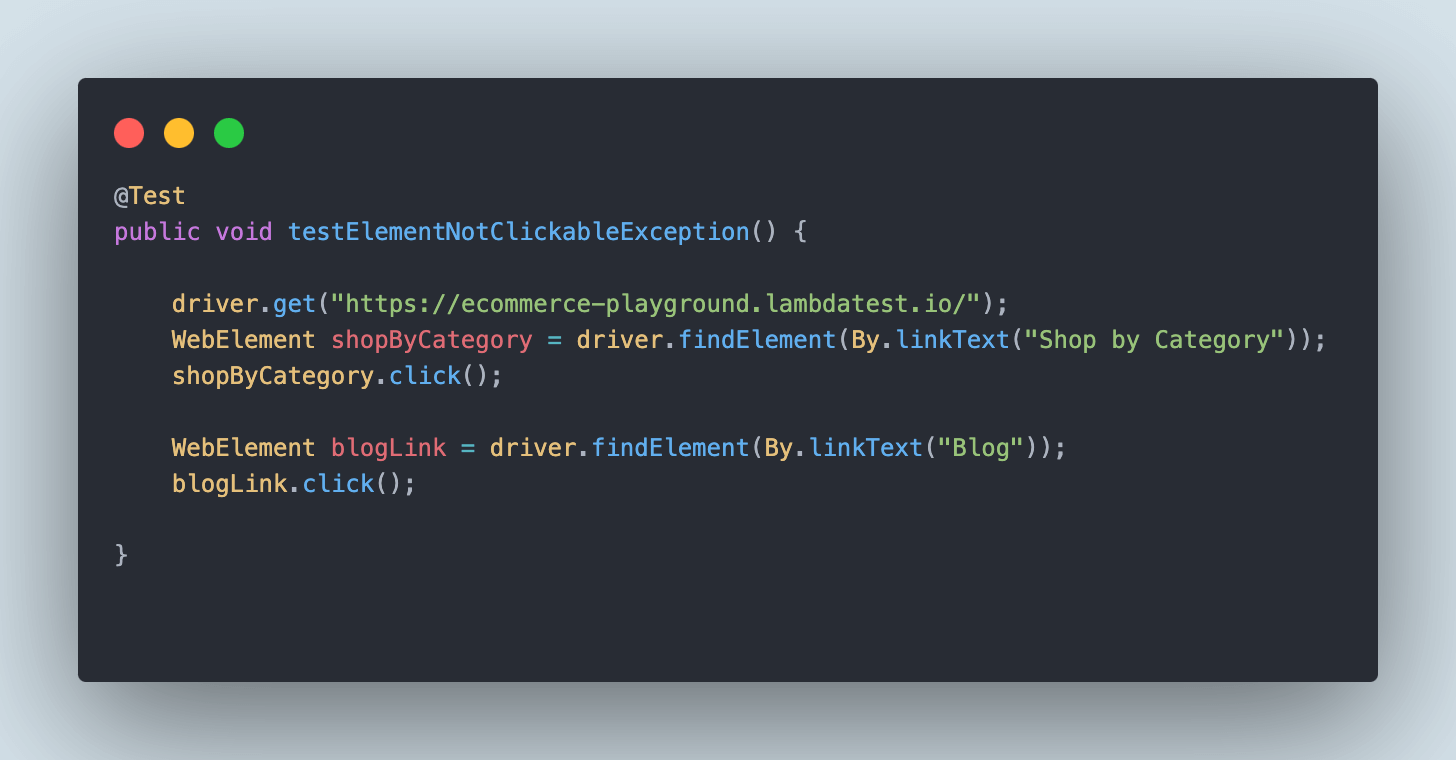
Finally, the test method testElementNotClickableException() will be executed. It will first navigate to the TestMu AI eCommerce Playground website and click on the Shop by Category menu. Next, it will locate the Blog menu and try to click on it.
Let's execute this test and check out the result.
Test Execution:
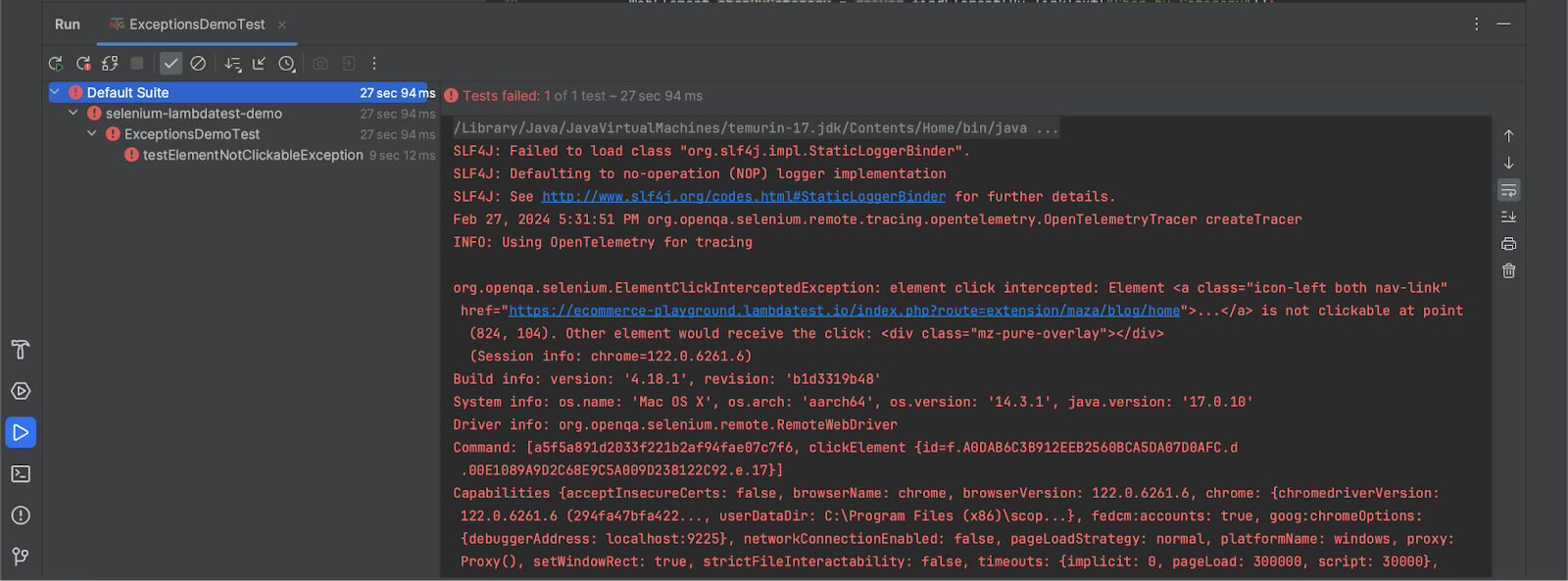
On executing the test on TestMu AI, it is expected that Selenium should throw the "element is not clickable at this point" exception.
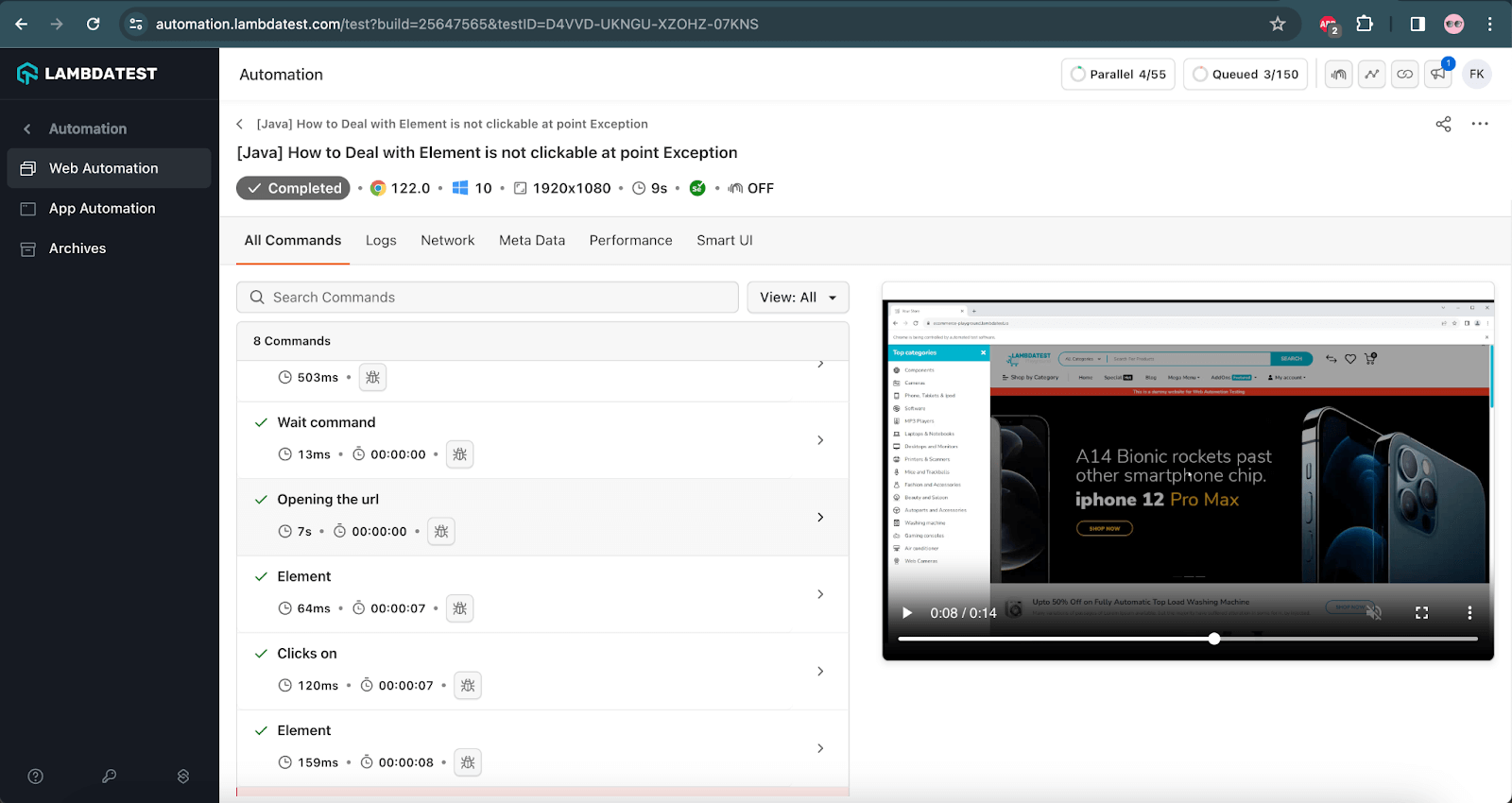
The following screenshot of the test execution performed using IntelliJ IDEA shows the exception in the console log.
Below is the stack trace of the error:
Many times, you would need to identify the Selenium locators using their coordinates. The coordinates of the elements would differ depending on the window size. Hence, maximizing the browser window when performing Selenium testing is a good practice. You can read our detailed blog on Selenium best practices to avoid issues you may encounter when running Selenium tests.
How to Fix the "Element is Not Clickable at Point" Exception?
There are five proven ways to resolve the "element is not clickable at point" exception in Selenium. Match the fix to the root cause for the fastest resolution.
Fix 1: Adding Waits to Selenium Tests
To handle elements that take some time to load on the web page, you may add waits in Selenium. The added delay helps ensure that the WebElement to be interacted with is available on the web page. Have a look at the different Selenium waits that can help you achieve this task.
You can consider adding implicit waits, explicit waits, or fluent waits, depending upon the requirement. For example, we can add an explicit wait for a specific element so that it loads completely and is identified to be clickable.
WebDriverWait wait = new WebDriverWait(driver, 10);
WebElement loginBtn = wait.until(ExpectedConditions.elementToBeClickable(By.id("Login")));
loginBtn.click();

Subscribe to the TestMu AI YouTube Channel to catch up with the latest tutorials on automated testing, Selenium testing, and more.
Fix 2: Maximizing the Browser Window
When coordinates are used to identify the elements in the tests, it is always considered good practice to maximize your browser window. This ensures that the coordinates defined in your tests match with those on the page, as the browser is in the maximized state. Here is how you can avert the "element is not clickable at point" exception by simply maximizing the web browser window:
WebDriver driver = new ChromeDriver();
driver.manage().window().maximize();
Fix 3: Using JavaScriptExecutor to Perform Mouse Clicks
When the waits don't help resolve the issue, you can use the JavaScriptExecutor to perform the click operation.
JavaScriptExecutor is a key interface that allows you to run JavaScript on the window or page of the browser using Selenium WebDriver. It provides methods to run JavaScript against the window (or page) directly from your test script, bypassing the normal click interception.
WebElement element = driver.findElement(By.id("Login"));
JavascriptExecutor executor = (JavascriptExecutor)driver;
executor.executeScript("arguments[0].click();", element);
Fix 4: Using Actions Class in Selenium
The exception "element is not clickable at point" might be thrown when the element is not under focus or the action is being performed on the incorrect WebElement. In such cases, you have to switch to the actual element and perform the click action.
To handle this scenario, use the Actions class in Selenium to move to the specific element and perform the click operation as shown below:
WebElement element = driver.findElement(By.id("Login"));
Actions actions = new Actions(driver);
actions.moveToElement(element).click().build().perform();
The following test scenario is an extension to the test scenario we previously discussed while learning about the "element is not clickable at this point" exception.
Test Scenario
- Navigate to the TestMu AI eCommerce Playground website.
- Click on the Shop by Category menu.
- Navigate to the Blog menu link using the Actions class in Selenium.
- Click on the Blog menu link.
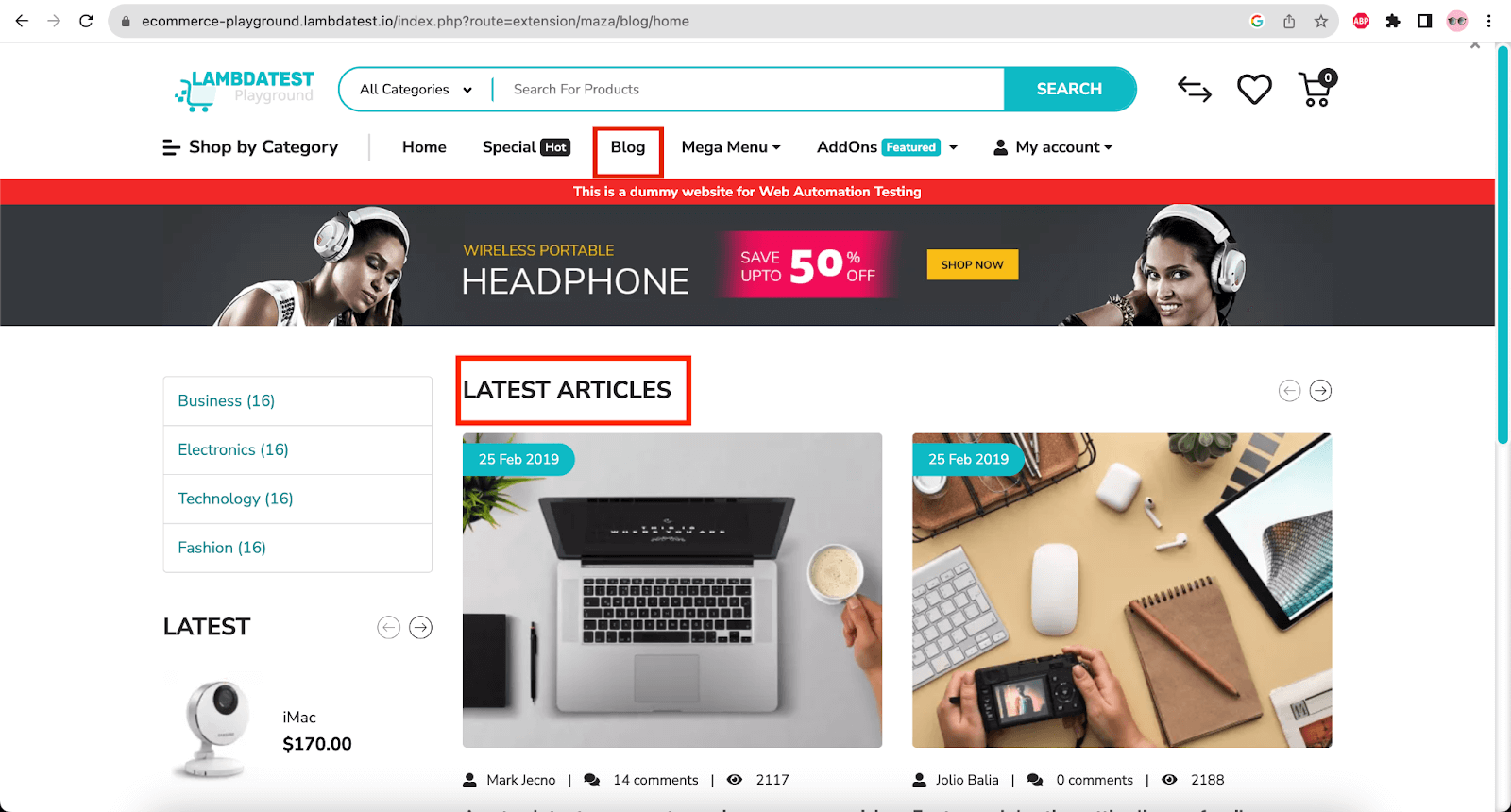
- Verify that the page header on the Blog page is displayed as LATEST ARTICLES.
While we ran the code previously, it threw the exception; the code below is to handle the exception in Selenium.
@Test
    public void testElementNotClickableExceptionResolved() {

        driver.get("https://ecommerce-playground.lambdatest.io/");
        WebElement shopByCategory = driver.findElement(By.linkText("Shop by Category"));
        shopByCategory.click();

        WebElement menuBar = driver.findElement(By.cssSelector(".entry-section div.navbar-collapse"));

        final Actions actions = new Actions(driver);
        actions.moveToElement(menuBar).click().build().perform();

        WebElement blogLink = driver.findElement(By.linkText("Blog"));
        blogLink.click();

        WebElement pageTitle = driver.findElement(By.cssSelector(".entry-section .entry-module h3"));
        assertEquals(pageTitle.getText(), "LATEST ARTICLES");
    }
Code Walkthrough:
The following lines of code will help you navigate the TestMu AI eCommerce website, search for the Shop by Category link, and click on it.
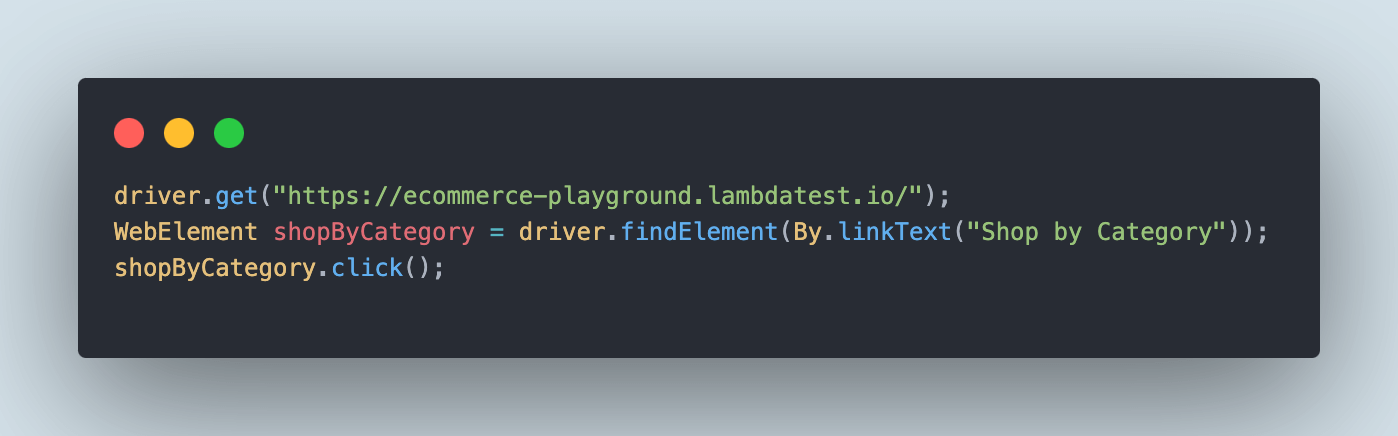
Next, it will locate the menu bar that has the Blog menu displayed in it. Using the Actions class in Selenium, the focus will be moved to the menu bar, and a click will be performed on it. Once the focus is on the menu bar, the Blog menu will be located and clicked.

After the Blog web page is opened, the assertion will be performed to check that the title LATEST ARTICLES is displayed on the page.
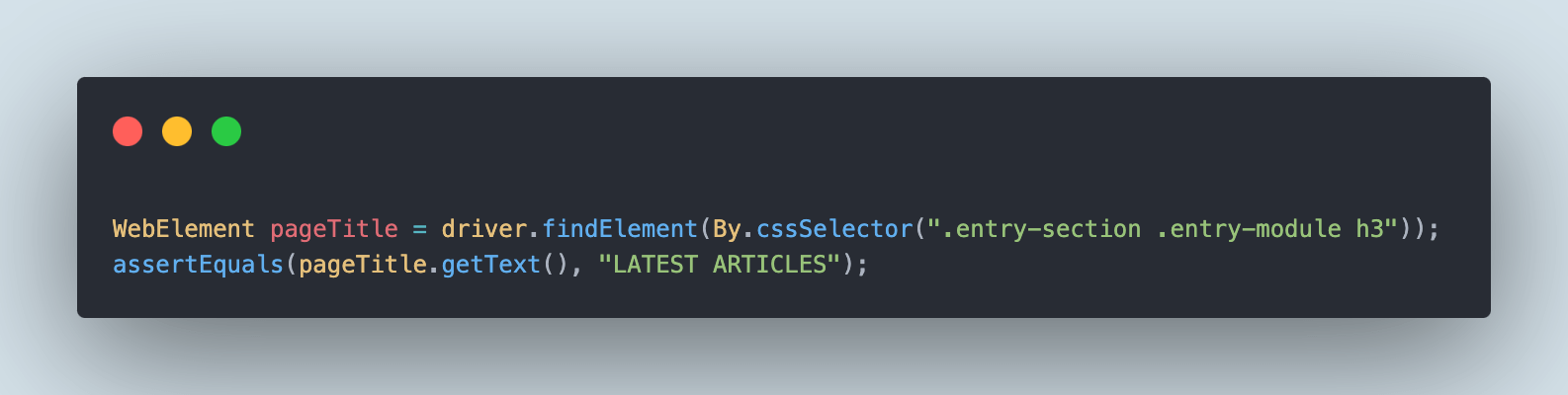
Let's execute the test on the TestMu AI cloud platform and check the results.
Test Execution:
The following is the screenshot of the tests executed using IntelliJ IDEA.
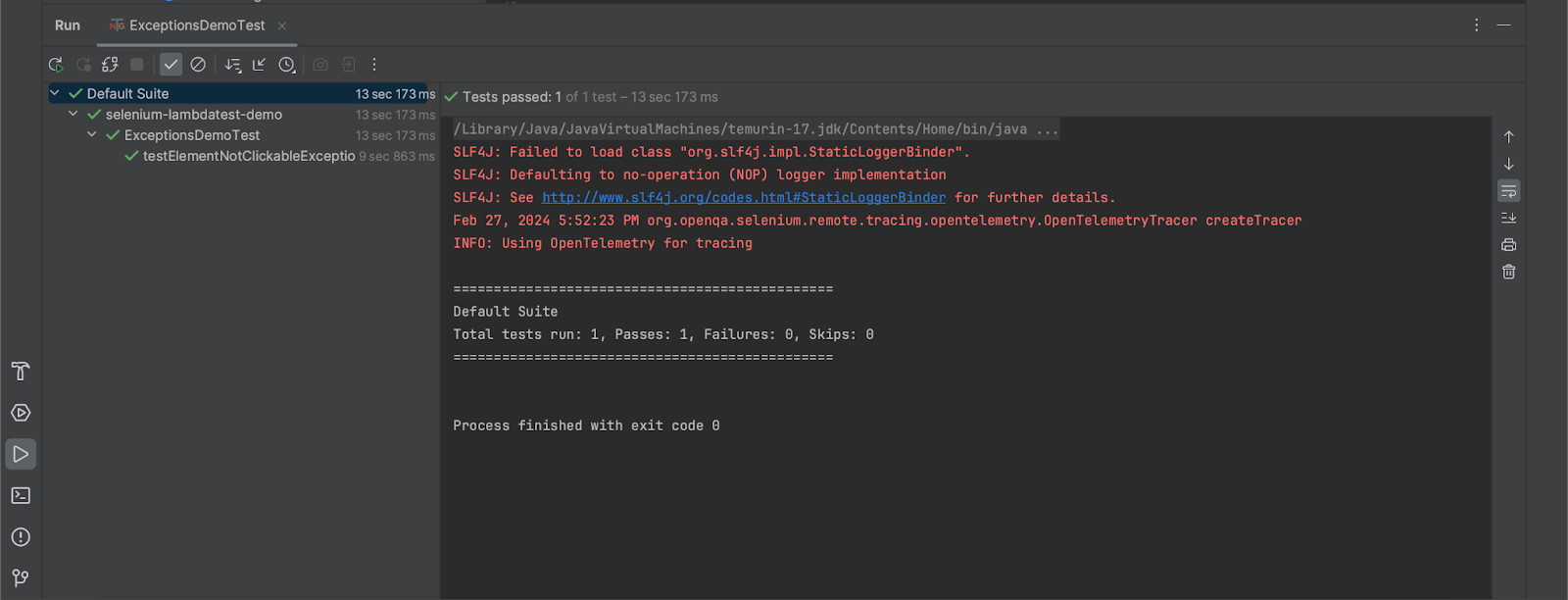
This test execution ensures that the Actions class can be used to handle the "element is not clickable at this point" exception in Selenium.
The details of the test execution can be viewed on the TestMu AI Web Automation Dashboard, which provides details like Selenium logs, test execution video, screenshots, and step-by-step test execution details.
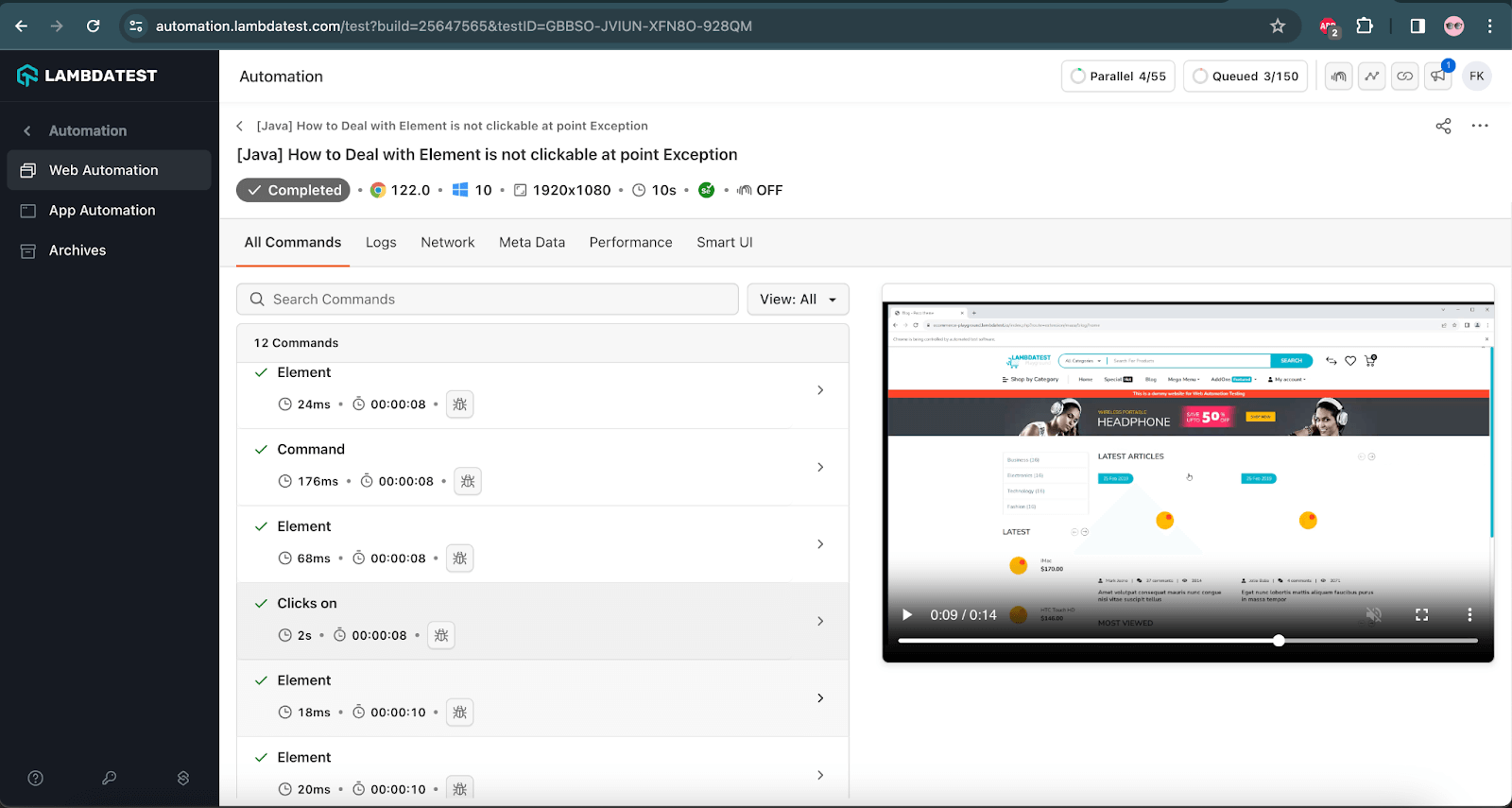
You can also log onto the TestMu AI Community to get answers to questions about the "element is not clickable at point" error and more.

Note: Run your Selenium tests across 10,000+ real devices and browsers on TestMu AI. Try TestMu AI free!
Fix 5: Scrolling the Element into View
If the target element is outside the visible viewport, Selenium may throw the "element is not clickable at point" exception because the browser cannot register the click on an off-screen element. Scrolling the element into view before clicking resolves this.
Use JavaScriptExecutor to scroll the element into view, then click it:
WebElement element = driver.findElement(By.id("submitBtn"));
JavascriptExecutor executor = (JavascriptExecutor) driver;
executor.executeScript("arguments[0].scrollIntoView(true);", element);
element.click();
This is especially useful on long pages where the target button or link sits below the fold. After scrolling, the element enters the viewport and becomes fully interactable. See the Selenium with Java docs for setup and configuration options when running on the TestMu AI cloud grid.

Conclusion
The "element is not clickable at point" exception in Selenium is always caused by one of four root issues: a disabled WebElement, an element that has not yet loaded, overlapping elements, or a coordinate mismatch. Match the fix to the cause: use explicit waits for timing issues, JavaScriptExecutor or the Actions class for overlapping elements, and scrollIntoView for off-screen elements.
Start debugging faster by running your Selenium tests on TestMu AI's cloud automation platform, where detailed session logs, video recordings, and step-by-step execution traces help you pinpoint the exact line where the exception fires. Refer to the Selenium with Java documentation to get started on the TestMu AI grid in minutes.
Author

Faisal Khatri
Blogs: 40


Mohammad Faisal Khatri is a Software Testing Professional with 17+ years of experience in manual exploratory and automation testing. He currently works as a Senior Testing Specialist at Kafaat Business Solutions and has previously worked with Thoughtworks, HCL Technologies, and CrossAsyst Infotech. He is skilled in tools like Selenium WebDriver, Rest Assured, SuperTest, Playwright, WebDriverIO, Appium, Postman, Docker, Jenkins, GitHub Actions, TestNG, and MySQL. Faisal has led QA teams of 5+ members, managing delivery across onshore and offshore models. He holds a B.Com degree and is ISTQB Foundation Level certified. A passionate content creator, he has authored 100+ blogs on Medium, 40+ on TestMu AI, and built a community of 25K+ followers on LinkedIn. His GitHub repository “Awesome Learning” has earned 1K+ stars.
Reviewer

Abhishek Mishra
Reviewer
Abhishek Mishra is a Technical Product Manager at TestMu AI, where he owns Test Manager, the test management product. He has over 8 years of experience in product management and market analysis. His expertise spans across AI-native software testing, product strategy, and analytics. Previously, Abhishek served as the Product Lead at IndiaClan and co-founded Gartley618 Technologies, where he led innovative projects in quantitative trading and blockchain. He holds a B.Tech degree.


Element Not Clickable Exception FAQs
Did you find this page helpful?
More Related Blogs
TestMu AI forEnterprise
Get access to solutions built on Enterprise
grade security, privacy, & compliance
- Advanced access controls
- Advanced data retention rules
- Advanced Local Testing
- Premium Support options
- Early access to beta features
- Private Slack Channel
- Unlimited Manual Accessibility DevTools Tests