

Power Your Software Testing with AI Agents and Cloud
The Native AI-Agentic Cloud Platform to Supercharge Quality Engineering. Test Intelligently and Ship Faster.


- TestMu AI (Formerly LambdaTest)
- /
- Blog
- /
- Excel Test Management: Powering Efficiency with HyperExecute
Excel Test Management: Powering Efficiency with HyperExecute
Excel test management slows down as suites grow. See how to turn spreadsheet test cases into parallel runs and get faster, traceable test feedback.
Last Updated on:
On This Page
Excel test management runs in parallel once a cloud grid splits your spreadsheet rows across virtual machines and executes them at the same time. A YAML testDiscovery block prints one identifier per Excel row, and autosplit spreads those rows across the machines that concurrency allocates. This guide covers the challenges of Excel parallelization, the need for it, the integration setup, the benefits, what breaks when rows split across machines, and how AI changes Excel-driven parallel testing.
Key Takeaways
- Excel is reliable for documenting test cases, but running those cases in parallel with Excel alone means duplicate sheets, manual mapping, and sequential execution that delays feedback.
- Parallelization splits a test suite into parts that run at the same time on different machines or cores, so the job finishes when the slowest part finishes instead of after every test has run in sequence.
- HyperExecute runs Excel test cases inside virtual machines and triggers the existing framework scripts, so an Excel workflow does not need major changes to run in parallel.
- The mapping from spreadsheet rows to parallel machines lives in the HyperExecute YAML file, where testDiscovery prints one identifier per test case, concurrency sets the number of virtual machines, and autosplit spreads the rows across them.
- HyperExecute YAML version 0.2 removes matrix mode and testRunnerCommand, so an Excel job written for an earlier version must declare its row list through the framework block with discoveryType and discoveryMode.
- Excel rows that share a login, a database record, or an output file collide once autosplit sends them to separate machines, so each row needs its own data or the dependent rows must stay on one machine.
Challenges of Utilizing Excel for Parallelization
The traditional approach to parallel execution with Excel is manual, slow, and easy to get wrong. Testers copy the same case into several sheets and then work through those sheets one at a time.
The process of generating and handling numerous duplicate sheets introduces inefficiencies and frustration, posing challenges to the seamless and efficient execution of tests. Some of the major pain points of this traditional approach are:
Manual Operations
- Repetitive tasks: Each test case is manually created and copied across multiple sheets, leading to tedious and error-prone replication.
- Data entry fatigue: Manually entering test data, expected results, and steps for each case is time-consuming and prone to typos.
- Maintenance issues: Keeping track of changes and updates across numerous sheets becomes a significant burden.
Tedious Execution
- Sequential Slog: Tests are run individually, resulting in unbearable wait times, especially for large test suites.
- Limited Parallelization: Manual setup and execution hinder the potential for parallel execution across multiple machines or cores.
- Debugging Delays: Identifying and fixing failed tests becomes a time-consuming process due to manual tracking and analysis.

Austin Siewert
Co-Founder, Steadfast Systems
Discovered @TestMu AI yesterday. Best browser testing tool I've found for my use case. Great pricing model for the limited testing I do 👏
2M+ Devs and QAs rely on TestMu AI
Deliver immersive digital experiences with Next-Generation Mobile Apps and Cross Browser Testing Cloud

Susceptible to Errors and Frustration
- Inaccurate Data Feed: Manual data entry and test execution are prone to typos and inconsistencies, leading to inaccurate results.
- Version Control Woes: Managing multiple Excel files with different versions and updates increases the risk of errors and confusion.
- Slow Feedback Loop: Slow testing cycles and inaccurate results lead to frustration for developers, testers, and project managers. This results in delayed test results that hinder developers' ability to identify and fix bugs promptly, slowing down the development process.
Key Takeaway: Copying one test case across multiple Excel sheets and running those sheets one at a time creates repetitive data entry, slow sequential execution, and version conflicts that make test results hard to trust.
Need for Parallelization
One of our clients, who is leading in the enterprise communications industry, was using Excel for testing their applications. It was becoming a bottleneck for their QAs and Developers to maintain all the test cases, different sheets, and manual testing of those hundreds of test cases and multiple sheets.
Imagine the scenario of a tester dealing with a complex web application with hundreds of test cases. Running them one after the other took a considerable amount of time, causing delays in development progress due to postponed feedback. Even small code changes meant having to manually run regression tests, a time-consuming task impacting release cycles. At that volume the bottleneck stops being execution and becomes test case management.
The constant pressure to deliver high-quality software quickly exposes the limitations of traditional testing methods in keeping up with the fast-paced development environment.
While Excel is comfortable for test design, its challenge lies in parallelization. Parallelization divides the test suite into parts and runs those parts at the same time on different machines or cores. The job finishes when the slowest part finishes, rather than after every test has run in sequence.
It offers benefits like:
- Faster Feedback: Developers receive real-time feedback on code changes, allowing them to identify and fix bugs instantly. This keeps development flowing smoothly and releases on track.
- Streamlined Regression Testing: With parallelization, you can run all necessary tests concurrently, ensuring comprehensive coverage without waiting. This significantly reduces testing overhead and frees up development resources.
- Lightning-fast Quality Assurance: Parallelization allows you to execute tests quickly, leading to swifter fixes and higher quality software being released to your users sooner.
- Improved Development Agility: Parallelization eliminates testing bottlenecks, enabling developers to iterate faster and experiment more confidently. This fosters a culture of innovation and responsiveness in your organization.
- Increased Resource Utilization: By leveraging multiple cores or machines, you maximize your existing hardware resources. This leads to cost savings and improved efficiency across your testing infrastructure.
Key Takeaway: Parallelization runs parts of a test suite at the same time on different machines or cores, so regression feedback arrives in the time the slowest part takes rather than the sum of every test.
HyperExecute for Integration and Parallelization with Excel
HyperExecute is TestMu AI's test automation orchestration platform. It integrates with common testing tools and runs Excel-driven data sets in parallel. Through a user-friendly interface, HyperExecute seamlessly interacts with your existing Excel setup, serving as a proficient interpreter for your test cases and intricate definitions. Pairing it with TestMu AI's Test Manager keeps the run history attached to the cases rather than a sheet.
The process involves your local server communicating with the HyperExecute server, where Virtual Machines are generated. Within these virtual machines, your Excel test cases and a code script coexist seamlessly.
Using HyperExecute is as simple as selecting the desired test cases for execution. Once chosen, HyperExecute takes charge, triggering custom scripts tailored to your chosen framework (such as TestNG or Selenium). These scripts work discreetly in the background, smoothly translating your Excel setup into the language of parallel execution.
The mapping from spreadsheet to parallel tasks lives in the HyperExecute YAML file, not in Excel. A testDiscovery block runs a command that prints one identifier per test case, so a short script that reads the sheet and emits one row identifier per line is enough to make the spreadsheet machine readable. The concurrency value sets how many virtual machines the job gets, and autosplit spreads the discovered rows across them. The HyperExecute YAML reference lists each of these fields.
Check which YAML version your job declares before you reuse an older Excel example. Earlier setups often drive parallelization through matrix mode, which turns lists of key values such as file names into one virtual machine per combination. YAML version 0.2 removes matrix mode and supports static discovery only, and it also drops testRunnerCommand because HyperExecute handles the orchestration itself. A sheet-driven job written against the older version needs its row list declared through the framework block, using discoveryType and discoveryMode, before it will run on 0.2.
HyperExecute also records a video of each executed test, which helps when you need to see what a failing row actually did.
One distinction is worth drawing before you start. If your tests read rows out of a sheet and feed them to a browser test, the setup above is all you need. If your tests drive the Microsoft Excel desktop application itself, HyperExecute runs that through WinAppDriver instead.
To know more about HyperExecute, read- Key Features of HyperExecute
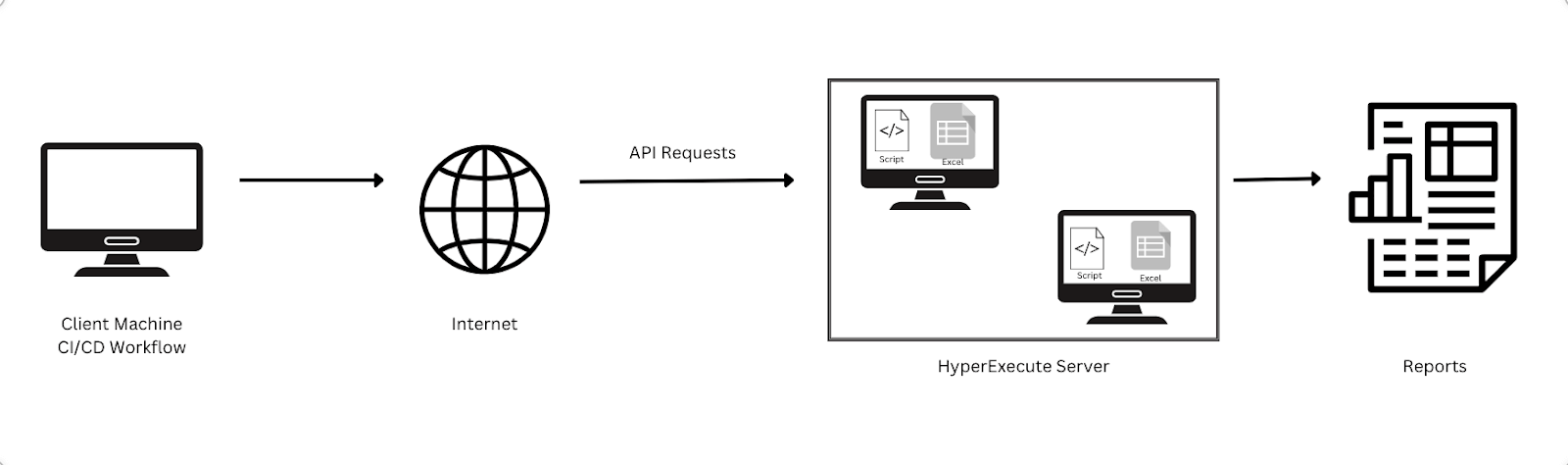
Key Takeaway: HyperExecute runs Excel test cases inside virtual machines and takes its parallelization settings from a YAML file, so a spreadsheet becomes machine readable through a testDiscovery command instead of through more sheets.
Benefits of Parallelizing Excel with HyperExecute
Here are some of the benefits of using HyperExecute for Parallelizing Excel: The Test Manager documentation covers importing an existing spreadsheet as structured cases.
- Drastically Reduced Execution Time: HyperExecute slashes execution time by 50% or more, which positively impacts your development cycle!
- Faster Feedback for Developers: HyperExecute frees you from manual efforts. It helps you deliver quicker test results and empowers developers to identify and fix bugs swiftly, keeping your development process in perfect harmony.
- Seamless Integration: HyperExecute seamlessly integrates with your existing Excel workflows, requiring no major changes to your established process.
Key Takeaway: Parallelizing Excel test cases with HyperExecute cuts execution time by 50% or more, returns test results to developers sooner, and fits an existing Excel workflow without major process changes.
What Breaks When You Split Excel Test Rows Across Machines?
Shared state breaks first. Rows that reuse one login, one database record, or one output file collide when they run at the same time on separate virtual machines. A sheet built for sequential runs hides this, because row 12 can depend on row 11 having created the record it edits. Autosplit does not read that dependency. It sends the two rows to different machines, and the second one fails for a reason that has nothing to do with the feature under test.
Test frameworks expose this problem directly, and the fixes carry over to Excel-driven rows. Playwright marks interdependent tests by setting serial mode on a describe block, and its parallelism documentation states that if one of the serial tests fails, all subsequent tests are skipped. It also supports a lock option on a test, so any tests that declare the same lock name never run at the same time. JUnit Jupiter uses the @ResourceLock annotation with READ and READ_WRITE access modes for the same purpose, and @Isolated for a test that must run while nothing else runs. TestNG ties methods together through the dependsOnMethods attribute on @Test, and runs data provider rows concurrently only when the provider sets parallel to true.
So before you point HyperExecute at a sheet, check the rows for three things: a test account or record that more than one row uses, an implicit order where one row sets up another, and a fixed output path that two rows would both write to. Give each row its own data, or group the dependent rows so they stay on one machine. Playwright exposes testInfo.parallelIndex and the TEST_PARALLEL_INDEX environment variable so each worker can select a separate data set. The same idea works in a spreadsheet: add a column that keys each row to its own account, and the rows stop competing for one.
Key Takeaway: Before splitting Excel test rows across machines, check every row for a shared test account, an implicit dependency on an earlier row, and a fixed output path, then give each row its own data or keep the dependent rows on one machine.
How Does AI Change Excel-Driven Parallel Testing?
AI does not read your spreadsheet for you. What it changes is the failure handling around a parallel run, because a split suite produces more locator failures than a sequential one.
HyperExecute ships an Auto Healing feature for this. When an element is first located, the system records its DOM path and associated attributes. If a later attempt to find that element fails because the application changed, the healing mechanism activates and adapts to the new DOM. You turn it on by passing autoHeal as true inside the LT:Options section of your WebDriver configuration. AutoHeal hooks let you start and stop the mechanism at specific points in a Selenium script, which helps when only a few steps touch elements that keep moving.
The same documentation is direct about the limits. Auto Healing cannot recover from WebDriver initialization or system level failures. It can also conceal a real application or script defect by working around it, so the run logs still need a read. There is a small execution time cost as well.
For Excel rows the split is this. A model can help you write the testDiscovery command that turns sheet rows into identifiers, and healing can absorb a renamed button that would otherwise fail a row. Neither one fixes two rows that share a single login account. Shared state is a data problem in the sheet, and it stays a data problem no matter how much automation sits above it.
Key Takeaway: Auto Healing recovers from locator failures by recording an element DOM path and adapting when the application changes, but it cannot recover WebDriver initialization failures and can hide a real defect, so it does not remove the need to fix rows that share data.
Conclusion
HyperExecute simplifies and accelerates Excel test management by streamlining parallel execution. It tackles manual challenges, cuts down execution time, and seamlessly integrates with existing workflows. This practical solution improves efficiency, speeds up feedback, and ensures a smoother testing process without the need for complex changes. Try HyperExecute now! For the wider field, our roundup of test management tools compares what each one automates.

Author

Aman Chopra
Blogs: 15


Aman Chopra is a DevOps Engineer and Community Contributor with over 7 years of experience in cloud technologies, software development, and software testing. Currently working at TestMu AI, Aman specializes in optimizing Azure cloud infrastructure, enhancing API accessibility, and integrating cloud platforms like AWS and GCP. With expertise in Git, Docker, Kubernetes, and CI/CD practices, Aman has contributed to various open-source projects and authored guides on cloud computing, containers, and CI/CD. He holds a B.Tech in Computer Science.


Excel Test Management FAQs
Did you find this page helpful?
More Related Blogs
TestMu AI forEnterprise
Get access to solutions built on Enterprise
grade security, privacy, & compliance
- Advanced access controls
- Advanced data retention rules
- Advanced Local Testing
- Premium Support options
- Early access to beta features
- Private Slack Channel
- Unlimited Manual Accessibility DevTools Tests