

Power Your Software Testing with AI Agents and Cloud
The Native AI-Agentic Cloud Platform to Supercharge Quality Engineering. Test Intelligently and Ship Faster.


- TestMu AI (Formerly LambdaTest)
- /
- Blog
- /
- How to Clear History on Android
How to Clear History on Android
Learn how to clear history on Android in Chrome, Microsoft Edge, and Firefox to protect your privacy and improve your browsing experience.
Last Updated on:
To clear history on Android, open the browser menu, tap History, pick a time range, and delete the browsing data. Chrome, Microsoft Edge, and Firefox each place that control differently: Chrome uses Delete browsing data, while Edge and Firefox use a Trash icon. Deleting history in the browser does not remove the Search history saved to your Google Account. This guide covers the steps for Google Chrome, Microsoft Edge, and Firefox, and the data a history delete leaves behind.
Key Takeaways
- Clearing history on Android removes the list of visited pages that the browser stores on the device.
- Google Chrome on Android clears history through More, History, Delete browsing data, a chosen time range, and Delete data.
- Microsoft Edge on Android clears history through the three-line menu, History, the Trash icon, and Delete data.
- Firefox for Android removes one visit with the X beside an entry and a full range with the Trash icon.
- Deleting browsing history in an Android browser does not delete the Google Search history or the Gemini Apps activity saved to a Google Account.
- Cached files and cookies are separate options in the Delete browsing data screen and stay on the device unless each option is selected.
Steps to Clear History on Android Using Google Chrome
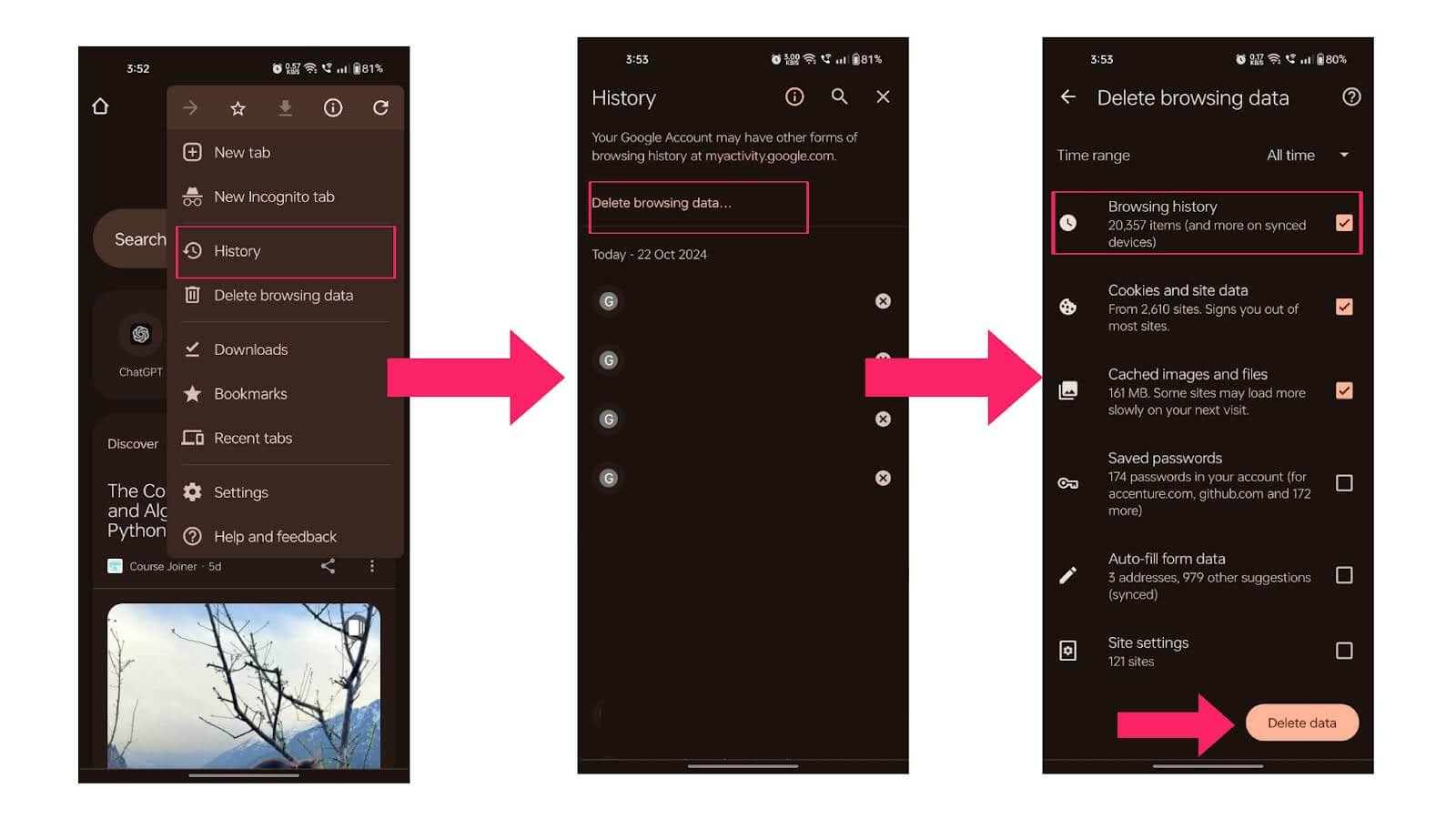
Below are the steps to help you clear your history on Android using Google Chrome.
- Open the Google Chrome app on your Android.
- Tap on More (three dots) in the top right corner, then select History.
- Tap on Delete browsing data.
- At the top, choose the time range. To remove all history, select All time.
- Check the box next to Browsing history.
- Tap Delete data at the bottom right of the screen.
Steps to Clear History on Android Using Microsoft Edge
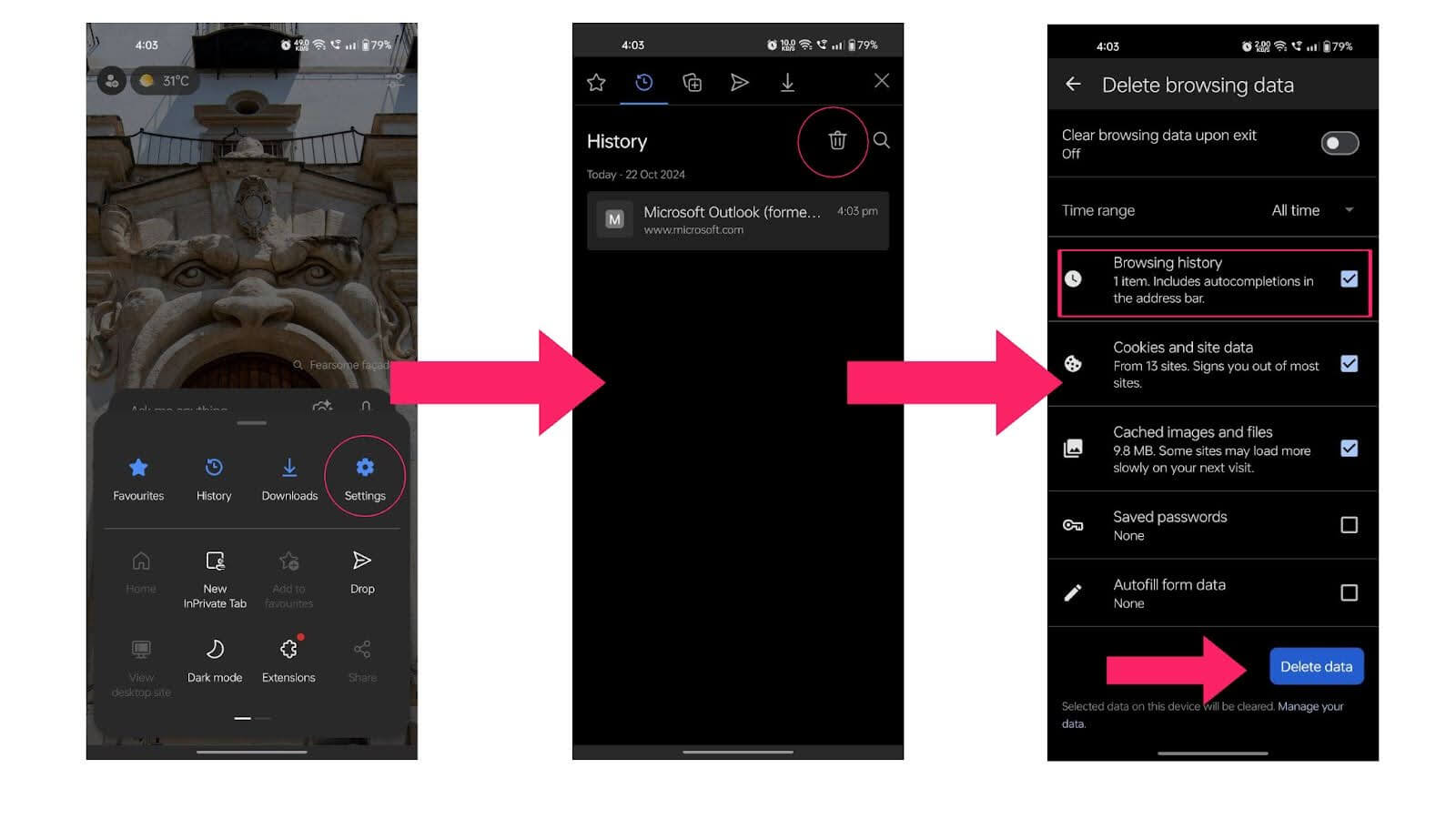
Below are the steps to help you clear your history on Android using Microsoft Edge.
- Open Microsoft Edge on your Android and tap the three-line button.
- Select History to view the websites you visited, similar to Chrome.
- Tap the Trash icon in the top right corner to open a new screen.
- Select the data you want to delete, choose the time range, and tap Delete data.
Steps to Clear History on Android Using Firefox
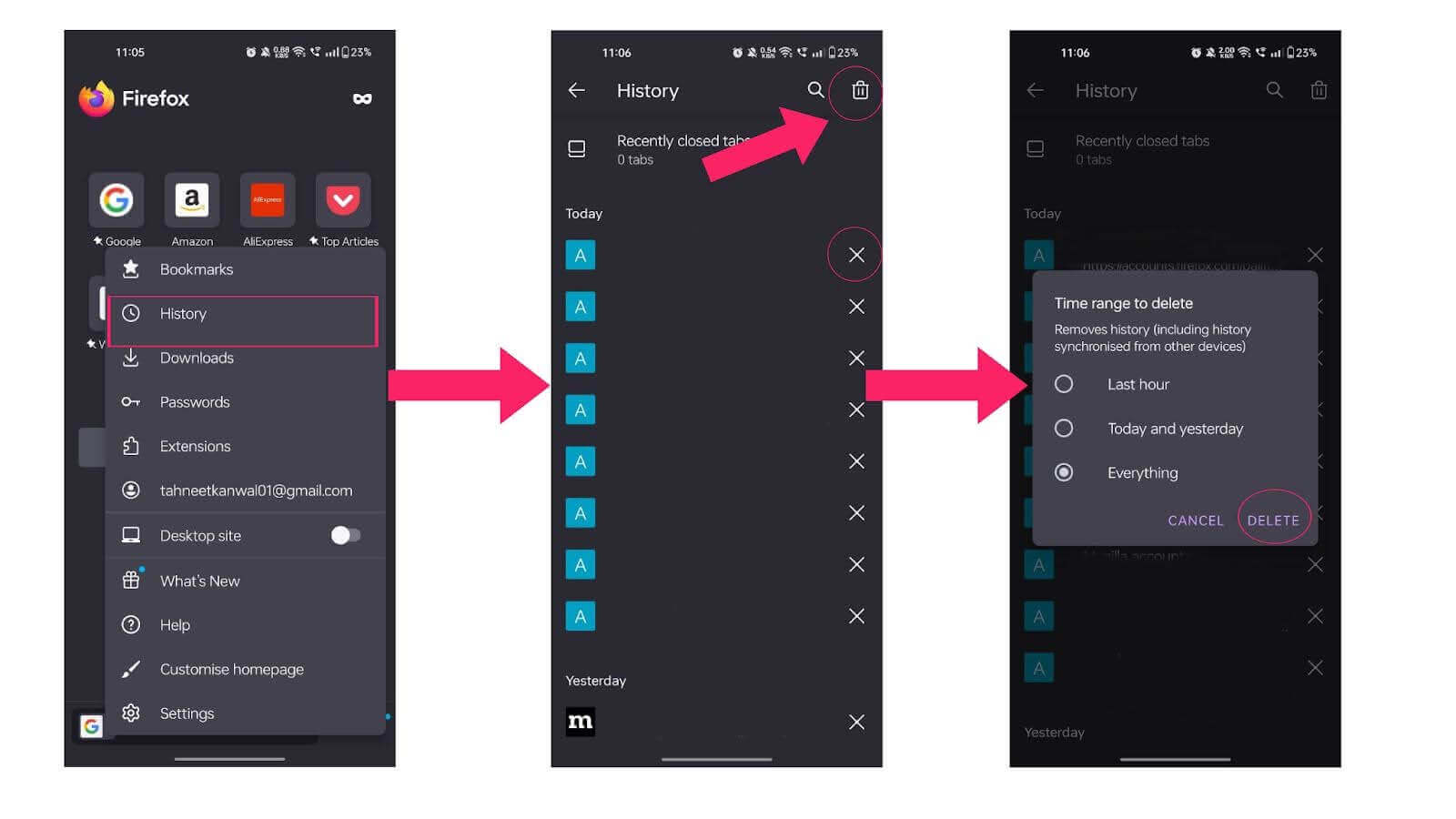
Below are the steps to help you clear your history on Android using Firefox.
- Open Firefox and tap the menu (three dots) icon in the top-right corner.
- Select History from the menu.
- To delete individual items, tap the X next to each entry.
- To clear all browsing history, tap the Trash icon, select a time range, and tap DELETE.

Does Clearing History on Android Delete Gemini AI Chats and Google Searches?
No. Clearing history on Android removes only the browser's on-device list of visited pages. Gemini Apps activity and Google Search history are stored in the Google Account and need their own delete.
- Gemini Apps Activity: while Keep Activity is on, Google saves Gemini prompts and responses to the account. Open the Gemini app, tap the profile picture, tap Gemini Apps Activity, then use Delete Last hour, Delete Last day, Delete Custom range, or Delete All time.
- The 72-hour window: with Keep Activity turned off, Google still stores Gemini conversations with the account for up to 72 hours to run the service and process feedback, and that copy is not listed in Gemini Apps Activity.
- Google Search history: searches run while Web and App Activity is on are saved to the Google Account, not to the browser, so a browser delete leaves them in place. Remove them in My Activity.
- Cached pages and images: the cache is a separate store from the history list, so clear browser cache on Android as a second step.
- Cookies and site data: cookies stay until Cookies and site data is selected in the same screen, and a browser can also disable cookies so fewer are written in the first place.
- Downloads and saved passwords: downloaded files and passwords saved by the browser sit outside browsing history and stay on the device after the delete.
- Desktop browsers: a desktop install keeps its own record, so clear browser history on the computer as well.
- iPhone and iPad: Safari stores history per device, so clear Safari browser history on iPhone for any iOS device on the same account.
To check the account copy, open myactivity.google.com after the browser delete. Searches or Gemini chats still listed there mean the account record is on and has to be cleared on its own.
Conclusion
Maintaining your privacy is essential in today’s digital world. It’s important to follow the methods outlined in this blog to clear the history on Android devices for each browser. If you want to remove your browsing history, simply follow the provided steps. These actions will help you effectively clear your history on Android and safeguard your privacy.
Author

Tahneet Kanwal
Blogs: 29


Tahneet Kanwal is a freelance technical content writer with over 2 years of hands-on experience in frontend development and technical writing. She holds a B.Tech in Information Technology from University College of Engineering and Technology (UCET). Tahneet creates clear, SEO-optimized content on web technologies, software testing, and automation tools, leveraging her skills in HTML, CSS, JavaScript, React, Tailwind CSS, and various tools like VS Code, GitHub, Figma, and Canva. She is the author of 30+ technical blogs and an open-source contributor through Hacktoberfest. She has also participated in the Google Cloud Arcade Facilitator Program and holds certifications as a Meta Android Developer (Coursera) and in Web Development (Internshala). Over time, she has evolved her writing to prioritize structure, readability, and SEO while maintaining technical depth.


Clear History on Android FAQs
Did you find this page helpful?
More Related Blogs
TestMu AI forEnterprise
Get access to solutions built on Enterprise
grade security, privacy, & compliance
- Advanced access controls
- Advanced data retention rules
- Advanced Local Testing
- Premium Support options
- Early access to beta features
- Private Slack Channel
- Unlimited Manual Accessibility DevTools Tests