

Power Your Software Testing with AI Agents and Cloud
The Native AI-Agentic Cloud Platform to Supercharge Quality Engineering. Test Intelligently and Ship Faster.


- TestMu AI (Formerly LambdaTest)
- /
- Blog
- /
- How to Clear History in Chrome
How to Clear History in Chrome
Learn how to clear history in Chrome to protect your privacy and enhance browsing speed. Follow these easy steps to remove your browsing data quickly.
Last Updated on:
Clearing history in Chrome takes three routes: the three-dot menu, a keyboard shortcut, or an auto-delete schedule. Chrome's Delete browsing data dialog removes visited pages from every device where Chrome history is synced to the same Google Account, and Activity controls at myactivity.google.com can erase it automatically after 3, 18, or 36 months. This guide covers the manual steps, the automatic schedule, the keyboard shortcuts, and what clearing history does to Gemini in Chrome.
Key Takeaways
- Chrome's three-dot menu opens History, where Delete browsing data removes visited pages for a chosen time range such as All time.
- Ctrl+Shift+Delete on Windows and Linux, or Command+Shift+Delete on macOS, opens the Delete browsing data dialog without using the menu.
- Activity controls at myactivity.google.com delete Chrome history automatically after 3 months, 18 months, or 36 months.
- Deleting Chrome history removes it from every device signed in to the same Google Account with Chrome history sync turned on.
- Gemini in Chrome searches synced Chrome history, so deleting Chrome history removes the pages Gemini in Chrome can return.
- Gemini Apps Activity is stored separately from Chrome browsing history and is deleted from Google Account activity controls.
Steps to Clear History in Chrome Manually
If you sync your Chrome data, including history, bookmarks, and passwords, clearing your history once will remove it everywhere. However, if Chrome data isn’t synced, you must clear the browsing history of Chrome on each device separately.
Follow these steps to clear your browsing history in Chrome on your desktop:
- Launch Chrome and select the three-dots icon in the top-right corner.
- Go to History and click History to view your saved browser history. Alternatively, you can also press Ctrl+H to view browser history directly.
- Click Delete browsing data on the left side of the screen.
- Make sure that the Browsing history option is selected.
- Select a time range from the drop-down menu (to delete all browsing history, select All time).
- Click Delete data to remove your Chrome history.
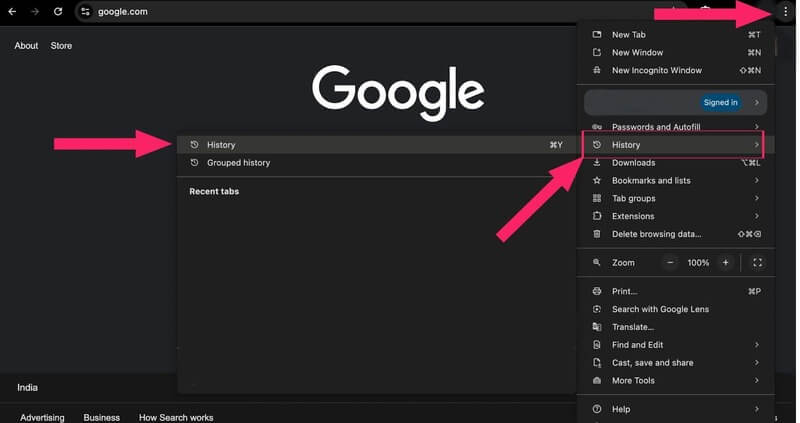
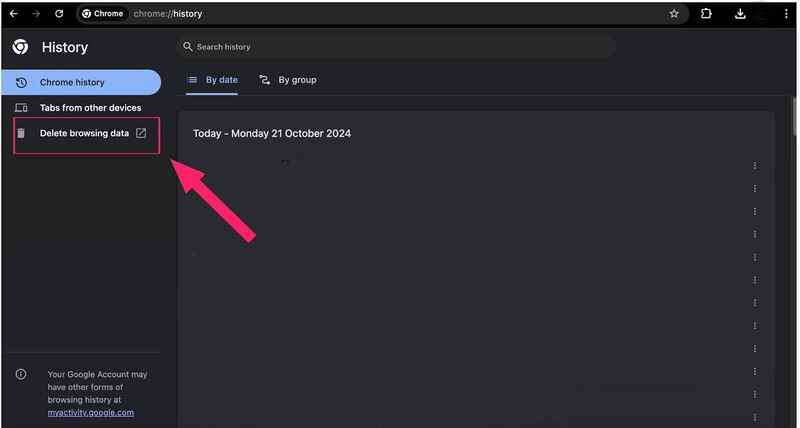
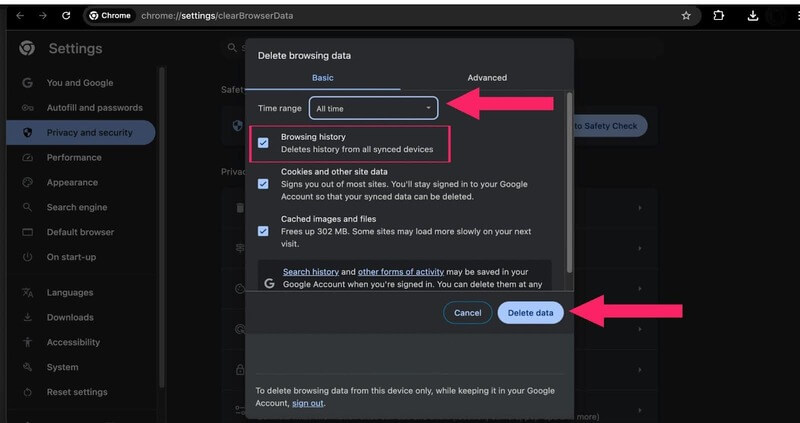
This process applies whether you’re on a desktop or laptop running Windows or macOS.
Chrome keeps its own history store, separate from every other browser on the same machine. The steps to clear browser history in Firefox or Edge, or to clear Safari browser history on iPhone, leave the Chrome record untouched.

Note: Test your websites across 3000+ real desktop & mobile browsers. Try TestMu AI Today!
Steps to Clear History in Chrome Automatically
To automatically clear your Chrome browsing history, you can set up regular deletions using Activity controls.
Here’s how you can do it:
- Visit myactivity.google.com and select Activity controls.
- Make sure that the option Include Chrome history and activity from sites, apps, and devices that use Google services is checked. This ensures your Chrome history is included in the data cleared.
- Navigate to the Choose an auto-delete option.
- Choose to automatically delete data after 3 months, 18 months, or 36 months.
- Click Next to confirm your selection. You can also set up auto-delete for YouTube history as an additional step.
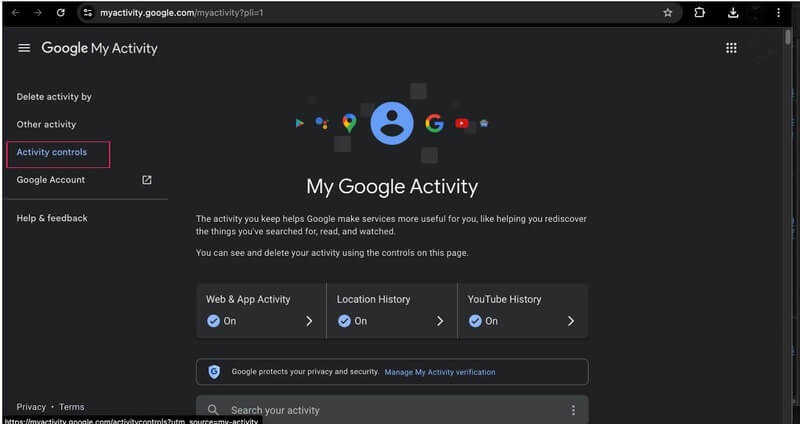
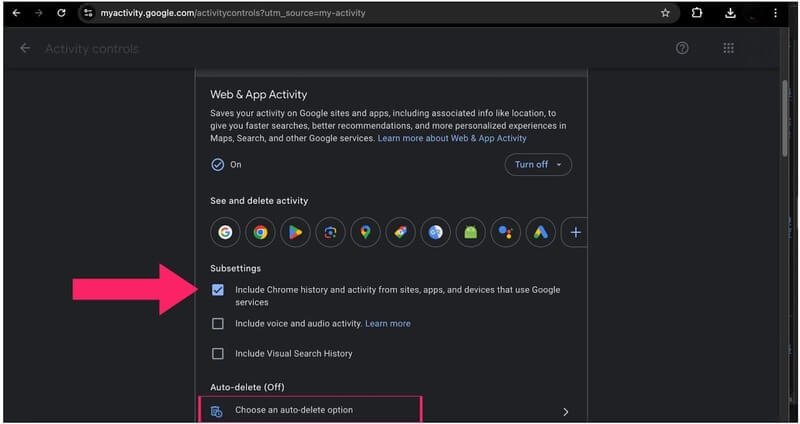
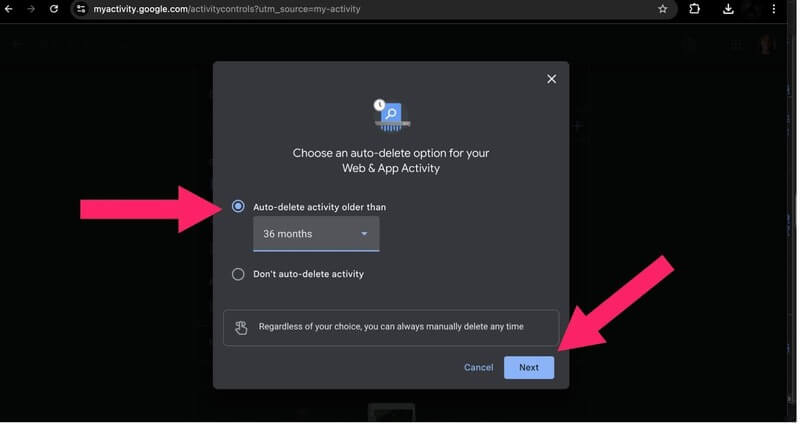
By doing this, your browsing activity will be regularly cleared, reducing the chance of someone accessing your past online activities.
Steps to Clear History in Chrome With Keyboard Shortcuts
To quickly clear your browsing history in Chrome using keyboard shortcuts, follow these steps:
- Open the window to clear history by pressing Ctrl + Shift + Delete (Windows/Linux) or Command + Shift + Delete (macOS)
- Press the Tab key to navigate to the Time range dropdown and select the desired range.
- Press the Tab key to move through the options and the Space key to select the types of data you want to clear such as browsing history, cookies, or cached images.
- Press the Enter key to clear the selected data.
This will delete your history based on your chosen settings!
The same dialog holds the checkboxes to clear browser cache in Chrome and to remove stored cookies. Chrome site settings can also disable cookies so fewer of them are written in the first place.

Does Clearing Chrome History Erase Gemini AI Data?
No. Deleting browsing data in Chrome removes the page records Gemini in Chrome reads, but Gemini Apps Activity sits in the Google Account and has to be deleted separately at myactivity.google.com.
- Gemini history search: Gemini in Chrome answers plain-language questions such as the recipe I found last week by searching Chrome history, and it returns nothing once that history is deleted.
- Opt-in requirements: Gemini history search needs an opted-in profile, an updated Chrome, a personal Google Account, and Chrome history sync switched on.
- Incognito and work accounts: Chrome does not run Gemini history search in Incognito windows or on a work or school Google Account, so no searchable record is created there.
- Gemini Apps Activity: Prompts typed into Gemini are saved under Gemini Apps Activity in the Google Account, not in Chrome browsing history, and are deleted from that page.
- Sync deletes everywhere: Deleting Chrome browsing history on one signed-in device removes the same pages on every device syncing Chrome history to that Google Account.
Clear both surfaces when the goal is a clean record. The Delete browsing data dialog covers visited pages, cookies, and cached files, and the Gemini Apps Activity page covers prompts and replies. Pausing Gemini Apps Activity stops new records from being written at all.
Conclusion
In this blog, we learned these steps to clear history in Chrome browsers on desktop and mobile devices. By following these steps, you can enhance your privacy and secure your online activity from prying eyes. Keeping your browser history clean is essential for maintaining a safer browsing experience. Enjoy greater peace of mind knowing your data is protected!
Author

Tahneet Kanwal
Blogs: 29


Tahneet Kanwal is a freelance technical content writer with over 2 years of hands-on experience in frontend development and technical writing. She holds a B.Tech in Information Technology from University College of Engineering and Technology (UCET). Tahneet creates clear, SEO-optimized content on web technologies, software testing, and automation tools, leveraging her skills in HTML, CSS, JavaScript, React, Tailwind CSS, and various tools like VS Code, GitHub, Figma, and Canva. She is the author of 30+ technical blogs and an open-source contributor through Hacktoberfest. She has also participated in the Google Cloud Arcade Facilitator Program and holds certifications as a Meta Android Developer (Coursera) and in Web Development (Internshala). Over time, she has evolved her writing to prioritize structure, readability, and SEO while maintaining technical depth.


Clear History in Chrome FAQs
Did you find this page helpful?
More Related Blogs
TestMu AI forEnterprise
Get access to solutions built on Enterprise
grade security, privacy, & compliance
- Advanced access controls
- Advanced data retention rules
- Advanced Local Testing
- Premium Support options
- Early access to beta features
- Private Slack Channel
- Unlimited Manual Accessibility DevTools Tests