
Power Your Software Testing with AI Agents and Cloud
The Native AI-Agentic Cloud Platform to Supercharge Quality Engineering. Test Intelligently and Ship Faster.


- TestMu AI (Formerly LambdaTest)
- /
- Blog
- /
- Adobe Accessibility Checker: How to Check a PDF in Acrobat
Adobe Accessibility Checker: How to Check a PDF in Acrobat
Find the Adobe Accessibility Checker in Acrobat Pro, run a full check, read the report, fix the most common failures, and see what the checker cannot test.
Published on:
You export a benefits form to PDF, someone asks whether it is accessible, and you open Acrobat to find out. The menu you remember is gone: Adobe moved the Accessibility Checker under a tool called Prepare for accessibility, and the result panel now lists dozens of rules with statuses that do not all mean what they seem to.
This guide walks through where the Adobe Accessibility Checker lives in current Acrobat Pro, how to run a full check, how to read and act on the report, and which problems it cannot catch. For the wider job of building an accessible document from the source file, see this guide on how to make a PDF accessible.
TL;DR
The Adobe Accessibility Checker is an Acrobat Pro feature that tests a PDF against 32 rules in seven groups, from tags and document title to alternate text, tables, and lists. Open it from All tools, then Prepare for accessibility, then Check for accessibility. A clean report confirms structure, not usability, so a manual review still follows.
- Where it lives: All tools, View more, Prepare for accessibility, Check for accessibility. Acrobat Reader does not include the checker.
- Report statuses: Each rule shows Passed, Failed, Needs Manual Check, or Skipped By User, and Needs Manual Check items stay open until a person reviews them.
- Fixing failures: The ellipsis menu on a failed rule offers Fix, Explain, and Check Again, and some fixes open a dialog for you to finish.
- Blind spots: Reading order, alternate text quality, and table logic still need a person, ideally with a screen reader.
Where Is the Accessibility Checker in Adobe Acrobat?
The checker is part of the Prepare for accessibility tool in Acrobat Pro. Adobe's help page, Create and verify PDF accessibility, last updated February 26, 2026, gives the current path:
- Open the PDF in Acrobat Pro.
- From the global bar in the upper left, select All tools, then View more.
- Select Prepare for accessibility. Its actions appear in the left panel.
- Select Check for accessibility.
Guides written for Acrobat X and XI use an older View, then Tools menu path. If your menus differ from the steps above, check that you are in Acrobat Pro: Syracuse University's guide on how to check if your PDF is accessible tells staff to open the file in Acrobat Pro, not Acrobat Reader.
Adobe also notes that Prepare for accessibility runs on all PDFs except dynamic XFA forms and PDF portfolios, so convert those first.
How Do You Run a Full Accessibility Check in Acrobat Pro?
Selecting Check for accessibility opens the Accessibility Checker Options dialog. Leave every category selected for a first pass, since a deselected rule is reported as Skipped By User rather than tested.
- Document options - Keep the options for the accessibility permission flag and tagged PDF selected, so Acrobat can repair those two automatically when you choose Fix later.
- Start Checking - Acrobat runs the rules and opens the Accessibility Checker panel on the right with a drop-down for each rule group.
For the full write-up rather than the panel, select Open accessibility report in the left panel. It lists every rule with links to Adobe's repair guidance, which is useful when you hand the document to someone else to fix.

Austin Siewert
Co-Founder, Steadfast Systems
Discovered @TestMu AI yesterday. Best browser testing tool I've found for my use case. Great pricing model for the limited testing I do 👏
3M+ Devs and QAs rely on TestMu AI
Deliver immersive digital experiences with Next-Generation Mobile Apps and Cross Browser Testing Cloud

How Do You Read the Accessibility Checker Report?
Every rule gets one of four statuses. Adobe defines them on the same help page:
| Status | What it means | What to do |
|---|---|---|
| Passed | The item met the rule. | Nothing, unless a manual review later shows the structure is wrong. |
| Failed | The item did not meet the rule. | Fix it from the rule's ellipsis menu or by hand, then run Check Again. |
| Needs Manual Check | Acrobat could not test the item automatically. | Verify it yourself and keep it open until you do. |
| Skipped By User | The rule was deselected in the options dialog. | Re-run with the rule selected before you sign the document off. |
Adobe adds a caveat worth remembering: the check does not distinguish essential from nonessential content, so some reported issues may not affect readability. A failed rule on a decorative border, for example, is usually fixed by marking that element as an artifact rather than describing it.
What Does the Adobe Accessibility Checker Test?
Adobe's help page documents 32 rule checks in seven groups, and states that the check verifies conformance with standards such as PDF/UA (ISO 14289-1) and WCAG 2.0. Each rule links to the WCAG success criteria it supports.
| Group | Rules | What they check | Needs a person |
|---|---|---|---|
| Document | 8 | Accessibility permission flag, image-only PDF, tagged PDF, logical reading order, primary language, title, bookmarks, color contrast | Logical reading order, color contrast |
| Page content | 9 | Tagged content, tagged annotations, tab order, character encoding, tagged multimedia, screen flicker, scripts, timed responses, accessible links | Screen flicker, scripts, timed responses, accessible links |
| Forms | 2 | Tagged form fields, field descriptions (tooltips) | Whether each tooltip makes sense |
| Alternate text | 5 | Figure alt text, nested alt text, alt text associated with content, alt text hiding an annotation, alt text on other elements | Whether the alt text is accurate |
| Tables | 5 | Rows, TH and TD, headers, regularity, summary | Adobe recommends checking tables manually |
| Lists | 2 | List items, Lbl and LBody structure | Whether visual lists are tagged as lists at all |
| Headings | 1 | Appropriate nesting of heading levels | Whether heading text describes the section |
The bookmarks rule only fails when a document has 21 or more pages without bookmarks, and Adobe describes heading order as an advisory technique rather than a WCAG requirement, so a pass on either says less than it seems. The WCAG 2.2 guidelines explain each criterion the rules point to.
How Do You Fix the Most Common Accessibility Checker Failures?
Open the ellipsis menu on a failed rule in the Accessibility Checker panel. Fix either repairs the item or opens a dialog for you to complete, Explain opens Adobe's guidance, and Check Again re-runs every rule after you change something. Adobe documents a repair for every rule; these are the failures you are most likely to meet on an exported or scanned document:
- Tagged PDF - The file has no tag tree, so screen readers get no headings, lists, or reading order. Re-export from the source application with tagging turned on, or use Prepare for accessibility, then Automatically tag PDF, and review the Add Tags Report it produces.
- Image-only PDF - A scan with no real text. Run Scan & OCR, then Recognize text, In this file, before you try to tag anything.
- Title - Open Document properties, enter a title under Description, then on the Initial View tab set Show to Document Title. W3C technique PDF18 requires both the Title entry and the flag that displays it, which is why setting only one still fails.
- Primary language - Choose Fix on the rule and pick the language in Set Reading Language, so screen readers use the right pronunciation.
- Figures alternate text - Choose Fix to step through each figure in the Set Alternate Text dialog, or mark decorative images as artifacts from the Content panel.
- Tab order - Choose Fix, or set each page's tab order to Use Document Structure in Page Properties, so keyboard users move through links and fields in reading order.
- Logical reading order - Always a manual check. Open the Reading Order tool or the Tags panel and confirm the tag sequence matches how a sighted reader moves through the page.
Run Check Again after each batch of fixes. Automatic tagging guesses at structure, so a pass on the Tagged PDF rule can still hide a heading tagged as a paragraph or a table read row by column.
What Can't the Adobe Accessibility Checker Check?
The checker confirms that structure exists. It cannot tell whether that structure is right for a person using it. The Section508.gov page on creating accessible PDFs points federal teams to a 5-part, 63-minute video series on testing and remediating PDFs in Acrobat DC, and much of that process is review the checker cannot do for you.
- Alternate text quality - A figure described as "image" passes the same rule as one with an accurate description.
- Reading order - Acrobat flags it for manual review on every run because only a person can judge the sequence.
- Table meaning - The rules check that header cells exist, not that each header labels the right row or column.
- Color contrast - Contrast in charts and images needs a separate check with a color contrast checker against the 4.5:1 ratio for normal text.
- Link and heading wording - A link reading "click here" or a heading reading "Section 2" passes structurally while telling a listener nothing.
Close the gap by reading the document with a screen reader once after the checker is clean. This guide to screen reader accessibility testing covers NVDA, JAWS, and VoiceOver setups.
How Can You Check a PDF Without Acrobat Pro?
If you only have Acrobat Reader, two free options cover the automated part. I ran TestMu AI's PDF accessibility checker on its built-in untagged sample to see how its results line up with Acrobat's Document rules. The tool reads the file in the browser, so nothing is uploaded.
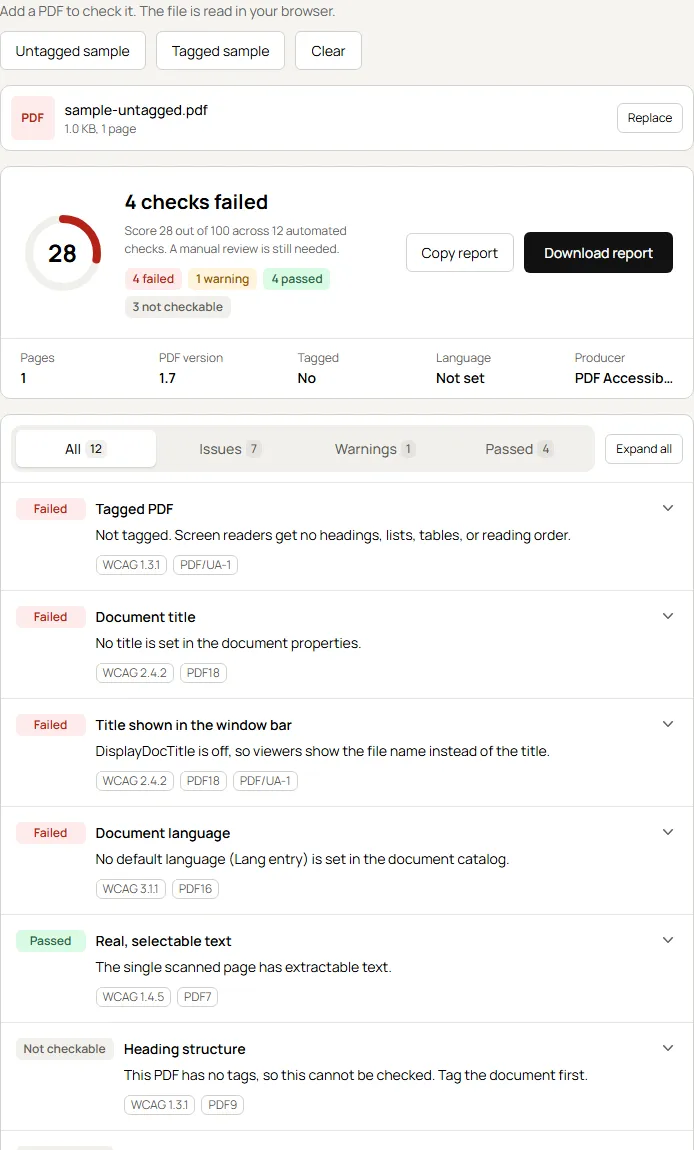
- Untagged sample - Scored 28 out of 100 across 12 automated checks. It failed Tagged PDF, Document title, Title shown in the window bar, and Document language, the same problems Acrobat's Tagged PDF, Title, and Primary language rules catch.
- Not checkable - Heading structure, figure alt text, and table header cells could not be tested at all, because a PDF without tags has no structure to inspect.
- Tagged sample - Scored 99 out of 100 with 11 passes. The only flag was a warning that the metadata does not declare PDF/UA conformance.
- Manual list - Both runs ended with checks to do by hand, including reading order and whether alt text describes the image, matching the items Acrobat marks for manual review.
The second option is PAC, a free desktop checker funded by the German Federal Ministry of Labor and Social Affairs. Its current release, PAC 2026, checks many PDF/UA and WCAG requirements and includes a visual check of the document.

Note: Check web pages and apps against WCAG alongside your PDFs with TestMu AI. Start testing for free
Run the Check Before Every PDF Goes Out
Run the Adobe Accessibility Checker on every PDF you publish, fix the failures, clear each Needs Manual Check item by hand, and finish with one screen reader pass. State and local governments working through the ADA Title II checklist and federal teams working toward Section 508 compliance have to cover the PDFs they post, not only their web pages.
PDFs rarely ship alone: the web page that links them needs the same care. TestMu AI Accessibility Testing scans web pages against WCAG, adds PDF accessibility scanning for generated documents such as reports, invoices, and forms, and exports a PDF compliance report for stakeholder and legal review. The accessibility testing documentation shows how to run your first scan.
Author

Mythili Raju
Blogs: 56


Mythili is a Community Contributor at TestMu AI with 3+ years of experience in software testing and marketing. She holds certifications in Automation Testing, KaneAI, Selenium, Appium, Playwright, and Cypress. At TestMu AI, she leads go-to-market (GTM) strategies, collaborates on feature launches, and creates SEO optimized content that bridges technical depth with business relevance. A graduate of St. Joseph’s University, Bangalore, Mythili has authored 35+ blogs and learning hubs on AI-driven test automation and quality engineering. Her work focuses on making complex QA topics accessible while aligning content strategy with product and business goals.
Reviewer

Shahzeb Hoda
Reviewer
Shahzeb Hoda is the Associate Director of Marketing and a Community Contributor at TestMu AI, leading strategic initiatives in developer marketing, content, and community growth. With 10+ years of experience in quality engineering, software testing, automation testing, and e-learning, he has authored and reviewed 70+ technical articles on software testing and automation. Shahzeb holds an M.Tech in Computer Science from BIT, Mesra, and is certified in Selenium, Cypress, Playwright, Appium, and KaneAI. He brings deep expertise in CI/CD pipeline automation, cross-browser testing, AI-driven testing practices, and framework documentation. On LinkedIn, he is followed by 3,700+ engineers, developers, DevOps professionals, tech leaders, and enthusiasts.


Adobe Accessibility Checker FAQs
Did you find this page helpful?
More Related Blogs

TestMu AI forEnterprise
Get access to solutions built on Enterprise
grade security, privacy, & compliance
- Advanced access controls
- Advanced data retention rules
- Advanced Local Testing
- Premium Support options
- Early access to beta features
- Private Slack Channel
- Unlimited Manual Accessibility DevTools Tests