
Test on 50,000+ Real Android and iOS Devices
Live and Automated Real Device Testing on 50,000+ iOS and Android Devices. No Need to Buy or Maintain Device Lab

scrcpy: How to Install It, Mirror Android and Fix Connection Errors
scrcpy mirrors and controls an Android phone from Windows, macOS or Linux. Install it, run your first session, go wireless, record and fix adb errors.
scrcpy is a free, open-source tool that will mirror the screen and audio from an Android device to Windows, macOS or Linux and allow you to control the device with your keyboard and mouse. It connects over ADB via USB or Wi-Fi, requires no root, requires no app on the phone and requires Android 5.0 or later.
This guide covers installing scrcpy, the first connection, the commands that testers use most, wireless mirroring, recording and the fixes for the errors people run into. It also covers what scrcpy can't do (it only works with phones that your computer can talk to over ADB). Any team doing real device testing across a range of devices that they don't own will need a device cloud for that part, and the final sections show exactly where scrcpy stops, and TestMu AI takes over.
TL;DR
scrcpy is a free, open-source app that mirrors and controls an Android phone from Windows, macOS or Linux over adb. Install it from the official GitHub release or a package manager, turn on USB debugging, accept the RSA prompt and run scrcpy. Add --tcpip to mirror over Wi-Fi and --record to save bug evidence.
How to Use scrcpy
- USB debugging: Turn on USB debugging in Developer options, connect the cable and accept the RSA prompt. adb devices must list the phone as device, not unauthorized, before scrcpy can mirror it. scrcpy requires root: No.
- scrcpy wireless mode: scrcpy --tcpip switches adb to TCP/IP after one USB connection and reconnects over Wi-Fi. The phone and the computer must be on the same network.
- scrcpy --record: The scrcpy --record option saves the mirrored session to MP4 or MKV with timestamps captured on the device, and --time-limit stops the recording after a set number of seconds.
- scrcpy OTG mode: scrcpy --otg controls the phone as a USB keyboard and mouse without mirroring, and it is the only scrcpy mode that works without USB debugging.
What Can't scrcpy Do?
- iPhone mirroring: scrcpy works with Android devices only, because every connection runs through adb. To test on real iPhones you don't own, use a real device cloud with iOS devices. Works on iOS: No.
- Cloud real devices (TestMu AI): scrcpy needs a local adb connection, so it cannot attach to TestMu AI's real devices, which you control from the browser with device logs, network logs and session video instead. scrcpy attaches to cloud devices: No.
What Is scrcpy?
scrcpy (short for "screen copy") is a desktop app from Genymobile that displays and controls an Android device connected over USB or TCP/IP. According to the official scrcpy README, it runs on Linux, Windows and macOS and needs neither root access nor an app installed on the device.
What scrcpy does:
- Mirrors video, plus audio on Android 11 and later
- Sends your keyboard, mouse and clipboard to the device
- Records the session to MP4 or MKV
- Replicates the camera (Android 12 and later), runs apps in a virtual display and has an OTG mode which allows it to control a device without mirroring.
What scrcpy is not:
- It's not a remote access service. Your computer has to get to the phone via ADB.
- It's not a test framework. It just shows and drives a screen. It doesn't assert anything.
- It's not an emulator. It's a mirror of the real hardware that you already have.
The README details the minimum requirements: Android API 21 (Android 5.0), USB debugging turned on on the device and on some devices (it specifically names Xiaomi) an additional "USB debugging (Security Settings)" toggle followed by a reboot. scrcpy is licensed under the Apache 2.0 license.
How Do You Install scrcpy on Windows, macOS and Linux?
Install scrcpy from the GitHub releases page or your platform's package manager. The per-OS guides linked from the README cover these options.
Where to Download scrcpy Safely
The README states that the Genymobile GitHub repo is the only official source and that you should not be downloading the releases from any other site, even if the site's name contains "scrcpy". A number of sites that rank for "scrcpy download" are unofficial mirrors, and the Play Store has a number of lookalike apps that are not scrcpy. Take the release asset for your OS from the releases section of the repo or use one of the package managers below.
| OS | Install | Notes |
|---|---|---|
| Windows | Download the Windows release zip from the scrcpy GitHub releases and extract it. Or run winget install --exact Genymobile.scrcpy, which installs adb alongside; choco install scrcpy and scoop install scrcpy need adb installed separately if you don't have it. | The release includes adb.exe, which the FAQ says normally works without extra setup. You may need your phone maker's USB driver |
| macOS | brew install scrcpy then brew install --cask android-platform-tools | MacPorts alternative: sudo port install scrcpy (also sets up adb) |
| Linux (Debian/Ubuntu) | Download the static x86_64 release build from GitHub, extract it and run ./scrcpy | The scrcpy Linux guide marks the apt install scrcpy and snap install scrcpy packages as obsolete versions; use them only if an older build is acceptable |
| Linux (Arch) | pacman -S scrcpy | |
| Linux (Fedora) | dnf copr enable zeno/scrcpy && dnf install scrcpy |
After you've installed it, scrcpy --help (or man scrcpy on macOS and Linux) will list all the options for the version you have.
How Do You Use scrcpy for the First Time?
A first scrcpy session takes five steps over USB.
- Turn on Developer options. Find Build number (on a Pixel: Settings > About phone > Build number; the path varies by maker) and tap it seven times until you see "You are now a developer!", as Android's developer options guide describes.
- Enable USB debugging in Developer options (on Android 9 and later: Settings > System > Advanced > Developer options > USB debugging). On Xiaomi and some other devices, you'll also need to enable "USB debugging (Security Settings)" and reboot; otherwise, the keyboard and mouse won't work.
- Connect the cable and accept the RSA prompt that comes up asking you to allow USB debugging from this computer.
- Check that adb can see the device (
adb devices; see the code below). - Start mirroring with
scrcpy.
adb devices
# Expected: one line containing a serial number and the word 'device'.
# "unauthorized" means the RSA prompt was not accepted.
scrcpy
A window opens with the phone screen. Click to tap, scroll to swipe and type to send text. The shortcut modifier key (MOD) is left Alt or left Super by default, and you can change it with --shortcut-mod.
If all you need is a picture of the screen for a bug ticket, then the adb commands guide will cover adb shell screencap and screenrecord. scrcpy is the way to go if you want to be able to drive the app as you're watching it.

Note: Need a phone you don't have on your desk? scrcpy only mirrors devices that are plugged into your machine. Start a live session on a real Android or iOS device in TestMu AI and control it from your browser with device logs and session video.
Which scrcpy Commands Do Testers Use Most?
These are the flags from the scrcpy documentation and will cover pretty much all of our testing and demo work.
| Task | Command |
|---|---|
| Pick one device when several are connected | scrcpy -s <serial> (or -d for the only USB device, -e for the only TCP/IP device) |
| Lower resolution for a slow machine | scrcpy --max-size=1024 (short form -m1024) |
| Cap the frame rate | scrcpy --max-fps=30 |
| Mirror without audio | scrcpy --no-audio |
| Keep the phone awake while plugged in | scrcpy --stay-awake (-w) |
| Turn the phone's screen off but keep mirroring | scrcpy --turn-screen-off (-S) |
| Show physical taps on the device | scrcpy --show-touches (-t) |
| Simulate a physical keyboard (fixes non-ASCII text) | scrcpy --keyboard=uhid (-K) |
| Record to a file | scrcpy --record=session.mp4 |
| Control the device without mirroring | scrcpy --otg (USB debugging not required) |
| Mirror the camera instead of the screen | scrcpy --video-source=camera (Android 12+) |
Useful shortcuts while a session is running: MOD+f for fullscreen, MOD+h is Home, MOD+b is Back, MOD+r rotates the screen, MOD+n expands the notifications and dragging an APK onto the window will install it. Dragging anything else onto the window will push it to the device.
How Do You Use scrcpy Wirelessly?
scrcpy mirrors over Wi-Fi once adb is listening on TCP/IP. There's a connection guide that gives you both an automatic and a manual option, and it requires the phone and the computer to be on the same network.
Automatic (phone first connected by USB):
scrcpy --tcpip
# scrcpy enables adb over TCP/IP, finds the phone's IP and reconnects wirelessly.
# Unplug the cable once the window is open.
Device already listening on port 5555:
scrcpy --tcpip=192.168.1.1        # replace with your phone's IP
scrcpy --tcpip=+192.168.1.1       # "+" forces a reconnection
Manual adb steps:
adb shell ip route | awk '{print $9}'   # print the phone's IP
adb tcpip 5555                          # switch adb to TCP/IP
adb connect DEVICE_IP:5555              # connect over Wi-Fi
scrcpy
adb disconnect                          # when finished
Two limits apply over Wi-Fi. --stay-awake only works while the phone is plugged in, so it has no effect over TCP/IP alone. Video quality also depends on the network, so drop --max-size or --max-fps if the picture stutters.
How Do You Record an Android Screen With scrcpy?
scrcpy records the mirrored session with --record (or -r), and the container comes from the file extension. The recording guide lists these patterns:
scrcpy --record=session.mp4                         # video + audio, mirrored live
scrcpy --no-audio --record=session.mp4              # video only
scrcpy --record=session.mkv --time-limit=20         # stop after 20 seconds
scrcpy --no-playback --no-window --record=session.mp4   # record headless; stop with Ctrl+C
Supported formats are MP4, MKV, OPUS, FLAC and WAV. Timestamps are captured on the device so network jitter doesn't corrupt the recorded file. That makes --record a far more reliable option for a bug attachment than just screen recording the scrcpy window on your desktop.
For a reproducible bug report, pair the recording with the logs. The Android bug report guide shows you how to capture the full bugreport ZIP that goes with the video. To stream the device log live while you reproduce the bug, run adb logcat.
How Do You Fix "Could Not Find Any ADB Device" and Other scrcpy Errors?
Most scrcpy failures are adb problems. The scrcpy FAQ lists these causes and fixes.
| Error | Cause | Fix |
|---|---|---|
ERROR: Could not find any ADB device | USB debugging off, or no driver | Enable USB debugging, confirm the phone shows in adb devices; on Windows install the USB driver |
| Device shows as unauthorized | RSA prompt not accepted | Unlock the phone and accept "Allow USB debugging" |
| Several devices connected | scrcpy can't choose | scrcpy -s <serial>, -d (USB) or -e (TCP/IP) |
adb server version (41) doesn't match this client (39) | Two adb binaries on the machine | Use one adb version everywhere, or set the ADB environment variable to the binary scrcpy should use |
| Mouse and keyboard do nothing | Input simulation blocked | Enable "USB debugging (Security settings)" and reboot |
| Special characters don't type | Default text injection is ASCII-only | Use --keyboard=uhid |
| Device keeps disconnecting | Cable or port | Try another cable or USB port |
| Could not find any USB device in OTG mode on Windows | Driver issue | See the FAQ's linked issue for the driver fix |
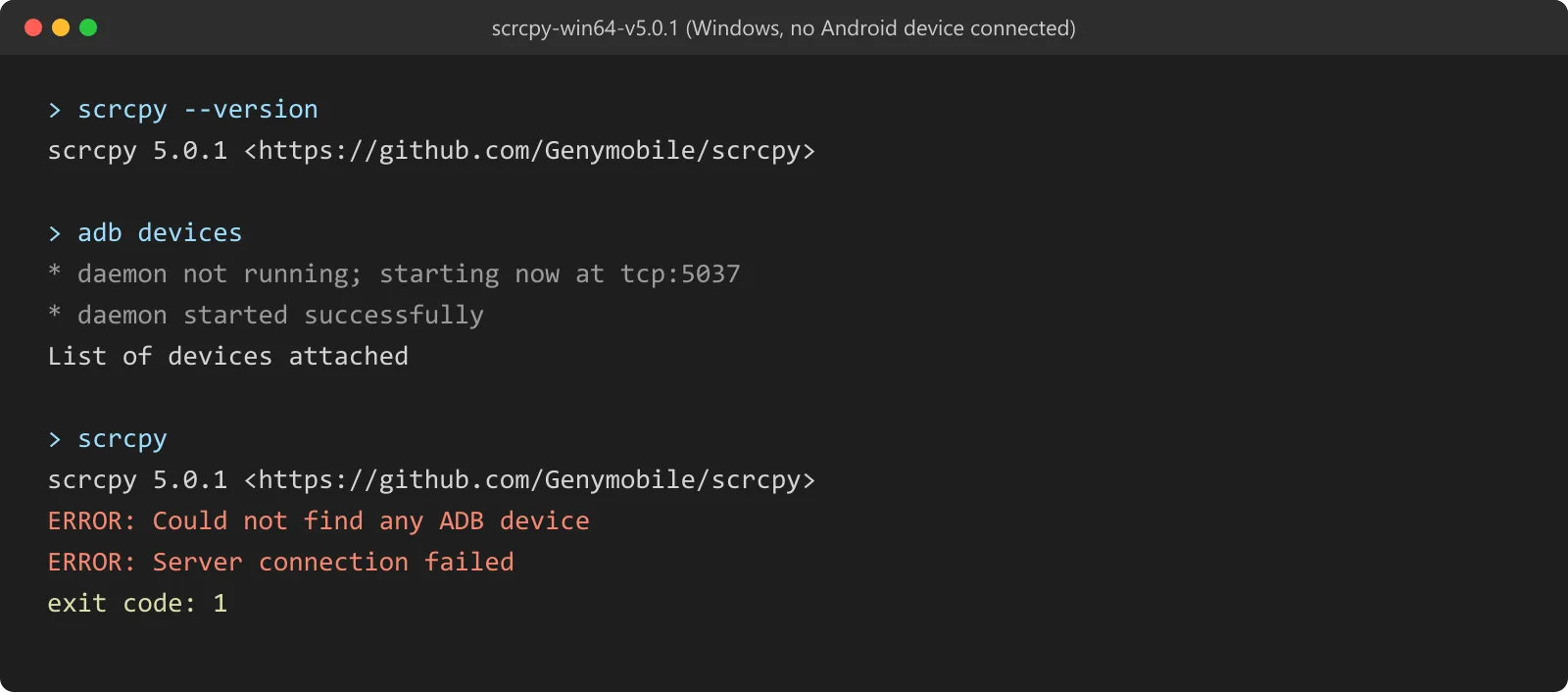
The FAQ's first piece of advice applies to all of these: upgrade to the latest version of scrcpy before you go any further.
Can scrcpy Connect to Cloud or Remote Devices?
scrcpy can reach any device that your machine can open an adb connection to (USB, Wi-Fi on the same network, or via a remote adb server reached through an SSH tunnel as per the scrcpy tunnels guide). It cannot reach a phone that you have no ADB path to.
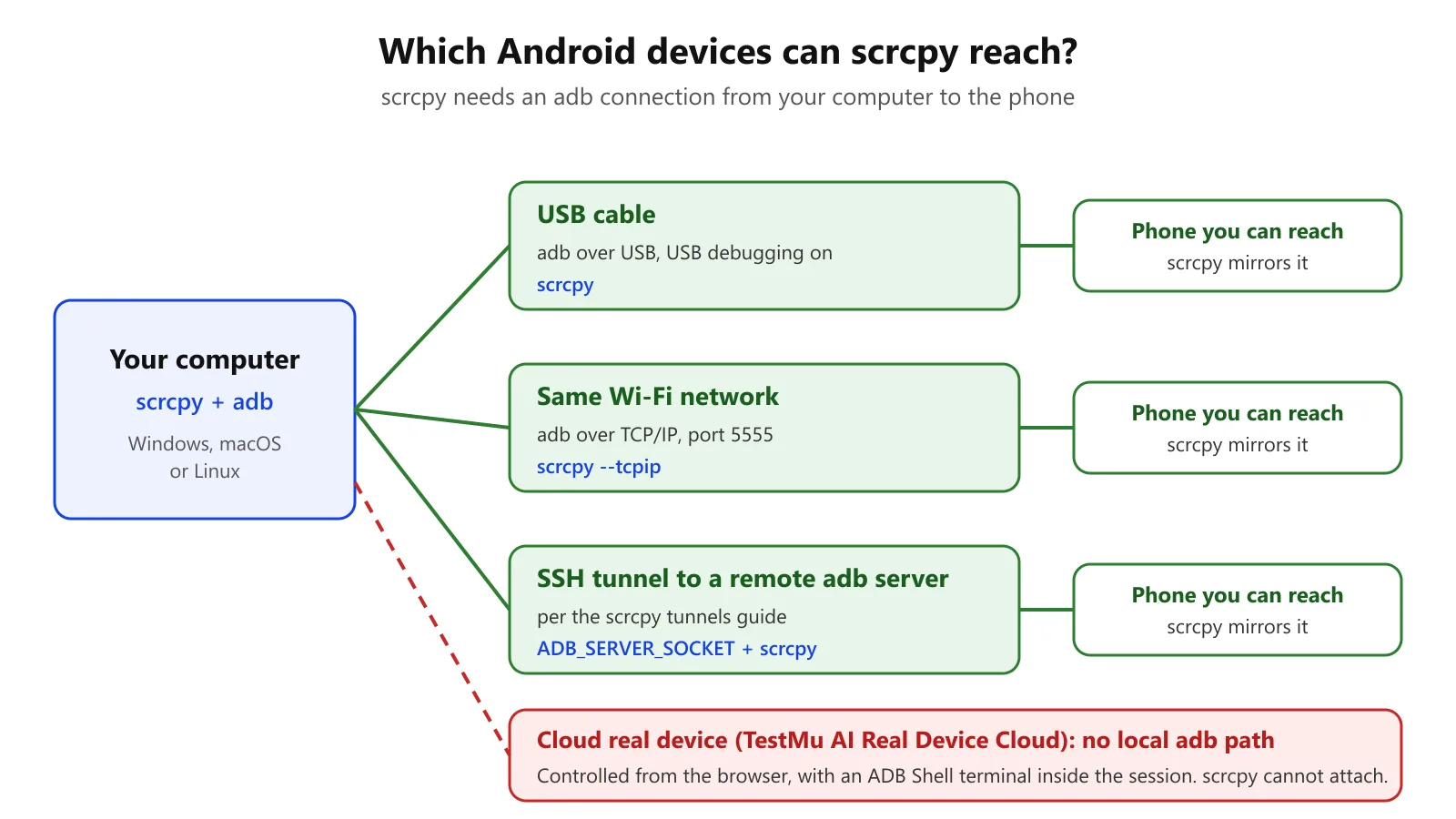
That's important for actual device testing in the cloud. TestMu AI's Real Device Cloud has 50k+ real iOS and Android devices, and you control them all from the browser rather than via local ADB.
You tap, swipe and type on the device's actual screen in a browser tab. The session comes with device logs, network logs and video for debugging.
For shell access on real devices, the ADB shell terminal runs in the live session. It accepts a well-defined set of commands: public devices allow commands such as am start, dumpsys, getprop, input and pm clear; private devices add logcat, am instrument, general pm and setprop. The docs don't mention a local adb connection, so scrcpy itself doesn't attach to these devices.
The short version is to use scrcpy for the phones you've got on your desk and a device cloud for the models, OS versions and regions that you don't own.
scrcpy vs a Real Device Cloud: Which Should You Use?
| Factor | scrcpy | Real Device Cloud |
|---|---|---|
| Cost | Free, open source (Apache 2.0) | Paid plans with a free start |
| Devices | Only phones you own and can connect | 50,000+ iOS and Android devices listed |
| iOS | Not supported (Android only) | Real iOS devices |
| Connection | adb over USB or same-network Wi-Fi | Browser session, no local adb |
| Recording | --record to MP4/MKV | Session video recordings |
| Logs | Separate adb commands | Device logs and network logs in the session |
| Network conditions | Whatever your Wi-Fi gives you | Throttle to 3G, 4G, 5G or offline (App Live) |
| Location | The phone's real location | Set device location to 150+ countries (App Live) |
| Shell | Full adb shell | ADB Shell terminal with documented command lists |
| Best for | Daily development, demos, quick reproduction | Coverage across models you don't own, customer-reported bugs on specific devices |
The MIRROR Checklist for a Clean scrcpy Session
Run these six checks before you jump to the conclusion that scrcpy is at fault.
- M - Match adb versions. One adb binary on the machine (or ADB pointed at the one that scrcpy should use).
- I - Install from the official source (GitHub releases or your package manager). Never a lookalike download site.
- R - RSA prompt accepted.
adb devicesmust say 'device', not 'unauthorized'. - R - Record on the device side. Use
--recordwith--time-limitfor bug evidence rather than a desktop screen capture. - O - One device selected. Pass
-s <serial>if you have more than one phone/emulator connected. - R - Reach beyond your desk. If the bug only manifests on a model/OS version you don't own, then deliberately move the reproduction to a real device cloud rather than just guessing.
Watch: Live App Testing on a Real Device, Then Its Logs
For a quick visual walkthrough of this concept, watch the videos below from TestMu AI.
scrcpy mirrors a phone you own. This TestMu AI video shows the cloud alternative: a live app test on a real device, controlled from the browser.

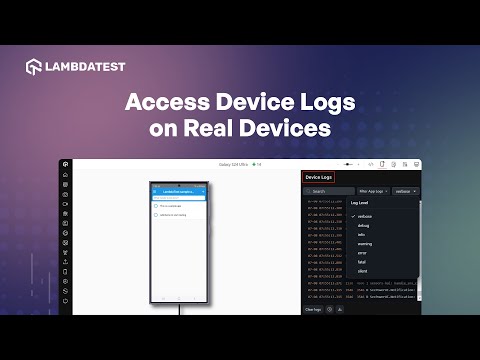
A bug report also needs logs. This short TestMu AI walkthrough shows how to open, filter and download device logs during a live app session on a real device.
Subscribe to the TestMu AI YouTube channel for more tutorials on testing and automation.
Conclusion
scrcpy is the fastest free way to see and control an Android phone from a desktop: install it, enable USB debugging, accept the RSA prompt and run scrcpy. Add --tcpip to go wireless, --record for bug evidence, and -s when more than one device is connected. Most errors trace back to adb, and the FAQ fixes cover them.
When the bug lives on a phone you don't own, scrcpy has nothing to connect to. Run a free live session on a real device in TestMu AI and reproduce it on the exact model and OS version your user reported.
Testing Android apps on phones you don't own? TestMu AI's Real Device Cloud runs live and automated sessions on 50,000+ real iOS and Android devices, with device logs, network logs and video for every session.
Was this helpful?
Authors

Sai Krishna
Author · 37 posts
Sai Krishna is Director of Engineering at TestMu AI, where he leads agentic AI for quality engineering, building AI agents that autonomously drive mobile and conversational test automation. His current focus is Agent Testing and Model Context Protocol (MCP) support for mobile. He is a core contributor and member of the Appium open-source project and the creator of AppiumTestDistribution and appium-device-farm. With over 14 years of experience including more than 9 years at Thoughtworks as a Principal Consultant, he holds a BSc in Electronics and speaks regularly at TestMu and Appium Conf on Appium, mobile automation, and agentic AI in testing.


Srinivasan Sekar
Reviewer
Srinivasan Sekar is Director of Engineering at TestMu AI, where he leads engineering and open-source initiatives behind the Selenium and Appium automation grid and owns TestMu AI's MCP Server. A committer to Appium and a contributor to Selenium, WebdriverIO, Taiko, and AppiumTestDistribution, he brings over 15 years of experience in quality engineering and open-source technologies. He is the author of the Apress book 'The MCP Standard: A Developer's Guide to Building Universal AI Tools with the Model Context Protocol,' a Certified Kubernetes and Cloud Native Associate, and an international conference speaker. Before TestMu AI he spent over eight years at Thoughtworks as a Principal Consultant and Quality Architect. Srinivasan holds a B.Tech in Information Technology from Anna University.
scrcpy FAQs

TestMu AI forEnterprise
Get access to solutions built on Enterprise
grade security, privacy, & compliance
- Advanced access controls
- Advanced data retention rules
- Advanced Local Testing
- Premium Support options
- Early access to beta features
- Private Slack Channel
- Unlimited Manual Accessibility DevTools Tests