
Automate Android and iOS App Tests in the Cloud
Run Your Appium, Espresso, XCUITest, and Maestro Suites as They Are, in Parallel on 50,000+ Real Devices.

adb logcat: How to Filter, Save and Read Android Logs
Learn adb logcat: filter by tag, priority and PID, clear buffers, save logs to a file, find crashes, and pull device logs from cloud real Android phones.
Published on:
adb logcat streams the system and app log buffers from a device connected to your machine to your terminal. Run adb logcat to see everything. You can add a filter spec such as MyApp:D *:S to just keep the logs from one tag, --pid to just keep the logs from one process, -b crash to get just the crash traces, and -f or a shell redirect to save the output.
adb logcat is short for adb shell logcat (as per the Android Developers logcat reference). This guide covers the commands you'll be using every day, how to filter to just your app's lines, how to get logs that will survive a long run, and how to get the same device logs from devices you don't own as part of real device testing.
TL;DR
adb logcat is the command that runs Android's logcat tool from your computer and prints a connected device's log buffers in your terminal. Use it to keep only your app's lines, read crash traces on their own, and save the output to a file for a bug report or a CI run.
How Do You Filter, Save and Read adb logcat Output?
- Filter specs: An adb logcat filter spec such as MyApp:D *:S keeps one tag at Debug level and above and silences every other tag. adb logcat -s MyApp is the shorthand when you want that tag at any level.
- The --pid filter: adb logcat --pid with the process ID from adb shell pidof keeps every line one app process writes, including lines that libraries log under their own tags. Run pidof again after the app restarts.
- The crash buffer: adb logcat -b crash -d prints only crash messages, so read it after a failure and find the first Caused by: line under FATAL EXCEPTION. A freeze is an Android ANR, not a crash, and needs its own checks.
- Saving logs: Saving adb logcat output with a shell redirect writes the log to your laptop or CI runner and stops when the adb connection drops. Running logcat -f with -r and -n on the device writes rotated files for long test runs.
- Device logs on TestMu AI: TestMu AI shows the same Logcat output as device logs in live real-device sessions, and records it for Appium runs when devicelog is true in lt:options, with a download on the Device tab.
Should You Use adb logcat or Android Studio Logcat?
- adb logcat: adb logcat runs in any terminal, script or CI job. Needs the IDE: No. Needs a device you can connect by USB or Wi-Fi: Yes.
- Android Studio Logcat: Android Studio's Logcat window filters the same logs with its own query language (package:mine, level:, is:crash). Runs outside the IDE: No. Saves to a file on its own: No.
- Cloud device logs: Cloud device logs on TestMu AI cover real iOS and Android devices you do not own. Needs a phone on your desk: No.
What Does adb logcat Actually Show?
adb logcat outputs entries from the device's ring buffers. Each entry has a priority, a tag, a process ID (PID), a thread ID, and a message. The default threadtime format will show the date, time, priority, tag, PID, and TID on every line.
The buffers documented by Android are:
| Buffer | What it holds | In the default set |
|---|---|---|
| main | Main app log buffer; no system or crash messages | Yes |
| system | System messages | Yes |
| crash | Crash messages | Yes |
| radio | Radio and telephony messages | No |
| events | Interpreted binary system event messages | No |
| all | Every buffer | No |
| default | Shortcut for main, system and crash | n/a |
Priority levels go from lowest to highest as follows: V (Verbose), D (Debug), I (Info), W (Warning), E (Error), F (Fatal) and S (Silent, which prints nothing).
How Do You Set Up adb logcat?
adb logcat requires the Android SDK Platform Tools and a device that has USB debugging enabled.
# 1. Confirm the device is attached and ready (state must be "device")
adb devices -l

# 2. If more than one device is attached, pick one by serial
adb -s <serial> logcat

# or set it once for the whole shell session
export ANDROID_SERIAL=<serial>
adb logcat
The adb documentation notes that without a target serial, adb stops with "more than one device/emulator", and that -s overrides ANDROID_SERIAL. Wireless debugging works too on Android 11 (API level 30) or higher, using adb pair ipaddr:port once per device.
What adb logcat Commands Do You Actually Need?
These are the commands that cover the majority of debugging scenarios (for adb beyond logging, see our full list of ADB commands). The option text is obtained from the logcat --help in logcat.cpp in AOSP.
| Task | Command | What it does |
|---|---|---|
| Stream everything | adb logcat | Follows the default buffers until you press Ctrl+C |
| Dump and exit | adb logcat -d | Prints what is in the buffer, then exits (does not block) |
| Last N lines | adb logcat -t 200 | Prints the 200 most recent lines (implies -d) |
| Clear the buffer | adb logcat -c | Clears (flushes) the entire log and exits |
| Warnings and above | adb logcat *:W | Shows W, E and F from every tag |
| One tag only | adb logcat -s MyApp | -s sets the default filter to silent (same as *:S), so only the tags you list print |
| One tag, minimum level | adb logcat MyApp:D *:S | Shows MyApp at Debug and above; silences the rest |
| One process only | adb logcat --pid=<pid> | Prints logs from that PID only |
| Message regex | adb logcat -e "Timeout" | Prints lines whose message matches the expression (see the alternation example below the table) |
| Crash buffer | adb logcat -b crash | Reads only the crash buffer |
| All buffers, color | adb logcat -b all -v color -d | Dumps every buffer with colored priorities |
| Save to file | adb logcat -f /sdcard/app.log | Writes to a file on the device instead of stdout |
| Rotate files | adb shell logcat -f /sdcard/app.log -r 1024 -n 4 | Rotates every 1,024 KB and keeps 4 files (needs -f) |
| Buffer size | adb logcat -g | Shows the size of the ring buffers in logd |
| Bigger buffer | adb logcat -G 16M | Sets the size of a ring buffer in logd (K or M suffix), so early lines are not overwritten |
| Output format | adb logcat -v time, -v brief, -v long | Change the line layout; add modifiers such as -v time -v epoch or -v uid |
A note on -c: it clears the entire log, not just your app's lines, so anything else that another teammate or test may have been relying on is also wiped out.
How Do You Filter the adb logcat Output to Just Your App?
Filtering is where the majority of the time is saved. adb logcat has three filters which can be combined.
1. Filter by tag and priority (filter specs).
A filter spec is tag:priority. Messages for that tag at or above that priority will be displayed. To silence everything you haven't specifically listed, add *:S:
adb logcat ActivityManager:I MyApp:D *:S

# Shorthand when you only want certain tags, at any level
adb logcat -s MyApp OkHttp
You can set a default filter on your workstation with export ANDROID_LOG_TAGS="ActivityManager:I MyApp:D *:S". Android's documentation notes that this variable is not passed to the device when you use adb shell logcat.
2. Filter by process (PID).
Tags are set by the developers, and lines are logged under the tag of the library that is doing the logging. Filtering by PID will capture every line that your app's process writes:
PACKAGE="com.example.shop"            # pass your package name as a parameter
APP_PID=$(adb shell pidof "$PACKAGE")
adb logcat --pid="$APP_PID" -v color
The PID changes when the app restarts. If the app crashes and then re-launches, re-run pidof or the filter will be pointing at a dead process.
--pid and pidof aren't available on older Android releases. If logcat reports an unknown option, then fall back on a tag filter.
3. Filter by message.
Use -e for a regex on the message, or pipe to grep on your machine:
# macOS / Linux
adb logcat -d | grep -i "FATAL"
adb logcat -e "OkHttp|Retrofit"
On Windows, swap grep for the built-in equivalents:
:: Command Prompt
adb logcat -d | findstr /i FATAL

# PowerShell
adb logcat -d | Select-String -Pattern FATAL
Logcat in Android Studio uses a different query language from the filter specs (package:mine, level:WARN, tag:, message:, is:crash, is:stacktrace and age:5m) as per the Android Studio Logcat guide. Use Studio when you're at your desk coding. Use adb logcat in your scripts, CI, and in remote sessions.
How Do You Save the adb logcat Output to a File?
There are two ways, and they behave differently:
# A. Redirect on your machine (file lands on your laptop or CI runner)
adb logcat -v threadtime > "logcat_$(date +%Y%m%d_%H%M%S).txt"

# B. Write on the device, with rotation (keeps running after adb drops on most devices)
adb shell mkdir -p /sdcard/logs
adb shell "setsid nohup logcat -v threadtime -f /sdcard/logs/app.log -r 2048 -n 3 </dev/null >/dev/null 2>&1 &"
# ...run your test...
# Stop the device-side logcat, then pull the whole folder
# (app.log plus the rotated app.log.1, app.log.2, app.log.3)
adb shell pkill -f "logcat -v threadtime -f /sdcard/logs"
adb pull /sdcard/logs/ ./device-logs/
Option A is the simplest for short sessions, but it just stops as soon as the adb connection drops (the logcat process is part of that adb session). Option B is to start logcat with setsid nohup in the device shell, which on the majority of devices will keep it going after the adb session has ended (some vendor builds will still have it terminate, though, so after you reconnect you'll want to check that app.log is still growing - adb shell ls -l /sdcard/logs).
The -r/-n rotation (-r/-n) stops a single long-running session from filling up the storage. The older lines get rolled into app.log.1 to app.log.3, which is why the example shows the whole folder rather than just one file.
You always want to kill off the device-side logcat when you're done with the test, or it will just keep going in the background. pkill -f pattern will just kill off that one logcat, not the one that may be running in Android Studio.

Running on a multitude of devices?
Note: TestMu AI will capture your device logs for you across 50,000+ real iOS and Android devices so you can view the same Logcat you'd see on a device you don't own, along with video and network logs. Start a free App Live session.
How Do You Find a Crash in adb logcat?
Crashes are the most common reason people open logcat. Work from the narrowest view outward:
# Crash buffer only: Java exceptions and native crash summaries
adb logcat -b crash -d

# Errors and fatals from every tag, last 500 lines
adb logcat -t 500 *:E

# Search the whole dump for the fatal line
adb logcat -d | grep -i "FATAL"
In the output, look for the FATAL EXCEPTION block and read the first 'Caused by:' line underneath it. That line plus the first stack frame in your own package is usually the fix location. For app not responding freezes rather than crashes, you'll see ANR events in logcat, and the TestMu AI App Profiling doc covers ANR counts and log dumps for Appium runs on Android.
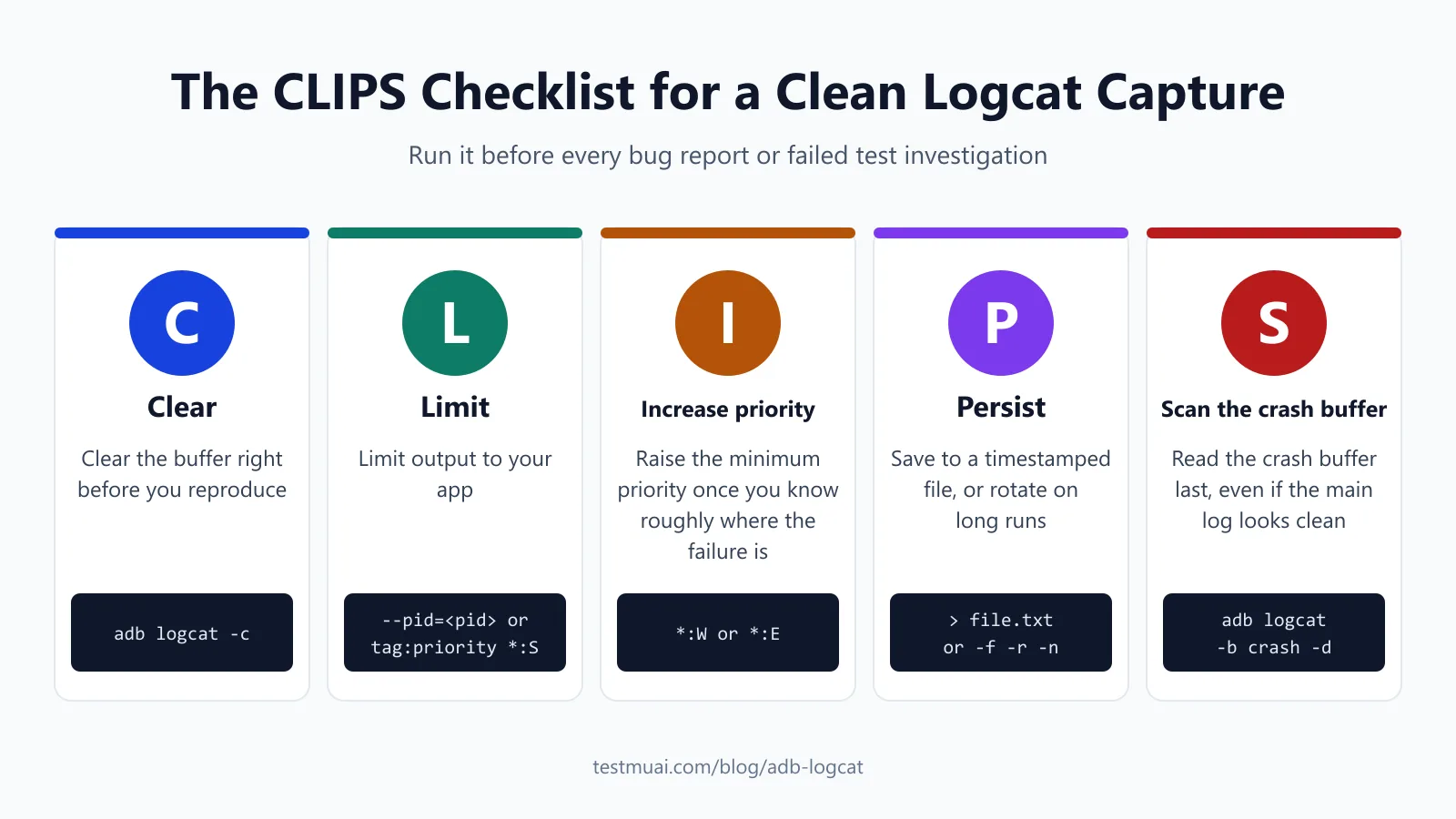
The CLIPS Checklist for a Clean Logcat Capture
Use this 5-step routine before every bug report or failed test investigation so that the log you attach is as short and complete as possible:
- C - clear the buffer right before you reproduce (
adb logcat -c) so as to get rid of any old noise. - L - Limit output to your app via
--pidor a tag filter spec ending in*:S. - I - increase the minimum priority (
*:Wor*:E) once you have a fairly good idea of where the failure is. - P - persist to a file with a timestamped name, or
-fwith-r/-nrotation for long runs. - S - Scan the crash buffer (
-b crash) last, even if the main log appears clean.
adb logcat? Android Studio Logcat? Cloud Device Logs? Which Should You Use?
| Criteria | adb logcat | Android Studio Logcat | Cloud device logs (TestMu AI) |
|---|---|---|---|
| Where it runs | Any terminal, script or CI job | Inside the IDE | In the browser (manual sessions) or the test dashboard (automation) |
| Device needed | One you can connect by USB or Wi-Fi | One you can connect | Cloud-hosted real iOS and Android devices |
| Filtering | Filter specs, --pid, -e regex, grep | Query language (package:mine, level:, is:crash) | Search, app-log filter and log levels in live sessions |
| Saving | Redirect or -f with rotation | Select and copy lines; for a file, run adb logcat alongside | Download icon on the log tab |
| Best for | Scripts, CI, remote shells | Day-to-day coding | Reproducing on device models you do not own; per-test logs at scale |
How Do You Get Logcat Output From Cloud Real Devices?
When a bug only shows up on a phone model that your team doesn't have, you need the same device logs from a remote device. TestMu AI makes those available in both manual and automated sessions.
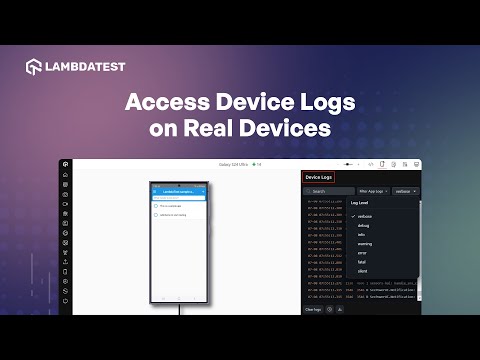
Manual (live) sessions. In the TestMu AI dashboard, open the real device section, select App Testing, upload your app, choose a device and OS version, and click Start. In the session, open the device logs: as shown in the video below, you can search them, filter to app logs, pick log levels, and pause, clear, or download them.
Device Logs are described in the testing tools in-session doc as the application-specific system logs from iOS or Android.
For a quick visual walkthrough of this concept, watch the video below from TestMu AI.
Subscribe to the TestMu AI YouTube channel for more tutorials on testing and automation.
Automated Appium runs. Device logs are off by default. To turn them on, use the devicelog capability within lt:options as per the Debugging Logs documentation.
{
  "lt:options": {
    "devicelog": true,
    "network": true
  }
}
Keep your username and access key in environment variables (e.g., LT_USERNAME and LT_ACCESS_KEY) and load those in your test setup. Don't ever paste them into a URL or commit them. After the run, you'll want to go to the App Automation dashboard, select the build and session, and then in the Logs section select the Device tab.
On Android, these are the Logcat logs. Click the download icon to download the file for offline analysis (it's just below the Appium, Network and Crash tabs).
A Device log from a real Galaxy S26 (Android 16) session with these capabilities, running TestMu AI's sample Android app, uses the same threadtime layout that adb logcat prints:
--------- beginning of main
11-21 08:00:12.172 16264 16886 I DigitalKey: [GmsCarKeyFwWorker] runCheckComponentAvailability interval count = 3
11-21 08:00:12.174 16264 16886 I DigitalKey: [GmsCarKeyFwWorker] runCheckComponentAvailability disabled yet (count=3)
11-21 08:00:12.436 10108 10172 I Finsky  : [251] ItemStore: Not cached: com.lambdatest.proverbial
11-21 08:00:12.438 10108 10174 E Finsky  : [253] ItemStore: getItems RPC failed for item com.lambdatest.proverbial
11-21 08:00:12.559 10108 10108 I Finsky  : [2] Received an install/uninstall event for package com.lambdatest.proverbial
Each line reads date, time, PID, TID, priority, tag and message. Lines from other processes, such as the Play Store's Finsky tag reacting to the app install, sit next to your app's lines, so apply the same PID or tag filters to the downloaded file.
This is the practical bridge between local debug and real device testing at scale. You've got the same reading skills, the same CLIPS routine, and the same crash search; just the device can be any model in the cloud.

What Are the Common ADB logcat Problems and Fixes?
| Problem | Cause | Fix |
|---|---|---|
adb: more than one device/emulator | Several devices attached | Use adb -s <serial> logcat or set ANDROID_SERIAL |
| Early lines are missing from a long run | Ring buffer too small, older lines overwritten | Raise it with adb logcat -G 16M, or persist to a file from the start |
| Device is listed as offline in adb devices | Only the device state accepts commands | Reconnect, check USB debugging is on, and accept the debugging prompt on the phone |
| Your app's lines are missing | Wrong tag in the filter spec, or only main read | Filter by --pid, or add -b all |
--pid filter goes silent | App restarted with a new PID | Re-run pidof after each relaunch |
| Old crash lines confuse the report | Buffer not cleared before reproducing | adb logcat -c first (CLIPS step 1) |
| Debug lines never appear on a release build | R8/ProGuard rules can strip lower-level logs from release APKs | Reproduce on a debug build, or log what you need at Info or above |
One more rule from the Android logging guidance: don't log any personally identifiable information (PII) such as email addresses, phone numbers or names. Logs end up in bug trackers and in CI artifacts, so they're effectively shared files.
Conclusion
Start your next bug report with CLIPS: clear the buffer, reproduce, filter to your app's PID, and attach the crash buffer to the ticket. Keep the command table and the problems table open for the flags you reach for less often.
Debug on the devices your users carry. Reproduce the bug on a real Android or iOS phone in the cloud, read its device logs in the session, and download them for the ticket. For Appium suites, every App Automation session records device logs next to its video.
Need Logcat from phones your team does not own? TestMu AI's App Automation runs your Appium tests on real Android and iOS devices and records device logs, video and network logs for every session.
Author

Sai Krishna
Blogs: 23

Sai Krishna is Director of Engineering at TestMu AI, where he leads agentic AI for quality engineering, building AI agents that autonomously drive mobile and conversational test automation. His current focus is Agent Testing and Model Context Protocol (MCP) support for mobile. He is a core contributor and member of the Appium open-source project and the creator of AppiumTestDistribution and appium-device-farm. With over 14 years of experience including more than 9 years at Thoughtworks as a Principal Consultant, he holds a BSc in Electronics and speaks regularly at TestMu and Appium Conf on Appium, mobile automation, and agentic AI in testing.
Reviewer

Srinivasan Sekar
Reviewer
Srinivasan Sekar is Director of Engineering at TestMu AI, where he leads engineering and open-source initiatives behind the Selenium and Appium automation grid and owns TestMu AI's MCP Server. A committer to Appium and a contributor to Selenium, WebdriverIO, Taiko, and AppiumTestDistribution, he brings over 15 years of experience in quality engineering and open-source technologies. He is the author of the Apress book 'The MCP Standard: A Developer's Guide to Building Universal AI Tools with the Model Context Protocol,' a Certified Kubernetes and Cloud Native Associate, and an international conference speaker. Before TestMu AI he spent over eight years at Thoughtworks as a Principal Consultant and Quality Architect. Srinivasan holds a B.Tech in Information Technology from Anna University.


FAQs
Did you find this page helpful?
More Related Blogs






TestMu AI forEnterprise
Get access to solutions built on Enterprise
grade security, privacy, & compliance
- Advanced access controls
- Advanced data retention rules
- Advanced Local Testing
- Premium Support options
- Early access to beta features
- Private Slack Channel
- Unlimited Manual Accessibility DevTools Tests