
Automate Android and iOS App Tests in the Cloud
Run Your Appium, Espresso, XCUITest, and Maestro Suites as They Are, in Parallel on 50,000+ Real Devices.

Android ANR: What Triggers It and How to Catch It Before Release
Android ANR guide: the 5-second input trigger, Google Play's 0.47% bad-behavior threshold, the usual causes, and how to catch ANRs before release.
Published on:
Quick answer: An Android ANR (Application Not Responding) is triggered when the main thread of an app is blocked for too long (e.g., when an input event doesn't get a response within 5 seconds). Google Play considers a user-perceived ANR rate of 0.47% or more of daily users to be bad. Catch them early with StrictMode, logcat and bug reports and then test on a slow real phone.
ANRs are very rare on a developer's fast phone, and then you'll see them in the Play Console a week after launch. This guide covers what causes them, why Google Play counts them, how you fix them, and a repeatable way to catch them before they even get to the Play Console.
TL;DR
An Android ANR (application not responding) fires when the app's main thread cannot answer a tap or key press within 5 seconds, or when a broadcast receiver, service or job runs past its own timeout. Google Play treats a user-perceived ANR rate of 0.47% of daily users overall, or 8% on one device model, as bad behavior.
Where Each ANR Check Fits
- Android StrictMode: StrictMode in debug builds logs accidental disk and network calls on the main thread while you develop. It is a development signal only and never reports ANRs from production users.
- Logcat and adb bugreport: A filtered logcat dump and an adb bug report capture the ANR entry, traces and system state from one device, which is where you read the main thread stack behind a reproduction.
- App Profiling on real devices: TestMu AI App Profiling adds an ANR count and a log dump to every Appium session on real Android 9+ devices, so low-RAM budget models get checked in each release run.
- Play vitals: Play vitals and Crashlytics report the production ANR rate and its clusters, but only after real users have already hit the freeze.
The Release Rule
Ship when your top journeys show an ANR count of zero on the P0 models and the low-RAM handsets, every log dump has an owner, and the previous release stayed under both Play thresholds on every model.
What Is an Android ANR?
Android's documentation defines it plainly: when an app's UI thread "is blocked for too long, an 'Application Not Responding' (ANR) error is triggered." If the app is in the foreground, the system shows a dialog that lets the user wait or close the app.
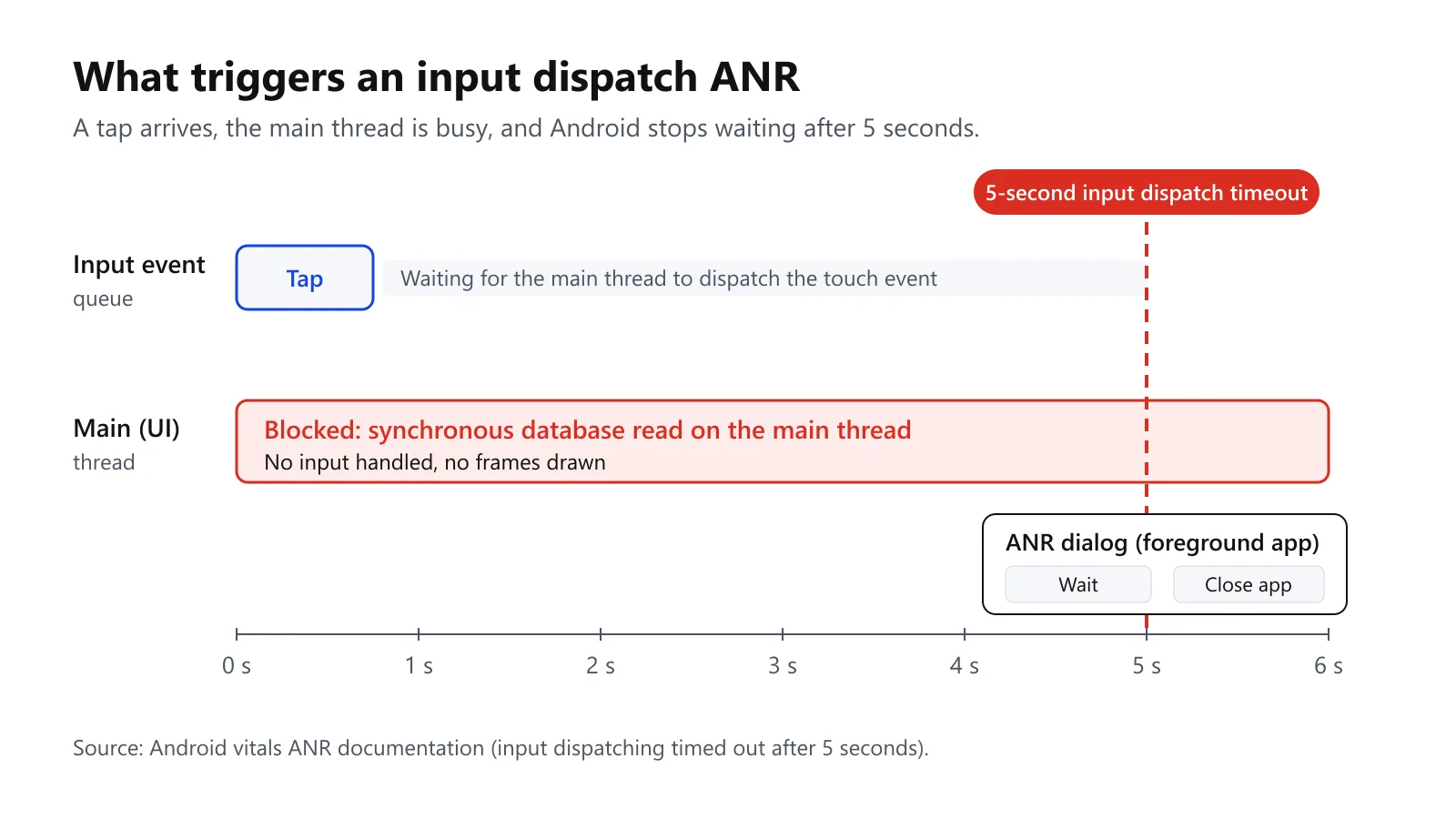
Two points matter for testing:
- ANRs are not crashes. The process can still be running, so crash reporters that only look for exceptions will miss them.
- Some ANRs are silent. Background ANR dialogs only appear when 'Show all ANRs' is turned on in Developer options, so a tester can provoke one without actually seeing anything on screen.
What Causes an ANR and How Long Does Android Wait?
Android uses a different timeout for each type of work. The triggers come from the Android vitals ANR documentation and Android's diagnosis guide:
| ANR type | Trigger |
|---|---|
| Input dispatch | The app has not responded to an input event (key press or touch) within 5 seconds |
| Service execution | Service.onCreate and onStartCommand/onBind don't finish within a few seconds |
| Foreground service start | startForegroundService was called, but startForeground isn't called within 5 seconds |
| Broadcast receiver | onReceive hasn't finished in time: 10 seconds for foreground-priority broadcasts (10-20 s on Android 14+) and 60 seconds for background-priority ones (60-120 s on Android 14+), depending on whether the process is CPU-starved |
| JobScheduler | onStartJob/onStopJob don't return within a few seconds (reported to apps targeting Android 14 and higher) |
Input dispatch timeouts are the ones the user actually perceives, and Google Play counts those.
Why Do ANRs Matter for Google Play?
Google Play tracks a user-perceived ANR rate: "The % of your daily active users who experienced at least one user-perceived ANR". Currently, only Input dispatching timed out ANRs are counted.
Play applies two bad-behavior thresholds:
| Threshold | Bad-behavior line | What Play says happens |
|---|---|---|
| Overall | At least 0.47% of daily active users, across all device models | App likely less discoverable on all devices |
| Per device model | At least 8% of daily users on a single device model | App likely less discoverable on those devices; a warning may show on the store listing |
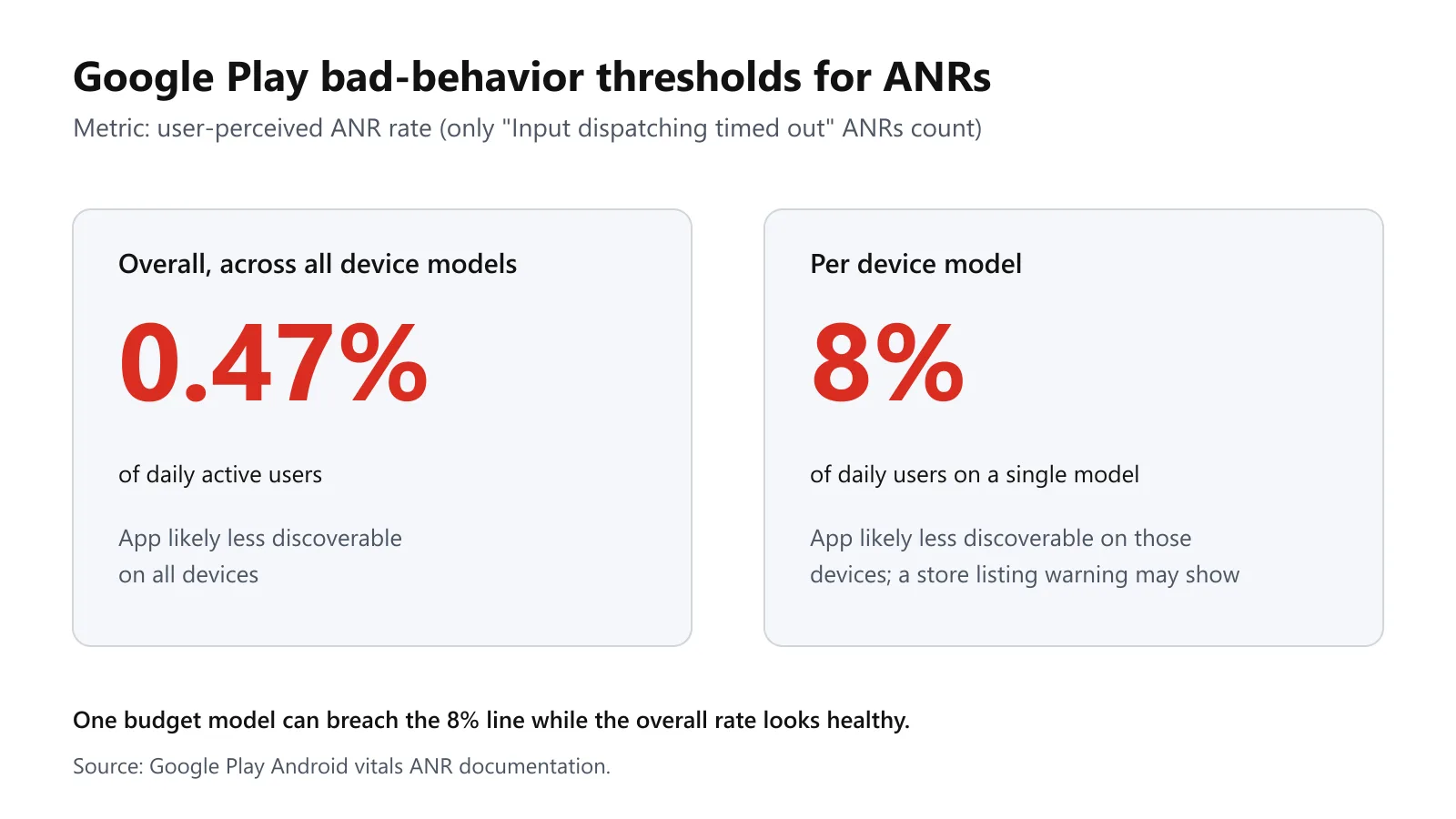
The per-device threshold is why ANR testing is a device issue. An app can be perfectly healthy overall and still breach 8% on one of the budget handsets that no one on the team actually owns.
That's the gap that real device testing closes; you run the same build on the actual devices that your users have, rather than just the fastest phone in the office.
What Causes ANRs in Android Apps?
Android's "Diagnose and fix ANRs" guide lists the common causes of input dispatch timeouts:
| Cause | What the main thread does |
|---|---|
| Slow binder call | Makes one long synchronous binder call |
| Many consecutive binder calls | Makes many synchronous binder calls in a row |
| Blocking I/O | Waits on a database or network call |
| Lock contention | Waits to acquire a lock another thread holds |
| Expensive frame | Renders too much in one frame (severe jank) |
| Blocked by another component | A broadcast receiver or other component is running and blocking it |
| GPU hang | A system or hardware issue blocks rendering |
Other ANR types have their own signatures. A slow app start will show ActivityThread.handleBindApplication on the main thread stack. A broadcast ANR will have the receiver name in the ANR signature with cmp=.
One gotcha: Android will tell you that you can generally just ignore the input dispatch ANR clusters that show nativePollOnce or "main thread idle" as the stack was taken too late. Don't do that with broadcast ANRs. Check the other threads and look out for view threading violations.
In a MoT thread on reproducing ANRs, one tester put their ANR at around 1 in 1,000, and it was very much dependent on RAM, network and device.
One green flagship run tells you absolutely nothing.

Ship ANR-free builds much faster.
Note: Run your Appium suite on real Android devices with App Profiling enabled (as part of the Real Device Plus Automation plans) and you'll get an ANR count and log dump for every session. Check out TestMu AI App Automation.
How Do You Find ANRs in Development?
Five checks catch the majority of problems before a build even gets to QA.
For a quick visual walkthrough of this concept, watch the video below from TestMu AI.
Subscribe to the TestMu AI YouTube channel for more tutorials on testing and automation.
1. Turn on StrictMode in debug builds
StrictMode flags any accidental disk or network work on the main thread as you're developing. The Android StrictMode reference shows you turning it on early in onCreate():
override fun onCreate(savedInstanceState: Bundle?) {
    super.onCreate(savedInstanceState)
    if (BuildConfig.DEBUG) {
        StrictMode.setThreadPolicy(
            StrictMode.ThreadPolicy.Builder()
                .detectAll()
                .penaltyLog()
                .build()
        )
        StrictMode.setVmPolicy(
            StrictMode.VmPolicy.Builder()
                .detectAll()
                .penaltyLog()
                .build()
        )
    }
}
StrictMode will pick up any main thread I/O during development. It will not report production ANRs.
2. Read logcat with a filter
Logcat filters use tag:priority. Silence everything else with *:S, or keep warnings and above on all tags:
# Warnings and errors from every tag
adb logcat "*:W"

# Dump all buffers once, then search the file for ANR entries
adb logcat -b all -d > device-log.txt
grep -n "ANR" device-log.txt
3. Capture a bug report or the ANR trace files
On a physical device, Android's docs will point you to a bug report (either one from the 'Take bug report' developer option or one from your computer):
adb bugreportOn builds where you can run adb root, you can pull the trace files straight off. The older Android versions would have a single /data/anr/traces.txt. The newer versions have several /data/anr/anr_* files.
adb root
adb shell ls /data/anr
adb pull /data/anr ./anr-traces
4. Check thread state in Perfetto
For a blocked main thread, the Perfetto thread state track will show whether the thread was running, runnable or waiting. The Android guide would also suggest you check the system_server threads for lock contention.
5. Log exit reasons from beta builds
On Android 11 (API level 30) and above, ApplicationExitInfo will tell you why your process exited (including ANRs), so ANRs seen by internal and beta testers will be reported to you prior to them reaching production.
How Do You Fix an ANR?
Read the main thread stack to see what it's waiting on and move that work off the main thread. The Android guide shows the pattern with coroutines: load the data on Dispatchers.IO and then switch back to Dispatchers.Main to update the views.
lifecycleOwner.lifecycleScope.launch(Dispatchers.IO) {
    val data = myRepository.getData()
    withContext(Dispatchers.Main) { // Switch context to Main
        myTextView.text = data.title
    }
}
For broadcast receivers that need more time, use goAsync() and always call finish(). The guide notes that the pending result is still subject to the same ANR timeout and that you shouldn't share the worker threads with any other blocking work:
// A receiver with a constructor parameter must be registered at runtime
// with registerReceiver(); manifest declared receivers need a no-arg constructor.
class RefreshReceiver(private val repository: Repository) : BroadcastReceiver() {
    // Dedicated worker, not shared with other blocking work
    private val worker = Executors.newSingleThreadExecutor().asCoroutineDispatcher()

    override fun onReceive(context: Context, intent: Intent) {
        val pendingResult = goAsync()
        CoroutineScope(worker).launch {
            try {
                repository.refresh()
            } finally {
                pendingResult.finish() // always called, even on failure
            }
        }
    }
}
For lock contention - shorten what you do whilst the lock is held. For expensive frames - split the work over multiple frames or move layout and decoding off the main thread.
Why Can't You Just Use a Fast Phone or an Emulator?
ANRs are all down to how long the work takes, so they're down to hardware. A flagship phone will complete a slow database query in time; a budget phone with less RAM and a slower chipset won't.
Play's 8% per model threshold makes this very concrete in that one of the popular low-end models is quite capable of triggering a store warning on its own.
That's why your release check should be running on your P0 models as well as the low RAM budget handsets that a device matrix would normally keep in P2. For ANR runs, you'd want to move those handsets into every release run.
If you don't have a matrix yet, then start with our guide to building an Android device matrix from real data. For the differences between virtual devices and hardware, see emulator vs simulator vs real device.

How Do You Catch ANRs Automatically on Real Devices?
TestMu AI's Real Device Cloud has App Profiling for Appium tests on Android 9 and above. According to the app performance analytics documentation, it tracks an ANR Count per session and a Log Dump for each ANR event, as well as CPU, memory, frame rate, and startup time.
ANR monitoring is only available on Android devices. The documentation also states that you need to set resignApp to true in order to get full functionality.
Here's a pytest-based example that will run one user journey on two real Android devices, with profiling and device logs on. The credentials come from environment variables; the devices and the journey steps are parameters.
import os

import pytest
from appium import webdriver
from appium.options.android import UiAutomator2Options
from appium.webdriver.common.appiumby import AppiumBy

HUB_URL = "https://mobile-hub.lambdatest.com/wd/hub"

# Copy the exact device strings from the TestMu AI device list.
DEVICES = [
    ("Galaxy S20", "10"),
    ("Galaxy S26", "16"),
]

# Accessibility IDs to tap, in order, e.g. "login_button,orders_tab"
JOURNEY = [s for s in os.environ.get("JOURNEY_STEPS", "").split(",") if s]


def build_options(device_name: str, platform_version: str) -> UiAutomator2Options:
    options = UiAutomator2Options()
    options.set_capability("platformName", "Android")
    options.set_capability("LT:Options", {
        "w3c": True,
        "user": os.environ["LT_USERNAME"],
        "accessKey": os.environ["LT_ACCESS_KEY"],
        "platformName": "Android",
        "deviceName": device_name,
        "platformVersion": platform_version,
        "isRealMobile": True,
        "app": os.environ["LT_APP_URL"],      # lt://APP... from the upload API
        "build": os.environ.get("BUILD_NAME", "anr-check"),
        "name": f"anr-journey-{device_name}",
        "devicelog": True,                    # device logs (Logcat on Android)
        "appProfiling": True,                 # ANR Count + Log Dumps
        "resignApp": True,
    })
    return options


@pytest.mark.parametrize("device_name,platform_version", DEVICES)
def test_journey_with_app_profiling(device_name, platform_version):
    assert JOURNEY, "set JOURNEY_STEPS"
    driver = webdriver.Remote(HUB_URL, options=build_options(device_name, platform_version))
    try:
        for accessibility_id in JOURNEY:
            driver.find_element(AppiumBy.ACCESSIBILITY_ID, accessibility_id).click()
    finally:
        driver.quit()
Upload the APK first via the App Upload API and pass the lt:// URL that's returned in LT_APP_URL. Once the run is complete, open the session in the App Automation dashboard. The Logs section has Device, Appium, Network, and Crash tabs as per the debugging logs docs.
To keep the profiling data with your build artifacts, you'll need to fetch it using the session ID that's shown in the session's Meta Data section. Pass the credentials in via -u rather than putting them in the URL:
curl -sS -u "$LT_USERNAME:$LT_ACCESS_KEY" \
  "https://mobile-api.lambdatest.com/mobile-automation/api/v1/sessions/$SESSION_ID/log/appmetrics" \
  -o "appmetrics-$SESSION_ID.json"
The test itself just drives the journey. The ANR check occurs when you go and look at the ANR count and the log dumps in the session or in the saved appmetrics JSON. You store that file with your CI artifacts, and then you look at it prior to approving the release.
In the saved file, the ANR fields sit in the meta block. This one-liner prints them. The output below comes from two sessions of the journey above, one on a Galaxy S20 (Android 10) and one on a Galaxy S26 (Android 16), each tapping through a sample app:
python -c "import json,sys; m=json.load(open(sys.argv[1]))['meta']; print({k: m[k] for k in ('anrCount', 'anr_logs', 'crashCount', 'coldStartup', 'hotStartup')})" "appmetrics-$SESSION_ID.json"

# Galaxy S20, Android 10
{'anrCount': 0, 'anr_logs': '', 'crashCount': 0, 'coldStartup': 303, 'hotStartup': 49}

# Galaxy S26, Android 16
{'anrCount': 0, 'anr_logs': '', 'crashCount': 0, 'coldStartup': 320, 'hotStartup': 22}
anrCount is the number to check before you approve the release. In both sessions it is 0 and anr_logs is empty.
How Do You Manually Reproduce an ANR?
Auto journeys find the ANRs on the paths you've scripted. Manual journeys find the rest, particularly the "it froze when I..." type of report from users.
- In TestMu AI, go to Real Device > App Testing, select Android, upload your app, and then start a session on the model as named in the user report.
- Just go through the user's steps again whilst you're watching the device logs.
- Open the ADB Shell icon on the top bar. The terminal will already have
adb shellapplied, so you just type the command. On public devices, the supported commands includedumpsys,am force-stop,pm clearandam compat enable. On private devices, you can also dologcat,am instrumentand so on (see the real device ADB shell docs). - On an Android 17+ device with a debuggable build of your app, you can turn on a compatibility change which will cause your app to throw an exception and crash if a View API is invoked from the wrong thread. That will expose the view threading violations, which can lead to ANRs. Turn it off when you're finished:
APP_PACKAGE="$1"   # your applicationId, passed as a parameter
adb shell am compat enable ENFORCE_THREAD_CHECKS_ON_VIEW_ROOT_IMPL_APIS "$APP_PACKAGE"
adb shell am compat disable ENFORCE_THREAD_CHECKS_ON_VIEW_ROOT_IMPL_APIS "$APP_PACKAGE"
In the TestMu AI ADB Shell, type the am compat enable command without adb shell. On public devices, only am compat enable is supported, so end the session to reset the device instead of running disable; private devices also allow the full am command. This step applies only if the device list has an Android 17 device for your session.
The MoT thread brings in two more ideas: random input (monkey testing) and loading the device up with a slow network and/or heavy CPU and memory usage prior to going through the flow.
Which ANR Detection Method Should You Use at Each Stage?
| Method | Stage | What it catches | Limitation |
|---|---|---|---|
| StrictMode | Local development | Accidental disk and network work on the main thread | Debug builds only; not a production signal |
| Logcat and adb bugreport | Local and manual QA | ANR entries, traces and system state from one device | One device at a time; needs a reproduction |
| /data/anr traces | Local, root-capable builds | Full thread dumps for each ANR | Requires adb root |
| TestMu AI App Profiling | Automated runs on real devices | ANR Count and Log Dumps per session, across models | Android 9+ for profiling; ANR monitoring is Android only |
| Play vitals and Crashlytics | Production | User-perceived ANR rate, clusters and insights | Arrives after users are affected |
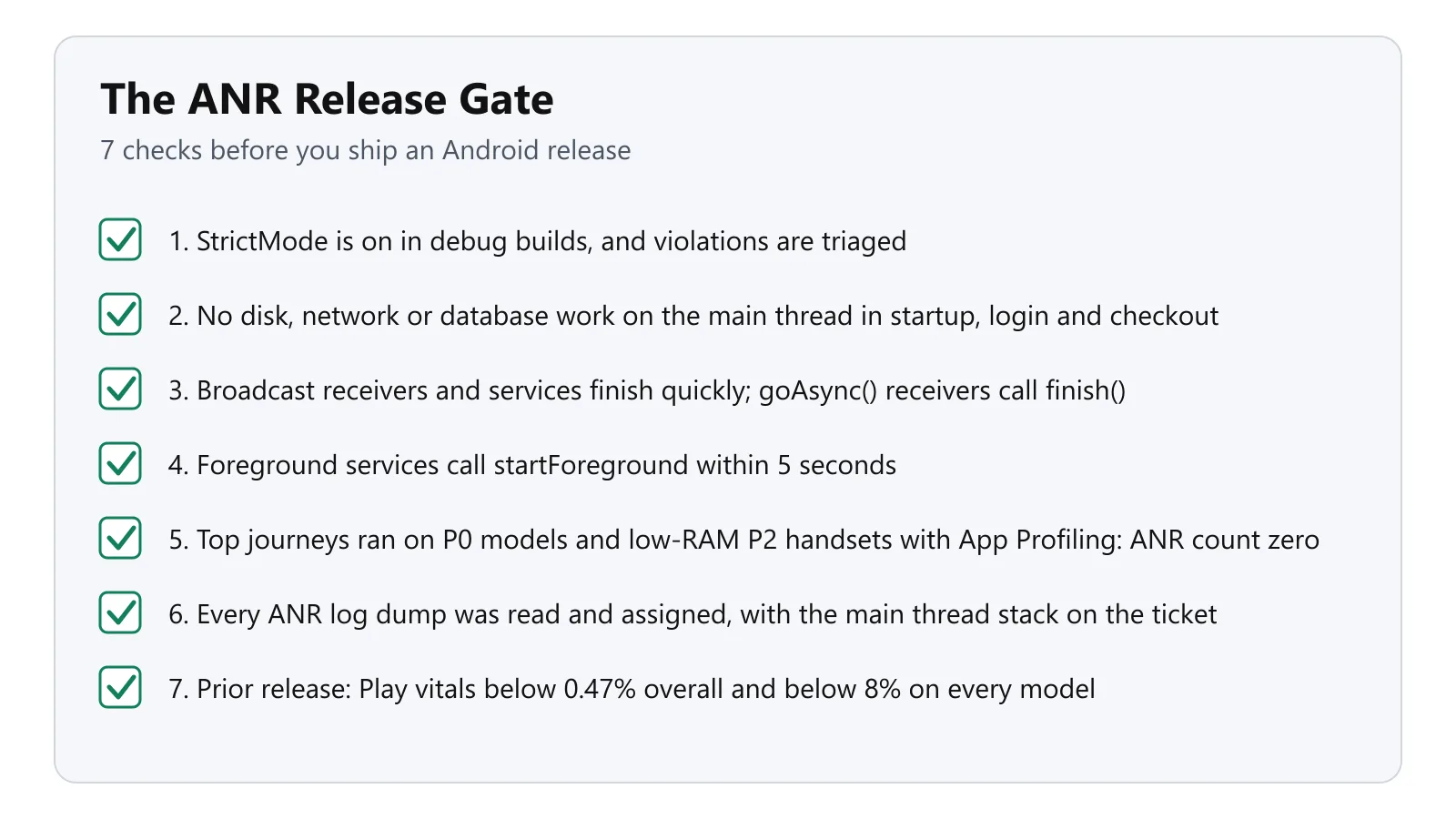
The ANR Release Gate: 7 Checks Before You Ship
Use this checklist on every release candidate:
- StrictMode is on in debug builds and violations are triaged rather than just muted.
- There's no disk, no network, no database work running on the main thread in the startup, login or checkout code paths.
- Broadcast receivers and services finish quickly, and
goAsync()receivers will callPendingResult.finish(). - Foreground services call startForeground within 5 seconds of calling
startForegroundService. - Your top journeys were all on your P0 models as well as the low RAM P2 handsets with App Profiling on, and every session had an ANR count of zero.
- Any ANR log dump was read and assigned, and the main thread stack was attached to the ticket.
- Play vitals are below 0.47% overall and below 8% on every model for the prior release, and any model near the line is in the test run for this release.
Conclusion
An Android ANR is a timing bug (the main thread waited longer than Android will allow). Catch the obvious ones locally using StrictMode, logcat and bug reports, then prove it on the slow phones that your users actually own before Play's thresholds do it for you.
Put the ANR Release Gate into CI. Run your Appium journeys across real Android devices (using App Profiling under Real Device Plus Automation plans) and check the ANR counts and log dumps per session. Get started with TestMu AI App Automation.
Author

Sai Krishna
Blogs: 23

Sai Krishna is Director of Engineering at TestMu AI, where he leads agentic AI for quality engineering, building AI agents that autonomously drive mobile and conversational test automation. His current focus is Agent Testing and Model Context Protocol (MCP) support for mobile. He is a core contributor and member of the Appium open-source project and the creator of AppiumTestDistribution and appium-device-farm. With over 14 years of experience including more than 9 years at Thoughtworks as a Principal Consultant, he holds a BSc in Electronics and speaks regularly at TestMu and Appium Conf on Appium, mobile automation, and agentic AI in testing.
Reviewer

Srinivasan Sekar
Reviewer
Srinivasan Sekar is Director of Engineering at TestMu AI, where he leads engineering and open-source initiatives behind the Selenium and Appium automation grid and owns TestMu AI's MCP Server. A committer to Appium and a contributor to Selenium, WebdriverIO, Taiko, and AppiumTestDistribution, he brings over 15 years of experience in quality engineering and open-source technologies. He is the author of the Apress book 'The MCP Standard: A Developer's Guide to Building Universal AI Tools with the Model Context Protocol,' a Certified Kubernetes and Cloud Native Associate, and an international conference speaker. Before TestMu AI he spent over eight years at Thoughtworks as a Principal Consultant and Quality Architect. Srinivasan holds a B.Tech in Information Technology from Anna University.


FAQs
Did you find this page helpful?
More Related Blogs



TestMu AI forEnterprise
Get access to solutions built on Enterprise
grade security, privacy, & compliance
- Advanced access controls
- Advanced data retention rules
- Advanced Local Testing
- Premium Support options
- Early access to beta features
- Private Slack Channel
- Unlimited Manual Accessibility DevTools Tests