
Test on 50,000+ Real Android and iOS Devices
Live and Automated Real Device Testing on 50,000+ iOS and Android Devices. No Need to Buy or Maintain Device Lab

How to Test Universal Links on iOS (Real iPhones, Not Just Simulators)
Test universal links on iOS in 3 layers: check the apple-app-site-association file, assert routing with Appium, then confirm the handoff on a real iPhone.
Published on:
Short answer: To test universal links on iOS, you need to check three layers in turn: the apple-app-site-association (AASA) file on your domain, your app's routing for each link path, and the handoff from a tapped link to your app on a real iPhone. You need to run the last layer on a build that has the Associated Domains entitlement intact, as device-cloud re-signing will strip it.
A universal link is your standard https:// link which iOS will open in your app rather than in Safari, provided the app is installed and the domain has been approved. It works when a user taps a product link in an email and is taken straight to the product screen. It fails when the same tap takes them to your mobile website.
The failure is very easy to miss, as they still end up on a working page. This guide details a repeatable way to test universal links on iOS prior to every release, either on your own devices or on real iPhones via TestMu AI, and is fully compatible with the broader iOS app testing that your team is already doing.
TL;DR
To test iOS universal links, confirm that your apple-app-site-association file returns a 200 with no redirect, assert that each link path opens the right screen in your app, and then tap the link from Notes or another domain on a real iPhone. That last tap only counts on a build that kept its Associated Domains entitlement.
How Do I Test iOS Universal Links on a Real iPhone?
- AASA file: Serve
apple-app-site-associationfrom the /.well-known/ path over HTTPS with a 200 response and no redirect, on every subdomain your links use. Redirects allowed: No. A 403 or 404 means your site denied access to the file. - OS handoff: Paste the link into Notes and long-press it, or tap it from a page on a different domain, from both a cold start and a warm start. Typing the URL into Safari's address bar never opens the app.
Why Do My Universal Links Open in Safari Instead of My App During Testing?
- Same-domain navigation: Safari keeps a tapped link in the browser when it points to the domain of the page already open, and a typed URL counts as direct navigation. Neither case is a bug, so test from Notes or from another domain.
- Stale AASA copy: On iOS 14 and later, a device downloads the file from Apple's CDN when the app is installed and checks for updates about once a week. Reinstall the app after you change the file, or the device keeps the old rules.
Can I Test Universal Links on a Cloud Device Farm?
- Re-signed builds: Device clouds re-sign uploaded apps to install them, and a re-signed build loses its Associated Domains entitlement. AASA and routing checks on a re-signed build: Yes. Handoff test on a re-signed build: No.
- Enterprise-signed builds: On TestMu AI, an Enterprise-signed .ipa can skip re-signing with the iOS Entitlements toggle in a manual session, or with resignApp set to false in Appium, so the original entitlements stay intact for the handoff test.
How Do I Automate Universal Link Routing Tests for an iOS App With Appium?
- mobile: deepLink: The Appium XCUITest driver's mobile: deepLink method opens a URL with a given bundle ID. Minimum versions: XCUITest driver 4.17, Xcode 14.3, iOS 16.4. Real iPhone required: No. Assert a screen element after each call, so a launch on the wrong screen fails.
What Should a Universal Link Test Checklist Include Before an iOS Release?
- File checks: A 200 response with no redirect on every linked subdomain, app IDs that match the Team ID and bundle ID of the build under test, and a swcutil verify match for every path in your link inventory.
- Device checks: Routing for every path while logged in and logged out, handoff from a cold and a warm start on an entitled build, typed URLs and excluded paths staying in Safari, and a reinstall after any AASA change.
What Does a Universal Link Test Actually Have to Prove?
A universal link only works when all three of the following pieces agree with each other. Apple's supporting associated domains documentation outlines two of those pieces: the apple-app-site-association file on your website and the Associated Domains entitlement in your app. The third piece is your app's own code, which reads the URL and then opens the appropriate screen.
Each piece fails in a different way, so each one needs its own test. The most common reason for a team to ship broken links is that they only test one of them.
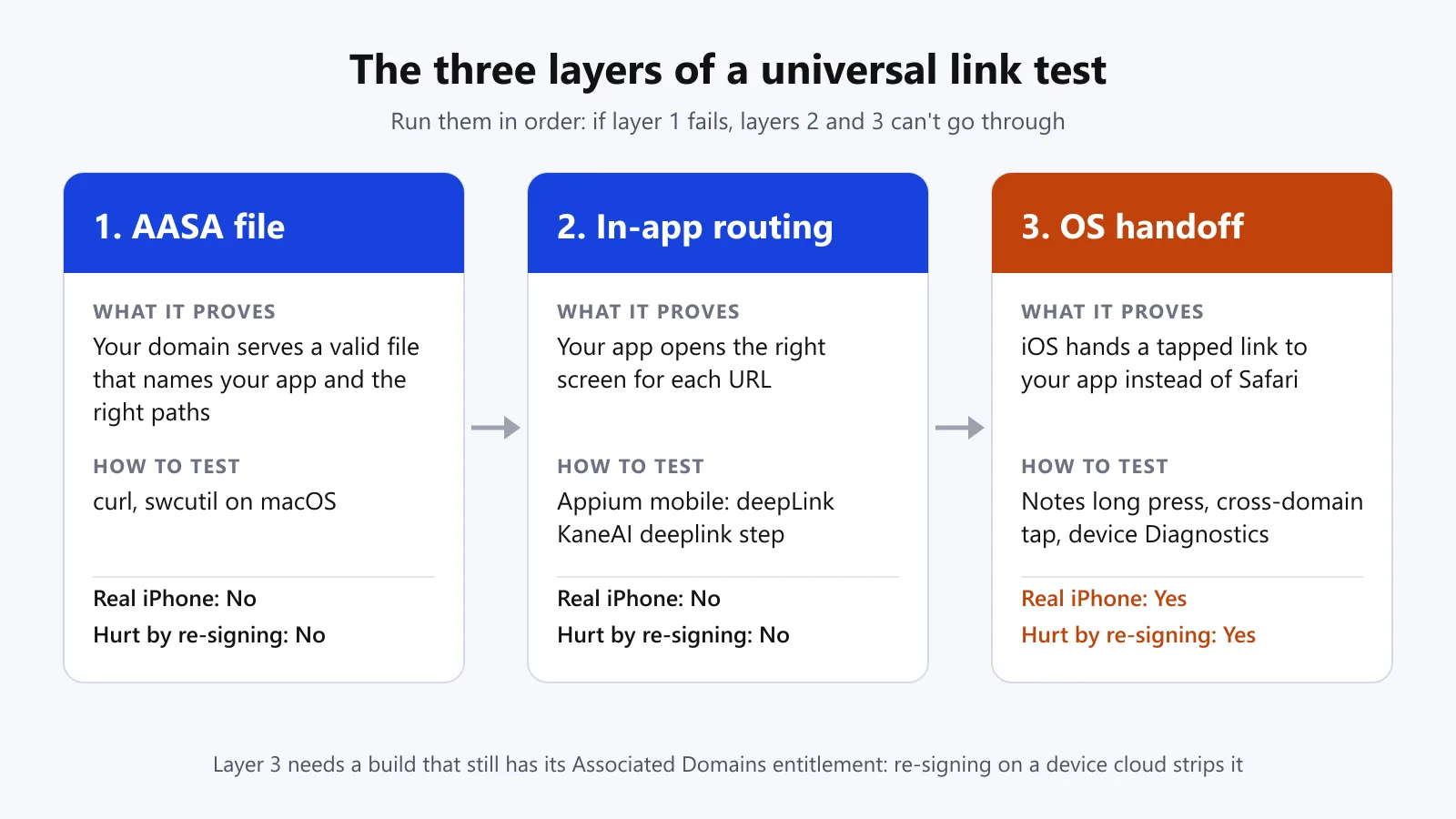
| Layer | What it proves | How to test it | Needs a real iPhone? | Affected by device-cloud re-signing? |
|---|---|---|---|---|
| 1. AASA file | Your domain serves a valid file that names your app and the right paths | curl, swcutil on macOS | No | No |
| 2. In-app routing | Your app opens the right screen for each URL | Appium mobile: deepLink; KaneAI deeplink step for custom schemes | No (simulator or real device) | No |
| 3. OS handoff | iOS hands a tapped link to your app instead of Safari | Manual tap tests, device diagnostics | Yes | Yes: needs the original entitlement |
We call this the AASA -> Route -> Handoff check. Run the layers in that order: if layer 1 fails, then layers 2 and 3 can't go through.
Why Are the Universal Links Not Working and Just Opening Safari Instead of the App?
When a universal link opens Safari, iOS is usually behaving as designed. The first four cases below come from Apple's technote TN3155: Debugging universal links; the fifth comes from Apple's developer forums, and the last two from Apple's associated-domains documentation:
- You typed the URL into Safari. Typing a URL in the address bar is direct navigation and never opens the app.
- You tapped a link on the same domain. Within Safari, a link to the same domain as the current page will remain in the browser. A link to a different domain or subdomain will launch the app.
- The AASA file is either redirected or blocked. A 301 or 302 response is not supported, and a 403 or 404 indicates the file is not publicly accessible.
- The device has an old copy. Apple's CDN will have cached the file. On iOS 14 and later devices, it will download it at install and then check for an update once a week. So if you want to pick up a change, you'll need to reinstall the app.
- The app was re-signed. Device clouds re-sign the uploaded apps so that they can install them on their iPhones. In an Apple Developer Forums thread on cloud testing platforms, an Apple Developer Relations engineer is quite clear that you should never re-sign anything and states that universal links "only work on physical devices with the entitlement".
- The entitlement and the file don't match. The app ID in the AASA file has to be your Team ID and bundle ID exactly as the build you're testing is signed (as per supporting associated domains). A staging build with a different bundle ID will require its own entry.
- Your own app opened the link. Apple's "Allowing apps and websites to link to your content" note says that if your app opens a universal link to your own website via
UIApplication.openor SwiftUIopenURL, then the link won't open in your app.
Keep this list alongside your bug template. The vast majority of "universal link broken" bugs are one of these seven. If you need the end-user and Android side of this, then have a look at why links open in the browser rather than the app.
Test on real iPhones without having to go to a device lab. Just upload your .ipa to the TestMu AI Real Device Cloud, select an iPhone and iOS version, and run layer 2 in a live or automated session. Enterprise-signed builds can also run layer 3 with the iOS Entitlements toggle. Follow the real device setup guide.
Layer 1: How Do You Check the apple-app-site-association File?
The AASA file is located at https://<fully qualified domain>/.well-known/apple-app-site-association (that's Apple's own notation) with no file extension. Apple requires https:// with a valid cert and no redirects. Each app is listed as <Team ID>.<Bundle ID>, and it's the components array that determines which paths will launch the app.
Run these checks from any terminal prior to you touching a device. The domain is a parameter, so the same script will work for both staging and production:
#!/usr/bin/env bash
# usage: ./check-aasa.sh shop.example.com
DOMAIN="$1"
URL="https://${DOMAIN}/.well-known/apple-app-site-association"

# 1. Must return 200 straight away. A 301/302 is a redirect, and iOS doesn't follow redirects.
curl -s -o /dev/null -w "status=%{http_code} redirect=%{redirect_url}\n" "$URL"

# 2. Must be reachable by any user agent (TN3155 uses a bot-style user agent for this check).
curl -s -o /dev/null -w "bot-agent status=%{http_code}\n" -A "MyAgent-Bot/*" "$URL"

# 3. Must be valid JSON.
curl -s "$URL" | python3 -m json.tool > /dev/null && echo "json=valid"
On a Mac, swcutil does a bit more. sudo swcutil dl -d <domain> will confirm the file has downloaded, and sudo swcutil verify -d <domain> -j <path-to-JSON> -u <URL> will let you know whether a particular URL path is matched by an exclude rule or is blocked.
Layer 1 checklist
- File returns HTTP 200 at
/.well-known/apple-app-site-associationwith no redirect - Each subdomain you link to (for example, www. and the bare domain) serves its own file
- App IDs use the TeamID.BundleID format and match the build you are testing
- You use either the
appIDs+componentsformat or the olderappID+pathsformat, not a mix - Every path in your link inventory matches, and every excluded path is blocked
Layer 2: How Do You Test In-App Routing for Each Link?
Layer 2 is asking a more specific question: when your app receives that URL, does it open the correct screen?
That's something you can answer with Appium's XCUITest driver, which has an execute method to open a URL in an app. The parameters are url and an optional bundleId. You'll need XCUITest driver 4.17+, Xcode 14.3+ and iOS 16.4+ (for Appium XCUITest execute methods).
The test below is written for TestMu AI real iPhones. The credentials and device names come from the environment variables, the link cases come from a JSON file (so QA can add the paths in without having to edit the code), and one device session is shared across all the cases in the module to keep real device time down. It asserts on a screen element, so a link that just launches the app will fail loudly rather than pass by accident.
# test_link_routing.py
import json
import os
import pytest
from appium import webdriver
from appium.options.ios import XCUITestOptions
from appium.webdriver.common.appiumby import AppiumBy
from selenium.webdriver.support import expected_conditions as EC
from selenium.webdriver.support.ui import WebDriverWait

HUB = "https://mobile-hub.lambdatest.com/wd/hub"

# link_cases.json: [{"url": "https://shop.example.com/buy/42", "screen_id": "product-detail"}, ...]
with open(os.environ["LINK_CASES_FILE"]) as f:
    CASES = json.load(f)

@pytest.fixture(scope="module")
def driver():
    options = XCUITestOptions().load_capabilities({
        "platformName": "iOS",
        "LT:Options": {
            "w3c": True,
            "user": os.environ["LT_USERNAME"],
            "accessKey": os.environ["LT_ACCESS_KEY"],
            "platformName": "iOS",
            "deviceName": os.environ["LT_DEVICE"],           # exact name from the device list
            "platformVersion": os.environ["LT_IOS_VERSION"],
            "isRealMobile": True,
            "app": os.environ["LT_IOS_APP_URL"],             # lt://APP... from the upload response
            "build": "universal-link-routing",
            "name": "link routing",
        },
    })
    drv = webdriver.Remote(HUB, options=options)
    yield drv
    drv.quit()

@pytest.mark.parametrize("case", CASES, ids=[c["url"] for c in CASES])
def test_link_opens_expected_screen(driver, case):
    driver.execute_script("mobile: deepLink", {
        "url": case["url"],
        "bundleId": os.environ["APP_BUNDLE_ID"],
    })
    WebDriverWait(driver, 15).until(
        EC.presence_of_element_located((AppiumBy.ACCESSIBILITY_ID, case["screen_id"]))
    )
Two things to know about this layer:
- Passing the bundleId tests your app's routing, not the OS handoff. It's telling iOS which app to use so it bypasses the domain check. That's why there's a layer 3.
- Look out for "app opened, wrong screen". In an Appium Discuss thread, a tester reports that the call to the app did, in fact, launch the app, just didn't deliver the URL on a cloud device. The screen assertion above is precisely what picks that up.
If your app supports a custom URL scheme (e.g. myapp://product/42) then add those URLs to the same JSON file. Testers who don't write code can check out custom scheme links such as myapp://product/42 in KaneAI using a deeplink test step (which takes the URL and the app's bundle ID).
Dry-Run the Test Against Safari First
Before your own app is wired up, point the same file at Safari to prove that the device session, the capabilities and the mobile: deepLink call all work on a real iPhone. Set APP_BUNDLE_ID to com.apple.mobilesafari and use TabBarItemTitle, the accessibility ID of Safari's address bar, as each case's screen_id:
[
  {"url": "https://www.testmuai.com/", "screen_id": "TabBarItemTitle"},
  {"url": "https://www.testmuai.com/real-device-cloud/", "screen_id": "TabBarItemTitle"}
]
On a TestMu AI iPhone 15 running iOS 17, both cases pass with the test file unchanged:
test_link_routing.py::test_link_opens_expected_screen[https://www.testmuai.com/] PASSED [ 50%]
test_link_routing.py::test_link_opens_expected_screen[https://www.testmuai.com/real-device-cloud/] PASSED [100%]

============================= 2 passed in 37.79s ==============================
This dry run checks the harness only. Switch APP_BUNDLE_ID back to your app and use its own screen IDs before you count layer 2 as done.
Layer 3: How Do You Confirm That iOS Hands the Link to Your App?
Layer 3 is the only one that actually proves what the user will see. It requires a real iPhone, a user-style tap, and a build that still has its Associated Domains entitlement. Use those three checks: the first and third are from TN3155, and the second is a direct result of the same-domain rule.
- Notes long press. Paste the link into Notes and long-press it. If the association is successful, the menu will give you the option to open it in your app as well as in the browser.
- Cross-domain tap. Have a simple test page on a different domain that just lists all the links in your inventory. Open it in Safari and tap each link.
- Device diagnostics. With Developer Mode on, go to Settings > Developer > Universal Links > Associated Domains Development, open Diagnostics, and enter the full URL. Diagnostics will confirm that the URL is correct (it won't open the app, so you'd need to pair this with check 1 or 2).
Test each link on both a cold start (app not running) and a warm start (app in the background). The routing code can be different in the two cases, and SwiftRocks notes that on a cold launch the link is read from a different location when the app is using scene delegates.
On TestMu AI, start a manual session from Real Device > App Testing. Upload your Enterprise-signed .ipa, turn on the iOS Entitlements toggle, pick your device and iOS version, and then click Start. This is a real device session, so you can open up your cross-domain test page in Safari and just tap each link as a user would.
Quick check on the simulator: xcrun simctl openurl booted https://shop.example.com/buy/42 will open that URL in the booted simulator. Useful for quick routing checks during development; just remember you'll need to do the handoff on a real iPhone prior to release.
Does Re-Signing on a Device Cloud Break the Universal Links?
Yes, it can. To install your build onto its iPhones, TestMu AI re-signs the apps you upload with its own certificate (as other device clouds do).
In the forum thread referenced above, an Apple Developer Relations engineer explicitly advises against re-signing of any kind and states that universal links only work on actual physical devices with the entitlement. The accepted answer to that thread goes on to say that apps distributed via the Apple Developer Enterprise Program or via TestFlight don't require re-signing, which is precisely why the Enterprise path below works.
For layer 3, use one of these builds:
| Build | What happens on TestMu AI | Layers you can run |
|---|---|---|
| Enterprise-signed .ipa | Manual: turn on the iOS Entitlements toggle when the session starts. Automation: set the resignApp capability to false. Both skip re-signing so the original certificates are kept, as described in iOS Entitlements. | All three layers |
| App Store / Ad Hoc / Development build | Re-signing applies, so the Associated Domains entitlement does not survive | Layers 1 and 2; run layer 3 on a device you provision through Xcode or TestFlight, as Apple recommends |
For an Enterprise build in automation, add one line to the LT:Options block in the layer 2 example:
"resignApp": False, # Enterprise builds only; skips re-signing so the app keeps the signature it was built withThis split will keep your results deterministic. A layer 3 failure on a re-signed build is to be expected and will tell you nothing, so you won't run it there.
If all your cloud tests need is a link to get the user back into the app (e.g., a sign-in callback), the same forum thread has another suggestion in the accepted answer: a separate build configuration for your cloud tests that uses a custom URL scheme for the callback, which iOS will route to your app, whichever app it's signed to. You need to have at least one handoff test on a build with its entitlement intact, as the custom scheme doesn't test the universal link at all.
What Should a Universal Link Test Matrix Cover?
Build the matrix from your link inventory rather than from guesswork. One row per link path, then run each of those rows through the scenarios:
| Scenario | Layer | Expected result |
|---|---|---|
Link path listed in components | 1 | swcutil verify reports a match |
Path marked "exclude": true | 1 | Reported as a blocked match; opens in Safari on device |
| App installed, cold start, tap from another domain | 3 | App opens on the right screen |
| App installed, running in background, tap from Notes | 3 | App comes to the front on the right screen |
| URL typed into Safari's address bar | 3 | Opens in Safari (by design) |
| App not installed | 3 | Opens the website in Safari |
| Logged-out user taps a link to a logged-in screen | 2 | Login screen, then the target screen after login |
| Unknown or expired item ID in the path | 2 | A clear fallback screen, never a crash |
Run the matrix on the oldest and most recent iOS versions that you support. There was a change to iOS behavior around the AASA CDN in iOS 14, so it's worth having a row for the older devices if you still support them.
Universal Link Testing Checklist
Copy this into your release checklist:
- AASA returns 200 over HTTPS with no redirect, on every linked subdomain
- App IDs in the AASA match the Team ID and bundle ID of the build under test
- Every link path in the inventory passes swcutil verify
- In-app routing passes for every path, logged in and logged out
- Handoff passes from a cold start and a warm start on a build with its entitlement intact
- Typed URLs and excluded paths stay in Safari
- After changing the AASA, the app was reinstalled before retesting
If you're also testing push notifications, then the deep link in the push payload is a fourth entry point; our guide to testing push notifications on real devices covers that route. Teams who are moving their existing Appium suites over to TestMu AI can of course re-use the capabilities from the Appium migration guide.
Watch: Testing Apps on Real iPhones
For a quick visual walkthrough of this concept, watch the videos below from TestMu AI.
Subscribe to the TestMu AI YouTube channel for more tutorials on testing and automation.
Conclusion
Universal links fail silently, so the only real defense is a release check. Validate the file, assert the routing, and then tap the link as a user would on a real iPhone. Start testing on TestMu AI Real Device Cloud and add the three layers to your next release run.
Testing web or mobile apps without writing code? KaneAI by TestMu AI turns plain-English instructions into tests.
Author

Sai Krishna
Blogs: 23

Sai Krishna is Director of Engineering at TestMu AI, where he leads agentic AI for quality engineering, building AI agents that autonomously drive mobile and conversational test automation. His current focus is Agent Testing and Model Context Protocol (MCP) support for mobile. He is a core contributor and member of the Appium open-source project and the creator of AppiumTestDistribution and appium-device-farm. With over 14 years of experience including more than 9 years at Thoughtworks as a Principal Consultant, he holds a BSc in Electronics and speaks regularly at TestMu and Appium Conf on Appium, mobile automation, and agentic AI in testing.
Reviewer

Srinivasan Sekar
Reviewer
Srinivasan Sekar is Director of Engineering at TestMu AI, where he leads engineering and open-source initiatives behind the Selenium and Appium automation grid and owns TestMu AI's MCP Server. A committer to Appium and a contributor to Selenium, WebdriverIO, Taiko, and AppiumTestDistribution, he brings over 15 years of experience in quality engineering and open-source technologies. He is the author of the Apress book 'The MCP Standard: A Developer's Guide to Building Universal AI Tools with the Model Context Protocol,' a Certified Kubernetes and Cloud Native Associate, and an international conference speaker. Before TestMu AI he spent over eight years at Thoughtworks as a Principal Consultant and Quality Architect. Srinivasan holds a B.Tech in Information Technology from Anna University.


FAQs
Did you find this page helpful?
More Related Blogs

TestMu AI forEnterprise
Get access to solutions built on Enterprise
grade security, privacy, & compliance
- Advanced access controls
- Advanced data retention rules
- Advanced Local Testing
- Premium Support options
- Early access to beta features
- Private Slack Channel
- Unlimited Manual Accessibility DevTools Tests