
Automate Android and iOS App Tests in the Cloud
Run Your Appium, Espresso, XCUITest, and Maestro Suites as They Are, in Parallel on 50,000+ Real Devices.

- TestMu AI (Formerly LambdaTest)
- /
- Blog
- /
- How to Migrate Appium Tests From BrowserStack App Automate to TestMu AI
How to Migrate Appium Tests From BrowserStack App Automate to TestMu AI
Move Appium tests from BrowserStack App Automate to TestMu AI real devices: app upload, capability mapping, SDK removal, CI secrets and common errors.
Published on:
Most of an Appium migration is configuration rather than test code. Your locators, your page objects and your assertions are all completely agnostic as to which device cloud they're running on. The only things that change are five things around the test itself: the endpoint, the credentials, the app reference, the vendor options block, and the runner/CI setup.
This guide maps each one from BrowserStack App Automate to TestMu AI real devices, with copy-and-paste code for both Android and iOS. If you're still in the stage of comparing vendors on price, devices, and features, then start with our BrowserStack alternative comparison. This guide assumes you've already made your decision and it's time to do the Appium move.
BrowserStack details checked against BrowserStack's public docs as of November 2026
TL;DR
A BrowserStack App Automate migration to TestMu AI keeps your Appium test steps, locators, page objects and assertions as they are. Only the setup around the tests changes: the hub endpoint, the credentials, the app reference, the vendor options block, and the runner and CI configuration.
To migrate Appium tests from BrowserStack App Automate to TestMu AI:
- Re-upload your app.
- Point the driver at
https://mobile-hub.lambdatest.com/wd/hub - Rename
bstack:optionstoLT:Optionsand addisRealMobile: true. - Just remove the BrowserStack SDK and the
browserstack.yml. - Swap your CI secrets.
Key Facts for a BrowserStack App Automate Migration
- BrowserStack to LambdaTest migration: LambdaTest is now TestMu AI, so a BrowserStack to LambdaTest migration follows these same steps. The Appium endpoint and the app upload API still use lambdatest.com hosts: mobile-hub.lambdatest.com and manual-api.lambdatest.com.
- BrowserStack SDK and browserstack.yml: Remove both before the first TestMu AI run. BrowserStack documents that SDK config capabilities override the webdriver URL and capabilities, so a leftover SDK can keep sending sessions to BrowserStack.
- bs:// app URL: A BrowserStack bs:// app URL does not carry over to TestMu AI. Upload the same binary to the TestMu AI upload API and pass the returned lt:// value, which the response carries in an app_url field, as the app capability.
- Legacy device and os_version capabilities: Map device to deviceName and os_version to platformVersion inside LT:Options, then drop every browserstack.* key, including browserstack.appium_version.
- Real devices: TestMu AI App Automation runs the migrated Appium suite on 50,000+ real iOS and Android devices once isRealMobile is set as a boolean in LT:Options.
What Changes When You Take Your Appium Tests off of BrowserStack App Automate?
Five things change, and none of them touch your test steps. Use this 5-Swap checklist to track the migration:
- Endpoint swap. Change
hub.browserstack.comtomobile-hub.lambdatest.com. - Credential swap. Update the
BROWSERSTACK_*variables toLT_USERNAMEandLT_ACCESS_KEY. - App swap. Re-upload the binary and then change
bs://to thelt://app URL that the upload returns. - Options swap. Change
bstack:optionstoLT:Optionsand rename the build, project and session keys. - Runner swap. Remove the BrowserStack SDK and
browserstack.ymland then set your parallelism and secrets in your own runner and CI.
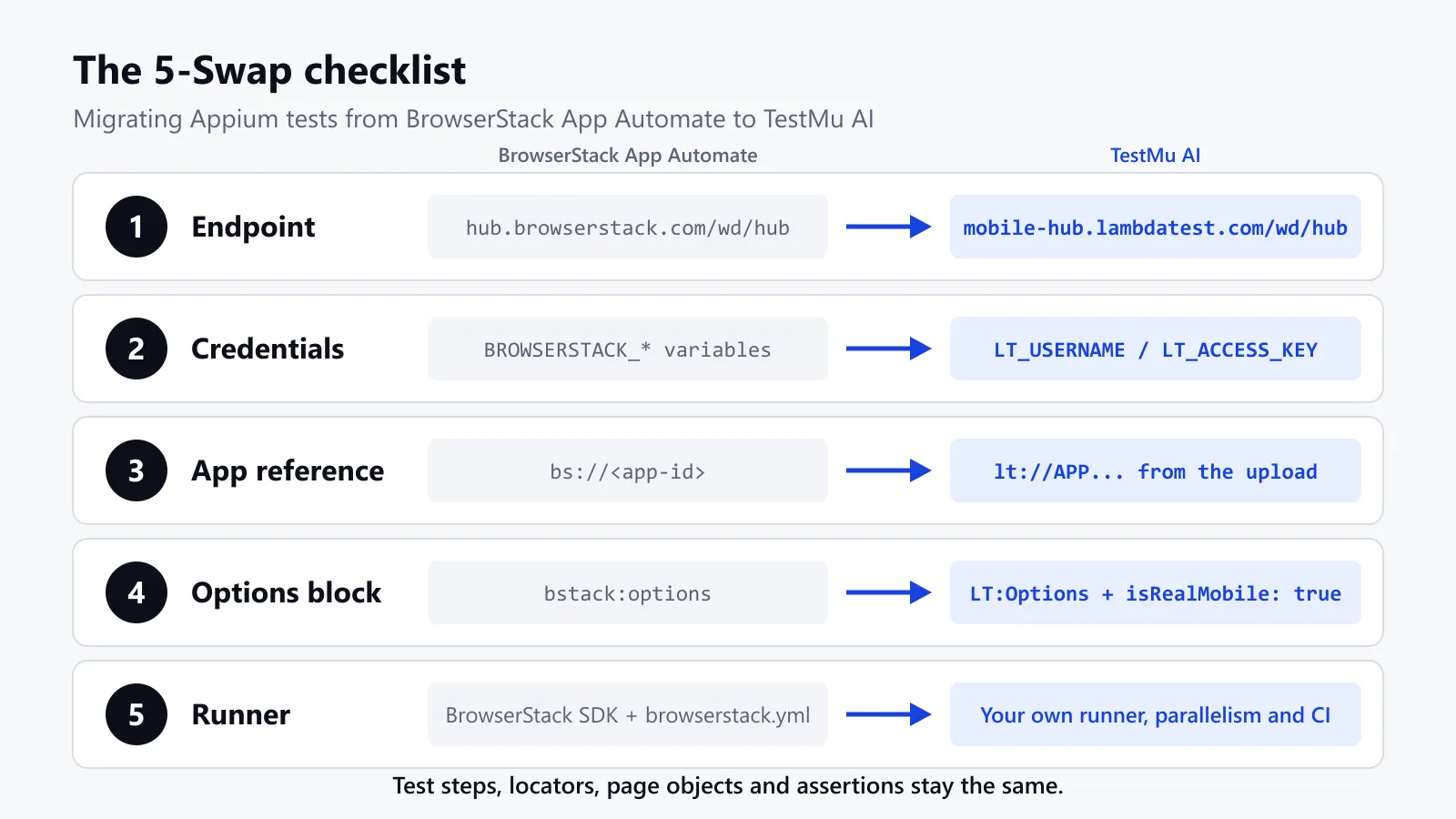
Here is the full mapping. For the short version, see the Appium migration reference in the docs:
| What changes | BrowserStack App Automate | TestMu AI |
|---|---|---|
| Appium hub URL | https://hub.browserstack.com/wd/hub | https://mobile-hub.lambdatest.com/wd/hub. Don't use hub.lambdatest.com, which serves Selenium browser sessions. |
| Credential env vars | BROWSERSTACK_USERNAME, BROWSERSTACK_ACCESS_KEY | LT_USERNAME, LT_ACCESS_KEY |
| Where credentials go | userName and accessKey inside bstack:options | user and accessKey inside LT:Options |
| App upload API | POST https://api-cloud.browserstack.com/app-automate/upload | POST https://manual-api.lambdatest.com/app/upload/realDevice |
| App reference | bs://<app-id> | lt://APP<id>, returned at upload. The App Testing APIs doc also lets you use a custom_id (see below). |
| Vendor options block | bstack:options | LT:Options |
| Device (W3C caps) | deviceName, platformVersion | deviceName, platformVersion (copy exact strings from the TestMu AI device list) |
| Device (legacy JSON Wire caps) | device, os_version | deviceName, platformVersion |
| Legacy vendor keys | browserstack.user, browserstack.key, browserstack.appium_version | Drop them. Credentials go in LT:Options. TestMu AI's Appium examples set no Appium-version capability. |
| Real device vs virtual | n/a (App Automate runs on real devices) | isRealMobile: true for real devices; false for emulators/simulators |
| Grouping names | projectName, buildName, sessionName | project, build, name |
| Local or staging backends | BrowserStack Local (managed by the SDK) | tunnel: true, plus tunnelName when you run several tunnels |
| Config file and SDK | browserstack.yml plus the BrowserStack SDK | None required. Use the plain Appium client. |
| Idle timeout | Check your BrowserStack plan settings | idleTimeout, default 120 seconds |
Both vendors have their options tucked away in a key with a colon, as per the W3C WebDriver spec, which requires it. Extension capability keys "must contain a ':' (colon) character" to denote a vendor namespace. That's why this is a rename rather than a rewrite.
On legacy capabilities? Map device to deviceName and os_version to platformVersion and drop every browserstack.* key.
How Do You Upload Your App and Then Reference It in the Tests?
Upload the same app binary that you're uploading to BrowserStack right now and use the lt:// app URL from the upload response as your app capability. That's exactly what TestMu AI's Appium troubleshooting guide walks you through.
On BrowserStack, the upload goes to api-cloud.browserstack.com/app-automate/upload and returns {"app_url":"bs://<app-id>"} (BrowserStack docs). On TestMu AI (App Testing APIs):
curl -u "$LT_USERNAME:$LT_ACCESS_KEY" -X POST \
  "https://manual-api.lambdatest.com/app/upload/realDevice" \
  -F "appFile=@app/build/outputs/apk/release/app-release.apk" \
  -F "name=checkout-app" \
  -F "visibility=team"
The response contains the app URL in the format lt://APP123456789123456789. Pass that as the 'app'. The docs don't actually name the JSON field that contains it, so just copy the app URL that's in the response rather than trying to parse some field name that you've guessed.
Alternative: custom_id.
- You can add
-F "custom_id=checkout-app"to the upload. The App Testing APIs doc states that you can use thecustom_idto run your automation on the same app without having to remember its app URL. - LambdaTest sample projects on GitHub will pass that ID as the app value.
- The docs don't show that capability line, and they don't say what happens if you upload again with an existing
custom_id. This guide therefore uses thelt://URL everywhere.
Three practical notes:
- Re-upload after any binary change and take the
lt://value from that upload. The troubleshooting guide lists a stale or missing app value as one of the most common causes of 'app not found' errors. - Use visibility=team so the whole team can run against the same upload. The default is individual.
- Check the size limit. The App Management docs state the upload size limit is 1GB. The App Testing APIs docs reference .ipa files and link to a sample iOS app (proverbial_ios.ipa). The real device upload examples in that document are for .apk files.
Prefer to watch first? This TestMu AI walkthrough covers getting the credentials, generating the capabilities, uploading your APK or IPA, and then reviewing the results on the App Automation dashboard: How To Perform App Automation On Real Devices.
How Do You Rewrite bstack:options as LT:Options?
Keep the driver code and just change the capabilities. Keep the credentials in the environment variables within LT:Options (not in the URL) so they don't end up in the CI logs. The keys are the same in Java, JavaScript, and C#.
Before: BrowserStack App Automate (Android)
import os
from appium import webdriver
from appium.options.android import UiAutomator2Options

options = UiAutomator2Options().load_capabilities({
    "platformName": "android",
    "deviceName": "Google Pixel 3",
    "platformVersion": "9.0",
    "app": os.environ["BROWSERSTACK_APP_URL"],          # bs://<app-id>
    "bstack:options": {
        "userName": os.environ["BROWSERSTACK_USERNAME"],
        "accessKey": os.environ["BROWSERSTACK_ACCESS_KEY"],
        "projectName": "Checkout app",
        "buildName": "nightly-regression",
        "sessionName": "login smoke",
    },
})

driver = webdriver.Remote("https://hub.browserstack.com/wd/hub", options=options)
After: TestMu AI real devices (Android)
import os
from appium import webdriver
from appium.options.android import UiAutomator2Options

options = UiAutomator2Options().load_capabilities({
    "platformName": "Android",
    "LT:Options": {
        "w3c": True,
        "user": os.environ["LT_USERNAME"],
        "accessKey": os.environ["LT_ACCESS_KEY"],
        "platformName": "Android",
        "deviceName": "Galaxy S20",        # copy exact strings from the TestMu AI device list
        "platformVersion": "10",
        "isRealMobile": True,              # boolean, not the string "true"
        "app": os.environ["LT_APP_URL"],   # lt://APP... from the upload response
        "project": "Checkout app",
        "build": "nightly-regression",
        "name": "login smoke",
        "video": True,
        "devicelog": True,
    },
})

driver = webdriver.Remote("https://mobile-hub.lambdatest.com/wd/hub", options=options)
After: TestMu AI real devices (iOS)
import os
from appium import webdriver
from appium.options.ios import XCUITestOptions

options = XCUITestOptions().load_capabilities({
    "platformName": "ios",
    "LT:Options": {
        "w3c": True,
        "user": os.environ["LT_USERNAME"],
        "accessKey": os.environ["LT_ACCESS_KEY"],
        "platformName": "ios",
        "deviceName": "iPhone 12",         # copy exact strings from the TestMu AI device list
        "platformVersion": "14",
        "isRealMobile": True,
        "app": os.environ["LT_IOS_APP_URL"],  # lt://APP... from your iOS app upload
        "build": "nightly-regression",
        "name": "login smoke",
    },
})

driver = webdriver.Remote("https://mobile-hub.lambdatest.com/wd/hub", options=options)
The TestMu AI Appium troubleshooting guide states that omitting any of deviceName, platformVersion, platformName, isRealMobile, or app will result in a failure to create the session. The TestMu AI docs 'Desired Capabilities in Appium' reference lists the rest as well:
networkqueueTimeout(default 600, range 300-900)region(EU, US, AP)autoGrantPermissions
Upload Response and Real-Device Run Output
The upload response is JSON. Upload TestMu AI's sample Proverbial APK with the curl command from the upload section, and the app URL comes back in an app_url field:
{
  "app_id": "APP10160181461794296645519116",
  "name": "checkout-app",
  "type": "android",
  "url": "https://prod-mobile-artefacts.lambdatest.com/assets/docs/proverbial_android.apk",
  "app_url": "lt://APP10160181461794296645519116",
  "min_version": "4.0",
  "max_version": "12.0",
  "custom_id": null
}
Set LT_APP_URL to that value and the Android sample above opens a session on a real Galaxy S20 running Android 10, with the uploaded app already launched:
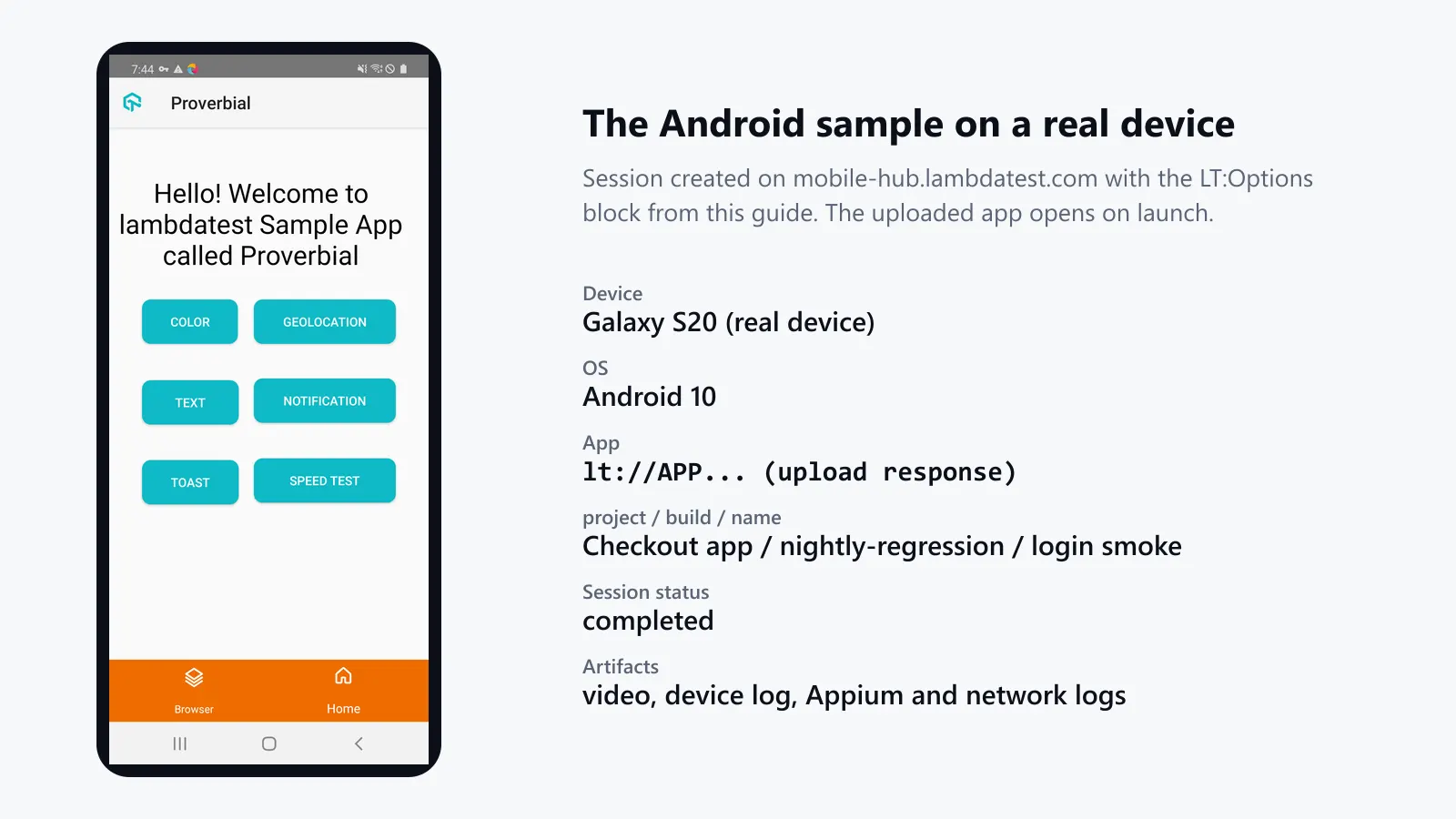
The session is filed under the build and name values from LT:Options. The App Automation sessions API returns its record; here it is trimmed to the fields that matter, with the long URLs shortened:
{
  "build_name": "nightly-regression",
  "name": "login smoke",
  "device_name": "Galaxy S20",
  "platform": "android",
  "os_version": "10",
  "status_ind": "completed",
  "video_url": "https://prod-mobile-artefacts.lambdatest.com/.../video/video.mp4",
  "device_logs_url": "https://mobile-api.lambdatest.com/mobile-automation/api/v1/sessions/<session_id>/log/devicelog"
}
The iOS sample behaves the same way on a real iPhone 12 running iOS 14, once TestMu AI's sample .ipa is uploaded and its lt:// value is set in LT_IOS_APP_URL.

Run your first migrated test on a real device.
Note: Do a smoke test, apply the 5-Swap checklist, and run it with TestMu AI App Automation on real iOS and Android devices. To try it, start free.
What Do You Do With the BrowserStack SDK and the browserstack.yml?
Remove both of them before you run anything on TestMu AI; otherwise, your tests may just carry on to BrowserStack.
BrowserStack's docs state that SDK config capabilities will override your existing webdriver URL and capabilities and that the config file wins if both the config and the code set a value (BrowserStack SDK core concepts). So a hub URL that you've changed in your code can be silently overridden by an SDK that's still installed.
Work through this checklist:
- Remove the BrowserStack SDK package from your dependency file (
pom.xml,build.gradle,package.jsonorrequirements.txt). - Remove the SDK wrapper from your test run command (i.e., run your tests with your normal runner).
- Delete
browserstack.yml. - Move the platforms from the yml into your own device matrix (a parametrized fixture, a TestNG data provider or WebdriverIO capabilities).
- Replace
parallelsPerPlatformwith your runner's own parallelism (e.g.pytest -n 4with pytest-xdist, or TestNGparallel="methods" thread-count="4"). Size it to the number of parallel sessions you have on your TestMu AI plan. - Replace the SDK-managed BrowserStack Local with the TestMu AI tunnel (see next section).
How Do You Test Apps That Call Into a Local or Staging Backend?
Set tunnel: true in LT:Options and then start the TestMu AI tunnel on a machine that can reach your backend.
Add tunnelName only if you're running multiple named tunnels. TestMu AI's Desired Capabilities in Appium reference describes a tunnel as "the way to test local apps with TestMu AI" and has a link to the tunnel setup docs.
How Do You Actually Run Both Clouds Side by Side During the Migration?
Run a pilot slice of your suite on both clouds for one sprint, switching providers with an environment variable:
import os
from appium import webdriver
from appium.options.android import UiAutomator2Options

def capabilities_for(cloud: str) -> tuple[str, dict]:
    if cloud == "testmu":
        return ("https://mobile-hub.lambdatest.com/wd/hub",
                {"platformName": "Android",
                 "LT:Options": {"w3c": True,
                                "user": os.environ["LT_USERNAME"],
                                "accessKey": os.environ["LT_ACCESS_KEY"],
                                "platformName": "Android", "deviceName": "Galaxy S20",
                                "platformVersion": "10", "isRealMobile": True,
                                "app": os.environ["LT_APP_URL"],
                                "build": "migration-pilot", "name": "login smoke"}})
    return ("https://hub.browserstack.com/wd/hub",
            {"platformName": "android", "deviceName": "Google Pixel 3",
             "platformVersion": "9.0", "app": os.environ["BROWSERSTACK_APP_URL"],
             "bstack:options": {"userName": os.environ["BROWSERSTACK_USERNAME"],
                                "accessKey": os.environ["BROWSERSTACK_ACCESS_KEY"],
                                "buildName": "migration-pilot", "sessionName": "login smoke"}})

hub_url, caps = capabilities_for(os.getenv("TEST_CLOUD", "testmu"))
driver = webdriver.Remote(hub_url, options=UiAutomator2Options().load_capabilities(caps))
A Pilot That Gives You a Clean Decision
- Pick 10 to 20 tests: smoke and your flakiest flows.
- Run them nightly on both clouds for one sprint.
- Compare four numbers: pass rate, median session duration, queue wait and failures that reproduce on only one cloud.
- Look at every one-cloud-only failure. It's almost invariably a device string, OS version, or app build mismatch rather than a test bug.
- Cut the whole suite over well in advance of your BrowserStack renewal date and plan your parallel sessions with the TestMu AI team in advance.
CI: Swap the Secrets and the Upload Step (GitHub Actions Example)
- name: Upload app to TestMu AI
  env:
    LT_USERNAME: ${{ secrets.LT_USERNAME }}
    LT_ACCESS_KEY: ${{ secrets.LT_ACCESS_KEY }}
  run: |
    curl -sf -u "$LT_USERNAME:$LT_ACCESS_KEY" -X POST \
      "https://manual-api.lambdatest.com/app/upload/realDevice" \
      -F "appFile=@app/build/outputs/apk/release/app-release.apk" \
      -F "name=checkout-app" \
      -F "visibility=team"
    # The response prints the lt://APP... app URL. Copy it into the LT_APP_URL repository variable.

- name: Run Appium suite on TestMu AI
  env:
    LT_USERNAME: ${{ secrets.LT_USERNAME }}
    LT_ACCESS_KEY: ${{ secrets.LT_ACCESS_KEY }}
    LT_APP_URL: ${{ vars.LT_APP_URL }}
    TEST_CLOUD: testmu
  run: pytest tests/mobile -n 4
TestMu AI's docs don't actually name the response field that contains the app URL, so this pipeline doesn't parse it. You'll need to copy the lt:// value that appears after the upload and pass that into the pipeline as a variable (in this case LT_APP_URL).
You'll need to update that variable every time you upload a new build. Once you've actually confirmed what the field name is on a real upload, you can then automate that hand-off.
What Errors Will You Encounter After the Migration and How Do You Resolve Them?
Almost every first-day error is a capability or endpoint mismatch. These come from TestMu AI's Appium troubleshooting guide:
| Error | Likely cause | Fix |
|---|---|---|
| SessionNotCreatedException | Missing or misspelled capability, missing LT:Options wrapper for a W3C client, or an unavailable device/OS pair | Send the complete LT:Options block. Copy device strings exactly. |
| 401 Unauthorized | LT_USERNAME or LT_ACCESS_KEY unset, stale, or not passed through | Export both. Confirm your IDE or CI job inherits them. |
| Device never allocated | Pointing at the Selenium browser hub | Use mobile-hub.lambdatest.com/wd/hub. |
| App not found / invalid app URL | app is empty, a local path, or still a bs:// value | Upload to TestMu AI, then use the returned lt:// value. |
| Session lands on an emulator | isRealMobile is false or sent as a string | Use the boolean true. |
| Device or OS unavailable | deviceName/platformVersion combination not offered or spelled differently | Copy the exact strings from the device list. |
| Session ends mid-test | Idle longer than idleTimeout (default 120 s) | Raise it only to your longest real gap. Remove breakpoints. |
| TerminateApp returns 500 | Older Appium version | Use Appium 2.12.1 or later. |
What's the TestMu AI Score After the Move?
After the move, the same Appium suite runs on TestMu AI's real devices with the mobile-specific controls set from the capabilities. The App Automation page shows:
- 50,000+ real iOS and Android devices
- Appium, Espresso, XCUITest and Maestro support
- Network throttling profiles (slow 3G to 5G and offline)
- IP or GPS geolocation in 170+ countries
- Face ID, Touch ID and Android fingerprint prompts
- Camera image and video injection for QR, barcode and photo flows
For a broader market view, have a look at our roundup of the best real device cloud platforms. If a locator fails on a new device following the move, use Appium Inspector to inspect the element tree on real devices.
New to running Appium on the TestMu AI cloud? Have a look at the full tutorial: How To Perform Mobile App Testing Using Appium.
Conclusion
Move your first Appium test today. Apply the 5-Swap checklist to one smoke test and run it on real devices.
Start with the app upload, since every other change needs the lt:// value it returns. Then rename bstack:options to LT:Options in one capabilities file, delete the BrowserStack SDK and browserstack.yml so nothing reroutes the session, and point the driver at the mobile hub.
If the session does not start, check the error table before you touch any test code, because a capability or endpoint mismatch causes almost every first-day failure. Once the smoke test passes, run the pilot slice nightly on both clouds for one sprint and move the full suite before your BrowserStack renewal date. For a first run from a fresh project, see getting started with Appium testing in the TestMu AI docs.
Testing from the terminal? Kane CLI by TestMu AI lets SDETs and developers plan, write, run and debug tests from the command line.
Author

Srinivasan Sekar
Blogs: 20


Srinivasan Sekar is Director of Engineering at TestMu AI, where he leads engineering and open-source initiatives behind the Selenium and Appium automation grid and owns TestMu AI's MCP Server. A committer to Appium and a contributor to Selenium, WebdriverIO, Taiko, and AppiumTestDistribution, he brings over 15 years of experience in quality engineering and open-source technologies. He is the author of the Apress book 'The MCP Standard: A Developer's Guide to Building Universal AI Tools with the Model Context Protocol,' a Certified Kubernetes and Cloud Native Associate, and an international conference speaker. Before TestMu AI he spent over eight years at Thoughtworks as a Principal Consultant and Quality Architect. Srinivasan holds a B.Tech in Information Technology from Anna University.
Reviewer

Sai Krishna
Reviewer
Sai Krishna is Director of Engineering at TestMu AI, where he leads agentic AI for quality engineering, building AI agents that autonomously drive mobile and conversational test automation. His current focus is Agent Testing and Model Context Protocol (MCP) support for mobile. He is a core contributor and member of the Appium open-source project and the creator of AppiumTestDistribution and appium-device-farm. With over 14 years of experience including more than 9 years at Thoughtworks as a Principal Consultant, he holds a BSc in Electronics and speaks regularly at TestMu and Appium Conf on Appium, mobile automation, and agentic AI in testing.


BrowserStack to TestMu AI Appium Migration FAQs
Did you find this page helpful?
More Related Blogs

TestMu AI forEnterprise
Get access to solutions built on Enterprise
grade security, privacy, & compliance
- Advanced access controls
- Advanced data retention rules
- Advanced Local Testing
- Premium Support options
- Early access to beta features
- Private Slack Channel
- Unlimited Manual Accessibility DevTools Tests