

Next-Gen App & Browser Testing Cloud
Trusted by 2 Mn+ QAs & Devs to accelerate their release cycles


Selenium with Python Tutorial: How to Get Current URL with Python
A Selenium with Python guide which involves setting a test environment using Pytest. This tutorial will help you get current URL in Selenium Python using the Pytest framework.

Jolive Hodehou
January 22, 2026
If you use Selenium WebDriver, you probably know that there are many methods to perform specific actions or interact with elements on a web page. The Selenium Python module gives you the methods you need to be able to automate many tasks when working with a web browser online.
As a tester, you may need to know the URL of the page displayed by your Selenium-controlled web browser. This can be useful to keep track of the URL from which you have extracted certain data so that you can update this data in the automation test script. You may also need to know the current URL while making an assertion to check a keyword in the page title.
In case you want to know more about assertions in pytest you can watch the video below.
You can easily get the current URL of a web page when performing Python automation testing — to do that, you just need to access the current_url method of the Selenium WebDriver object.
In this Selenium Python tutorial, I will show you how to get current URL in Selenium Python using Pytest. If you are new to Pytest, you can go through this Selenium Pytest tutorial on getting started with Pytest.
If you’re looking to improve your Selenium interview skills, check out our curated list of Selenium interview questions and answers.
Let’s get started.
What is Pytest?
Pytest is one of the most popular Python test automation frameworks (primarily used for unit testing). It’s a highly configurable and extensible testing framework that comes with a rich set of features to help you write better code for testing in Python.
Pytest is described as a scalable framework with less boilerplate code than other testing frameworks. Pytest fixtures provide context for tests by passing parameter names in test cases; its parameterization eliminates duplicate code for testing multiple sets of input and output, and its rewritten assert statements provide detailed output for causes of failure.
How to set the test environment in Selenium using Pytest?
In this section of this article on how to get current URL in Selenium Python, we will learn to set up a test environment.
Installation of Pipenv
Before we start, we will set up a test environment. For this, please follow the steps below:
- We will install Pipenv to manage our dependencies better.Pipenv is a dependency manager for Python projects. If you’re familiar with Node.js’ npm or Ruby’s bundler, it is similar in spirit to those tools. The following command is to install pipenv on macOS. On the official pipenv website, you can see how to install it on other operating systems.
brew install pipenv
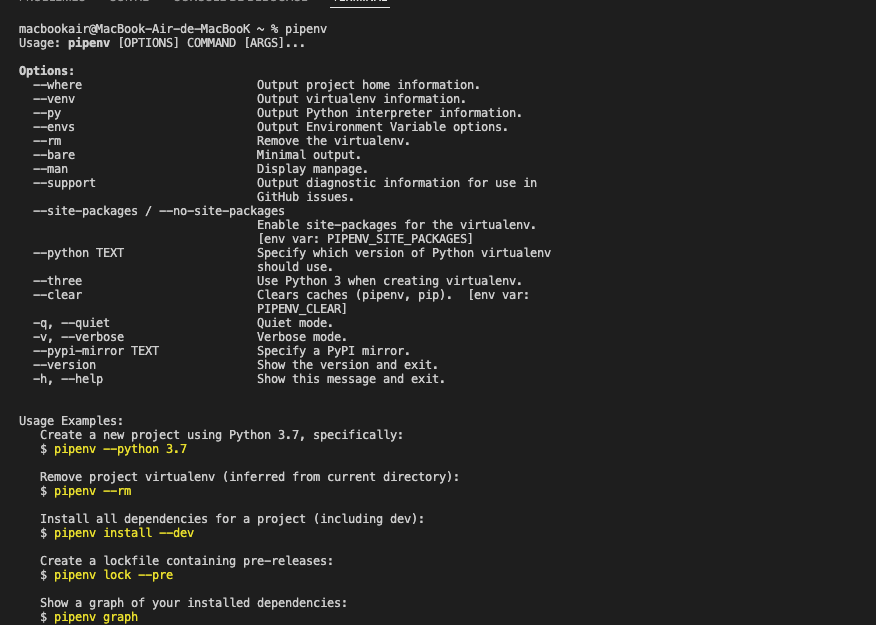
pipenv
The result should look like this:
There are several other alternatives to Pipenv for package management, which can also be used like pyenv, poetry, virtualenv, autoenv, etc. However, adding them is beyond the scope of this blog.
[[source]]
name = "pypi"
url = "https://pypi.org/simple"
verify_ssl = true
[packages]
pytest = "*"
selenium = "*"
[requires]
python_version = "*"
The python_version parameter is the version of the base interpreter you specified when creating a new pipenv environment.
The packages section is the place where you can list the packages required for your project.
“*” is for installing the latest stable versions of the packages. At the time of writing this blog on how to get current URL in Selenium Python, the latest versions of Pytest and Selenium are Pytest 7.1.2 and 4.2.2, respectively.
pipenv install

Here are the download links for the most commonly used browsers.
- Firefox: GeckoDriver
- Chrome: ChromeDriver
- Opera: OperaDriver
- Edge: Microsoft Edge WebDriver
Make sure you have the correct version for your browser, otherwise it won’t work. However, you do not need a WebDriver, in case you are running your test on the cloud Selenium Grid.
The Selenium test configuration in the cloud is managed by a cloud-based Selenium Grid, such as TestMu AI, which will help you run Selenium tests for your web application to ensure cross browser compatibility.
Cloud-based platforms like TestMu AI allow you to perform automation testing on an online browser farm of over 3000+ browsers and operating systems.

Now, let’s add some code to demonstrate how to get current URL in Selenium Python from our Selenium-controlled browser.
How to get current URL in Selenium Python using Pytest?
Now that our project is ready, it is time to add our first test scenario. Here I’ve created:
- “test_ecommerce_playground.py” for scenario 1
- “test_selenium_playground.py” for scenario 2.
This is what the structure of our project should look like:
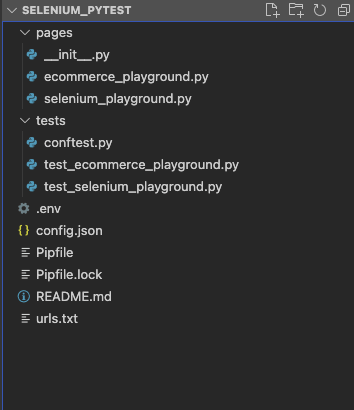
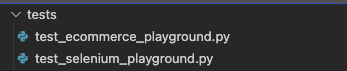
In Python projects, it is conventional to create a “tests” directory under the project root directory to hold all the test cases. In this module, we simply add functions for our test cases.
We’ll write page object stubs for both pages and then use them to write our test case function. In our project, I’ve created a directory called pages right here.
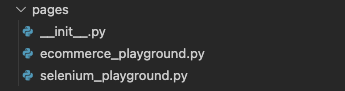
Notice that this directory is outside of the tests directory.
- We also need it outside because we want this pages directory to be a Python package.
- Python packages are denoted by this __init__.py file (pronounced “dunder init”). It’s just an empty file inside a directory that says, “Hey, this is a Python package, and you can treat it as such, specifically for import statements.”
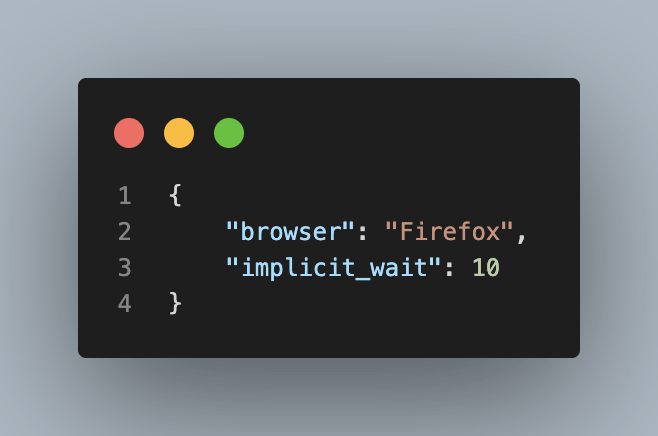
Let’s add a config.json file to our project. It should be located at the root of our project. The config.json is our configuration file. It allows us to define some settings or preference parameters that will be applied to our project.
It contains a browser, which I have set to “Firefox,” and an implicit timeout. We have hard-coded an implicit timeout of 10 seconds for all interactions. The best way for our tests to read this configuration file will be to use a pytest fixture. You will see this later in our conftest.py file
Scenario 1:
Step 1: Navigate to ‘https://ecommerce-playground.lambdatest.io/‘ Step 2: Search with the keyword “iPhone”. Step 3: Display the current URL of the page in the console. Step 4: Check if the search keyword is in the current URL of the page. Step 5: Save the current URL of the page in a urls.txt file.
Let’s look at the code.
Implementation:
ecommerce_playground.py
from selenium.webdriver.common.by import By
from selenium.webdriver.common.keys import Keys
class EcommercePlaygroundPage:
   #url
   url = 'https://ecommerce-playground.lambdatest.io/'
   #locators
   search_form = (By.NAME, "search")
   search_button = (By.CSS_SELECTOR, ".type-text")
   # Initializer
   def __init__(self, browser):
       self.browser = browser

   # Interaction methods
   def load(self):
       self.browser.get(self.url)
       self.browser.implicitly_wait(30)

   def search(self , keyword):
       search_form = self.browser.find_element(*self.search_form)
       search_form.send_keys(keyword)
       search_button = self.browser.find_element(*self.search_button)
       search_button.click()
Code Walkthrough:
from selenium.webdriver.common.by import By
from selenium.webdriver.common.keys import Keys
The selenium.webdriver module provides all the WebDriver implementations. Currently supported WebDriver implementations are Firefox, Chrome, Microsoft Edge, IE and Remote.
- The By class is used to locate elements within a document.
- The Keys class provides methods through which you can access keys like RETURN, F1, ALT, ENTER, and more. Please read through our earlier blog on handling keyboard actions in Selenium to learn more about it.
test_ecommerce_playground.py
import pytest
from pages.ecommerce_playground import EcommercePlaygroundPage
keyword = "iPhone"
def test_ecommerce_playground(browser):
   ecommerce_page = EcommercePlaygroundPage(browser)
   ecommerce_page.load()
   ecommerce_page.search(keyword)
   get_url = browser.current_url
   title = browser.title
   print("The current url is: "+str(get_url))
   assert "iPhone" in get_url
   with open('urls.txt', 'a') as f:
       f.write(title + " : "+ get_url)
       f.write('
')
Execution Output:
Shown below is the page URL:
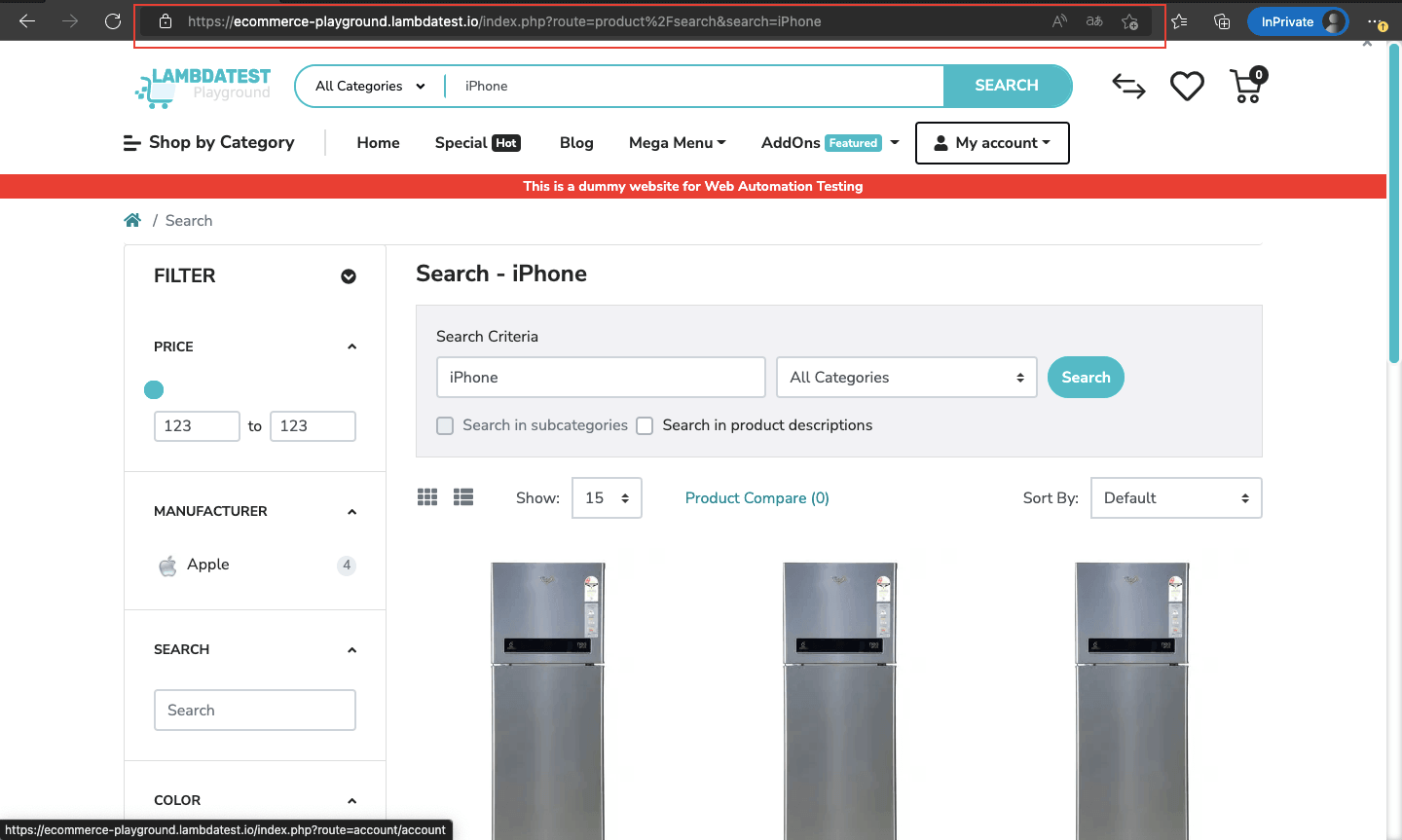
urls.txt content is below:
Search - iPhone : https://ecommerce-playground.lambdatest.io/index.php?route=product%2Fsearch&search=iPhone
Scenario 2:
Step1: Navigate to ‘https://www.lambdatest.com/selenium-playground/‘. Step 2: Click Simple Form Demo. Step 3: Display the current URL of the page in the console. Step 4: Save the current URL of the page to a urls.txt file.
Implementation:
FileName – selenium_playground.py
from selenium.webdriver.common.by import By
class SeleniumPlaygroundPage:
   #url
   url = 'https://www.lambdatest.com/selenium-playground/'
   #locators
   simple_form_demo = (By.XPATH, "//a[normalize-space()='Simple Form Demo']")
   # Initializer
   def __init__(self, browser):
       self.browser = browser
   # Interaction methods
   def load(self):
       self.browser.get(self.url)
   def simple_form(self):
       simple_form = self.browser.find_element(*self.simple_form_demo)
       simple_form.click()
test_selenium_playground.py
import pytest
from pages.selenium_playground import SeleniumPlaygroundPage
def test_selenium_playground(browser):
   playground_page = SeleniumPlaygroundPage(browser)
   playground_page.load()
   playground_page.simple_form()
   # Get the current url of the page in a variable
   get_url = browser.current_url
   title = browser.title
   # Display the url in the console
   print("The current url is: "+str(get_url))
   # Save the url in a urls.txt file
   with open('urls.txt', 'a') as f:
       f.write(title + " : "+ get_url)
       f.write('
')
Code Walkthrough:
Automation uses locators to find elements on a page. Selenium locators are simple query strings for finding elements. They will return all elements that match their query.
Selenium WebDriver supports many types of locators — ID, Name, Class Name, CSS Selectors, XPath, Link Text, Partial Link Text, and Tag Name.
Now let’s look at how to get locators for the target items we need for our test scenario.
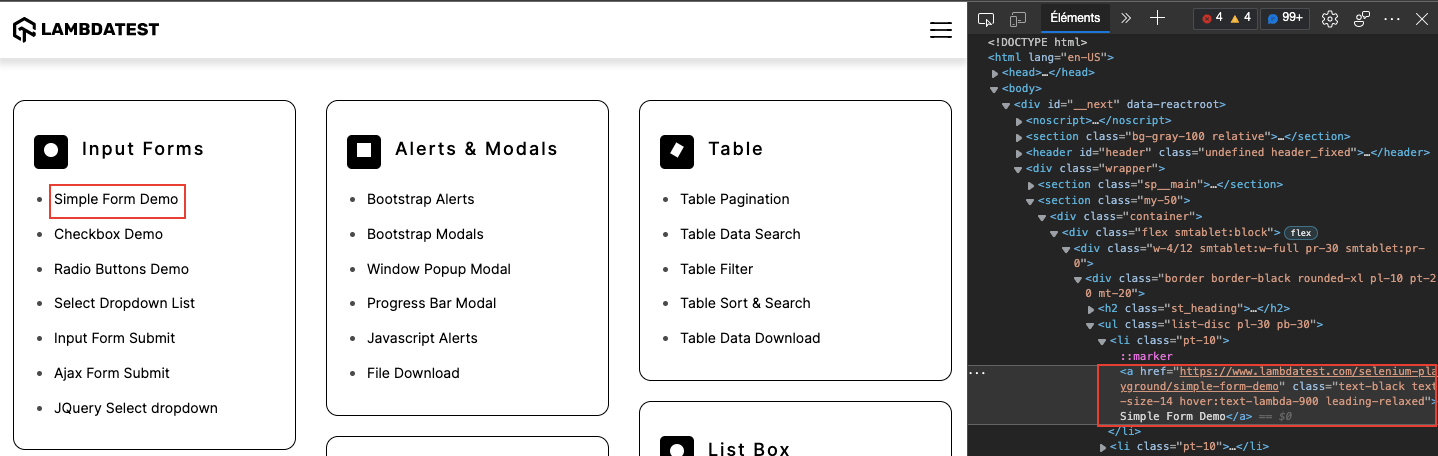
Here I have used the Inspect Element to store the XPath of the Simple Form Demo link in a variable named simple_form_demo.
simple_form_demo = (By.XPATH, "//a[normalize-space()='Simple Form Demo']")
We will use “find_element“, which is called directly from the WebDriver instance, which we have named browser in our code.
simple_form = self.browser.find_element(*self.simple_form_demo)
To locate the Simple Form Demo element, we’ll need to say browser.find_element and we’ll pass in our simple_form_demo locator.
Now you may be wondering what this asterisk is? Well, the find_element method in Selenium takes two arguments — the locator type and then the query — but simple_form_demo is a tuple.
By adding this here, I can pass my tuple, my locator, into the find_element method. If it’s successful, it will return an object representing the simple_form element on the page.
simple_form.click()
Now, we will use the calls to the element objects returned by the find_element methods. click() allows you to click on an element. Once I have this element, I can click on it to go to the page it redirects to.
# Get the current url of the page in a variable
   get_url = browser.current_url
current_url returns the URL of the page currently loaded in the browser. We used this WebDriver Call to store the Current URL of the page in a variable called get_url.
# Save the url in a urls.txt file
   with open('urls.txt', 'a') as f:
       f.write(title + " : "+ get_url)
       f.write('
')
We then saved the contents of this variable in a urls.txt file.
Execution Output:
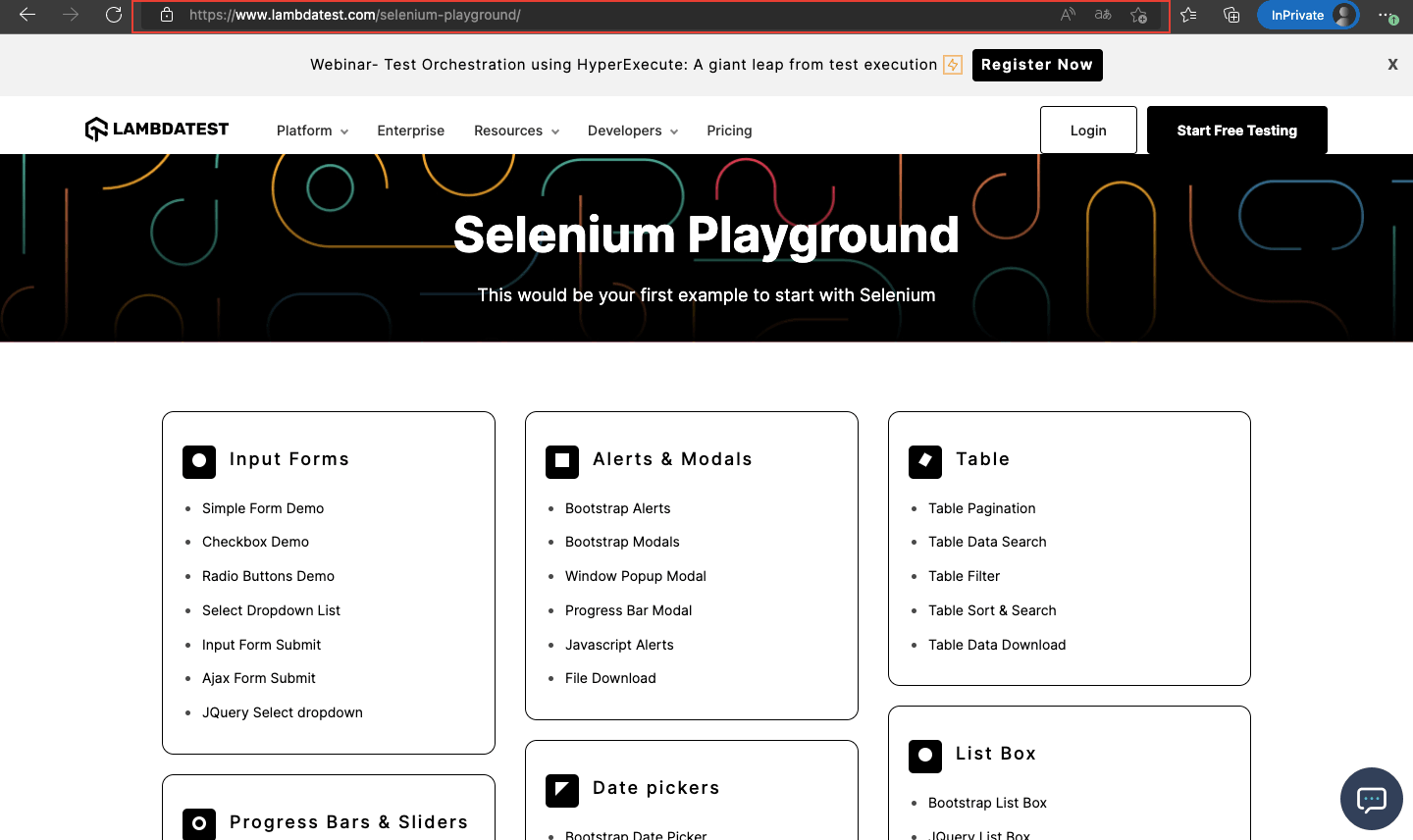
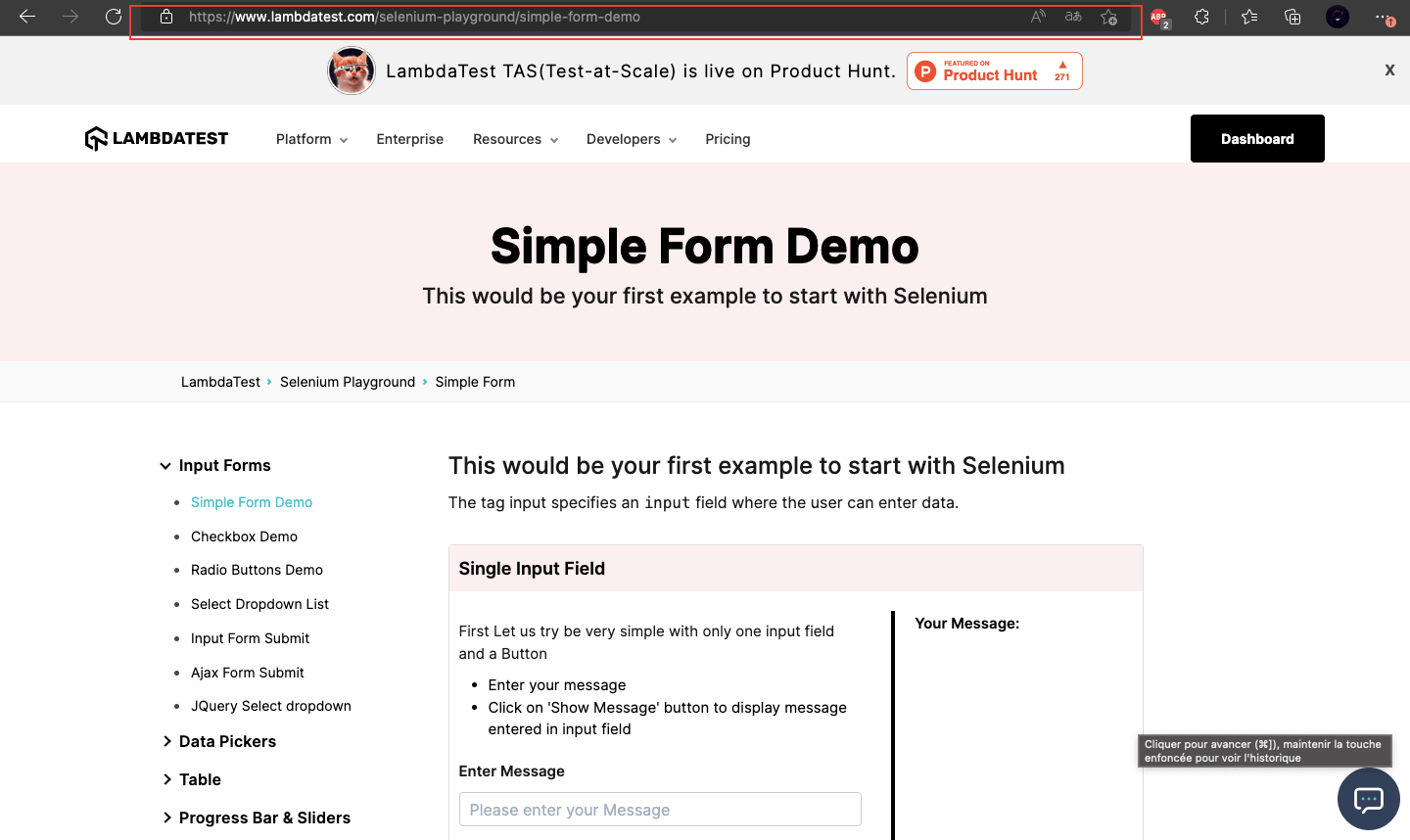
After clicking on Simple Form Demo, you are redirected to this page:
Content of urls.txt:
| Selenium Grid Online | Run Selenium Test On Cloud : https://www.lambdatest.com/selenium-playground/simple-form-demo |
|---|
How to Retrieve Current URL in Selenium with Various Programming Languages?
- Python
current_url = driver.current_url
String currentUrl = driver.getCurrentUrl();
var currentUrl = window.location.href;
This will store the current URL of the page in the currentUrl variable.
To get the current URL using Selenium in C#, you can use the Url property of the IWebDriver interface. Here’s the command:
string currentUrl = driver.Url;
Make sure you have the appropriate using directives and that you’ve initialized the driver variable as an instance of a WebDriver class (e.g., ChromeDriver, FirefoxDriver
current_url = driver.current_url
In PHP, you can get the current URL using the $_SERVER['REQUEST_URI'] superglobal variable. Here’s the command:
$current_url = $_SERVER['REQUEST_URI'];
This will store the current URL in the $current_url variable.

How to get current URL in Selenium Python on the cloud Grid?
Cloud Selenium Grid provides us with an option to run tests on a range of virtual browsers, browser versions, and operating systems securely over the cloud. TestMu AI is one such platform that provides a secure, scalable, and super reliable cloud-based Selenium Grid infrastructure that lets you run tests at scale.
TestMu AI is a cloud-based cross browser testing platform that allows you to run tests on an online device farm of 3000+ real devices running on real operating systems for mobile, desktop, and tablets. TestMu AI Selenium Grid also allows you to perform parallel testing.
You can also Subscribe to the TestMu AI YouTube Channel and stay updated with the latest tutorials around Selenium testing, Cypress E2E testing, CI/CD, and more.
To use TestMu AI Selenium Grid with Pytest to perform Python web automation, you will need a TestMu AI account. Here are steps you can follow:
- Navigate to the TestMu AI website and log in if you already have an account, or create one if you don’t have an account yet.
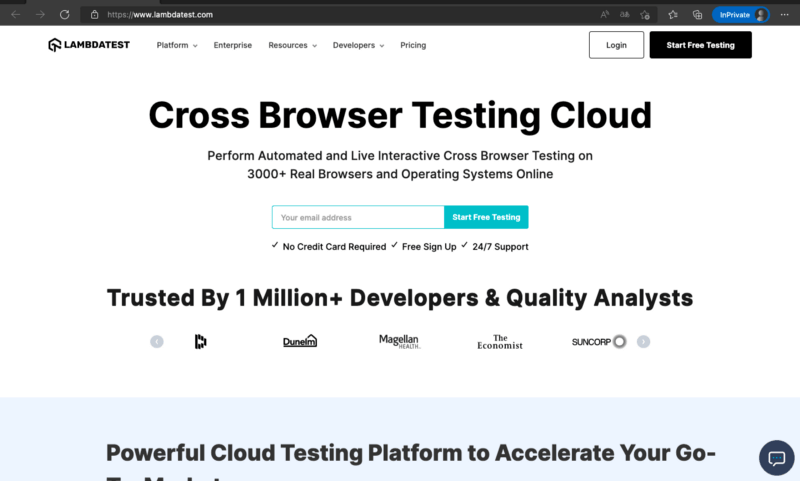
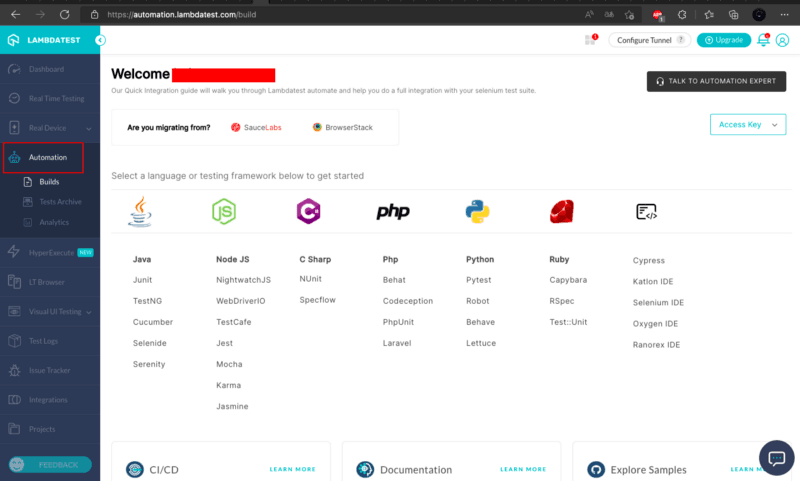
- Once you are logged in, navigate to the automation page by clicking Automation on the left sidebar of your screen.
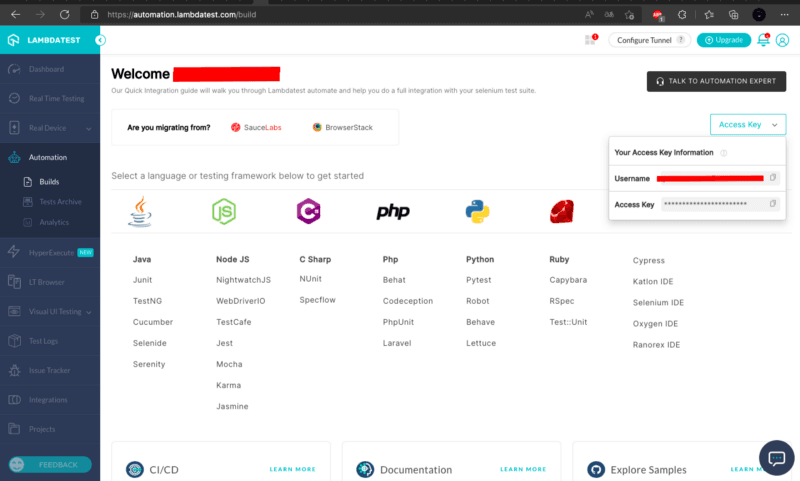
- To use Pytest with TestMu AI Grid, you need TestMu AI credentials (i.e. username and access key). To get the credentials, click the “Access Key” button on the right side of your screen.
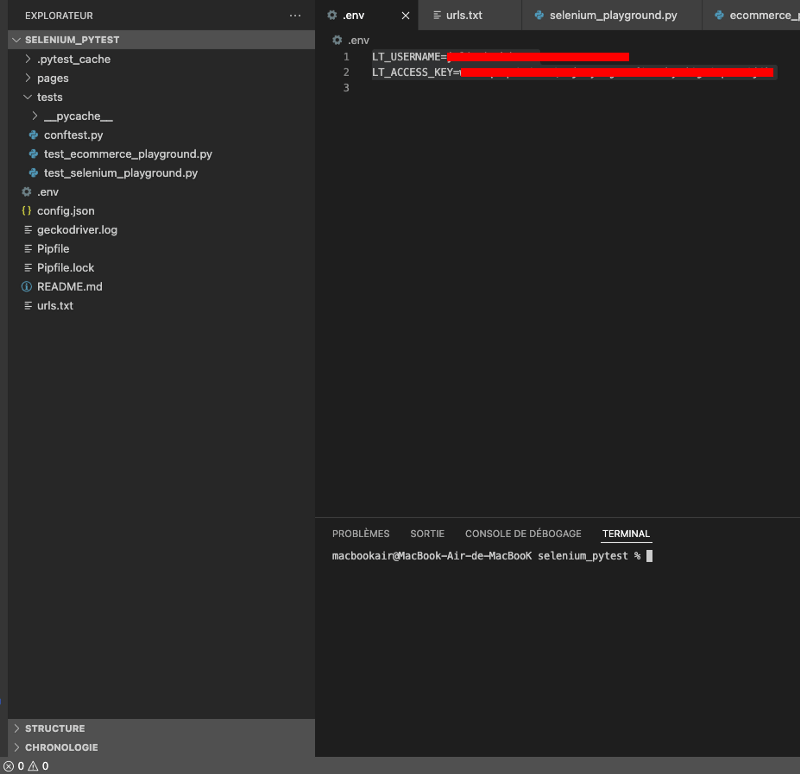
- Let us now save the credentials (username and access key) to environment variables LT_USERNAME and LT_ACCESS_KEY.
We will create an .env file in which we will save our credentials.
nano .env
LT_USERNAME=YOUR_USERNAME
LT_ACCESS_KEY=YOUR_ACCESS_KEY
An .env file should appear in your project once you save the changes.
Implementation:
You must now update your conftest.py file as follows:
import json
import pytest
import selenium.webdriver
from os import environ
from selenium import webdriver
from selenium.common.exceptions import WebDriverException
from selenium.webdriver.remote.remote_connection import RemoteConnection
@pytest.fixture
def config(scope='session'):

 # Read the file
 with open('config.json') as config_file:
   config = json.load(config_file)
  # Assert values are acceptable
 assert config['browser'] in ['Firefox', 'Chrome', 'Headless Chrome']
 assert isinstance(config['implicit_wait'], int)
 assert config['implicit_wait'] > 0

 # Return config so it can be used
 return config
@pytest.fixture
def browser(config):
 # Initialize the WebDriver instance
 if config['browser'] == 'Firefox':
   b = selenium.webdriver.Firefox()
 elif config['browser'] == 'Chrome':
   b = selenium.webdriver.Chrome()
 elif config['browser'] == 'Headless Chrome':
   opts = selenium.webdriver.ChromeOptions()
   opts.add_argument('headless')
   b = selenium.webdriver.Chrome(options=opts)
 else:
   raise Exception(f'Browser "{config["browser"]}" is not supported')

 # Make its calls wait for elements to appear
 b.implicitly_wait(config['implicit_wait'])

 # Return the WebDriver instance for the setup
 yield b

 # Quit the WebDriver instance for the cleanup
 b.quit()
@pytest.fixture(scope='function')
def browser(request):
   desired_caps = {}
   browser = {
       'LT:Options' : {
         "user" : environ.get('LT_USERNAME', None),
         "accessKey" : environ.get('LT_ACCESS_KEY', None),
         "build" : "lamdatest_build",
         "name" : "lamdatest_demo",
         "platformName" : "Windows 11",
       },
       "browserName" : "Firefox",
       "browserVersion" : "99.0",
   }
   desired_caps.update(browser)
   test_name = request.node.name
   build = environ.get('BUILD', "Sample PY Build")
   username = browser.get('LT:Options', {}).get('user')
   access_key = browser.get('LT:Options', {}).get('accessKey')
   selenium_endpoint = "http://{}:{}@hub.lambdatest.com/wd/hub".format(username, access_key)

   executor = RemoteConnection(selenium_endpoint, resolve_ip=False)
   browser = webdriver.Remote(
       command_executor=executor,
       desired_capabilities=desired_caps
   )
   yield browser
   def fin():
       #browser.execute_script("lambda-status=".format(str(not request.node.rep_call.failed if "passed" else "failed").lower()))
       if request.node.rep_call.failed:
           browser.execute_script("lambda-status=failed")
       else:
           browser.execute_script("lambda-status=passed")
           browser.quit()
   request.addfinalizer(fin)

@pytest.hookimpl(tryfirst=True, hookwrapper=True)
def pytest_runtest_makereport(item, call):
   # this sets the result as a test attribute for LambdaTest reporting.
   # execute all other hooks to obtain the report object
   outcome = yield
   rep = outcome.get_result()
   # set an report attribute for each phase of a call, which can
   # be "setup", "call", "teardown"
   setattr(item, "rep_" + rep.when, rep)
You can use the Selenium Desired Capabilities Generator from TestMu AI to automatically generate the capability class needed to run your Selenium automation test scripts on TestMu AI’s Selenium Grid. The Selenium Capabilities Generator will provide you with the complete capability class code based on your mouse-interactions from the user interface.
In our project we use Selenium 4, so this is what the declaration of the Desired Selenium Capabilities class looks like.
desired_caps = {}
   browser = {
       'LT:Options' : {
         "user" : environ.get('LT_USERNAME', None),
         "accessKey" : environ.get('LT_ACCESS_KEY', None),
         "build" : "lamdatest_build",
         "name" : "lamdatest_demo",
         "platformName" : "Windows 11",
       },
       "browserName" : "Firefox",
       "browserVersion" : "99.0",
   }
   desired_caps.update(browser)
As we have saved our credentials in an environment file, we made this import to be able to use them in our conftest.py file
from os import environ
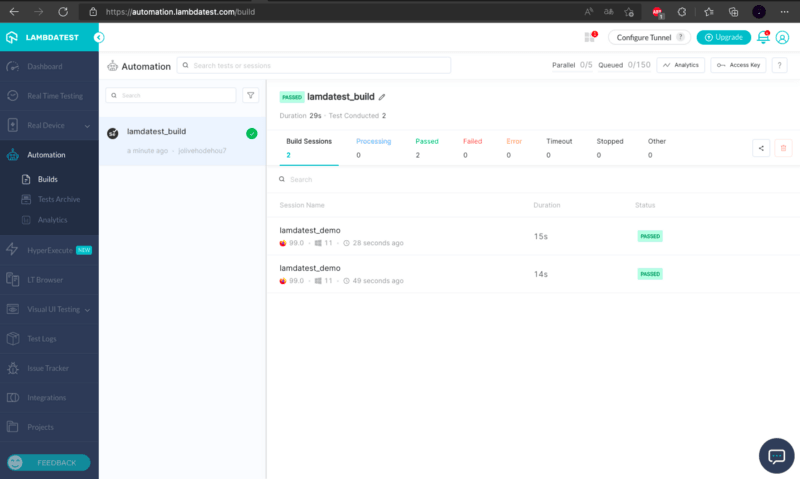
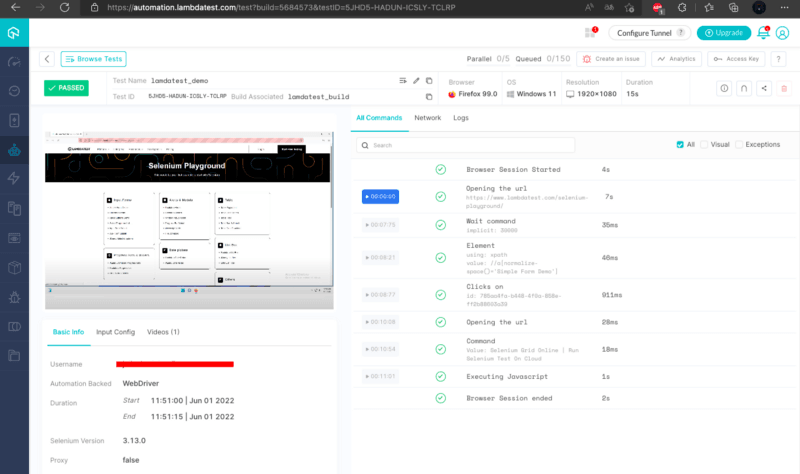
Once the tests have run successfully, log in to TestMu AI Automation Dashboard to check the status of the test execution.
If you are looking to develop advanced, hands-on expertise in Selenium Python testing and take your career to the next level, you can take the Selenium Python 101 certification from TestMu AI.

Here’s a short glimpse of the Selenium Python 101 certification from TestMu AI:
Conclusion
In this Selenium Python tutorial, we have seen how to get current URL in Selenium Python using the Pytest framework. We started by setting up the test environment in Selenium using Pytest and learned core methods to get the current URL in Selenium using Python. It is generally employed in cases where you require an intermediate URL from a redirect chain or need to do a series of navigations among different URLs. Finally, we saw the code execution on cloud Selenium Grid like TestMu AI.
I hope you enjoyed reading this article on how to get current URL in Selenium Python.


Frequently asked questions
Did you find this page helpful?
More Related Hubs
TestMu AI forEnterprise
Get access to solutions built on Enterprise
grade security, privacy, & compliance
- Advanced access controls
- Advanced data retention rules
- Advanced Local Testing
- Premium Support options
- Early access to beta features
- Private Slack Channel
- Unlimited Manual Accessibility DevTools Tests