Debugging Logs
When an app automation test fails, logs show you what happened in the Appium session during the failure. TestMu AI captures these logs during your Appium test and makes them available on the App Automation dashboard, alongside the test video.
This document explains the following log types and how to enable them:
Enable debugging logs
You enable most logs by adding capabilities to the lt:options object in your test script. The following table lists each log type, the capability it requires and its default state.
| Log type | Capability | Default |
|---|---|---|
| Device logs | devicelog: true | Disabled |
| Appium logs | Not required | Enabled |
| Network logs | network: true | Disabled |
| Crash logs | Not required | Captured automatically when the app crashes |
The following example enables device logs and network logs using W3C capabilities:
DesiredCapabilities capabilities = new DesiredCapabilities();
HashMap<String, Object> ltOptions = new HashMap<String, Object>();
ltOptions.put("w3c", true);
ltOptions.put("platformName", "android");
ltOptions.put("deviceName", "Galaxy S26");
ltOptions.put("platformVersion", "16");
ltOptions.put("isRealMobile", true);
ltOptions.put("devicelog", true);   // Enable device logs
ltOptions.put("network", true);     // Enable network logs
capabilities.setCapability("lt:options", ltOptions);
// Add other capabilities as needed
Use the Capabilities Generator to generate the complete set of capabilities for your device, OS version and programming language.
View logs on the dashboard
- Log in to the TestMu AI App Automation dashboard.
- Open the build and select the test session you want to debug.
- In the Logs section, select the tab for the log type you need: Device, Appium, Network or Crash.
- To download a log for offline analysis, click the download icon on that tab.
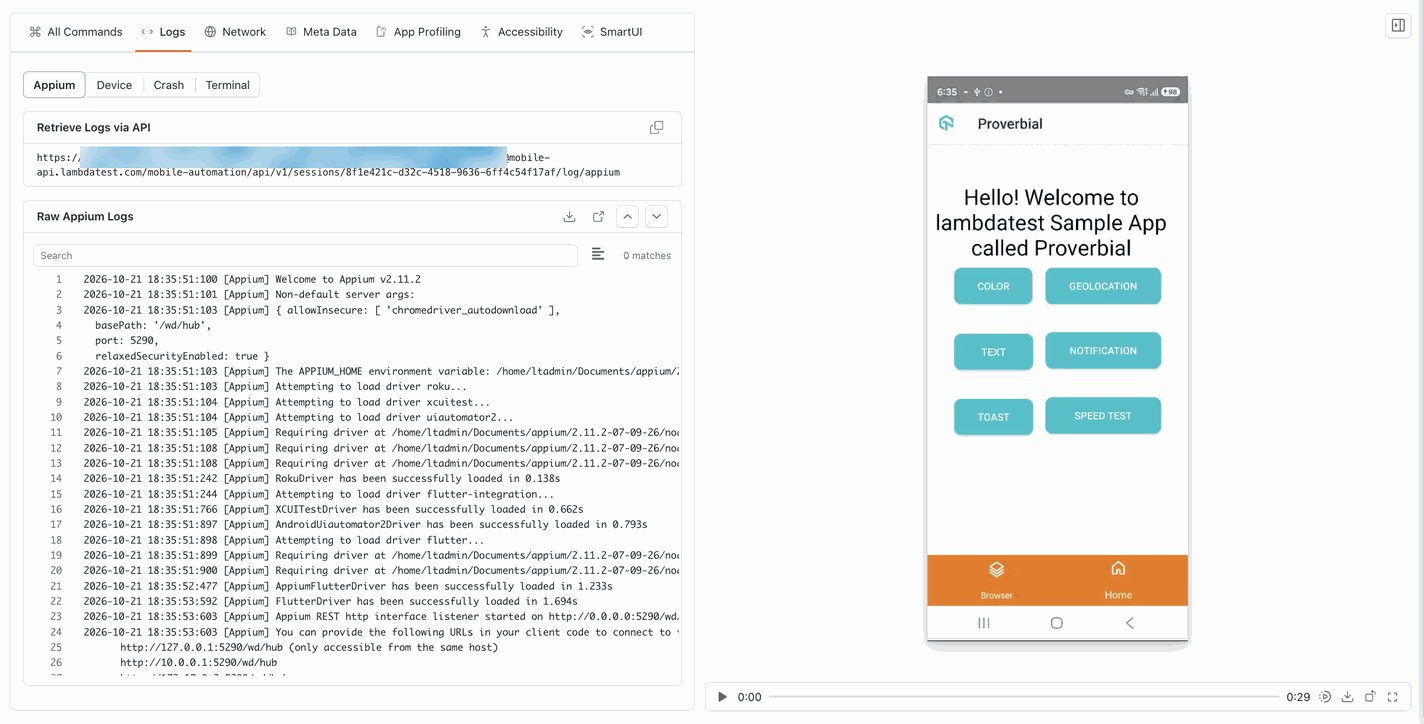
Device logs
Device logs are the system logs that the device generates while your test runs. On Android, these come from Logcat; on iOS, they come from the device system log. They contain messages from your app and from the operating system, which helps you understand the state of the device when a test step failed.
To enable device logs, add the following capability to lt:options:
ltOptions.put("devicelog", true);
Appium logs
Appium logs are generated by the Appium server during your test. They record every command your script sends, the capabilities used to start the session and the response returned by the driver. Use Appium logs to identify the command that failed and the reason, such as an element that could not be located.
Appium logs are enabled by default on TestMu AI, so no capability is required.
Network logs
Network logs record the HTTP and HTTPS requests your app makes during the test, along with the responses from the server. Each entry includes the URL, method, status code, headers, payload and timing. Use network logs to identify failed API calls, slow responses and unexpected data.
To enable network logs, add the following capability to lt:options:
ltOptions.put("network", true);
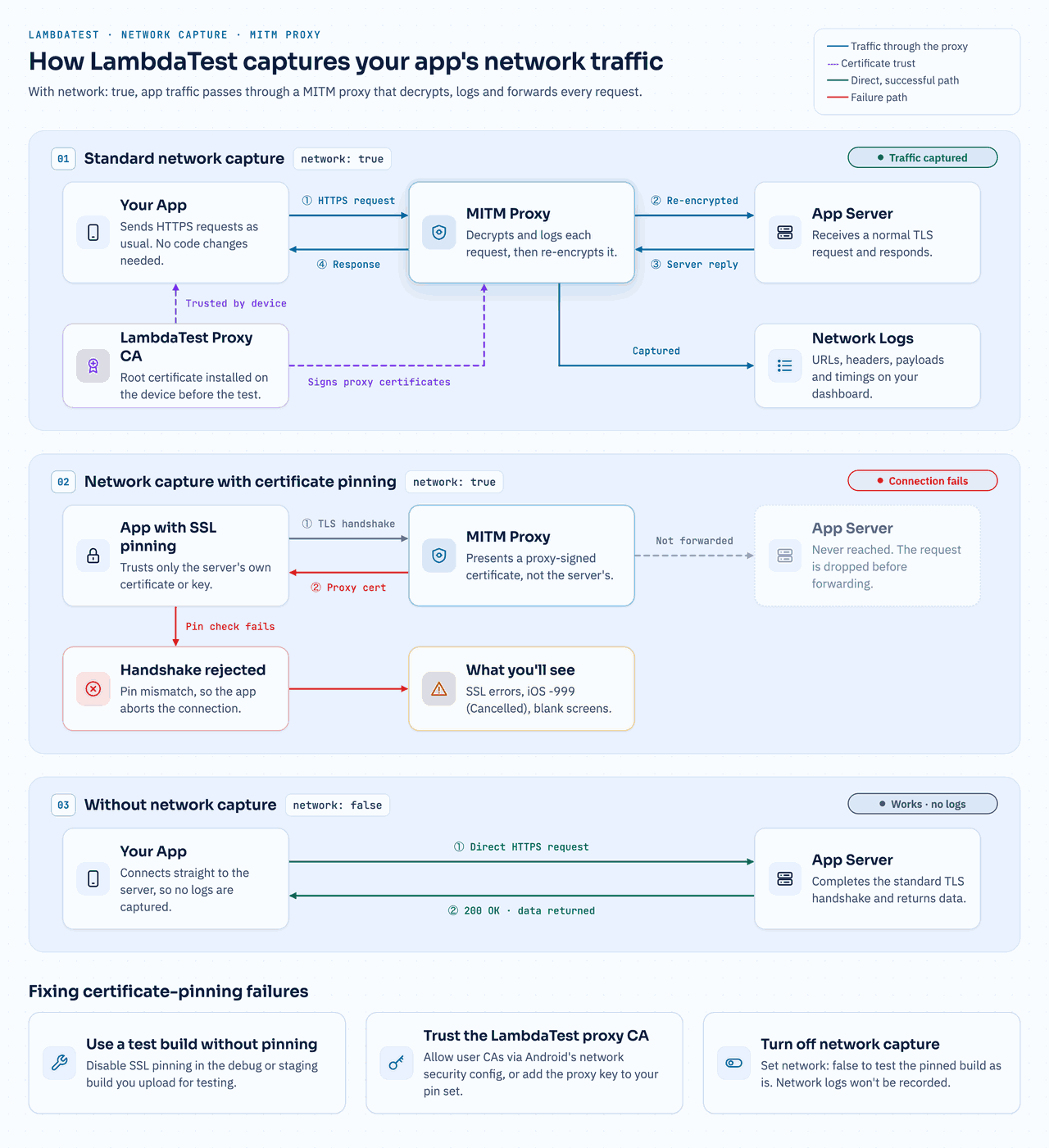
The captured requests and responses appear in the Network tab of your test session. The following diagram shows how network traffic flows through the proxy.
Role of the proxy certificate
Because HTTPS traffic is encrypted, the proxy can read it only if your app accepts a secure connection from the proxy instead of directly from your server. For each server your app contacts, the proxy presents a certificate signed by the TestMu AI root certificate authority (CA). The test device trusts this root CA, so your app accepts the proxy's certificate and the connection succeeds.
When network traffic cannot be captured
Some apps accept secure connections only from their own servers. In these cases, the proxy cannot capture the traffic. The most common causes are:
- SSL or certificate pinning: The app trusts only a specific server certificate or public key. When it receives the proxy's certificate, the app detects a mismatch and closes the connection.
- No trust for user-installed certificates: Some apps do not trust user-installed CAs unless the app's network security configuration allows it.
- Mutual TLS (mTLS) or network restrictions: The server requires a client certificate or accepts connections only from known network paths, which the proxy cannot provide.
When this happens, the TLS handshake fails before the request reaches your server. You might notice:
- SSL or TLS handshake errors in the device logs, such as
SSLHandshakeExceptionon Android NSURLErrorCancelled (-999)orboringsslerrors on iOS- Blank screens, missing data or "no connection" messages in the app
The same build typically works when network is set to false, because the app then connects directly to the server and the standard handshake succeeds.
Resolve network capture issues
| Option | What to do | Consideration |
|---|---|---|
| Use a test build without pinning | Disable SSL pinning in the debug or staging build that you upload for testing. | Requires a separate build for testing. |
| Trust the user-level certificate | On Android, allow user-installed CAs in the app's network security configuration. For pinned apps, add the proxy's key to the pin set in test builds only. | |
| Disable network capture | Set network to false to test the pinned build without changes. | Network logs are not captured for the session. |
To allow user-installed CAs on Android, add a <certificates src="user" /> entry to the trust anchors in your app's res/xml/network_security_config.xml file:
<network-security-config>
  <base-config>
    <trust-anchors>
      <certificates src="system" />
      <certificates src="user" />
    </trust-anchors>
  </base-config>
</network-security-config>
Make sure the file is referenced in your AndroidManifest.xml through the android:networkSecurityConfig="@xml/network_security_config" attribute on the <application> element.
Crash logs
If your app crashes during a test, TestMu AI captures the crash report from the device and displays it in the Crash tab of your test session. The crash log includes the exception type and the stack trace, which help you locate the code that caused the crash.
- Android: Displays the fatal exception and its stack trace, the same information that appears under
FATAL EXCEPTIONin Logcat. - iOS: Displays the crash report generated by the system, including the exception type and the stack trace of the crashed thread.


 Chat with Us