
Power Your Software Testing with AI Agents and Cloud
The Native AI-Agentic Cloud Platform to Supercharge Quality Engineering. Test Intelligently and Ship Faster.

- TestMu AI (Formerly LambdaTest)
- /
- Blog
- /
- Visual Testing AI Agent: How Agents Validate Your UI
Visual Testing AI Agent: How Agents Validate Your UI
A visual testing AI agent runs visual checks on every code change, filters rendering noise with AI, and groups similar diffs for review. See how it works.
Last Updated on:
On This Page
- What Is a Visual Testing AI Agent
- Problem Visual Testing AI Agents Solve
- How Visual Testing AI Agent Works
- Where Visual Testing Fits in Workflow
- Traditional vs AI vs AI Agent
- Who Is Using Visual Testing Agents
- Benefits of Visual Testing AI Agent
- AI Visual Testing Tools in 2026
- How to Choose the Right Tool
- Best Practices for AI Visual Testing
- Conclusion
- Sources & Further Reading
AI visual testing uses AI models to check your UI for real visual bugs while filtering out the rendering noise that floods traditional pixel-by-pixel tools. It catches what functional tests miss: the things users see but assertions do not.
Visual bugs slip past functional suites because those tests verify behavior, not appearance. For teams shipping daily across browsers and devices, manual screenshot review becomes a bottleneck, with engineers spending hours on nearly identical diffs instead of real issues.
Visual Testing AI Agents solve this by automating UI validation, reducing false positives, filtering noise, and grouping similar changes for faster, batch-based review. According to eMarketer, visual searches increased by 70% globally in the past year, highlighting the growing importance of getting UI experiences right.
Key Takeaways
AI visual testing uses AI models to validate user interfaces by distinguishing real visual bugs from rendering noise. High-velocity teams use TestMu AI to run automated visual testing across real devices, while visual testing AI agents automate test execution, filter false alarms, and group similar changes for batch review.
- Visual testing AI agents: These automated systems trigger tests, filter out rendering noise, and group similar visual changes into batches to reduce manual review times from hours to minutes.
- Traditional pixel-by-pixel testing often breaks down at daily-deploy speeds because minor browser rendering changes generate false alarms that require slow, manual screenshot reviews.
- Integrated workflows: Running automated checks across pull requests, post-merge on main, staging environments, and scheduled monitoring acts as a continuous quality gate to catch regressions before they reach production.
- TestMu AI: This cloud platform replaces in-house infrastructure to run visual and automated testing across 10,000+ real devices, reducing test execution times and eliminating flaky test false positives.
- Dynamic content stabilization: This method uses fixed data and ignore regions to prevent false positives from dynamic elements, ensuring baseline screenshots remain accurate.
What is a Visual Testing AI Agent?
A visual testing AI agent runs visual regression tests on code changes, uses AI to filter rendering noise from real bugs, and groups similar diffs for batch review.
A visual testing AI agent is a system that runs automated visual regression testing automatically when code changes, analyzes screenshots using AI models to distinguish real bugs from rendering noise, and groups similar changes for batch review, reducing human involvement in decision-making rather than triage.
Traditional visual testing tools already filter rendering noise, detect meaningful changes, and reduce false positives. Many integrate with CI/CD and offer batch approval features. Agents extend this by analyzing patterns across changes and managing the review workflow with minimal human input between deploy and review.
The progression is simple to remember: visual testing tools detect changes, AI visual testing tools understand changes, and visual testing AI agents act on changes by running tests, filtering results, and organizing reviews with minimal manual setup per test run.
Learn how to implement flawless UI testing with this detailed visual regression testing guide, covering key benefits, methods, and best practices for scaling UI quality.

The Problem Visual Testing AI Agents Solve
Modern UIs have made traditional visual testing hard to manage. Responsive layouts, personalized content, A/B tests, dynamic data, and feature flags mean there are many more ways things can break visually.
At the same time, teams now release updates daily instead of monthly. The old pixel-by-pixel approach creates three main problems that agents are designed to fix:
- Too many false alarms: A Chrome update slightly changes font rendering. Traditional tools flag 200+ failures. Engineers spend hours reviewing screenshots that look the same. It is a browser change, not a real bug.
- Manual test triggering: Someone has to start visual tests for every PR, environment, and browser. In a team shipping 10 PRs a day, this becomes hard to manage. Tests get skipped, and visual bugs go unnoticed.
- Slow review process: Even with AI filtering, reviewing hundreds of screenshots for a small design change takes time. Without grouping similar changes, the review queue keeps growing.
Visual AI reduces false alarms. Automated visual testing removes the need to manually start tests. Visual testing AI agents solve all three problems.
A complementary approach gaining traction is Smart visual testing with LLMs, which uses multimodal language models to evaluate screenshots semantically, classify changes as PASS, WARN, or FAIL, and explain why a UI change matters, going beyond classification to give reviewers reasoning they can act on.
How Visual Testing AI Agent Actually Works?
Visual testing AI agents automate test triggering, screenshot capture, AI-based analysis, and review grouping, reducing manual effort at each stage of the CI/CD pipeline.
Visual testing AI agents handle test execution and screenshot comparison with different levels of automation. Understanding each stage helps you configure the right checkpoints and avoid gaps in coverage.
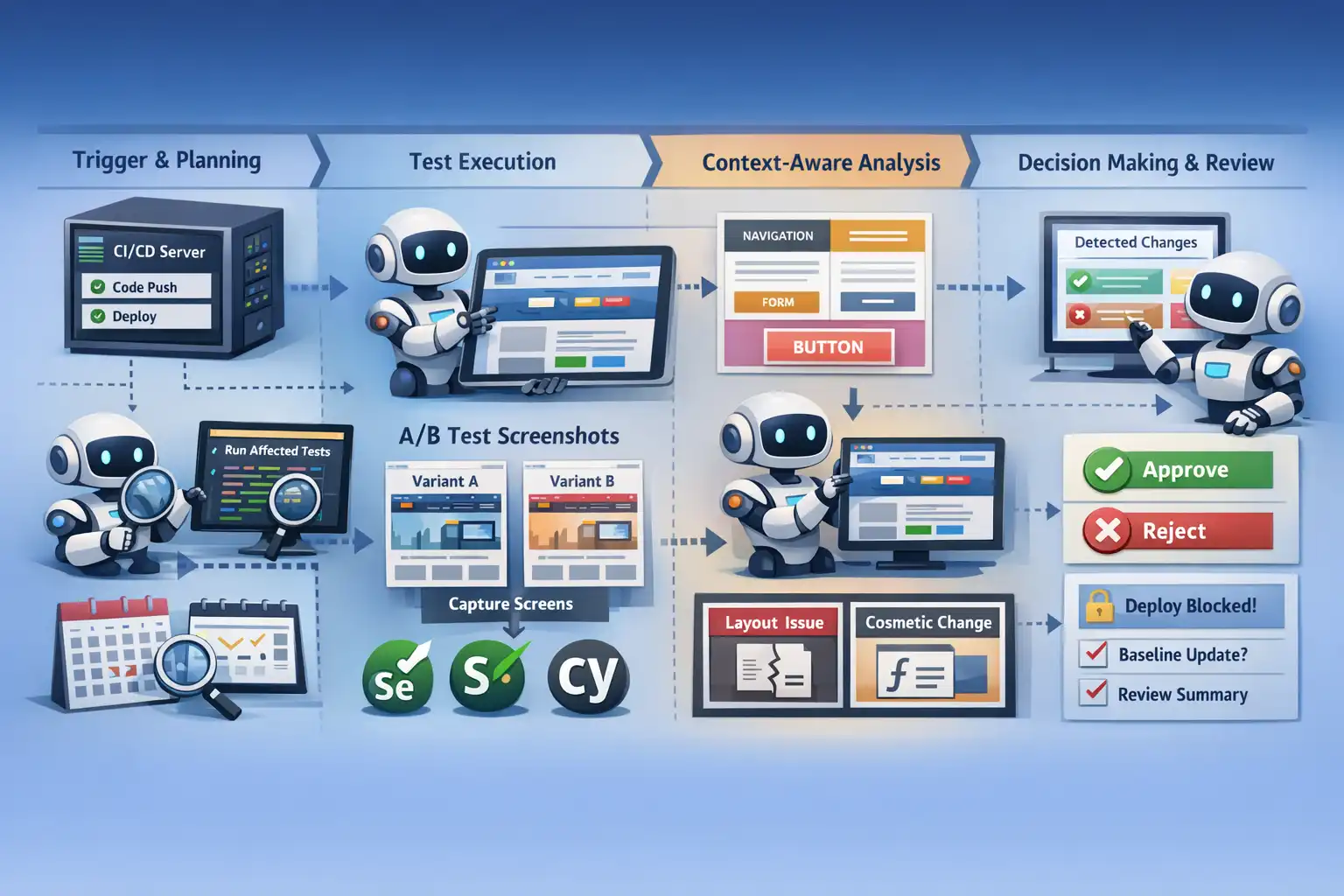
- Trigger and Planning: Agents connect to your CI/CD pipeline. When you push code or deploy, they get notified about what changed. Some check the code difference and only run affected tests. If you change a header component, they test the pages using that header instead of running everything. Some teams also schedule full test runs daily or weekly to catch browser updates or changes in third-party scripts.
- Test Execution: The underlying test framework (Selenium, Playwright, Cypress) finds UI elements and navigates your app. It waits for network idle and DOM stability before the agent captures screenshots. This ensures the page is fully loaded, not mid-animation or with missing lazy-loaded content. The visual agent then captures screenshots at each step. For A/B tests or feature flags, some agents detect which variant is loaded and compare it against the correct baseline.
- Context-Aware Analysis: After taking screenshots, some agents break the page into parts like navigation, forms, and buttons. They check each part separately. This helps them tell the difference between a full-page layout shift and a single button change. AI models check if changes are cosmetic (font rendering, anti-aliasing) or actual problems (broken layouts, missing elements). Advanced tools can validate design system changes by checking if token updates are applied consistently across components.
- Decision Making and Review: Agents analyze detected changes and present them for review. Some tools group similar changes together to reduce review time. Others flag high-confidence issues separately from minor variations. You still approve or reject changes yourself. Some tools auto-create baselines for new environments, but most need your approval before updating reference screenshots. Your CI/CD setup decides if failing tests block deploys.
What counts as an "agent" varies widely. One vendor's "agent" might be fully autonomous baseline management. Another might just be a smart comparison with filtering features. Read the docs to know what you're actually getting.
The same trust question applies to the agent itself. Once a QA agent you build triggers runs, files results, and updates baselines on its own, its summary of what it did is the weakest evidence of what actually happened. Agent Assurance is built for tool-using agents like this: it reads the agent's codebase and derives the test suite, generates functional, non-functional, and adversarial scenarios such as prompt injection and tool misuse, then invokes the agent for real and grades each criterion against observed evidence like files changed and tool calls, with Pass, Fail, or Unable to Verify verdicts and the assurance gap reported beside the pass rate.

Note: If you are building an agent that acts on your pipeline, grade the effect, not the account. Early access is opening in batches. Join the Agent Assurance waitlist
Where the Visual Testing AI Agent Fits in the Workflow?
A Visual Testing AI Agent runs at PR, post-merge, staging, and scheduled stages, acting as a continuous quality gate that catches UI regressions before they reach production.
A Visual Testing AI Agent integrates seamlessly into your development lifecycle, working alongside your existing testing and deployment processes. It acts as a continuous quality gate, automatically validating UI changes from development to production without slowing teams down.
Understanding where each stage adds value helps you configure coverage without creating review bottlenecks.
- On Pull Requests: Run visual tests on critical user flows such as login, signup, checkout, and onboarding. Most teams configure PR-stage visual tests as non-blocking. They flag issues for review without preventing the merge. Developers see results in the PR checklist and fix obvious regressions before the branch is merged into main.
- Post-Merge on Main: Full suite visual regression testing runs after code is merged to the main branch. These tests typically block deployment when the agent finds high-confidence visual regressions. Low-confidence issues are logged for the next review cycle without delaying the release.
- Pre-Production and Staging: Full-page visual comparison runs in staging with production-like data. This catches regressions from real content that does not appear in mock data test environments. Examples include long product names breaking layouts, user-uploaded images overflowing containers, and localization strings wrapping incorrectly.
- Scheduled Baseline Monitoring: Run weekly full-suite captures to catch browser version updates, CDN changes, and third-party widget updates that do not show up in code-based triggers. This acts as a safety net for changes that your deployment pipeline cannot detect.
How it fits with other test types: Visual testing agents complement, not replace, your test pyramid. Unit tests verify logic. Integration tests verify workflows. Visual agents verify what users see. They close the gap between "all tests pass" and "the UI is broken."
Visual Testing: Traditional vs AI vs AI Agent
Traditional visual testing compares screenshots pixel by pixel. If anything changes (even by one pixel), it flags a failure. AI visual testing analyzes what changed and why. It understands that a timestamp is supposed to change and that a 1-pixel shift from browser rendering is not a bug. AI agents go further by running tests automatically and grouping similar changes for review.
| Aspect | Traditional Visual Testing | AI Visual Testing | AI Agent |
|---|---|---|---|
| Detection method | Pixel-by-pixel comparison | Semantic UI analysis | Semantic UI analysis + automated execution |
| Test execution | Manual trigger required | Manual trigger required | Auto-runs on code changes |
| Dynamic content | Manual ignore regions | Automatic noise filtering | Auto-filter + smart grouping |
| False positive rate | High (every pixel counts) | Low | Low |
| Review workflow | Approve each screenshot individually | Approve each screenshot individually | Batch approval of similar changes |
| Baseline maintenance | 100% manual updates | Fewer manual updates | Grouped batch updates |
| CI/CD integration | Requires a manual trigger step | Integrates, may still need a manual trigger | Native CI/CD hooks, fully automated |
| Time to review 200 diffs | 2-4 hours | 30-60 min | 5-15 min with batch grouping |
| Design system changes | 200 individual approvals | Grouped by similarity in some tools | Detected as one batch; single approval |
| Best for | Small teams, infrequent deploys | Mid-scale, needs noise reduction | High-velocity, daily deploys, large apps |
Traditional testing breaks when Chrome updates and changes font anti-aliasing by 1 subpixel across your app. Traditional visual testing flags 200+ failures. You spend 2 hours reviewing screenshots that look identical. It is a browser rendering change, not a bug. Now you either update 200 baselines manually or skip the test run.
AI visual testing flags 0 failures. It sees that the text content, position, size, and color are identical. It knows subpixel differences are not functional bugs. Test passes and zero time on triage.
AI agents take it further. They run tests automatically when code changes, group the 200 similar updates into one review item, and let you approve everything at once. Takes 2 minutes instead of 2 hours.
Who Is Using Visual Testing AI Agents?
Engineering teams at KAYAK and Dashlane run AI-native visual and automated testing on TestMu AI. The AI-enabled testing market was valued at $1.01 billion in 2025, projected to reach $4.64 billion by 2034.
The strongest evidence for visual testing adoption comes not from market projections but from named engineering teams with documented, verifiable results. The AI-enabled testing market was valued at $1.01 billion in 2025 and is projected to reach $4.64 billion by 2034 at an 18.3% CAGR.
KAYAK: 15,000+ SmartUI Screenshots Across 10,000+ Real Devices
KAYAK runs a portfolio of seven global travel brands, each requiring consistent UI across web and mobile. Their engineering team adopted SmartUI for visual regression testing, capturing over 15,000 screenshots to validate visual consistency across their release pipeline. They also expanded device coverage to 10,000+ real devices through TestMu AI's cloud, giving them cross-device visual validation at a scale no in-house device lab could match.
| KAYAK in numbers: 15,000+ SmartUI screenshots | 10,000+ real devices | CI-integrated visual regression | 7 global travel brands covered |
Dashlane: 99.9% Flaky Test Reduction Across 17 Million Users
Dashlane serves over 17 million users and 20,000 businesses across 180 countries. After transitioning to TestMu AI, results documented in the Dashlane case study showed a 50% reduction in test execution time and a near-zero flaky test rate: 99.9% flaky test reduction. For visual testing specifically, flaky tests are the primary driver of false positives and alert fatigue. Eliminating them means every flagged visual difference is a genuine change worth reviewing.
| Dashlane in numbers: 50% faster test execution | 99.9% flaky test reduction | 17M users · Replaced 40-engineer in-house infrastructure |
The pattern in both cases is the same: visual and functional coverage run together in CI on cloud infrastructure, so teams scale UI quality without standing up their own grids or device labs. That is the practical reason high-velocity teams move visual testing onto a managed platform rather than maintaining screenshot pipelines in-house.
Benefits of a Visual Testing AI Agent
A Visual Testing AI Agent speeds up releases while improving UI quality by automating visual checks. It reduces manual effort and catches issues early, making testing more reliable and scalable.
- Faster Deployments: Visual validation runs in the background. Configure your CI/CD to block only on high-confidence failures. You are not waiting hours for a manual screenshot review to ship.
- Catch Bugs at Commit Time: Configure agents to run on every commit or PR. Visual bugs get flagged right after merge, before they stack with other changes.
- Less Manual Work: Design system updates that used to need hundreds of individual baseline approvals can now be reviewed in batches. Agents group similar changes together. Your team approves 10 batches instead of 200 individual screenshots.
- Consistent Across Environments: Same validation logic runs locally, in CI, and on staging. Cross-browser testing does not multiply your review time per environment.
- Tests Stay Stable Through Refactoring: Self-healing selectors in your test framework adapt when you change CSS classes or restructure markup. The tests feeding screenshots to the visual agent keep working through refactors. You do not lose visual coverage when you clean up code.
- Better Alerts: Agents filter rendering noise like anti-aliasing shifts and font variations. You review actual bugs, not cosmetic differences. Less time triaging false positives.
AI Visual Testing Tools in 2026
Visual testing tools have matured significantly. This section walks through SmartUI, TestMu AI's AI-native visual regression tool, in depth, then maps the broader categories of tools so you can match an approach to your stack, integration depth, and team profile.
AI-Native SmartUI by TestMu AI
SmartUI is an AI-Native automated visual testing tool that compares screenshots against baselines. You integrate it into your existing test framework and manually review changes in the dashboard.
You can add SmartUI using SDK or Lambda Hooks. The SDK gives you full control. You add smartuiSnapshot() calls where you want screenshots in your test code.
const { smartuiSnapshot } = require('@lambdatest/selenium-driver');
// Inside your test
await driver.get("https://www.testmuai.com/selenium-playground/");
await smartuiSnapshot(driver, "homepage");
Each smartuiSnapshot() call captures a screenshot and sends it to SmartUI for comparison. Install the SDK with npm install @lambdatest/smartui-cli @lambdatest/selenium-driver and run tests via npx smartui exec node your-test.js.
Lambda Hooks integrate SmartUI into tests running on TestMu AI (formerly LambdaTest) Cloud Grid. Add SmartUI capabilities to your WebDriver options (including visual: true, smartUI.project, smartUI.build) when running Selenium tests on the grid. SmartUI captures screenshots during cloud test execution without modifying your test code. See the Lambda Hooks documentation for complete configuration options.
Visual Comparison Features
SmartUI is a visual comparison tool that runs your tests, captures screenshots, and measures exactly how much your UI has changed between builds.
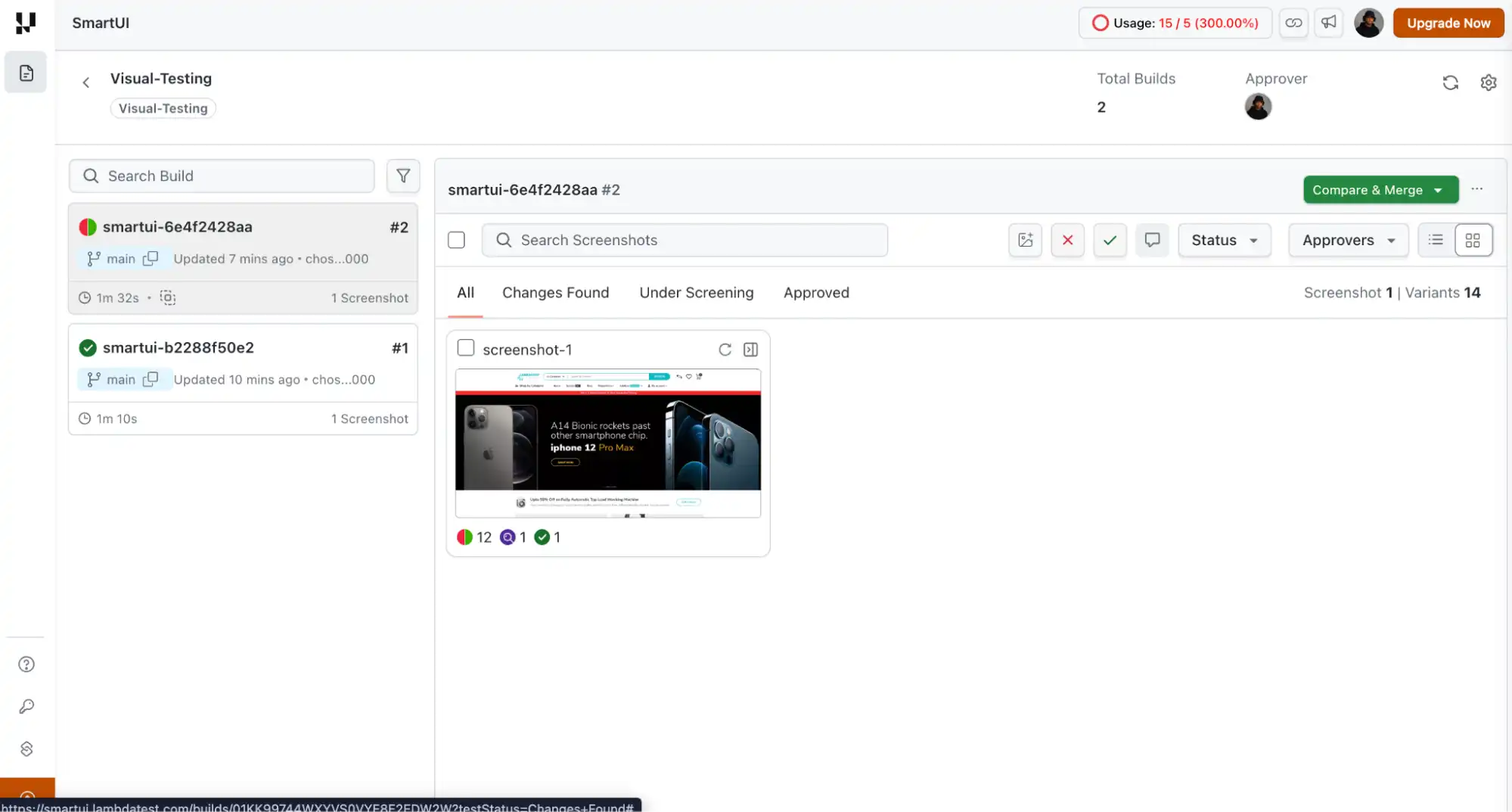
The dashboard shows each build with a status indicator. Green means approved, red means changes detected (just like #1 and #2 in the image below). Click a build to review.
The comparison view shows your baseline on the left and the new screenshot on the right. In Strict mode, SmartUI flags every pixel difference. The mismatch percentage shows how much has changed (0.0331% in this example).
Changed areas get grayed out in the captured screenshot. You manually approve or reject using the checkmark or X buttons.
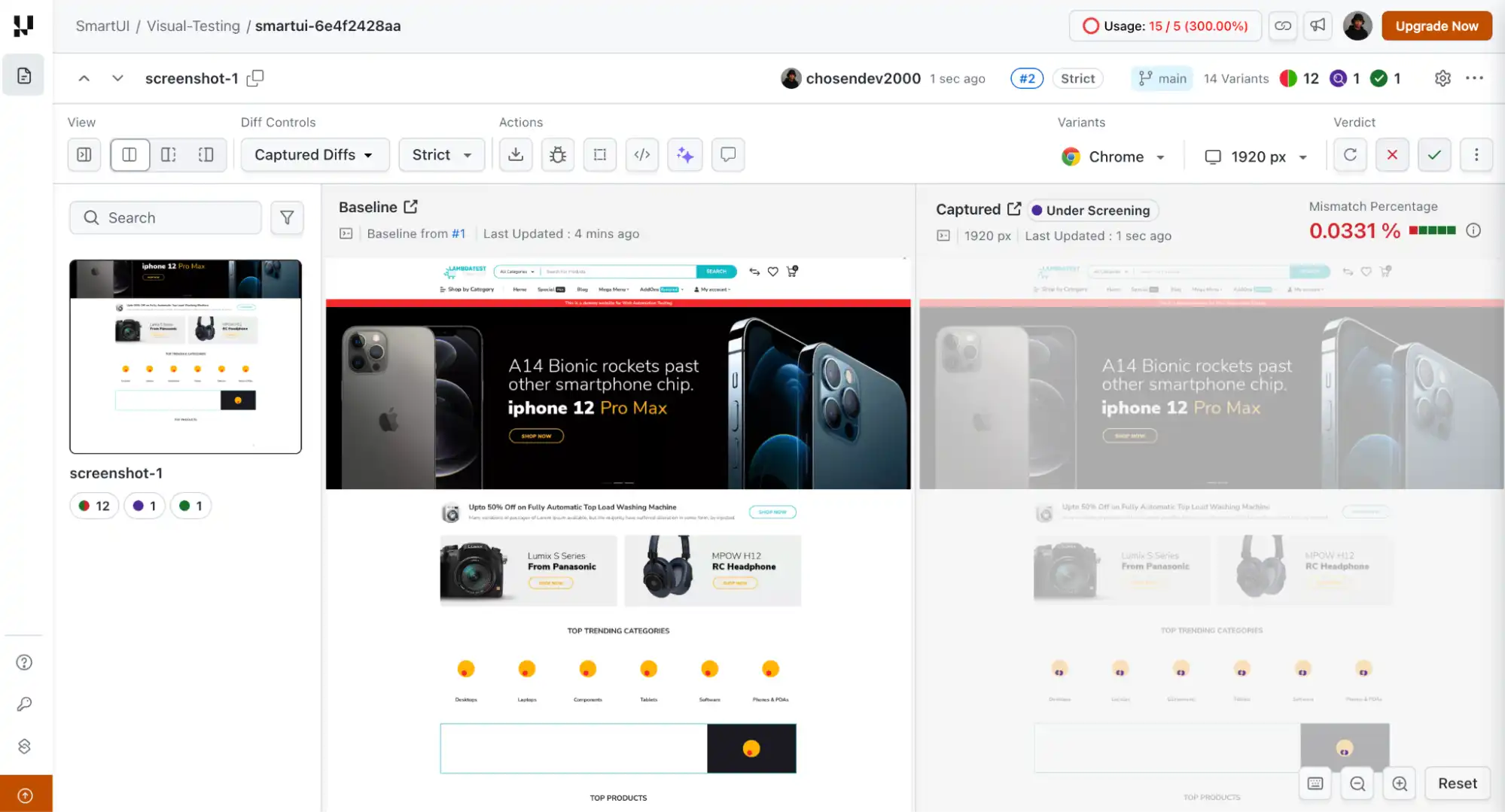
Switch to Smart Ignore, and it filters out content displacement. If you add a banner at the top of your page, everything below shifts down. Strict mode flags all those shifts. Smart Ignore hides the positional changes but still flags the new banner content itself.
In this example, the mismatch drops from 0.0331% to 0.00%.
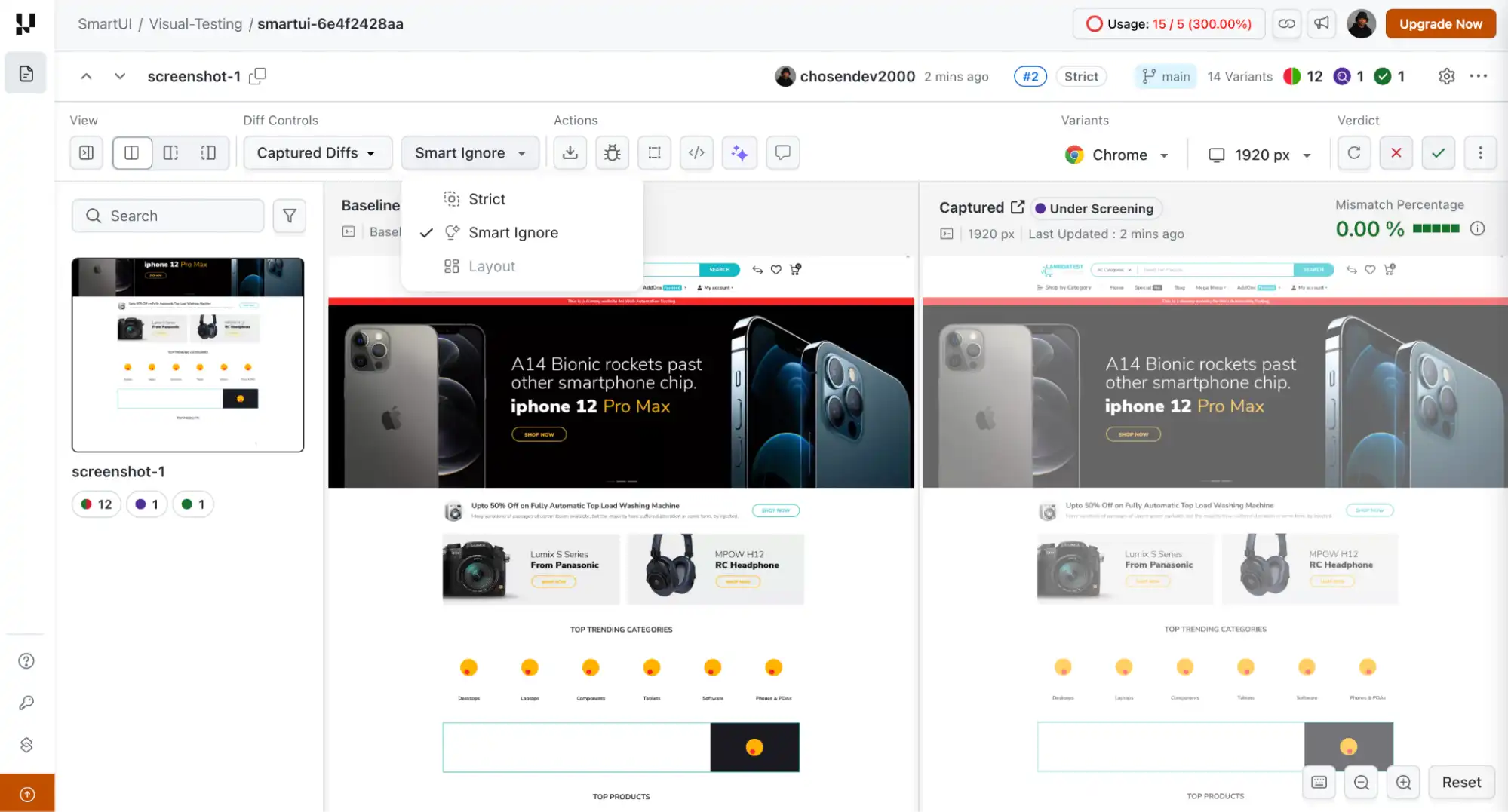
Smart Ignore is a comparison filter, not an auto-approval system. You still review and approve changes manually.
AI-Powered Analysis Features
SmartUI includes two AI features for understanding visual changes. The SmartUI Visual AI Engine (activated via toggle in the comparison view) filters noise and highlights only changes a human would notice. Click any highlighted area to get a plain-English summary like "Content Grid Replaced with Placeholders."
The Smart RCA (Root Cause Analysis) shows exact DOM and CSS changes, which properties changed, attribute modifications, and layout shifts. These features help you understand what broke and why without manually inspecting diffs.
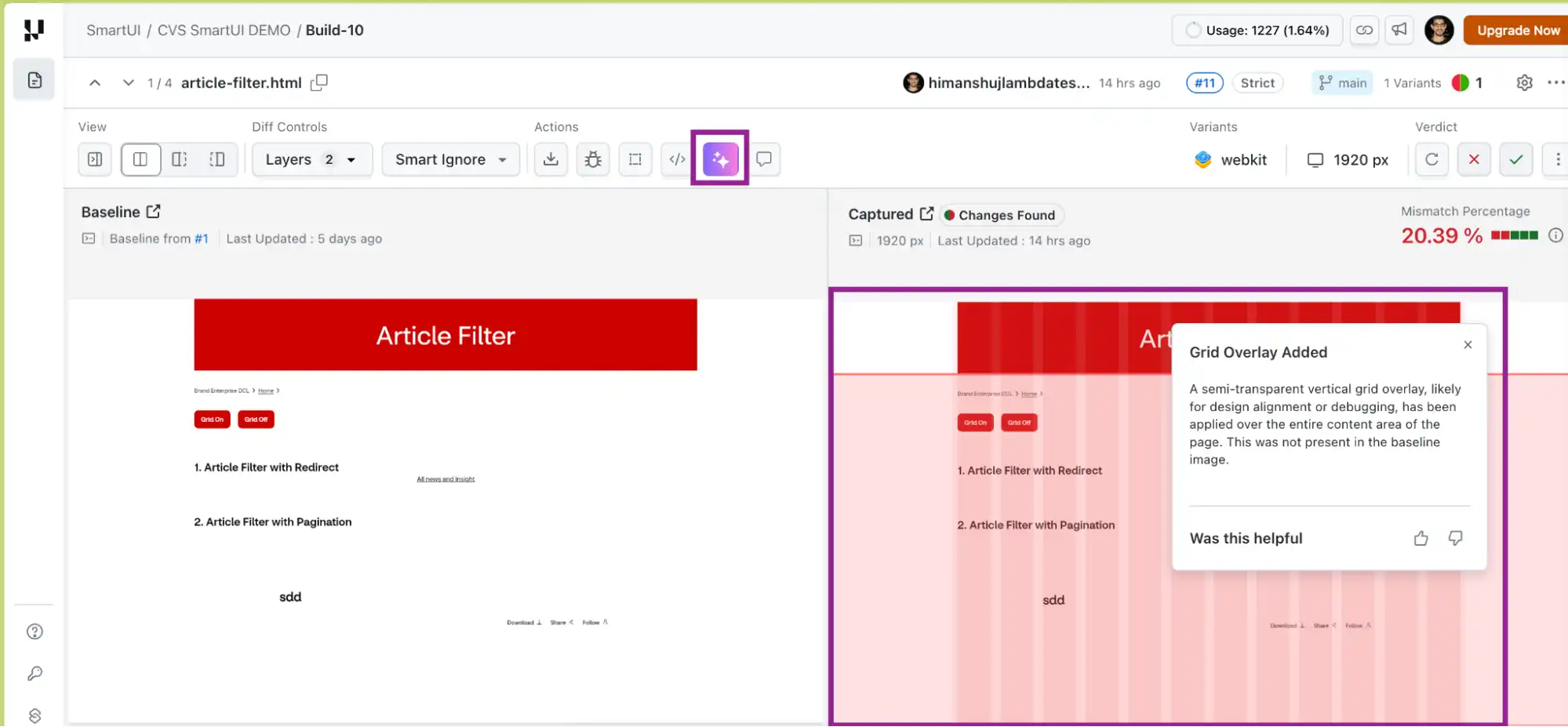
While these AI features help teams understand visual changes after execution, setting up and managing visual regression workflows can still require manual effort.
For teams working in AI-driven workflows, TestMu AI also provides TestMu AI agent-skills that can generate visual regression configurations automatically.
Instead of manually setting up snapshots, viewports, and execution commands, the smartUI-skill interprets prompts like "run visual regression on login and homepage across browsers" and produces the required SmartUI setup, including snapshot points, configuration files, and execution commands.
Cross-Browser and Mobile Visual Testing
SmartUI runs visual regression testing across Chrome, Firefox, Safari, and Edge. You can also perform Appium visual testing on cloud devices through the TestMu AI platform, capturing screenshots from real mobile devices without managing device infrastructure. SmartUI works with Selenium, Playwright, Puppeteer, WebdriverIO, TestCafe, Cypress, Appium, K6, and more.
Best for: teams already using TestMu AI for cross-browser testing who want AI-native visual regression built into their existing framework.
Other Categories of Visual Testing Tools
Beyond an AI-native cloud platform like SmartUI, the wider market clusters into four approaches. Knowing the category narrows your shortlist faster than comparing individual products feature by feature.
- Component-snapshot tools: Capture story-level snapshots of UI components in isolation and run them across browsers in parallel. Best for design-system and component-library teams that build reusable UI before it reaches a page. They detect visual and interaction issues at the component boundary but do not cover full-page or end-to-end flows.
- Open-source CI diff tools: Compare screenshots inside the pipeline and post diffs directly to GitHub or GitLab pull requests without committing baselines to the repo. Most integrate with Playwright, Cypress, and Storybook and include flaky-detection. Suited to budget-conscious teams comfortable self-managing baselines and infrastructure.
- Full automation platforms with visual add-ons: Bundle layout and text-based comparison into a broader web, mobile, API, and desktop automation suite, often with self-healing locators. Best when you want one platform for functional and visual coverage rather than a dedicated visual tool.
- NLP and computer-vision tools: Let you author tests in natural language and validate UI with machine-vision models that adapt as the application changes. Best for complex apps where reducing test maintenance matters more than fine-grained pixel control.
For high-velocity teams that already run cross-browser suites, an AI-native cloud platform usually wins because visual regression runs inside the same execution path as functional tests. TestMu AI's test automation cloud triggers SmartUI visual checks as part of a normal Selenium, Cypress, or Playwright run across 3,000+ browser and OS combinations, so visual coverage does not need a separate pipeline.

How to Choose the Right Visual Testing Tool
The right visual testing tool depends on your team's specific bottleneck, stack, and deployment velocity. Use these criteria to narrow your decision.
Start With Your Pain Point
Different teams have different primary problems. Identify yours before evaluating tools:
- Too many false positives? Any AI visual testing tool with semantic analysis will help. Focus on tools with configurable sensitivity thresholds and strong dynamic content handling.
- Manual baseline approvals are slow? You need agent-level batch grouping. Look specifically for tools that auto-group similar changes from the same commit.
- Do tests break every refactor? Prioritize self-healing selectors and tools that separate visual coverage from selector stability.
- Need mobile visual coverage? Ensure the tool supports your mobile framework, particularly if you use Appium. SmartUI's ability to perform Appium visual testing on cloud devices is a differentiator here.
- Component library team? A component-snapshot tool gives you story-level coverage that page-level tools miss.
Evaluate Framework Compatibility First
A visual testing tool is only as useful as its integration depth. Before trialing any tool, verify it has native SDK support for your test framework, not just generic screenshot upload. Native SDKs give you screenshot timing control, baseline management per environment, and CI/CD status checks that block deploys correctly.
The Evaluation Checklist
| Criterion | What to Look For | Red Flag |
|---|---|---|
| Framework support | Native SDK for your stack | Only a generic screenshot upload |
| False positive handling | Semantic AI + configurable thresholds | Pixel-only with manual ignore |
| Batch approval | Auto-grouping by change type | Individual approves per screenshot |
| Baseline management | Per-branch, per-environment baselines | Single global baseline only |
| CI/CD integration | Native status checks, PR comments | Manual polling required |
| Mobile support | Appium / real device cloud | Web-only with no mobile path |
| Root cause analysis | DOM + CSS diff with AI explanation | Visual diff only |
Best Practices for AI Visual Testing
Adopting AI visual testing effectively requires a thoughtful setup to balance accuracy, speed, and maintainability. By following best practices, teams can reduce false positives, improve test reliability, and maximize the value of automated visual validation across the development lifecycle.
Capture Baselines on Stable, Reviewed Code
The most common visual testing mistake teams make is capturing baselines mid-sprint while features are still in development. If you set baselines on half-finished work, the agent treats every subsequent update as a regression against a state that never actually shipped. Wait until code has passed review and merged to main, or tag baselines to specific releases so you can roll back cleanly after a bad deploy.
For large redesigns, reset baselines completely after the new design merges. For incremental tweaks, update baselines in small batches tied to individual commits rather than accumulating weeks of changes into one baseline reset.
Handle Dynamic Content Deliberately
Visual AI testing tools filter some dynamic content automatically, but they cannot guess whether a changing price is an expected data update or a pricing bug. Be explicit about what to stabilize:
- Use fixed test data in staging: Mock APIs to return consistent, predictable values.
- Replace relative timestamps: Use fixed strings like "2 hours ago" in test mode.
- Set ignore regions for third-party widgets: Exclude chat, ads, and live feeds you cannot control.
- Test pages with third-party content separately: Validate them independently from static pages.
- Avoid broad ignore regions: Be surgical; ignore the timestamp wrapper, not the entire product card, to prevent missing real regressions.
Place Visual Tests at the Right Pipeline Stage
Visual regression testing placement in your CI/CD pipeline determines its signal quality. Too early, and you are comparing against incomplete features. Too late, and regressions are buried under compounding changes.
- PR stage: Run on critical flows like checkout, login, onboarding; non-blocking, flag only.
- Post-merge on main: Run full suite, block only on high-confidence failures.
- Pre-staging deploy: Run full suite with production-like data shapes, block on any failure.
- Weekly scheduled: Run the full suite to detect drift from third-party or browser updates.
Keep visual tests under five minutes by running in parallel. If visual tests take 15 minutes and flag minor cosmetic differences, engineers will disable them or merge through failures. Speed is a feature of your visual testing setup.
Review Your Configuration on a Regular Cadence
Your app evolves, and your visual testing tool configuration should evolve with it. Review flagged issues weekly to detect configuration drift. If the tool is suddenly flagging 20% more changes than usual, either your app genuinely changed significantly or a threshold is miscalibrated. Adjust sensitivity thresholds, update ignore regions, and revisit baseline capture points quarterly as part of your QA health review.
Treat Visual Coverage as a First-Class Test Type
Visual tests provide coverage that unit tests, integration tests, and functional tests cannot. A broken layout does not throw an exception. An overlapping button does not fail an assertion. Missing copy does not trigger an error log. Visual AI testing is the only layer that validates what your users will actually experience; it deserves the same priority as your other test types in code review, CI configuration, and on-call runbooks.
Conclusion
Visual testing has evolved from pixel comparison to AI-driven automation. Traditional tools detect differences, AI improves signal quality, and Visual Testing AI Agents automate execution, analysis, and review.
As visual interfaces grow in importance, reflected in the 70% year-over-year rise in visual search, UI accuracy directly impacts user trust and conversions. The AI-enabled testing market growing toward $4.64 billion by 2034 signals that teams are extending an automation-first mindset to UI validation, not just functional checks.
If your team spends more time reviewing screenshots than finding real issues, your testing approach is not keeping up. Visual Testing AI Agents reduce noise, remove manual effort, and speed up reviews.
The fastest first step is to add a single smartuiSnapshot() call to one existing test and run it on TestMu AI's smart visual UI testing cloud. From there, the SmartUI getting-started guide walks through baselines, Smart Ignore, and CI gating so visual checks run on every push.
Note: SmartUI offers a free trial with SDK setup in under 30 minutes. No new test framework required. Start SmartUI Visual Testing Today!
Sources and Further Reading
Note: AI assistance was used in researching and drafting this article. Chosen Vincent, Community Contributor at TestMu AI with expertise in automation testing and software testing, verified every statistic, link, and product claim against primary sources before publication, following our editorial process and AI use policy.
Author

Chosen Vincent
Blogs: 4


Chosen Vincent is a community contributor with 3+ years of experience across frontend development, test automation, and technical writing. He specializes in test automation using Cypress and creates content around frontend testing practices and developer workflows. As a Technical Writer at TestMu AI, he contributes articles focused on practical automation strategies. Chosen holds a Bachelor’s degree in Computer Science and actively works at the intersection of development and quality engineering.


Visual Testing AI Agent FAQs
Did you find this page helpful?
More Related Blogs

TestMu AI forEnterprise
Get access to solutions built on Enterprise
grade security, privacy, & compliance
- Advanced access controls
- Advanced data retention rules
- Advanced Local Testing
- Premium Support options
- Early access to beta features
- Private Slack Channel
- Unlimited Manual Accessibility DevTools Tests