

Power Your Software Testing with AI Agents and Cloud
The Native AI-Agentic Cloud Platform to Supercharge Quality Engineering. Test Intelligently and Ship Faster.


- TestMu AI (Formerly LambdaTest)
- /
- Blog
- /
- How To Handle Multiple Windows In Selenium WebDriver Using Java?
How To Handle Multiple Windows In Selenium WebDriver Using Java?
In this article, we will understand what are Windows in Selenium and how to handle multiple windows in Selenium WebDriver using Java.
Last Updated on:
Window handling in Selenium is one of those capabilities that looks simple until a test breaks because WebDriver is sending actions to the wrong window.
Industry documentation and practitioner discussions show that handling multiple windows, tabs, and pop ups in Selenium is a common source of test instability, mainly because WebDriver requires explicit context switching using window handles and does not automatically move focus to newly opened windows. You can refer to the Selenium WebDriver window handling documentation for a deeper understanding of how window switching works in practice.
The root cause is almost always the same: WebDriver does not switch windows automatically. When a new window or tab opens, WebDriver remains focused on the original window until you explicitly switch to the new one using its window handle. If you get that sequence wrong, every interaction silently targets the parent window instead of the child, leading to failed assertions and inconsistent test behavior.
You will learn what window handles are in Selenium with Java, how getWindowHandle() and getWindowHandles() work in Selenium WebDriver, how you can switch between parent and child windows using switchTo(), how you can handle single and multiple child windows, how you can use the Selenium 4 newWindow() API to open new windows directly, and whether window handle order is guaranteed in Selenium WebDriver.
Overview
To handle multiple windows in Selenium WebDriver using Java, use getWindowHandles() to retrieve unique window IDs and switchTo().window(handle) to explicitly transfer focus to the target child window. This context switching is essential because WebDriver does not automatically redirect focus to newly opened windows or tabs.
Windows in Selenium
- First browser window: Parent Window - The main web page where the user lands after opening a URL, which holds the initial focus of the WebDriver session.
- Subsequent browser windows: Child Windows - Any new browser windows or tabs opened after the parent window, which require explicit context switching to receive WebDriver actions.
Window Handles and Methods
- Unique window identifiers: Window Handles - Unique alphanumeric IDs dynamically assigned to each browser window, allowing Selenium to reference, switch to, and control specific windows independently.
- Tracking the active window: getWindowHandle() - This method returns the unique string ID of the currently active window, which is useful for storing the parent window handle before triggering new windows.
- Retrieving all open windows: getWindowHandles() - This method returns a Set of unique IDs for all currently open windows, allowing you to iterate through them to find and target specific child windows.
- Switching browser focus: switchTo() - This method redirects the WebDriver focus to a specific window or tab using its unique handle, enabling subsequent actions to target that page.
Testing Tools
- Scalable parallel testing: TestMu AI - This cloud-based platform provides a scalable Selenium Grid environment to run parallel window-handling tests across 3,000+ browser/OS combinations.
What is a Window in Selenium?
A window in any browser is the main web page on which the user lands after hitting a URL. Such a window in Selenium is referred to as the Parent Window or Main Window. It opens when the Selenium WebDriver session is created and has all the focus of the WebDriver.
Check out this video to learn about Windows in Selenium:

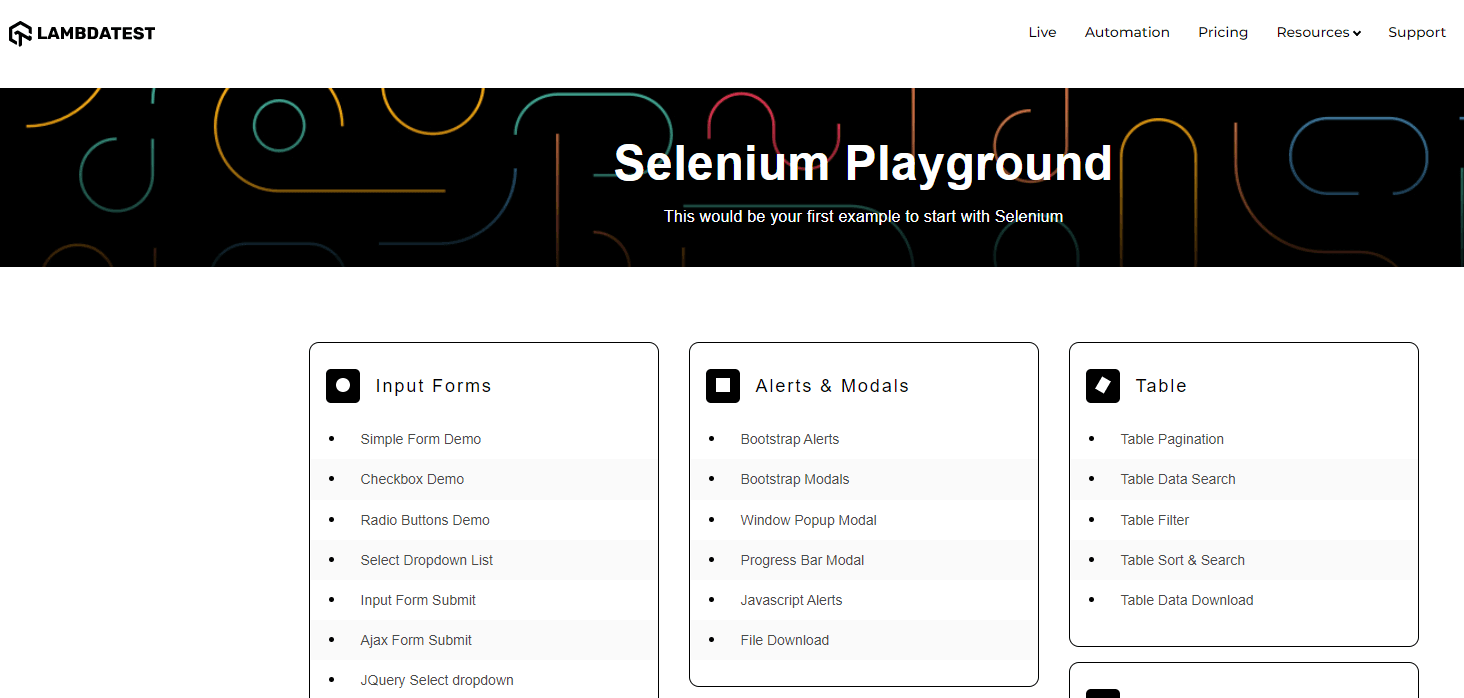
For example, when you open any website or link, the page you land in is the Main Window. Here, I am logging into the Selenium Playground offered by TestMu AI, and the below-shown window is the Main Window.

How to identify parent and child windows in Selenium?
When you open any website using Selenium WebDriver, the first window you interact with is the parent window. This is the main browser context where your automation script starts executing and where most of your initial actions take place.
Any additional windows that open after the parent window are considered child windows. These are typically triggered by user actions such as clicking links, buttons, or pop-ups that open new tabs or browser windows.
To understand this behavior better, you can use a scenario like Selenium Playground and interact with the Window Popup Model option.
When you open the Window Popup Model page, the initial page you land on is the parent window. When you click an option such as Follow On Twitter, a new window opens, which becomes the child window.
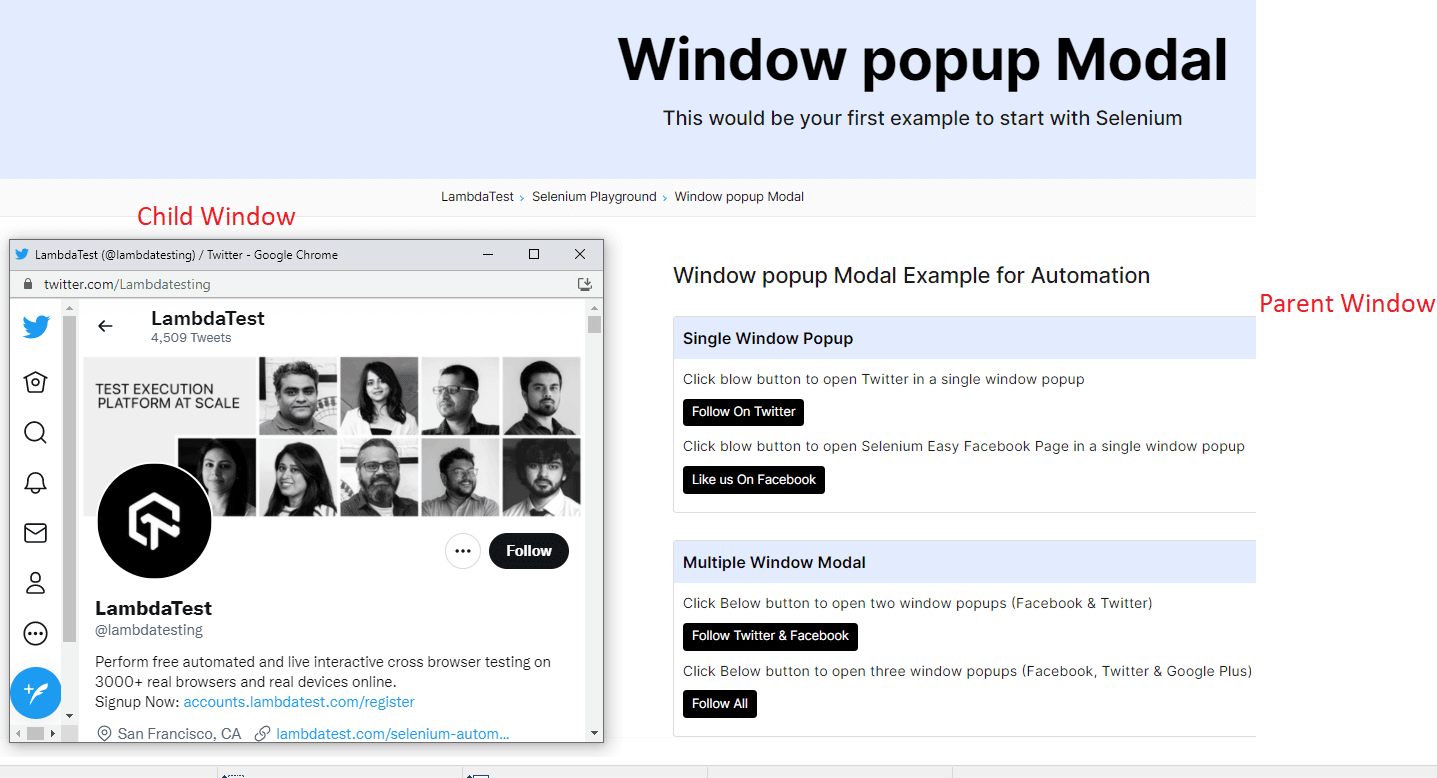
It is important to note that a parent window can have one or multiple child windows depending on how many new windows are triggered during execution.
What is Window Handle in Selenium?
A window handle in Selenium is a unique alphanumeric string identifier assigned to each browser window or tab opened during a WebDriver session. It acts as a pointer that allows Selenium to reference, switch to, and control a specific window independently from all others.
The handle for the parent window is available immediately when the WebDriver session is created. As new windows or tabs open, whether triggered by user actions, JavaScript, or link clicks, Selenium dynamically assigns each a new unique handle. Without window handles, WebDriver has no way to distinguish between multiple active windows and would default to the parent window for all actions, causing test failures.
Note: Selenium WebDriver 4 introduced important architectural changes to window handling. Follow along with this video to learn what’s new in Selenium 4.

What are the methods used for window handling in Selenium?
Selenium WebDriver provides three core methods for window handling:
getWindowHandle(): Returns the unique string ID of the currently active window. Call this immediately after the WebDriver session starts to store the parent window handle before any other windows open.getWindowHandles(): Returns aSet<String>containing the handles of all windows currently open in the session. Use this to iterate over all open windows and identify the target.switchTo().window(handle): Switches WebDriver's focus to the window identified by the given handle string. All subsequent actions will target that window until you switch again.
If you are working with multiple browser contexts, you may also find it useful to understand how switching works across embedded frames, especially when dealing with complex page structures like nested content or dynamic UI components. You can explore this further in the guide on switching between iFrames in Selenium Java.
What Is the Difference Between getWindowHandle() and getWindowHandles() in Selenium?
Understanding the difference between these two methods is essential for writing reliable window handling code. Using the wrong one at the wrong time is one of the most common Selenium exceptions such as NoSuchWindowException.
| Aspect | getWindowHandle() | getWindowHandles() |
|---|---|---|
| Returns | A single String | A Set<String> |
| What it returns | The handle of the currently active window | Handles of ALL open windows in the session |
| Typical use | Store parent window handle before opening child windows | Iterate over all windows to find the target |
| When to call | Before clicking anything that opens a new window | After the new window has opened |
| Return type | String | Set<String> |
| Can identify parent? | Yes, call it first before any new windows open | Not directly, but you identify parent by exclusion |
It is recommended to always call getWindowHandle() before triggering any action that opens a new window. If you call it after the child window opens, you may get the child window's handle instead of the parent's, depending on which window has focus.
Is Window Handle Order Guaranteed in Selenium?
This is one of the most commonly asked questions when you work with window handling in Selenium WebDriver. The official Selenium documentation indicates that window handles are typically added in the order in which the windows are opened.
This means the first handle you capture usually corresponds to the parent window, followed by any child windows in the sequence they are launched.
However, you should not rely on this behavior as a strict rule in your test logic. Even though the order often appears consistent, Selenium represents window handles as a Set<String>, and a Set does not guarantee order across all implementations or environments.
Because of this, you should always identify the correct window by comparing handles explicitly rather than depending on position or order.
However, there are two important caveats:
getWindowHandles()returns aSet<String>, not aList: Java Sets do not guarantee iteration order in all cases. While some implementations may preserve insertion order, you should not assume order consistency in your test logic.- Browser-specific behaviour can vary. : Different browsers, versions, and execution modes (especially headless or parallel runs) may return window handles in different sequences, so relying on order can lead to unstable tests.
The recommended approach is to avoid depending on handle position and instead identify the correct window by validating its title or URL after switching.
String parentHandle = driver.getWindowHandle();
// trigger action that opens new window
Set<String> allHandles = driver.getWindowHandles();

for (String handle : allHandles) {
    if (!handle.equals(parentHandle)) {
        driver.switchTo().window(handle);
        // Now identify by title to be safe
        if (driver.getTitle().contains("Expected Title")) {
            // perform actions
        }
    }
}
This pattern works reliably regardless of handle ordering behaviour across browsers.
Before you learn how to handle single and multiple window scenarios in Selenium WebDriver using Java with practical examples, the implementation will be demonstrated by executing the test on a cloud-based Selenium testing platform.
Running Selenium automation on a local setup often introduces several challenges and limitations of Selenium, especially when dealing with multi-window workflows. Issues such as browser compatibility differences, limited parallel execution, unstable test environments, and heavy dependency on local infrastructure can make test execution inconsistent as the test suite grows.
Cloud-based testing platforms help overcome these challenges by providing scalable Selenium automation environments with access to real browsers and operating systems. One such platform is TestMu AI (formerly LambdaTest).
This platform let's you to execute Selenium automation tests reliably across different browser combinations without worrying about local setup or maintenance. The demonstration will be on a cloud Selenium Grid environment to ensure consistent execution, better scalability, and improved cross-browser coverage.
How to handle a single child window in Selenium?
Let us now implement a code snippet for handling the single-child window in Selenium.
Use Case
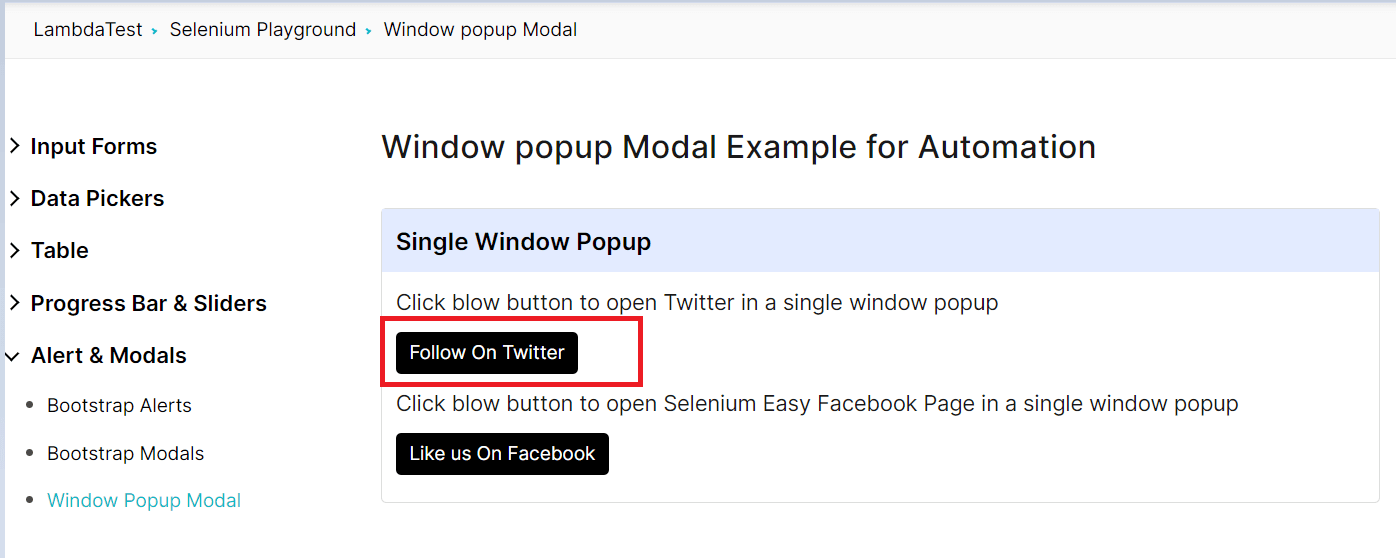
- You will open the Window Popup Modal Demo page of Selenium Playground.
- You will click on the Follow On Twitter option in the Single Window Popup section.
- A child window will open from the parent window.
- You will switch WebDriver focus to the child window using window handles.
- You will capture and print the header/title of the child window page.
Implementation
You will implement a real-time scenario for handling a single child window in Selenium using Java by executing the test on a cloud Selenium Grid environment.
Selenium Grid is a distributed test execution setup that allows you to run Selenium automation tests across multiple browsers, devices, and operating systems in parallel.
When Selenium Grid is hosted on the cloud, it removes the dependency on local infrastructure and provides scalable execution for cross-browser testing. This allows you to focus on writing reliable Selenium test scripts while ensuring consistent execution across different environments.
package LambdaTest;

import org.openqa.selenium.By;
import org.openqa.selenium.WebElement;
import org.openqa.selenium.remote.DesiredCapabilities;
import org.openqa.selenium.remote.RemoteWebDriver;
import org.testng.Assert;
import org.testng.Reporter;
import org.testng.annotations.AfterTest;
import org.testng.annotations.BeforeTest;
import org.testng.annotations.Listeners;
import org.testng.annotations.Test;

import java.net.MalformedURLException;
import java.net.URL;
import java.util.Iterator;
import java.util.Set;

@Listeners({util.Listener.class})
class MultipleWindowsInSelenium {


    public String username = "YOUR USERNAME";
    public String accesskey = "YOUR ACCESSKEY";
    public static RemoteWebDriver driver = null;
    public String gridURL = "@hub.lambdatest.com/wd/hub";

    @BeforeTest
    public void setUp() throws Exception {
        DesiredCapabilities capabilities = new DesiredCapabilities();
        capabilities.setCapability("browserName", "chrome");
        capabilities.setCapability("version", "96.0");
        capabilities.setCapability("platform", "win10"); // If this cap isn't specified, it will just get the any available one
        capabilities.setCapability("build", "MultipleWindowsInSelenium");
        capabilities.setCapability("name", "MultipleWindowsInSeleniumTest");
        try {
            driver = new RemoteWebDriver(new URL("https://" + username + ":" + accesskey + gridURL), capabilities);
        } catch (MalformedURLException e) {
            System.out.println("Invalid grid URL");
        } catch (Exception e) {
            System.out.println(e.getMessage());
        }
        driver.get("https://www.lambdatest.com/selenium-playground/window-popup-modal-demo/");

    }


    @Test
    public void singleWindowPopUp() {
        try {
            //Clicks on the follow on twitter option
            WebElement followOnTwitter = driver.findElement(By.xpath("//a[text()='  Follow On Twitter ']"));
            followOnTwitter.click();

            // To handle parent window
            String MainWindow = driver.getWindowHandle();
            System.out.println("Main window handle is " + MainWindow);

            // To handle child window
            Set<String> s1 = driver.getWindowHandles();
            System.out.println("Child window handle is" + s1);
            Iterator<String> i1 = s1.iterator();
            while (i1.hasNext()) {
                String ChildWindow = i1.next();
                if (!MainWindow.equalsIgnoreCase(ChildWindow)) {
                    driver.switchTo().window(ChildWindow);
                    String pageTitle=driver.getTitle();
                    System.out.println("The web page title of child window is:"+pageTitle);
                    driver.close();
                    System.out.println("Child window closed");
                }
            }

        } catch (Exception e) {

        }

    }

    @AfterTest
    public void closeBrowser() {
        driver.quit();
        Reporter.log("The driver has been closed.", false);

    }

}
You can use the below testng.xml file for running the above testcase.
<?xml version="1.0" encoding="UTF-8"?>
<!DOCTYPE suite SYSTEM "http://testng.org/testng-1.0.dtd">
<suite  name="MultipleWindowsInSeleniumSuite">

    <test name="MultipleWindowsInSeleniumTest" >
        <classes>
            <class name="LambdaTest.MultipleWindowsInSelenium" >
            </class>
        </classes>
    </test>
</suite>
And the below pom.xml file for installing all the necessary dependencies.
<?xml version="1.0" encoding="UTF-8"?>
<project xmlns="http://maven.apache.org/POM/4.0.0"
         xmlns:xsi="http://www.w3.org/2001/XMLSchema-instance"
         xsi:schemaLocation="http://maven.apache.org/POM/4.0.0 http://maven.apache.org/xsd/maven-4.0.0.xsd">
    <modelVersion>4.0.0</modelVersion>

    <groupId>org.example</groupId>
    <artifactId>LambdaTest</artifactId>
    <version>1.0-SNAPSHOT</version>
    <dependencies>
        <dependency>
            <groupId>org.seleniumhq.selenium</groupId>
            <artifactId>selenium-api</artifactId>
            <version>4.0.0-alpha-7</version>
        </dependency>
        <dependency>
            <groupId>org.seleniumhq.selenium</groupId>
            <artifactId>selenium-remote-driver</artifactId>
            <version>4.0.0-alpha-7</version>
        </dependency>
        <dependency>
            <groupId>org.seleniumhq.selenium</groupId>
            <artifactId>selenium-chrome-driver</artifactId>
            <version>4.0.0-alpha-7</version>
        </dependency>
        <dependency>
            <groupId>org.testng</groupId>
            <artifactId>testng</artifactId>
            <version>6.14.3</version>
        </dependency>
        <dependency>
            <groupId>io.github.bonigarcia</groupId>
            <artifactId>webdrivermanager</artifactId>
            <version>4.4.3</version>
        </dependency>
    </dependencies>

    <properties>
        <maven.compiler.source>8</maven.compiler.source>
        <maven.compiler.target>8</maven.compiler.target>
    </properties>

</project>
Code Walkthrough
Let us now see the different areas of code in detail.
- Imported Dependencies: Imported all the necessary classes of Selenium WebDriver, WebDriverWait, Desired Capabilities, and RemoteWebDriver to set the respective browser capabilities and run Selenium IDE tests on cloud grid.
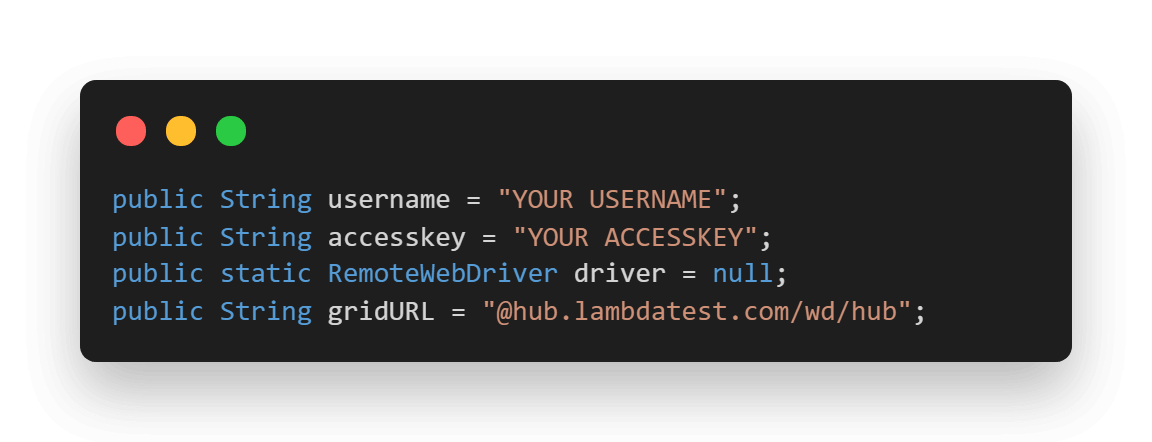
- Global Variables: Since you are using a Selenium Grid cloud platform for test execution, you need to configure a few global variables in your script.
You will set your username and access key based on your TestMu AI profile. You can retrieve these values by logging into your account and navigating to the Profile section, where you can copy your Username and Access Token for use in the code.
The Grid URL will remain the same as shown in the setup, and you will use it to establish the RemoteWebDriver connection for executing your Selenium automation tests.
We have also used the Java Listener class here in order to customize the TestNG Report. TestNG provides us with a lot of Listeners (e.g., IAnnotationTransformer, IReporter, etc.). These interfaces are used while performing Selenium automation testing mainly to generate logs and customize the TestNG reports.
If you want to know more about Event Listeners In Selenium WebDriver watch this video to learn how the Listeners “listen” to the event defined in the Selenium script and behave accordingly.

To implement the Listener class, you can simply add an annotation in your test class just above your class name.
Syntax:
@Listeners(PackageName.ClassName.class)
Also read: TestNG Listeners In Selenium WebDriver With Examples
@BeforeTest (Setup Method): Use TestMu AI's Desired Capabilities Generator and have set the necessary capabilities of browser name, version, platform, etc., for our Selenium Remote WebDriver. After that, the Window Popup Demo Page in the launched browser.
@Test (singleWindowPopup): Locate the first Web Element for Follow On Twitter option and click on it. After this, the driver.getWindowHandle() helps in getting the unique identifier of the main window and storing it in a string.
In the next step, store the handles of all the opened windows in a Set of String method.
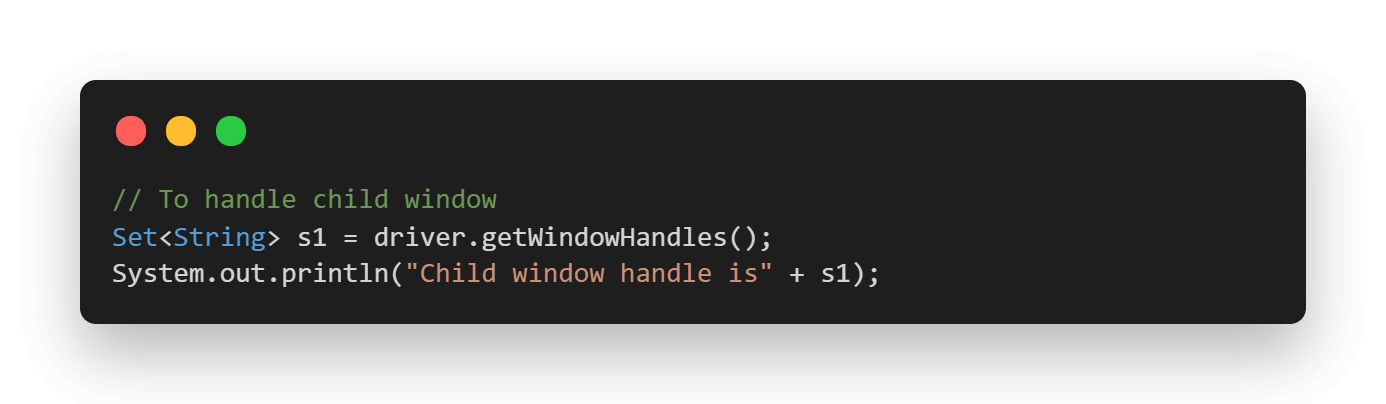
Now, start iteration over the set of window handles you have by using the driver.switchTo() method, then switch to the child window. After switching to the child window, you print the web page title and close the same.
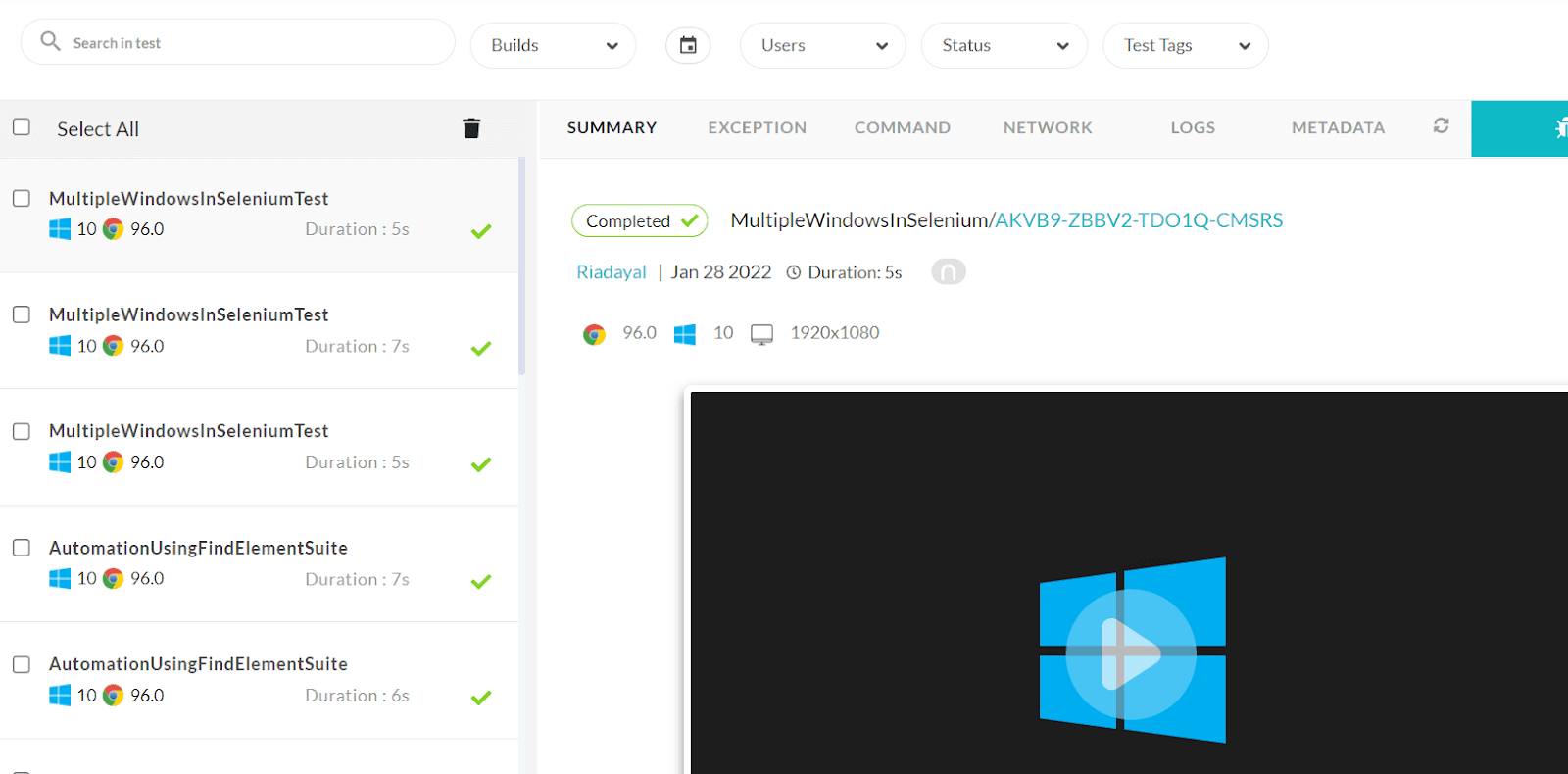
@AfterTest (closeBrowser): With this method you close the launched browser.Once the tests are completed, you can also view your test results, logs, and the test recording as well in your TestMu AI Automation Dashboard.
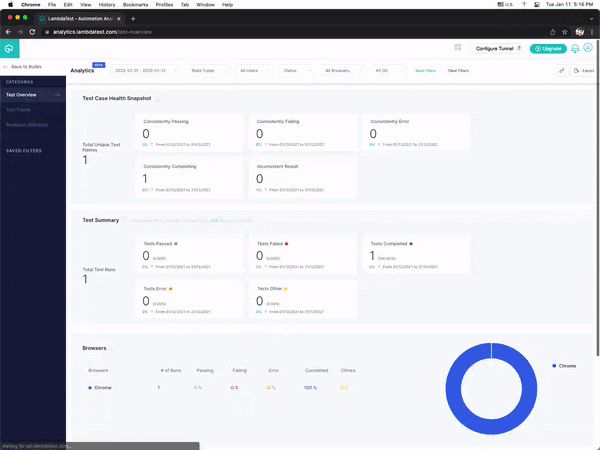
With TestMu AI, you can see how your automated browser testing efforts are going. You’ll get real-time reports on the performance of your test suites and an automated system to track change impact across all your automation efforts. You can use TestMu AI Analytics to get insight into this information and drive better testing practices.
Console Output
Once you run the test case, the console output will look something like below:

To get started with Selenium test execution on the cloud using Java and TestNG, follow this support documentation on running your first Selenium test. This helps ensure that your Selenium RemoteWebDriver setup, Desired Capabilities, and cloud grid connection are working as expected before executing advanced test scenarios such as multiple window handling.
Also read: How To Handle Login Pop-up In Selenium WebDriver Using Java?
How to handle multiple child windows in Selenium?
When it comes to handling multiple child windows in Selenium, the overall process remains the same as we do for a single child window. However, in the case of multiple child windows, you can use any of the available conditional operators like if-else, switch etc. and do the operations, which are particular to each child window.
Let us write our script for handling one of such scenarios.
Use Case
- Log in to the Window Popup Modal Demo page of Selenium Playground.
- Click on Follow On Twitter and Facebook in the Multiple Window Popup section.
- Switch to each of the child windows opened.
- Click on the Sign Up button for Facebook Window.
- Click on the Sign Up button for Twitter Window.
Implementation
package LambdaTest;

import io.github.bonigarcia.wdm.WebDriverManager;
import org.openqa.selenium.By;
import org.openqa.selenium.WebElement;
import org.openqa.selenium.chrome.ChromeDriver;
import org.openqa.selenium.remote.DesiredCapabilities;
import org.openqa.selenium.remote.RemoteWebDriver;
import org.testng.Assert;
import org.testng.Reporter;
import org.testng.annotations.AfterTest;
import org.testng.annotations.BeforeTest;
import org.testng.annotations.Listeners;
import org.testng.annotations.Test;
import org.testng.reporters.jq.Main;

import java.net.MalformedURLException;
import java.net.URL;
import java.util.Iterator;
import java.util.Set;

@Listeners({util.Listener.class})
class MultipleWindowsInSelenium {


    public String username = "YOUR USERNAME";
    public String accesskey = "YOUR ACCESSKEY";
    public static RemoteWebDriver driver = null;
    public String gridURL = "@hub.lambdatest.com/wd/hub";

    @BeforeTest
    public void setUp() throws Exception {
        DesiredCapabilities capabilities = new DesiredCapabilities();
        capabilities.setCapability("browserName", "chrome");
        capabilities.setCapability("version", "97.0");
        capabilities.setCapability("platform", "win10"); // If this cap isn't specified, it will just get the any available one
        capabilities.setCapability("build", "MultipleWindowsInSelenium");
        capabilities.setCapability("name", "MultipleWindowsInSeleniumTest");
        try {
            driver = new RemoteWebDriver(new URL("https://" + username + ":" + accesskey + gridURL), capabilities);
        } catch (MalformedURLException e) {
            System.out.println("Invalid grid URL");
        } catch (Exception e) {
            System.out.println(e.getMessage());
        }
        driver.get("https://www.lambdatest.com/selenium-playground/window-popup-modal-demo/");

    }


    @Test
    public void multipleWindowPopUp() {
        try {
            //Clicks on the follow on twitter and facebook option
            WebElement followOnTwitterAndFacebook = driver.findElement(By.xpath("//a[text()='Follow Twitter & Facebook']"));
            followOnTwitterAndFacebook.click();

            // To handle parent window
            String MainWindow = driver.getWindowHandle();
            System.out.println("Main window handle is " + MainWindow);

            // To handle child window
            Set<String> s1 = driver.getWindowHandles();
            System.out.println("Child window handle is" + s1);
            Iterator<String> i1 = s1.iterator();
            while (i1.hasNext()) {
                String ChildWindow = i1.next();
                if (!MainWindow.equalsIgnoreCase(ChildWindow)) {
                    driver.switchTo().window(ChildWindow);
                    String pageTitle=driver.getTitle();
                    System.out.println("The web page title of child window is:"+pageTitle);
                    if(pageTitle.contains("Facebook")){
                        WebElement signUpForFB= driver.findElement(By.xpath("//span[text()='Create New Account']"));
                        signUpForFB.click();
                        System.out.println("Clicked on Login Option For Facebook");
                    }else if(pageTitle.contains("Twitter")){
                        WebElement signUpForTwitter= driver.findElement(By.xpath("//span[text()='Sign up for Twitter']"));
                        signUpForTwitter.click();
                        System.out.println("Clicked on Follow Option For Twitter");
                    }
                }
            }

        } catch (Exception e) {
               e.printStackTrace();
        }

    }

    @AfterClass
    public void closeBrowser() {
        driver.quit();
        System.out.println("Closing the browser");
    }
}
Code Walkthrough
In this case, the process of iterating the child windows is exactly the same as how we did it in the case of a single child window. However, here we are distinguishing the windows respective to Facebook and Twitter by making use of their corresponding titles and by making use of if-else statements, we are clicking on their respective Sign Up buttons.

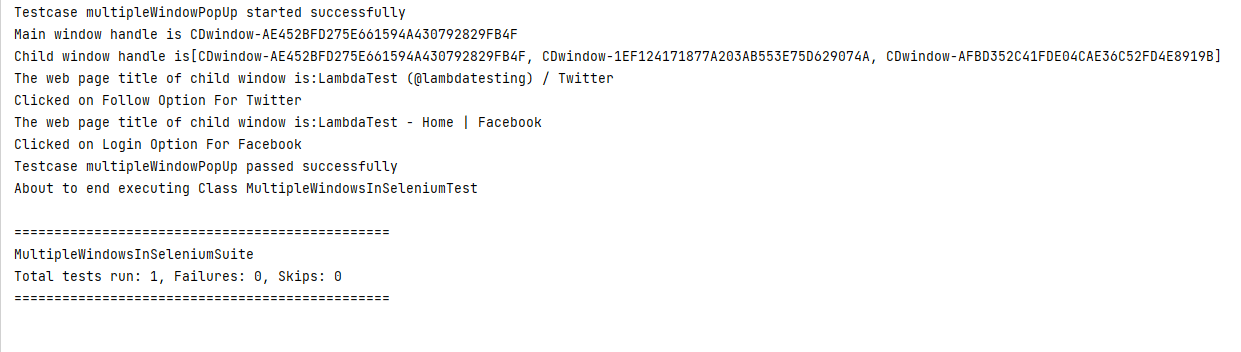
Console Output
Once you run the test case, the console output will look something like below:
Watch this video to learn how to handle multiple windows in Selenium WebDriver using Java.

How to switch back from child window to parent window in Selenium?
As you have learned about parent and child windows, you can now switch to a child window from the parent window. Once the WebDriver gains control of the child window, it can interact only with that window, and you can no longer perform operations on the parent window directly.
So, if you need to return to the parent window, you must switch the driver focus back to it using the switchTo() method.
While handling multiple browser windows, you may also use FindElement and FindElements in Selenium to locate single or multiple web elements across the parent and child windows.
Use Case
Let us see how to implement the switchTo() function. We will implement the same use case as discussed in the last section of this article on handling windows in Selenium WebDriver using Java.
Implementation
package LambdaTest;

import io.github.bonigarcia.wdm.WebDriverManager;
import org.openqa.selenium.By;
import org.openqa.selenium.WebElement;
import org.openqa.selenium.chrome.ChromeDriver;
import org.openqa.selenium.remote.DesiredCapabilities;
import org.openqa.selenium.remote.RemoteWebDriver;
import org.testng.Assert;
import org.testng.Reporter;
import org.testng.annotations.AfterTest;
import org.testng.annotations.BeforeTest;
import org.testng.annotations.Listeners;
import org.testng.annotations.Test;
import org.testng.reporters.jq.Main;

import java.net.MalformedURLException;
import java.net.URL;
import java.util.Iterator;
import java.util.Set;

@Listeners({util.Listener.class})
class MultipleWindowsInSelenium {


    public String username = "YOUR USERNAME";
    public String accesskey = "YOUR ACCESSKEY";
    public static RemoteWebDriver driver = null;
    public String gridURL = "@hub.lambdatest.com/wd/hub";

    @BeforeTest
    public void setUp() throws Exception {
        DesiredCapabilities capabilities = new DesiredCapabilities();
        capabilities.setCapability("browserName", "chrome");
        capabilities.setCapability("version", "97.0");
        capabilities.setCapability("platform", "win10"); // If this cap isn't specified, it will just get the any available one
        capabilities.setCapability("build", "MultipleWindowsInSelenium");
        capabilities.setCapability("name", "MultipleWindowsInSeleniumTest");
        try {
            driver = new RemoteWebDriver(new URL("https://" + username + ":" + accesskey + gridURL), capabilities);
        } catch (MalformedURLException e) {
            System.out.println("Invalid grid URL");
        } catch (Exception e) {
            System.out.println(e.getMessage());
        }

    }


    @Test
    public void switchToParentWindow() {
        try {
            //Clicks on the follow on twitter option
            WebElement followOnTwitter = driver.findElement(By.xpath("//a[text()='  Follow On Twitter ']"));
            followOnTwitter.click();

            // To handle parent window
            String MainWindow = driver.getWindowHandle();
            System.out.println("Main window handle is " + MainWindow);

            // To handle child window
            Set<String> s1 = driver.getWindowHandles();
            System.out.println("Child window handle is" + s1);
            Iterator<String> i1 = s1.iterator();
            while (i1.hasNext()) {
                String ChildWindow = i1.next();
                if (!MainWindow.equalsIgnoreCase(ChildWindow)) {
                    driver.switchTo().window(ChildWindow);
                    String pageTitle=driver.getTitle();
                    System.out.println("The web page title of child window is:"+pageTitle);
                    driver.close();
                    System.out.println("Child window closed");
                }
            }
            System.out.println("Switched back to parent window");
            driver.switchTo().window(MainWindow);
            driver.close();

        } catch (Exception e) {

        }

    }

}
Code Walkthrough
@Test (switchToParentWindow): In this test case, you first start the execution by interacting with the web page and locating theFollow On Twitterlink using thefindElement()method. You then click on it to open a new child window.driver.manage().window().minimize(): You can minimize the browser window during test execution to run tests in the background while keeping the session active.This is particularly useful when you want to run tests without keeping the browser window open on the screen. To learn more, refer to minimize browsers in Selenium.
driver.getWindowHandle(): You then use this method to capture the unique identifier of the parent window and store it in theMainWindowstring variable.driver.getWindowHandles(): Next, you retrieve all opened window handles and store them in aSet<String>. Using an iterator, you loop through all window handles to identify the child window.driver.switchTo().window(ChildWindow): After identifying the child window, you shift the WebDriver focus to the child window using this method. You then fetch and print the page title usingdriver.getTitle().driver.close(): Once all operations on the child window are completed, you close it using this method.driver.switchTo().window(MainWindow): After closing the child window, you switch the WebDriver focus back to the parent window using this method.driver.close(): Finally, you close the parent window. Since both parent and child windows are closed within the test case itself, there is no need to close the browser again after test execution.
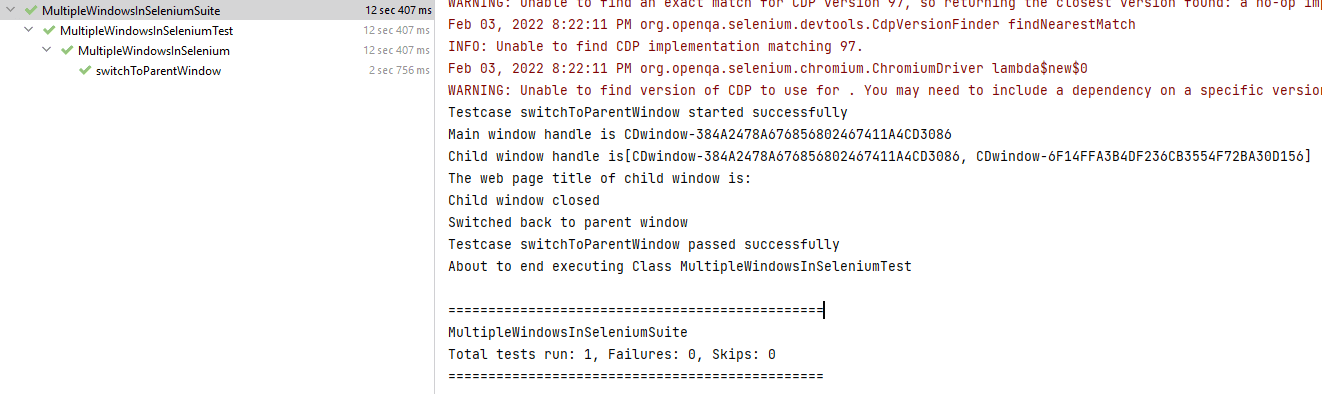
Console Output
Once you run the test case, the console output will look something like below:
How to Use the Selenium 4 newWindow() API for Window Handling?
Selenium 4 introduced a new API that lets you open a new browser window or tab directly, without needing to click a link or button. This is the switchTo().newWindow() method, and it automatically switches WebDriver focus to the newly created window, so no separate switchTo() call is needed.
Open a new tab:
// Opens a new tab and automatically switches to it
driver.switchTo().newWindow(WindowType.TAB);
driver.get("https://www.lambdatest.com/selenium-playground/");
System.out.println("Title of new tab: " + driver.getTitle());

// Switch back to the original window
driver.switchTo().window(parentHandle);
Open a new window:
// Opens a new browser window and automatically switches to it
driver.switchTo().newWindow(WindowType.WINDOW);
driver.get("https://www.lambdatest.com/selenium-playground/window-popup-modal-demo/");
System.out.println("Title of new window: " + driver.getTitle());

// Close new window and switch back to parent
driver.close();
driver.switchTo().window(parentHandle);
When to use newWindow() vs clicking a link:
| Scenario | Recommended Method |
|---|---|
| Link or button naturally opens a new window | Click it and use getWindowHandles() to find the new handle |
| You need to open a new window programmatically | driver.switchTo().newWindow(WindowType.WINDOW) |
| You need to open a new tab programmatically | driver.switchTo().newWindow(WindowType.TAB) |
| Testing that a specific action opens a new window | Click the action, then use getWindowHandles() |
Note: switchTo().newWindow() requires Selenium 4 or later. If you are using Selenium 3, use the getWindowHandles() iteration pattern demonstrated in the earlier sections of this tutorial.
How to Close All Windows While Handling Multiple Windows in Selenium?
While handling multiple windows in Selenium, understanding when to use driver.close() versus driver.quit() is essential for proper cleanup:
driver.close(): Closes only the window that currently has WebDriver's focus. If you have three windows open and calldriver.close(), the other two remain open. You must explicitly switch to each window and close it individually if you want to close them one at a time.driver.quit(): Closes all open windows regardless of which one currently has focus, and terminates the entire WebDriver session. This is what you should call in@AfterTestor@AfterClassto ensure full cleanup after each test suite run.
Common mistake: Calling driver.close() while the parent window has focus before switching to it explicitly. After closing all child windows, you must call driver.switchTo().window(parentHandle) to give WebDriver a valid window context before performing any further actions or cleanup.
Best practice for test cleanup:
@AfterClass
public void closeBrowser() {
    // driver.quit() closes everything, no need to switch first
    driver.quit();
    System.out.println("All windows closed, WebDriver session terminated.");
}

Austin Siewert
Co-Founder, Steadfast Systems
Discovered @TestMu AI yesterday. Best browser testing tool I've found for my use case. Great pricing model for the limited testing I do 👏
2M+ Devs and QAs rely on TestMu AI
Deliver immersive digital experiences with Next-Generation Mobile Apps and Cross Browser Testing Cloud

Best Practices for Window Handling in Selenium
These Selenium best practices consistently produce reliable window handling code across browsers and Selenium versions:
- Always store the parent handle first: Call
String parentHandle = driver.getWindowHandle()before clicking anything that might open a new window. If you forget, retrieving the parent handle later is unreliable. - Use explicit waits for new windows: New windows do not appear instantly. Use
WebDriverWaitto wait untilgetWindowHandles().size()is greater than your current count before iterating. - Identify windows by title, not position: Never assume a specific handle position in the
Set<String>returned bygetWindowHandles(). Always identify target windows by their title or URL after switching. - Close child windows before switching back: Always call
driver.close()on the child window before callingdriver.switchTo().window(parentHandle)to switch back. Failing to close first can leave orphaned windows accumulating across your test run. - Use driver.quit() in teardown, not driver.close():
driver.close()only closes the current window. Usedriver.quit()in@AfterClassto ensure the entire session is cleaned up. - Handle NoSuchWindowException: Wrap window switching in try-catch for
NoSuchWindowExceptionwhen there is any chance the window may have already closed, for example, when handling pop-ups that auto-close after a short time. - Use
switchTo().newWindow()for programmatic window opening: When you need to open a new window as part of test setup rather than as part of the user flow being tested, Selenium 4'snewWindow()API is cleaner and more reliable than JavaScript execution. - Test with cloud grid for cross-browser reliability: Window handling behaviour varies subtly between Chrome, Firefox, Edge, and Safari. Running window handling tests on TestMu AI across 3000+ browser and OS combinations ensures your handling logic is truly cross-browser reliable.
Future of Selenium: AI, Selenium AI and Vibe Testing in Window Handling
The future of Selenium window handling is evolving with the introduction of Selenium AI and vibe testing with Selenium. These advancements are making multi-window automation more intelligent, stable, and less dependent on manual context switching using window handles.
- AI in automation testing for window handling: Modern AI capabilities in test automation enhance the way multiple browser windows are handled by reducing manual effort, improving context detection, and ensuring the correct window is active during execution, especially with advancements in using Selenium with AI.
- Vibe testing with Selenium: Instead of manually writing window handling logic using
getWindowHandle(),getWindowHandles(), andswitchTo(), testers can simply describe the intent, such as switching to a child window and validating its content, while AI handles the window switching logic automatically in the background. - AI-driven window context management: Modern AI automation systems can automatically detect newly opened windows or tabs, switch context correctly, and reduce failures caused by incorrect window focus or handle mismatches in AI testing workflows.
- TestMu AI agent skills for Selenium: Platforms like TestMu AI enhance Selenium window handling by providing TestMu AI agent-skills that can automatically detect, switch, and manage multiple browser windows. With Selenium Skills you can reduce dependency on manual iteration over window handles and improve stability in multi-window test scenarios.
- Browser cloud for multi-window testing: TestMu AI’s browser cloud infrastructure ensures consistent execution of multi-window Selenium tests across different browsers and operating systems, eliminating inconsistencies often seen in local setups.
This evolution makes Selenium window handling more reliable by combining traditional WebDriver methods with AI-driven automation and cloud-based execution support.

Conclusion
In this article on how to handle multiple windows in Selenium WebDriver using Java, we read about Windows in Selenium. We saw what are Parent and Child Windows and how we can handle them using their corresponding Window Handles. We also implemented the automation script for handling both single and multiple child windows. Additionally, we learned about switching back to the parent window, and the trick of closing all the opened windows at once.
I hope you enjoyed reading this article on Window handling in Selenium WebDriver using Java, and it helps you with handling windows in Selenium for your automation suite. 🙂
Happy Testing !!
Author

Ria Dayal
Blogs: 8


Ria Dayal is a Principal QA Engineer at Informatica with over 10 years of experience in software testing, automation, and Agile delivery. She is skilled in Selenium, Java, REST Assured, Cucumber, Postman, and Jenkins, with additional expertise in shell scripting, Docker, and log monitoring. She has also worked with Deloitte and Infosys on automation and manual testing projects. Ria holds certifications in AWS Fundamentals, Salesforce Administration, and Generative AI.
Reviewer

Himanshu Sheth
Reviewer
Himanshu Sheth is the Director of Marketing (Technical Content) at TestMu AI, with over 8 years of hands-on experience in Selenium, Cypress, and other test automation frameworks. He has authored more than 130 technical blogs for TestMu AI, covering software testing, automation strategy, and CI/CD. At TestMu AI, he leads the technical content efforts across blogs, YouTube, and social media, while closely collaborating with contributors to enhance content quality and product feedback loops. He has done his graduation with a B.E. in Computer Engineering from Mumbai University. Before TestMu AI, Himanshu led engineering teams in embedded software domains at companies like Samsung Research, Motorola, and NXP Semiconductors. He is a core member of DZone and has been a speaker at several unconferences focused on technical writing and software quality.


Frequently asked questions
Did you find this page helpful?
More Related Blogs
TestMu AI forEnterprise
Get access to solutions built on Enterprise
grade security, privacy, & compliance
- Advanced access controls
- Advanced data retention rules
- Advanced Local Testing
- Premium Support options
- Early access to beta features
- Private Slack Channel
- Unlimited Manual Accessibility DevTools Tests