
Browser Infrastructure for AI Agents with Browser Cloud
Give Your AI Agents Real Cloud Browsers with Session Persistence, a Localhost Tunnel, and Session Replay.

Browser Fingerprinting: How It Works and How Automated Browsers Get Caught
Browser fingerprinting identifies a browser from canvas, WebGL, fonts, TLS and navigator data. See what automated browsers leak and how to test yours.
Browser fingerprinting works by taking a number of details that the browser exposes and combining them to create a fingerprint. This is done without the need for a cookie. Bot detectors use the same signals to identify automated browsers, the very same signals that are used to detect bots (e.g., the presence of navigator.webdriver, which a real user would never have).
This guide explains how browser fingerprinting works, what signals are important and what Playwright, Puppeteer and AI browser agents expose at each layer. It concludes with a script that will print out the fingerprint of your automated browser and will fail if it detects a known automation leak.
If you're also looking at a hosted browser for your agents, then our Browserbase vs TestMu Browser Cloud comparison will tell you how each vendor packages stealth.
Use these techniques on sites that you own or that you're otherwise permitted to automate. Fingerprinting defenses are there to protect the real user from fraud, and the aim here is to ensure that legitimate testing and automation isn't mistaken for an attack. If it's your own site, then get your test traffic whitelisted in your bot protection vendor first and then use stealth for any third-party automation you're permitted to do.
TL;DR
Browser fingerprinting identifies a browser by combining details it exposes, such as the user agent, fonts, screen size, canvas and WebGL output and the TLS handshake, with nothing stored on the device. Bot detectors read the same signals to flag automated browsers, because Playwright and Puppeteer expose values real users never produce, such as navigator.webdriver set to true.
Browser Fingerprint Signals by Layer
- TLS fingerprinting: JA3 and JA4 hash the cipher suites and extensions a client offers in the TLS handshake, before any page loads. No page script or stealth plugin can change a TLS fingerprint, so a Chrome user agent sent over a different TLS stack stands out at the network edge. Fixable from page JavaScript: No.
- JavaScript properties: Page scripts read navigator.webdriver, the plugin list, languages, hardwareConcurrency and the timezone. A plain local Playwright launch reports navigator.webdriver as true, which is the first value bot-check pages such as bot.sannysoft.com test. Fixable from page JavaScript: Yes, mostly.
- Canvas fingerprinting: A script draws hidden text on an HTML canvas and hashes the pixels. The hash describes the GPU, drivers and fonts of the machine running the browser, so record the canvas hash per environment instead of trying to hide it. Fixable from page JavaScript: Partly.
- Automation protocol: Chrome DevTools Protocol side effects, such as Playwright's Runtime.enable call, are visible to anti-bot scripts. Fixing them takes a driver-level patch such as Patchright, because no page script can remove them. Fixable from page JavaScript: No.
Testing a Browser Fingerprint
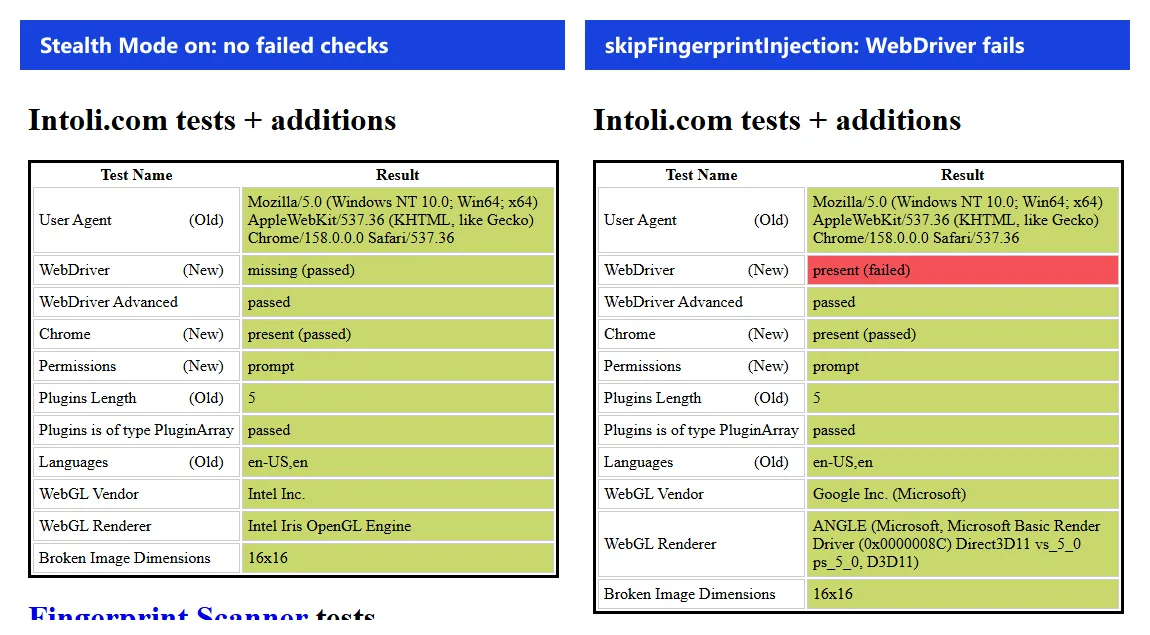
- Control run: A browser fingerprint test means little until it can fail. Run the same check once with stealth off, confirm it reports navigator.webdriver as a leak, then run it with stealth on and compare the two results.
- Browser Cloud Stealth Mode: TestMu AI Browser Cloud patches navigator.webdriver, plugins, languages, permissions and WebGL strings per adapter when a session gets a stealthConfig. TestMu AI calls it best-effort, and it leaves TLS and CDP traffic unchanged. Selenium support: No.
What Is Browser Fingerprinting?
Browser fingerprinting is the practice of identifying a browser by the combination of the browser's characteristics.
MDN's fingerprinting glossary defines it as a practice in which websites "identify a particular browser (and by extension, a particular user) by collecting and combining distinguishing features of the browser and underlying operating system" and lists the inputs as browser version, timezone, language, codecs, installed fonts and screen resolution.
Two properties make a fingerprint useful to a website:
- No storage on the device. Unlike a cookie, there's nothing to clear. The site re-computes the fingerprint on each visit.
- Many weak signals add up. Google's web.dev privacy course describes each data point as adding a bit of distinguishing information. The more possible values an attribute has, the more bits it adds. The font list is a good example of this, as it has far more possible values than the OS.
web.dev also makes the distinction between passive fingerprinting (which simply takes information that the website is given by default, such as the user agent string) and active fingerprinting (which 'explicitly interrogates the browser for extra information'). In practice, active techniques are scripts that draw on a canvas, query for installed fonts or list the media devices.
What browser fingerprinting is NOT: it's not a single ID, it's not a tracking cookie, and it's not necessarily about tracking people. Fraud and bot detection systems use the same signals to answer a very different question: is this browser being operated by a human or by a script?
How Does Browser Fingerprinting Work, Layer by Layer?
A site builds up a browser fingerprint from five layers. Each layer leaks something different when the browser is automated.
| Layer | What the site reads | What automation leaks | Fixable from page JavaScript? |
|---|---|---|---|
| 1. Network and TLS | TLS ClientHello (JA3/JA4 hash), HTTP headers, IP | A TLS stack or header order that doesn't match the claimed browser; a data-center IP | No. It is set before any page JavaScript runs |
| 2. JavaScript properties | navigator.webdriver, userAgent, languages, plugins, hardwareConcurrency, timezone | webdriver set to true, empty plugin list, empty languages | Yes, mostly |
| 3. Rendering | Canvas output, WebGL vendor and renderer, fonts, audio processing | GPU strings and render output from the host machine | Partly: GPU vendor and renderer strings can be spoofed, but the spoof must match the rest of the fingerprint |
| 4. Automation protocol | Chrome DevTools Protocol side effects such as the Runtime.enable call | Detectable CDP activity from the driver | No, needs a driver-level patch |
| 5. Behavior | Mouse paths, typing cadence, timing between actions | Instant, perfectly regular input | Partly, with humanized input delays |
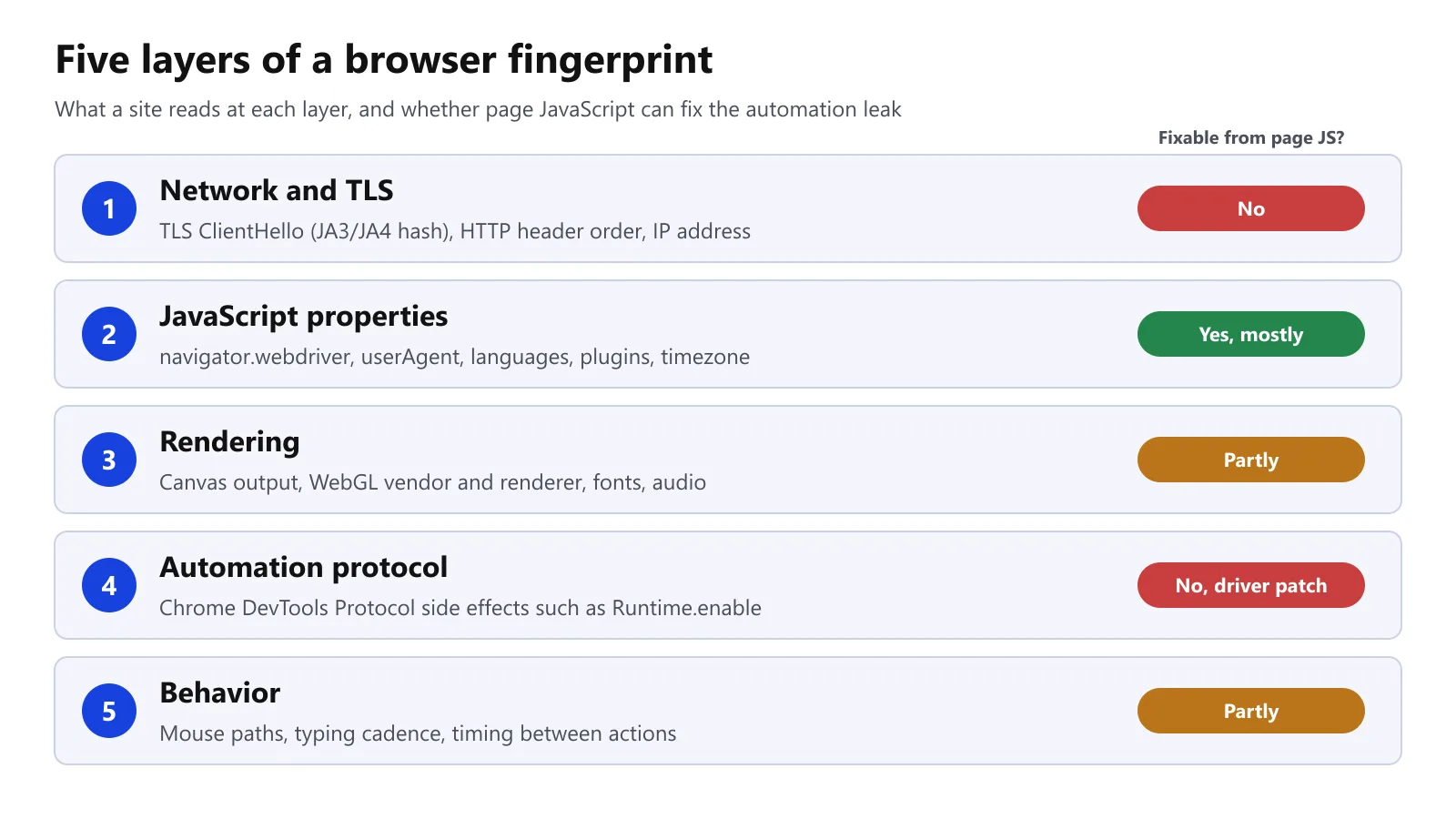
The rest of this guide then walks through those layers in order.
What Is Canvas Fingerprinting?
Canvas fingerprinting works by drawing some invisible text or shapes on an HTML canvas and then hashing the resulting pixels. web.dev points out that the details of the pixel rendering (e.g., the exact pixel rendering of the antialiasing of fonts) will vary from machine to machine and Fingerprint's summary of the various fingerprinting techniques is that it's the GPU and graphics drivers that are responsible for that variation.
For automation, the canvas hash describes the machine the browser is running on rather than the script, so it's worth recording per environment.
WebGL fingerprinting is the same story with a 3D render, and the WEBGL_debug_renderer_info extension will give you the vendor and renderer strings of the graphics driver directly. MDN's page on that extension notes that Firefox will disable that extension if privacy.resistFingerprinting is on.
TLS Fingerprinting (JA3 and JA4)
TLS fingerprinting works by identifying the client from the parameters it supplies during the TLS handshake, prior to any page actually loading.
- JA3, created at Salesforce, reads the TLS version, cipher suites, extensions, elliptic curves and point formats from the ClientHello, joins them and takes an MD5 hash. The JA3 repository was archived on May 1, 2025 and points readers to FoxIO's work.
- JA4 (from FoxIO) sorts the cipher and extension lists so that Chromium's randomized extension order doesn't end up changing the fingerprint. JA4 is BSD-licensed. The wider JA4+ family (JA4H for HTTP, JA4T for TCP, etc.) is licensed under FoxIO's own license.
TLS fingerprinting is important for automation, as no JavaScript patch is going to be able to alter it. If a script is claiming to be Chrome in its user agent but its HTTP client or proxy is producing a different TLS handshake, then that discrepancy will be apparent at the network edge.
Our Playwright stealth guide makes exactly the same point: stealth plugins can't change the JA3/JA4 as that's fixed at the point of the handshake.
Why Do Playwright and Puppeteer Get Detected?
Automated browsers get caught because they expose values that real users never actually produce and because the spoofed values that they do produce often contradict each other.
- navigator.webdriver is true. The W3C WebDriver specification defines this attribute and says it "Returns true if webdriver-active flag is set." Bot-check pages such as bot.sannysoft.com test it near the top of their list.
- Missing browser furniture. Bot check pages such as bot.sannysoft.com check 'Plugins Length' and 'Languages' as well as WebDriver, and TestMu AI's stealth docs are populated with the standard values on the Playwright adapter.
- Protocol side effects. Our Patchright guide explains how Playwright's Runtime.enable CDP call is detectable by anti-bot scripts, and why fixing it takes a driver patch rather than a page script.
- Inconsistent lies. If you're spoofing one value and not the others, you're going to get contradictions: a Windows user agent with a Linux GPU string, or a Chrome version that doesn't match the set of features that browser would actually support. The CreepJS research project is all about this: it's looking at "prototype lies" and the fingerprints that the spoofed values leave behind.
- Machine-like behavior. Clicks with zero delay and typing at a constant rate come across as scripted, which is why humanized input is a separate setting from fingerprint patches.
How Do You Run a Browser Fingerprint Test?
A browser fingerprint test is a page that just gathers up the signals from your browser and reports back what it finds. Run it from the same browser that you're running your tests/agent from, not from your desktop.
| Test page | What it shows | Use it for |
|---|---|---|
| bot.sannysoft.com | Pass/fail table of automation checks (WebDriver, Chrome object, permissions, plugins length, languages, WebGL vendor and renderer) | Quick headless and stealth sanity check; used by TestMu AI's own stealth test |
| CreepJS | Detailed fingerprint plus detected "lies" | Finding inconsistencies between spoofed values. The project warns that copies on other domains may be malicious |
| EFF Cover Your Tracks | How unique your fingerprint is and which data a site can read | Understanding the privacy side; linked from MDN |
| Your own script (below) | Exactly the values your setup exposes, with pass/fail exit codes | CI checks that fail the build when a leak returns |
A Fingerprint Self-Check You Can Run in CI
This Node.js script reads the L2 and L3 signals from inside the page and will exit with code 1 if it finds a known automation leak. It runs locally using Playwright and on TestMu AI Browser Cloud using the Puppeteer adapter. Save the shared function first:
// fingerprint.mjs: shared by both runners
export async function readFingerprint(page) {
  return page.evaluate(() => {
    const out = {
      webdriver: navigator.webdriver,
      userAgent: navigator.userAgent,
      languages: [...navigator.languages],
      plugins: navigator.plugins.length,
      hardwareConcurrency: navigator.hardwareConcurrency,
      timezone: Intl.DateTimeFormat().resolvedOptions().timeZone,
      screen: `${screen.width}x${screen.height}`,
      webglVendor: null,
      webglRenderer: null,
      canvasHash: null,
    };
    const gl = document.createElement('canvas').getContext('webgl');
    const dbg = gl ? gl.getExtension('WEBGL_debug_renderer_info') : null;
    if (dbg) {
      out.webglVendor = gl.getParameter(dbg.UNMASKED_VENDOR_WEBGL);
      out.webglRenderer = gl.getParameter(dbg.UNMASKED_RENDERER_WEBGL);
    }
    const c = document.createElement('canvas');
    const ctx = c.getContext('2d');
    ctx.textBaseline = 'top';
    ctx.font = '16px Arial';
    ctx.fillText('fingerprint-check', 2, 2);
    const data = c.toDataURL();
    let h = 0;
    for (let i = 0; i < data.length; i++) h = (h * 31 + data.charCodeAt(i)) | 0;
    out.canvasHash = h;
    return out;
  });
}

// Known automated leaks only. Each one is capable of failing the run.
export function findLeaks(fp) {
  const leaks = [];
  if (fp.webdriver === true) leaks.push('navigator.webdriver is true');
  if (fp.plugins === 0) leaks.push('navigator.plugins is empty');
  if (fp.languages.length === 0) leaks.push('navigator.languages is empty');
  return leaks;
}
Run it locally against a page you own:
// local-check.mjs: node local-check.mjs https://staging.example.com
import { chromium } from 'playwright';
import { readFingerprint, findLeaks } from './fingerprint.mjs';

const target = process.argv[2];
if (!target) {
  console.error('Usage: node local-check.mjs <url>');
  process.exit(2);
}

const browser = await chromium.launch();
const page = await browser.newPage();
await page.goto(target);
const fp = await readFingerprint(page);
await browser.close();

console.log(JSON.stringify(fp, null, 2));
const leaks = findLeaks(fp);
if (leaks.length) {
  console.error('Automation leaks:\n- ' + leaks.join('\n- '));
  process.exit(1);
}
console.log('No known automation leaks found.');
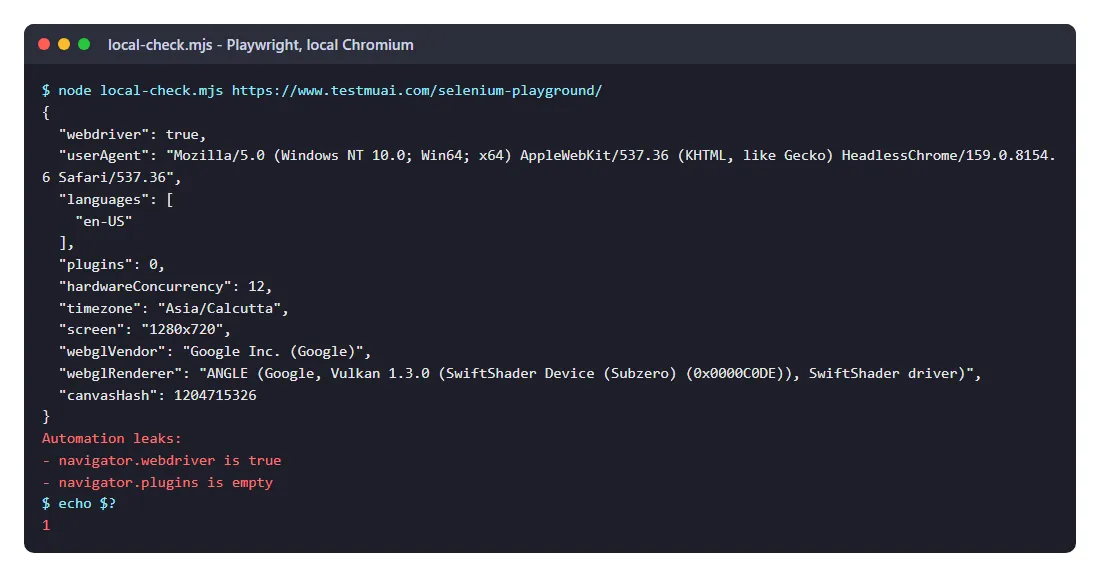
A simple local Playwright launch is expected to fail the webdriver check. That failure is the point; it's proof that the check works before you go on to trust a pass.

Note: Can you run agents/scrapers on sites you're allowed to automate? Try TestMu AI Browser Cloud, the cloud browser for AI agents, with Stealth Mode, which you can turn on per session.
How Does Browser Cloud Stealth Mode Deal With Fingerprints?
TestMu AI Browser Cloud applies fingerprint patches per adapter when Stealth Mode is on. The Browser Cloud stealth docs list what each one changes:
| Signal | Puppeteer adapter | Playwright adapter |
|---|---|---|
| navigator.webdriver | Set to undefined (puppeteer-extra stealth plugin plus about 15 more evasions) | Set to false (scripts injected with page.addInitScript()) |
| chrome.runtime | Chrome runtime objects patched | Fake chrome.runtime |
| navigator.plugins | Not listed separately | Three standard Chrome plugins (PDF Plugin, PDF Viewer, Native Client) |
| navigator.languages | Language and platform strings patched | ['en-US', 'en'] |
| Permissions | Permission queries patched | Notifications query returns 'denied' |
| WebGL vendor/renderer | Patched | Reports an Intel GPU |
| User agent | Random pick from a pool of 7 (Chrome 119-120, Firefox 121) | Same pool |
| Viewport | ±20 px jitter on your base viewport | ±20 px jitter on your base viewport |
| Canvas, fonts, audio, TLS | Not listed in the docs | Not listed in the docs |
The stealthConfig options are humanizeInteractions (default false; adds 50-150ms click delays and 30-130ms per character typed), randomizeUserAgent (default true), randomizeViewport (default true) and skipFingerprintInjection (default false, Puppeteer only; turns all stealth off). Selenium sessions don't support Stealth Mode.
The documentation refers to it as "best-effort stealth that reduces bot detection; some sites may still detect automation". I'll take that as being accurate. The patches cover layers 2 and 5, part of layer 3 and nothing at all in layers 1 and 4.
Here is the same fingerprint check on a Browser Cloud session, following the connect-to-session docs:
// cloud-check.mjs: node cloud-check.mjs https://staging.example.com
import { Browser } from '@testmuai/browser-cloud';
import { readFingerprint, findLeaks } from './fingerprint.mjs';

for (const name of ['LT_USERNAME', 'LT_ACCESS_KEY']) {
  if (!process.env[name]) {
    console.error(`Missing environment variable ${name}`);
    process.exit(2);
  }
}

const target = process.argv[2];
if (!target) {
  console.error('Usage: node cloud-check.mjs <url>');
  process.exit(2);
}

const client = new Browser();
const session = await client.sessions.create({
  adapter: 'puppeteer',
  stealthConfig: { randomizeUserAgent: true, randomizeViewport: true },
  lambdatestOptions: {
    build: 'fingerprint-check',
    name: 'stealth on',
    'LT:Options': {
      username: process.env.LT_USERNAME,
      accessKey: process.env.LT_ACCESS_KEY,
    },
  },
});

let leaks = [];
try {
  const browser = await client.puppeteer.connect(session);
  const page = await browser.newPage();
  await page.goto(target, { waitUntil: 'load' });
  const fp = await readFingerprint(page);
  await browser.close();
  console.log(JSON.stringify(fp, null, 2));
  leaks = findLeaks(fp);
} finally {
  await client.sessions.release(session.id);
}

if (leaks.length) {
  console.error('Automation leaks:\n- ' + leaks.join('\n- '));
  process.exit(1);
}
console.log('No known automation leaks found.');
For a control run, add skipFingerprintInjection: true to stealthConfig and run again. The control should report leaks. If both runs pass, then your check is measuring nothing.
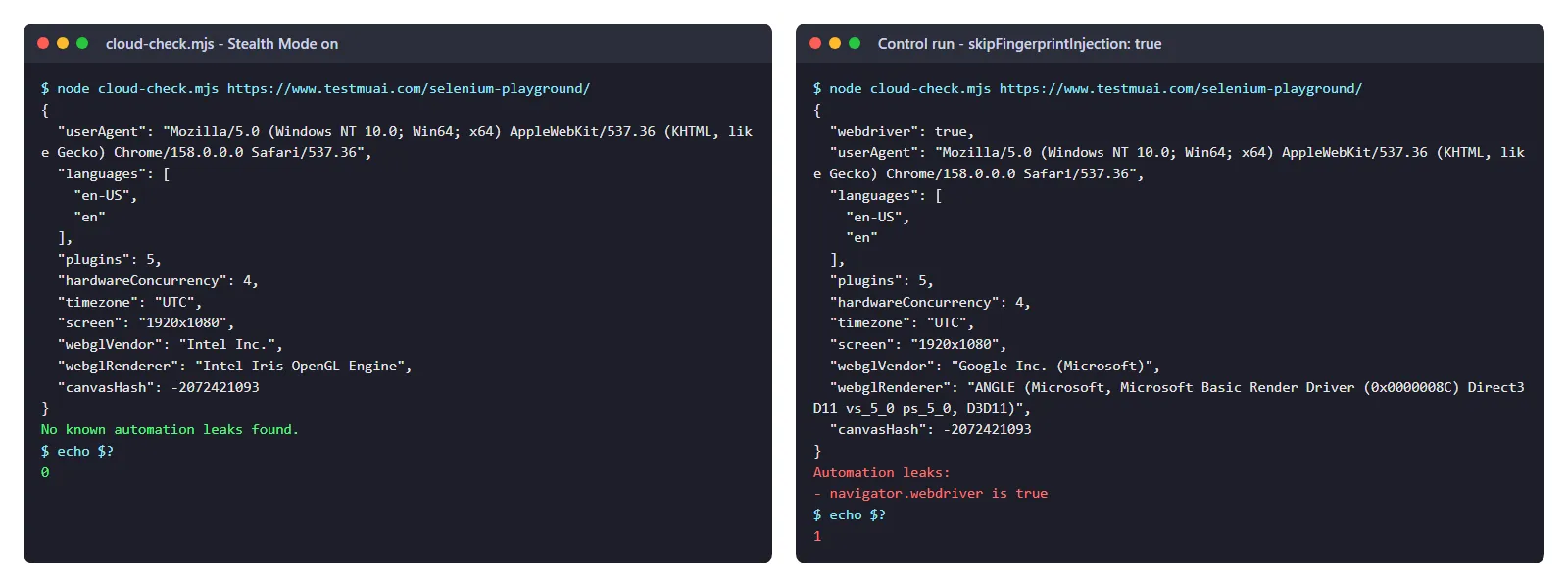
Also check that the userAgent the session reports is consistent with the webglRenderer and screen values. A userAgent from one platform with GPU strings from another is the sort of inconsistency that CreepJS is looking for.
The 5-Layer Fingerprint Audit
Use this audit prior to you going and declaring a site is 'blocking automation' or selecting a stealth tool.
- Network: Does the TLS handshake and header order match the browser you're claiming to be? Is the IP range one that the site already distrusts? No page script is going to fix that layer.
- JavaScript properties: does your self-check pass on webdriver, plugins and languages? Run the stealth-off control to prove the check can fail.
- Rendering: Does the WebGL vendor, renderer, screen size and user agent describe one plausible machine? Record the canvas hash per environment so that you'll be able to spot a change.
- Automation protocol: Are you on a driver that still makes detectable CDP calls? If you pass on layers 1-3 and are still flagged, then test a driver-level fix such as Patchright.
- Behavior: Do clicks and typing have human-like timing where the site watches for it? Turn on humanizeInteractions only where needed, since it slows every action.
Work from layer 1 down. A clean JavaScript fingerprint is of no use if the network layer has already given the script away.
Watch: Playwright Stealth, What It Hides (and What It Can't)
This TestMu AI video (also used in our Playwright stealth guide) walks you through what the stealth patches hide and what signals are still visible.
Conclusion
Browser fingerprinting works by identifying a browser from a whole host of small signals: the TLS handshake, navigator properties, canvas and WebGL output, fonts and behavior. Automated browsers get flagged on a number of fronts: the presence of automation (navigator.webdriver), the absence of certain things (empty plugins), or the presence of spoofed values that don't quite line up.
Page-level stealth deals with the JS layer and part of the rendering. It doesn't touch the TLS or the driver-level CDP traffic.
Test before you guess. Run the self-check with and without stealth, fix the lowest failing layer first and keep the check in CI so a browser or library upgrade doesn't quietly re-introduce a leak. To run agents on sites that you're allowed to automate without having to manage your own browsers, then, start with TestMu AI Browser Cloud.
Giving an AI agent a browser? TestMu AI's Browser Cloud runs each task in a real, isolated Chrome session in the cloud, so the browser stays off your laptop.
Was this helpful?
Authors

Sri Harsha
Author · 20 posts
Sri Harsha is Engineering Manager of the Open Source Program Office at TestMu AI, where he leads open-source engineering behind the Selenium and Appium automation grid and builds agentic AI systems for quality engineering. He is a member of the Selenium Technical Leadership Committee and a committer to WebdriverIO and Appium, and was recognized with the LambdaTest Delta Award 2023 for Best Contributor in open-source testing. He brings over 10 years of experience in software testing and automation, with earlier roles at EPAM Systems and ZenQ. Sri Harsha holds a B.Tech in Computer Science from Jawaharlal Nehru Technological University.


Mayank Bhola
Reviewer
Mayank Bhola is Co-Founder and Head of Products at TestMu AI, where he leads the entire product portfolio across KaneAI, Kane CLI, HyperExecute, SmartUI, the Real Device Cloud, Accessibility, and other software testing product lines. As an early Lead Architect he designed and built the company's flagship Tunnel technology from scratch, created the React-based automation platform, and architected the data-intensive pipelines and FAAS services that scale it. He brings more than 10 years of experience in software development and product engineering, with earlier roles as Head of Technology at Juggernaut Books and Senior Software Engineer at PressPlay TV and Zomato. Mayank holds a B.Tech in Computer Engineering from JIIT Noida.
Browser Fingerprinting FAQs

TestMu AI forEnterprise
Get access to solutions built on Enterprise
grade security, privacy, & compliance
- Advanced access controls
- Advanced data retention rules
- Advanced Local Testing
- Premium Support options
- Early access to beta features
- Private Slack Channel
- Unlimited Manual Accessibility DevTools Tests