

Power Your Software Testing with AI Agents and Cloud
The Native AI-Agentic Cloud Platform to Supercharge Quality Engineering. Test Intelligently and Ship Faster.


- TestMu AI (Formerly LambdaTest)
- /
- Learning Hub
- /
- End-to-End Python Integration Testing: A Complete Guide
End-to-End Python Integration Testing: A Complete Guide
Master Python integration testing with examples, best practices, and cloud execution to ensure reliable module, API, and database interactions.
Last Updated on:
Integration testing validates how various components of software work together as a complete system. Python, with its simplicity and strong testing ecosystem, makes it easier to design and automate different types of testing, from integration to regression. Python integration testing ensures reliable communication between modules, APIs, and databases, helping deliver stable and high-quality applications.
Key Takeaways
- Python integration testing verifies that modules, APIs, and databases interact correctly once combined, validating complete workflows instead of single functions in isolation.
- pytest supplies the fixtures, assertions, and automation used to write Python integration tests, and Nose2 is the alternative runner for teams that also need parallel execution.
- The requests library sends the HTTP calls inside a Python integration test, and the responses module mocks those calls so an unstable third-party API cannot make the suite flaky.
- TestMu AI runs the same pytest suite across 3,000+ browser and OS combinations through a Playwright CDP endpoint, with network, video, and console logs enabled in the capabilities dictionary.
- The Weather App example integration-tests WeatherService against WeatherDataProcessor, checking that collect_city_weather() returns data for three cities and that export_to_csv() writes the expected CSV file.
- Tests that pass locally but fail in CI usually differ in environment, so a shared Docker image and pinned versions in requirements.txt or poetry.lock remove most of that gap.
- Replace arbitrary sleep() calls with retry logic from tenacity, wrap each database test in a transaction that rolls back, and use context managers so open sockets and files cannot hang the suite.
- AI coding agents such as GitHub Copilot, Claude Code, and Cursor can write and repair pytest fixtures, but none of them can confirm that a mocked OpenWeather response still matches the live API.
What Is Python Integration Testing?
Python integration testing verifies interactions between modules, external dependencies, and data flow using frameworks. It ensures all components of a Python system work correctly together.
This form of testing checks that various entities within a Python-based system work together as a whole.

Note: Run your Python Integration tests at scale across 3000+ browsers and OS combinations. Try TestMu AI Now!
How to Write Python Integration Tests Effectively?
Writing Python integration testing involves verifying how different modules, services, or external dependencies in your application work together.
Using frameworks like pytest or Nose2, you can automate tests to check data flow, API communication, and interactions between components, ensuring the system behaves correctly as a whole.
Prerequisites:
To successfully conduct the integration testing process, a few dependencies are required:
- Pytest: Makes pytest API testing straightforward, providing fixtures, assertions, and easy automation.
- Requests: Makes sending HTTP requests in Python simple, enabling smooth API interactions and supporting automated Python integration testing workflows.
- Responses: Allows mocking of HTTP responses in Python, helping testers simulate APIs reliably during integration and pytest API testing.
- Playwright: Required for automating browser interactions if you choose to extend your integration tests to UI workflows.
Setting up Python for Integration Testing:
- Python Installation: Install Python from the official website, or verify installation with
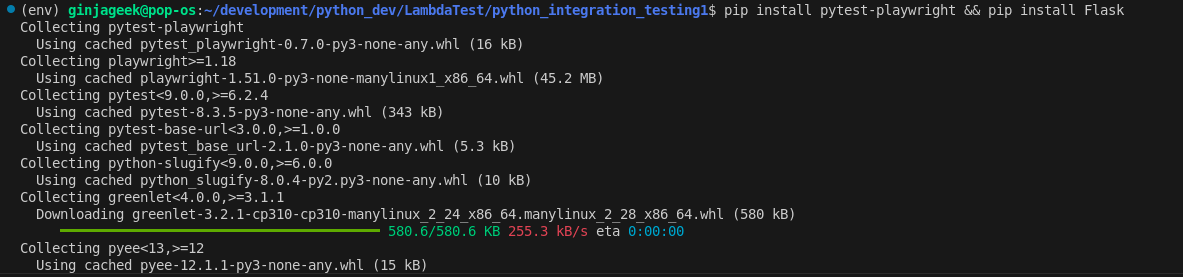
python --versionpip --versionmkdir python_integration_testspython3 -m venv envsource env/bin/activatepip install pytest requests responseThe terminal should look like this during installation:
pytest==8.3.5
requests==2.32.3
response==0.5.0
Running Python Integration Test at Scale
Here you will learn how to write integration tests in Python using a Weather App. The app includes different modules that work together to fetch and process weather information from the OpenWeather API. Integration tests will validate that the WeatherService and WeatherDataProcessor classes interact correctly, ensuring smooth data flow and reliable output.
This Python integration test for the Weather App will be executed on a cloud testing platform, cause integration testing often depends on external APIs and real-world environments, and the cloud makes it easier to validate data flow, handle dependencies, and ensure consistent communication between components.
One such cloud testing platform is TestMu AI, a GenAI-native test execution platform that allows you to perform manual and Python automation testing at scale across 30000+ browsers and OS combinations.
To get started with the TestMu AI platform, you need to follow a few steps given below:
- Set Credentials: Add your TestMu AI Username and Access Key as environment variables. These will be used to authenticate your test execution. You’ll also need to.
- Generate Capabilities: Define automation capabilities such as browser, browser version, platform, and other required settings using the TestMu AI Automation Capabilities Generator to quickly generate the Playwright capabilities configuration for your test.
capabilities = {
   "browserName": "Chrome",  # Browsers allowed: Chrome, MicrosoftEdge,pw-chromium, pw-firefox and pw-webkit
   "browserVersion": "latest",
   "LT:Options": {
       "platform": "Windows 11",
       "build": "Integration Test Build",
       "name": "Python Integration Test (Pytest)",
       "user": os.getenv("LT_USERNAME"),
       "accessKey": os.getenv("LT_ACCESS_KEY"),
       "network": True,
       "video": True,
       "console": True,
       "headless": True,
       "tunnel": False,  # Add tunnel configuration if testing locally hosted webpage
       "tunnelName": "",  # Optional
       "geoLocation": "",  # country code can be fetched from https://www.testmuai.com/capabilities-generator/
   },
}
lt_cdp_url = (
    "wss://cdp.lambdatest.com/playwright?capabilities="
    + urllib.parse.quote(json.dumps(capabilities))
)
Code Implementation:
The conftest.py file sets up a remote connection to the TestMu AI cloud platform. It includes a capabilities Python dictionary with key-value pairs for configuring the remote browser, using your Username and Access Key stored in an .env file.
The file also defines fixture functions:
- browser(): to launch the remote browser
- page(): to manage browser pages
- set_test_status: to update the test status on TestMu AI
import json
import os
import urllib
import subprocess
import pytest
from playwright.sync_api import sync_playwright

capabilities = {
   "browserName": "Chrome",  # Browsers allowed: Chrome, MicrosoftEdge, pw-chromium, pw-firefox and pw-webkit
   "browserVersion": "latest",
   "LT:Options": {
       "platform": "Windows 11",
       "build": "Integration Test Build",
       "name": "Python Integration Test (Pytest)",
       "user": os.getenv("LT_USERNAME"),
       "accessKey": os.getenv("LT_ACCESS_KEY"),
       "network": True,
       "video": True,
       "console": True,
       "headless": True,
       "tunnel": False,  # Add tunnel configuration if testing locally hosted webpage
       "tunnelName": "",  # Optional
       "geoLocation": "",  # country code can be fetched from https://www.testmuai.com/capabilities-generator/
   },
}

# Pytest browser fixture (for cloud testing)
@pytest.fixture(name="browser", scope="module")
def browser():
   with sync_playwright() as playwright:
       playwrightVersion = (
           str(subprocess.getoutput("playwright --version")).strip().split(" ")[1]
       )
       capabilities["LT:Options"]["playwrightClientVersion"] = playwrightVersion
       lt_cdp_url = (
           "wss://cdp.lambdatest.com/playwright?capabilities="
           + urllib.parse.quote(json.dumps(capabilities))
       )
       browser = playwright.chromium.connect(lt_cdp_url, timeout=30000)
       yield browser
       browser.close()
# Pytest page fixture (for cloud testing)
@pytest.fixture
def page(browser):
   page = browser.new_page()
   yield page
   page.close()

# sets status of test case if passed or failed
@pytest.fixture
def set_test_status(page):
   def _set_test_status(status, remark):
       page.evaluate(
           "_ => {}",
           'lambdatest_action: {"action": "setTestStatus", "arguments": {"status":"'
           + status
           + '", "remark": "'
           + remark
           + '"}}',
       )
   yield _set_test_status

Code Walkthrough:
- Import Dependencies: Import all necessary modules for creating a remote browser and page instance on TestMu AI: json, os, urllib, subprocess, pytest, and sync_playwright from Playwright’s sync_api.
- Generate Capabilities: Use the TestMu AI Capabilities Generator to create the capabilities object required to connect to the TestMu AI cloud grid.
- Browser Fixture: Define a browser fixture using @pytest.fixture() that establishes a remote connection with TestMu AI and creates a browser instance for testing.
- Connection with Playwright: Use playwright.chromium.connect() with lt_cdp_url and timeout to connect over WebSocket. Yield the browser instance to test functions and close it with browser.close() after each test.
- Page Fixture: Define a page fixture function that takes the browser parameter, creates a page object, yields it to test functions, and closes it with page.close() during teardown.
- Set Test Status Fixture: Define a set_test_status fixture that uses a TestMu AI hook. It takes the page parameter and uses the page.evaluate() to resolve the JavaScript code in a string that sets the status of a given test case to passed or failed.
Now that you have the TestMu AI configuration file ready, let's proceed with creating an integration testing for the Weather App and execute it on the TestMu AI platform.
Weather App: Python Integration Test Example
The Weather App showcases the interaction between the WeatherDataProcessor class and the WeatherService class, which uses the OpenWeather API to get weather information about different cities across the globe.
The integration test will evaluate the proper data exchange between the WeatherService class and the WeatherDataProcessor class.
To get started, let's take a test scenario.
Test Scenario:
- Fetch API Response: Obtain a JSON response from the OpenWeather API for a given city.
- Process Weather Data: Use WeatherDataProcessor.collect_city_weather() to return a Python dictionary containing weather data for multiple cities.
- Export to CSV: Use WeatherDataProcessor.export_to_csv() to export the collected weather information to a CSV file.
Code Implementation:
The weather_service.py file holds the WeatherService class that retrieves the weather information about any given city using the OpenWeather API endpoint.
The requests library's get() method sends a request to the API endpoint with the required parameters. A JSON response is returned from the get_weather() method of the WeatherService class.
import requests


class WeatherService:
   BASE_URL = "https://api.openweathermap.org/data/2.5/weather"

   def __init__(self, api_key):
       self.api_key = api_key

   def get_weather(self, city):
       params = {
           'q': city,
           'appid': self.api_key,
           'units': 'metric'
       }

       response = requests.get(self.BASE_URL, params=params)

       if response.status_code != 200:
           raise ValueError(f"Weather API error: {response.text}")

       return response.json()
Code Walkthrough:
- Create WeatherService Class: Define a WeatherService class to retrieve weather information for various cities from the OpenWeather API. Set a constant BASE_URL as the OpenWeather API endpoint. Use the __init__() method to initialize the class with the provided api_key.
- Define get_weather() Method: Implement a get_weather() method to fetch JSON weather data for a city. Create a params object with user-defined city and api_key values for keys 'q' and 'appid'. Use requests.get() to access the API and store the response. Raise a ValueError if response.status_code is not 200. Return the weather data from the method.
You have the WeatherDataProcessor class in the data_processor.py file. The class includes two methods: collect_city_weather and export_to_csv.
You use the collect_city_weather() method to gather weather information from different cities, and the export_to_csv() method to export the collected weather data into a CSV file.
import csv
from datetime import datetime


class WeatherDataProcessor:
   def __init__(self, weather_service):
       self.weather_service = weather_service

   def collect_city_weather(self, cities):
       weather_data = []

       for city in cities:
           try:
               weather = self.weather_service.get_weather(city)
               processed_data = {
                   'city': city,
                   'temperature': weather['main']['temp'],
                   'humidity': weather['main']['humidity'],
                   'timestamp': datetime.now().isoformat()
               }
               weather_data.append(processed_data)
           except Exception as e:
               print(f"Error fetching weather for {city}: {e}")

       return weather_data

   def export_to_csv(self, weather_data, filename):
       if not weather_data:
           return False

       keys = weather_data[0].keys()

       with open(filename, 'w', newline='') as output_file:
           dict_writer = csv.DictWriter(output_file, keys)
           dict_writer.writeheader()
           dict_writer.writerows(weather_data)

       return True
Code Walkthrough:
- Create WeatherDataProcessor Class: Define a WeatherDataProcessor class to process weather data obtained from the OpenWeather API.
- Initialize Class: Use the __init__() method to initialize the class with an instance of WeatherService.
- Define collect_city_weather() Method: Create a method to collect weather data for multiple cities.
- Accept Cities List: Take a list of cities as a parameter.
- Initialize Weather Data List: Create an empty list weather_data to store processed city data.
- Iterate Over Cities: Use a for loop to process each city in the list.
- Fetch Weather Data: Inside the loop, use a try/except block to call weather_service.get_weather() for each city and store the result in weather.
- Process Data: Create a dictionary processed_data containing the city’s weather information.
- Append to Weather Data: Append processed_data to the weather_data list.
- Return Collected Data: Return the complete weather_data list after processing all cities.
- Define export_to_csv() Method: Create a method to export collected weather data to a CSV file.
- Accept Parameters: Take weather_data and filename as parameters.
- Validate Input: Return False if weather_data is not a list of dictionaries.
- Extract CSV Keys: Create a variable keys holding the dictionary keys for CSV columns.
- Open File: Use Python’s open() function to open filename for writing, with the file pointer as output_file.
- Create DictWriter: Instantiate csv.DictWriter as dict_writer to handle CSV writing.
- Write Header and Rows: Use dict_writer.writeheader() to write column headers and to write the weather data rows.
To perform an integration test for the Weather App, you will create the test_weather_integration.py file. The test will check that your WeatherService and WeatherDataProcessor classes, along with the OpenWeather API, work seamlessly together.
You will verify that weather information for different cities is collected correctly and exported to a CSV file.
You will use the responses module to mock HTTP requests within the requests module context. The os module allows you to interact with your operating system and manage file directories during testing.
import os
import pytest
import responses
from samples.weather_app.weather_service import WeatherService
from samples.weather_app.data_processor import WeatherDataProcessor
from conftest import set_test_status
@pytest.fixture
def mock_weather_service():
   # Use responses to mock external API calls
   weather_service = WeatherService(api_key='test_key')
   return weather_service
@responses.activate
def test_weather_data_collection(mock_weather_service, set_test_status):
   # Mock the OpenWeatherMap API response
   responses.add(
       responses.GET,
       "https://api.openweathermap.org/data/2.5/weather",
       json={
           'main': {
               'temp': 20.5,
               'humidity': 65
           }
       },
       status=200
   )

   try:
       # Create processor with mocked service
       processor = WeatherDataProcessor(mock_weather_service)
       # Test data collection
       cities = ['London', 'New York', 'Tokyo']
       weather_data = processor.collect_city_weather(cities)
       assert len(weather_data) == 3
       assert all('temperature' in data for data in weather_data)
       assert all('humidity' in data for data in weather_data)
       set_test_status(status="passed", remark="API builds metadata returned")
   except AssertionError as e:
       set_test_status(status="failed", remark="API sessions metadata not returned")
       raise (e)

@responses.activate
def test_weather_data_export( mock_weather_service, tmp_path, set_test_status):
   # Mock API response
   responses.add(
       responses.GET,
       "https://api.openweathermap.org/data/2.5/weather",
       json={
           'main': {
               'temp': 20.5,
               'humidity': 65
           }
       },
       status=200
   )

   try:
       processor = WeatherDataProcessor(mock_weather_service)

       cities = ['London']
       weather_data = processor.collect_city_weather(cities)

       # Export to temporary CSV
       output_file = tmp_path / "weather_data.csv"
       result = processor.export_to_csv(weather_data, output_file)

       assert result is True
       assert os.path.exists(output_file)

       # Verify CSV contents
       with open(output_file, 'r') as f:
           lines = f.readlines()
           # Header + data
           assert len(lines) == 2
       set_test_status(status="passed", remark="API builds metadata returned")
   except AssertionError as e:
       set_test_status(status="failed", remark="API sessions metadata not returned")
       raise (e)
Code Walkthrough:
- Create Mock WeatherService Fixture: Define a fixture function mock_weather_service that mocks the WeatherService class and returns a mocked instance.
- Test Weather Data Collection: Validate the collection of weather data for multiple cities using mocked API responses.
- Define Test Function: Create test_weather_data_collection that takes mock_weather_service and set_test_status as parameters and decorate it with @responses.activate.
- Mock API Response: Use responses.add() to define the OpenWeather API response.
- Create Processor Instance: Instantiate WeatherDataProcessor using the mocked weather service.
- Collect Weather Data: Call processor.collect_city_weather() to return weather_data, a list of weather information for multiple cities.
- Assertions: Check that the length of weather_data is 3. Validate that temperature and humidity information exists for each city.
- Set Test Status: If all assertions pass, set the test status to “passed” using the set_test_status fixture. Otherwise, catch AssertionError and set the status to “failed”.
- Test Weather Data Export: Validate exporting collected weather data to a CSV file using mocked API responses.
- Define Test Function: Create test_weather_data_export that takes mock_weather_service, tmp_path, and set_test_status as parameters.
- Mock API Response: Use responses.add() to mock the OpenWeather API response.
- Create Processor Instance: Instantiate WeatherDataProcessor and call processor.collect_city_weather() to get weather_data.
- Set Output File Path: Define output_file pointing to the temporary path tmp_path / "weather_data.csv".
- Export Weather Data: Call processor.export_to_csv(weather_data, output_file) and store the result.
- Assertions: Verify that result is True. Check that output_file exists. Open output_file and read lines using f.readlines(); assert that the number of lines equals 2.
- Set Test Status: If all assertions pass, use set_test_status to mark the test as “passed”; otherwise, mark it as “failed” if an exception is thrown.
Test Execution:
To execute the integration tests, in the root folder of the project, run the command below in your terminal:
pytest testsWhen the above command is executed on the terminal, pytest does an autosearch for all test functions and executes them.
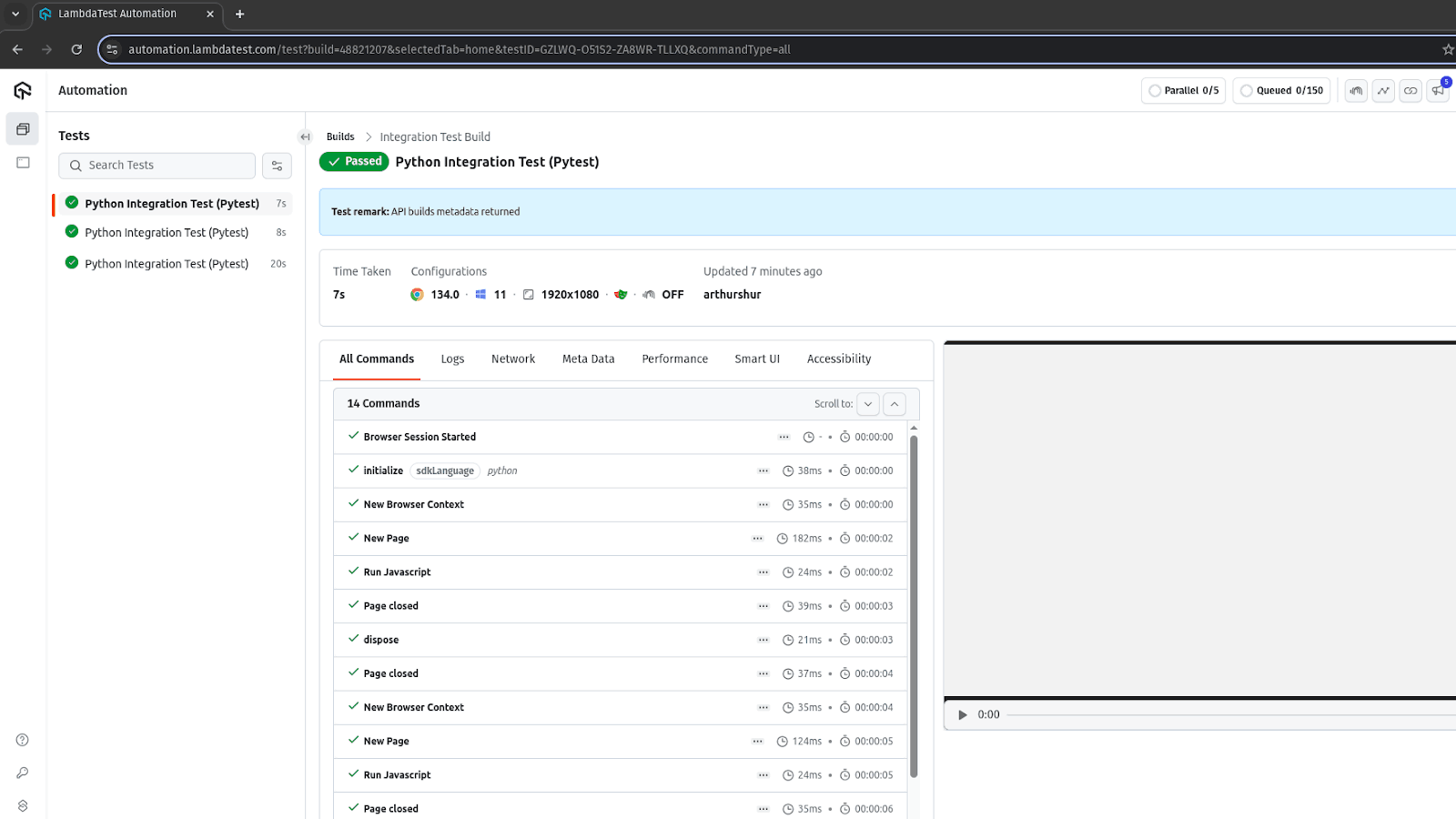
To start writing Python integration tests with Playwright, follow this support documentation on Python with Playwright for guidance.
Key Takeaway: Running Python integration tests at scale means pointing pytest at a remote browser through a conftest.py file that holds the TestMu AI capabilities, the browser and page fixtures, and a set_test_status hook. The Weather App example then proves that WeatherService and WeatherDataProcessor exchange data correctly, collecting weather for several cities and exporting it to a CSV file.
Troubleshooting Python Integration Testing
Even well-designed integration tests can fail in unexpected ways, from environment mismatches to hidden data issues or asynchronous glitches
Here are the most common problems Python automation testers face, and practical fixes to get them back on track.
Tests Pass Locally but Fail in CI/CD
Problem: A common issue occurs when tests run perfectly on a local machine but fail once pushed to Jenkins, GitHub Actions, or GitLab pipelines. Differences in environment variables, OS, Python versions, or dependencies often cause this.
Solution:
- Environment Replication: Use Docker to create a consistent test environment across local and CI.
- Lock Dependencies: Pin versions in requirements.txt or poetry.lock to avoid subtle package updates.
- Debugging Tip: Run the failing CI job locally using the same Docker image or act (for GitHub Actions).
Flaky Tests Due to Timing Issues
Problem: Integration tests often depend on asynchronous operations (e.g., database commits, API responses). If the test checks results too early, it may intermittently fail.
Solution:
- Explicit Waits: Use retry logic with libraries like tenacity instead of arbitrary sleep() calls.
- Health Checks: Before assertions, verify that the service or DB has reached the expected state.
- Logging: Add timestamps in logs to identify race conditions.
Database Pollution Between Tests
Problem: Integration tests that use a real database may leave behind records, leading to test failures in subsequent runs.
Solution:
- Transactional Rollbacks: Wrap each test in a database transaction and roll it back at the end.
- Isolated Schemas: Create a temporary schema or database per test run using tools like pytest-postgresql or Dockerized test DBs.
- Cleanup Fixtures: Define Pytest fixtures with yield to ensure teardown after test execution.
Silent Failures in Async Code
Problem: Python asyncio services can swallow exceptions if not awaited properly, making tests appear to pass when they shouldn’t.
Solution:
- Strict Await Checks: Use pytest-asyncio to ensure coroutines are awaited.
- Event Loop Debug Mode: Run asyncio.get_event_loop().set_debug(True) during tests to catch un-awaited tasks.
- Mocking Async Calls: Use asynctest or pytest-mock for async mocks instead of regular unittest.mock.
Test Data Drift Between Environments
Problem: The test data set in staging differs from production, causing false positives or negatives during integration.
Solution:
- Snapshot Testing: Save baseline JSON/CSV outputs and compare against expected results.
- Data Factories: Use libraries like factory_boy to generate consistent test data instead of relying on static fixtures.
- Config Profiles: Maintain separate test config files (config.test.yaml, config.dev.yaml) to align data expectations per environment.
Resource Leaks (Open Sockets, Files, or Threads)
Problem: Long-running integration test suites may hang due to unclosed sockets, threads, or file descriptors.
Solution:
- Context Managers: Always wrap I/O in with statements to guarantee closure.
- Pytest Finalizers: Use request.addfinalizer() for forced cleanup.
- Leak Detection: Enable faulthandler and tracemalloc to detect leaks during test runs.
Inconsistent API Responses During Testing
Problem: Third-party APIs or internal microservices may return different response times or formats, breaking integration tests unexpectedly.
Solution:
- Contract Validation: Use pydantic models to validate response structures before assertions.
- Resilient Assertions: Check for key fields instead of full response equality.
- Fallback Mocks: Cache real API responses once and use them as local fixtures for test stability.
Key Takeaway: Most Python integration test failures trace back to environment drift, timing, or leftover state. Docker images and pinned dependencies fix CI mismatches, retry logic and health checks replace arbitrary sleeps, transactional rollbacks stop database pollution, and pydantic contract validation keeps changing API responses from breaking assertions.
How Do AI Coding Agents Write And Debug Python Integration Tests In 2026?
AI coding agents can write a pytest fixture, run the suite, and fix a failing assertion on their own, but they cannot confirm a mocked response still matches the real API.
- GitHub Copilot: autocompletes pytest fixtures and assertions inline as you write a file like test_weather_integration.py, drafting from the surrounding class methods instead of a generic template.
- Claude Code: runs as a terminal agent that opens the whole project, runs pytest itself, reads the failing stack trace, rewrites the fixture that caused it, and reruns the suite until it passes.
- Cursor: in agent mode, edits every test file that mocks a changed method at once, so a rename in WeatherService.get_weather() does not leave a stale mock behind in a different file.
- Playwright MCP server: drives the actual Weather App UI in a live browser so an agent can confirm a fix works end to end, not only against a mocked API response.
- browser-use: automates the same browser check for teams scripting this outside an IDE agent, useful when Playwright MCP is not wired into the coding environment.
None of these agents can tell whether a mocked OpenWeather response still matches the live API's real shape. That check still needs someone to run the test against the live API at least once.
A testing agent approaches the same problem from the test side rather than the editor. KaneAI from TestMu AI is a GenAI-native testing agent that turns a plain-language instruction, a PRD, or a Jira ticket into ordered test steps with assertions, re-anchors those steps through smart element detection when the interface changes, and exports them as Playwright, Selenium, Cypress, or Appium code that runs on the TestMu AI grid.
Conclusion
After the completion of unit testing, integration testing is usually the next step before end-to-end testing. Integration tests are necessary to evaluate whether the modules or parts work together without faults. Python integration testing captures how different modules or parts of a Python application interact and exchange data across parts.
The Python programming ecosystem provides several tools and frameworks to help developers and QA testers perform integration tests. Before writing integration tests in Python, ensure that all the needed dependencies are installed for a seamless testing experience. To scale Python integration testing, using a cloud testing platform is advised for easy collaboration, report generation, CI/CD pipelines integration, etc.
Citations
- Integration Testing Method Based on Recent Advancements in Functional Software Testing https://www.aasmr.org/jsms/Vol12/JSMS%20august%202022/Vol.12.No.04.06.pdf
Author

Samyak Goyal
Blogs: 30

Samyak Goyal is a Senior Member of Technical Staff at TestMu AI engineering Kane CLI, the command-line tool that runs browser automation from the terminal, where a flow described in natural language executes in a real Chrome browser and returns pass or fail with shareable proof. He is a backend engineer with 4+ years of experience, previously an SDE at Innovaccer, where he built APIs, introduced Kafka, and cut deployment from weeks to hours. Samyak also builds multi-agent systems, skill-orchestration frameworks, and a personal copilot that indexes 200+ microservice repositories.
Reviewer

Shravan Mahajan
Reviewer
Shravan Mahajan is a Software Engineer at TestMu AI building Kane CLI, the command-line tool that runs browser automation from the terminal, describing flows in natural language that execute in a real Chrome browser and return pass or fail with shareable proof. He has an experience of 6 years in the Technical industry. His top skills are JavaScript, React.js, and full-stack development. At Fractal he built automated data pipelines with T-SQL, SSIS, Python, and Azure. He is also a Microsoft Certified Azure Data Engineer Associate.


Frequently asked questions
Did you find this page helpful?
More Related Learning Hubs
TestMu AI forEnterprise
Get access to solutions built on Enterprise
grade security, privacy, & compliance
- Advanced access controls
- Advanced data retention rules
- Advanced Local Testing
- Premium Support options
- Early access to beta features
- Private Slack Channel
- Unlimited Manual Accessibility DevTools Tests