

Power Your Software Testing with AI Agents and Cloud
The Native AI-Agentic Cloud Platform to Supercharge Quality Engineering. Test Intelligently and Ship Faster.


- TestMu AI (Formerly LambdaTest)
- /
- Blog
- /
- Guide To Scraping Dynamic Web Pages Using Selenium And C#
Guide To Scraping Dynamic Web Pages Using Selenium And C#
Learn how to scrape dynamic web pages in this guide. Discover several scraping dynamic page strategies and tools to easily and efficiently collect data.
Last Updated on:
Selenium scrapes dynamic web pages by driving a real browser so JavaScript renders content before you read it. Selenium's WebDriverWait and JavaScript executor wait for document.readyState to reach complete before any element is located, which a plain HTTP client cannot do for JavaScript-rendered pages.
This guide covers web scraping and its use cases, the difference between static and dynamic scraping, a C# automation testing walkthrough that scrapes the TestMu AI YouTube channel and blog, and how AI agents handle dynamic scraping now.
Key Takeaways
- Selenium renders JavaScript in a real browser, so it can scrape dynamic web pages that plain HTTP-based tools cannot fully load.
- Static web pages return complete HTML on the first request, while dynamic pages load content after user actions or JavaScript execution.
- An explicit WebDriverWait combined with the JavaScript executor confirms document.readyState equals complete before Selenium reads any element on a dynamic page.
- FindElements returns a ReadOnlyCollection of every matching WebElement, and FindElement locates a single WebElement inside that collection for reading individual fields.
- A CSS selector or XPath tied to a specific class name breaks scraping code the moment a website changes its markup.
- AI agents that read a page by meaning instead of a fixed selector keep working after a site renames its CSS classes.
What is Web Scraping?
Web Scraping is a common technique primarily used for extracting information (or data) from websites. The HTML of the page from where relevant data has to be scraped is processed using the appropriate tools and stored in the database, excel sheet, etc. so that the data can be used for further analysis.
With larger size (or amounts) of data, scraping could add a significant amount of load on the server that hosts the website. As long as the scraping activity does not disrupt the website’s services, it is perfectly fine to scrap the said website.

Prominent Use Cases of Web Scraping
Why scrap websites when they might add load on the server that is hosting the website? Well, the answer lies in the umpteen number of scenarios where web scraping can be extremely useful. Web scraping can help unleash information related to customers, products, etc., which can be further used to make future decisions.
Owners of e-commerce websites can analyze data from different sources like their website, social media accounts, review websites, etc., for understanding users ’ buying patterns and improving their services. Product review scraping is a prominent use case that online businesses leverage for keeping a close watch on their competition.
Example – Dynamic web page scraping of the TestMu AI blog can give detailed insights on article views, author’s performance, and more. The data can be used for better content planning and getting the best out of the rockstar writers who contribute to our blog ☺.
Difference between Static & Dynamic Web Scraping
In static web pages, all the data on the page is available at the initial call to the site. You might not even need to maintain a connection to the server since all the information is now available locally. Hence, the HTML document can be downloaded, and data can be scraped using tools that let you scrap data from static pages.
On the other hand, dynamic content means that the data is generated from a request after the initial page load request. On dynamic pages, most of the functionality happens in responses to the actions performed by the user and the JavaScript code that is executed in the web browser.
HTTP agent is not suited for websites (or web applications) where there is a high level of dynamic interaction and interface automation. The Selenium C# library, which is widely used for automation testing of web applications, helps emulate human actions and render dynamic JavaScript code.
For dynamic pages where selector-based scraping keeps breaking with every release, this guide to AI web scraping covers how LLM-based agents extract data by meaning instead of brittle CSS or XPath, handle JavaScript-rendered content natively, and adapt automatically when the page structure shifts.
Scraping Dynamic Web Pages with Selenium C#
Due to Selenium’s capability in handling dynamic content generated using JavaScript, it is the preferred option for scraping dynamic web pages. Selenium is a popular test automation framework used to validate applications across different browsers and operating systems.
Prerequisites for demonstrating web scraping with Selenium C#
We use Visual Studio for the implementation of test scenarios in C#. Here are the basic setup requirements for performing Selenium web scraping in C#
- Visual Studio IDE – For implementation, we use the Visual Studio (Community Edition), which can be downloaded from VS Community Download Page.
- Browser Driver – It automates browser interaction from Selenium C# code. You have to download the browser driver for Selenium in accordance with the browser on which Selenium web scraping is performed. Shown below are the locations for downloading browser drivers for Selenium:
Downloading and installing browser drivers is not required when dynamic web page scraping is done using a cloud-based Selenium Grid like TestMu AI. You can refer to our detailed Selenium WebDriver tutorial for a quick recap on Selenium WebDriver.
- C# Packages – We showcase Selenium web scraping using the Selenium WebDriver and NUnit framework. The NUnit project requires reference to the following libraries (or packages):
- Selenium.WebDriver
- NUnit
- NUnit3TestAdapter
- Microsoft.NET.Test.Sdk
These are the standard set of packages that are used for automated browser testing with NUnit and Selenium. No additional packages are required for scraping dynamic web pages with C# and Selenium. Check out our tutorial on NUnit test automation with Selenium C# for a quick recap on NUnit for automation testing.
Setting up the Selenium C# Project
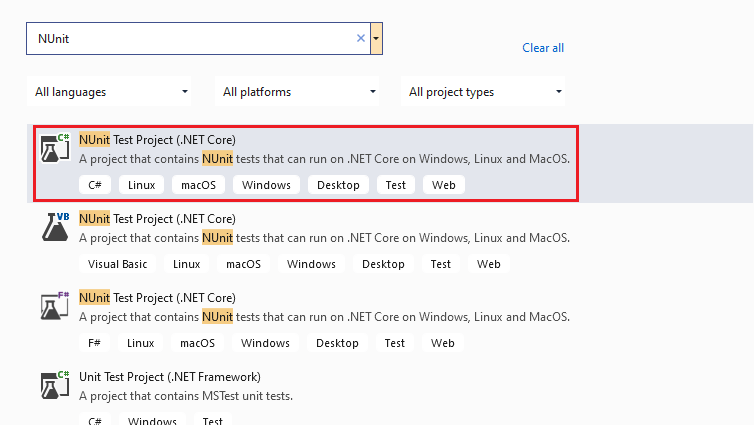
- We create a new project of type ‘NUnit Test Project (.Net Core)’ in Visual Studio.
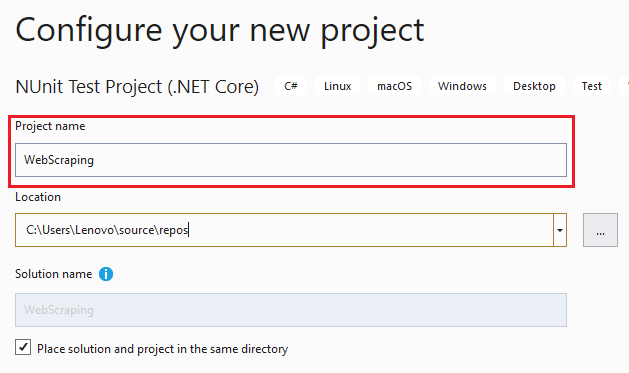
- Name the project as ‘WebScraping’ and press the ‘Create button.
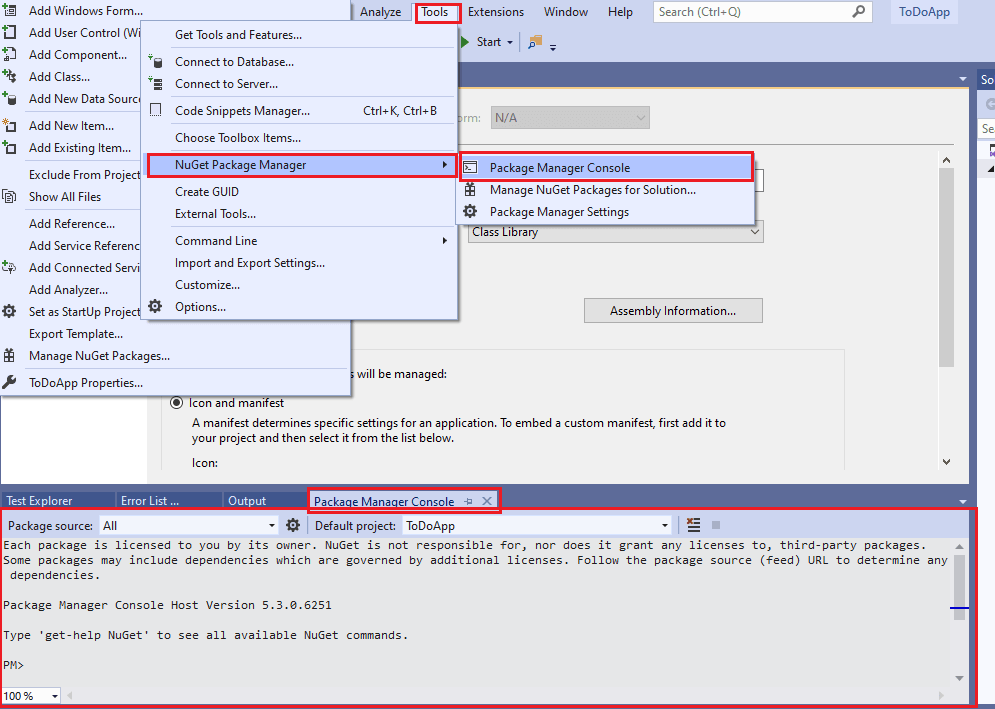
- Once you have created the project, install the packages mentioned above using the Package Manager (PM) console, which can be accessed through ‘Tools’ -> ‘NuGet Package Manager’ -> ‘Package Manager Console.’
- For installing the packages, run the following commands in the PM console:
Install-Package Selenium.WebDriver
Install-Package NUnit
Install-Package NUnit3TestAdapter
Install-Package Microsoft.NET.Test.Sdk
Install-Package Selenium.WebDriver.ChromeDriver
PM> get-package

Id                                  		  Versions
--                                  		  --------
Selenium.WebDriver                            {3.141.0}
NUnit                                         {3.12.0}
NUnit3TestAdapter                             {3.16.1}
Microsoft.NET.Test.Sdk                        {16.5.0}
Selenium.WebDriver.ChromeDriver               {88.0.4324}
Now that the necessary packages are installed for the Selenium C# NUnit project, we proceed with the addition of NUnit test scenarios that demonstrate scraping dynamic web pages with Selenium.
Let’s begin writing a scraper for scraping the following websites:
Web Scraping TestMu AI YouTube Channel
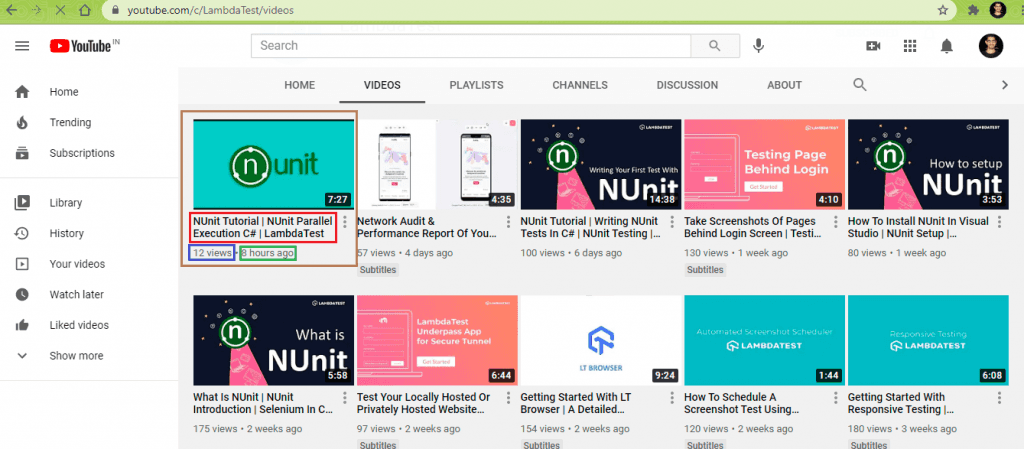
In this demonstration, we scrap the following data from the TestMu AI YouTube channel:
- Video Title
- Number of video views
- Time of upload
In this demonstration, the TestMu AI YouTube channel had 79 videos, and this walkthrough scrapes the requisite information from all the videos on the channel. Here is the Selenium web scraping test scenario that will be executed on Chrome (on Windows 10). The test is run on a cloud-based Selenium Grid provided by TestMu AI.
- Go to https://www.youtube.com/c/LambdaTest/videos.
- Scroll till the end of the page so that all the videos are available on the page.
- Scrap the video title, views, and upload details.
- Print the scraped information on the terminal.
Implementation
using NUnit.Framework;
using OpenQA.Selenium;
using OpenQA.Selenium.Chrome;
using OpenQA.Selenium.Remote;
using OpenQA.Selenium.Support.UI;
using System;
using System.Collections.ObjectModel;
using System.Collections.Specialized;
using System.IO;
using System.Reflection;
using System.Threading;
using OpenQA.Selenium.Safari;
using System.Collections.Generic;
using System.Web;

namespace WebScraping
{
    public class ScrapingTest
    {
        String test_url_1 = "https://www.youtube.com/c/LambdaTest/videos";
        static Int32 vcount = 1;
        public IWebDriver driver;

        /* LambdaTest Credentials and Grid URL */
        String username = "user-name";
        String accesskey = "access-key";
        String gridURL = "@hub.lambdatest.com/wd/hub";

        [SetUp]
        public void start_Browser()
        {
            /* Local Selenium WebDriver */
            /* driver = new ChromeDriver(); */
            DesiredCapabilities capabilities = new DesiredCapabilities();

            capabilities.SetCapability("user", username);
            capabilities.SetCapability("accessKey", accesskey);
            capabilities.SetCapability("build", "[C#] Demo of Web Scraping in Selenium");
            capabilities.SetCapability("name", "[C#] Demo of Web Scraping in Selenium");
            capabilities.SetCapability("platform", "Windows 10");
            capabilities.SetCapability("browserName", "Chrome");
            capabilities.SetCapability("version", "latest");

            driver = new RemoteWebDriver(new Uri("https://" + username + ":" + accesskey + gridURL), capabilities,
                TimeSpan.FromSeconds(600));
            driver.Manage().Window.Maximize();
        }

        [Test(Description = "Web Scraping LambdaTest YouTube Channel"), Order(1)]
        public void YouTubeScraping()
        {
            driver.Url = test_url_1;
            /* Explicit Wait to ensure that the page is loaded completely by reading the DOM state */
            var timeout = 10000; /* Maximum wait time of 10 seconds */
            var wait = new WebDriverWait(driver, TimeSpan.FromMilliseconds(timeout));
            wait.Until(d => ((IJavaScriptExecutor)d).ExecuteScript("return document.readyState").Equals("complete"));

            Thread.Sleep(5000);

            /* Once the page has loaded, scroll to the end of the page to load all the videos */
            /* Scroll to the end of the page to load all the videos in the channel */
            /* Reference - https://stackoverflow.com/a/51702698/126105 */
            /* Get scroll height */
            Int64 last_height = (Int64)(((IJavaScriptExecutor)driver).ExecuteScript("return document.documentElement.scrollHeight"));
            while (true)
            {
                ((IJavaScriptExecutor)driver).ExecuteScript("window.scrollTo(0, document.documentElement.scrollHeight);");
                /* Wait to load page */
                Thread.Sleep(2000);
                /* Calculate new scroll height and compare with last scroll height */
                Int64 new_height = (Int64)((IJavaScriptExecutor)driver).ExecuteScript("return document.documentElement.scrollHeight");
                if (new_height == last_height)
                    /* If heights are the same it will exit the function */
                    break;
                last_height = new_height;
            }

            By elem_video_link = By.CssSelector("ytd-grid-video-renderer.style-scope.ytd-grid-renderer");
            ReadOnlyCollection<IWebElement> videos = driver.FindElements(elem_video_link);
            Console.WriteLine("Total number of videos in " + test_url_1 + " are " + videos.Count);

            /* Go through the Videos List and scrap the same to get the attributes of the videos in the channel */
            foreach (IWebElement video in videos)
            {
                string str_title, str_views, str_rel;
                IWebElement elem_video_title = video.FindElement(By.CssSelector("#video-title"));
                str_title = elem_video_title.Text;

                IWebElement elem_video_views = video.FindElement(By.XPath(".//*[@id='metadata-line']/span[1]"));
                str_views = elem_video_views.Text;

                IWebElement elem_video_reldate = video.FindElement(By.XPath(".//*[@id='metadata-line']/span[2]"));
                str_rel = elem_video_reldate.Text;

                Console.WriteLine("******* Video " + vcount + " *******");
                Console.WriteLine("Video Title: " + str_title);
                Console.WriteLine("Video Views: " + str_views);
                Console.WriteLine("Video Release Date: " + str_rel);
                Console.WriteLine("
");
                vcount++;
            }
            Console.WriteLine("Scraping Data from LambdaTest YouTube channel Passed");
        }

        [TearDown]
        public void close_Browser()
        {
            driver.Quit();
        }
    }
}
Code Walkthrough
Now let’s decipher the code where we scraped vital information from the TestMu AI YouTube Channel.
Step 1 – Import the packages (or namespaces).
First, we import the namespaces or packages for Selenium Remote WebDriver, NUnit framework, and more.
using NUnit.Framework;
using OpenQA.Selenium;
using OpenQA.Selenium.Chrome;
using OpenQA.Selenium.Remote;
using OpenQA.Selenium.Support.UI;
......................................
......................................
Step 2 – Set the desired browser capabilities.
In the [SetUp] annotation, we implement a method that sets the desired browser capabilities that are created using the TestMu AI capabilities generator.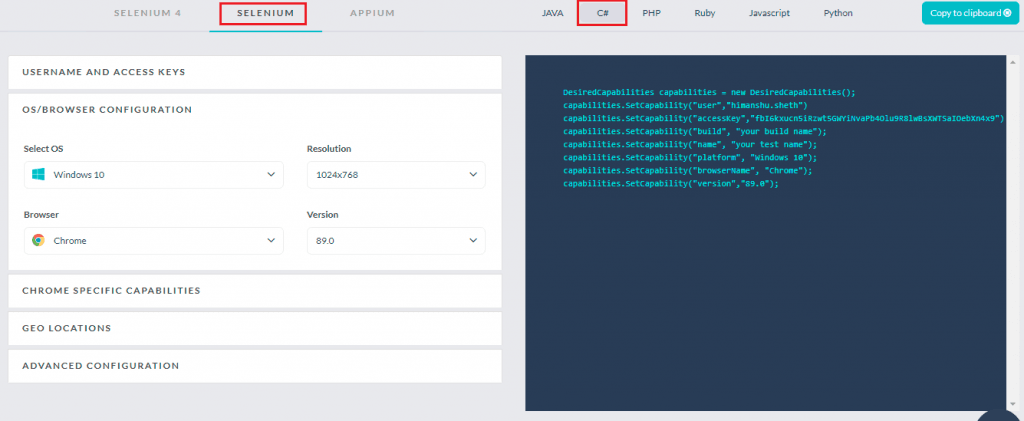
The test is run on Selenium 3 Grid. Hence, we have used desired browser capabilities in the implementation.
String username = "user-name";
String accesskey = "access-key";
String gridURL = "@hub.lambdatest.com/wd/hub";

[SetUp]
public void start_Browser()
{
	DesiredCapabilities capabilities = new DesiredCapabilities();

      capabilities.SetCapability("user", username);
      capabilities.SetCapability("accessKey", accesskey);
      capabilities.SetCapability("build", "[C#] Demo of Web Scraping in Selenium");
      capabilities.SetCapability("name", "[C#] Demo of Web Scraping in Selenium");
	capabilities.SetCapability("platform", "Windows 10");
	capabilities.SetCapability("browserName", "Chrome");
	capabilities.SetCapability("version", "latest");
Step 3 – Create an instance of Selenium RemoteWebDriver.
An instance of Remote WebDriver is created using the browser capabilities (generated in the previous step) and the access-credentials of the TestMu AI platform. You can get the access details (i.e., user-name & access-key) from the TestMu AI Profile Page.
The TestMu AI Grid URL [i.e. @hub.lambdatest.com/wd/hub] is also passed an argument to the RemoteWebDriver interface.
driver = new RemoteWebDriver(new Uri("https://" + username + ":" + accesskey + gridURL), capabilities, TimeSpan.FromSeconds(600));
Step 4 – Navigate to the TestMu AI YouTube URL.
Using WebDriver.URL, we navigate to the URL under test.
driver.Url = test_url_1;
Step 5 – Wait for the page load to complete.
We want to start the test only when the loading of the web page is complete. Using Explicit Wait in Selenium, a WebDriverWait of 10 seconds is initiated.
var timeout = 10000;
var wait = new WebDriverWait(driver, TimeSpan.FromMilliseconds(timeout));
Document.readyState property describes the loading state of the document. Document.readyState equates to complete when the current HTML document (or page) and its resources have finished loading. An explicit wait is performed on the Document.readyState till its value equates to ‘complete.’ The ExecuteScript method in the JavascriptExecutor interface is used for executing the JavaScript in the context of the current page.
wait.Until(d => ((IJavaScriptExecutor)d).ExecuteScript("return document.readyState").Equals("complete"));
If the document is not loaded within the maximum wait duration (i.e., 10 seconds), a timeout error occurs, and a further part of the test is not executed.
Step 6 – Load all the YouTube Videos on the page.
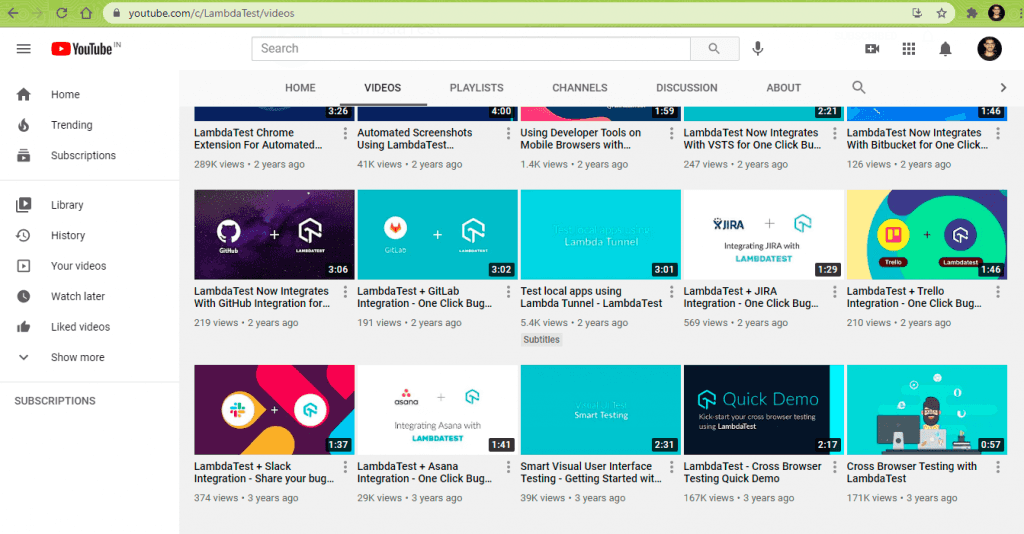
When we load the TestMu AI YouTube page, only 30 videos will be available (or loaded) on the page. As we want to scrap details of all the videos on the page, we perform a vertical scroll until the page’s end is reached.
The document.documentElement.scrollHeight method in JavaScript returns the height of the entire document. A while loop is run for scrolling till the end of the document (or page) and the window.scrollTo method in JavaScript scrolls to a specified set of coordinates in the document.
Int64 last_height = (Int64)(((IJavaScriptExecutor)driver).ExecuteScript("return document.documentElement.scrollHeight"));
while (true)
{
   ((IJavaScriptExecutor)driver).ExecuteScript("window.scrollTo(0, document.documentElement.scrollHeight);");
   Thread.Sleep(2000);
   /* Calculate new scroll height and compare with last scroll height */
   Int64 new_height = (Int64)((IJavaScriptExecutor)driver).ExecuteScript("return document.documentElement.scrollHeight");
   if (new_height == last_height)
      /* If heights are the same it will exit the function */
      break;
      last_height = new_height;
}
At each step in the while loop, the document’s current height is checked to ensure that we scroll until the page’s end. Once the current height and previous height (of the page) are the same, it means that we have reached the end of the page, and we break from the while loop.
This is the page when the TestMu AI YouTube Channel is loaded in the web browser:
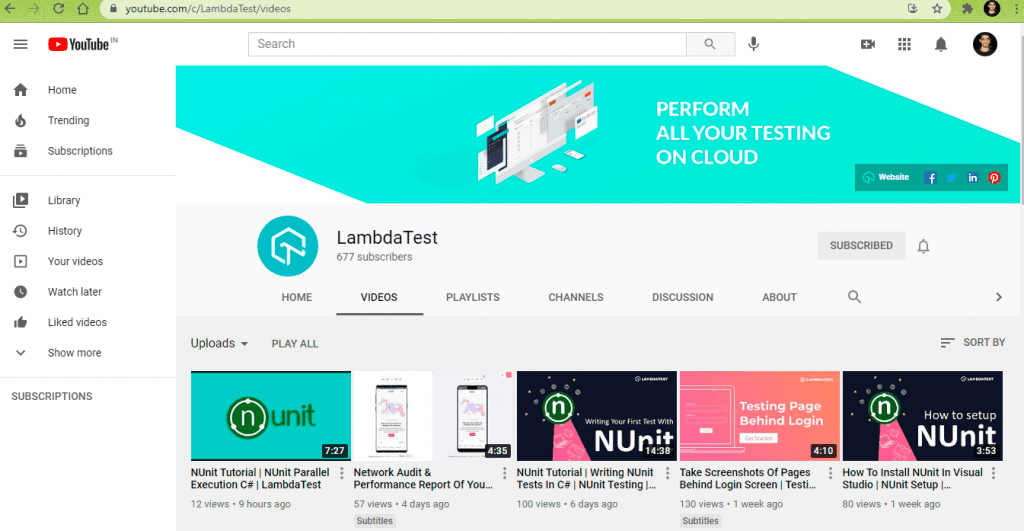
The TestMu AI YouTube Channel page after the ‘end of the page’ scroll is performed using the scrollTo method in JavaScript.
Step 7 – Create a ReadOnlyCollection of the VideoElements on the page.
This is the most important step when it comes to scraping dynamic web pages in Selenium. Whether it is static or dynamic web page scraping, we need to identify WebElements that house (or contain) the items from where the relevant information has to be scraped. In the case of TestMu AI YouTube Channel (or any YouTube channel page), all the videos are enclosed under a div with id: items and class: style-scope ytd-grid-renderer.
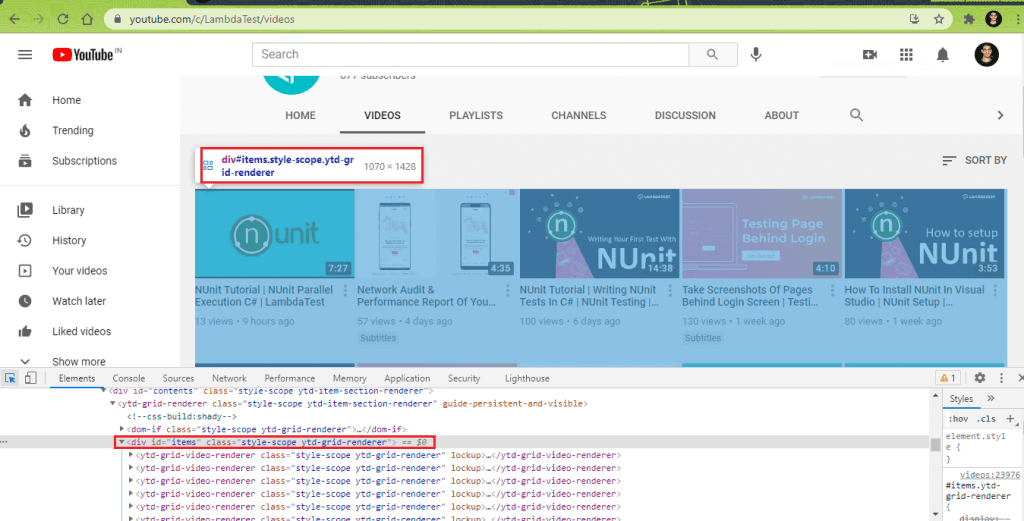
Inside the <div> container, every video is enclosed in a class style-scope ytd-grid-renderer.
Here are the details for the first 2 videos obtained using the ‘Inspect Tool’ in Chrome browser:
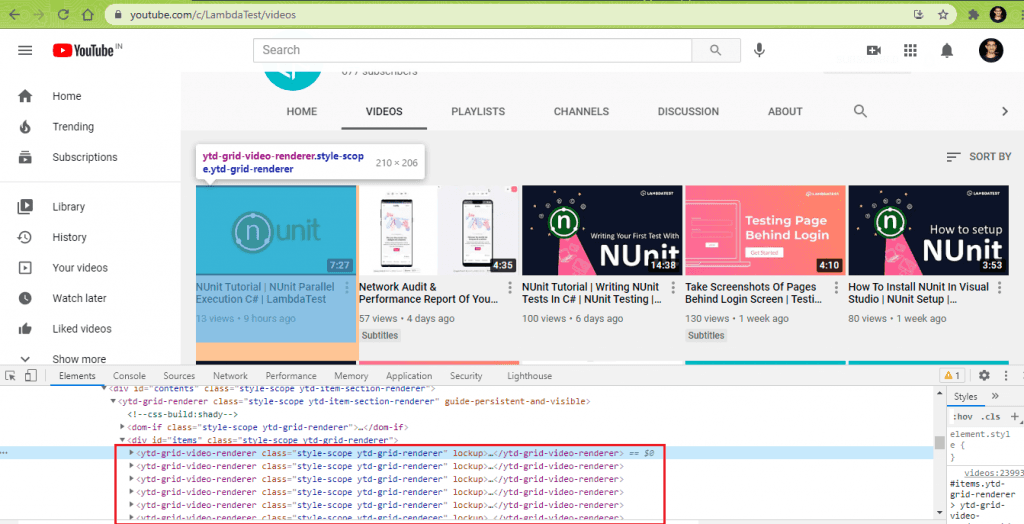
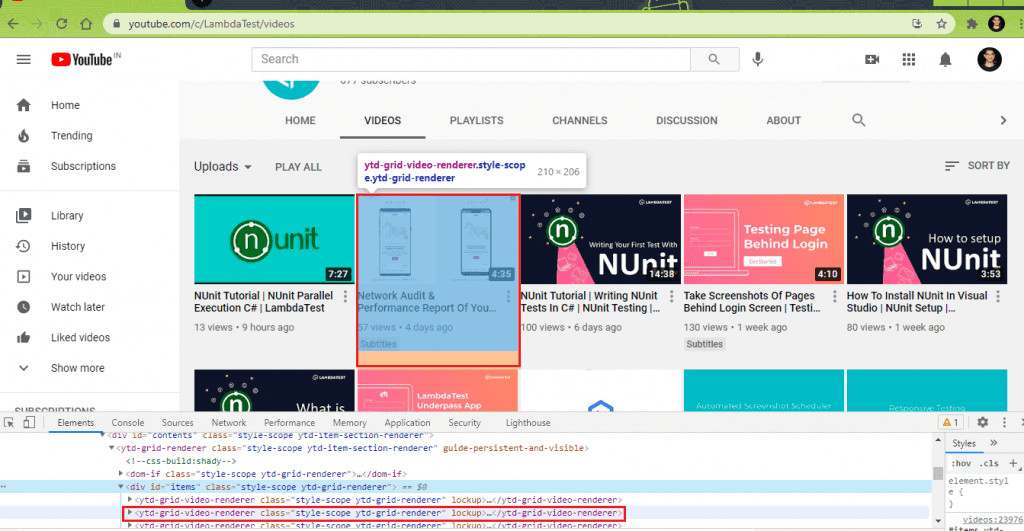
A variable of By attribute in Selenium is created that uses the CssSelector property ytd-grid-video-renderer.style-scope.ytd-grid-renderer.
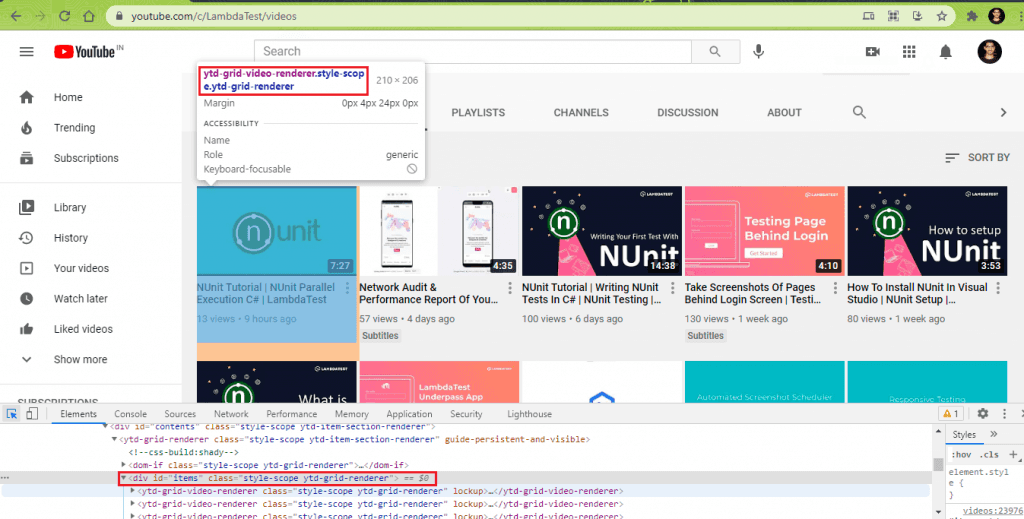
A ReadOnlyCollection (or list) of type IWebElement is created that contains the WebElements located using the FindElements method (and CssSelector property obtained in the earlier step).
By elem_video_link = By.CssSelector("ytd-grid-video-renderer.style-scope.ytd-grid-renderer");
ReadOnlyCollection<IWebElement> videos = driver.FindElements(elem_video_link);
Since the page contains 79 videos, the count method on the created list (or ReadOnlyCollection) returns 79.
Console.WriteLine("Total number of videos in " + test_url_1 + " are " + videos.Count);
Step 8 – Parse the list of IWebElements to obtain the MetaData of the videos.
Parse through the list created in the earlier steps to obtain the video title, views, and upload date for each video in the list.
foreach (IWebElement video in videos)
{
	string str_title, str_views, str_rel;

      IWebElement elem_video_views = video.FindElement(By.XPath(".//*[@id='metadata-line']/span[1]"));
	str_views = elem_video_views.Text;

      IWebElement elem_video_reldate = video.FindElement(By.XPath(".//*[@id='metadata-line']/span[2]"));
      str_rel = elem_video_reldate.Text;

      vcount++;
}
8.1) Scrap Video Title for every video (in the Video List/Channel).
The meta <div> in the “style-scope ytd-grid-video-renderer” class contains every video’s metadata on the page.
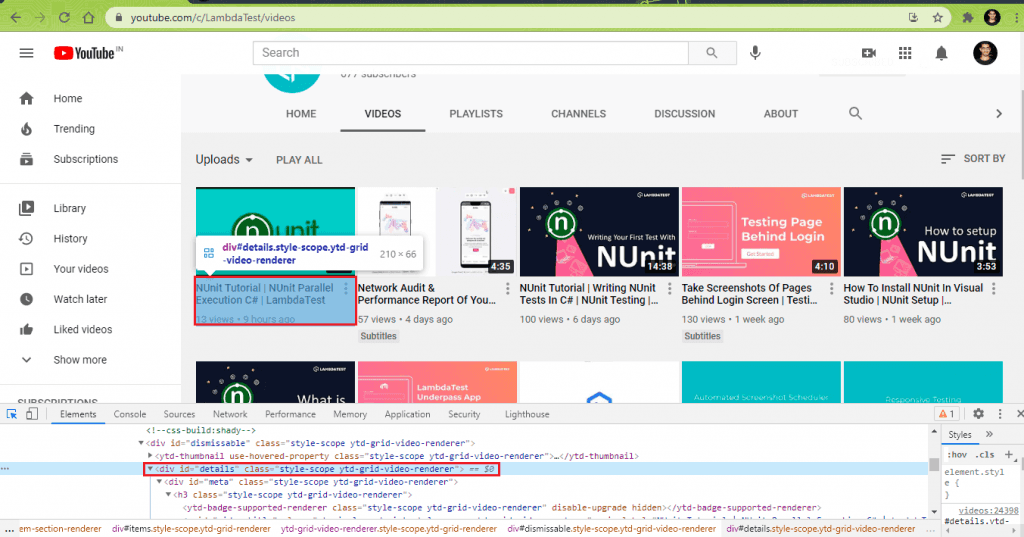
The Video Title of each video in the list is obtained by reading the CssSelector property [ #video-title ].
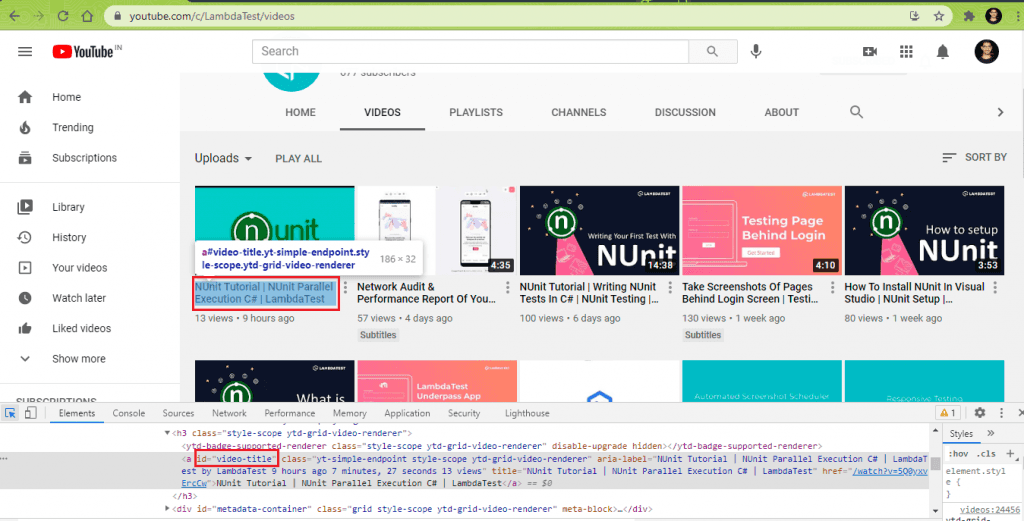
IWebElement elem_video_title = video.FindElement(By.CssSelector("#video-title"));
str_title = elem_video_title.Text;
8.2) Scrap Video Views for every video (in the list/Channel).
The WebElement that contains the video views obtained using the findElement method with the XPath property. A dot (.) is used at the start of the XPath since we want the XPath search to be restricted to the required WebElement (i.e., video).
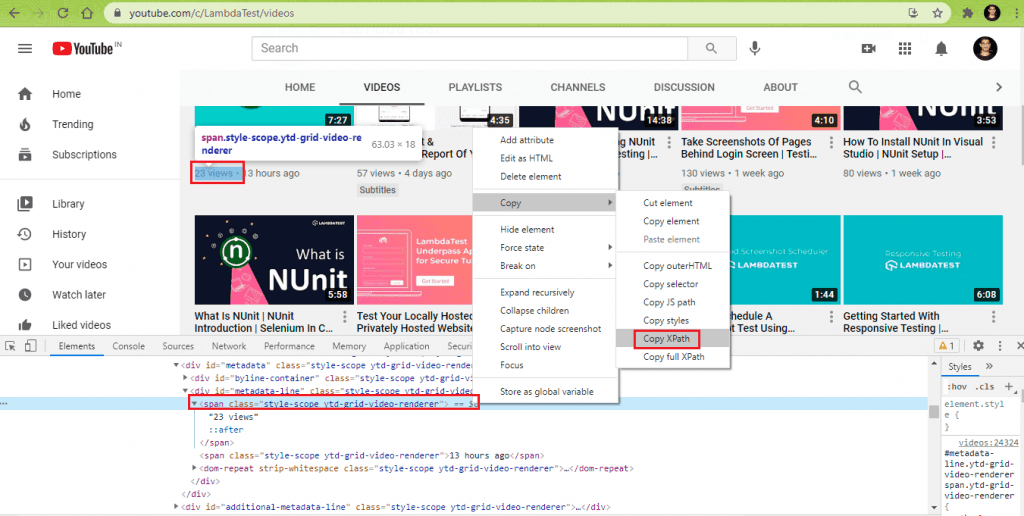
IWebElement elem_video_views = video.FindElement(By.XPath(".//*[@id='metadata-line']/span[1]"));
Now that we have located the WebElement containing the video views, the Text property of the WebElement is used to obtain the video views.
str_views = elem_video_views.Text;
8.3) Scrap Upload Details for every video (in the list/Channel).
Similar to step (8.2), the XPath of the WebElement that displays the video’s upload details is obtained using the ‘Inspect Tool’ in Chrome.
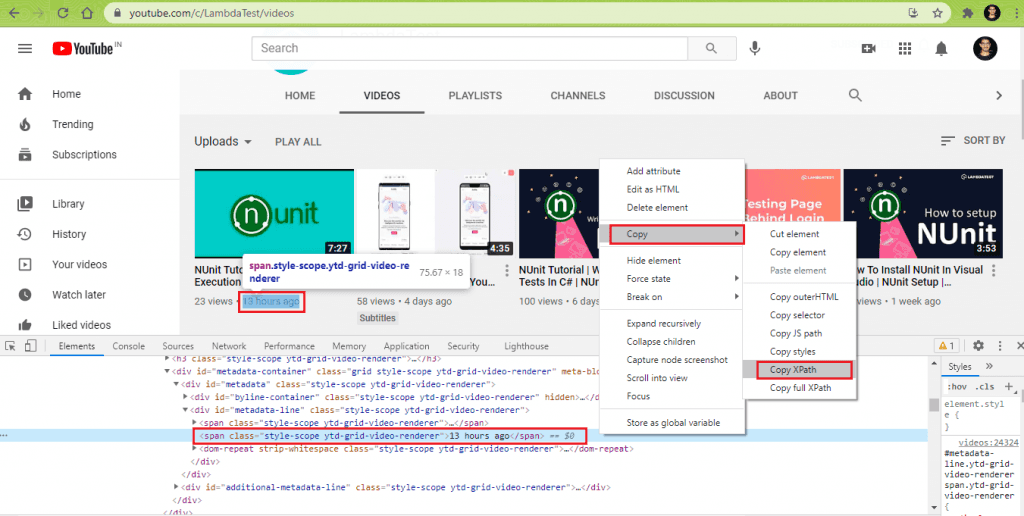
Once we have the XPath of the element, the findElement method in Selenium is used to locate the element using the XPath property.
IWebElement elem_video_reldate = video.FindElement(By.XPath(".//*[@id='metadata-line']/span[2]"));
The text property of the WebElement gives the upload details of the video.
str_rel = elem_video_reldate.Text;
Steps 8.2 through 8.3 are repeated for all the videos in the channel (or list). In our case, the total video count was 79. Hence the sub-steps in step(8) will be run 79 times. In our case, we print the details of each video on the terminal.
Execution
Here is the truncated execution snapshot from the VS IDE, which indicates that there are a total of 79 videos on the TestMu AI YouTube channel.
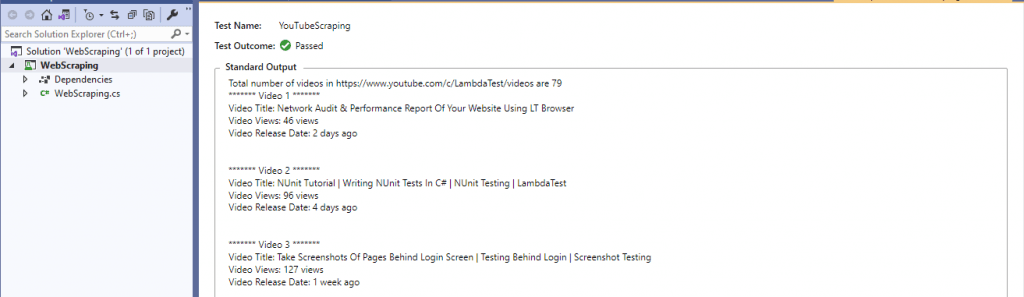
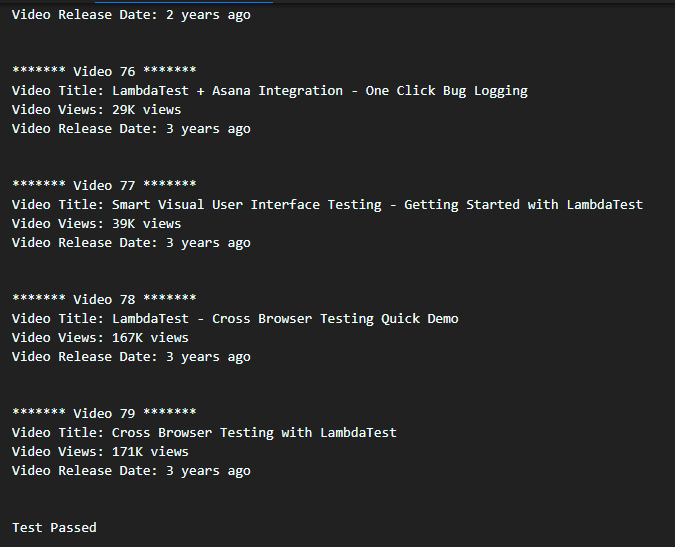
We obtained the Standard Output by doing ‘Copy All’ in the Standard Output area. As seen below, we could successfully do dynamic web page scraping of TestMu AI YouTube channel: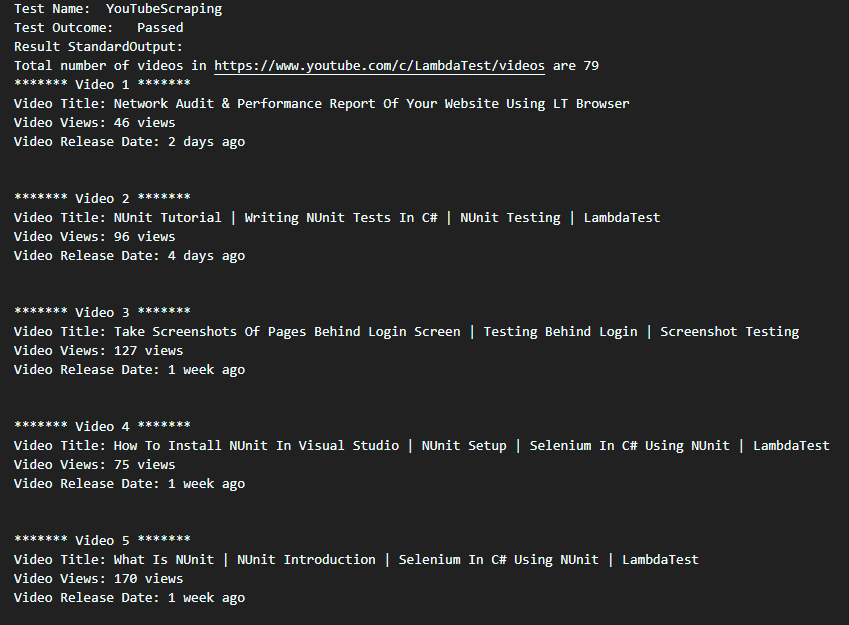
Web Scraping TestMu AI Blog Page
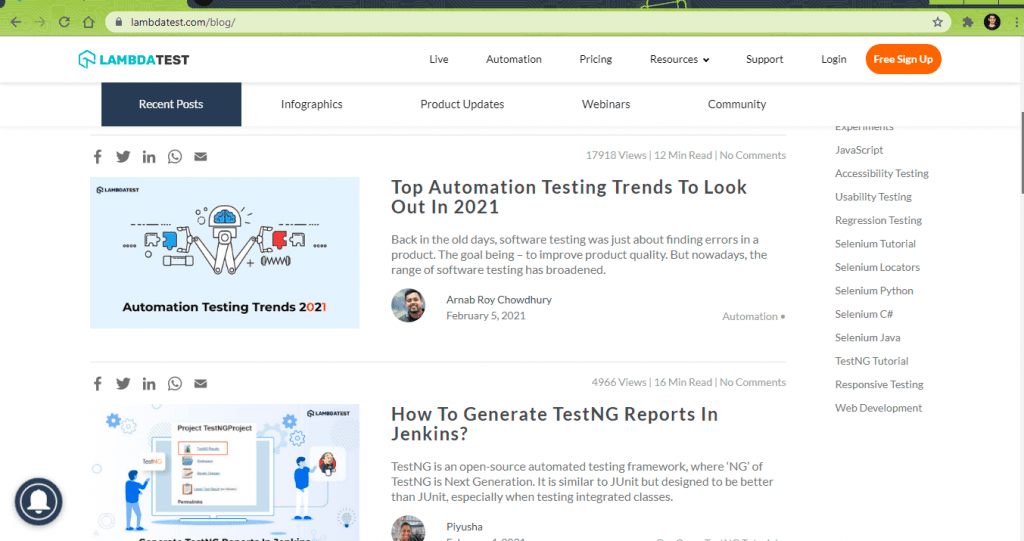
In this demonstration, we scrap the following data from the TestMu AI Blog:
- Blog Title
- Blog Link
- Blog Author
- Blog Views & Read Duration
Though the demonstration is limited to scraping data on the blog’s first page, it can be further extended to scrap relevant information from the blog’s subsequent pages.
Here is the Selenium web scraping test scenario that will be executed on Chrome (on Windows 10). The test is run on a cloud-based Selenium Grid provided by TestMu AI.
- Go to https://www.testmuai.com/blog/.
- Scrap the blog title, blog author, blog perm link, blog views, and read duration for each blog article on the homepage of TestMu AI blog.
- Print the scraped information on the terminal.
Implementation
using NUnit.Framework;
using OpenQA.Selenium;
using OpenQA.Selenium.Chrome;
using OpenQA.Selenium.Remote;
using OpenQA.Selenium.Support.UI;
using System;
using System.Collections.ObjectModel;
using System.Collections.Specialized;
using System.IO;
using System.Reflection;
using System.Threading;
using OpenQA.Selenium.Safari;
using System.Collections.Generic;
using System.Web;

namespace WebScraping
{
    public class ScrapingTest
    {
        String test_url_2 = "https://www.testmuai.com/blog/";
        static Int32 vcount = 1;
        public IWebDriver driver;

        /* LambdaTest Credentials and Grid URL */
        String username = "user-name";
        String accesskey = "access-key";
        String gridURL = "@hub.lambdatest.com/wd/hub";

        [SetUp]
        public void start_Browser()
        {
            /* Local Selenium WebDriver */
            /* driver = new ChromeDriver(); */
            DesiredCapabilities capabilities = new DesiredCapabilities();

            capabilities.SetCapability("user", username);
            capabilities.SetCapability("accessKey", accesskey);
            capabilities.SetCapability("build", "[C#] Demo of Web Scraping in Selenium");
            capabilities.SetCapability("name", "[C#] Demo of Web Scraping in Selenium");
            capabilities.SetCapability("platform", "Windows 10");
            capabilities.SetCapability("browserName", "Chrome");
            capabilities.SetCapability("version", "latest");

            driver = new RemoteWebDriver(new Uri("https://" + username + ":" + accesskey + gridURL), capabilities,
            TimeSpan.FromSeconds(600));
            driver.Manage().Window.Maximize();
        }

        [Test(Description = "Web Scraping LambdaTest Blog Page"), Order(2)]
        public void LTBlogScraping()
        {
            driver.Url = test_url_2;
            /* Explicit Wait to ensure that the page is loaded completely by reading the DOM state */
            var timeout = 10000; /* Maximum wait time of 10 seconds */
            var wait = new WebDriverWait(driver, TimeSpan.FromMilliseconds(timeout));
            wait.Until(d => ((IJavaScriptExecutor)d).ExecuteScript("return document.readyState").Equals("complete"));

            Thread.Sleep(5000);

            /* Find total number of blogs on the page */
            By elem_blog_list = By.CssSelector("div.col-xs-12.col-md-12.blog-list");
            ReadOnlyCollection<IWebElement> blog_list = driver.FindElements(elem_blog_list);
            Console.WriteLine("Total number of videos in " + test_url_2 + " are " + blog_list.Count);

            /* Reset the variable from the previous test */
            vcount = 1;

            /* Go through the Blogs List and scrap the same to get the attributes of the blogs on the page*/
            foreach (IWebElement blog in blog_list)
            {
                string str_blog_title, str_blog_author, str_blog_views, str_blog_link;

                IWebElement elem_blog_title = blog.FindElement(By.ClassName("blog-titel"));
                str_blog_title = elem_blog_title.Text;

                IWebElement elem_blog_link = blog.FindElement(By.ClassName("blog-titel"));
                IWebElement elem_blog_alink = elem_blog_link.FindElement(By.TagName("a"));
                str_blog_link = elem_blog_alink.GetAttribute("href");

                IWebElement elem_blog_author = blog.FindElement(By.ClassName("user-name"));
                str_blog_author = elem_blog_author.Text;

                IWebElement elem_blog_views = blog.FindElement(By.ClassName("comm-count"));
                str_blog_views = elem_blog_views.Text;
                vcount++;
            }
        }

        [TearDown]
        public void close_Browser()
        {
            driver.Quit();
        }
    }
}
Code Walkthrough
Step (1) – Step (5)
These steps remain the same as the previous example. Please refer to the earlier section for a detailed explanation of those steps.
Step 6 – Create a ReadOnlyCollection of the Blogs on the page.
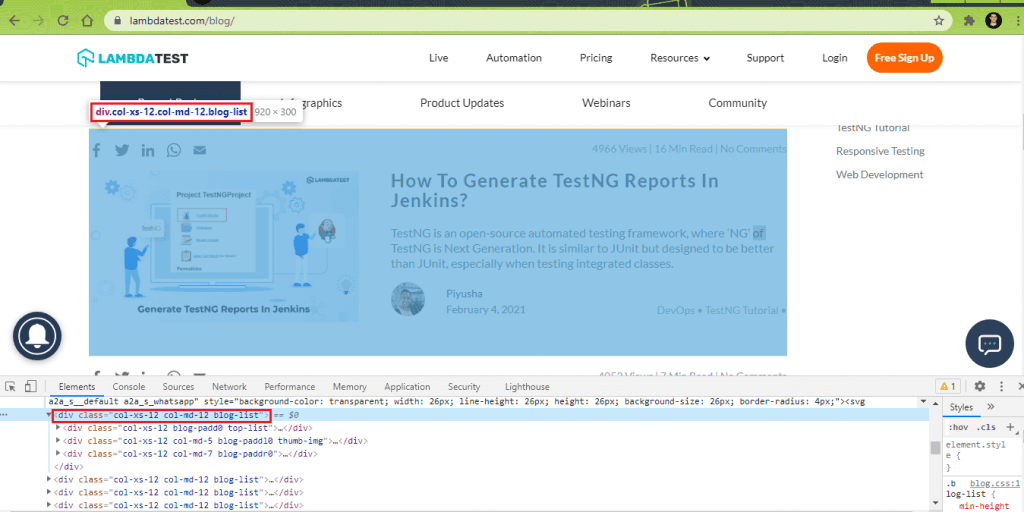
On the TestMu AI Blog page, we see that each blog article is enclosed under the following <div>.
<div class="col-xs-12 col-md-12 blog-list">
Hence, the findElements method is used with the CssSelector property to locate the blog articles’ total number on the Blog home page.
Here are the details for the first 2 blog articles obtained using the ‘Inspect Tool’ in Chrome browser: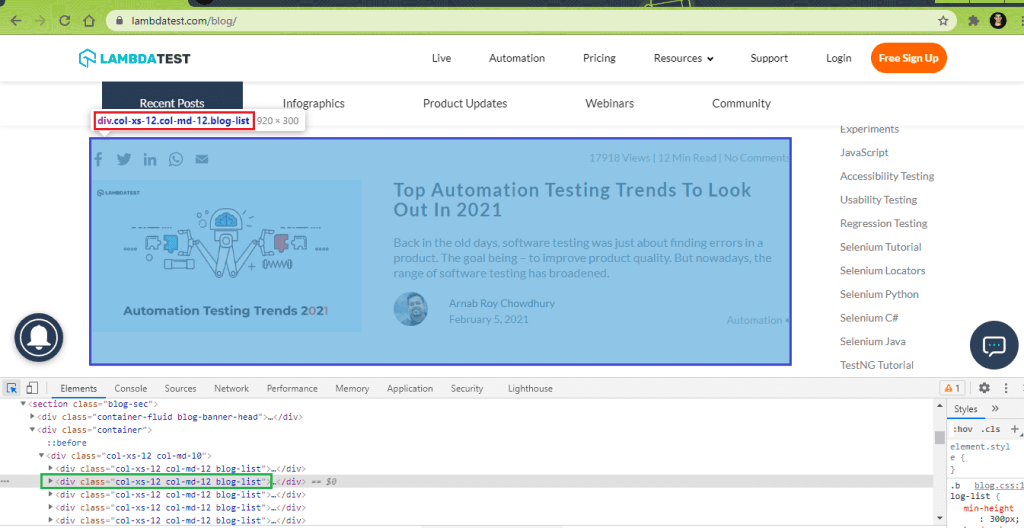
This is an overall view of the DOM, which shows that there are a total of 10 blogs on the blog home page:
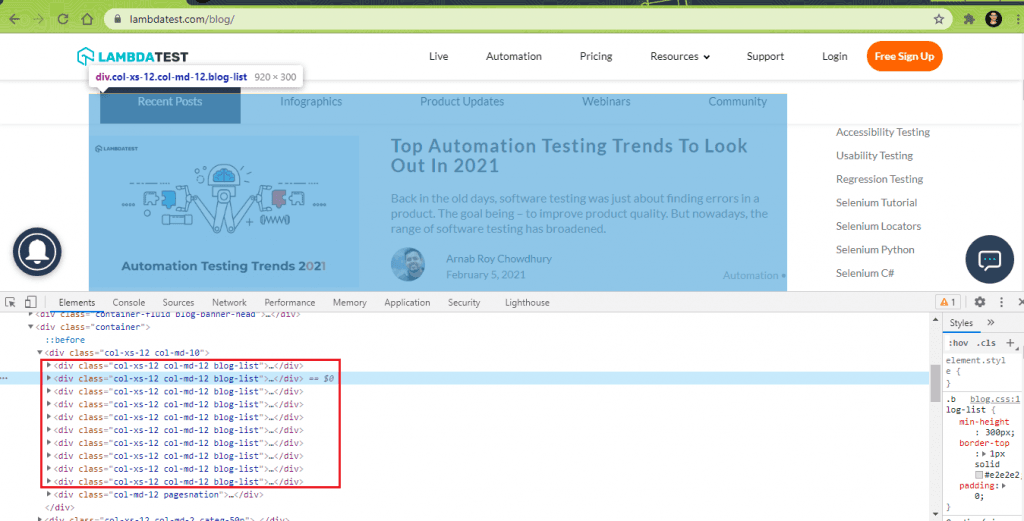
A ReadOnlyCollection (or List) is created containing the WebElements located using the FindElements method (and CssSelector property). Since there are 10 blogs on the home page, the ‘count’ property of the list (or collection) will return 10.
/* Find total number of blogs on the page */
By elem_blog_list = By.CssSelector("div.col-xs-12.col-md-12.blog-list");
ReadOnlyCollection<IWebElement> blog_list = driver.FindElements(elem_blog_list);
Step 7 – Parse the list of IWebElements to obtain the MetaData of the blogs.
Parse through the list created in step (6) to scrap every blog’s required information in the list.
foreach (IWebElement blog in blog_list)
{
	string str_blog_title, str_blog_author, str_blog_views, str_blog_link;

      IWebElement elem_blog_title = blog.FindElement(By.ClassName("blog-titel"));
      str_blog_title = elem_blog_title.Text;

      IWebElement elem_blog_link = blog.FindElement(By.ClassName("blog-titel"));
      IWebElement elem_blog_alink = elem_blog_link.FindElement(By.TagName("a"));
      str_blog_link = elem_blog_alink.GetAttribute("href");

      IWebElement elem_blog_author = blog.FindElement(By.ClassName("user-name"));
      str_blog_author = elem_blog_author.Text;

      IWebElement elem_blog_views = blog.FindElement(By.ClassName("comm-count"));
      str_blog_views = elem_blog_views.Text;

      vcount++;
}
7.1) Scrap Blog Title for each blog (in the list).
The class name ‘blog-titel’ inside the parent class ‘col-xs-12 col-md-12 blog-list’ contains the href (or link to the blog post) and the blog title.
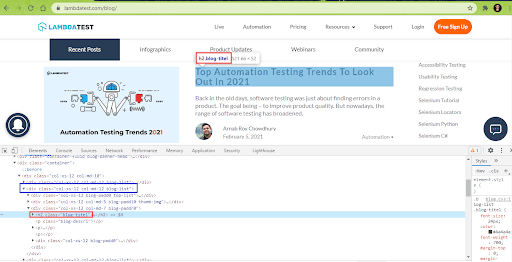
The findElement method is used with className (i.e., blog-titel) property to locate the WebElement that gives the blog title. The Text property of the located WebElement gives the title of each blog post in the list.
IWebElement elem_blog_title = blog.FindElement(By.ClassName("blog-titel"));
str_blog_title = elem_blog_title.Text;
7.2) Scrap Blog Post Link from every blog (in the list).
The class name ‘blog-titel’ inside the parent class ‘col-xs-12 col-md-12 blog-list’ also contains the href (or link to the blog post). We first locate that WebElement using the ClassName property.
IWebElement elem_blog_link = blog.FindElement(By.ClassName("blog-titel"));
Once we have located the WebElement [i.e., elem_blog_link], the findElement method is applied on it with the TagName locator set to anchor tag [i.e. ‘a’].
IWebElement elem_blog_alink = elem_blog_link.FindElement(By.TagName("a"));
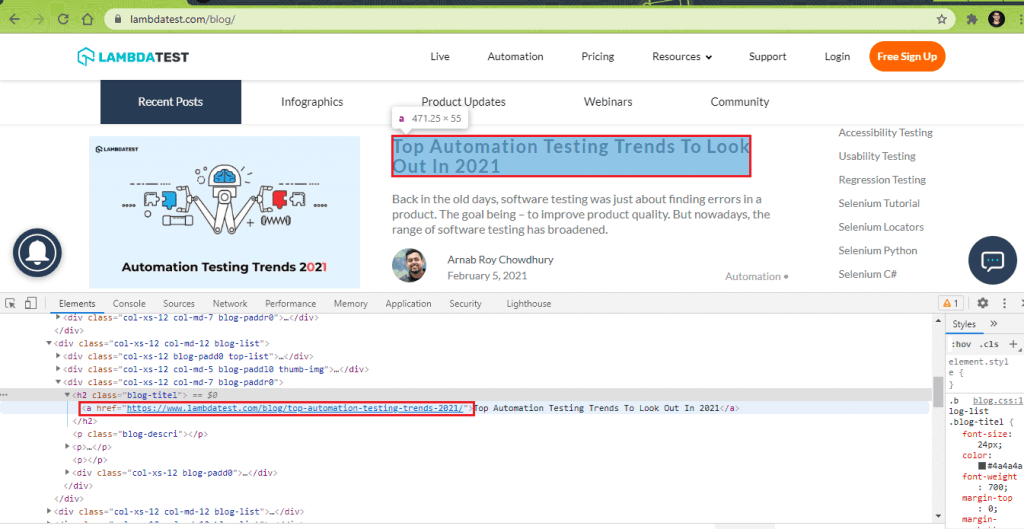
On the located WebElement [i.e., elem_blog_alink], GetAttribute in Selenium is used to get the value of that element’s ‘href’ attribute.
str_blog_link = elem_blog_alink.GetAttribute("href");
The output is the ‘href’ (or permalink) of each blog post in the list.
7.3) Scrap Author Name for every blog (in the list).
The WebElement that gives the ‘Author Name’ is located using the ClassName property. As seen below, the “user-name” class contains the author’s name.
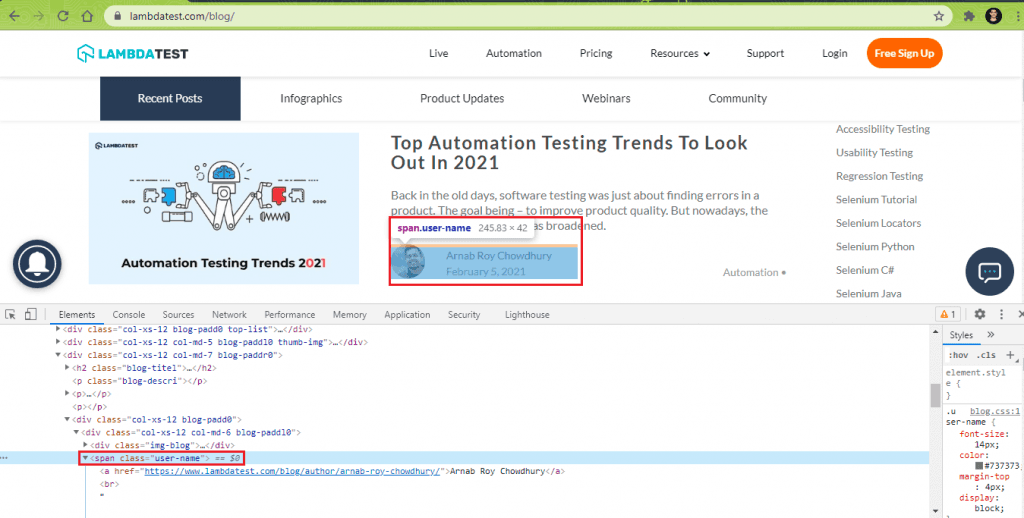
The FindElement method locates the WebElement using the “user-name” class.
IWebElement elem_blog_author = blog.FindElement(By.ClassName("user-name"));
The Text property of the WebElement gives the author name for the located WebElement [i.e., elem_blog_author].
str_blog_author = elem_blog_author.Text;
7.4) Scrap Blog Views & Read Duration for each blog (in the list).
The WebElement that gives the ‘Blog Views & Read Duration’ is located using the ClassName property. As seen below, the “comm-count” class contains the views and estimated time duration to read that blog article.
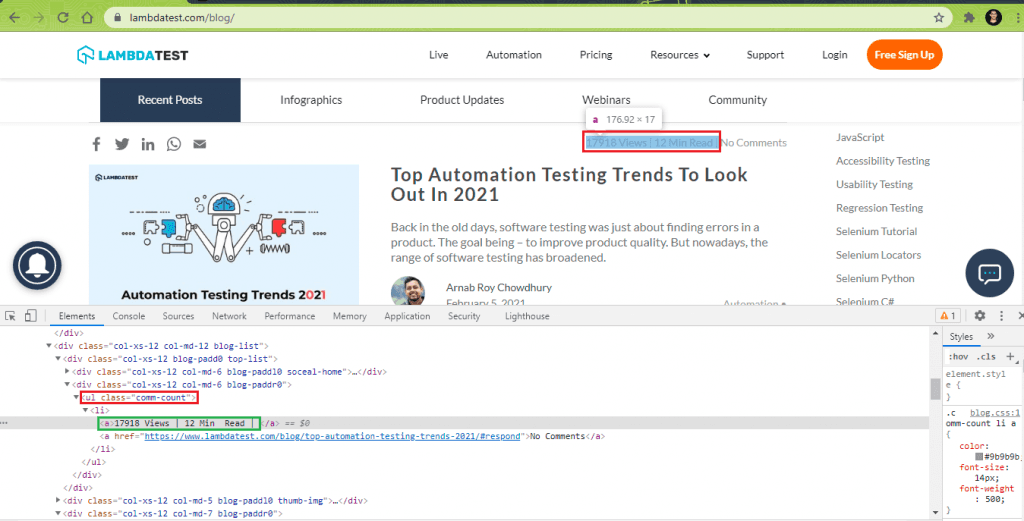
The FindElement method locates the WebElement using the “comm-count” class.
IWebElement elem_blog_views = blog.FindElement(By.ClassName("comm-count"));
The Text property of the WebElement gives the blog views & estimated time duration for the located WebElement [i.e., elem_blog_views].
str_blog_views = elem_blog_views.Text;
Execution
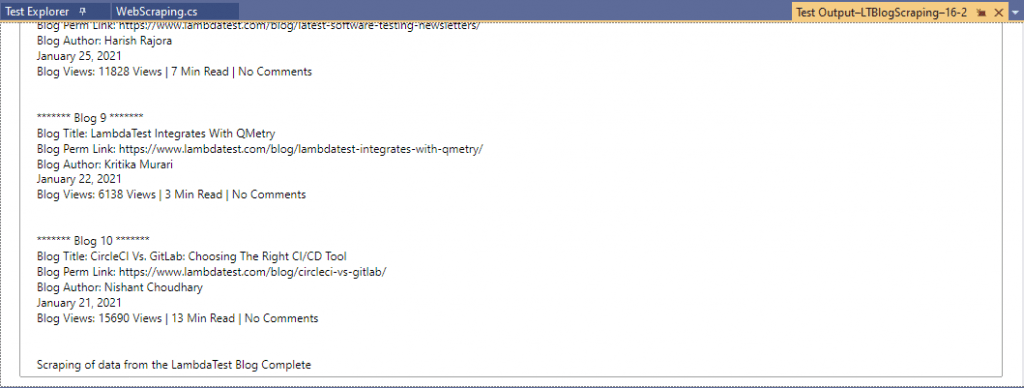
Here is the truncated execution snapshot from the VS IDE, indicating that details of the 10 blogs are scrapped successfully.
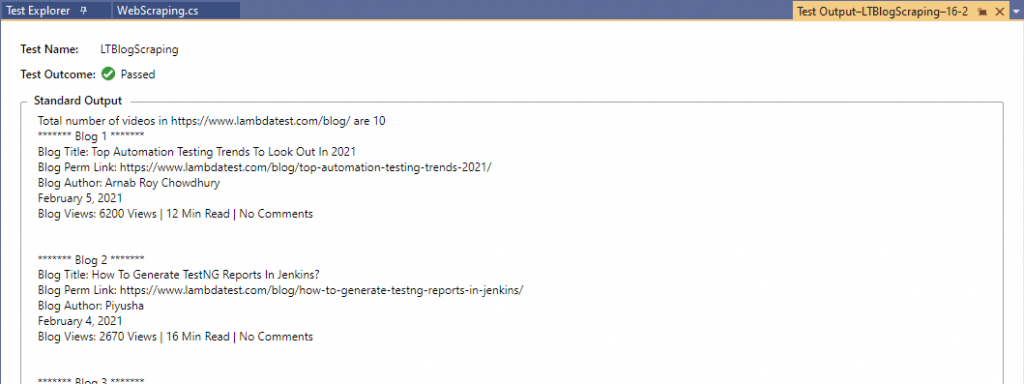
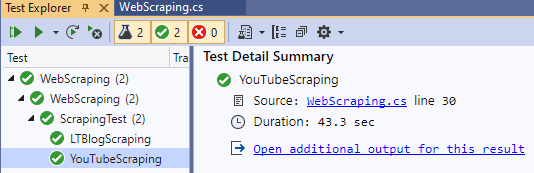
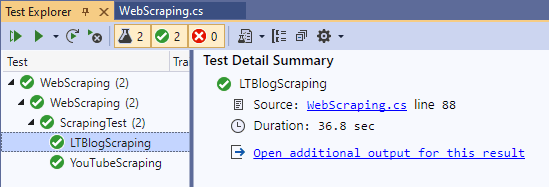
Shown below is the execution snapshot of both the test scenarios that demonstrated scraping dynamic web pages in Selenium:
How Do AI Agents Handle Dynamic Web Scraping Now?
AI agents now scrape dynamic pages by controlling a real browser through tool calls and reading the page by meaning, so the script keeps working when a site renames its CSS classes.
- DOM read by meaning: the agent asks an LLM to find "the video title" instead of hardcoding a CSS selector, so a class-name change like style-scope ytd-grid-renderer in this tutorial would not break the run.
- Plain-language targets: a person describes the extraction goal in one sentence instead of writing XPath, and the agent maps that sentence onto the current page structure at run time.
- Browser tool calls: frameworks such as Playwright MCP and browser-use give the agent click, scroll and read actions over a live Chromium session, the same rendering step Selenium's WebDriverWait performs in this tutorial.
- Self-healing selectors: when a locator stops matching, the agent re-reads the page and picks a new element instead of failing the run outright.
- Still a real limit: bot-detection walls and CAPTCHAs block an AI agent's browser session the same way they block a Selenium session, so the detection problem this guide's FAQ describes is not solved by adding AI.
We are done Scraping!

In this Selenium C# tutorial, we laid the foundation blocks for web scraping with Selenium C#. There is a lot of difference between scraping static web pages and dynamic web pages. There are a number of tools like VisualScrapper, HTMLAgilityPack, etc., used for scraping static web pages. However, Selenium is the most preferred tool when it comes to dynamic web page scraping. The FindElements method in Selenium helps in locating the list (or collection) of web element(s). The FindElement method is used on the collection (obtained using FindElements) to scrap relevant information from the objects in that list.
Do let us know how you use Selenium for dynamic web page scraping, please leave your feedback in the comments section…
Happy Scraping!

Author

Himanshu Sheth
Blogs: 142


Himanshu Sheth is the Director of Marketing (Technical Content) at TestMu AI, with over 8 years of hands-on experience in Selenium, Cypress, and other test automation frameworks. He has authored more than 130 technical blogs for TestMu AI, covering software testing, automation strategy, and CI/CD. At TestMu AI, he leads the technical content efforts across blogs, YouTube, and social media, while closely collaborating with contributors to enhance content quality and product feedback loops. He has done his graduation with a B.E. in Computer Engineering from Mumbai University. Before TestMu AI, Himanshu led engineering teams in embedded software domains at companies like Samsung Research, Motorola, and NXP Semiconductors. He is a core member of DZone and has been a speaker at several unconferences focused on technical writing and software quality.


Scraping Dynamic Web Pages FAQs
Did you find this page helpful?
More Related Blogs
TestMu AI forEnterprise
Get access to solutions built on Enterprise
grade security, privacy, & compliance
- Advanced access controls
- Advanced data retention rules
- Advanced Local Testing
- Premium Support options
- Early access to beta features
- Private Slack Channel
- Unlimited Manual Accessibility DevTools Tests