

Next-Gen App & Browser Testing Cloud
Trusted by 2 Mn+ QAs & Devs to accelerate their release cycles


On This Page
- What is User Interface (UI) Testing?
- What Sets Selenium Apart in UI Testing?
- How Does Selenium UI Testing Work?
- Prerequisites and Setup of Selenium for UI Testing
- Locating UI Elements in Selenium UI Testing
- Write Your First Test Script for Selenium UI Testing
- Running The Earlier UI Test On Selenium Cloud Grid
- Best Practices For Selenium UI Testing
- Conclusion

Automate UI Tests With Selenium
Elevate your UI testing game with a Selenium guide and learn essential techniques and best practices for efficient and reliable web application testing.

Tanay Kumar Deo
December 24, 2025
This article is a part of our Learning Hub. For more in-depth resources, check out our hub on Selenium Tutorial.
Efficient User Interface (UI) testing is essential to the software testing cycle, validating that applications possess desired features and user-friendliness. Quality Assurance (QA) professionals meticulously test interface components, enhancing software quality and ensuring end users experience a comfortable and seamless application interaction.
Automation testing is imperative to maintain a high-quality UI and swiftly test new functionalities. It ensures seamless user experiences amid the ever-expanding realm of web technologies. Selenium, an open-source automation testing framework, offers tools for functional testing on web pages, simulating user interactions, and automating browser activities. This guide will show how Selenium empowers efficient UI testing automation.
If you’re looking to improve your Selenium interview skills, check out our curated list of Selenium interview questions and answers.
What is User Interface (UI) Testing?
User interface testing, or UI testing, focuses on verifying the functionalities of a software application’s graphical user interface (GUI). It involves evaluating the various elements and interactions within the user interface, such as buttons, forms, menus, navigation, etc, to ensure it meets its specifications.
What Sets Selenium Apart in UI Testing?
Selenium is a well-known automation testing framework that facilitates web application testing. It enables the simulation of user actions on various web browsers, allowing developers and testers to automate the testing of web applications. However Selenium mobile testing in not directly supported but its best for web app testing.
Some of the benefits of Selenium that make it the perfect choice for UI Testing are:-
- Support for Programming Languages: It provides compatibility with a wide range of programming languages such as Java, Python, C#, PERL, PHP, and JavaScript.
- Cross-Browser Support: It offers extensive cross-browser support, allowing tests on various browsers, including Chrome, Firefox, Safari, Internet Explorer, Opera, and Microsoft Edge.
- Operating System Support: It supports multi-operating systems such as Linux, Windows, Mac OS, and Solaris.
- Community and Ecosystem: It has a large and active community of developers and testers, which ensures support and a wealth of resources, such as tutorials, documentation, etc, for users.

Note: Turn Testing Complexity into Simplicity: Choose TestMu AI for a Selenium-based cloud grid to run your tests over 3000 real browsers and operating systems. Try TestMu AI Today!
How Does Selenium UI Testing Work?
Selenium UI Testing uses Selenium WebDriver to execute test scripts on the browsers installed in the system. The architecture of Selenium WebDriver consists of four components.

- Selenium Client Libraries: Some client libraries supported by Selenium are Java, Python, C#, Ruby, JavaScript (Node.js), etc. These client libraries help Selenium standalone servers and the test scripts communicate easily.
- W3C WebDriver Protocol: The W3C WebDriver protocol is standard for client-to-browser communication in Selenium. All significant browser vendors, such as Chrome, Microsoft Edge, Firefox Driver, etc, support this protocol. It develops open standards and guidelines that support consistency and compatibility across multiple web technologies and platforms.
- Browser Drivers: Browser Drivers are executable files that enable communication between the Selenium WebDriver and the Web Browser. Each web browser (e.g., Chrome, Firefox, Edge, etc.) requires its specific driver to facilitate communication between Selenium WebDriver and Web Browser.
- Real Browsers: These are real, standalone web browsers employed in web application testing. Selenium communicates with various browsers using browser-specific drivers like ChromeDriver for Chrome, EdgeDriver for Edge, etc, to automate operations and check the functionality of web pages.
Prerequisites and Setup of Selenium for UI Testing
UI Testing using Selenium requires several requirements and procedures to ensure a successful and efficient testing process.
To set up Selenium in our system, we will need to ensure we have the following prerequisites:
- We must ensure that our system has OpenJDK (Open Java Development Kit) or Oracle JDK (Java Development Kit) installed.
- We must have browsers such as Chrome, Firefox, or Microsoft Edge installed on our system.
- We must have Eclipse IDE or IntelliJ IDE installed on our system to run Selenium test scripts. Refer to this blog on how to download Selenium and set up on multiple IDEs.
- Set up the TestNG framework in the IDE for running test scripts. Learn how to create a project using TestNG in Eclipse.
The complete TestNG framework tutorial can help you learn more about it.
You can subscribe to the TestMu AI YouTube Channel and stay updated with the latest Selenium automation testing, Cypress testing, Playwright testing, and more tutorials.
Locating UI Elements in Selenium UI Testing
Making reliable and efficient automation scripts requires locating UI components in Selenium UI testing. These locators serve as the interface by which Selenium communicates with items on a web page. Some types of locators in Selenium are:-
To get in-depth knowledge of locators and how to locate WebElements in DOM, refer to this guide on Selenium locators and get detailed insights on locators in Selenium WebDriver with Examples.
Write Your First Test Script for Selenium UI Testing
In this section, we will write a test script to automate UI Tests with Selenium on the TestMu AI E-commerce Playground.
We will use Chrome Browser version 122 and the Windows 10 Operating System to perform Selenium UI Testing. The required pom.xml file for our Selenium project using TestNG is:-
<project xmlns="http://maven.apache.org/POM/4.0.0" xmlns:xsi="http://www.w3.org/2001/XMLSchema-instance"
 xsi:schemaLocation="http://maven.apache.org/POM/4.0.0 http://maven.apache.org/xsd/maven-4.0.0.xsd">
 <modelVersion>4.0.0</modelVersion>
 <groupId>Lambdatest</groupId>
 <artifactId>Example</artifactId>
 <version>0.0.1-SNAPSHOT</version>
 <packaging>jar</packaging>
 <name>project</name>
 <url>http://maven.apache.org</url>
 <properties>
   <project.build.sourceEncoding>UTF-8</project.build.sourceEncoding>
 </properties>
 <dependencies>
   <dependency>
   	<groupId>org.testng</groupId>
   	<artifactId>testng</artifactId>
  	<version>7.9.0</version>
   	<scope>test</scope>
   </dependency>
   <dependency>
   	<groupId>org.seleniumhq.selenium</groupId>
   	<artifactId>selenium-chrome-driver</artifactId>
   	<version>4.17.0</version>
   </dependency>
 </dependencies>
</project>
Code Walkthrough:
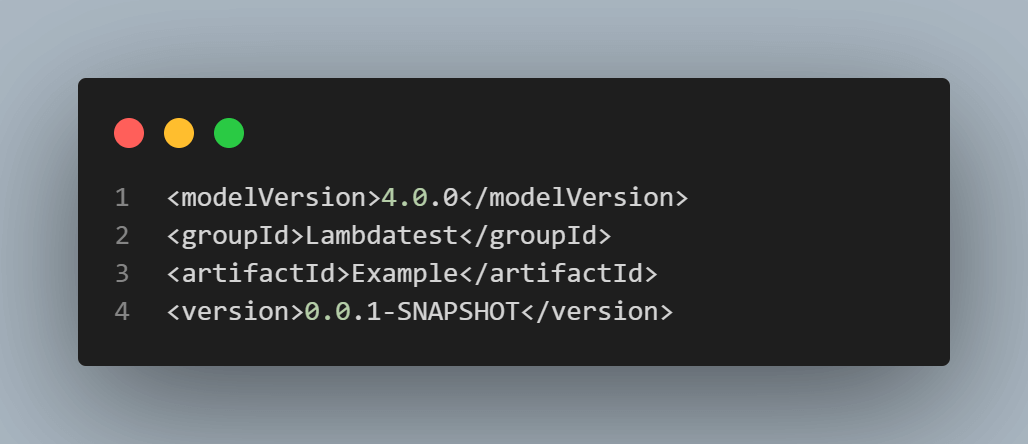
The model version of the pom.xml file we are using is 4.0.0. The groupId “TestMu AI”, artifactId “Example”, and version “0.0.1-SNAPSHOT” are together used to identify the project across all the projects uniquely.
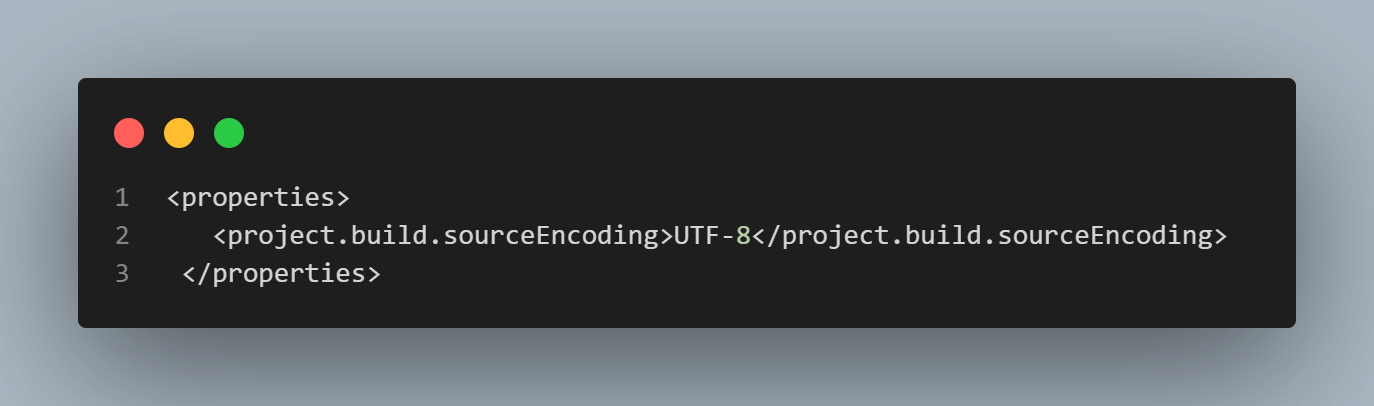
The project-specific properties like encoding of the source file is UTF-8.
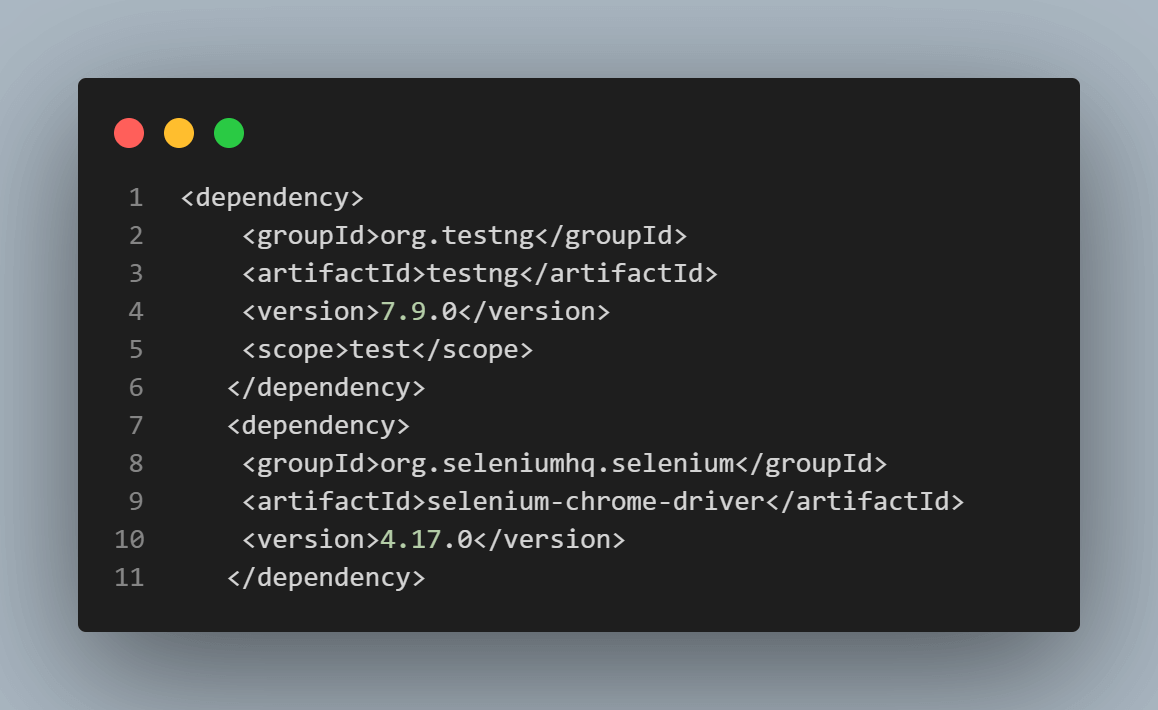
We are importing the required dependencies like TestNG and Selenium Chrome Driver for our project. Ensure that the version of the dependencies must be according to the system requirements.
UI Testing using Name Attribute
In this section, we will perform UI testing on the Search Bar using the name attribute.

Test Scenario:
- Launch the Chrome browser.
- Open the TestMu AI E-Commerce Playground.
- Locate the Search Bar using Name.
- Verify whether the Search Bar exists or not.
- Close the web browser.
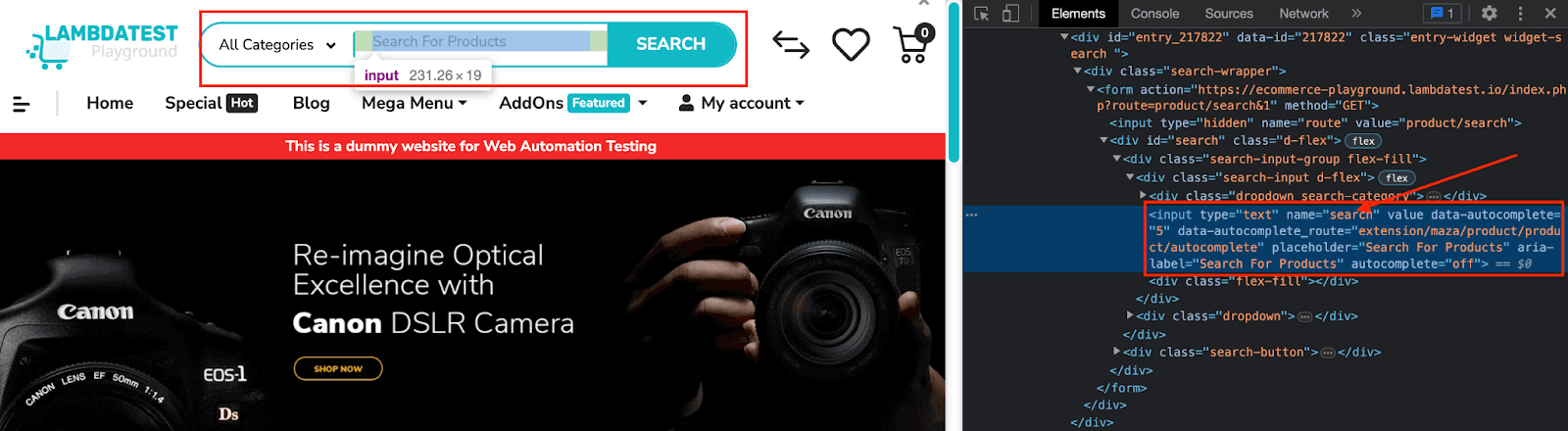
Implementation:
package demo

// Importing necessary Selenium libraries
import org.openqa.selenium.By;
import org.openqa.selenium.WebDriver;
import org.openqa.selenium.WebElement;
import org.openqa.selenium.chrome.ChromeDriver;
import org.testng.Assert;
import org.testng.annotations.Test;

// Class declaration for DemoClass
public class DemoClass {

	@Test

	public void title_test() {
                        // Initializing ChromeDriver, for any other browser use its respective driver class
	           WebDriver driver = new ChromeDriver();

                         // Opening the LambdaTest E-Commerce Playground
	            driver.get("https://ecommerce-playground.lambdatest.io/");

                         // Locating the search input element by its name attribute
		WebElement searchResults = driver.findElement(By.name("search"));

                          // Asserting that the searchResults element is not null
	              Assert.assertNotNull(searchResults);

                          // Closing the WebDriver and terminating the browser session.
		driver.quit();

    }
}
<?xml version="1.0" encoding="UTF-8"?>
<!DOCTYPE suite SYSTEM "https://testng.org/testng-1.0.dtd">
<!-- The XML suite file defines the structure of TestNG test suites -->
<suite name="Suite">
  <test name="Test">
   <!-- Classes element contains the classes to be included in the test -->
    <classes>
       <!-- Reference to the DemoClass test class -->
      <class name="demo.DemoClass"/>
    </classes>
  </test> <!-- End of Test -->
</suite> <!-- End of Suite -->
This above TestNG XML suite file defines a suite containing a single test, which include the class DemoClass from the demo package. The purpose of this XML file is to configure and organize the execution of test cases in a Java project using TestNG. It allows us to specify which test classes to run, in which order, and with what configurations. This kind of configuration is essential for automated testing to ensure that the tests are executed correctly and efficiently.
Output Screen:

UI Testing using Class Attribute
Here, we will perform UI testing using a Class attribute to check whether the UI is working perfectly.
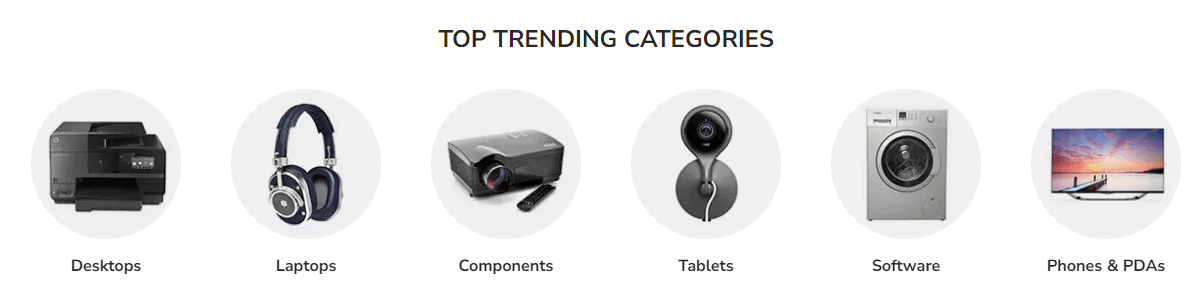
Test Scenario:
- Launch the Chrome browser.
- Open the TestMu AI E-Commerce Playground.
- Locate the “Desktops” element on the UI using Class Attribute.
- Retrieve the “Desktop” text using the getText() method.
- Verify whether the assertion is true or not by comparing retrieved text with the user input.
- Close the web browser.
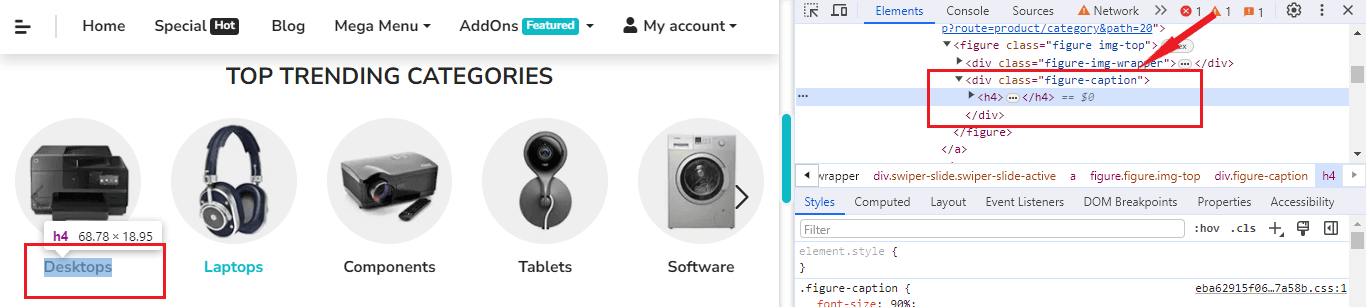
Implementation:
package demo;

import org.openqa.selenium.By;
import org.openqa.selenium.WebDriver;
import org.openqa.selenium.chrome.ChromeDriver;
import org.testng.Assert;
import org.testng.annotations.Test;

public class DemoClass {

	@Test
	public void title_test() {

                /* Initializing ChromeDriver, for any other browser, use its respective driver class */
	         WebDriver driver = new ChromeDriver();

               // Opening the LambdaTest E-Commerce Playground
              driver.get("https://ecommerce-playground.lambdatest.io/");

              /* Retrieving the text of a "Desktop" element by locating using className attribute */
	        String val = driver.findElement(By.className("figure-caption")).getText();

              // Verifying the Outcomes
              Assert.assertEquals( val, "Desktops");

             // Closing the WebDriver and terminating the browser session.
	       driver.quit();

    }
}
<?xml version="1.0" encoding="UTF-8"?>
<!DOCTYPE suite SYSTEM "https://testng.org/testng-1.0.dtd">
<!-- The XML suite file defines the structure of TestNG test suites -->
<suite name="Suite">
  <test name="Test">
   <!-- Classes element contains the classes to be included in the test -->
    <classes>
       <!-- Reference to the DemoClass test class -->
      <class name="demo.DemoClass"/>
    </classes>
  </test> <!-- End of Test -->
</suite> <!-- End of Suite -->
Output Screen:

UI Testing using ID Attribute
Here, we will perform UI testing using the ID attribute to check whether the UI is working perfectly or not.
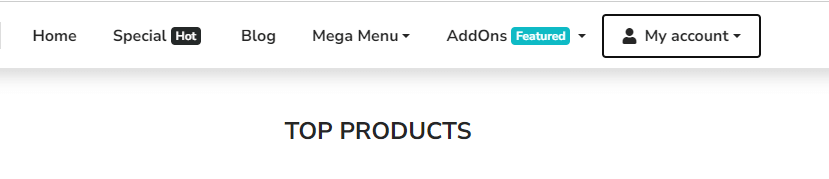
Test Scenario:
- Launch the Chrome browser.
- Open the TestMu AI E-Commerce Playground.
- Locate the “TOP PRODUCTS” element on the UI using ID Attribute.
- Retrieve the “TOP PRODUCTS” text using the getText() method.
- Verify whether the assertion is true or not by comparing retrieved with the user input.
- Close the web browser.
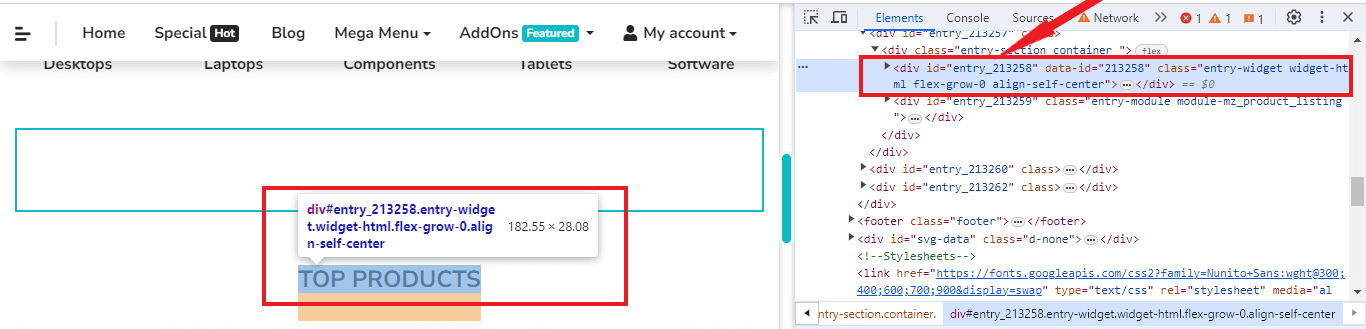
Implementation:
package demo;

import org.openqa.selenium.By;
import org.openqa.selenium.WebDriver;
import org.openqa.selenium.chrome.ChromeDriver;
import org.testng.Assert;
import org.testng.annotations.Test;


public class DemoClass {

	@Test

	public void title_test() {

               /* Initializing ChromeDriver, for any other browser, use its respective driver class */
	        WebDriver driver = new ChromeDriver();

              // Opening the LambdaTest E-Commerce Playground
              driver.get("https://ecommerce-playground.lambdatest.io/");
               /* Retrieving the text of a "TOP PRODUCTS" element by locating using ID attribute */
	       String val = driver.findElement(By.id("entry_213258")).getText();

               // Verifying the Outcomes
	         Assert.assertEquals( val, "TOP PRODUCTS");
              // Closing the WebDriver and terminating the browser session.
	         driver.quit();

    }
}
<?xml version="1.0" encoding="UTF-8"?>
<!DOCTYPE suite SYSTEM "https://testng.org/testng-1.0.dtd">
<!-- The XML suite file defines the structure of TestNG test suites -->
<suite name="Suite">
  <test name="Test">
   <!-- Classes element contains the classes to be included in the test -->
    <classes>
       <!-- Reference to the DemoClass test class -->
      <class name="demo.DemoClass"/>
    </classes>
  </test> <!-- End of Test -->
</suite> <!-- End of Suite -->
Output Screen:

UI Testing using CSS Selector
Here, we will perform UI testing using CSS Selector to fetch the data and check whether it is true or not.

Test Scenario:
- Launch the Chrome browser.
- Open the TestMu AI E-Commerce Playground.
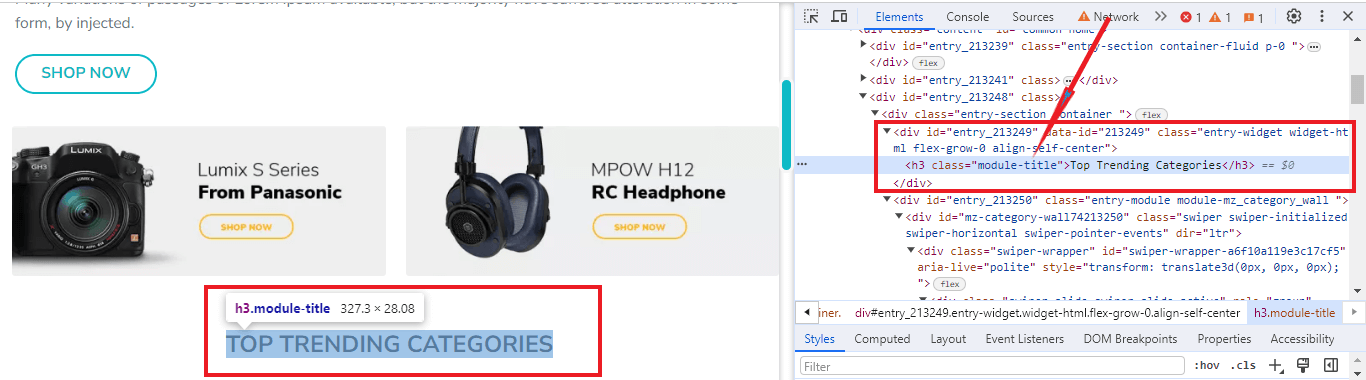
- Locate the “TOP TRENDING CATEGORIES” element on the UI using CSS Attribute.
- Retrieve the “TOP TRENDING CATEGORIES” text using the getText() method.
- Verify whether the assertion is true by comparing retrieved text with the user input.
- Close the web browser.
Implementation:
package demo;

import org.openqa.selenium.By;
import org.openqa.selenium.WebDriver;
import org.openqa.selenium.chrome.ChromeDriver;
import org.testng.Assert;
import org.testng.annotations.Test;

public class DemoClass {

	@Test

	public void title_test() {

                      /* Initializing ChromeDriver, for any other browser, use its respective driver class */
	          WebDriver driver = new ChromeDriver();

                // Opening the LambdaTest E-Commerce Playground
	          driver.get("https://ecommerce-playground.lambdatest.io/");

                /* Retrieving the text of a "TOP TRENDING CATEGORIES" element by locating using cssSelection attribute */
		String val = driver.findElement(By.cssSelector(".module-title")).getText();

              // Verifying the Outcomes
		Assert.assertEquals( val, "SEARCH");

             // Closing the WebDriver and terminating the browser session.
		driver.quit();

    }
}
<?xml version="1.0" encoding="UTF-8"?>
<!DOCTYPE suite SYSTEM "https://testng.org/testng-1.0.dtd">
<!-- The XML suite file defines the structure of TestNG test suites -->
<suite name="Suite">
  <test name="Test">
   <!-- Classes element contains the classes to be included in the test -->
    <classes>
       <!-- Reference to the DemoClass test class -->
      <class name="demo.DemoClass"/>
    </classes>
  </test> <!-- End of Test -->
</suite> <!-- End of Suite -->
Output Screen:

We can see the test case failed as the fetched data “TOP TRENDING CATEGORIES” did not match with User input data “SEARCH”. Now, we will provide the correct data as input to check whether our assertion will pass or fail.
package demo;

import org.openqa.selenium.By;
import org.openqa.selenium.WebDriver;
import org.openqa.selenium.chrome.ChromeDriver;
import org.testng.Assert;
import org.testng.annotations.Test;

public class DemoClass {

	@Test

	public void title_test() {

                      /* Initializing ChromeDriver, for any other browser, use its respective driver class */
	         WebDriver driver = new ChromeDriver();

               // Opening the Lambdatest E-Commerce Playground
	         driver.get("https://ecommerce-playground.lambdatest.io/");

               /* Retrieving the text of a “TOP TRENDING CATEGORIES” element by locating using cssSelection attribute */

	         String val = driver.findElement(By.cssSelector(".module-title")).getText();

               // Verifying the Outcomes
	         Assert.assertEquals( val, "TOP TRENDING CATEGORIES");

              // Closing the WebDriver and terminating the browser session.
	          driver.quit();

    }
}
<?xml version="1.0" encoding="UTF-8"?>
<!DOCTYPE suite SYSTEM "https://testng.org/testng-1.0.dtd">
<suite name="Suite">
  <test name="Test">
   <!-- Classes element contains the classes to be included in the test -->
    <classes>
       <!-- Reference to the DemoClass test class -->
      <class name="demo.DemoClass"/>
    </classes>
  </test> <!-- End of Test -->
</suite> <!-- End of Suite -->
Output Screen:

The user’s test cases passed, as our fetched data “TOP TRENDING CATEGORIES” matched with the user input data.
UI Testing Using Link Text
Here, we will perform UI testing using the Link Text attribute to verify the hyperlink text.

Test Scenario:
- Launch the Chrome browser.
- Open the TestMu AI E-Commerce Playground.
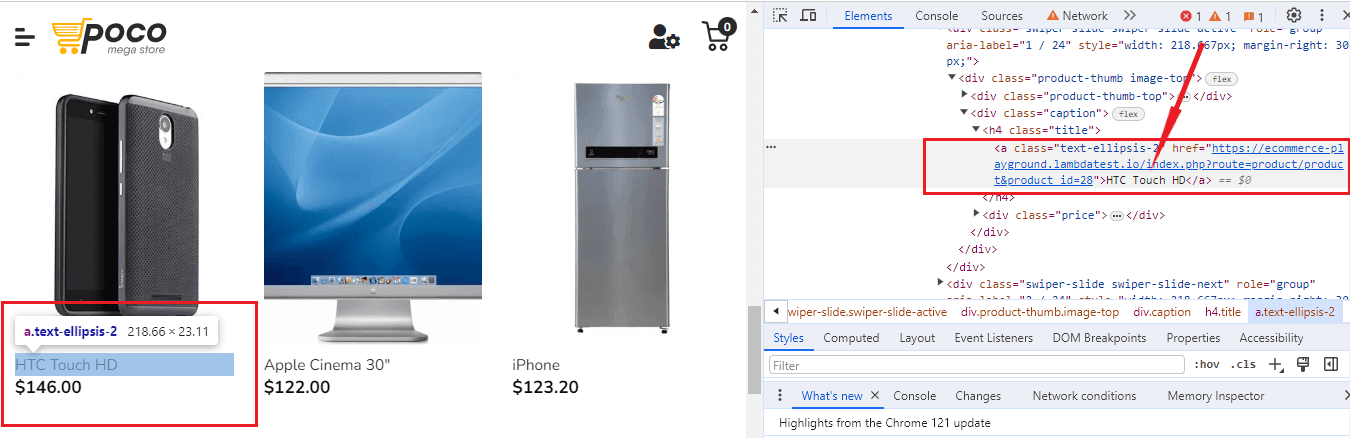
- Locate the “HTC Touch HD” element on the UI using Link Text.
- Retrieve the “HTC Touch HD” text using the getText() method.
- Verify whether the assertion is true or not by comparing retrieved text with the user input.
- Close the web browser.
Implementation:
package demo;

import org.openqa.selenium.By;
import org.openqa.selenium.WebDriver;
import org.openqa.selenium.chrome.ChromeDriver;
import org.testng.Assert;
import org.testng.annotations.Test;


public class DemoClass {

	@Test

	public void title_test() {

               /* Initializing ChromeDriver, for any other browser, use its respective driver class */
               WebDriver driver = new ChromeDriver();

                // Opening the LambdaTest E-Commerce Playground
                driver.get("https://ecommerce-playground.lambdatest.io/");
                /* Retrieving the text of a "HTC Touch HD" element by locating using linkText attribute */
		   String val = driver.findElement(By.linkText("HTC Touch HD")).getText();

              // Verifying the Outcomes
		  Assert.assertEquals( val, "HTC Touch HD");

             // Closing the WebDriver and terminating the browser session.
		  driver.quit();

    }
}
<?xml version="1.0" encoding="UTF-8"?>
<!DOCTYPE suite SYSTEM "https://testng.org/testng-1.0.dtd">
<!-- The XML suite file defines the structure of TestNG test suites -->
<suite name="Suite">
  <test name="Test">
   <!-- Classes element contains the classes to be included in the test -->
    <classes>
       <!-- Reference to the DemoClass test class -->
      <class name="demo.DemoClass"/>
    </classes>
  </test> <!-- End of Test -->
</suite> <!-- End of Suite -->
Output Screen:

UI Testing using XPath
Here, we will perform UI testing using the XPath attribute to verify the heading.

Test Scenario:
- Launch the Chrome browser.
- Open the TestMu AI E-Commerce Playground.
- Locate the “FROM THE BLOG” element on the UI using XPath.
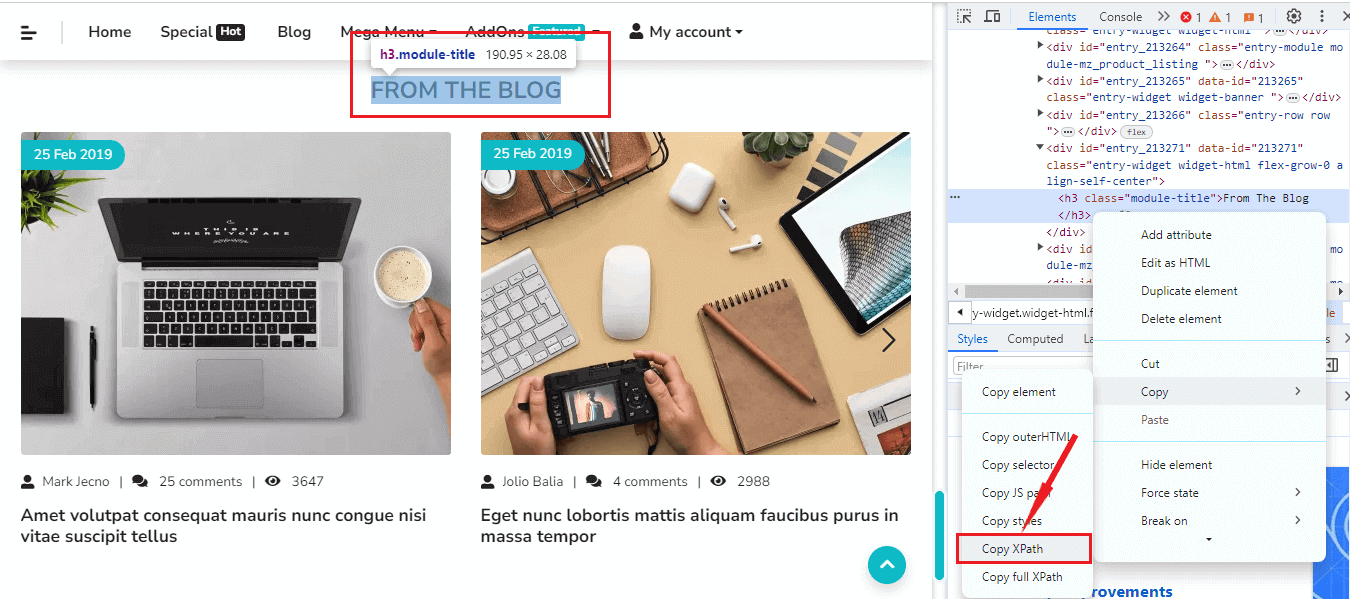
Retrieve the “FROM THE BLOG” text using the getText() method.
- Verify whether the assertion is true or not by comparing retrieved text with the user input.
- Close the web browser.
Implementation:
package demo;

import org.openqa.selenium.By;
import org.openqa.selenium.WebDriver;
import org.openqa.selenium.chrome.ChromeDriver;
import org.testng.Assert;
import org.testng.annotations.Test;


public class DemoClass {

	@Test

	public void title_test() {

                /* Initializing ChromeDriver, for any other browser, use its respective driver class */
	          WebDriver driver = new ChromeDriver();

               // Opening the LambdaTest E-Commerce Playground
	         driver.get("https://ecommerce-playground.lambdatest.io/");

               /* Retrieving the text of a "FROM THE BLOG" element by locating using XPath */
		String val = driver.findElement(By.xpath("//*[@id="entry_213271"]/h3")).getText();

            // Verifying the Outcomes
		Assert.assertEquals( val, "FROM THE BLOG");

            // Closing the WebDriver and terminating the browser session.
		driver.quit();

    }
}
<?xml version="1.0" encoding="UTF-8"?>
<!DOCTYPE suite SYSTEM "https://testng.org/testng-1.0.dtd">
<suite name="Suite">
  <test name="Test">
   <!-- Classes element contains the classes to be included in the test -->
    <classes>
       <!-- Reference to the DemoClass test class -->
      <class name="demo.DemoClass"/>
    </classes>
  </test> <!-- End of Test -->
</suite> <!-- End of Suite -->
Output Screen:

Running The Earlier UI Test On Selenium Cloud Grid
Why go to the trouble of buying multiple devices to test thoroughly when you can use the Selenium on Cloud instead? It helps reduce costs by eliminating the need for multiple physical machines.TestMu AI is an AI-powered test orchestration and execution platform that lets you run manual and automated tests at scale on over 3000 real devices, browsers, and OS combinations. It takes care of the infrastructure and has many more benefits that make your testing experience smooth and scalable.
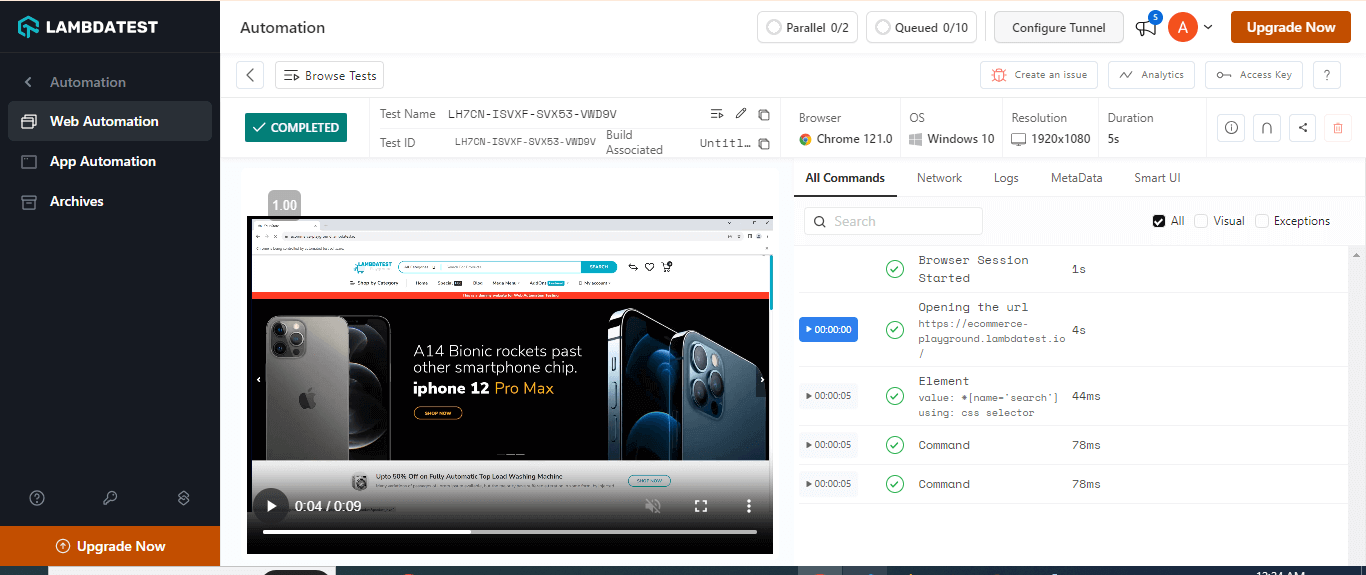
Let’s see an earlier test scenario of UI testing on the Search Bar using TestMu AI Selenium Cloud.
Test Scenario:
- Launch the Chrome browser.
- Open the TestMu AI E-Commerce Playground.
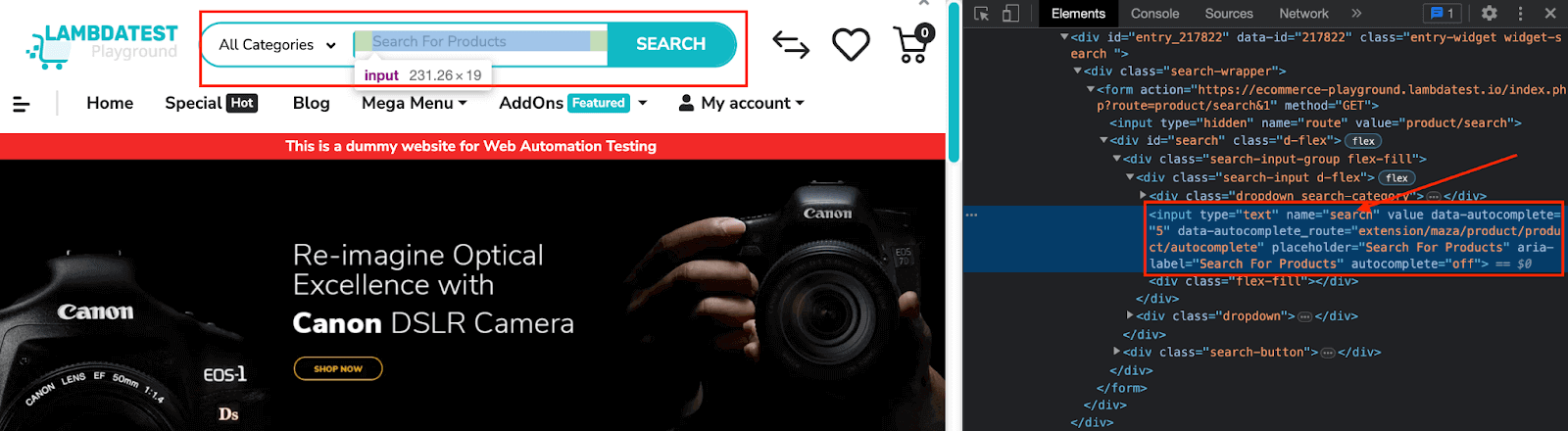
- Locate the Search Bar using Name.
- Verify whether the Search Bar exists or not.
- Close the web browser.
Prerequisites:
- Create an account on TestMu AI.
- Navigate to your TestMu AI build directory.
- Select “Access Key” located at the top-right corner.
- Copy both your Username and Access Key from the displayed popup modal.
- Access your desired capabilities that can be generated from the TestMu AI capabilities generator.
Implementation:
package demo;

// Importing necessary Selenium libraries
import java.net.URL;
import java.util.HashMap;
import org.openqa.selenium.WebElement;
import org.openqa.selenium.By;
import org.openqa.selenium.chrome.ChromeOptions;
import org.openqa.selenium.remote.RemoteWebDriver;
import org.testng.Assert;

// Class declaration for DemoClass
public class DemoClass{

      /* Provide Username and Access Key given on the User Lambdatest Dashboard */
	static String username = "username";
	static String accesskey = "AccessKey";
      public static void main(String[] args) throws Exception {

	    RemoteWebDriver driver = null;
	    String gridURL = "@hub.lambdatest.com/wd/hub";

           /* Creating ChromeOptions instance to set up desired capabilities for Chrome browser */
	    ChromeOptions browserOptions = new ChromeOptions();

           // Setting the platform name to "Windows 10"
	    browserOptions.setPlatformName("Windows 10");

          // Setting the browser version to "122.0"
	    browserOptions.setBrowserVersion("122.0");
	    HashMap<String, Object> ltOptions = new HashMap<String, Object>();

          // Adding LambdaTest credentials and project information to the HashMap
	    ltOptions.put("username", "usernmae");
	    ltOptions.put("accessKey", "AccessKey");
	    ltOptions.put("project", "Untitled");

          // Specifying Selenium version as "4.0.0" in the HashMap
	    ltOptions.put("selenium_version", "4.0.0");

          // Enabling W3C protocol in the HashMap
	    ltOptions.put("w3c", true);
	    browserOptions.setCapability("LT:Options", ltOptions);

         /*Set up RemoteWebDriver instance to connect to LambdaTest Selenium Grid */
          driver = new RemoteWebDriver(new URL("https://" + username + ":" + accesskey + gridURL), browserOptions);

          // Open the LambdaTest E-Commerce Playground website
          driver.get("https://ecommerce-playground.lambdatest.io/");

          // Locate the search input element
          WebElement searchResults = driver.findElement(By.name("search"));

          // Verifying the Outcome
          Assert.assertNotNull(searchResults);
          // Close the browser window
          driver.close();

   }
}
The testng.xml file will remain the same as we have done on the local server. So, we didn’t need to modify it will be as usual.
<?xml version="1.0" encoding="UTF-8"?>
<!DOCTYPE suite SYSTEM "https://testng.org/testng-1.0.dtd">
<!-- The XML suite file defines the structure of TestNG test suites -->
<suite name="Suite">
  <test name="Test">
   <!-- Classes element contains the classes to be included in the test -->
    <classes>
       <!-- Reference to the DemoClass test class -->
      <class name="demo.DemoClass"/>
    </classes>
  </test> <!-- End of Test -->
</suite> <!-- End of Suite -->
Output Screen:
Best Practices For Selenium UI Testing
Some of the optimal approaches for UI testing in Selenium are:-
- Page Object Model (POM): It allows webpages as classes and their elements as variables; user interactions are implemented through methods, thus minimizing redundancy in the test script and enhancing overall efficiency.
- Avoid Thread.sleep(): Avoid the use of the Thread.sleep(), it introduces static wait times and unnecessary delays. This leads to inefficiencies and slow test execution of UI elements. Use Wait Commands in Selenium to avoid unnecessary delays and static wait times.
- Automated Screenshots: Automated screenshots capture visual snapshots of the web app at key points in the testing process. This practice is concrete evidence of the UI components’ functionality, helping in result documentation and facilitating the debugging process.
- Select the appropriate order for selectors: Select the appropriate order for Selectors to optimize test efficiency. The optimal sequence for selectors is XPath < CSS < Link Text < Name < ID.
Conclusion
UI testing evaluates how well a website or app’s buttons, forms, and other components function. Although it can be done manually, it will be a slow process. That’s why we automate UI tests with Selenium. This way, we can catch any mistakes or problems more easily and quickly.
Testers can improve the quality of web applications and provide a seamless user experience by following best practices and utilizing Selenium’s capabilities. Continuous learning and practice in Selenium UI testing will produce more reliable and high-performing software.


Frequently asked questions
Did you find this page helpful?
More Related Hubs
TestMu AI forEnterprise
Get access to solutions built on Enterprise
grade security, privacy, & compliance
- Advanced access controls
- Advanced data retention rules
- Advanced Local Testing
- Premium Support options
- Early access to beta features
- Private Slack Channel
- Unlimited Manual Accessibility DevTools Tests