Getting Started With Playwright Testing on Android Real Devices
Playwright Android automation is supported on TestMu AI across Node.js, Java, C#, and Python. Run Playwright tests on Chrome for Android across 100+ real Android devices. This guide covers getting started with Playwright testing on Android devices on the TestMu AI platform.
- Playwright versions v1.53.0 to v1.61.0 are supported for Android Real Device testing (excluding v1.54.0).
- Java, C#, and Python use the
chromium.connect()API. Node.js supports bothchromium.connect()and the Android-native_android.connect()API. All use stock Playwright packages, no custom forks required. - Playwright v1.53.0 is currently supported for Playwright C# (for Android & iOS).
Prerequisites
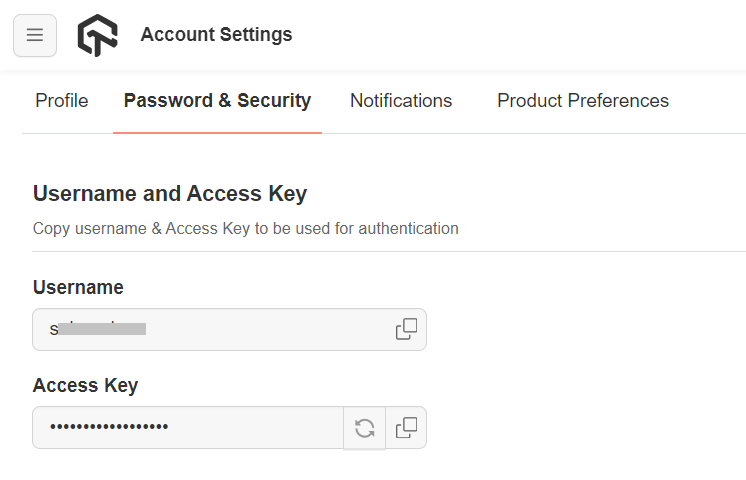
Set your TestMu AI username and access key in the environment variables. You can get your TestMu AI username and access key from your TestMu AI Profile > Account Settings > Password & Security.
Windows
Verifiedset LT_USERNAME="YOUR_LAMBDATEST_USERNAME"
set LT_ACCESS_KEY="YOUR_LAMBDATEST_ACCESS_KEY"
macOS/Linux
Verifiedexport LT_USERNAME="YOUR_LAMBDATEST_USERNAME"
export LT_ACCESS_KEY="YOUR_LAMBDATEST_ACCESS_KEY"
- Node.js
- Python
- Java
- C#
Install the Playwright package:
npm install playwright
Install the Playwright package:
pip install playwright
Add the Playwright dependency to your pom.xml:
<dependency>
    <groupId>com.microsoft.playwright</groupId>
    <artifactId>playwright</artifactId>
    <version>1.61.0</version>
</dependency>
Add the Playwright NuGet package:
dotnet add package Microsoft.Playwright
Run Your First Test
Verified
- Node.js
- Python
- Java
- C#
Node.js supports both the Chromium API (chromium.connect()) and the Android-native API (_android.connect()).
Using chromium.connect()
const { chromium } = require("playwright");

(async () => {
  const capabilities = {
    "LT:Options": {
      platformName: "android",
      deviceName: ".*",
      platformVersion: ".*",
      isRealMobile: true,
      build: "Playwright Android Build",
      name: "Playwright Android Test",
      user: process.env.LT_USERNAME,
      accessKey: process.env.LT_ACCESS_KEY,
      network: true,
      video: true,
      console: true,
      playwrightClientVersion: "1.61.0",
    },
  };

  const cdpUrl = `wss://cdp.lambdatest.com/playwright?capabilities=${encodeURIComponent(
    JSON.stringify(capabilities)
  )}`;

  const browser = await chromium.connect(cdpUrl);
  const context = browser.contexts()[0] || (await browser.newContext());
  const page = context.pages()[0] || (await context.newPage());

  await page.goto("https://duckduckgo.com", { timeout: 30000 });
  await page.locator('[name="q"]').fill("LambdaTest");
  await page.locator('[name="q"]').press("Enter");
  await page.waitForTimeout(3000);

  const title = await page.title();
  console.log("Page title:", title);

  try {
    if (title.includes("LambdaTest")) {
      await page.evaluate(
        (_) => {},
        `lambdatest_action: ${JSON.stringify({
          action: "setTestStatus",
          arguments: { status: "passed", remark: "Title verified" },
        })}`
      );
    }
  } catch (e) {
    await page.evaluate(
      (_) => {},
      `lambdatest_action: ${JSON.stringify({
        action: "setTestStatus",
        arguments: { status: "failed", remark: e.message },
      })}`
    );
  }

  await page.close();
  await browser.close();
})();
Using _android.connect()
const { _android } = require("playwright");

(async () => {
  const capabilities = {
    "LT:Options": {
      platformName: "android",
      deviceName: ".*",
      platformVersion: ".*",
      isRealMobile: true,
      build: "Playwright Android Build",
      name: "Playwright Android Test",
      user: process.env.LT_USERNAME,
      accessKey: process.env.LT_ACCESS_KEY,
      network: true,
      video: true,
      console: true,
      playwrightClientVersion: "1.61.0",
    },
  };

  const cdpUrl = `wss://cdp.lambdatest.com/playwright?capabilities=${encodeURIComponent(
    JSON.stringify(capabilities)
  )}`;

  const device = await _android.connect(cdpUrl);
  console.log(`Model: ${device.model()}, Serial: ${device.serial()}`);
  await device.shell("am force-stop com.android.chrome");

  const context = await device.launchBrowser();
  context.setDefaultTimeout(120000);
  const page = await context.newPage();

  await page.goto("https://duckduckgo.com");
  await page.locator('[name="q"]').fill("LambdaTest");
  await page.locator('[name="q"]').press("Enter");
  await page.waitForTimeout(3000);

  const title = await page.title();
  console.log("Page title:", title);

  try {
    if (title.includes("LambdaTest")) {
      await page.evaluate(
        (_) => {},
        `lambdatest_action: ${JSON.stringify({
          action: "setTestStatus",
          arguments: { status: "passed", remark: "Title verified" },
        })}`
      );
    }
  } catch (e) {
    await page.evaluate(
      (_) => {},
      `lambdatest_action: ${JSON.stringify({
        action: "setTestStatus",
        arguments: { status: "failed", remark: e.message },
      })}`
    );
  }

  await page.close();
  await device.close();
})();
The timeout value specified in the Playwright configuration may default to 30 seconds on real devices. To set a custom timeout, add:
context.setDefaultTimeout(120000); // Set your desired timeout value.
Run the test:
node playwright-android-test.js
import os, json, urllib.parse
from playwright.sync_api import sync_playwright

def main():
    capabilities = {
        "LT:Options": {
            "platformName": "android",
            "deviceName": ".*",
            "platformVersion": ".*",
            "isRealMobile": True,
            "build": "Playwright Android Build",
            "name": "Playwright Android Test",
            "user": os.environ["LT_USERNAME"],
            "accessKey": os.environ["LT_ACCESS_KEY"],
            "network": True,
            "video": True,
            "console": True,
        }
    }

    cdp_url = (
        f"wss://cdp.lambdatest.com/playwright?capabilities="
        f"{urllib.parse.quote(json.dumps(capabilities))}"
    )

    with sync_playwright() as p:
        browser = p.chromium.connect(cdp_url)
        context = browser.contexts[0] if browser.contexts else browser.new_context()
        page = context.pages[0] if context.pages else context.new_page()

        page.goto("https://duckduckgo.com", timeout=30000)
        page.locator('[name="q"]').fill("LambdaTest")
        page.locator('[name="q"]').press("Enter")
        page.wait_for_timeout(3000)

        title = page.title()
        print(f"Page title: {title}")

        try:
            if "LambdaTest" in title:
                page.evaluate(
                    "_ => {}",
                    'lambdatest_action: {"action": "setTestStatus", "arguments": {"status": "passed", "remark": "Title verified"}}',
                )
        except Exception as e:
            page.evaluate(
                "_ => {}",
                f'lambdatest_action: {json.dumps({"action": "setTestStatus", "arguments": {"status": "failed", "remark": str(e)}})}',
            )

        page.close()
        browser.close()

if __name__ == "__main__":
    main()
Run the test:
python playwright_android_test.py
package com.lambdatest;

import com.microsoft.playwright.*;
import com.google.gson.Gson;
import java.net.URLEncoder;
import java.nio.charset.StandardCharsets;
import java.util.LinkedHashMap;
import java.util.Map;

public class PlaywrightAndroidTest {
    public static void main(String[] args) {
        Map<String, Object> ltOptions = new LinkedHashMap<>();
        ltOptions.put("platformName", "android");
        ltOptions.put("deviceName", ".*");
        ltOptions.put("platformVersion", ".*");
        ltOptions.put("isRealMobile", true);
        ltOptions.put("build", "Playwright Android Build");
        ltOptions.put("name", "Playwright Android Test");
        ltOptions.put("user", System.getenv("LT_USERNAME"));
        ltOptions.put("accessKey", System.getenv("LT_ACCESS_KEY"));
        ltOptions.put("network", true);
        ltOptions.put("video", true);
        ltOptions.put("console", true);
        ltOptions.put("playwrightClientVersion", "1.61.0");

        Map<String, Object> capabilities = new LinkedHashMap<>();
        capabilities.put("LT:Options", ltOptions);

        String capsJson = new Gson().toJson(capabilities);
        String cdpUrl = "wss://cdp.lambdatest.com/playwright?capabilities="
            + URLEncoder.encode(capsJson, StandardCharsets.UTF_8);

        try (Playwright playwright = Playwright.create()) {
            Browser browser = playwright.chromium().connect(cdpUrl);
            BrowserContext context = browser.contexts().size() > 0
                ? browser.contexts().get(0) : browser.newContext();
            Page page = context.pages().size() > 0
                ? context.pages().get(0) : context.newPage();

            page.navigate("https://duckduckgo.com",
                new Page.NavigateOptions().setTimeout(30000));
            page.locator("[name=\"q\"]").fill("LambdaTest");
            page.locator("[name=\"q\"]").press("Enter");
            page.waitForTimeout(3000);

            String title = page.title();
            System.out.println("Page title: " + title);

            try {
                if (title.contains("LambdaTest")) {
                    page.evaluate("_ => {}",
                        "lambdatest_action: {\"action\": \"setTestStatus\", \"arguments\": {\"status\": \"passed\", \"remark\": \"Title verified\"}}");
                }
            } catch (Exception e) {
                page.evaluate("_ => {}",
                    "lambdatest_action: {\"action\": \"setTestStatus\", \"arguments\": {\"status\": \"failed\", \"remark\": \"" + e.getMessage() + "\"}}");
            }

            page.close();
            browser.close();
        }
    }
}
Run the test:
mvn compile exec:java -Dexec.mainClass="com.lambdatest.PlaywrightAndroidTest"
using Microsoft.Playwright;
using System.Text.Json;

var capabilities = new Dictionary<string, object>
{
    ["LT:Options"] = new Dictionary<string, object>
    {
        ["platformName"] = "android",
        ["deviceName"] = ".*",
        ["platformVersion"] = ".*",
        ["isRealMobile"] = true,
        ["build"] = "Playwright Android Build",
        ["name"] = "Playwright Android Test",
        ["user"] = Environment.GetEnvironmentVariable("LT_USERNAME")!,
        ["accessKey"] = Environment.GetEnvironmentVariable("LT_ACCESS_KEY")!,
        ["network"] = true,
        ["video"] = true,
        ["console"] = true,
        ["playwrightClientVersion"] = "1.61.0",
    }
};

var capsJson = JsonSerializer.Serialize(capabilities);
var cdpUrl = $"wss://cdp.lambdatest.com/playwright?capabilities={Uri.EscapeDataString(capsJson)}";

using var playwright = await Playwright.CreateAsync();
var browser = await playwright.Chromium.ConnectAsync(cdpUrl);
var context = browser.Contexts.Count > 0
    ? browser.Contexts[0] : await browser.NewContextAsync();
var page = context.Pages.Count > 0
    ? context.Pages[0] : await context.NewPageAsync();

await page.GotoAsync("https://duckduckgo.com", new PageGotoOptions { Timeout = 30000 });
await page.Locator("[name=\"q\"]").FillAsync("LambdaTest");
await page.Locator("[name=\"q\"]").PressAsync("Enter");
await page.WaitForTimeoutAsync(3000);

var title = await page.TitleAsync();
Console.WriteLine($"Page title: {title}");

try
{
    if (title.Contains("LambdaTest"))
    {
        await page.EvaluateAsync("_ => {}",
            "lambdatest_action: {\"action\": \"setTestStatus\", \"arguments\": {\"status\": \"passed\", \"remark\": \"Title verified\"}}");
    }
}
catch (Exception e)
{
    await page.EvaluateAsync("_ => {}",
        $"lambdatest_action: {{\"action\": \"setTestStatus\", \"arguments\": {{\"status\": \"failed\", \"remark\": \"{e.Message}\"}}}}");
}

await page.CloseAsync();
await browser.CloseAsync();
Run the test:
dotnet run
For Java, C#, and Python on Android, the CDP connection returns an existing browser context and page. Always check for existing contexts/pages before creating new ones, as shown in the examples above.
View your Playwright test results
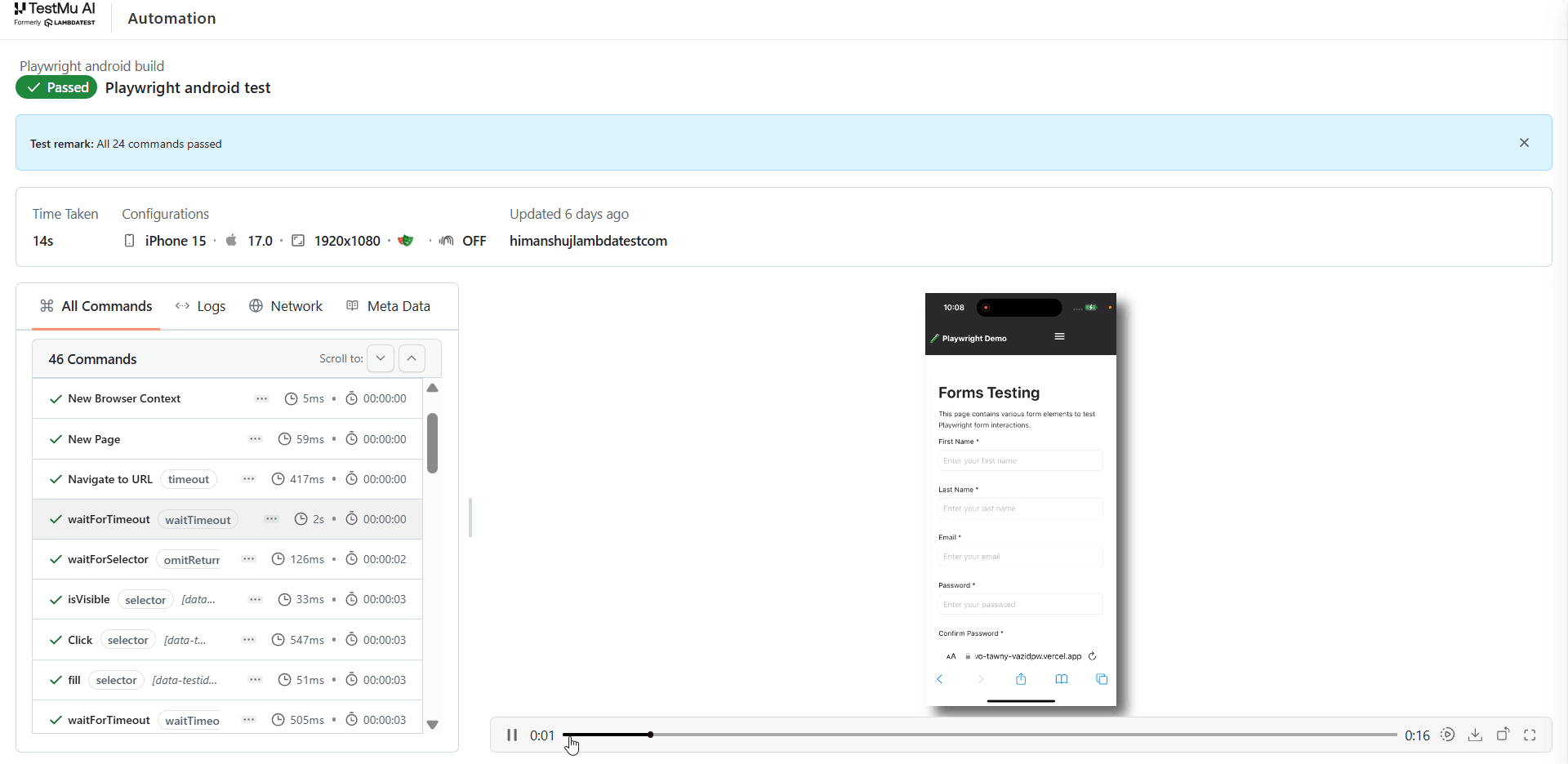
The TestMu AI Automation Dashboard is where you can see the results of your Playwright tests after running them on the TestMu AI platform.
The below screenshot of TestMu AI Automation Dashboard shows the Playwright build on the left and the build sessions associated with the selected build on the right.
Capabilities Reference
Configure these capabilities to control your Playwright Android tests.
Use the Playwright Android Capability Generator to generate capabilities for your tests.
| Key | Expected Values | Description | Capability |
|---|---|---|---|
| platform | android | Specify the platform name | const capability = { "LT:Options": {"platform": "android",}} |
| platformVersion | 12 | Specify the platform version | const capability = { "LT:Options": {"platformVersion": "12",}} |
| deviceName | Pixel 5 | Specify the device name. | const capability = { "LT:Options": {"deviceName": "Pixel 5",}} |
| build | Playwright Android Build | Represent the build number for your test | const capability = {"LT:Options": {"build": "<build_name>",}} |
| name | Playwright Android Test | Represents the name of a test | const capability = {"LT:Options": {"name": "<test_name>",}} |
| projectName | Playwright Sample Project | Represents the name of a project | const capability = {"LT:Options": {"projectName": "<project_name>",}} |
| tags | ["tag1", "tag2", "tag3"] | Group your Playwright tests | const capability = {"LT:Options": { "tags": ["tag1", "tag2", "tag3"], }} |
| buildTags | ["build1", "build2", "build3"] | Group your Playwright builds | const capability = {"LT:Options": { "buildTags": ["build1", "build2", "build3"] }} |
| network | true/false | Enable network logs | const capability = { "LT:Options": {"network": true,}} |
| console | true/false | Enable browser console logs | const capabilities = { "LT:Options": {"console": true,}} |
| video | true/false | Enable video recording of the entire screen | const capability = { "LT:Options": {"video": true,}} |
| tunnel | true/false | Enable tunnel for local testing | const capability = { "LT:Options": {"tunnel": true,}} |
| tunnelName | true/false | Specify tunnel name | const capability = { "LT:Options": {"tunnelName": "<tunnel_name>",}} |
| geoLocation | AR (Argentina) | Specify country code | const capability = { "LT:Options": {"geoLocation": "AR",}} |
Using REGEX for device name
When you run a test on a specific device, the exact device you selected may not be available. A regular expression (REGEX) widens the device search so you get any matching device. For example, to run on any Pixel device rather than one specific model, use a REGEX for deviceName. See REGEX for App/Browser Automation for details.
WebView Testing
To test embedded WebViews on a real Android device, add the mandatory isPwMobileWebviewTest capability to your options (sample script):
const capabilities = {
  "LT:Options": {
    "platformName": "android",
    "isRealMobile": true, //if true, test will run on real devices
    "isPwMobileWebviewTest": true, //mandatory capability to enable WebView testing
  },
Run the test as usual (for example, node playwrightwebview.js) and check the Automation dashboard for results.


 Chat with Us