How to Test WebViews With Playwright on TestMu AI
When your Android app embeds a web browser, you can validate those WebViews with Playwright on real devices through TestMu AI. Testing on real hardware surfaces rendering and interaction defects that emulators miss. You enable the isPwMobileWebviewTest capability, point your script at the TestMu AI CDP endpoint, and run your test against a live Android device.
Follow these steps to configure a WebView test and run it on a real Android device on TestMu AI.
Step 1: Set Up Your Test Suite
Use your own project or clone the sample repository to follow along with the same files shown here.
Clone the code sample from the TestMu AI GitHub repository to run your tests.
 View on GitHub
If you are using your own project, configure the browserWSEndpoint (browser endpoint URL) in your test script to run the test on TestMu AI.
wsEndpoint: `wss://cdp.lambdatest.com/playwright?capabilities=${encodeURIComponent(JSON.stringify(capabilities))}`
Here is the sample test script for your reference:
Verifiedloading...
Step 2: Update the Dependencies
Update the outdated dependencies before you run the test.
Verifiednpm install
Step 3: Set Up Your TestMu AI Credentials
Set your TestMu AI credentials in the terminal for your operating system. The commands below are prefilled if you are logged in to TestMu AI.
- Linux / MacOS
- Windows
export LT_USERNAME="undefined"
export LT_ACCESS_KEY="undefined"
set LT_USERNAME="undefined"
set LT_ACCESS_KEY="undefined"
Step 3: Update Your Test Capabilities
Include the following field in the capabilities object to enable WebView testing.
Verifiedconst capabilities = {
"LT:Options": {
"platformName": "android",
"isRealMobile": true, //if true, test will run on real devices
"isPwMobileWebviewTest": true, //mandatory capability to enable WebView testing
},
Use the Playwright capability generator to select from a range of options for customizing your tests.
Step 4: Execute Your Test
Run the command below with your test file to execute the WebView test on TestMu AI. Replace playwrightwebview.js with your own file name if it differs.
node playwrightwebview.js
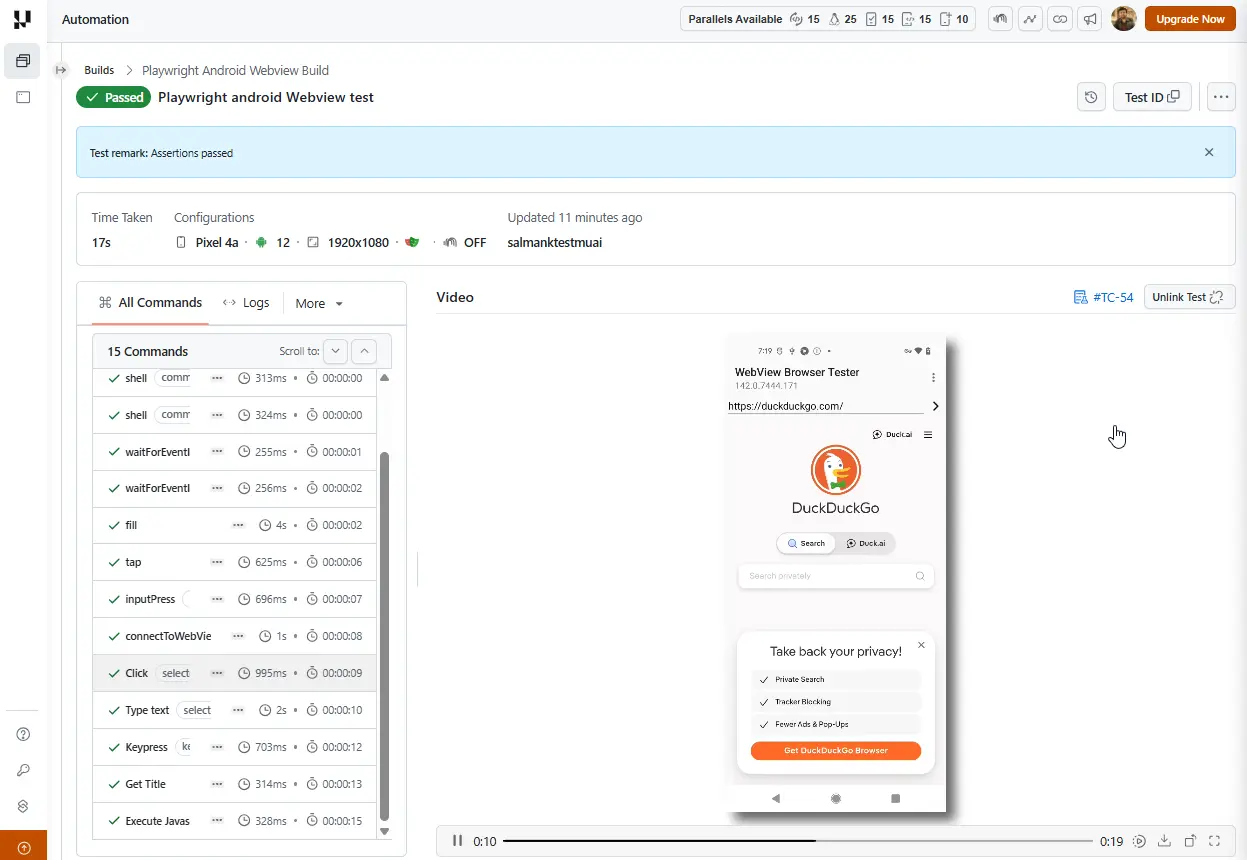
Open the TestMu AI Automation Dashboard to check the status of your test execution.
Related Playwright Guides
Continue with these related guides to extend your Playwright coverage on TestMu AI.
- How to run Playwright tests on real Android devices covers browser testing across Node.js, Java, C#, and Python.
- How to configure Playwright capabilities documents every supported capability key.
- How to set up Playwright test execution walks through connecting Playwright to TestMu AI.
 Chat with Us