

Power Your Software Testing with AI Agents and Cloud
The Native AI-Agentic Cloud Platform to Supercharge Quality Engineering. Test Intelligently and Ship Faster.


- TestMu AI (Formerly LambdaTest)
- /
- Blog
- /
- Understanding WebViews: What is WebView And How To Test It?
Understanding WebViews: What is WebView And How To Test It?
In this guide, explore what WebViews are, how they work, and how to test them. Discover best practices and tips for WebView testing today.
Last Updated on:
On This Page
Convenience is something that we can never be fully satisfied with. This is why software developers are always made to push their limits for bringing a better user experience, without compromising the functionality. All for the sake of saving the churn in today’s competitive business. People are greedy for convenience and this is why Hybrid applications have been so congenial in the cyber world.
What is so unique about Hybrid application? Yeah, that’s right. WebViews!
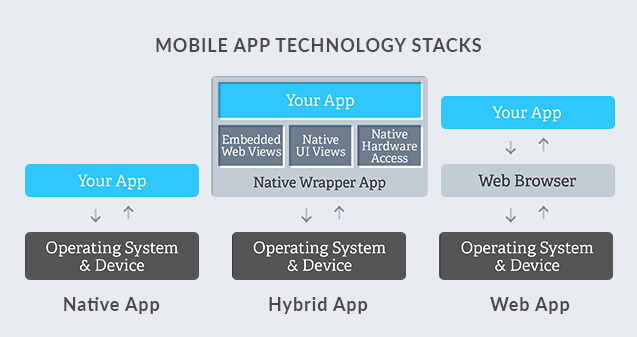
Hybrid Applications – As the name suggests they are a mixture of Native and Web Applications. They are available in application store for download and require set of access from device like native apps, but they also have a browser embedded in the application(WebView) for rendering HTML.Instagram is a good example of a hybrid application.
Remember the time, when we wished to access any third party link; it used to open in a new browser on the device. Resulting in, moving us out from the application where we were intended to work on. A disaster to User Experience which was resolved by facilitating an in-app browser window for facilitating third-party web pages as part of activity layout. Kudos to WebViews!
Why do you need WebViews?
- It provides a better control over your application’s UI.
- You don’t have to make an update on the entire application, if you wish to bring an update over your app content. Say, you wish to publicise about an upcoming sale on your application or some other exciting offer.
- You don’t get pushed onto another 3rd party application, rather an in-app browser pulls the content from the web for you. With the convenience of staying in the intended application. Take Instagram for an instance, where you need to swipe up in some stories and you are redirected to a webpage through a in-app browser, rather than opening the content in chrome, safari, firefox or any other browser. You can navigate the content freely on the redirected webpage by scrolling up/down, zooming in/out or searching for a text.
- Webviews allow cross-platform development resulting in reduced development cost, along with flexibility to a developer. Note: We cannot make a single build of an application to work on multiple OS though. We can only ease the development of another build with the help of web extension through HTML, CSS, Javascript etc
- Companies often aim to build a wrapper application of an existing webapp. By doing so companies aim for creating a presence in the application stores with comparatively less endeavour. Also, frameworks like Ionic allows you to transit an application on the app store, and deploy to the mobile web as a PWA

For generating a WebView, a developer you need to:
- Develop an instance of a webview class
- Embed a browser in your application
- Add browser functionalities with the help of WebView Library
- Add internet permission in the Android Manifest file
- Add the code for WebView to open in-app browser.
WebView Testing- Refers to creating and executing test cases for checking the effective working mechanism of WebViews.
Keep a note of the following while testing Webviews:
- Verify if the application is responding according to its intended behavior by interrupting the webpage from loading.
- If your content is including hyperlinked email addresses in the Webview then make those hyperlinks are opening mail application in your device when tapped.
- Test similarly for a hyperlinked phone number, whether it is routing user to dialer app or not? Also, how is that hyperlink responding if a SIM is not inserted in the device.
- Test the response of WebView in different network modes – 2G, 3G, WiFi, LTE .
- Special characters should be also be tested. Along with zooming in/out , navigating the web content by scrolling up/down or navigating the screen left/right.
- Test the tolerance of WebView against external factors like SMS, signal drop, notifications, call etc.
- Test the behaviour of your application when an external application is launched by a hyperlink from your web content.
- Vary orientation of your device and test your web content is able to support them.
- Test if the graphic display is satisfactory.
- Compress the browser window and see if the text is being compressed appropriately.
- A cross browser platform will be very helpful in testing the above mentioned tips to test. It will also provide an idea as to how your WebView is being portrayed to the targeted audience. Learn how to perform cross browser testing with TestMu AI?
How to perform WebView Testing?
Espresso-Web for Android WebView – This tool helps in examining and controlling the behaviour of a WebView UI components by reusing Atoms from the WebDriver API. It is one of the most common tool used for testing hybrid applications. It is required to check the Integration of an application’s native UI components and its WebView UI components.
Before using Espresso-web, you need to thoroughly analyse source code of your website for determining hooks for its methods. This is why it could become very complex for compound websites.
Alternative approach
A different approach would involve forgetting the third party code and focusing only on the Android. Basically, a WebView maps elements of website; allowing user to interact with them through Android View objects and their extensions. These views don’t have an ID making them inaccessible with findViewById(int id). You can neither access these IDs in your application package.
That doesn’t mean that you can’t track them. You can with the help of Layout Inspector, the Android Studio tool that replaced Android Device Monitor for viewing an app's UI hierarchy and screens.
- You need to take a snapshot of every screen on the emulator with Layout Inspector.
- Acknowledge how the WebViews are internally structured.
- Perform actions on them with the help of UiAutomator.
This approach won’t require you to analyze the source code. Acknowledge the screens and adjust accordingly. This way requires less effort in establishing and maintaining. Well, now you know an alternative to Espresso-web.
How Do AI Testing Agents Interact With WebView Elements?
AI testing agents reach WebView content the same way a browser extension does: through the Chrome DevTools Protocol (CDP) or the device accessibility tree, not through app-specific element IDs.
Android System WebView runs on Chromium. Once a developer calls setWebContentsDebuggingEnabled(true), the WebView exposes a debugging port over CDP, the same channel Chrome exposes to Playwright and to Appium's chromedriver-based web context.
An agent attaches over CDP, reads an accessibility snapshot of the page, and maps an instruction such as tap the sign in button to the element with that role and name, not a brittle XPath.
There are two ways an agent gets in:
- CDP access: needs the app to enable WebView debugging and a Chromium build the agent's CDP client version supports; most release builds turn this off.
- Accessibility tree access: Appium's UiAutomator2 driver reads the same tree Android's TalkBack screen reader uses, so an agent can still find WebView elements by role and label when CDP is unavailable.
The gap is coverage, not intelligence. A stripped release build blocks the CDP path entirely.
So the agent falls back to the accessibility tree, which only works when WebView content is labeled. An element missing alt text or an aria-label is as invisible to the agent as it is to a screen reader.
So now if somebody starts a conversation on WebViews and throws the ball is in your court – I hope you will be able to smash it. Cheers!
Author

Harshit Paul
Blogs: 97


Harshit Paul is Director of Product Marketing at TestMu AI (formerly LambdaTest), with over 8 years of experience in product and growth marketing for developer and QA tools, leading the Agentic AI in Quality Engineering space. He has authored 80+ technical articles for TestMu AI on software testing and automation, and hosted webinars on Selenium, automation testing, browser compatibility, DevOps, and continuous testing. He has led go-to-market and technical marketing initiatives across software testing products, contributing to SEO, content strategy, and developer marketing. He began his career as a certified Salesforce developer at Wipro Technologies, where he worked for 2 years before moving into marketing. Harshit holds a degree in computer programming from Vivekananda Institute of Professional Studies.


Did you find this page helpful?
More Related Blogs
TestMu AI forEnterprise
Get access to solutions built on Enterprise
grade security, privacy, & compliance
- Advanced access controls
- Advanced data retention rules
- Advanced Local Testing
- Premium Support options
- Early access to beta features
- Private Slack Channel
- Unlimited Manual Accessibility DevTools Tests