

Power Your Software Testing with AI Agents and Cloud
The Native AI-Agentic Cloud Platform to Supercharge Quality Engineering. Test Intelligently and Ship Faster.


- TestMu AI (Formerly LambdaTest)
- /
- Blog
- /
- How to Capture Firefox Screenshots for Web Testing
How to Capture Firefox Screenshots for Web Testing
Learn 5 quick ways to capture Firefox screenshots for web testing. Boost accuracy, speed up QA, and simplify browser checks with these easy methods.
Last Updated on:
Firefox screenshot capture is something you often need when testing on the Firefox browser. You might take screenshots to verify web layouts, document your results, or highlight bugs. Depending on your use case, you may want a full-page screenshot, a snapshot of a specific element, or an automated capture during regression runs.
TL;DR
- Firefox has a built-in screenshot tool reachable from the right-click menu and the Developer Tools.
- Firefox can capture a full-page screenshot, not just the visible viewport, without any extension.
- Firefox DevTools adds a full-page screenshot button and a Screenshot Node option for one element.
- Selenium captures Firefox screenshots programmatically, which is what makes them useful in a test suite.
- Naming and storing screenshots consistently is what makes them usable evidence when a test fails.
- Running the same capture across browser and OS combinations is how visual differences get caught.
Why Screenshots Matter in Testing?
When you test on Firefox browsers, a screenshot is more than a snapshot. It’s a piece of evidence that fits into your workflow in different ways:
- Bug Reporting With Context: A screenshot shows not just the error, but also the surrounding state of the UI. For example, a broken button is clearer when you also see the page layout around it.
- Cross-Environment Checks: Screenshots highlight differences between Firefox on Windows vs macOS vs the latest release, which can be missed in functional testing alone.
- Regression Testing: By keeping “before” and “after” screenshots, you can ensure that a fix resolved the existing bug without introducing new visual issues.
- Debugging: In CI/CD, screenshots act as artifacts that help you reproduce test failures quickly, especially when a test passes locally but fails in headless mode.
Different Methods to Capture Firefox Screenshot
Here are different methods to capture screenshots in Firefox using the built-in tool, developer tools, testing tools/frameworks, headless mode for CI/CD, and using cloud-based testing platforms such as TestMu AI.
Method 1: Use Firefox Built-in Screenshot Tool
If you’re testing manually, the simplest way to capture a Firefox screenshot is with its native tool. You don’t need an extension for this.
Here’s how you do it:
- Open the web page you want to capture.
- Right-click anywhere on the web page and select Take Screenshot.
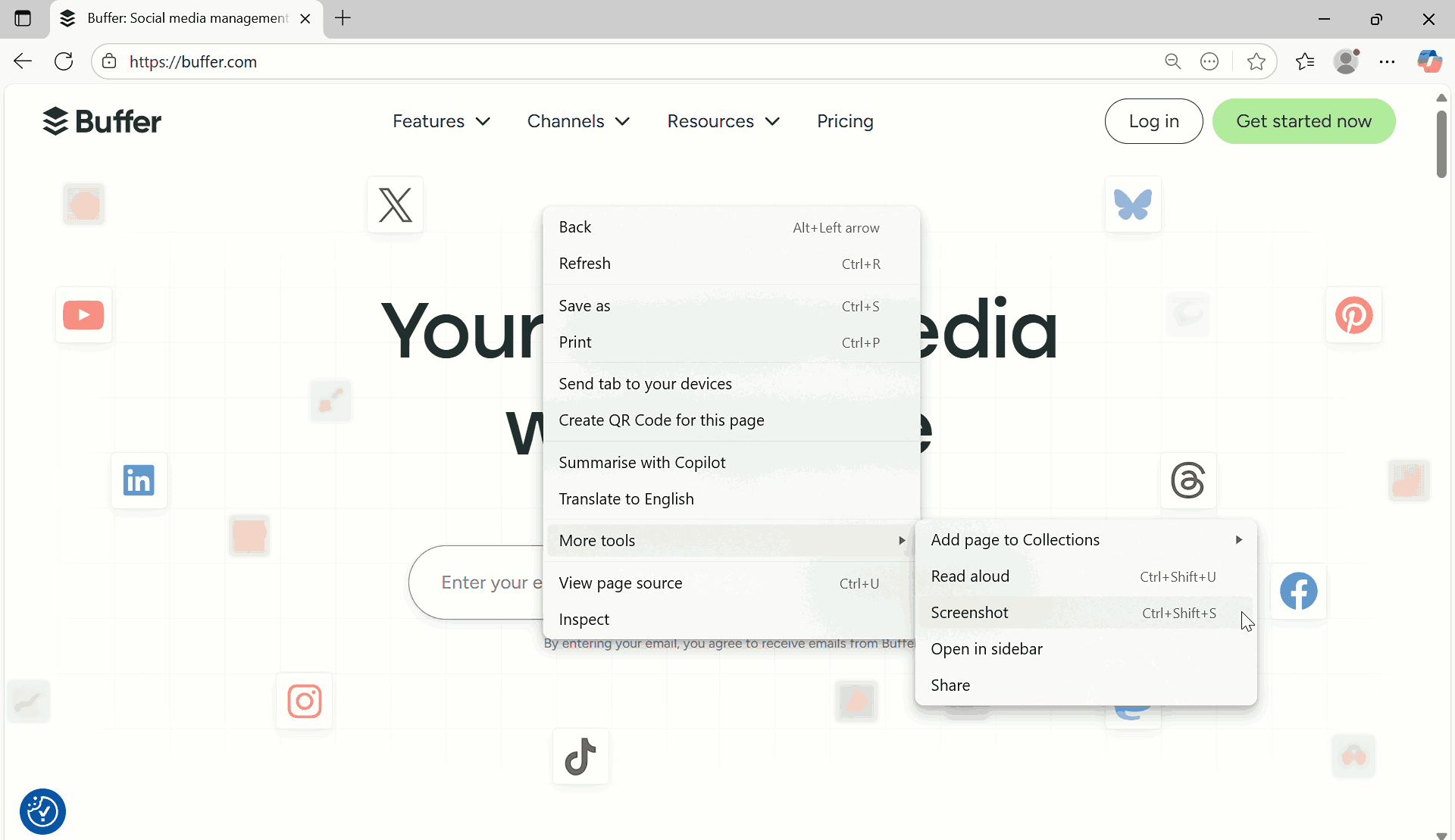
If you don’t see the option? Open about:config in a new tab, search for extensions.screenshots.disabled, and make sure it’s set to false.
You can also use these Firefox screenshot shortcuts:
- Windows/Linux: Ctrl + Shift + S
- macOS: Cmd + Shift + S
- Once the tool is active, choose one of the following:
- Drag to select a region, or click a single element to capture it
- Save visible, for the part of the page currently on screen
- Save full page, for the whole scrollable page
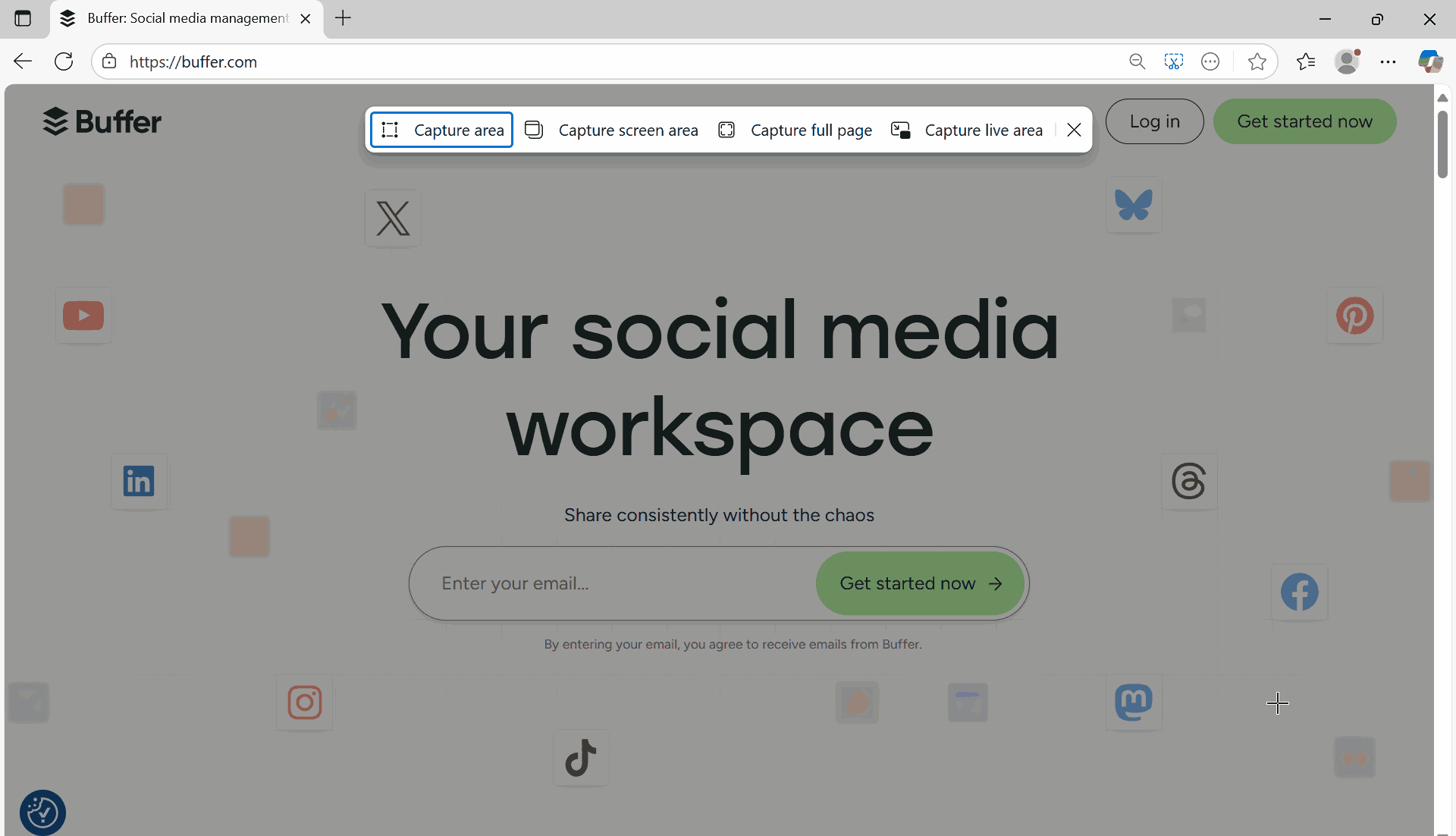
- Save the file locally or copy it to your clipboard.

Note: Capture automated Firefox screenshots across 3,000+ browser and OS combinations. Try TestMu AI Today!
Method 2: Capture Screenshots With Firefox Developer Tools
Sometimes you want more control than the built-in tool gives you. That’s where Developer Tools come in.
Here’s what you do:
- Open Developer Tools using the Firefox screenshot shortcut.
- F12 or Ctrl + Shift + I (Windows/Linux)
- Cmd + Option + I (macOS)
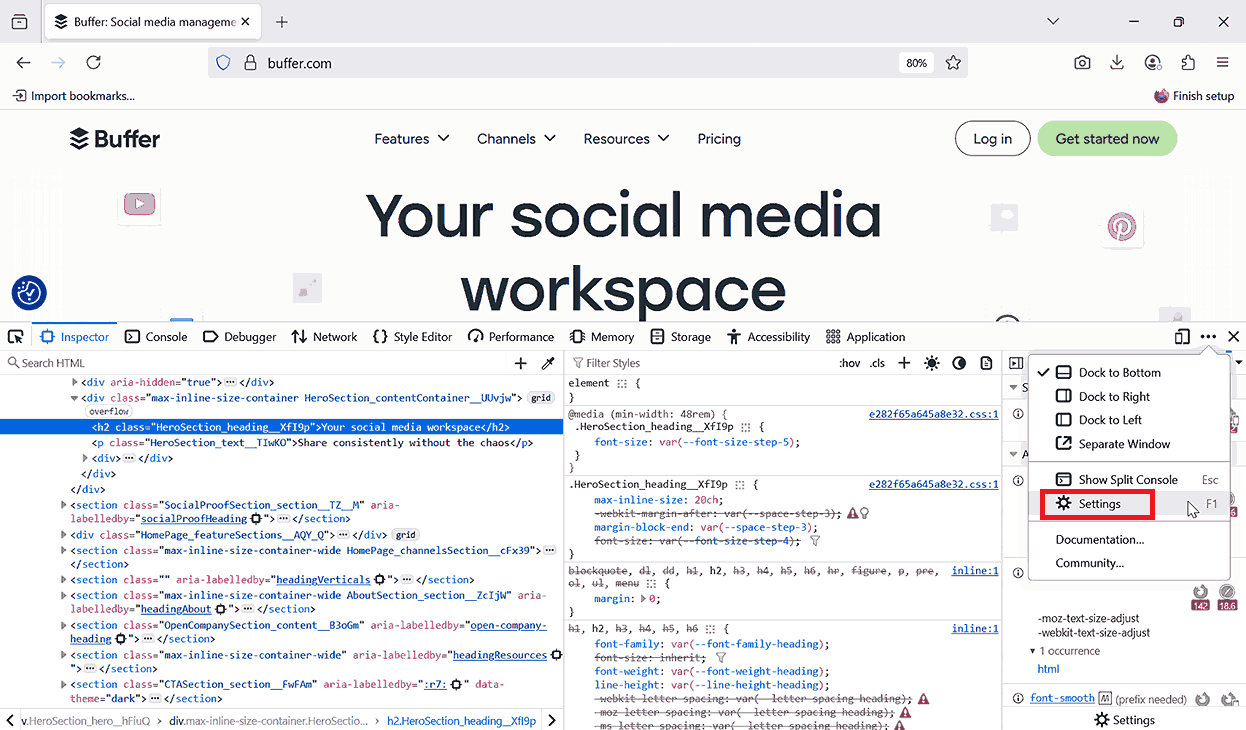
- In the Developer Tools panel, click the three-dot menu (top-right corner of the DevTools bar) and select Settings from the dropdown.
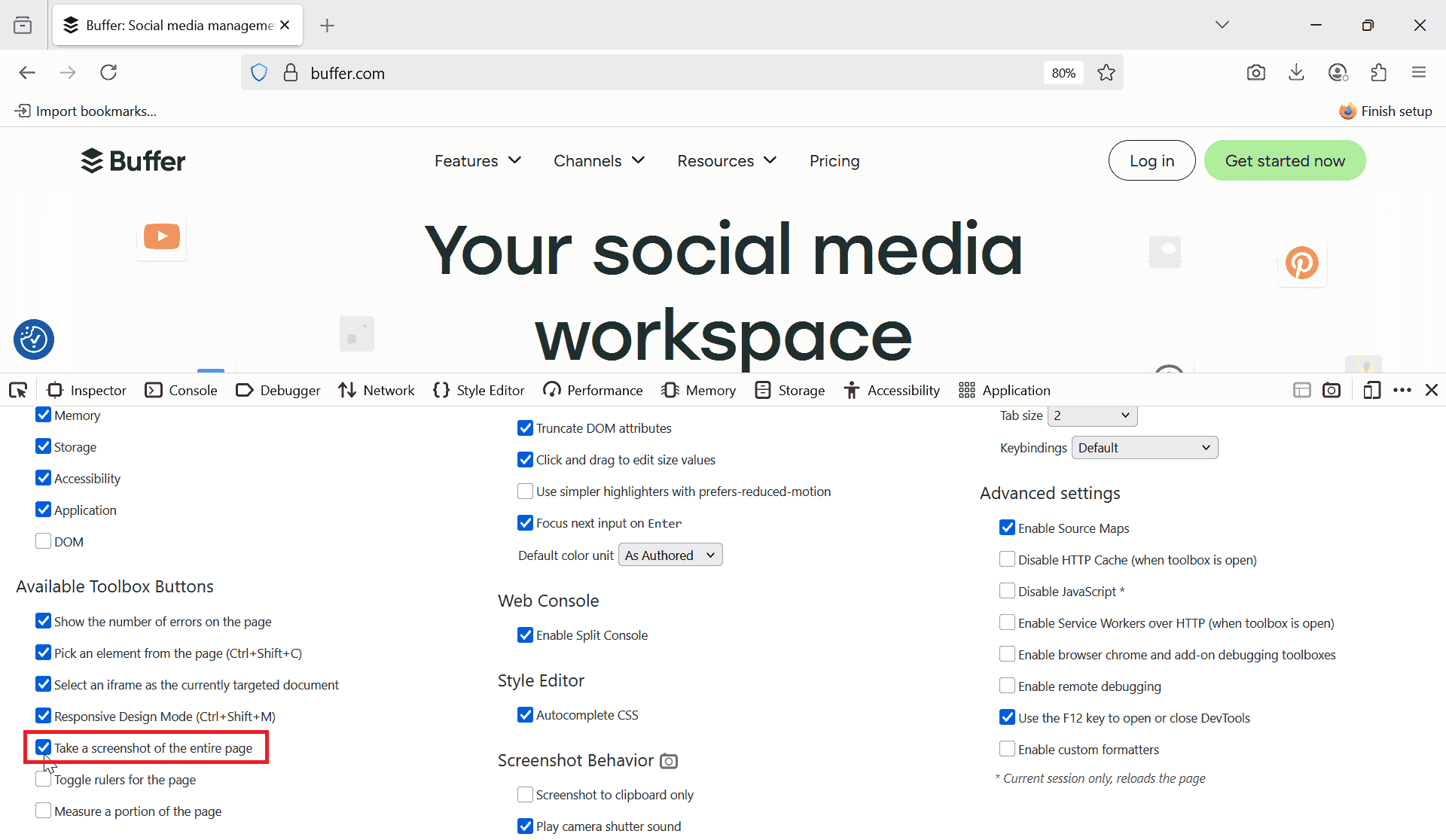
- In the Settings page, scroll to Available Toolbox Buttons and check the option Take a screenshot of the entire page.
- After enabling, you’ll see a camera icon appear in the DevTools toolbar and click the camera icon to capture a screenshot of the entire page.
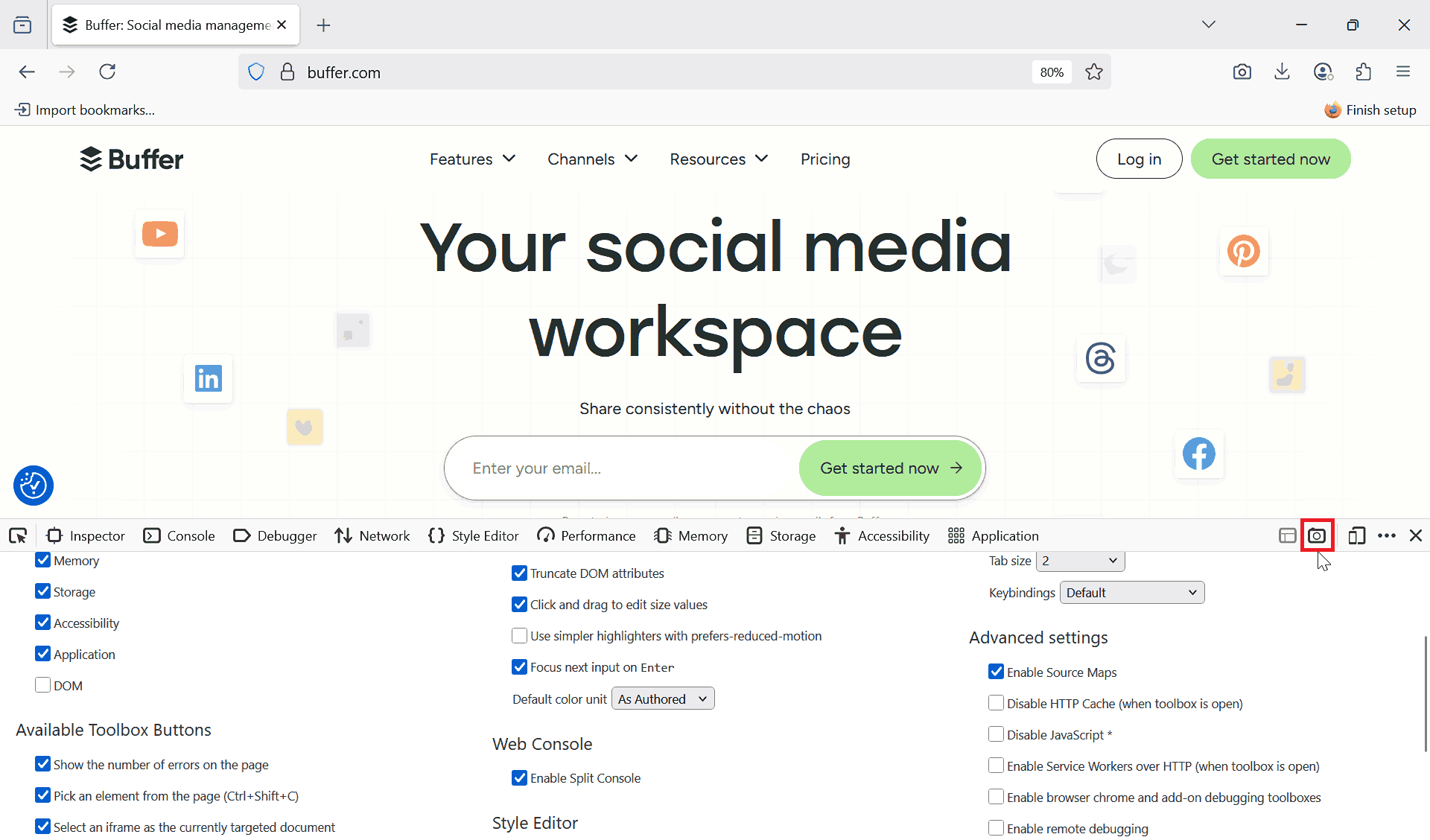
Pro-tip: If you’re debugging CSS or verifying layout alignment, you can use Screenshot Node to grab just one component. This keeps your screenshots focused and avoids extra noise.
Method 3: Automate Screenshots With Selenium and FirefoxDriver
Manual screenshots are fine when you’re exploring. But once you’re running regression tests, you need automation.
With automation testing tools like Selenium, you can tell Firefox to take screenshots at any step. Check out this blog to get started with capturing screenshots in Selenium.
Here’s an example:
from selenium import webdriver

driver = webdriver.Firefox()
driver.get("https://example.com")

# Capture screenshot
driver.save_screenshot("homepage.png")

driver.quit()
How this helps you:
- You can capture screenshots after key actions in your test flow (like after logging in or submitting a form).
- You can save a screenshot whenever a test fails, so debugging is easier.
- You can create baseline images for visual regression testing.
Method 4: Capture Firefox Screenshots in Headless Mode
When your tests run on a server or inside a pipeline, there’s usually no GUI. Firefox can run in headless mode and still capture screenshots.
Here’s how you set it up:
from selenium import webdriver
from selenium.webdriver.firefox.options import Options

options = Options()
options.add_argument("-headless")  # Run Firefox without UI
driver = webdriver.Firefox(options=options)

driver.get("https://example.com")
driver.save_screenshot("ci_result.png")

driver.quit()
You can attach screenshots to your CI test reports. If a test fails on the server, you can download the screenshot and see exactly what Firefox rendered at that moment.
Method 5: Capture Firefox Screenshot With TestMu AI
If you need more than basic screenshots, cloud-based testing platforms like TestMu AI give you a powerful way to scale. Instead of taking screenshots only on your local machine, you can instantly capture on an online browser farm of multiple Firefox versions and different operating systems, such as Windows and macOS.
Features:
- Cross Browser Testing: Ensure your website looks and works consistently across different browsers, versions, real devices, and operating systems.
- Automated Screenshot Testing: Capture full-page screenshots in Firefox at once across various environments without manual effort.
- Automation Testing: Run automated tests on the cloud using tools like Selenium, Cypress, Playwright, Appium, and more.
- Screenshot Comparison Tool: Compare new screenshots with baselines to detect unintended UI changes.
- Responsive Testing: Check with LT Browser how your web app adapts to different screen sizes and resolutions.
To capture screenshots of a desktop website in real-time with TestMu AI, here are the steps:
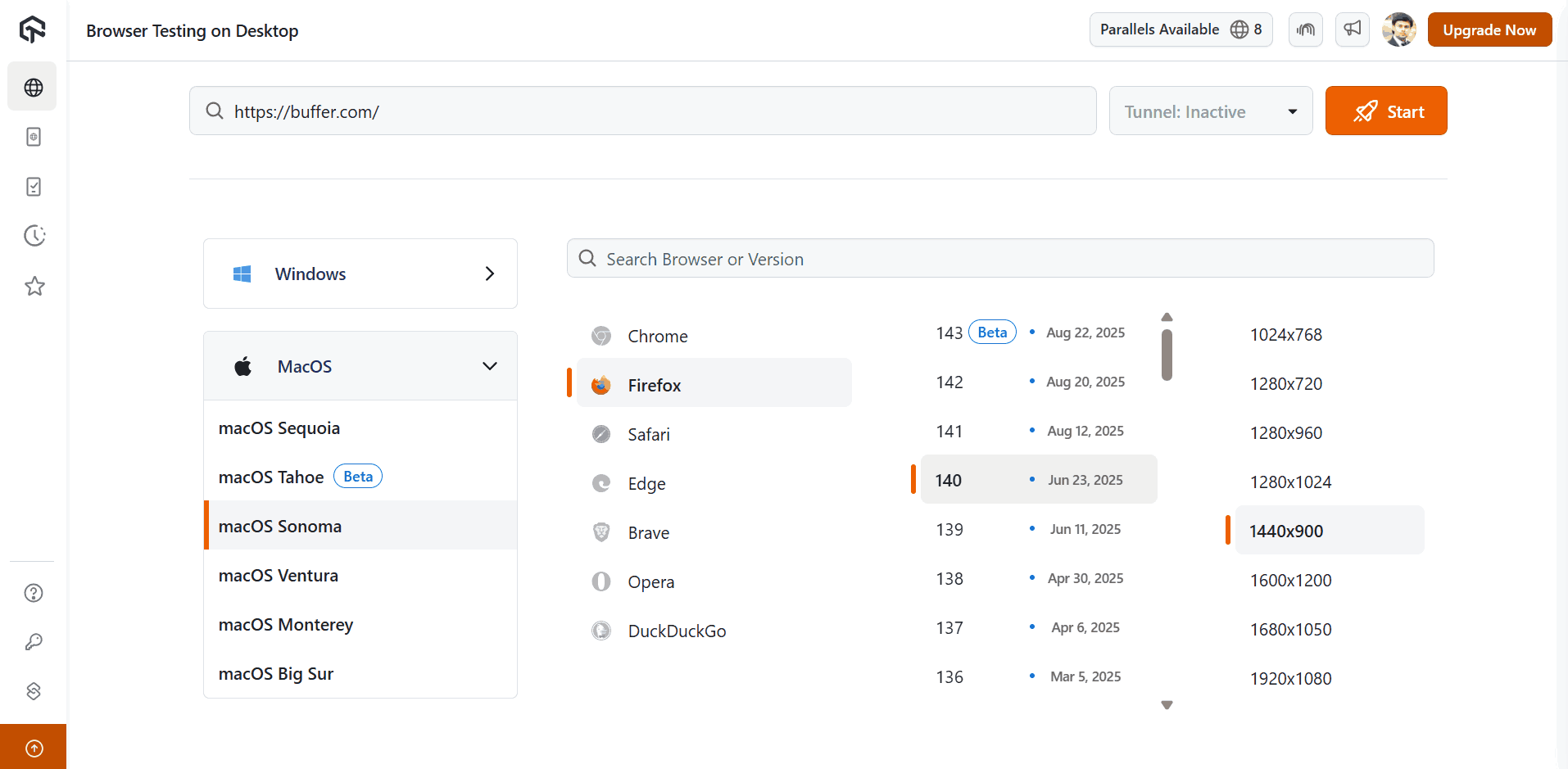
- Go to Real Time > Browser Testing.
- Enter your website URL, pick the OS (Windows or macOS), then select Firefox along with the version and screen resolution you want. Finally, hit Start.
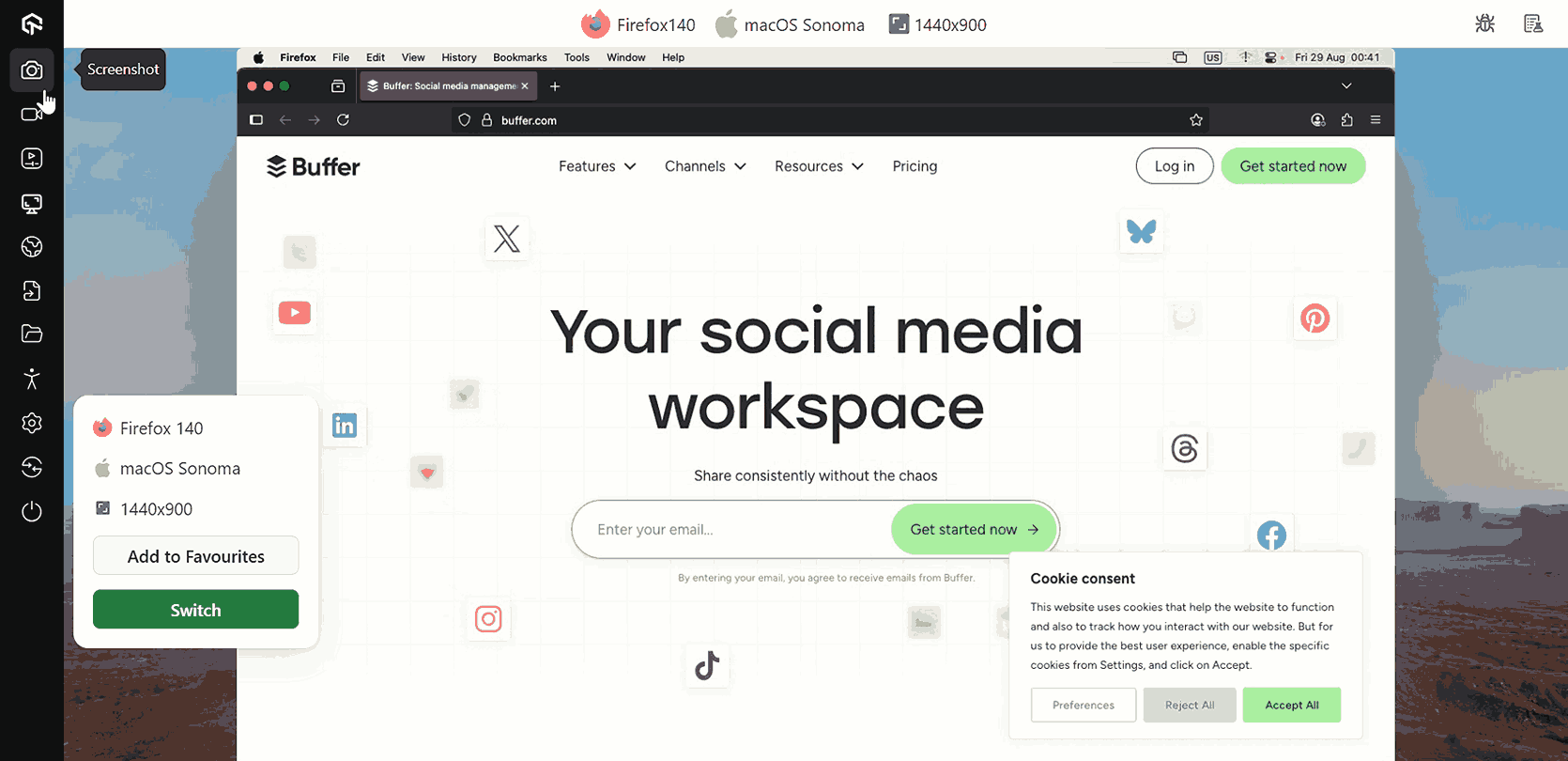
- Once the Firefox session loads on your chosen OS and resolution, you’ll see the website running in real time. From here, you can interact with the page exactly as you would on a local machine.
After launching the browser session, simply hit the Screenshot icon from the left panel to capture and store the Firefox view on your local machine.
For more information, you can check out this guide on desktop browser testing with TestMu AI.

Best Practices for Capturing Firefox Screenshots
To make screenshots truly useful in your testing workflow, follow these practices:
- Be Consistent With Naming: Use descriptive names like checkout_page_firefox.png instead of random names.
- Organize By Test Case: Save screenshots in folders that match your test suite.
- Don’t Overload Your Pipeline: Capture screenshots at important checkpoints, not after every single action.
- Attach to Bug Reports: Always include relevant screenshots when filing bugs. It reduces back-and-forth with developers.
- Keep Baselines Under Version Control: If you’re doing visual regression, only commit baseline screenshots, not every run.
Can AI Vision Models Review Firefox Screenshots for Regressions?
Yes. A vision-capable model such as Claude or GPT-4o can read a full-page Firefox screenshot directly and describe what changed, without needing an exact pixel-diff baseline first. This works alongside the pixel-diff tools most regression suites already use.
- Semantic comparison: Instead of comparing pixels, a vision model looks at the rendered page and judges whether a change is meaningful, so it can ignore anti-aliasing or font-rendering noise that would otherwise trigger a false pixel-diff alert.
- Natural-language defect reports: You can prompt the model with a question such as whether the checkout button still aligns with the price label, and it answers directly from the screenshot instead of you writing a separate assertion for every element.
- Limited pixel precision: A vision model judges layout and content, but it does not reliably catch a one-pixel border shift or an exact color-value change the way a traditional pixel-diff tool does, so keep pixel comparison for precision-critical UI work.
- Cost and speed: Each screenshot review is a separate model call, so running it on every step of a large Firefox regression suite is slower and costlier than a local pixel-diff check, and it works best as a targeted review on flagged failures.
Conclusion
Capturing screenshots in Firefox is an essential part of modern browser testing. Whether you rely on the built-in tool for quick manual checks, use Developer Tools for targeted captures, or automate the process with Selenium and headless mode, each method has its place in a tester’s toolkit.
For teams that need scalability and cross-environment coverage, cloud platforms like TestMu AI provide even more flexibility. The key is to integrate screenshots strategically; you can use them to document bugs, validate fixes, compare environments, and strengthen your regression testing workflow.
Citations
- Take Screenshots in Firefox: https://support.mozilla.org/en-US/kb/take-screenshots-firefox
Author

Salman Khan
Blogs: 138


Salman is a Test Automation Evangelist and Community Contributor at TestMu AI, with over 6 years of hands-on experience in software testing and automation. He has completed his Master of Technology in Computer Science and Engineering, demonstrating strong technical expertise in software development, testing, AI agents and LLMs. He is certified in KaneAI, Automation Testing, Selenium, Cypress, Playwright, and Appium, with deep experience in CI/CD pipelines, cross-browser testing, AI in testing, and mobile automation. Salman works closely with engineering teams to convert complex testing concepts into actionable, developer-first content. Salman has authored 120+ technical tutorials, guides, and documentation on test automation, web development, and related domains, making him a strong voice in the QA and testing community.
Reviewer

Shubham Soni
Reviewer
Shubham Soni is a Senior Member of Technical Staff at TestMu AI (formerly LambdaTest), building the Real Device Cloud and real-time testing infrastructure. He optimized the WebRTC services that power live testing to sub-100ms latency with adaptive bitrate streaming, led a frontend migration from Angular to React that cut page load time from 5-6 seconds to 1-1.5 seconds, and contributes to the official Device SDK. He led a team of four to build an accessibility testing product covering manual and automated testing and mentored a team of six on a real-time testing product. He brings over eight years of experience and earlier scaled a cloud code platform to 200K+ monthly users. Shubham holds a B.Tech in Computer Science.


Firefox Screenshots FAQs
Did you find this page helpful?
More Related Blogs
TestMu AI forEnterprise
Get access to solutions built on Enterprise
grade security, privacy, & compliance
- Advanced access controls
- Advanced data retention rules
- Advanced Local Testing
- Premium Support options
- Early access to beta features
- Private Slack Channel
- Unlimited Manual Accessibility DevTools Tests