

Power Your Software Testing with AI Agents and Cloud
The Native AI-Agentic Cloud Platform to Supercharge Quality Engineering. Test Intelligently and Ship Faster.


- TestMu AI (Formerly LambdaTest)
- /
- Blog
- /
- Confirmation Testing: Verify a Fix Across Browsers
Confirmation Testing: Verify a Fix Across Browsers
What confirmation testing is, how it differs from regression testing, and how to verify a bug fix across every browser in real time before you close the ticket.
Last Updated on:
A developer fixes the bug you reported, marks the ticket "fixed," and moves on. You reopen the page in Chrome, the button works, so you close the ticket. Two days later the same bug is back, this time from a customer on Safari.
The fix was real. It just never left Chrome. No one confirmed it held up in Safari, Edge, or Firefox, so the bug quietly stayed live for those users.
That gap is what confirmation testing closes, and doing it across browsers is what keeps a "fixed" ticket from coming back.
Overview
To verify a bug fix across browsers, perform confirmation testing by re-running the exact failing test on every affected browser. Use cross-browser testing on TestMu AI to instantly access different operating systems and browsers from a single dropdown to ensure the fix works everywhere.
- TestMu AI: TestMu AI provides real-time access to various browsers and operating systems from a dropdown menu, allowing testers to repeat reproduction steps and confirm fixes without local hardware setup.
- Confirmation testing: Confirmation testing re-runs the exact steps that first exposed a bug to ensure the specific defect is completely gone before closing the ticket.
- Regression testing: Regression testing runs a wider testing suite after confirmation testing passes to ensure that the developer's bug fix did not break any adjacent features or existing flows.
- Cross-browser confirmation: Cross-browser confirmation requires verifying a fix on every browser the bug originally touched, preventing Chrome-only fixes from failing for Safari, Firefox, or Edge users.
- Post-fix verification: Post-fix verification must occur after a developer marks a bug as fixed but before the ticket is closed, ensuring the ticket is reopened if the defect still reproduces.
What Is Confirmation Testing?
Confirmation testing is re-running the exact test that first exposed a bug, after a developer says it is fixed, to confirm the defect is actually gone. It is also known as retesting.
The tester takes the fixed build, repeats the original steps in the same conditions, and watches for the same failure. If the flow now works, the fix is accepted and the ticket can close. If it still fails, the ticket goes back to the developer.
It is deliberately narrow. Confirmation testing is not exploring for new bugs or running the whole suite, it is answering one question: is this specific defect fixed?
That places it on the verification side of the broader verification and validation discipline: it proves one known fix behaves as expected rather than judging whether the whole feature meets user needs.
How Is Confirmation Testing Different From Regression Testing?
These two run back to back but answer different questions. Confirmation testing asks "is this bug fixed?"; regression testing asks "did the fix break anything else?" You can read a fuller breakdown of the difference between retesting and regression testing, but the short version is below.
| Aspect | Confirmation testing (retesting) | Regression testing |
|---|---|---|
| Question it answers | Is this specific bug fixed? | Did the fix break anything else? |
| Scope | Narrow, the one failing case | Wide, existing tests around the change |
| Test data | The exact steps from the bug report | Broader suites and related flows |
| When | First, right after the fix | After confirmation passes |

Note: Re-test a fix across Chrome, Safari, Edge, and Firefox in one live session, and close the ticket only when it passes everywhere. Start testing free with TestMu AI
Why a Fix Must Be Confirmed on Every Browser
Most fixes are written and checked in a single browser, usually Chrome on the developer's machine. But browsers do not render or run code the same way, so a fix that clears in Chrome can still fail in Safari or an older Edge.
That is the trap behind reopened tickets: the bug really was fixed, just not everywhere. If the original defect showed up on more than one browser, confirmation has to repeat on each of them, not only the one the developer used.
It is the same cross-browser discipline that catches a fund-transfer step passing in Chrome but failing in Safari, exactly the kind of defect you confirm when you test a banking application across browsers.
How to Confirm a Fix Across Browsers in Real Time
Real-time testing is the natural home for confirmation, because you repeat the failing steps by hand and see the result immediately, in the exact browser the bug lived in. TestMu AI's live testing gives instant access to that browser and operating system without any local setup.
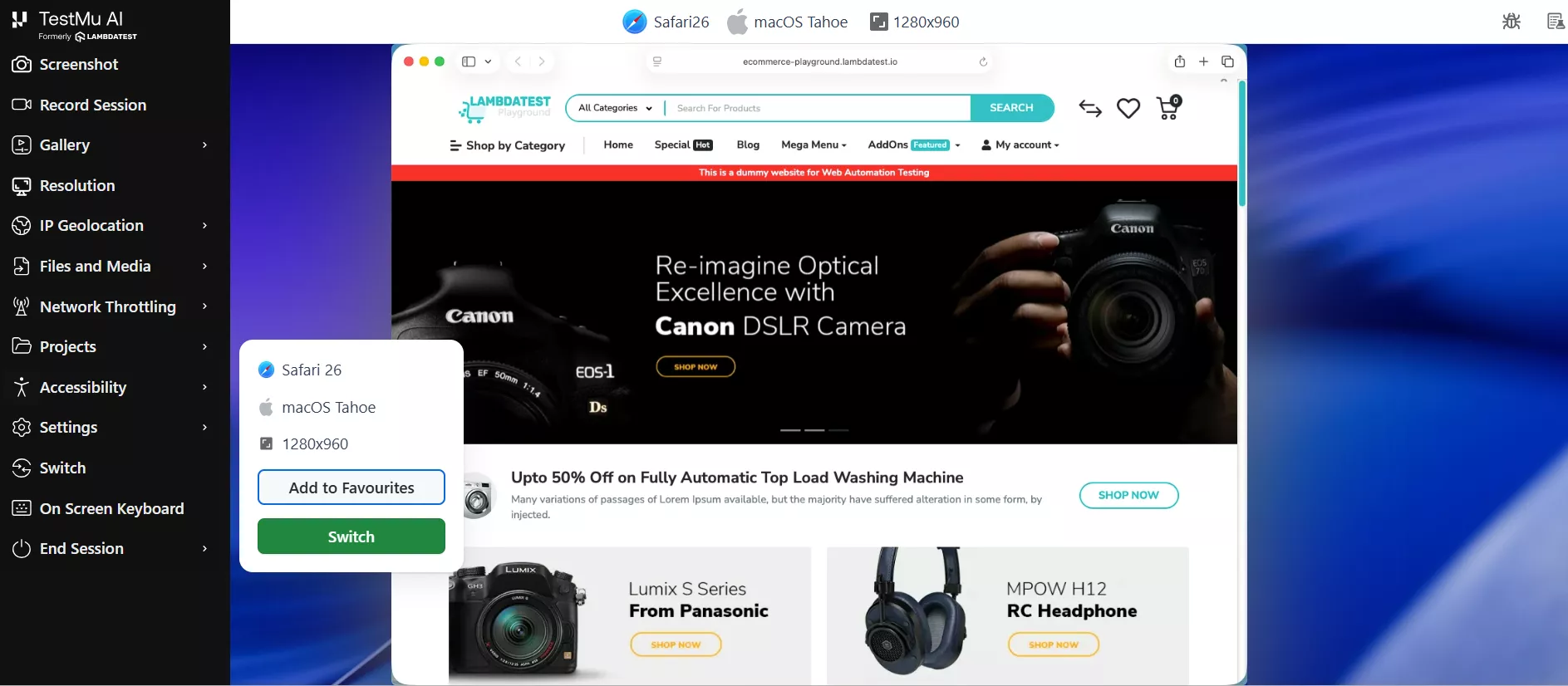
A repeatable confirmation pass looks like this:
- Pull the fixed build and the original report. You need the exact steps, environment, and expected result the tester first logged.
- Launch the browser the bug was reported in. Start a live session on that exact browser, version, and OS, so you confirm in the environment that failed.
- Repeat the steps precisely. Walk the original reproduction path and check the defect no longer appears, using DevTools if you need to confirm the underlying cause is gone.
- Repeat on every affected browser. Switch to the other browsers the bug touched from the same interface, since a fix can hold in one engine and fail in another.
- Record the result on the ticket. Attach a screenshot or recording per browser, then close the ticket only when it passes on all of them, or reopen it with evidence if it does not.

Before-You-Close Checklist
Run this before marking any bug ticket closed. It pairs well with a broader cross-browser testing checklist before going live.
- The exact steps from the original bug report were repeated, not a rough approximation.
- The defect is gone in the browser and OS it was first reported in.
- The fix was confirmed on every other browser the bug appeared on.
- Evidence, a screenshot or recording per browser, is attached to the ticket.
- A quick regression check confirms the fix did not break an adjacent flow.
- If the defect still reproduces anywhere, the ticket is reopened, not closed.
Best Practices for Confirmation Testing
The difference between confirmation that protects you and confirmation that just ticks a box comes down to a few habits.
- Confirm in the reported environment, not yours. Use the browser, version, and OS from the bug report, since that is where the defect actually lived.
- Treat every affected browser as a separate check. One fix, verified per engine, because passing in Chrome says nothing about Safari.
- Keep the original repro steps with the ticket. Confirmation is only reliable if you repeat the same path that failed the first time.
- Follow confirmation with regression. Once the bug is gone, run regression testing to make sure the fix did not quietly break something next to it.
- Attach evidence per browser. A recording or screenshot on the ticket makes the close auditable and stops the bug reopening as a mystery.
For the full session flow, see the docs on desktop browser real-time testing, then make confirmation across browsers a standard gate before any ticket closes.
Make Confirmation Testing a Habit
Confirmation testing is one of the cheapest steps in the bug lifecycle and one of the easiest to skip. Re-running the reported steps on the browsers that failed takes minutes, while shipping an unverified fix costs support time, a reopened ticket, and another developer handoff.
The teams that stay out of that churn treat verification as part of finishing a fix, not a separate favor to QA. Build that habit, and a closed ticket means the same thing to developers, testers, and the users who never hit the bug a second time.

Author

Naima Nasrullah
Blogs: 17

Naima Nasrullah is a Community Contributor at TestMu AI, holding certifications in Appium, Kane AI, Playwright, Cypress and Automation Testing. She writes practical, hands-on content that helps QA engineers and developers build reliable test automation frameworks across web and mobile platforms. Drawing on her expertise in automation testing, Naima breaks down complex tools and workflows into clear, actionable guidance that readers can apply directly to their own projects and testing pipelines.


Confirmation Testing FAQs
Did you find this page helpful?
More Related Blogs
TestMu AI forEnterprise
Get access to solutions built on Enterprise
grade security, privacy, & compliance
- Advanced access controls
- Advanced data retention rules
- Advanced Local Testing
- Premium Support options
- Early access to beta features
- Private Slack Channel
- Unlimited Manual Accessibility DevTools Tests