

Power Your Software Testing with AI Agents and Cloud
The Native AI-Agentic Cloud Platform to Supercharge Quality Engineering. Test Intelligently and Ship Faster.


- TestMu AI (Formerly LambdaTest)
- /
- Blog
- /
- Cross Browser Testing Checklist Before Going Live
Cross Browser Testing Checklist Before Going Live
Run this cross browser testing checklist before launch. It covers layout, SSL, fonts, media, APIs, forms, dark mode, and cookies across browsers and devices.
Last Updated on:
A cross browser testing checklist before going live verifies element alignment, SSL certificates, font rendering, media fallbacks, API availability, and HTML and CSS validation across browsers. Chrome verifies certificates against its own Chrome Root Store rather than the operating system store, and Firefox and Safari block third-party cookies by default, so every browser in your cross browser testing strategy needs its own pass. This guide covers the requirements for using the checklist, the full list of cross browser tests to run before going live, and how AI browser agents change this pre-launch checklist.
Key Takeaways
- A cross browser testing checklist run before going live covers element alignment, SSL certificate support, font rendering, media compatibility, API connectivity, and HTML and CSS validation.
- Choosing the browser, operating system, and device list comes before the checklist itself, because a cross browser testing strategy decides which combinations need coverage.
- Web platform features that Baseline marks newly available need a manual pass in each browser, because part of real traffic still runs older browser builds.
- Opera Mini does not support the WebSocket API, and getUserMedia() throws a TypeError on a page served over plain HTTP, so API checks belong on the staging URL that will actually ship.
- Dark mode rendering, reduced motion settings, and login flows belong on a modern pre-launch checklist, because Firefox and Safari block third-party cookies by default while Chrome does not.
- AI browser agents can drive the repetitive checklist steps across Chrome, Firefox, WebKit, and Edge, but they cannot judge font rendering or layout shifts, so font and layout checks stay manual.
Handy Requirements For Using The Cross Browser Testing Checklist
Before going on for the checklist you need to make sure that you know how to perform cross browser testing.
- If you are going to perform cross browser testing, decide which browsers and devices to test on using these 5 tips on choosing the right browser list for cross browser testing. So, formulate a proper cross browser testing strategy.
- When done with cross browser testing strategy, make sure you test your locally hosted website or dev site on cross browser testing tool like TestMu AI before going live. The platform has a feature called TestMu AI Tunnel that give you flexibility to connect your locally hosted websites or web apps to test on cloud for cross browser testing using SSH tunnel feature. Cross browser compatibility and cross browser accessibility effects your website's SEO as well therefore it's always important to get thoroughly tested and perfectly compatible site indexed on search engines.
- Keep mobile devices handy, or you can also set up emulators or simulators. If you want avoid that too, use a platform that can provide you all the devices handy. TestMu AI also provides you a wide range of iOS and Android mobile devices to test upon.
Check the Baseline status of every web platform feature your pages depend on before you start the checklist. Baseline marks a feature newly available once it ships in Chrome, Edge, Firefox, and Safari, and widely available once 30 months have passed since that date. Features that are still only newly available are the ones that need a manual pass in each browser, because part of your traffic will be on older browser builds.
Once done with the prerequisites, the immediate step is to go through the checklist.
Key Takeaway: Before working through a cross browser testing checklist, decide the browser, OS, and device list, arrange mobile devices or emulators, and check the Baseline status of each web platform feature, because features marked newly available still need a manual pass in every browser.

The Ultimate Checklist For Cross Browser Tests Before Going Live
The checklist contains various elements that need to be tested before going live in your local environment.
Alignment of Elements in All Browsers
Make sure that the elements are in the correct place that you intend them to be in.
Verification of SSL in Various Browsers
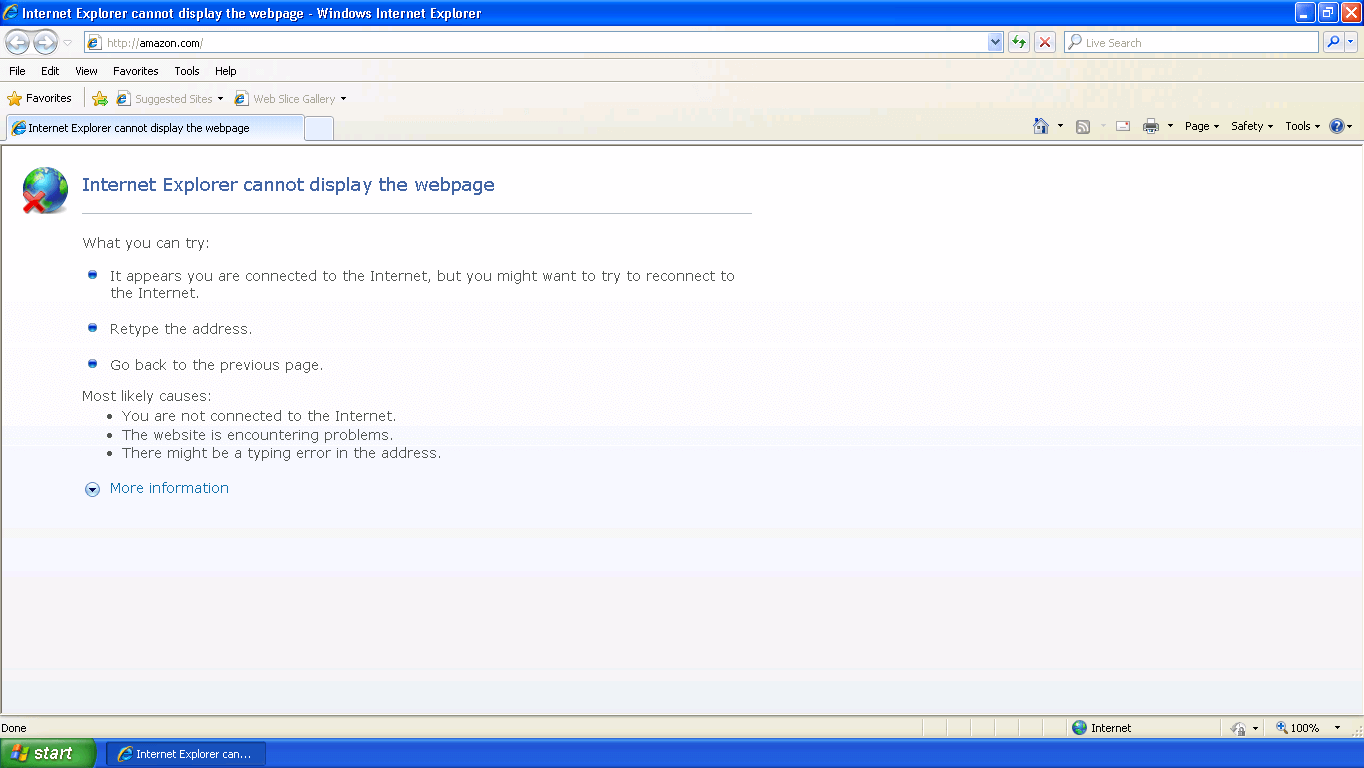
If you have faced this error, one of the reasons can be that your website's SSL certificate doesn't support some of the browser versions. If your user try to access your website those browser versions, then they might not be able to access it at all. So, check your website's SSL certificates in all browsers before going live.
The browser in that screenshot is retired. The Internet Explorer 11 desktop application ended support on June 15, 2022, and Microsoft carries legacy sites forward only through Internet Explorer mode in Edge, supported through at least 2029. The certificate row still belongs on the checklist because browsers no longer share one trust decision. Chrome verifies certificates against its own Chrome Root Store rather than the operating system store, rolled out on Windows and macOS in Chrome 105, so trust can differ between two browsers on the same machine. Load the staging URL over HTTPS in every browser on your list and confirm no certificate interstitial appears.
Rendering of Font in Different Browsers
Who don't love beautiful fonts on their website, however they can cause blunders if they don't render properly. Rendering of fonts is highly affected by the browser in which your site is being browsed. So, you need to make sure that your fonts render the same in every web browser.
Read more on Fonts and Browser Compatibility
Compatibility of Media Elements with Diverse Browsers
Videos are the most loved form of media nowadays. Web designers and developers have been taking advantage of the fact and you can easily find either a demo video or some tutorial video running on the homepage of a website. But browser compatibility can cause you trouble if you some use unsupported media elements and that's not restricted just to videos, but to images as well. So before going live make sure that you use those elements that are supported in all browsers or you have a fallback for unsupported elements so that your users don't face this!
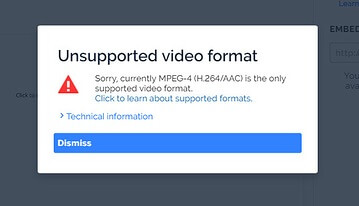
Understand incompatible multimedia formats and their browser fallbacks in detail in our blog.
Are Your APIs Connected in All Browsers?
API calls are also dependent upon browsers. Some browsers acknowledges API requests while others might avoid this or throw you an error. Before going live, always be sure that the APIs that you're using are connected in every browser. Because there are some browsers like Opera Mini that don't support APIs like Websocket.
Some API calls also carry conditions beyond browser support. getUserMedia() runs only in a secure context, so navigator.mediaDevices is undefined and the call throws a TypeError on any page served over plain HTTP. Confirm that your APIs are browser compatible before going live, and confirm it on the staging URL you will actually ship.
Make Sure You Validate Your CSS And HTML
Unclosed tags and invalid CSS break layout in some browsers and leave raw markup on screen in others. So, it's mandatory to make sure that the code is clean and properly validated. You can easily validate your HTML, JS, and CSS before going live on tools like W3C Markup validation service, Free Formatter or JS Formatter, W3C CSS Validation Service - W3 Jigsaw or CSS Validation Service.
Browser Compatibility issues can be found to a greater extent using these tools and you can further proceed with solving them.
Read more on Finding Cross Browser Compatibility Issues in HTML and CSS

Austin Siewert
Co-Founder, Steadfast Systems
Discovered @TestMu AI yesterday. Best browser testing tool I've found for my use case. Great pricing model for the limited testing I do 👏
2M+ Devs and QAs rely on TestMu AI
Deliver immersive digital experiences with Next-Generation Mobile Apps and Cross Browser Testing Cloud

After checking out all the major compatibility issues, you need to perform a round of cross browser testing in general taking of minor but important factors like:
- Alignment of elements: Are all the elements aligned the way you want them to.
- Pop Ups: Check if the pop ups are being displayed properly and are opening in all browsers.
- Alignment of checkboxes: Checkboxes can cause problems in many browsers. Make sure that your checkboxes are aligned and in proper working condition.
- Alignment and functioning of Buttons: Buttons hold a major part when it comes to CTAs or any other action so you need to be sure that they are aligned and properly working across diverse browsers.
- URLs redirection from buttons: Check the links to which the buttons are redirecting.
- Drop down Menus: Verify that the drop downs work as expected across all browsers.
- Forms and Form APIs: Make sure that the forms take in data and the data is transferred to the collecting API endpoint intact.
- Grids/Tables: Check the alignment and location of tables and grids if any across every browser.
- Sessions and cookies: If your website uses cookies, verify that the prompt is there and it works accordingly.
- Dates: Test if the date formats as decided in every browser.
- Zoom in and Zoom out functionality: Check if the zoom in and zoom out functionality works properly and doesn't break the UI when in action.
- Appearance of scroll: Check if the scroll is present on both horizontal and vertical bars and is functional.
- Media fallbacks: Flash is no longer supported by any browser, so confirm that the video, audio, and interactive content that replaced it renders in every browser on your list.
- HTML animations: Verify if your animations load across all browsers.
- Mouse hovering: Check if the mouse adjusts to the button, text box, link, and white space accordingly.
- Image alignment: Make sure that all the images are aligned and in place across different browsers.
- Alt tags: Alt-tags are again important and we need to be sure that they are in place.
- Console errors: Open the developer console in each browser and confirm the page loads with no JavaScript errors, because a script that throws in one engine can stop the rest of the page from running there.
And everything else that you can think of in every possible browser, OS, and device combination.
Three checks that this list predates now belong in every pre-launch pass. Load each page with the operating system set to dark mode and confirm your prefers-color-scheme styles keep text readable. Switch on the reduced motion setting and confirm prefers-reduced-motion stops animation without hiding content. Test login and session flows in Firefox and Safari on their own, because both block third-party cookies by default and Chrome does not.
As we can see here, there are various things to be tested in a local environment across thousands of combinations for making sure it doesn't hinder the experience of the users once the website is made live. So, we need to make sure that we test on all possible combinations to avoid further surprises. Since, many of the following tests are repetitive and time consuming, so we can make use of an online Selenium grid for automating cross browser tests. With such automation, you can avoid repetitive and time consuming tasks and automate them using a simple script.
TestMu AI also provides you an online selenium grid on which you can automate your tests on both public and local servers and test on TestMu AI cloud grid of more than 3000+ devices, browsers, browser versions, and resolution combinations. Hence, you need to make sure that you find the best cross browser testing tool and then you can perform tests on your checklist, some manually while others using automation.
Key Takeaway: The pre-launch cross browser checklist covers element alignment, SSL certificate support, font rendering, media fallbacks, API availability, and HTML and CSS validation, then adds dark mode, reduced motion, and third-party cookie checks across every browser, OS, and device combination.
How Do AI Browser Agents Change This Pre-Launch Checklist?
AI browser agents now run and repair the scripted half of this checklist, but they do not replace the browser matrix. Playwright MCP is a Model Context Protocol server that gives a language model browser automation, and it drives the page through Playwright's accessibility tree rather than pixel based input. Its browser option accepts chrome, firefox, webkit, and msedge, so one agent session can be pointed at all three rendering engines this checklist cares about. Google ships a Chrome equivalent. chrome-devtools-mcp lets a coding agent control and inspect a live Chrome browser, record a performance trace, and read network requests and console messages. Its own documentation limits official support to Google Chrome and Chrome for Testing, so it covers one engine, not the matrix.
Playwright also ships named agents for the test writing work. Playwright Agents are three roles. The planner explores your app and produces a test plan for one or many scenarios. The generator turns that plan into executable Playwright tests. The healer replays the failing steps and inspects the current UI to locate equivalent elements or flows. You install them with npx playwright init-agents --loop=[vscode|claude|codex|opencode], and the docs tell you to regenerate the definitions whenever Playwright is updated. That covers the repetitive rows in the list above, the form submissions, the button redirects, and the drop down menus.
Two limits still apply. An agent that reads the accessibility tree only sees controls that expose an accessible name and role, so a button built from an unlabeled div is invisible to the agent and to a screen reader alike. An agent also cannot judge whether a font looks wrong or a layout has shifted by a few pixels. Keep the font, media, and SSL checks above as a human pass on real browsers.
Key Takeaway: AI browser agents such as Playwright MCP can run and repair the repetitive checklist steps across Chrome, Firefox, WebKit, and Edge, but they cannot see an unlabeled control or judge font rendering, so font, media, and SSL checks stay a human pass on real browsers.
Once you're done with testing this cross browser testing checklist, you're all set to go live and hit the green button. I hope you might not face the situation like my friend because you're smart enough not to repeat the same mistake.
Let us know if I missed something that should be included in the checklist in the comments section below! Till then, Happy Testing and all the best for the launch!

Author

Deeksha Agarwal
Blogs: 34


Deeksha is a Senior Product Manager at The Economic Times and a Community Evangelist with 8+ years of experience. She is followed by 6,000+ QA professionals, software testers, tech leaders, and enthusiasts across global communities. Deeksha has authored 40+ expert bios for TestMu AI, focusing on cross-browser testing, mobile app testing, regression testing, usability testing, and automation. Previously at TestMu AI, she drove product growth in native app testing and responsive browser features, combining product leadership with deep QA expertise.


Cross Browser Testing Checklist FAQs
Did you find this page helpful?
More Related Blogs
TestMu AI forEnterprise
Get access to solutions built on Enterprise
grade security, privacy, & compliance
- Advanced access controls
- Advanced data retention rules
- Advanced Local Testing
- Premium Support options
- Early access to beta features
- Private Slack Channel
- Unlimited Manual Accessibility DevTools Tests