Upload PDFs via CLI
Prerequisites for Using SmartUI
- Familiarity with command-line tools is essential.
- Visit the
TestMu AI SmartUIpage and log in with your credentials. - Obtain your
LT_USERNAMEandLT_ACCESS_KEYby clicking on theAccess Keybutton, located at the top right corner of your dashboard.
Step 1: Establishing a SmartUI Project
To initiate a SmartUI PDF Comparison Project, adhere to the following instructions:
- Navigate to the SmartUI Projects Page.
- Tap on the
new projectbutton. - Specify your platform type as
PDF. - Provide your
projectname, designateapprovers, and addtags(optional). - Confirm your entry by clicking on Submit.
Once your project is active, retrieve your Project Token from the application. Here's an example of a project token:
projectToken = "123456#1234abcd-****-****-****-************"
Step 1: Install the SmartUI CLI
Install the CLI globally using npm:
Verifiednpm install -g @lambdatest/smartui-cli
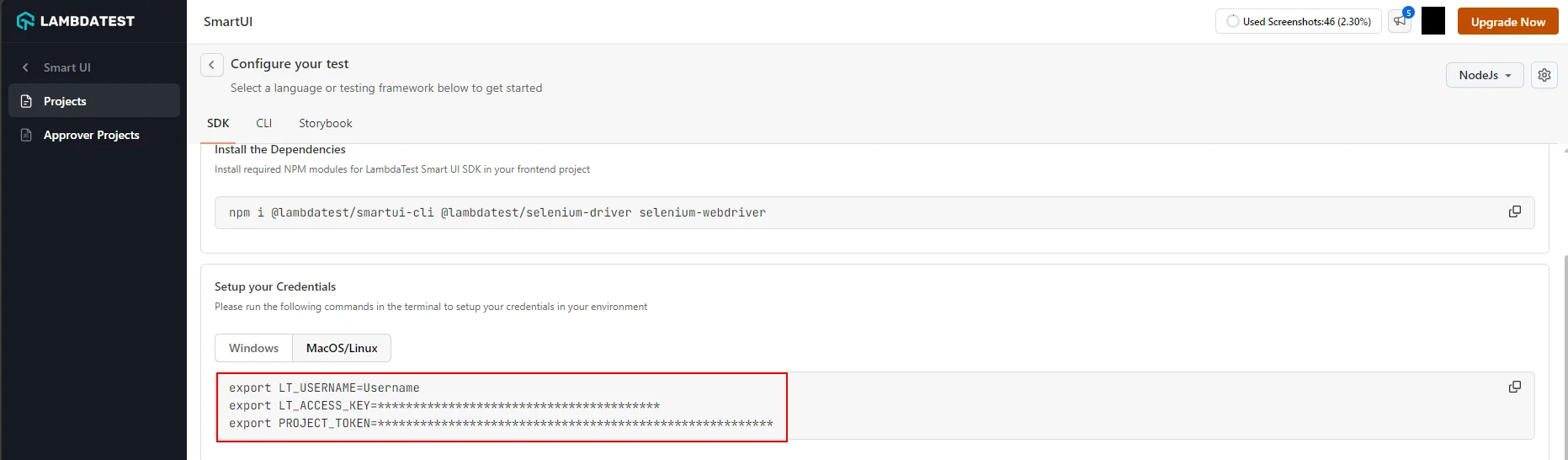
Step 2: Setup your credentials
Verified- MacOS/Linux
- Windows - CMD
- PowerShell
export LT_USERNAME="${YOUR_LAMBDATEST_USERNAME}"
export LT_ACCESS_KEY="${YOUR_LAMBDATEST_ACCESS_KEY}"
export PROJECT_TOKEN="123456#1234abcd-****-****-****-************"
set LT_USERNAME="${YOUR_LAMBDATEST_USERNAME}"
set LT_ACCESS_KEY="${YOUR_LAMBDATEST_ACCESS_KEY}"
set PROJECT_TOKEN="123456#1234abcd-****-****-****-************"
$env:LT_USERNAME="${YOUR_LAMBDATEST_USERNAME}"
$env:LT_ACCESS_KEY="${YOUR_LAMBDATEST_ACCESS_KEY}"
$env:PROJECT_TOKEN="123456#1234abcd-****-****-****-************"
Step 3: Upload PDFs Using CLI
Use the upload-pdf command to upload one or multiple PDF files from a directory:
smartui upload-pdf <directory_or_filename> [options]
Arguments:
directory_or_filename: Path to a single PDF file or a directory containing multiple PDFs.
Options:
--fetch-results [filename]: Fetch test results after upload. Optionally specify an output file (e.g.,results.json).--buildName <string>: Assign a custom name to the build.--markBaseline: Mark this build as the baseline.--pdfNames <string>: Comma-separated list of PDF file names to upload.--config <filepath>: Path to a config file. Use it for per-PDF thresholds and project tags.--approvalThreshold <number>: Mismatch percentage (0 to 100) at or below which every PDF in this upload is auto-approved.--rejectionThreshold <number>: Mismatch percentage (0 to 100) at or above which every PDF in this upload is auto-rejected.--sync: Wait until the uploaded PDFs are compared and print the result for every page.
Example Usage:
Upload all PDFs from a folder and name the build:
Verifiedsmartui upload-pdf ./pdfs/ --buildName "Release-v2.1"
Upload a single PDF file:
Verifiedsmartui upload-pdf ./document.pdf --buildName "Single-PDF-Test"
Fetch results and save to a file:
Verifiedsmartui upload-pdf ./spec.pdf --fetch-results results.json
Upload with custom project token:
Verifiedsmartui upload-pdf ./pdfs/ --projectToken "123456#1234abcd-****-****-****-************" --buildName "Custom-Build"
Per-PDF Approval and Rejection Thresholds New
By default every PDF in a project uses the Accept and Reject percentages from the project's comparison settings. When some documents need a different tolerance from the rest, set the thresholds at upload time instead of splitting them into separate projects.
- Approval threshold: a page whose mismatch is at or below this percentage is auto-approved.
- Rejection threshold: a page whose mismatch is at or above this percentage is auto-rejected.
- Anything in between is marked Changes found and waits for an approver.
Per-PDF thresholds need SmartUI CLI 4.1.82 or later and work on both PDF projects and Omni projects.
Set one threshold for the whole upload
Pass the flags to apply the same values to every PDF in the command:
smartui upload-pdf ./pdfs/strict --buildName "release-42" --approvalThreshold 0 --rejectionThreshold 1
To use several tolerances in one build, run one command per folder and pass the same --buildName each time. All uploads land in a single build, so the build status still covers every document.
smartui upload-pdf ./pdfs/strict  --buildName "release-42" --approvalThreshold 0  --rejectionThreshold 1
smartui upload-pdf ./pdfs/review  --buildName "release-42" --approvalThreshold 1  --rejectionThreshold 20
smartui upload-pdf ./pdfs/lenient --buildName "release-42" --approvalThreshold 10 --rejectionThreshold 30
Set thresholds for individual PDFs
To mix tolerances inside one folder, list the PDFs in a pdf.thresholds block in a config file. Each key is a PDF file name, and each entry takes approval, rejection or both.
{
  "pdf": {
    "approvalThreshold": 1,
    "rejectionThreshold": 20,
    "thresholds": {
      "ifu-dosage-EN.pdf":   { "approval": 0,  "rejection": 1 },
      "brochure-hcp-EN.pdf": { "approval": 10, "rejection": 30 },
      "label-carton-EN.pdf": { "rejection": 5 }
    }
  }
}
smartui upload-pdf ./pdfs --config pdf-thresholds.json --buildName "release-42" --sync
The pdf block accepts only approvalThreshold, rejectionThreshold and thresholds. The top-level approvalThreshold and rejectionThreshold used for web screenshots are not applied to PDFs, so put PDF values inside the pdf block.
Which value applies
For each PDF, SmartUI resolves the approval and rejection values separately, highest priority first:
| Priority | Source |
|---|---|
| 1 | The PDF's entry in pdf.thresholds |
| 2 | --approvalThreshold / --rejectionThreshold on the command |
| 3 | pdf.approvalThreshold / pdf.rejectionThreshold in the config file |
| 4 | The project's comparison settings |
An entry that sets only one side takes the other side from the next level down. In the example above, label-carton-EN.pdf is rejected at 5% and approved at 1% from the pdf block, and any PDF not listed uses 1% and 20%.
A page with 0% mismatch is always approved. A rejection threshold of 0 means the page is never auto-rejected, so "approval": 5, "rejection": 0 approves up to 5% and sends everything above that to review.
Values can have decimals and the boundaries are inclusive. For a page with a 4.2049% mismatch, an approval threshold of 4.21 approves it, 4.2 does not, and a rejection threshold of 4.2 rejects it.
Validation
The CLI checks thresholds before anything is uploaded. When a check fails, it prints the reason, uploads nothing and creates no build.
| Problem | Message |
|---|---|
A key in pdf.thresholds matches no uploaded file | pdf.thresholds in the config file names PDFs that are not in this upload: typo-lable.pdf. Keys must match the uploaded file names (or --pdfNames) exactly. |
| Approval is higher than a non-zero rejection | thresholds[label-carton-EN.pdf]: approvalThreshold (6) cannot exceed rejectionThreshold (3) |
| A config file value outside 0 to 100, or not a number | Invalid config; pdf.thresholds.<name>.approval must be a number between 0 and 100 |
| A flag value that is not a number | approvalThreshold must be a number between 0 and 100, got "abc" |
Keys must match the file name exactly, including .pdf. If you rename documents with --pdfNames, use those names as the keys.
Things to know
- Thresholds are fixed at upload. Each PDF keeps the values it was uploaded with. They cannot be edited later from the dashboard, and changing the project's Accept and Reject settings does not change them. To apply new values, upload again.
- The viewer does not show the applied threshold. The Threshold value in the comparison viewer is the pixel comparison setting, not the approval or rejection percentage that decided the result.
- Use
--syncfor results on PDF projects.--syncreturns the status and mismatch for every page. On PDF (non-Omni) projects,--fetch-resultscurrently reportsTotal PDFs: 0even when pages were rejected, so do not use it to gate a pipeline there.
Advanced CLI Options
Batch Processing
Process multiple directories:
Verifiedsmartui upload-pdf ./documents/ --buildName "Batch-1"
smartui upload-pdf ./reports/ --buildName "Batch-2"
CI/CD Integration
Example for GitHub Actions:
Verified- name: Upload PDFs to SmartUI
run: |
smartui upload-pdf ./generated-pdfs/ --buildName "${{ github.sha }}" --fetch-results test-results.json
Use Cases
- CI/CD Pipelines: Integrate PDF testing into automated deployment workflows
- Batch Processing: Upload multiple PDFs efficiently from command line
- Automated Testing: Schedule PDF uploads as part of automated test suites
- Developer Workflows: Quick PDF testing during development and debugging
Best Practices
Verified- PDF File Management
- Project Token Management
- Build Naming
- Error Handling
- Batch Processing
PDF File Management
- Use consistent naming conventions for PDF files
- Organize PDFs in logical directory structures
- Verify PDF files are valid and not corrupted before upload
- Keep PDF files in version control when appropriate
Project Token Management
- Store project token as environment variable
- Never commit tokens to version control
- Use different tokens for different environments
- Rotate tokens regularly
Build Naming
- Use meaningful build names that include version info
- Include date or version in build names
- Use consistent naming conventions
Example:
smartui upload-pdf ./pdfs/ --buildName "Release-v1.0-$(date +%Y%m%d)"
Error Handling
- Always check CLI exit codes
- Handle network failures gracefully
- Implement retry logic for transient failures
- Log errors for debugging
Batch Processing
- Process PDFs in batches for efficiency
- Monitor upload progress
- Handle partial failures in batch operations
- Use appropriate batch sizes
Troubleshooting
Verified- PDF Upload Fails
- Project Not Found Error
- CLI Command Not Found
- Upload Returns Error
- PDFs Not Appearing in Dashboard
Issue: PDF Upload Fails
Symptoms: CLI command fails or returns error
Possible Causes:
- Invalid PDF file
- File path incorrect
- File size too large
- Network connectivity issues
- Project token incorrect
- CLI not installed
Solutions:
-
Verify PDF file is valid and not corrupted:
file document.pdf -
Check file path is correct:
ls -la ./pdfs/ -
Verify file size is within limits
-
Check network connectivity to TestMu AI servers
-
Verify PROJECT_TOKEN is set correctly:
echo $PROJECT_TOKEN -
Verify SmartUI CLI is installed:
smartui --version
Issue: Project Not Found" Error
Symptoms: Error message indicating project cannot be found
Possible Causes:
- Incorrect project token
- Project deleted or renamed
- Token from wrong project
Solutions:
- Verify project exists in SmartUI dashboard
- Copy project token directly from Project Settings
- Ensure token includes the project ID prefix (e.g.,
123456#...) - Check for extra spaces or quotes in token
Issue: CLI Command Not Found
Symptoms: smartui command not recognized
Possible Causes:
- CLI not installed
- npm not available
- PATH issues
Solutions:
-
Install SmartUI CLI:
npm install -g @lambdatest/smartui-cli -
Verify npm is available:
npm --version -
Check PATH includes npm global bin directory
Issue: Upload Returns Error
Symptoms: CLI returns error status or failure message
Possible Causes:
- Invalid command syntax
- Missing required parameters
- Authentication issues
- Server-side processing error
Solutions:
- Verify command syntax matches documentation
- Check all required parameters are included
- Verify authentication credentials
- Review error message for specific details
- Retry upload if transient error
Issue: PDFs Not Appearing in Dashboard
Symptoms: Uploads complete but PDFs don't appear in SmartUI dashboard
Possible Causes:
- Incorrect project token
- Project name mismatch
- Upload not completed
- Dashboard refresh needed
Solutions:
- Verify PROJECT_TOKEN is correct
- Check project name matches exactly (case-sensitive)
- Wait a few moments and refresh dashboard
- Check CLI output for errors
- Use
--fetch-resultsto verify upload status
Getting Help
If you encounter issues not covered here:
- Review the Comprehensive Troubleshooting Guide for detailed solutions
- Check PDF Comparison Overview for PDF-specific information
- See PDF API Upload for alternative upload methods
- Visit TestMu AI Support for additional resources
- Contact support at support@testmuai.com or use 24/7 Chat Support


 Chat with Us