

Power Your Software Testing with AI Agents and Cloud
The Native AI-Agentic Cloud Platform to Supercharge Quality Engineering. Test Intelligently and Ship Faster.


- TestMu AI (Formerly LambdaTest)
- /
- Blog
- /
- OCR in Test Automation: How to Verify Text Your DOM Can't Reach
OCR in Test Automation: How to Verify Text Your DOM Can't Reach
OCR in test automation verifies text your DOM cannot see, inside images, canvas, and PDFs. Learn when to use OCR and how to keep assertions reliable at scale.
Last Updated on:
Your checkout test is green. The invoice total on the screen is wrong, and nobody noticed, because the number is drawn inside a PDF preview and your assertion checked a DOM element that never held it.
Selenium, Playwright, and Cypress read the DOM. When a value lives in a chart, a canvas, an image, or an embedded document, the DOM never saw it, so a locator assertion passes on text that was never verified. That blind spot is exactly where Optical Character Recognition earns its place in a suite.
This guide covers what OCR testing actually does, a decision table for when it beats a DOM check or visual regression, working Selenium and Playwright patterns that run on TestMu AI cloud, and the reliability rules that keep OCR assertions from turning flaky. The goal is coverage where locators cannot reach, without trading away the speed of the assertions you already trust.
Overview
To verify text that has no DOM element, use OCR text extraction to read characters directly from rendered pixels, and pair it with TestMu AI to run consistent cross-browser automation. Use DOM assertions for selectable elements, and use visual testing to catch layout and color drift.
- Best for selectable elements: DOM assertions provide the fastest and most exact verification of text or attributes when a stable DOM node is available in the browser.
- Best for unaddressable text: OCR text extraction reads words directly from rendered pixels, making it ideal for verifying text inside images, canvas widgets, charts, video captions, and PDFs.
- Best for layout and appearance: Visual regression testing detects layout, color, spacing, and rendering drift by comparing screenshots against an approved baseline, though it does not verify specific text content.
- Best for cross-browser execution: TestMu AI executes automated tests across thousands of real browser and OS combinations, capturing screenshots, video, and logs to ensure consistent rendering for OCR assertions.
- Best for filtering rendering noise: SmartUI visual testing uses an AI engine to compare screenshots and PDFs page-by-page, reducing false positives by up to 95% while OCR verifies the text content.
- Best for open-source text recognition: Tesseract reads clean, high-contrast printed text from screenshots, though its accuracy depends heavily on image preprocessing like grayscaling and sharpening.
- Best for Java-based browser automation: Selenium captures element screenshots on real browsers, which can then be processed by Java wrappers like Tess4J to perform OCR assertions.
- Best for modern JavaScript automation: Playwright captures screenshots of specific elements to hand over to an OCR engine, allowing teams to verify pixel-based text within their existing test suites.
- Best for mobile text verification: Appium captures screenshots of native, hybrid, or custom mobile screens where locators are unavailable, enabling the same OCR verification loop on real mobile devices.
What OCR Testing Means in Automation
OCR, Optical Character Recognition, converts an image of text into machine-readable characters. In a test, it turns a screenshot into a string you can assert on. That single capability lets automation verify text the browser painted as pixels rather than exposed as a DOM node.
The workflow is the same regardless of framework or language. Four steps take you from a rendered screen to a pass or fail.
| Step | What happens | Who owns it |
|---|---|---|
| 1. Capture | Screenshot the full page or a single element that holds the text | The browser automation tool |
| 2. Preprocess | Grayscale, threshold, and upscale so characters are crisp | An image library such as OpenCV |
| 3. Recognize | Run the OCR engine to extract a text string | The OCR engine, for example Tesseract |
| 4. Assert | Normalize and compare the string to the expected value | Your test framework |
The recognize step is where quality is won or lost. One open-source option is the Tesseract OCR engine. Most test suites drive it through a language-specific wrapper, and it reads clean, high-contrast printed text well.
Accuracy is conditional on image quality, though. In a study of OCR on food-packaging labels, Tesseract was the most accurate engine tested yet still reached a character error rate of 0.912 on that stylized, real-world dataset. On clean UI text OCR is dependable; the messier the image, the more preprocessing and tolerance your assertions need.
When Your DOM Can't Read the Text
Most UI text is a DOM node, and you should assert on it directly. OCR is for the exceptions, where the characters a user sees are not addressable by any selector. These cases are more common than they look.
- Canvas and charts: A dashboard chart or a game HUD renders its labels on the HTML canvas element, which MDN documents as an API for drawing graphics through JavaScript. There is no text node behind those labels, so a locator has nothing to grab.
- Text baked into images: The W3C calls copy rendered inside an image file an image of text, which it defines as text rendered in a non-text form. That form is pixels, so a locator has no string to read.
- Embedded and generated PDFs: Invoices, statements, and reports shown in a viewer render text to a canvas layer that a locator cannot select.
- Video and streamed frames: Burned-in captions and overlays live in the video surface, not the page.
- CAPTCHA and image challenges: Reading distorted text is the entire point of the widget. Our guide on how to handle CAPTCHA in Selenium walks through the OCR approach for test environments.
- Native, desktop, and legacy UIs: Custom-rendered controls with no accessibility tree leave OCR as the only way to read on-screen text.
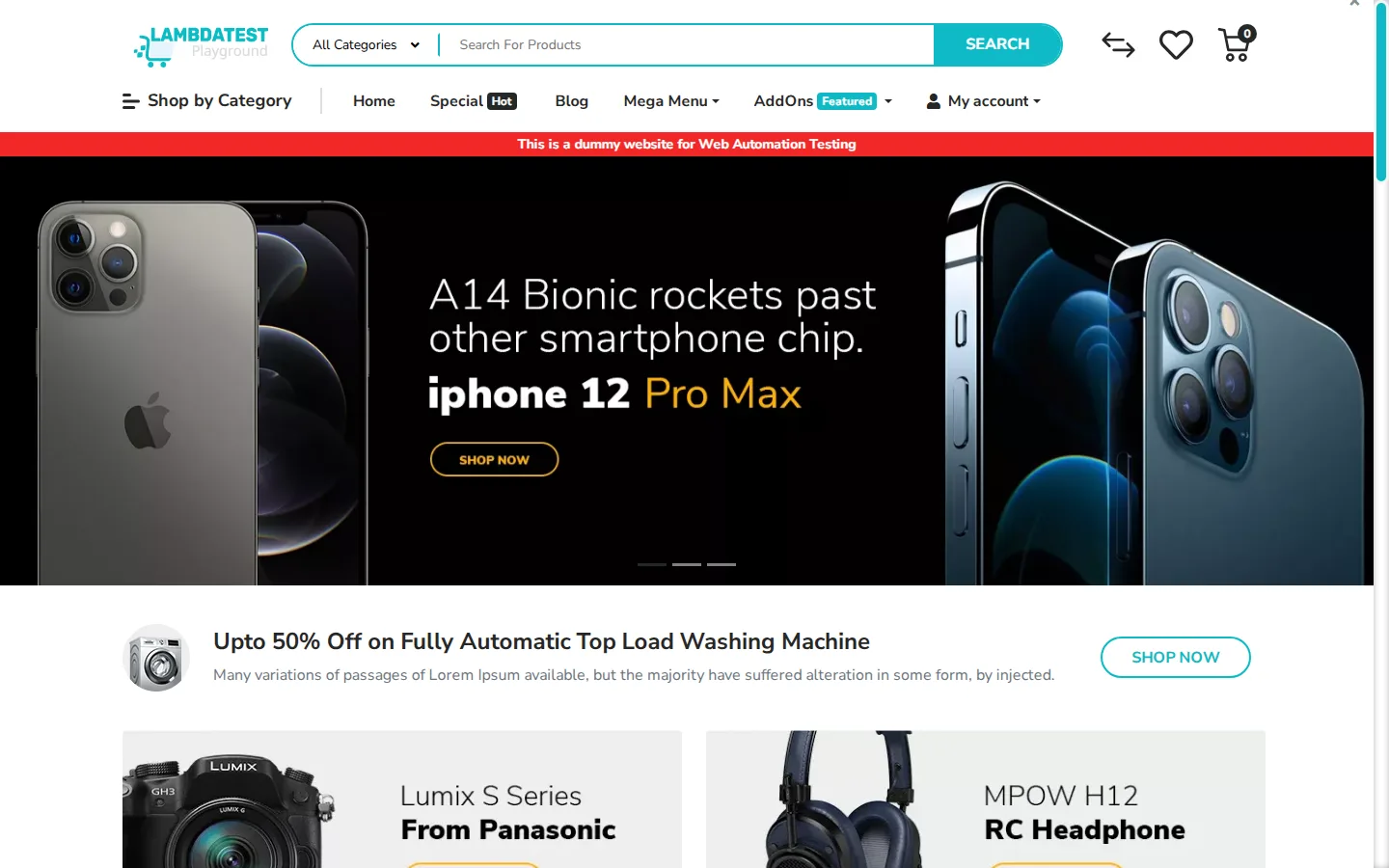
The screenshot below is a real capture from a TestMu AI cloud browser session, of the TestMu AI ecommerce Playground. The headline "iPhone 12 Pro Max" in the hero banner is part of the banner image, not a DOM heading, so a locator search for that text returns nothing while OCR reads it straight from the pixels.
DOM Assertion vs OCR vs Visual Regression
OCR is one of three ways to verify what is on screen, and choosing the wrong one is the most common mistake teams make. A DOM assertion is exact and fast, OCR reads content the DOM lacks, and visual regression judges appearance. Match the method to the question you are asking.
| Method | Verifies | Best for | Weakness |
|---|---|---|---|
| DOM / locator assertion | Exact text or attribute in a selectable element | Anything with a stable DOM node | Blind to pixels: images, canvas, PDFs |
| OCR text extraction | Which words are present in the rendered image | Text in images, canvas, PDFs, video, legacy UIs | Not pixel-exact; needs preprocessing and tolerance |
| Visual regression | Whether pixels match an approved baseline | Layout, color, spacing, and rendering drift | Tells you it changed, not which words are wrong |
The distinction that trips people up is OCR versus visual regression. OCR answers "does it say the right thing," and visual regression answers "does it look right." A chart could show the correct number in the wrong color, or the right layout with a stale label. Reading the words and comparing the pixels are different jobs, so treat them as complementary rather than interchangeable, a point we expand on in our look at the SmartUI Visual AI engine.
On the appearance side, the hard part is noise: font anti-aliasing, dynamic content, and sub-pixel rendering flag differences that are not real bugs. TestMu AI SmartUI addresses this with an AI engine that filters rendering noise and reports it cuts visual false positives by up to 95%, and it can compare screenshots, Figma frames, and even rendered PDFs page by page. That leaves OCR to do what it does best, confirm the content, while visual AI watches the layout.

Note: Verify both content and appearance in one run. The TestMu AI Automation Cloud runs your Selenium, Playwright, and Cypress tests across 3,000+ browser and OS combinations with SmartUI visual checks built in. Explore the TestMu AI Automation Cloud.
An OCR Check in Selenium and Playwright
The pattern is identical across frameworks: screenshot the element, run OCR, assert on a unique phrase. The screenshot step runs on a real browser, so run it on a cloud grid where the rendering matches what users get. The capture below was executed on TestMu AI cloud, on a Chrome session against the ecommerce Playground.
In Selenium with Java, Tess4J wraps Tesseract. Capture the element, hand the image to the engine, and assert on the recognized text after normalizing case.
// Runs on the TestMu AI cloud grid: point RemoteWebDriver at the hub
DesiredCapabilities caps = new DesiredCapabilities();
caps.setCapability("browserName", "Chrome");
caps.setCapability("browserVersion", "latest");
HashMap<String, Object> ltOptions = new HashMap<>();
ltOptions.put("platformName", "Windows 11");
ltOptions.put("build", "OCR in Test Automation");
ltOptions.put("name", "Verify banner text with OCR");
caps.setCapability("LT:Options", ltOptions);

WebDriver driver = new RemoteWebDriver(
    new URL("https://" + username + ":" + accessKey + "@hub.lambdatest.com/wd/hub"), caps);
driver.get("https://ecommerce-playground.lambdatest.io/");

// 1. Capture the element whose text is baked into an image
WebElement banner = driver.findElement(By.cssSelector(".swiper-slide-active img"));
File shot = banner.getScreenshotAs(OutputType.FILE);

// 2. Recognize text with Tess4J (Tesseract for Java)
ITesseract tesseract = new Tesseract();
tesseract.setDatapath("tessdata");        // path to trained language data
String recognized = tesseract.doOCR(shot);

// 3. Assert on a unique phrase, normalized for case
Assert.assertTrue(
    recognized.toLowerCase().contains("iphone 12 pro max"),
    "OCR did not find the expected banner text");
In Playwright with JavaScript, a locator screenshots itself, and any OCR engine reads the file. The structure mirrors the Selenium version, which is why the pattern ports cleanly between suites.
// Screenshot only the banner element, then OCR the image
const banner = page.locator('.swiper-slide-active img').first();
await banner.screenshot({ path: 'banner.png' });

// Hand the image to an OCR engine and assert on a unique phrase
const { data } = await ocr.recognize('banner.png');
const recognized = data.text.toLowerCase();
expect(recognized).toContain('iphone 12 pro max');
The browser half of these examples is what benefits most from the cloud. Running the capture on the TestMu AI Automation Cloud gives you real Chrome, Firefox, Safari, and Edge across 3,000+ browser and OS combinations, and every session records screenshots, video, console, and network logs automatically, so a failed OCR assertion comes with the exact frame the engine read. For this article, the capture step ran on that grid, producing a real build in the TestMu AI dashboard. To wire up the driver, the Selenium testing docs cover credentials and capabilities.

Making OCR Assertions Reliable at Scale
Naive OCR assertions are flaky, and one bad phrasing turns a real check into a coin flip. That food-packaging benchmark is the evidence: even the best engine tested misread most characters on hard, stylized images, so a lot of OCR flakiness is an image problem, not an engine problem. The same rule holds in practice: fix the input, and the recognition follows. These practices keep OCR checks stable.
- Preprocess before you recognize: The Tesseract maintainers recommend at least 300 DPI and dark text on a light background in their image quality guidance.
- Clean the image first: Converting to grayscale, thresholding to sharpen edges, and upscaling small text all raise recognition quality before the engine runs.
- Assert on unique phrases, not paragraphs: Check for a distinctive string like a product name or an order ID, not a full block of text where one misread character fails the whole assertion.
- Avoid volatile text: Timestamps, rotating banners, and personalized content change between runs. Target stable copy so a pass reflects the app, not the moment of capture.
- Normalize and allow tolerance: Lowercase, collapse whitespace, and use a contains or fuzzy match instead of exact equality, so a stray space or a 1 read as an l does not fail a correct screen.
- Pin the rendering: Fix viewport and resolution, because OCR reads whatever the browser painted, and a different size changes the pixels.
- Screenshot the element, not the page: Cropping to the target region removes surrounding text that pollutes the recognized string.
The last variable is the environment. The same page rendered in Chrome on Windows and Safari on macOS produces different anti-aliasing, which changes what OCR reads. That is why OCR checks belong on a consistent, production-representative grid rather than one engineer's laptop, the same reasoning behind eliminating cross-browser UI inconsistencies in visual work.
OCR for Mobile and Cross-Browser Text
Mobile is where OCR often becomes unavoidable. Native apps render custom controls, games and media apps draw text to a surface, and hybrid screens mix web and native views with no consistent locator. Appium captures a screenshot of any of these, and the same capture, recognize, assert loop applies.
- Real devices over emulators: Font hinting, scaling, and DPI differ between a real handset and an emulator, and those differences change OCR output. TestMu AI Real Device Cloud runs tests on 10,000+ real Android and iOS devices so the pixels you OCR match what users see.
- Camera and media inputs: Apps that overlay text on a live camera feed render entirely outside the DOM. Techniques like camera image injection testing feed known frames so OCR can verify the overlay.
- Cross-browser text drift: On the web, the same banner reads slightly differently across engines. Running OCR across the browser matrix catches a rendering regression that only appears in one engine.
The operational point is coverage without a device lab. A real handset and browser matrix in the cloud means one OCR test runs everywhere your users are, and each run keeps its own screenshots and logs for triage, so a misread on a single device is reproducible instead of a mystery.

Common OCR Testing Mistakes to Avoid
Most OCR test failures are self-inflicted. These are the patterns that turn a useful check into a maintenance burden, and each has a direct fix.
- Reaching for OCR by default: If the text is in the DOM, assert on the DOM. OCR is slower and fuzzier, so save it for content that has no node.
- Asserting exact equality: Demanding a character-perfect match against a paragraph guarantees flakiness. Match a unique substring and normalize first.
- Skipping preprocessing: Feeding a raw, low-contrast screenshot to the engine is the top cause of misreads. Grayscale and threshold first.
- Ignoring OCR confidence: Engines return a per-word confidence score. Treat very low confidence as a signal to recapture, not as a clean result.
- Confusing OCR with visual testing: OCR will not catch a color or layout bug, and visual diffing will not tell you which word is wrong. Use each for its job.
Getting Started With OCR in Test Automation
Start with one concrete gap. Find a screen in your app where a real value lives in an image, a chart, or a PDF, and today passes with no assertion on it. Add a single OCR check: screenshot the element, recognize the text, and assert on a unique phrase after normalizing case and whitespace.
From there, preprocess the image, move the capture onto a real browser and device grid so rendering is consistent, and pair the content check with visual regression for appearance. Run your existing Selenium, Playwright, and Cypress suites on TestMu AI to get the cross-browser rendering, real devices, and per-session artifacts that make OCR assertions trustworthy, and start free on TestMu AI to try it on your own screens. This article was researched and drafted with AI assistance, then reviewed and fact-checked against primary sources before publication, per our editorial process and AI use policy.
Author

Chaitanya Sharma
Blogs: 18

Chaitanya Sharma is an AI Product Manager at TestMu AI (formerly LambdaTest), where he builds agentic AI capabilities focused on computer vision and multi-modality, moving testing beyond static script execution toward autonomous, agent-driven workflows. Before TestMu AI he shipped 135+ features at Sprinklr for a no-code community and website builder used by Fortune 500 enterprises including Dell, Samsung, and Polestar. At Policybazaar he led the zero-to-one launch of a digital lending and insurance marketplace embedded in Bahrain's dominant payments app, building a risk-intelligence engine that compressed loan-approval times by 80%. He explored machine learning and NLP through research at the University of Cambridge, and holds a B.Tech from Delhi Technological University.
Reviewer

Sri Harsha
Reviewer
Sri Harsha is Engineering Manager of the Open Source Program Office at TestMu AI (formerly LambdaTest), where he leads open-source engineering behind the Selenium and Appium automation grid and builds agentic AI systems for quality engineering. He is a member of the Selenium Technical Leadership Committee and a committer to WebdriverIO and Appium, and was recognized with the LambdaTest Delta Award 2023 for Best Contributor in open-source testing. He brings over 10 years of experience in software testing and automation, with earlier roles at EPAM Systems and ZenQ. Sri Harsha holds a B.Tech in Computer Science from Jawaharlal Nehru Technological University.


OCR in Test Automation FAQs
Did you find this page helpful?
More Related Blogs
TestMu AI forEnterprise
Get access to solutions built on Enterprise
grade security, privacy, & compliance
- Advanced access controls
- Advanced data retention rules
- Advanced Local Testing
- Premium Support options
- Early access to beta features
- Private Slack Channel
- Unlimited Manual Accessibility DevTools Tests