

Power Your Software Testing with AI Agents and Cloud
The Native AI-Agentic Cloud Platform to Supercharge Quality Engineering. Test Intelligently and Ship Faster.


- TestMu AI (Formerly LambdaTest)
- /
- Blog
- /
- Automated Cross Browser Testing
Automated Cross Browser Testing
Automated cross browser testing verifies your site works across Chromium, Gecko, and WebKit. Learn the frameworks, cloud grids, and a hands-on Selenium example.
Last Updated on:
Automated cross browser testing uses scripts to verify that a web application renders and behaves identically across browsers, operating systems, and devices. The three rendering engines, Chromium, Gecko, and WebKit, interpret HTML, CSS, and JavaScript differently, and Safari runs only on macOS, so one machine cannot cover every combination. This guide covers what automated cross-browser testing is, Selenium versus Playwright versus Cypress, the limits of local scripts, the metrics to measure, how AI agents change the work, and a hands-on Maven and Selenium setup.
Key Takeaways
- Automated cross browser testing runs scripted checks that confirm a web application renders and behaves the same across browser engines, operating systems, and devices, instead of a person opening Chrome, Firefox, Safari, and Edge one at a time.
- The three major rendering engines, Chromium for Chrome and Edge, Gecko for Firefox, and WebKit for Safari, each interpret HTML, CSS, and JavaScript slightly differently, so a layout or script that passes in Chrome can break in Safari.
- Selenium gives the widest language and browser coverage through WebDriver, Playwright adds built-in auto-waiting and native WebKit support, and Cypress fits JavaScript frontend and component testing with experimental Safari support.
- Safari runs only on macOS and one machine can drive just a few browsers at once, so covering the WebKit engine and hundreds of browser and OS combinations in parallel requires a cloud grid of real browsers.
- A cross browser run should report functional correctness, visual regression, per-engine load and render times, and JavaScript console errors rather than a single pass or fail.
- Playwright test agents plan, generate, and repair browser tests, but a failure that appears only in WebKit usually signals a real rendering or API difference that an automatic locator patch would hide.
What Is Automated Cross-Browser Testing?
Automated cross-browser testing uses scripts to check that a web application renders and functions consistently across different browser engines, operating systems, and devices, with no manual intervention. A test framework drives a real browser through the same steps a user would take, then asserts the result, and repeats that across every target environment.
The reason it exists is that browsers are not identical. There are three major rendering engines, and each interprets HTML, CSS, and JavaScript slightly differently:
- Chromium: powers Google Chrome and Microsoft Edge (and Opera, Brave, and others).
- Gecko: powers Mozilla Firefox.
- WebKit: powers Apple Safari on macOS and iOS.
Manual cross-browser testing means opening each of these by hand, which does not scale. Automating it lets you write a test once and execute it across dozens of browser and OS combinations in parallel, catching layout breaks, broken scripts, and functional bugs before users do.
Choosing the matrix is the first decision. Cover the three engines first, because that is where the real rendering differences live, then use your own analytics to decide which browser versions, operating systems, and screen sizes carry enough traffic to earn a slot. Most teams run a small engine set on every commit and the wider matrix on a nightly or pre-release run.
Key Takeaway: Automated cross-browser testing drives a real browser through the steps a user would take and asserts the result on every target environment, so one written test runs across dozens of browser and OS combinations in parallel.
Top Automation Frameworks: Selenium vs. Playwright vs. Cypress
Three open-source frameworks dominate automated cross-browser testing. They overlap in purpose but differ in speed, language support, and browser-engine coverage. The table below compares them at a glance.
| Framework | Browser engines | Languages | Best for |
|---|---|---|---|
| Selenium | Chromium, Firefox, WebKit (Safari), Edge, via WebDriver | Java, Python, C#, JavaScript, Ruby, and more | Broad language and browser coverage with a mature ecosystem |
| Playwright | Chromium, Firefox, WebKit (Safari's engine) | JavaScript/TypeScript, Python, Java, .NET | Speed, built-in auto-waiting, and native WebKit/Safari-engine testing |
| Cypress | Chromium-family, Edge, Firefox (WebKit/Safari is experimental) | JavaScript/TypeScript | Developer-centric frontend and component testing |
Selenium remains the default when you need many languages and the widest browser reach. Playwright is often the fastest and ships WebKit out of the box, making it strong for Safari-engine coverage. Cypress runs inside the browser and appeals to frontend teams, though its Safari support is still experimental.
Key Takeaway: Selenium covers the most languages and browsers through WebDriver, Playwright is faster and ships WebKit for Safari-engine coverage, and Cypress suits JavaScript frontend testing where Safari support is still experimental.
The Challenges of Local Script Automation (And Why Grids Matter)
Running these frameworks on your own machine works for a demo, but it breaks down as coverage grows. The common local-execution pain points are:
- Driver and browser upkeep: Older Selenium setups meant manually downloading and matching ChromeDriver and GeckoDriver to each browser version. Selenium Manager (4.6+) now automates this, but you still have to keep the browsers themselves installed and updated across machines.
- No Safari on Windows or Linux: Safari only runs on macOS, so a Windows or Linux machine cannot test the WebKit/Safari engine natively. Covering Apple browsers means maintaining Apple hardware or running the suite on a real device cloud.
- Resource and scale limits: One laptop can run only a handful of browsers at once. Testing hundreds of browser, OS, and version combinations sequentially turns a few-minute suite into hours.
A cloud-based testing platform, or cloud grid, solves all three. It hosts real browsers and operating systems (including Safari on macOS) so you run the same scripts remotely and in parallel. TestMu AI's Automation Cloud runs your existing Selenium, Cypress, and Playwright tests across 3,000+ browser and OS combinations at once, with video, network, and console logs captured on every run, and no local drivers to manage.
Key Takeaway: Running cross-browser scripts locally stalls on driver and browser upkeep, the absence of Safari outside macOS, and a single machine's limit of a few parallel browsers, which is why cross-browser suites move to a cloud grid of real browsers.

Note: Run your automated cross-browser tests in parallel across 3,000+ real browser and OS combinations, no local grid required. Try TestMu AI free.
Key Metrics to Measure in Cross-Browser Tests
A cross-browser run should report more than a single pass or fail. Track these signals to know whether your app truly behaves consistently:
- Functional correctness: Does every flow (login, search, checkout) complete successfully on each browser and OS? This is the baseline every test should assert.
- Visual regression: Does the UI layout render the same across engines? Visual regression testing compares screenshots at the pixel or component level to catch shifted elements, clipped text, and broken styles that a functional test passes over.
- Performance across engines: Page load and render times can differ significantly between Chromium, Gecko, and WebKit. Tracking them per engine surfaces browser-specific slowdowns.
- JavaScript error logs: Console and network logs reveal scripts that throw only in certain browsers, a frequent cause of features that silently fail in Safari or Firefox.
Key Takeaway: A cross-browser run is only trustworthy when the results cover functional correctness on every browser, visual regression between engines, per-engine page load and render times, and JavaScript console and network errors.
How Do AI Agents Change Automated Cross-Browser Testing?
AI agents now write and repair browser tests, but they do not replace the browser matrix. Playwright ships three of them. Its test agents are set up with npx playwright init-agents against VS Code, Claude Code, Codex, or OpenCode, and they split the work three ways: a planner that explores the app and produces a Markdown test plan, a generator that turns that plan into test files while it checks selectors and assertions live, and a healer that runs the suite and patches what fails.
The healer is the part that matters most to a cross-browser suite. Playwright documents it as replaying the failing steps, inspecting the current UI to locate equivalent elements or flows, suggesting a patch such as a locator update or a wait adjustment, then re-running the test until it passes or a guardrail stops the loop. Broken locators and timing account for most of the upkeep in a suite that runs on many engines, so that loop removes real work. Treat an engine-specific failure differently. When a test passes in Chromium and fails only in WebKit, the cause is usually a genuine rendering or API difference, and an automatic locator patch can hide the bug you were looking for. Read those patches before you merge them.
An agent still needs a real browser to act on. The Playwright MCP server gives a coding assistant one over the Model Context Protocol, and it drives the page through Playwright's accessibility tree rather than pixel-based input. Its browser option accepts chrome, firefox, webkit, and msedge, so the same agent can reproduce a defect on the engine where it surfaced. None of this removes the grid. Something still has to supply Safari on macOS and run the combinations in parallel.
Key Takeaway: Playwright test agents plan, generate, and heal browser tests and cut the locator and timing upkeep in a cross-browser suite, but a healer patch on a test that fails only in WebKit can hide a genuine rendering or API difference.
Installing Maven
Step 1: Go to Marketplace and install Maven.
Go to help → Eclipse Marketplace → search for Maven → confirm → confirm → Finish
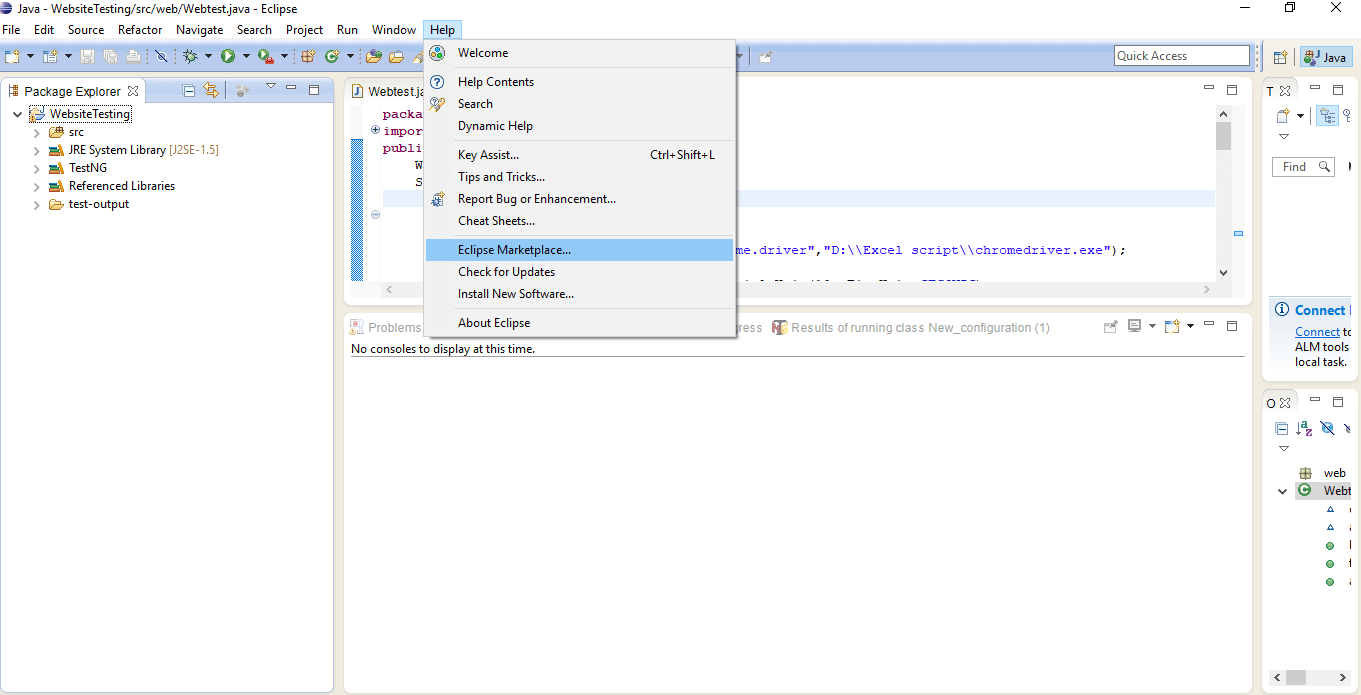
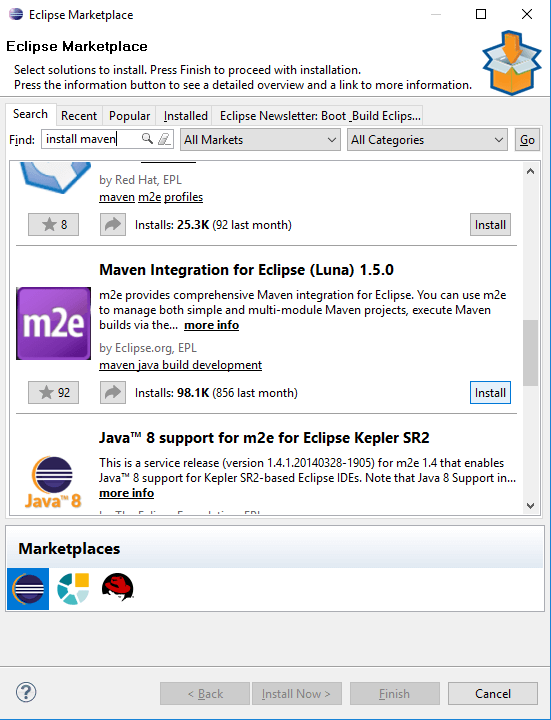
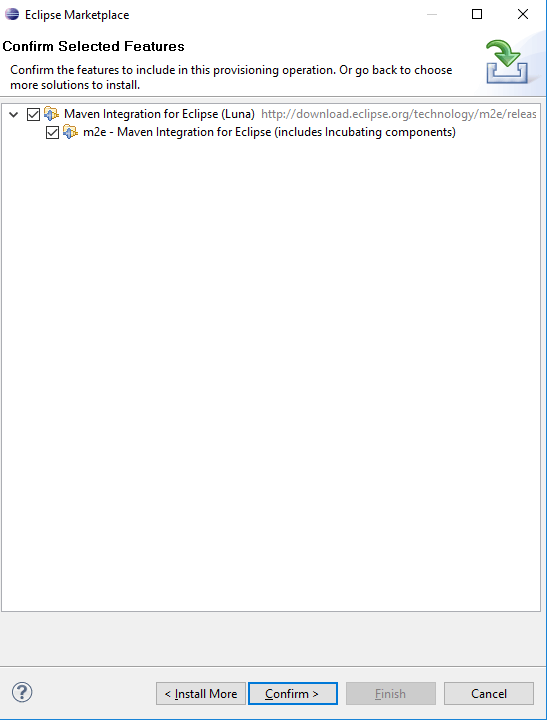
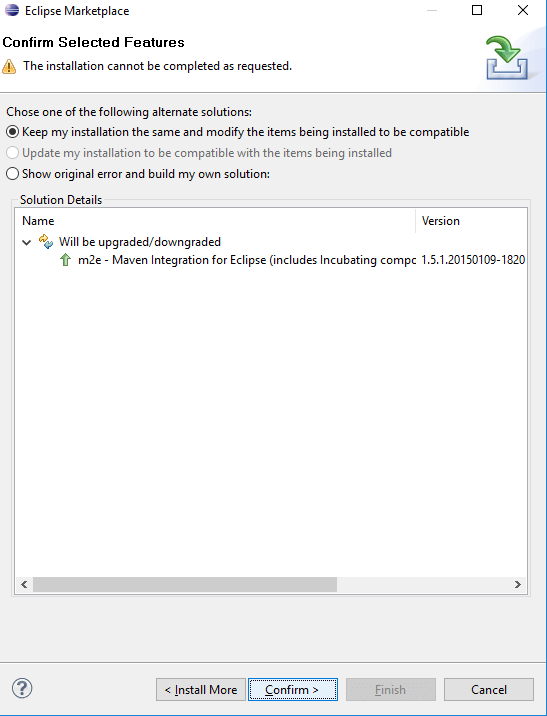
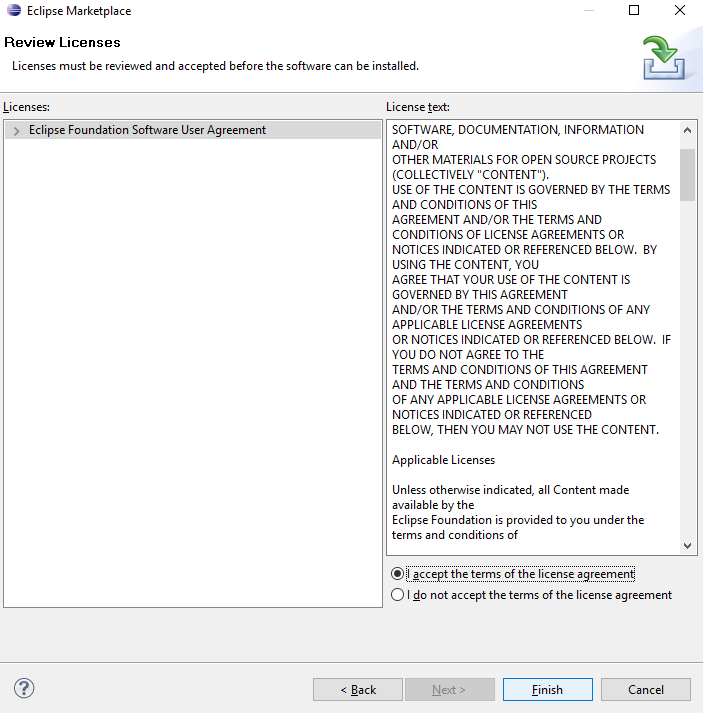
Key Takeaway: Maven is added to Eclipse from the Help menu through Eclipse Marketplace, by searching for Maven and confirming the install.
Restart Eclipse
Step 2: Restart the Eclipse to make changes effective. Once you restart the eclipse, it's time to start with creating the project.
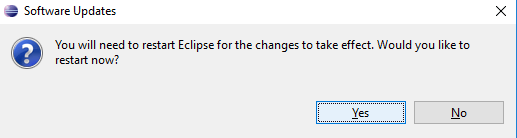
Key Takeaway: Restarting Eclipse is what makes the newly installed Maven plugin effective, and the Maven project is created only after that restart.
Create a Maven Project
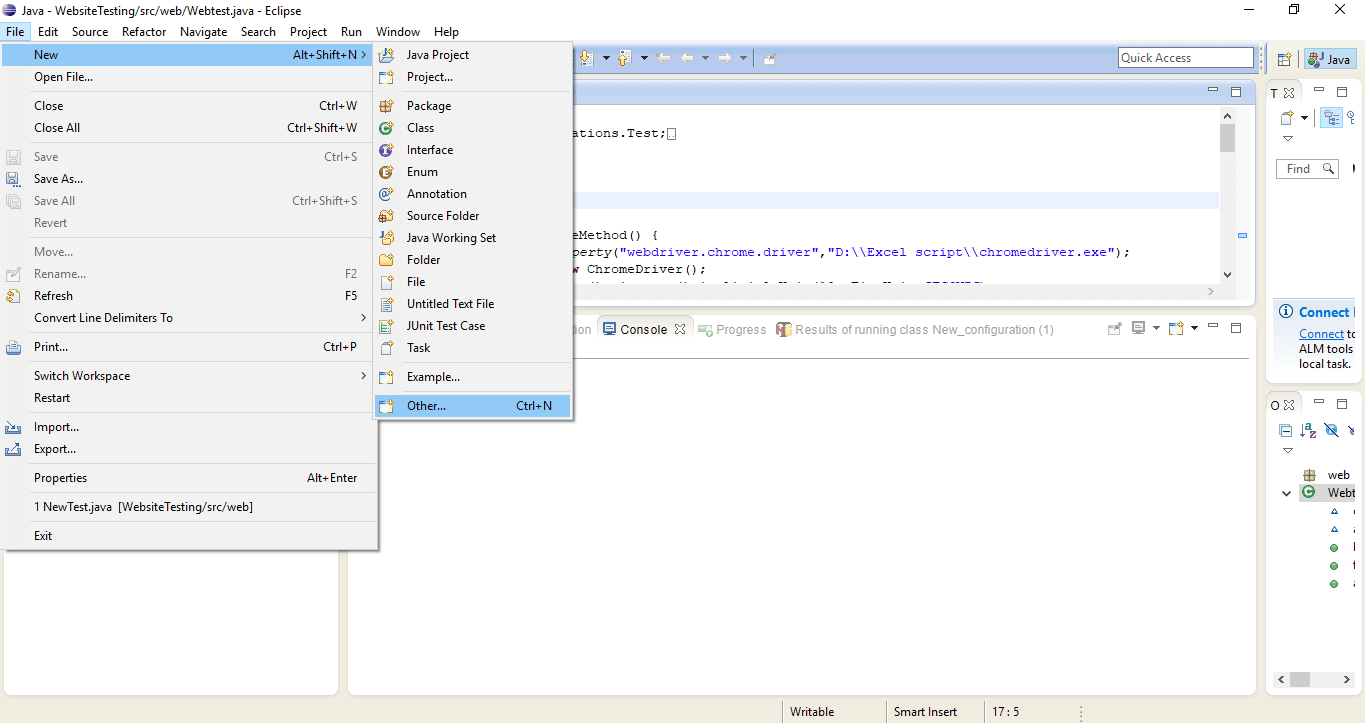
Step 3: To create project, go to File → New → Other → Maven → Project You are now all set to create a maven project.
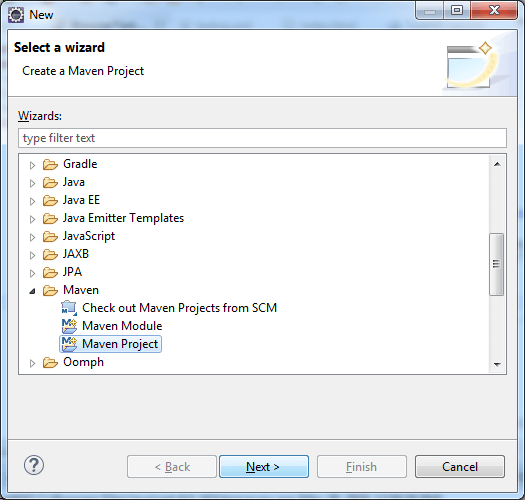
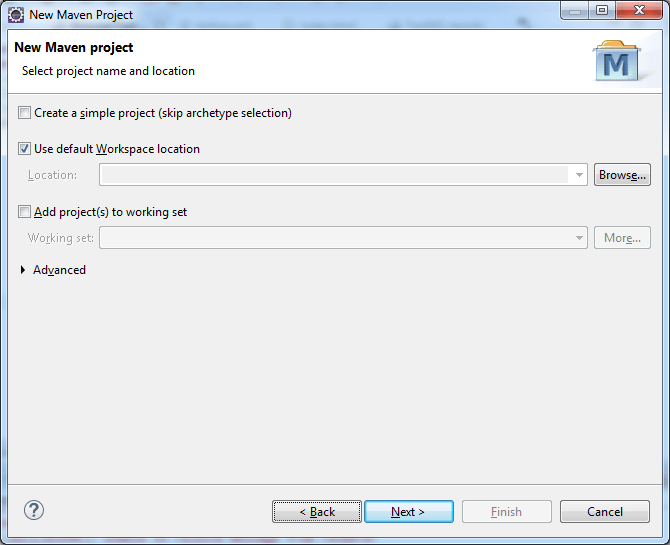
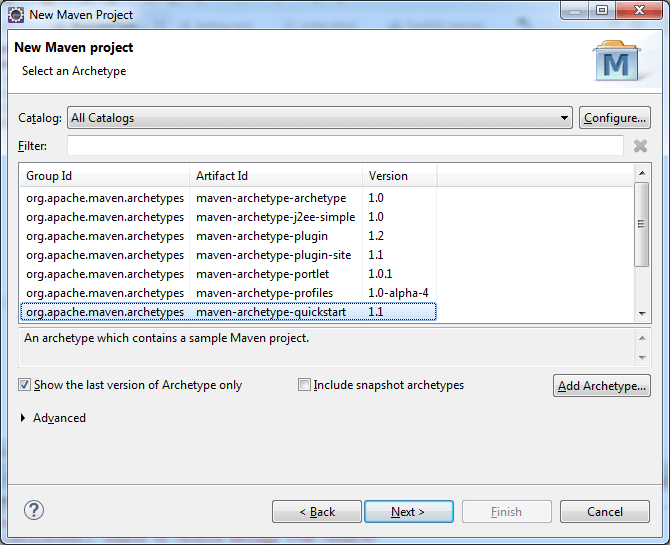
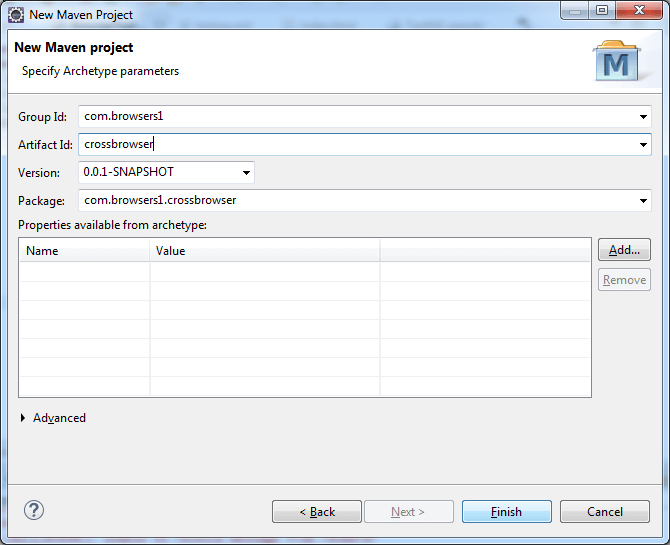
Here you need to enter the group ID and artifact ID. Let's say group ID is com.browsers1 and artifact ID is crossbrowser.
After entering the IDs click on Finish and your maven project will be created.
On the left hand side, you'll find two folders namely src/main/java and src/test/java. Under src/test/java you'll find com.browsers1.crossbrowser. Right click on com.browsers1.crossbrowser select new and then create a class.
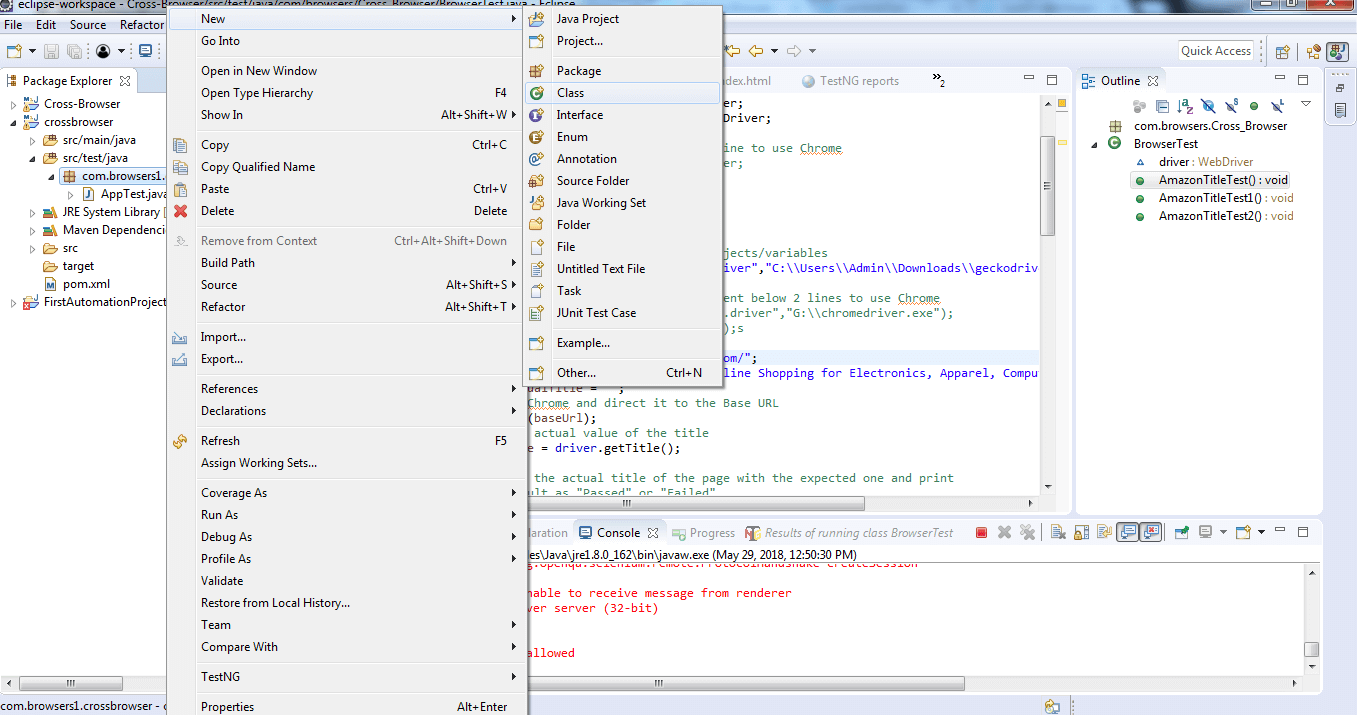
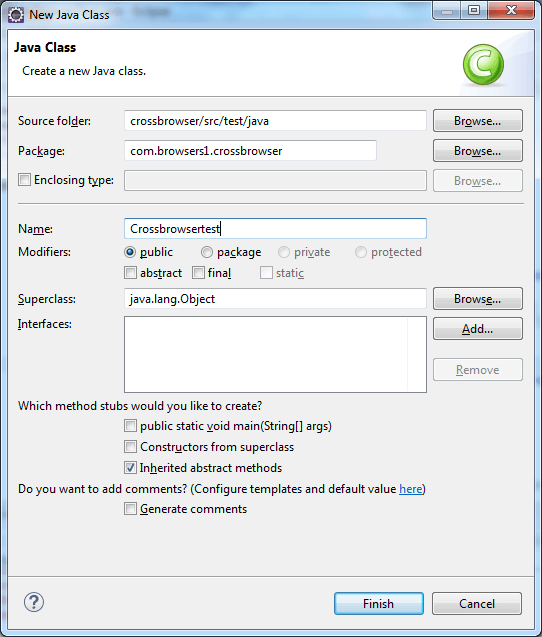
Enter the name as CrossbrowserTest and click on finish.
Note: Make sure you start your class name with uppercase and end it with test.
Key Takeaway: A Maven project is created in Eclipse through File, New, Other, Maven, Project with a group ID such as com.browsers1 and an artifact ID such as crossbrowser, and the test class is then added under src/test/java.
Download drivers
The next step is to install drivers for browsers. Since you are going to control your browsers with automation software, you need to make sure that every browser used in your script has its driver installed.
For Firefox you need GeckoDriver, for Chrome you need ChromeDriver, and for Edge you need msedgedriver. The sample script further down still drives Internet Explorer through IEDriverServer, and that is the part that has aged. Microsoft retired the Internet Explorer 11 desktop application on June 15, 2022 and directs users to Edge with IE mode, which it commits to supporting through at least 2029. If you plan to add more browsers to your script, install their drivers too.
That manual download step belongs to Selenium 3. Selenium 4.6 and later ship Selenium Manager, which discovers, downloads, and caches the matching driver whenever your code does not supply one, so on a current version you can skip the downloads above and delete the System.setProperty lines from the test class. The pom.xml below pins Selenium 4.49.0, the stable Java release listed on the Selenium downloads page, and TestNG 7.12.0.
After you download and install drivers, let's start with adding dependency files. It is necessary to have dependency files for every framework that you are making use of. So we need to download dependency files for Selenium, TestNG in pom.xml file.
Open pom.xml and replace the contents of its dependencies block with the entries below.
<dependencies>
    <dependency>
        <groupId>org.seleniumhq.selenium</groupId>
        <artifactId>selenium-java</artifactId>
        <version>4.49.0</version>
    </dependency>
    <dependency>
        <groupId>org.testng</groupId>
        <artifactId>testng</artifactId>
        <version>7.12.0</version>
        <scope>test</scope>
    </dependency>
</dependencies>
Those two entries pull in everything this guide needs. The selenium-java artifact brings the Chrome, Firefox, Edge, and Safari drivers with it, so you no longer add a separate dependency per browser the way Selenium 3 projects did.
Key Takeaway: Selenium 3 requires GeckoDriver, ChromeDriver, and IEDriverServer to be downloaded by hand, while Selenium 4.6 and later use Selenium Manager to fetch and cache the matching driver automatically.
Write Final Code
Now save this and move to creating a script for final step.
Again go to src/test/java select crossbrowsertest.java and then copy the code to its workplace.
package com.browsers.Cross_Browser;

	import org.testng.annotations.Test;
    import org.testng.AssertJUnit;
	import org.openqa.selenium.WebDriver;
	import org.openqa.selenium.chrome.ChromeDriver;
	import org.openqa.selenium.firefox.FirefoxDriver;
    import org.openqa.selenium.ie.InternetExplorerDriver;
import org.openqa.selenium.opera.OperaDriver;
	//comment the above line and uncomment below line to use Chrome
	//import org.openqa.selenium.chrome.ChromeDriver;
	public class BrowserTest {
	    WebDriver driver;

	    @Test
	    public void AmazonTitleTest() {
	        // declaration and instantiation of objects/variables
	        System.setProperty("webdriver.gecko.driver","C:\Users\Admin\Downloads\geckodriver.exe");
	        driver = new FirefoxDriver();
	        //comment the above 2 lines and uncomment below 2 lines to use Chrome
	        //System.setProperty("webdriver.chrome.driver","G:\chromedriver.exe");
	        //WebDriver driver = new ChromeDriver();s

	        String baseUrl = "https://www.amazon.com/";
	        String expectedTitle = "Amazon.com: Online Shopping for Electronics, Apparel, Computers, Books, DVDs & more";
	        String actualTitle = "";
	        // launch Chrome and direct it to the Base URL
	        driver.get(baseUrl);
	        // get the actual value of the title
	        actualTitle = driver.getTitle();
	        /*
	         * compare the actual title of the page with the expected one and print
	         * the result as "Passed" or "Failed"
	         */
	        AssertJUnit.assertEquals(expectedTitle, actualTitle);

	        //close Fire fox
	        driver.close();

	    }

	    @Test
	    public void AmazonTitleTest1() {
	        // declaration and instantiation of objects/variables

	        //comment the above 2 lines and uncomment below 2 lines to use Chrome
	        System.setProperty("webdriver.chrome.driver","C:\Users\Admin\Downloads\chromedriver_win32\chromedriver.exe");
	        WebDriver driver = new ChromeDriver();

	        String baseUrl = "https://www.amazon.com/";
	        String expectedTitle = "Amazon.com: Online Shopping for Electronics, Apparel, Computers, Books, DVDs & more";
	        String actualTitle = "";
	        // launch Chrome and direct it to the Base URL
	        driver.get(baseUrl);
	        // get the actual value of the title
	        actualTitle = driver.getTitle();
	        /*
	         * compare the actual title of the page with the expected one and print
	         * the result as "Passed" or "Failed"
	         */
	        AssertJUnit.assertEquals(expectedTitle, actualTitle);

	        //close Fire fox
	        driver.close();

	    }

	    @Test
	    public void AmazonTitleTest2() {
	        // declaration and instantiation of objects/variables

	        //comment the above 2 lines and uncomment below 2 lines to use Chrome
	    	System.setProperty("webdriver.ie.driver", "C:/Users/Admin/Downloads/IEDriverServer.exe");
			driver = new InternetExplorerDriver();
	        String baseUrl = "https://www.amazon.com/";
	        String expectedTitle = "Amazon.com: Online Shopping for Electronics, Apparel, Computers, Books, DVDs & more";
	        String actualTitle = "";
	        // launch Chrome and direct it to the Base URL
	        driver.get(baseUrl);
	        // get the actual value of the title
	        actualTitle = driver.getTitle();
	        /*
	         * compare the actual title of the page with the expected one and print
	         * the result as "Passed" or "Failed"
	         */
	        AssertJUnit.assertEquals(expectedTitle, actualTitle);

	        //close Fire fox
	        driver.close();

	    }

	}
Once you paste this code,you now need to convert it to testng.xml.
To proceed with that Right click on Crossbrowsertest.java click on testng → convert to testng → next → click the checkbox → finish.
Now a new file, testng.xml will be created.
Run testng.xml as a testng suite and you're all set to perform automated cross browser test.
This suite opens amazon.com in Firefox, Chrome, and Internet Explorer, then asserts that the page title matches the expected string. A match reports a pass and a mismatch reports a fail.
You'll soon see the automation software controlling all three browsers, and you'll see each test run on your screen.
You can also add more browsers and change the URL you want to perform the test on.
The third test in that class drives InternetExplorerDriver. Selenium dropped support for standalone Internet Explorer in June 2022, and its Internet Explorer documentation states that the IE driver now launches Microsoft Edge in IE Compatibility Mode. Swap that block for EdgeDriver on a current machine. Edge and Chrome both run on Chromium, so the suite then covers two engines, and the third engine, WebKit, still needs Safari on macOS.
Two more lines in that class were written for Selenium 3. The org.openqa.selenium.opera.OperaDriver import no longer resolves, because the Selenium Java changelog records the removal of deprecated Opera support in 4.5.0, and Opera is a Chromium browser you now drive through ChromeDriver. The System.setProperty calls can go as well, since Selenium Manager resolves the driver binary on its own.
You do not have to run this suite locally. TestMu AI runs the same Selenium, Cypress, and Playwright tests on its cloud grid across 3,000+ real browser and OS combinations in parallel, including Safari on macOS, so you get full cross-browser coverage without maintaining drivers or devices. Point your WebDriver at the cloud endpoint and your local test becomes a scalable, parallel run.
Till then stay tuned and Happy Testing!
Key Takeaway: Running the Selenium class as a testng.xml suite asserts the same page title in Firefox, Chrome, and Internet Explorer, and because Selenium dropped Internet Explorer support in June 2022, that block should now use EdgeDriver.

Author

Deeksha Agarwal
Blogs: 34


Deeksha is a Senior Product Manager at The Economic Times and a Community Evangelist with 8+ years of experience. She is followed by 6,000+ QA professionals, software testers, tech leaders, and enthusiasts across global communities. Deeksha has authored 40+ expert bios for TestMu AI, focusing on cross-browser testing, mobile app testing, regression testing, usability testing, and automation. Previously at TestMu AI, she drove product growth in native app testing and responsive browser features, combining product leadership with deep QA expertise.


Automated Cross Browser Testing FAQs
Did you find this page helpful?
More Related Blogs
TestMu AI forEnterprise
Get access to solutions built on Enterprise
grade security, privacy, & compliance
- Advanced access controls
- Advanced data retention rules
- Advanced Local Testing
- Premium Support options
- Early access to beta features
- Private Slack Channel
- Unlimited Manual Accessibility DevTools Tests