

Power Your Software Testing with AI Agents and Cloud
The Native AI-Agentic Cloud Platform to Supercharge Quality Engineering. Test Intelligently and Ship Faster.


- TestMu AI (Formerly LambdaTest)
- /
- Learning Hub
- /
- Python Automation Tutorial: Complete Guide With Examples
Python Automation Tutorial: Complete Guide With Examples
Learn Python automation for everyday tasks (file management, web scraping) and QA testing with Pytest, Selenium, and Robot Framework, with copy-paste scripts.
Last Updated on:
Python automation is one of the ways to streamline repetitive tasks, optimize workflow, and enhance productivity. For developers, testers, and analysts, automating routine tasks with Python not only saves time and reduces errors but also frees up resources to focus on more complex, strategic work, driving overall efficiency.
Overview
To perform Python automation, write scripts using Playwright for browser testing and pandas for data manipulation. These specialized libraries help you streamline repetitive tasks, which you can then scale by running tests in parallel on an automation testing cloud.
Python Automation Use Cases
- Data Entry Automation: Data entry automation allows you to input data automatically into spreadsheets, forms, or databases to eliminate manual entry and save time.
- Web Scraping: Web scraping extracts information from websites for research, analytics, or monitoring purposes using Python libraries like BeautifulSoup or requests to download HTML.
- Report Generation: Report generation automates the creation of Excel, PDF, or CSV reports directly from raw data sources to streamline business reporting.
- Email Handling: Email handling allows you to send, organize, and respond to emails automatically using Python scripts to manage communication workflows.
- File Management: File management scripts rename, move, copy, or clean up files and folders efficiently across your system using built-in Python libraries.
- API and System Integration: API and system integration connects different applications and APIs to automate workflows and seamlessly sync data across multiple platforms.
How to Perform Python Automation
- Selenium: Selenium is a browser automation library used to drive a browser via WebDriver for cross-browser web UI testing and automation.
- Playwright: Playwright is a browser automation library used to drive a browser via a modern API for cross-browser web UI testing with auto-waiting.
- PyAutoGUI: PyAutoGUI is a Python library that you can select and use to automate tasks based on your specific task type.
- pandas: pandas is a Python data manipulation library used to read, clean, transform, and analyze tabular data and spreadsheets efficiently.
- RPA frameworks: RPA frameworks are automation tools that you can select and use to build workflows based on your specific task type.
- TestMu AI: TestMu AI is a cloud platform that runs your Python automation scripts across different browsers and operating systems without local infrastructure management.
What Is Python Automation?
Python automation refers to using automated scripts with Python programming language to handle repetitive tasks with minimal human intervention. It leverages Python libraries to streamline workflows, improve accuracy, and save time across tasks such as web testing, data scraping, file management, and report generation.
Benefits:
- Automates Repetitive Tasks: Python automation reduces time spent on routine tasks, enabling teams to focus on strategic, value-driven activities and innovation.
- Improves Testing Reliability: Python automation testing automates manual testing efforts and ensures your software behaves as expected across environments.
- Accelerates Development Cycles: Python speeds up task execution, enabling parallel test runs and faster feedback, significantly reducing the overall software development cycle.
- Scalable Automation: Python's flexible nature scales with growing complexity, allowing simple scripts to evolve into comprehensive solutions across multiple platforms.
- Real-Time Monitoring and Insights: Python automates real-time data collection, providing actionable insights for quicker decision-making, optimizing system performance, and minimizing downtime.
Learn Python basics and start creating scripts that save time, reduce errors, and make your workflows more efficient.
Practical Python Automation Scripts for Everyday Tasks
The fastest way to understand Python automation is to run a script. These two are short, dependency-light, and solve problems everyone has.
1. File Organizer (os + shutil)
This script sorts every file in a folder into subfolders by extension, so a cluttered Downloads folder becomes organized in seconds. It uses only the built-in os and shutil libraries, no installation required.
import os
import shutil

# Folder to clean up
source = os.path.expanduser("~/Downloads")

for filename in os.listdir(source):
    file_path = os.path.join(source, filename)
    if os.path.isfile(file_path):
        # Group by file extension, e.g. "pdf", "png"
        ext = filename.split(".")[-1].lower()
        target_dir = os.path.join(source, ext)
        os.makedirs(target_dir, exist_ok=True)
        shutil.move(file_path, os.path.join(target_dir, filename))
        print(f"Moved {filename} -> {ext}/")
2. Web Scraper (requests + BeautifulSoup)
This script fetches a web page and extracts every heading. It uses requests to download the HTML and BeautifulSoup to parse it. Install them first with pip install requests beautifulsoup4.
import requests
from bs4 import BeautifulSoup

url = "https://www.python.org/"
response = requests.get(url, timeout=10)
response.raise_for_status()

soup = BeautifulSoup(response.text, "html.parser")

# Print every H2 heading on the page
for heading in soup.find_all("h2"):
    print(heading.get_text(strip=True))
Always check a site's robots.txt and terms before scraping it, and add polite delays between requests.
Essential Python Libraries for Automation (By Use Case)
Python's real automation power is its libraries. This table maps the most common automation tasks to the standard library you would reach for.
| Use Case | Standard Libraries | What They Do |
|---|---|---|
| File Management | os, shutil, pathlib | Create, move, rename, and delete files and folders; build cross-platform paths. |
| Web Scraping | requests, BeautifulSoup, Scrapy | Fetch pages and parse HTML; Scrapy handles large crawls at scale. |
| Data Manipulation | pandas | Read, clean, transform, and analyze tabular data and spreadsheets. |
| Image Processing | Pillow | Resize, crop, convert, and annotate images programmatically. |
| smtplib | Send emails and notifications directly from a script. | |
| Browser Automation | Selenium, Playwright | Drive a real browser for testing and web workflows. |
Most real automation combines several: a script might use requests to pull data, pandas to shape it, and smtplib to email the result.
Real-World Use Cases of Python Automation
Automation with Python powers practical solutions across industries, making everyday tasks faster and more reliable.
The use cases below span web testing, data scraping, report generation, and system monitoring, the tasks where Python removes the most repetitive manual work.
- Web Testing: Python can be used with automation testing tools to check that websites behave as expected. This helps developers catch bugs before users do.
- Data Scraping: Using libraries like BeautifulSoup, Python can pull data from websites (also known as Python web scraping). This is useful for gathering prices, news, or job listings.
- Email Automation: Python scripts can read, send, and organize emails. For example, you can send reports or notifications automatically.
- File Management: Python can rename, move, or delete hundreds of files at once. This is useful for cleaning up folders or organizing data.
- Report Generation: Combine Python with Excel or PDF libraries to create automatic daily or weekly reports without opening any files.
- PDF or Image Processing: Python can compare, edit, and extract text from PDF and image files. This is useful for document checks.
- Monitoring Systems: Python scripts can run in the background to watch logs, websites, or apps and alert you if something breaks.

Note: Run Python automation tests in parallel across 3,000+ browser and OS combinations. Try TestMu AI Now!
Top Python Testing Frameworks for QA Automation
For QA, Python's value is its testing frameworks. Four cover almost every team's needs, and they differ in style rather than power.
- Pytest is the de facto standard. Its concise assert-based syntax, fixtures, and huge plugin ecosystem make it the default for most Python test suites, from unit tests to end-to-end.
- Robot Framework is keyword-driven. Tests read like structured English, so non-programmers and manual QA can write and maintain them, which suits acceptance testing and mixed-skill teams.
- Unittest ships with Python (no install) and follows the classic xUnit, class-based style. It is a safe choice when you want zero dependencies or come from a JUnit background.
- Behave is a BDD framework. You write behavior in Gherkin (Given/When/Then) and map steps to Python, which keeps business stakeholders aligned with the tests.
A common source of confusion is how Pytest relates to the browser tools. Pytest is a test runner; Selenium and Playwright are browser drivers. You use them together: Pytest structures and runs the tests, while Selenium or Playwright controls the browser inside them.
| Aspect | Pytest | Selenium | Playwright |
|---|---|---|---|
| What it is | Test runner and framework | Browser automation library | Browser automation library |
| Primary job | Structure, run, and report tests | Drive a browser via WebDriver | Drive a browser via a modern API |
| Scope | Unit, API, and E2E tests | Cross-browser web UI | Cross-browser web UI, auto-waiting |
| Used together? | Yes, as the runner | Yes, driven inside Pytest | Yes, driven inside Pytest |
In practice a typical stack is "Pytest + Selenium" or "Pytest + Playwright": Pytest orchestrates, and the browser library does the clicking. For a hands-on start, see this guide to parallel testing with Pytest and Selenium Grid.
How to Get Started With Python Automation?
Let's look at the step-by-step process to perform automation with Python, from setup to running your first scripts.
Prerequisites
- Clone this GitHub Python automation repository.
- Download Python and ensure pip is installed by running:
pip --version - Create a virtual environment the below command:
python -m venv env - Activate the virtual environment using the source env/bin/activate command for macOS/Linux and if you are on Windows, use the env\\Scripts\\activate command.
- Run the following command to install required libraries:
pip install -r requirements.txt - Run the following command to install Playwright:
npm init playwright@latest
Automate Web Testing With Python
Let's take a real-world use case of website testing where we will automate the functionality of searching a product on the TestMu AI eCommerce Playground.
To perform Python automation testing, we will use the Playwright framework to automate tests. New to Playwright? Check out this Playwright tutorial.
Implementation:
It launches Chrome browser, navigates to the TestMu AI eCommerce Playground, accepts cookies if they appear, performs a product search, verifies the search results, and finally captures a screenshot of the results for reference.
def test_local_ecommerce_search():
    """
    Test product search functionality locally in Chrome.
    """
    with sync_playwright() as p:
        # Launch Chrome (local, visible)
        browser = p.chromium.launch(headless=False)
        page = browser.new_page()

        try:
            # Navigate to the e-commerce site
            page.goto("https://ecommerce-playground.lambdatest.io/")

            # Accept cookies if present
            try:
                accept_button = page.get_by_role("button", name="Accept")
                if accept_button.is_visible():
                    accept_button.click()
            except Exception as e:
                logging.warning(f"Cookie banner not found or could not be accepted: {e}")

            # Search for product
            search_box = page.get_by_role("textbox", name="Search For Products")
            expect(search_box).to_be_visible()
            search_box.fill(SEARCH_TERM)

            search_button = page.get_by_role("button", name="Search")
            search_button.click()

            # Verify results header
            results_header = page.get_by_role("heading", name=f"Search - {SEARCH_TERM}")
            expect(results_header).to_be_visible()

            # Verify expected terms in page
            page_content = page.content().lower()
            for term in EXPECTED_RESULTS:
                assert term.lower() in page_content, f"Expected '{term}' not found in results"

            # Take screenshot
            screenshot = page.screenshot()
            with open("local_ecommerce_search_results.png", "wb") as f:
                f.write(screenshot)

            logging.info(f"[Local E-Commerce] Search for '{SEARCH_TERM}' completed successfully")

        finally:
            browser.close()

if __name__ == "__main__":
    test_local_ecommerce_search()
Code Walkthrough:
- Setup and Browser Launch: The function uses the sync_playwright() to start a Chromium browser locally in non-headless mode, opening a new page for interaction.
- Navigate and Handle Cookies: It visits the TestMu AI eCommerce Playground and attempts to click the "Accept" button on the cookie banner, logging a warning if the banner is missing.
- Perform Search: The script locates the search box, ensures it's visible, fills it with the predefined SEARCH_TERM, and clicks the search button.
- Validate Results: It checks that the search results header displays correctly, then verifies all expected keywords from EXPECTED_RESULTS are present in the page content.
- Capture Evidence and Cleanup: A screenshot of the results page is saved locally for reference, and the browser session is closed safely inside the finally block.
Test Execution:
To run the test, execute the below command:
python web/local_ecommerce_search_test.pyThis same pattern scales from a single script into a full Python automation testing workflow that runs on every commit in your CI pipeline.
How to Perform Python Automation With TestMu AI?
TestMu AI is a cloud platform that allows you to perform Python automation testing online that allows you to run your automation scripts with tools like Selenium, Playwright across different browsers and OSes. It handles the infrastructure so you don't need to manage browsers or devices locally.
To run Playwright automation on TestMu AI, modify your test script to connect via the TestMu AI WebSocket URL. Next, set your TestMu AI Username and Access Key as environment variables and configure the automation capabilities, including browser, browser version, platform, and other relevant settings.
capabilities = {
        "browserName": browser_name,
        "browserVersion": browser_version,
        "LT:Options": {
            "platform": platform,
            "build": build or "Playwright Python Build",
            "name": name or "Playwright Python Test",
            "user": LT_USERNAME,
            "accessKey": LT_ACCESS_KEY,
            "network": True,
            "video": True,
            "console": True,
            "tunnel": False,
        },
    }
    caps_json = json.dumps(capabilities)

    return f"wss://cdp.lambdatest.com/playwright?capabilities={caps_json}"
You can generate these Playwright capabilities using the TestMu AI Automation Capabilities Generator.
To get started, refer to the documentation on Playwright testing with TestMu AI.

To run the above test scenario on TestMu AI, execute the below command.
python web/ecommerce_search_test.pyYou can now visit the TestMu AI Web Automation dashboard to view your test execution results.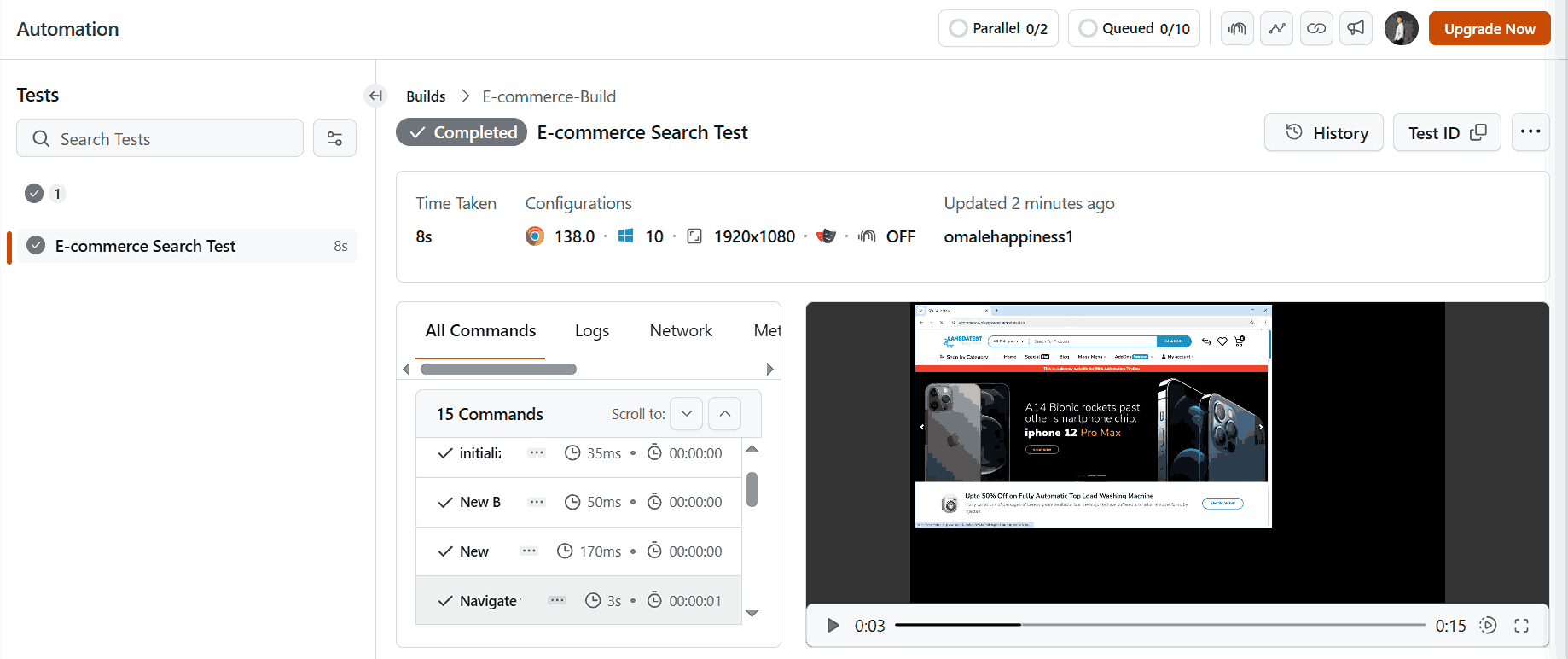
Conclusion
Python makes it simple to automate everyday tasks by providing a readable syntax and a wide range of powerful libraries. In this Python automation tutorial, we explored how to automate search functionality using Playwright, demonstrating how Python can interact with web pages just like a human would.
So, if you're automating browser interactions, managing files, or processing data, Python helps reduce manual effort, minimize errors, and increase efficiency. With the right tools, automation becomes both accessible and scalable.
Other than Playwright framework, you can also use tools like Selenium for Python automation testing. Check out this tutorial on Selenium Python to get started with automated website testing.
Citations
- Python Official Website - https://www.python.org/
- Playwright Official Website - https://playwright.dev/
Author

Ekemini Samuel


Ekemini Samuel is a Developer Relations Engineer and Technology Educator with 5+ years of experience in developer relations, technical writing, and community building. He specializes in Go, Mojo, and AGI technologies. Ekemini is the creator behind the tech blog dev.to/envitab and has a growing newsletter, reaching a wide audience. His work focuses on simplifying complex tech topics through creative storytelling and educational content. He’s also earned certifications in DevOps and technical writing.
Reviewer

Shahzeb Hoda
Reviewer
Shahzeb Hoda is the Associate Director of Marketing and a Community Contributor at TestMu AI, leading strategic initiatives in developer marketing, content, and community growth. With 10+ years of experience in quality engineering, software testing, automation testing, and e-learning, he has authored and reviewed 70+ technical articles on software testing and automation. Shahzeb holds an M.Tech in Computer Science from BIT, Mesra, and is certified in Selenium, Cypress, Playwright, Appium, and KaneAI. He brings deep expertise in CI/CD pipeline automation, cross-browser testing, AI-driven testing practices, and framework documentation. On LinkedIn, he is followed by 3,700+ engineers, developers, DevOps professionals, tech leaders, and enthusiasts.


Python Automation FAQs
Did you find this page helpful?
More Related Learning Hubs
TestMu AI forEnterprise
Get access to solutions built on Enterprise
grade security, privacy, & compliance
- Advanced access controls
- Advanced data retention rules
- Advanced Local Testing
- Premium Support options
- Early access to beta features
- Private Slack Channel
- Unlimited Manual Accessibility DevTools Tests