

Next-Gen App & Browser Testing Cloud
Trusted by 2 Mn+ QAs & Devs to accelerate their release cycles


Guide To Web Scraping With JavaScript And Selenium
Learn how to perform web scraping with JavaScript and Selenium listed in this guide. Discover techniques and practices for efficient data collection from websites.

Solomon Eseme
January 12, 2026
Web scraping with JavaScript is a very useful technique to extract data from the Internet for presentation or analysis. However, in this era of dynamic websites, it becomes difficult to accurately extract data from the web because of the ever-changing nature of data.
In the past, we used libraries such as urllib or requests to read data from webpages, but things started falling apart with dynamic websites. For websites that are not static, using a common ajax call or requests will simply not work.
Selenium framework was introduced for such automation to help in the aspect of dynamic data and other important features.
When we were developing an automated job portal for backend engineers, we needed a reliable web scraping framework to help us scrape over 20 job portals and return over a thousand jobs each, and Selenium was the answer. If you are preparing for an interview you can learn more through Selenium interview questions.
But before we delve into what is Selenium and perform web scraping with JavaScript and Selenium, let’s explore what web scraping is all about?
What is Web Scraping?
Web scraping is the process of extracting data from the Internet for storage in different formats or for further processing and analysis. It can also be referred to as web harvesting or web data extraction.
By Web scraping with JavaScript and Selenium, we basically automates the manual process of extracting data from the Internet and storing it for further processing.
It can be useful to extract data for different purposes such as
- Academic or business Research
- Historical Data Analysis
- Price comparisons
- SEO
- Brand protection
- Ad verification
- and many other use cases
You can use web scraping to generate product reviews from review websites to help you decide to buy a particular product.
You can also use web scraping to scrape thousands of job portals for specific jobs you’re interested in applying for.
Benefits of Web Scraping with JavaScript
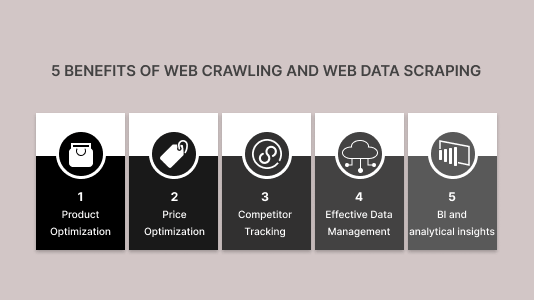
Below are a few benefits of web scraping:
- Extracting product details of e-commerce websites such as prices, product names, images, etc.
- Web scraping is very useful in research as it can help to gather structured data from multiple websites.
- Gathering data from different sources for analysis can be automated with web scraping easily.
- It can be used to collect data for testing and training machine learning models.
The benefit of web scraping is endless and introduces different thoughtful insights and possibilities to businesses.
Where to check for data protection?
In general, web scraping is not illegal, but there are some caveats to it, and to some extent, it has become illegal.
It’s always very important to be careful and check out some of the different terms you should consider when web scraping to determine if your actions are illegal or not.
- Copyright InfringementEvery website should have a document stating whether the website’s content can be web scraped or not. You can check the copyright document to gain more insights into the possibilities provided by the company on web scraping.
- Robot.txtThe robot.txt file also provides strict information on web scraping, and you should adhere to this file’s information or legal stand. If it says no web scraping, then it should be respected.
- Using APIIf a business provides a public API that users can access the data in the business, then you should adhere to using the API instead of web scraping it to avoid legal action.
- Terms of Services
Terms of service is a good place to find all the information on how the website’s content should be used and accessed. It states the possibilities of web scraping the stand the website is taking on.
- Scraping Public ContentWeb scraping of public content is not a crime, but if the content owner forbids it – web scraping companies should comply.
Now that we understand our stand on the legality of web scraping, what methods are there to web scrape data either for a small use case or web scraping at scale? Next, let’s explore the different methods and tools available for web scraping.

Web Scraping Tools
This is the most popular web scraping method where a business deploys an already made software for all their web scraping use cases.
If you want to access and gather data at scale, you need good web scraping tools that can surpass IP blocking, cloaking, and ReCaptcha. There are popular tools such as Scrapy, Beautiful Soup, Scrapebox, Scrapy Proxy Middleware, Octoparse, Parsehub, and Apify.
These tools help you with your web scraping task at scale and can surpass different obstacles to help you achieve your goals.
Selenium is a popular open-source web automation framework used for automated browser testing. This framework helps you write Selenium test scripts that can be used to automate testing of websites and web applications, then execute them in different browsers on multiple platforms using any programming language of your choice. However, it can be adapted to solve dynamic web scraping problems, as we will demonstrate in the blog on how you can do web scraping using JavaScript and Selenium.
Selenium has three major components:
- Selenium IDE: It is a browser plugin – a faster, easier way to create, execute, and debug your Selenium scripts.
- Selenium WebDriver: It is a set of portable APIs that help you write automated tests in any language that runs on top of your browser.
- Selenium Grid: It automates the process of distributing and scaling tests across multiple browsers, operating systems, and platforms.
When writing this blog on web scraping with JavaScript and Selenium, the latest version of Selenium is Selenium 4. If you are intrigued to know more about what is new in Selenium 4, you can go through this video:
Benefits of using Selenium with JavaScript for Web Scraping
The benefits of using Selenium are limitless and can be used in different aspects of web scraping with JavaScript – from scraping static to dynamic websites. Below are a few benefits of using Selenium WebDriver for your next web scraping project.
- The Selenium WebDriver can be configured to scrape a website on browsers whose browser drivers are available.
- Selenium WebDriver to scrape complicated websites with dynamic contents since some needed data requires HTTP requests.
- Perform automated screenshot testing by taking numerous screenshots of the web pages as you scrape the web pages.
- With the Selenium WebDriver, you can simulate a real user working with a browser by loading all resources and downloading browser cookies.
In this Selenium JavaScript tutorial, we will learn how to perform web scraping with JavaScript and Selenium on our local machine and also on TestMu AI cloud Selenium Grid.
We will be web scraping the TestMu AI YouTube channel, displaying the list of videos on a webpage using Selenium, and converting the information to JSON data.
If you are new to this channel, please subscribe to the TestMu AI YouTube Channel and stay updated with the latest tutorials on Selenium testing, Cypress testing, CI/CD, and more.

Note: Accelerate JavaScript Automation with Parallel testing. Try TestMu AI Now!
Implementing Web Scraping with JavaScript and Selenium
One of the benefits of Selenium is that it can web-scrape dynamic JavaScript pages where there are dynamic interactions such as hovering over menu items. In this section of this blog on web scraping with JavaScript and Selenium, we will demonstrate how to web scrape YouTube videos and display the data as JSON using Selenium and JavaScript.
Selenium encapsulates the complexity of building an automation tool for dynamic pages and makes it easy by simplifying installing and configuring the package.
Prerequisites
Before you continue below, you should be familiar with Node.js and Express.js – a Node.js framework. If you are new to Express testing, you can learn more about it through this guide on getting started quickly with Express testing.
Installation
We will continue by installing the necessary packages and software to implement web scraping with JavaScript and Selenium.
- Visual Studio Code: This is the code editor we will use in this demo, though you can go with any code editor of your choice. You could use any other IDE of your choice.
- Browser Driver: To run the Selenium testing drivers on your machine, you need to download the drivers from the following locations according to the browser of your choice.
| Browser | Download Location |
|---|---|
| Opera | https://github.com/operasoftware/operachromiumdriver/releases |
| Firefox | https://github.com/mozilla/geckodriver/releases |
| Chrome | http://chromedriver.chromium.org/downloads |
| Internet Explorer | https://github.com/SeleniumHQ/selenium/wiki/InternetExplorerDriver |
| Microsoft Edge | https://blogs.windows.com/msedgedev/2015/07/23/bringing-automated-testing-to-microsoft-edge-through-webdriver/ |
After downloading any of the drivers, make sure to install it and set it up properly according to your operating system.
After successfully installing and configuring the browser driver, we will explore how to create a new project and start scraping YouTube videos in the next section of this blog on web scraping with JavaScript and Selenium.
Creating a Project
After the installation, we will create a new VSCode Node.js project and add the following libraries to our package.json file.
- Ensure you have Node.js installed and configured properly in your operating system. You can download and install it from the Node.js official website.
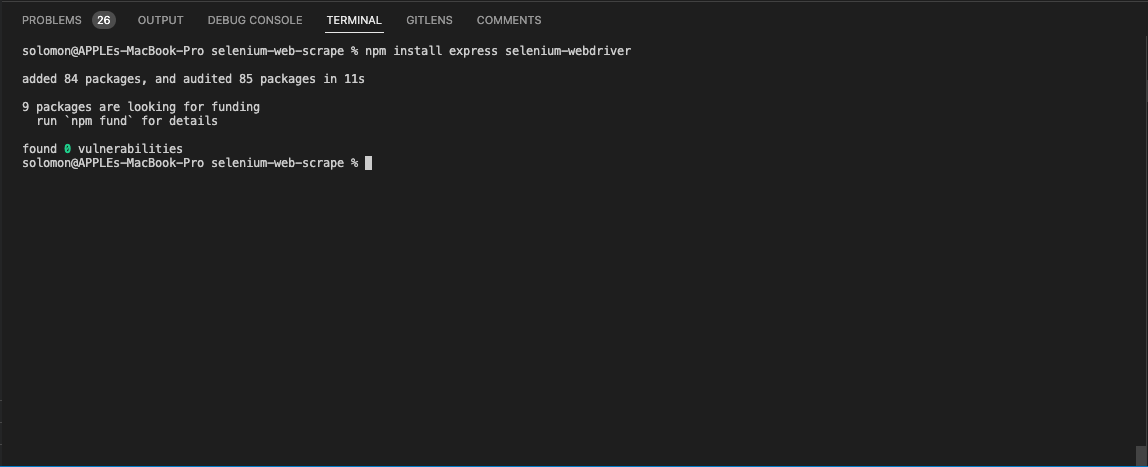
- Let’s install the following packages:
```bash
    npm install express selenium-webdriver
    ```
```bash
    touch index.js
    ```
Create the express server to listen to incoming requests:
```js
    const express = require('express')
    const { Builder, By } = require('selenium-webdriver');

    const app = express()
    const port = 3000
    app.get('/', (request, response) => {
     // Web Scraping Code here
    })
    app.listen(port, () => {
      console.log(`Example app listening at http://localhost:${port}`)
    })
YouTube Web Scraping with JavaScript and Selenium
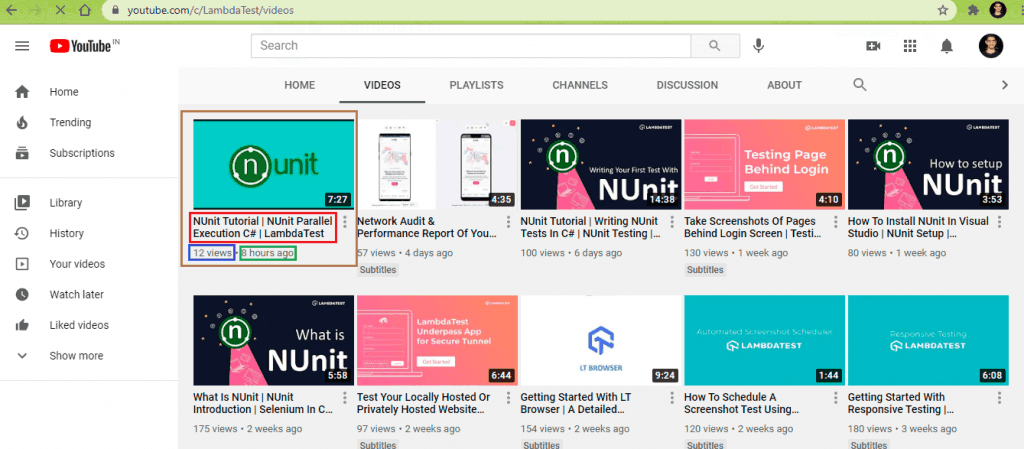
In this demonstration, we scrape the following data from the TestMu AI YouTube channel and display it as JSON:
- Video Title
- Video Views
- Video Published Date
You can implement it using the cloud-based Selenium automation grid provided by TestMu AI, which will take away all the manual configuration both in development and in production.
TestMu AI is a platform that allows you to automate browsers with Selenium, Appium, and other frameworks. With TestMu AI’s Selenium Grid, you can run Selenium tests in parallel over an online browser farm of 3000+ browsers and platform configurations.
Below is a simple walkthrough of how the scraping is going to happen before delving into the implementation.
- Open the YouTube channel videos page.
- It scrolls until the end of the page to scrape all the videos available.
- Retrieves the video title, views, and upload details using a loop.
- Convert the scraped information to JSON.
Implementation:
const express = require('express');
const { Builder, By } = require('selenium-webdriver');

const app = express();
const port = 3000;
app.get('/', async (request, response) => {
 // Web Scraping Code here
 try {
   const data = await WebScrapingLocalTest();
   response.status(200).json(data);
 } catch (error) {
   response.status(500).json({
     message: 'Server error occurred',
   });
 }
});
app.listen(port, () => {
 console.log(`Example app listening at http://localhost:${port}`);
});

async function WebScrapingLocalTest() {
 try {
   driver = await new Builder().forBrowser('chrome').build();
   await driver.get('https://www.youtube.com/c/LambdaTest/videos');
   const allVideos = await driver.findElements(
     By.css('ytd-grid-video-renderer.style-scope.ytd-grid-renderer')
   );
   return await getVideos(allVideos);
 } catch (error) {
   throw new Error(error);
 } finally {
   await driver.quit();
 }
}
Code Walkthrough:
Let’s walk through the code together and understand the nitty-gritty of it.
Step 1: Add required packages
First, we require the express and selenium-webdriver packages, and next we created an Express server to handle the incoming request. The request is handled by calling the WebScrapingTest function.
```js

app.get('/', async (request, response) => {
 // Web Scraping Code here
 try {
   const data = await WebScrapingLocalTest();
   response.status(200).json(data);
 } catch (error) {
   response.status(500).json({
     message: 'Server error occurred',
   });
 }
});

async function getVideos(videos) {
 let videoDetails = [];
 try {
   for (const video of videos) {
     const title = await video.findElement(By.id('video-title')).getText();
     const views = await video
       .findElement(By.xpath(".//*[@id='metadata-line']/span[1]"))
       .getText();
     const date = await video
       .findElement(By.xpath(".//*[@id='metadata-line']/span[2]"))
       .getText();
     videoDetails.push({
       title: title ?? '',
       views: views ?? '',
       publishedDate: date ?? '',
     });
   }
 } catch (error) {
   console.log(error);
 }
 return videoDetails;
}
Step 2: Create an instance of Selenium WebDriver
Inside the openChromeTest function, we created an instance of the Builder class from the Selenium Webdriver package we imported earlier. We also pipe the forBrowser method used to indicate the browser to use for the web scraping and lastly, we call the build method, which creates a new WebDriver client based on this builder’s current configuration.
With the instance of the builder, we passed in the official TestMu AI YouTube videos URL in the get method of the builder class.
```js

    driver = await new Builder().forBrowser('chrome').build();
       await driver.get('https://www.youtube.com/c/LambdaTest/videos');
Step 3: Load all the YouTube Videos on the pageNext, we will load all the videos within the page and collect specific information using a loop in JavaScript.
To do that, we need to target a specific element in the YouTube Videos page that contains all the videos using the Chrome inspector tool, we can select any element within the webpage. Below is a screenshot showing the element and the CSS selector to use.
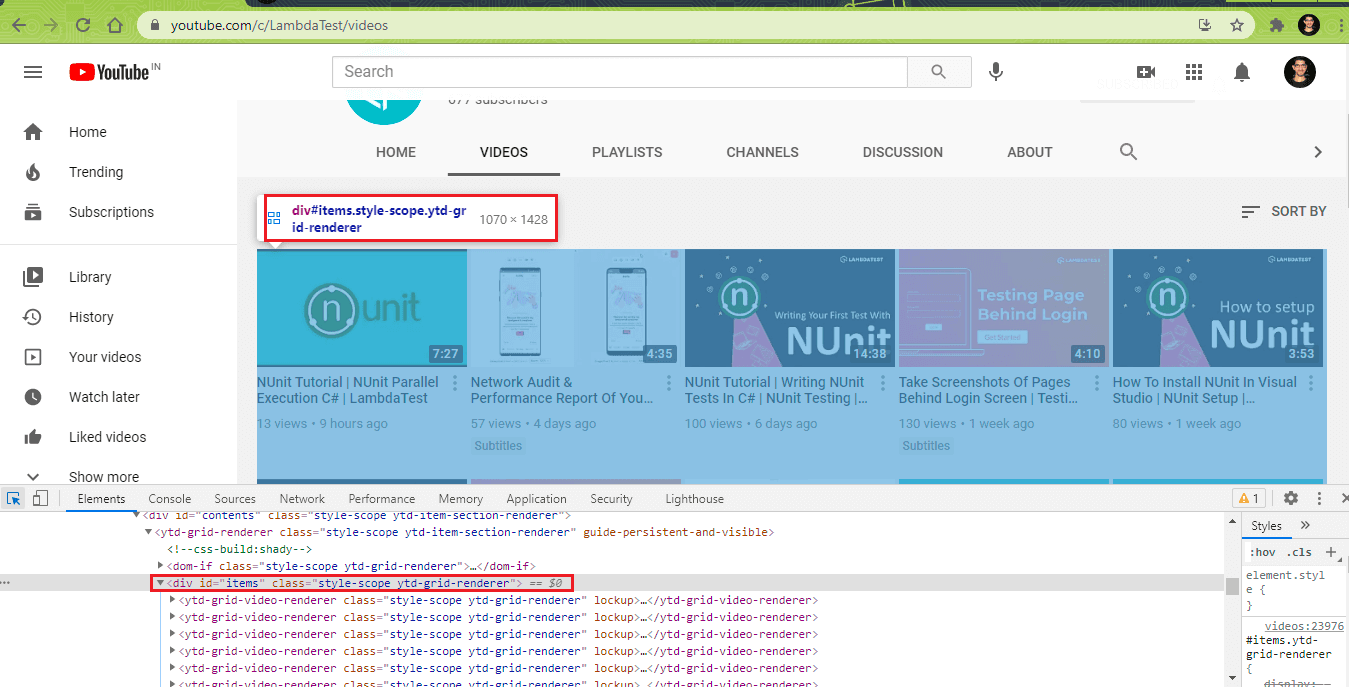
As of the time of writing, the class attribute to target is ytd-grid-video-renderer style-scope ytd-grid-renderer, which is a combination of the CSS class property of the parent container and the individual video container.
Next, we are going to convert the classes to CSS QuerySelector and target all the videos using the FindElements method in the Selenium WebDriver and By instance class. Here is how it looks:
const allVideos = await driver.findElements(
         By.css('ytd-grid-video-renderer.style-scope.ytd-grid-renderer')
       );
Selenium uses the By instance class to represent different query selectors, so you can select elements using Selenium locators like CSS name, ID, Class, etc.
Finally, the findElements method returns an object of all the selected HTML DOM Nodes called WebElement, which we will loop through to retrieve metadata of the videos while performing web scraping with JavaScript and Selenium.
Step 4: Converting to JSON
Lastly, we loop through the WebElement and retrieve metadata of the videos such as the video title, video views, and video published date.
 async function getVideos(videos) {
 let videoDetails = [];
 try {
   for (const video of videos) {
     const title = await video.findElement(By.id('video-title')).getText();
     const views = await video
       .findElement(By.xpath(".//*[@id='metadata-line']/span[1]"))
       .getText();
     const date = await video
       .findElement(By.xpath(".//*[@id='metadata-line']/span[2]"))
       .getText();
     videoDetails.push({
       title: title ?? '',
       views: views ?? '',
       publishedDate: date ?? '',
     });
   }
 } catch (error) {
   console.log(error);
 }
 return videoDetails;
}
In the code above, we are using both the XPath selectors to accomplish our task of retrieving basic video information. This screenshot below shows you how to retrieve the XPath of a particular element in a webpage.
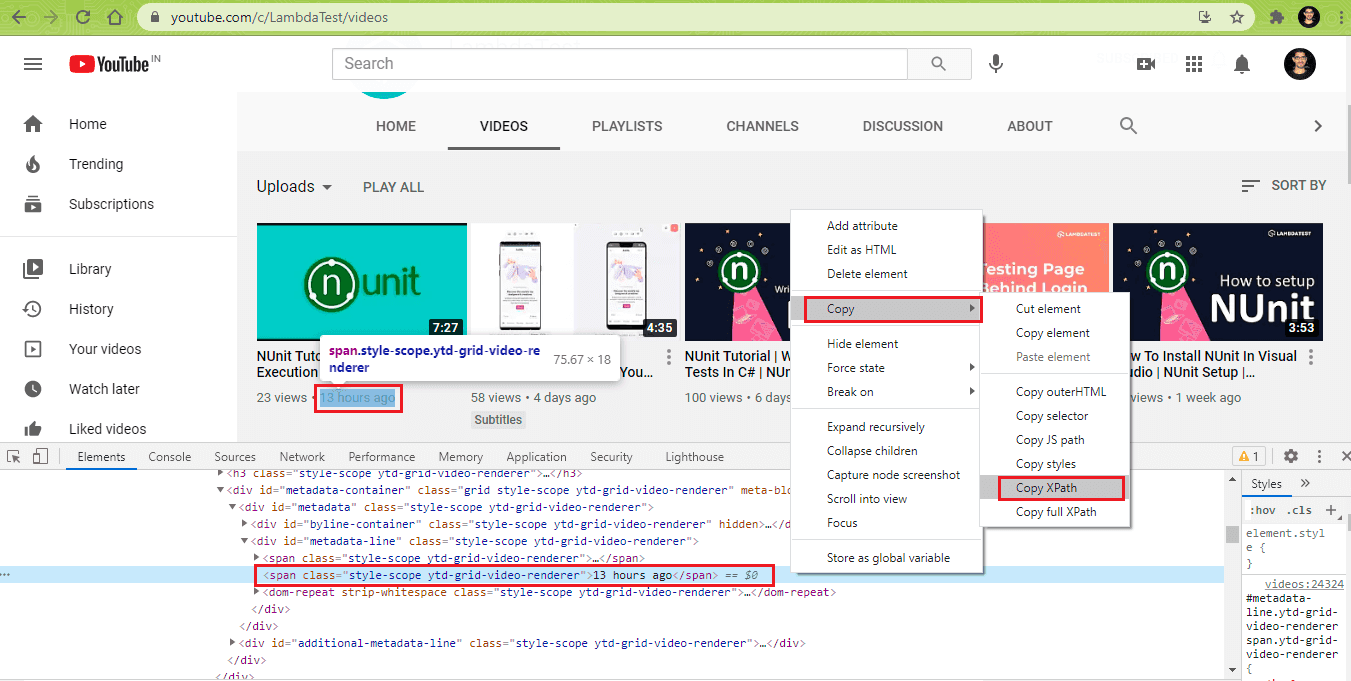
Secondly, We are also using the ID selector to retrieve the video title. This screenshot shows where to get the ID for the video title element on YouTube using the Inspector tool:
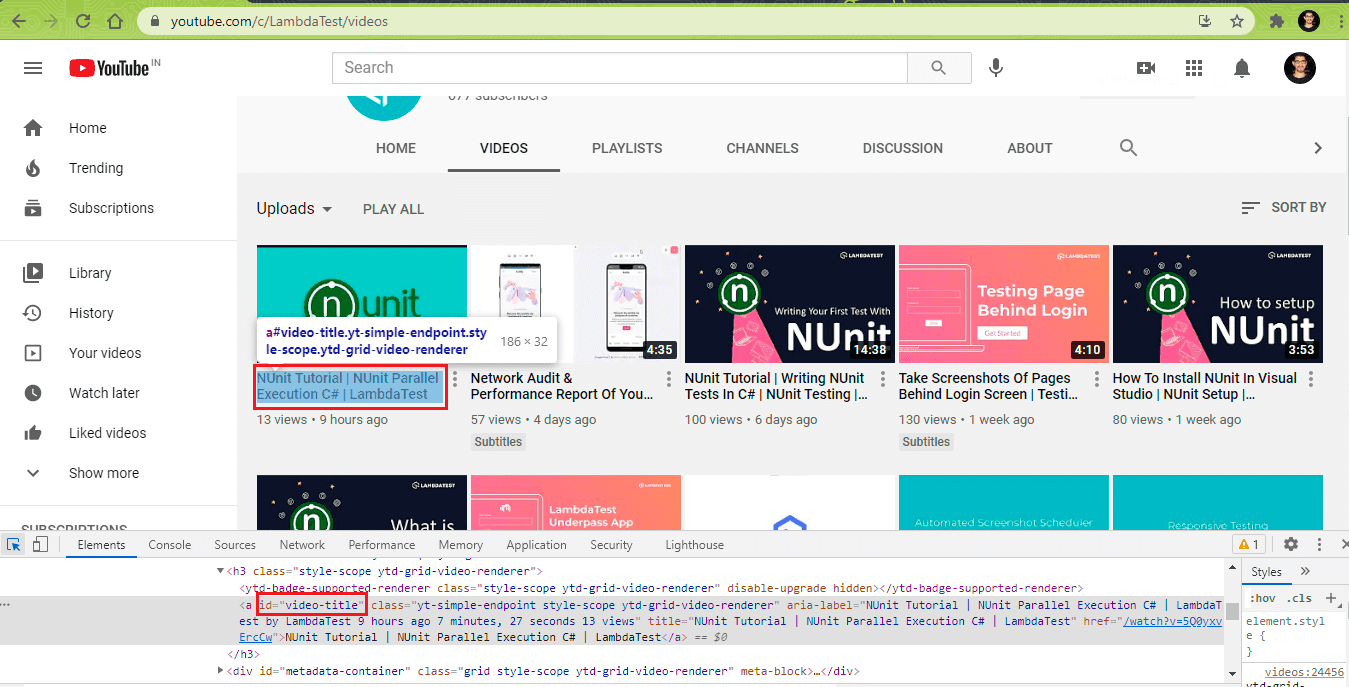
Display the JSON data
After successfully performing YouTube web scraping with JavaScript and Selenium, we convert them into JSON and send them as a response to our request using the Express server. Finally, we are ready to test the new web scrapper.
- Start a new development server using the following command:
```bash
    node index.js
    ```
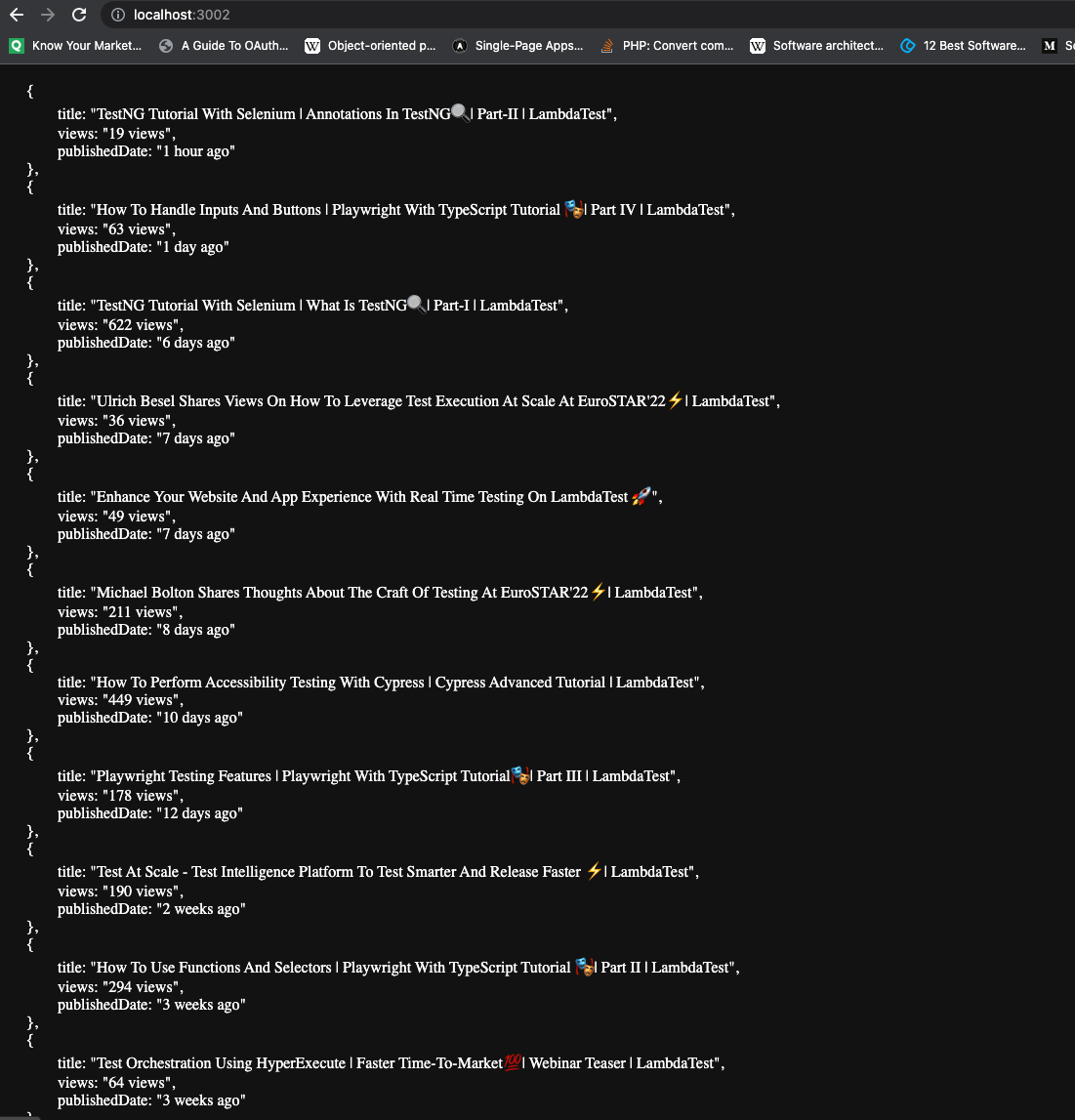
A screenshot showing the result of web scraping with JavaScript and Selenium on the TestMu AI YouTube videos page.
If you love testing as much as I do, you’re going to enjoy learning more about one of the most powerful tools I know of – Selenium WebDriver with JavaScript. This video tutorial covers everything you need to know.
Web Scraping with JavaScript and Selenium on cloud-based Selenium Grid
In the previous section, we performed web scraping with JavaScript and Selenium on our local machine. One of the shortcomings of this approach is that you need to install and configure the Browser drivers locally.
Assuming you need to use multiple browsers to perform that automation, you must also manually install and configure each browser. This is where a cloud-based grid can be super impactful, as you can perform JavaScript automation testing in parallel on various browser and platform combinations.
Cloud testing platforms like TestMu AI allow you to perform live testing and run parallel tests on 3000+ real browsers and their different versions. It provides you access to thousands of browsers for mobile and web testing to help you gain the maximum test coverage during the process of Selenium web automation. Let’s look at how to run the Selenium automation test with JavaScript on TestMu AI:
Step 1: Let’s start by creating a free account on the TestMu AI platform. Once you log in, fetch your unique username and access key from the TestMu AI Profile Section of the website.
Step 2: Make the following configuration changes to your existing code: Provide username and access key.
- Provide username and access key.
const USERNAME = 'YOUR_USERNAME'; //replace with your username
    const KEY = 'YOUR_KEY'; //replace with your accesskey
const GRID_URL = 'hub.lambdatest.com/wd/hub';
const capabilities = {
     build: 'Web Scraping with JavaScript and Selenium',
     name: 'Youtube Videos',
     platform: 'Windows 10',
     browserName: 'Chrome',
     version: '90.0',
     selenium_version: '3.13.0',
     'chrome.driver': '90.0',
    };
Select the desired browser version and OS configuration. You may also provide the build name. Provide this object inside the test function.
- Provide the gridUrl. You can also find this value from the TestMu AI Dashboard.
const gridUrl = 'https://' + USERNAME + ':' + KEY + '@' + GRID_URL;
async function WebScrapingWithLambdaTest() {
     try {
       driver = await new Builder()
         .usingServer(gridUrl)
         .withCapabilities(capabilities)
         .build();
       await driver.get('https://www.youtube.com/c/LambdaTest/videos');
       const allVideos = await driver.findElements(
         By.css('ytd-grid-video-renderer.style-scope.ytd-grid-renderer')
       );
       return await getVideos(allVideos);
     } catch (error) {
       throw new Error(error);
     } finally {
       await driver.quit();
     }
    }
Here is the final implementation of Selenium automation with JavaScript that will be run on TestMu AI’s cloud-based Selenium Grid:
app.get('/lambdatest', async (request, response) => {
     try {
       const data = await WebScrapingWithLambdaTest();
       response.status(200).json(data);
     } catch (error) {
       response.status(500).json({
         message: 'Server error occurred',
       });
     }
    });
    const USERNAME = 'YOUR_USERNAME'; //replace with your username
    const KEY = 'YOUR_KEY'; //replace with your accesskey
    const GRID_URL = 'hub.lambdatest.com/wd/hub';
    const capabilities = {
     build: 'JavaScript and Selenium Testing',
     name: 'Google search',
     platform: 'Windows 10',
     geoLocation: 'US',
     browserName: 'Chrome',
     version: '90.0',
     selenium_version: '3.13.0',
     'chrome.driver': '90.0',
    };

    const gridUrl = 'https://' + USERNAME + ':' + KEY + '@' + GRID_URL;

    async function WebScrapingWithLambdaTest() {
     try {
       driver = await new Builder()
         .usingServer(gridUrl)
         .withCapabilities(capabilities)
         .build();
       await driver.get('https://www.youtube.com/c/LambdaTest/videos');

       const allVideos = await driver.findElements(
         By.css('ytd-grid-video-renderer.style-scope.ytd-grid-renderer')
       );
       return await getVideos(allVideos);
     } catch (error) {
       throw new Error(error);
     } finally {
       await driver.quit();
     }
    }
Step 3: Finally, it’s time to run the test on the TestMu AI grid. Trigger the following command on the terminal to run the automation testing with Selenium JavaScript.
```js
    node index.js
    ```
Next, visit localhost:3000/lambdatest. You should have the same result as before. If you check your TestMu AI Dashboard under Automation, you will see the execution snapshot, which indicates that the test execution was successful.
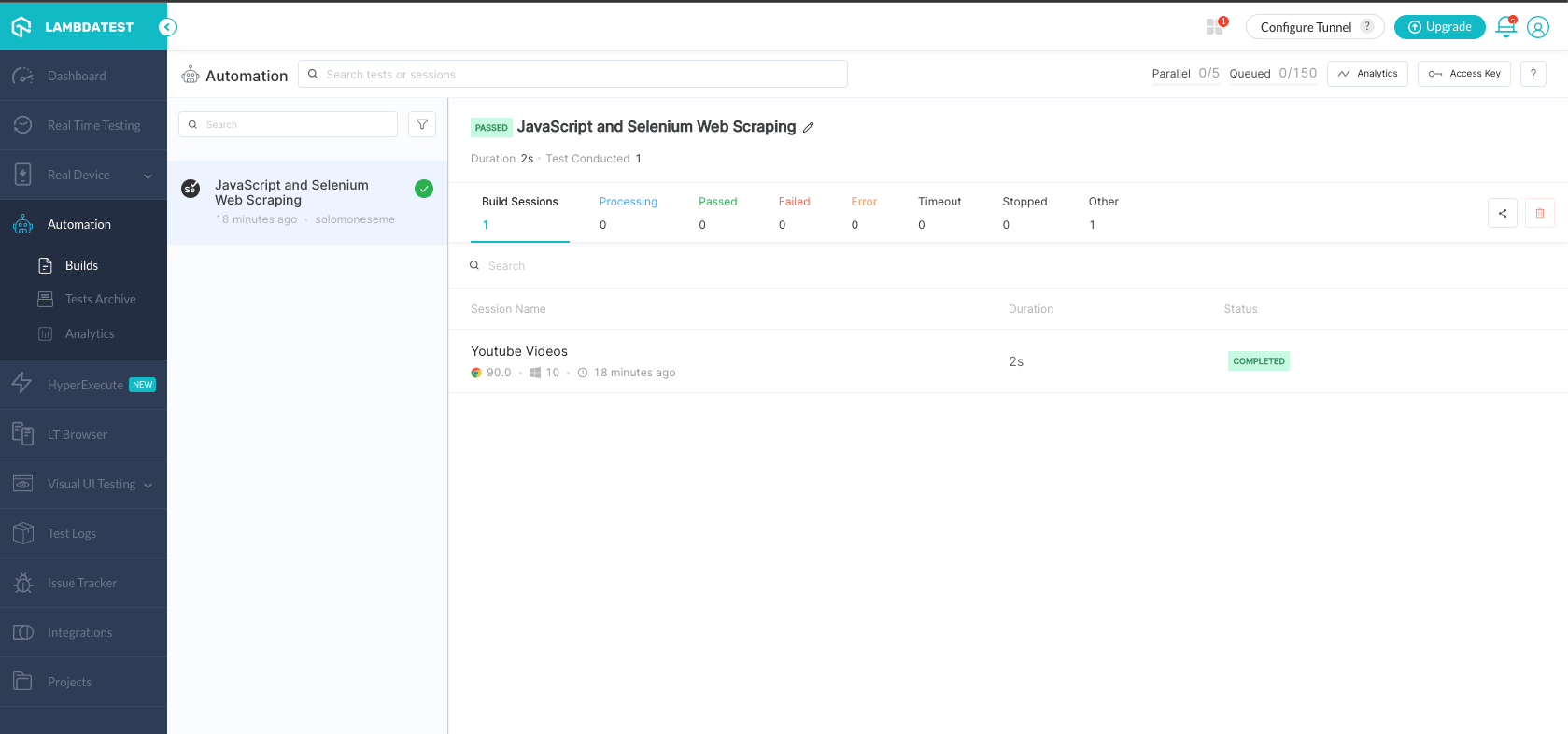
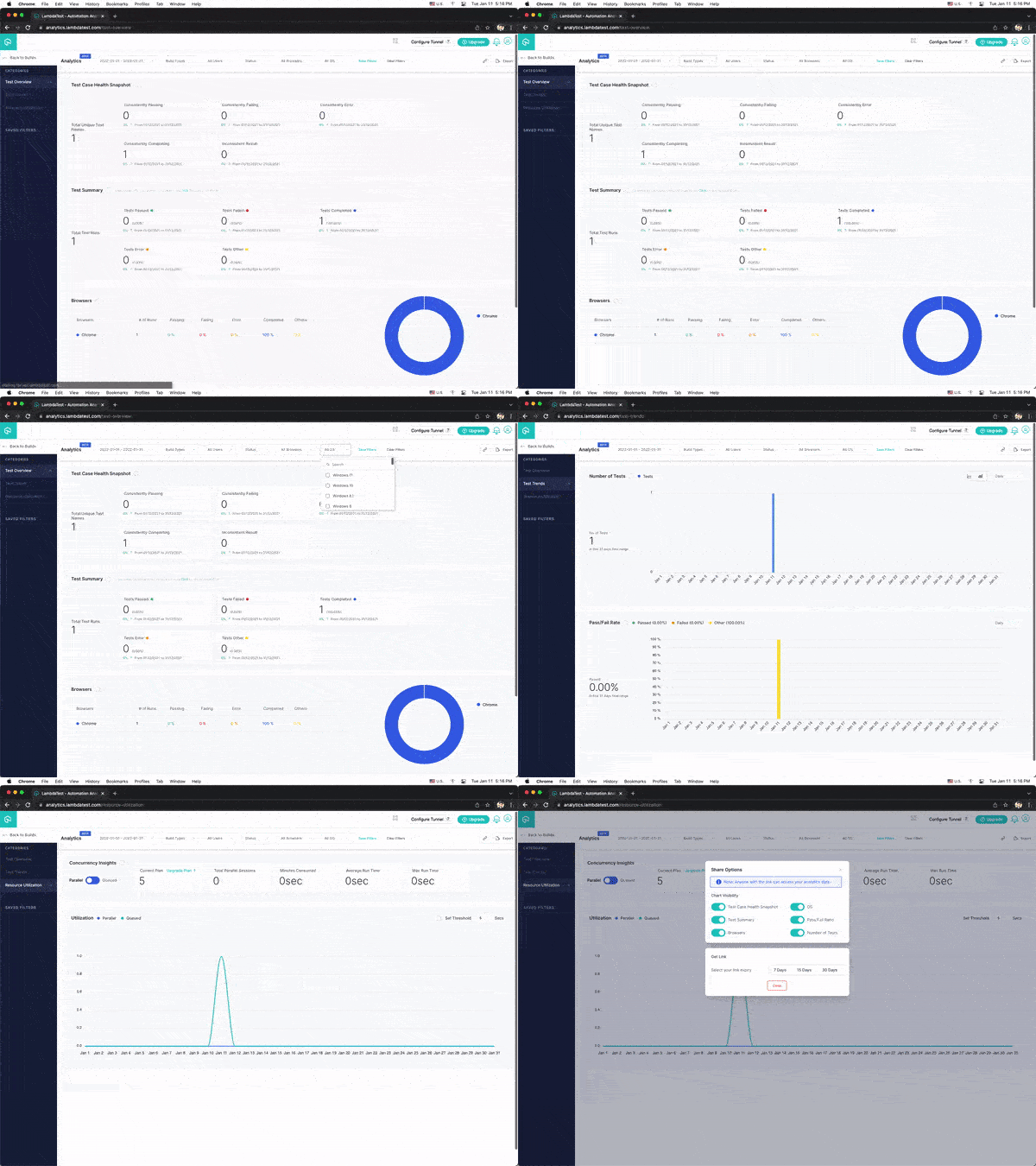
You can also access the TestMu AI Analytics Dashboard, which provides you with a complete overview of all your test results and a clear picture of their status over time.

Drawbacks of using Selenium for Web Scraping with JavaScript
In this blog, we have seen how to perform web scraping with JavaScript and Selenium. However, there are some drawbacks to using any particular technology (or tool/framework), and Selenium is not exempted. Below are some of the drawbacks of using Selenium for web scraping.
- When using Selenium for web scraping, it can automatically download unnecessary files. For instance, if you’re only interested in the text data of a webpage, Selenium will also download the assets (i.e., CSS, HTML, JS, and other files) needed to render the web page.
- It consumes time and resources when using Selenium WebDriver because it downloads unnecessary files to render the web page.
- Web Scraping with Selenium is slow since it waits for the entire page to be loaded before you can start accessing data. To learn more about waits, you can read through this blog on types of waits in Selenium.
Watch this video to learn what are waits in Selenium and how to handle them using different methods like hard-coded pauses and by combining explicit waits with different design patterns.
So far, we have detailed a few drawbacks you need to look out for when web scraping with JavaScript and Selenium. Let’s also explore the limitless possibilities and benefits of using Selenium for web scraping.You can also identify obscure issues in the website with the aid of the visual testing tool Selenium.
If you’re a JavaScript developer serious about automation testing, this certification will give you the hard-core skills and in-depth knowledge needed to excel in any JavaScript automation role.

Here’s a short glimpse of the Selenium JavaScript 101 certification from TestMu AI:
Summary
Web scraping is an important technique to extract data. It eliminates the manual process of extracting public data. Web scraping is also very accurate and less time-consuming. It can also be configured to retrieve dynamic websites using Selenium and JavaScript.
In this blog on web scraping with JavaScript and Selenium, we have explored the benefits of web scraping, which can not be overemphasized, the different web scraping tools, and Selenium which stands as the best tool for automated testing and dynamic web scraping tools.
We scraped all the content of the official TestMu AI YouTube channel and converted them into JSON, automatically extracting the titles and authors to generate an author matrix, among other useful insights.
If you are interested in learning more about web scraping using Selenium using other languages like C#, you can go through this article on scraping dynamic web pages using Selenium and C#.

Austin Siewert
CEO, Vercel
Discovered @TestMu AI yesterday. Best browser testing tool I've found for my use case. Great pricing model for the limited testing I do 👏
2M+ Devs and QAs rely on TestMu AI
Deliver immersive digital experiences with Next-Generation Mobile Apps and Cross Browser Testing Cloud



Frequently asked questions
Did you find this page helpful?
More Related Hubs
TestMu AI forEnterprise
Get access to solutions built on Enterprise
grade security, privacy, & compliance
- Advanced access controls
- Advanced data retention rules
- Advanced Local Testing
- Premium Support options
- Early access to beta features
- Private Slack Channel
- Unlimited Manual Accessibility DevTools Tests