

Power Your Software Testing with AI Agents and Cloud
The Native AI-Agentic Cloud Platform to Supercharge Quality Engineering. Test Intelligently and Ship Faster.


- TestMu AI (Formerly LambdaTest)
- /
- Blog
- /
- Web Development Using Python: Top Frameworks With Best Practices
Web Development Using Python: Top Frameworks With Best Practices
Learn web development using Python with Django, Flask, and FastAPI. Set up a project, build a working app, test it across browsers, and apply best practices.
Last Updated on:
Web development using Python means writing a web application's server side in Python, while HTML, CSS, and JavaScript render the interface in the browser. Django 5.2, the current long-term support release, requires Python 3.10 or newer, while Flask suits small prototypes and FastAPI serves asynchronous APIs. This guide explains what Python web development is, why developers choose Python, how to get started, run a project, and run it at scale, which frameworks and tools to use, how AI coding assistants change the work, the common challenges, and the best practices.
Key Takeaways
- Python web development uses Python for the backend of a web application, covering server-side logic, database operations, data processing, and API endpoints, while HTML, CSS, and JavaScript handle the interface in the browser.
- Django 5.2 is the current long-term support release and runs on Python 3.10 or newer, so an older Python interpreter fails the Django install.
- Flask suits small to medium applications and quick prototypes that need minimal structure, while Django ships authentication, an ORM, and an admin interface for large production-ready applications.
- Django's StaticLiveServerTestCase starts a real local test server at self.live_server_url, so a Selenium test can open the Django application in a browser and confirm what a user actually sees.
- A USENIX Security 2025 study of 576,000 generated code samples found that at least 5.2% of packages recommended by commercial language models and 21.7% of packages recommended by open-source models do not exist, so an unfamiliar package name needs a check on pypi.org before installation.
- Running python manage.py check --deploy against a Django production settings file reports unsafe defaults, including DEBUG left on, a missing ALLOWED_HOSTS, and insecure CSRF and session cookies.
What Is Python Web Development?
Python web development refers to building web applications and services with Python. When working on web development using Python, it is primarily used for backend/server-side logic, database operations, data processing, and API endpoints.
This also integrates with frontend technologies, which manage the visual and interactive elements users engage with. Together, the frontend and backend create dynamic, functional, and user-friendly web applications.
Key Takeaway: Python web development means using Python on the backend for server-side logic, database operations, data processing, and API endpoints, while HTML, CSS, and JavaScript render the interface users see in the browser.
Why Use Python for Web Development?
One of the key decisions in web development is selecting the right programming language. Python is widely chosen for web development using Python due to several advantages:
- Easy to Learn: Python's simple syntax and dynamic typing make it beginner-friendly. It allows developers to write code quickly and flexibly without unnecessary complexity.
- Fast Development: Python's frameworks and libraries enable rapid prototyping and development. This helps developers bring projects to life much faster than many other languages.
- Extensive Libraries: Python offers libraries for data analysis, machine learning, web scraping, and more. These libraries provide ready-to-use tools that reduce effort and speed up workflows.
- Security: Python and frameworks like Django include built-in security features such as CSRF protection, input escaping, secure session handling, and authentication modules. Libraries and frameworks are also actively maintained with regular updates and security patches.
To get started with web development using Python, check out a beginner-friendly Python tutorial and start learning Python.

Note: Run your Python tests at scale across 3000+ browsers and OS combinations. Try TestMu AI Now!
Key Takeaway: Developers pick Python for web development because its simple syntax shortens the learning curve, its frameworks and libraries speed up prototyping, and Django ships security features such as CSRF protection, input escaping, and secure session handling.
Getting Started With Web Development Using Python
Learn the fundamentals of web development using Python, set up your development environment, understand core concepts, and start building interactive web applications efficiently.
To get hands-on experience, we'll begin by creating a simple To-Do application using Django, covering project setup, app creation, and basic backend logic.
Creating a Simple To-Do Web Application with Django
Creating a simple To-Do web application is a hands-on way to learn web development using Python. Using Django, you can quickly build a functional app that handles tasks like adding, updating, and deleting items while understanding the basics of backend development.
Prerequisites:
- Python: Make sure you have Python installed on your machine. You can download the latest version from the official Python website.
- Code Editor: Use a preferred editor like Visual Studio Code, PyCharm, or Sublime Text (VS Code recommended).
- Web Framework: Choose a framework suitable for your application. Flask and Django are popular for beginners. For demonstration purposes will use Django.
Check your Python version before you install anything. Django 5.2 is the current long-term support release, and it runs on Python 3.10 or newer, so an older interpreter will fail the install. The Django download page lists 5.2 as the LTS with extended support until April 2028, and the 6.x series as the current feature line. The Django 6.0 release notes state that Django 6.0 supports Python 3.12, 3.13, and 3.14, and that the Django 5.2.x series is the last to support Python 3.10 and 3.11.
The steps below use virtualenv and pip because both come with a standard Python setup. Many teams now use uv instead, a package manager written in Rust that creates the environment with uv venv and installs dependencies with uv pip install -r requirements.txt. The project layout and the Django commands stay the same either way.
Setting Up a Django Project:
- Virtual Environment: Install virtualenv using pip install virtualenv and create a new environment with virtualenv todo-project.
- Activate Environment: Activate the virtual environment.
- Linux/Mac: source todo-project/bin/activate
- Windows: todo-project\Scripts\activate
- Install Dependencies: Create a requirements.txt file containing Django>=5.2,<6.0 and run pip install -r requirements.txt to install Django. A bare Django>=5.2 now resolves to the 6.x series, which needs Python 3.12 or newer.
- Create Django Project: Initialize your project with django-admin startproject todo_project and navigate into it using cd todo_project.
- Create Django App: Generate a new app using python manage.py startapp todo_app.
- Register App: Add 'todo_app' to the INSTALLED_APPS list in todo_project/settings.py.
INSTALLED_APPS = [
   "django.contrib.admin",
   "django.contrib.auth",
   "django.contrib.contenttypes",
   "django.contrib.sessions",
   "django.contrib.messages",
   "django.contrib.staticfiles",
   "todo_app",
]
# Create your views here.
from django.shortcuts import redirect, render

# Very basic in-memory storage
TASKS = []


def todo_view(request):
   if request.method == "POST":
       task = request.POST.get("task")
       if task:
           TASKS.append(task)
       return redirect("/todo")  # Avoid form resubmission

   return render(request, "./todo_app/todo.html", {"tasks": TASKS})
from django.contrib import admin
from django.urls import include, path
# todo_project/urls.py

urlpatterns = [
   path("admin/", admin.site.urls),
   path("todo/", include("todo_app.urls")),
]
Now that your project is set up, let's create a simple HTML template for the to-do list.
Code Implementation:
In your todo.html file, add the following HTML code:
<!DOCTYPE >
<html>
<head>
</head>
<body>
<h1>My To-Do List</h1>
<form method="post">
{% csrf_token %}
<input type="text" name="task" placeholder="Enter task" required>
<button type="submit">Add</button>
</form>
<ul>
{% for task in tasks %}
<li>{{ task }}</li>
{% empty %}
<li>No tasks yet!</li>
{% endfor %}
</ul>
</body>
Result:Run this command on your terminal:
Python manage.py runserver
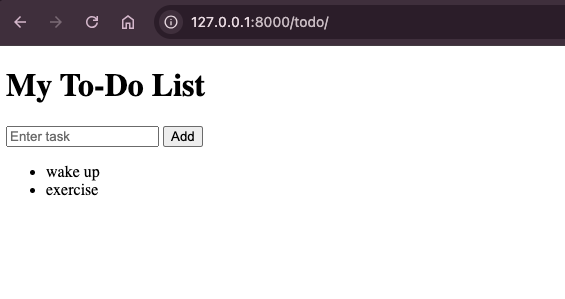
Running your Django To-Do app on your local machine is a crucial step to ensure all features work correctly. It helps identify issues early and guarantees smooth functionality before moving on to deployment or automated testing.
Key Takeaway: Building a Django to-do application starts by confirming Python is 3.10 or newer for Django 5.2, creating a virtual environment, running django-admin startproject and manage.py startapp, and adding the new app to INSTALLED_APPS before writing views, URLs, and templates.
Running Your Web Development Project Using Python
Testing your Python web project locally allows you to confirm that all components operate as intended. This step helps catch errors early, ensures the application runs efficiently, and prepares it for scaling or integration with automated workflows.
Code Implementation:
Add the following test class to your test.py file. This code sets up a Selenium WebDriver, navigates to your To-Do application, adds new tasks, and then verifies they appear in the list.
import time

from django.contrib.staticfiles.testing import StaticLiveServerTestCase
from selenium import webdriver
from selenium.webdriver.chrome.service import Service
from selenium.webdriver.common.by import By
from selenium.webdriver.common.keys import Keys
from selenium.webdriver.support import expected_conditions as EC
from selenium.webdriver.support.ui import WebDriverWait
from webdriver_manager.chrome import ChromeDriverManager


class ToDoAppTest(StaticLiveServerTestCase):
   """Functional tests for the To-Do List app using Selenium"""

   def setUp(self):
       options = webdriver.ChromeOptions()
       # Comment this line out if you want to SEE the browser
       # options.add_argument("--headless=new")
       options.add_argument("--disable-gpu")
       options.add_argument("--no-sandbox")

       self.browser = webdriver.Chrome(
           service=Service(ChromeDriverManager().install()),
           options=options,
       )

   def tearDown(self):
       # Keep the browser open for 5 seconds before closing (for demo)
       time.sleep(5)
       self.browser.quit()

   def test_add_multiple_tasks(self):
       # 1. Open homepage (adjust URL if your form is not at "/todo/")
       self.browser.get(self.live_server_url + "/todo/")

       tasks_to_add = ["Buy milk", "Walk the dog"]

       for task in tasks_to_add:
           # Wait for the input box fresh on every loop iteration
           input_box = WebDriverWait(self.browser, 5).until(
               EC.presence_of_element_located((By.NAME, "task"))
           )
           input_box.clear()  # not strictly necessary, but safe
           input_box.send_keys(task)
           input_box.send_keys(Keys.RETURN)

           # Wait until the new task appears in the list
           WebDriverWait(self.browser, 5).until(
               EC.text_to_be_present_in_element((By.ID, "task-list"), task)
           )

       # Collect all tasks in the list
       task_list = self.browser.find_element(By.ID, "task-list")
       tasks = task_list.find_elements(By.TAG_NAME, "li")
       task_texts = [t.text for t in tasks]

       # Assert all tasks are present
       for task in tasks_to_add:
           self.assertIn(task, task_texts)

       # Pause so you can see the final state in the browser
       import time

       time.sleep(5)
Code Walkthrough:
- Class Inheritance: ToDoAppTest inherits from StaticLiveServerTestCase, which runs a local Django test server at self.live_server_url.
- setUp (before each test): Configures Chrome browser options (--disable-gpu, --no-sandbox, optional headless), initializes Chrome browser with self.browser = webdriver.Chrome(...), and manages ChromeDriver automatically via ChromeDriverManager().install().
- tearDown (after each test): Closes the browser using self.browser.quit().
- Test_add_multiple_tasks: Opens the To-Do application in Chrome, adds tasks from a list by typing and submitting each, waits for tasks to appear and verifies all tasks are displayed, and pauses briefly for visual inspection.
Output:To execute the tests, run the following command:
$python manage.py test

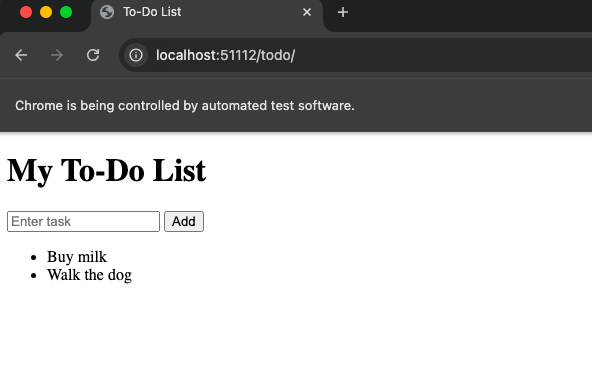
After confirming the app works locally, the next step is scaling it for a larger user base or production environment. This involves configuring the app for performance, security, and stability.
Key Takeaway: A Django functional test that extends StaticLiveServerTestCase drives the to-do application in a real Chrome browser through Selenium, typing each task into the form and using WebDriverWait to confirm the task appears in the list before asserting.
Running Web Development Project at Scale
Scaling your Django To-Do application ensures it can handle increased traffic and multiple users while maintaining performance and reliability.
Testing across multiple devices and browsers is essential to ensure a consistent user experience.
Cloud-based platforms like TestMu AI enable Python automation testing to run parallel tests without managing local setups, making scaling and cross-browser validation more efficient.
TestMu AI is a GenAI-native test execution platform that allows you to perform manual and automated tests at scale across 3000+ browsers and OS combinations.
To get started with running your test at scale on TestMu AI, please follow the steps.
- Download TestMu AI Tunnel (LT): Visit the TestMu AI tunnel downloads page and download the binary compatible with your operating system (Mac, Linux, or Windows).
- Make the Binary Executable (Mac/Linux): Open a terminal and navigate to the directory containing the binary using cd /path/to/directory and make the file executable using chmod +x LT.
- TestMu AI Credentials: Set your TestMu AI Username and Access Key as environment variables. To get your credentials, go to Accounts Settings > Password Security tab and copy your Username and Access Key.
- Run the Tunnel: Start the TestMu AI tunnel using your credentials.
$ ./LT --user <your-username> --key <your-access-key> --tunnelName django-tunnel
Code Implementation:
from django.contrib.staticfiles.testing import StaticLiveServerTestCase
from selenium import webdriver
from selenium.webdriver.common.by import By
from selenium.webdriver.common.keys import Keys
from selenium.webdriver.support import expected_conditions as EC
from selenium.webdriver.support.ui import WebDriverWait

class ToDoAppLambdaTestDevices(StaticLiveServerTestCase):
    """Run Django Selenium tests on LambdaTest across devices"""

    def run_test_on_device(self, lt_options):
        username = "YOUR_USERNAME"  # Replace with your LambdaTest username
        access_key = "YOUR_ACCESS_KEY"  # Replace with your LambdaTest access key

        options = webdriver.ChromeOptions()
        options.set_capability("LT:Options", lt_options)

        browser = webdriver.Remote(
            command_executor=f"https://{username}:{access_key}@hub.lambdatest.com/wd/hub",
            options=options,
        )

        try:
            # Open ToDo app
            browser.get(self.live_server_url + "/todo/")  # Update path if different

            tasks_to_add = ["Buy milk", "Walk the dog"]

            for task in tasks_to_add:
                # Wait for the input box and add task
                input_box = WebDriverWait(browser, 10).until(
                    EC.presence_of_element_located((By.NAME, "task"))
                )
                input_box.clear()
                input_box.send_keys(task)
                input_box.send_keys(Keys.RETURN)

                # Verify task appears in the task-list
                WebDriverWait(browser, 10).until(
                    EC.text_to_be_present_in_element((By.ID, "task-list"), task)
                )

            # Collect all tasks and assert they exist
            task_list = browser.find_element(By.ID, "task-list")
            tasks = task_list.find_elements(By.TAG_NAME, "li")
            task_texts = [t.text for t in tasks]

            for task in tasks_to_add:
                assert task in task_texts

        finally:
            browser.quit()

    def test_desktop_chrome(self):
        lt_options = {
            "build": "Django ToDo Cross-Device Tests",
            "name": "Desktop Chrome Test",
            "platformName": "Windows 11",
            "browserName": "Chrome",
            "browserVersion": "latest",
            "selenium_version": "4.19.0",
            "tunnel": True,
            "tunnelName": "django-tunnel",
        }
        self.run_test_on_device(lt_options)

    def test_mac_safari(self):
        lt_options = {
            "build": "Django ToDo Cross-Device Tests",
            "name": "Mac Safari Test",
            "platformName": "macOS Sonoma",
            "browserName": "Safari",
            "browserVersion": "latest",
            "selenium_version": "4.19.0",
            "tunnel": True,
            "tunnelName": "django-tunnel",
        }
        self.run_test_on_device(lt_options)
Code Walkthrough:
- Class Inheritance: ToDoAppTestMu AIDevices inherits from StaticLiveServerTestCase and runs a local Django test server at self.live_server_url. Purpose: Runs Selenium tests on TestMu AI across multiple devices and browsers.
- run_test_on_device(self, lt_options): Connects to TestMu AI using username and access_key, configures Chrome options, sets capabilities via lt_options, opens the To-Do application, adds tasks, verifies tasks appear in <li> elements, and closes the browser.
- test_desktop_chrome(self): Runs the To-Do application on Windows 11 using Chrome, sets lt_options for platform, browser, version, and tunnel, then calls run_test_on_device(lt_options).
- test_mac_safari(self): Runs the To-Do application on macOS Sonoma using Safari, sets lt_options for platform and browser, then calls run_test_on_device(lt_options).
Test Execution:Run the following command given below:
View results on TestMu AI by navigating to Automation > Web Automation.
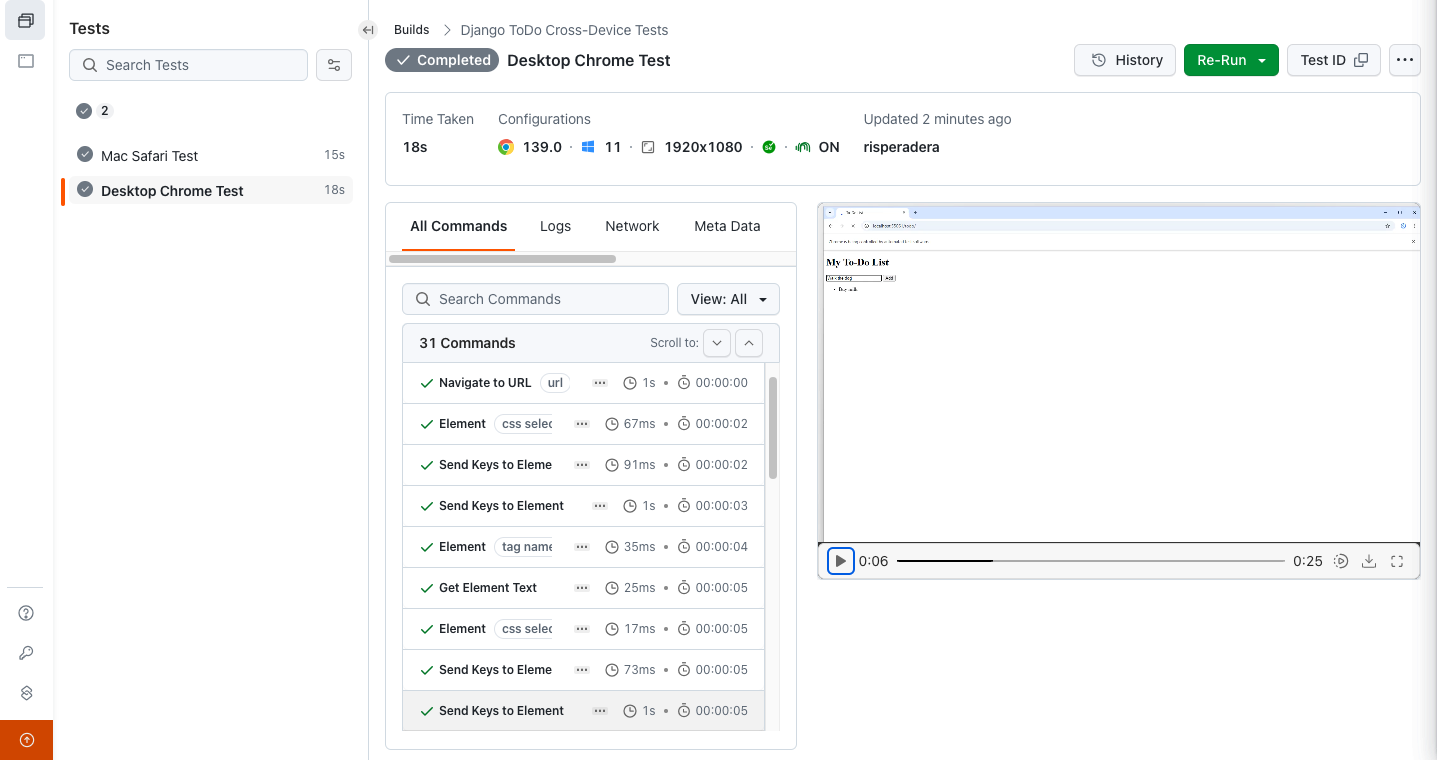
To get started, follow this support documentation on Python testing using Selenium.

Key Takeaway: Running a Django Selenium test across many browsers and operating systems requires webdriver.Remote pointed at a cloud Selenium grid plus a tunnel, because the Django test server runs on localhost and a remote browser cannot reach localhost on its own.
Web Development Frameworks and Tools for Python
When working on web development using Python, choosing the right tools and web development frameworks is crucial. These frameworks simplify development, streamline workflows, and provide built-in functionalities to help you build robust applications efficiently. Below is a summary of popular frameworks and essential tools.
Frameworks
Deciding on the correct framework is essential when using Python for web development. A summary of the most widely used frameworks, together with their advantages and disadvantages, is provided below:
- Flask: Flask is a lightweight and flexible web framework, well-suited for developing small to medium-sized web applications. Its simplicity makes it ideal for quick prototyping, microservices, and projects where minimal structure and fast iteration are priorities.
- Django: Django is a full-featured framework that comes with built-in functionalities such as authentication, authorization, and an ORM. Its robust architecture allows it to handle large amounts of data and heavy traffic, making it ideal for developing scalable, production-ready web applications.
- Pyramid: Pyramid's modular architecture makes it well-suited for developing and maintaining complex applications, offering the flexibility needed for enterprise-grade projects.
- FastAPI: FastAPI is designed to help developers build scalable and efficient web applications. With built-in support for asynchronous programming, it is ideal for developing high-performance APIs.
Your framework choice also decides which server interface the application uses in production. WSGI is the synchronous interface, and Gunicorn or uWSGI serve it. A WSGI worker handles one request at a time, which suits a Django project that mainly reads and writes a database. ASGI is the asynchronous interface, and Uvicorn or Hypercorn serve it. ASGI keeps connections open, so you need it for WebSockets, server-sent events, and Django Channels. FastAPI runs on ASGI only. Django supports both interfaces, so you can deploy on WSGI first and move to ASGI when the application needs long-lived connections.
Tools
A variety of tools are available to make Python web development more efficient and manageable. These tools help with coding, debugging, database interactions, and handling HTTP requests effectively.
- Requests: Requests is designed to make HTTP requests easier to understand and more user-friendly. It supports all standard HTTP methods, including GET, POST, PUT, DELETE, and more.
- ORM (Object-Relational Mapping): An ORM makes it easier to interact with databases in Python, though it is not strictly necessary. It is essential for building web applications that require data storage. For example, Django includes a built-in ORM for managing database models, queries, and relationships. SQLAlchemy, on the other hand, is a widely used ORM for other frameworks or standalone Python applications, providing flexible and powerful database interactions.
- IDE (Integrated Development Environment): An IDE is where we write the code. It provides code editing, debugging, and extensions to ease the development process. One of the commonly used IDEs is Visual Studio Code.
Deployment is the step the framework does not do for you. Django's static files deployment guide tells you to run collectstatic so every static file lands in STATIC_ROOT, then serve that directory from the web server, from a dedicated static server such as Nginx, or from a CDN through a custom storage backend.
The application process runs under Gunicorn or uWSGI on WSGI, or under Uvicorn on ASGI, with Nginx in front for TLS. Packaging that process in a Docker image pins the Python version, the dependency set, and the start command, so a developer machine and a production server run the same build.
Key Takeaway: Flask fits small applications and prototypes, Django fits large production-ready applications, FastAPI fits high-performance asynchronous APIs, and the framework chosen also decides whether the application runs on a WSGI server such as Gunicorn or an ASGI server such as Uvicorn.
How Do AI Coding Assistants Change Web Development Using Python?
AI coding assistants move the work from writing Python web code to reviewing it. An assistant can produce a Django model, a set of URL patterns, and an HTML template from one prompt, so the slow part of the job becomes checking what came back. The Python Developers Survey 2024 recorded 82% of respondents using or trying ChatGPT for coding and development work, and 39% using GitHub Copilot. Two outputs need that review more than the rest: the dependencies the assistant tells you to install, and the settings it writes for production.
Generated dependency lists come first. A USENIX Security 2025 study generated 576,000 code samples in Python and JavaScript across 16 language models and found that the average share of recommended packages that do not exist is at least 5.2% for commercial models and 21.7% for open-source models, covering 205,474 unique invented package names. The paper describes this as a package confusion attack: an attacker reads a name the model keeps inventing, registers it on PyPI, then waits for the next developer to paste the same requirements.txt and run pip install. Open any unfamiliar package on pypi.org before you install it, and pin exact versions instead of loose ranges.
Production settings come second. Django's deployment checklist exists because development defaults are not safe to ship. DEBUG must be off in production, ALLOWED_HOSTS is required once it is off, and SECRET_KEY must stay out of version control. Run python manage.py check --deploy against your production settings file and it reports those, along with CSRF_COOKIE_SECURE and SESSION_COOKIE_SECURE. On the supply chain side, PyPI supports digital attestations under PEP 740, which tie a published file to the source repository, workflow, and commit that produced it.
Key Takeaway: AI coding assistants shift Python web development from writing code to reviewing it, and the two outputs that need the closest review are the package names in a generated requirements.txt and the Django production settings, which python manage.py check --deploy will audit.
Challenges and Solutions in Python Web Development
The following are some of the challenges that developers usually face when working with Python for web development:
- Challenge 1: Steep Learning Curve: Some Python frameworks, such as Django and Pyramid, are complex frameworks that offer numerous features and tools. New developers usually find it challenging to learn and master Django's features.
- Challenge 2: Performance Optimisation: As your application grows, performance optimisation becomes critical. Common issues include slow database queries, increased load times, and inefficient rendering of data.
- Challenge 3: Security: Web applications are vulnerable to security threats, such as SQL injection and cross-site scripting (XSS). As a developer, you need to be aware of these threats and use best practices to secure your applications.
Solution: Start by learning the fundamentals of web development using Python with simpler frameworks such as Flask. Once you feel comfortable, you can gradually explore Django by building projects, reading the official Django documentation, and following tutorials.
Solution: Web developers working in web development using Python need to optimise database queries, use caching, and minimise HTTP requests to ensure fast and efficient performance.
Solution: To secure your application, avoid writing raw SQL queries; use Django's ORM, which uses parameterised queries to prevent SQL injection. Use CSRF tokens in your forms, and make sure to properly authenticate and authorise your REST APIs.
Key Takeaway: The recurring problems in Python web development are Django's steep learning curve, slow database queries as traffic grows, and attacks such as SQL injection and XSS, answered by starting with Flask, adding caching and query optimisation, and using Django's ORM with CSRF tokens.
Best Practices for Python Web Development
Following best practices is essential for efficient and secure web development using Python. Adhering to these guidelines helps you write clean, maintainable, and robust code for your web applications.
- Follow the Don't Repeat Yourself (DRY) Principle: Python web development frameworks, such as Django's framework, are designed to encourage reusable code, which is essential in web development using Python.
- Variable Names: It is imperative to use descriptive and consistent variable names to make your code easy to read and understand.
- Use Framework's Built-in Features: For example, when using Django, make use of Django's built-in authentication and authorisation. Django provides secure and easy-to-use features that simplify web development using Python.
- Test Your Code: Testing is essential to ensure that your code works as expected.
- Input Validation: Validate and sanitise all user inputs to prevent common attacks like SQL injection and cross-site scripting (XSS).
- Password Security: Store passwords securely using techniques like hashing and salting to protect user credentials.
Key Takeaway: Best practices for Python web development are reusing code under the DRY principle, choosing descriptive variable names, relying on the framework's built-in authentication, testing the code, validating every user input, and storing passwords hashed and salted.
Conclusion
Here you have learned the fundamentals of Python web development, including necessary tools, frameworks, and techniques. By following best practices, you'll be well on your way to developing reliable and robust Python-powered web applications. Python web development is a broad area with many learning opportunities. Nevertheless, this tutorial will provide you with a solid basis for additional learning.
Citations
- Python's Role in Accelerating Web Application Development with Django: https://www.researchgate.net/publication/381969758
- Python For Web Development: https://www.researchgate.net/publication/362517489
Author

Risper Bevalyn
Blogs: 1


Risper Bevalyn is a Python Developer and an active community contributor with 3+ years of experience in backend engineering and AI-driven solutions. She specializes in FastAPI, Django, and n8n for AI agent development and workflow automation. Risper also has expertise in automation testing and has worked on AI-driven projects at ARK and TrubAI. She holds certifications in Deep Learning and Deep Reinforcement Learning, focusing on creating efficient and innovative solutions.


Python Web Development FAQs
Did you find this page helpful?
More Related Blogs
TestMu AI forEnterprise
Get access to solutions built on Enterprise
grade security, privacy, & compliance
- Advanced access controls
- Advanced data retention rules
- Advanced Local Testing
- Premium Support options
- Early access to beta features
- Private Slack Channel
- Unlimited Manual Accessibility DevTools Tests