
Power Your Software Testing with AI Agents and Cloud
The Native AI-Agentic Cloud Platform to Supercharge Quality Engineering. Test Intelligently and Ship Faster.


- TestMu AI (Formerly LambdaTest)
- /
- Blog
- /
- How to Test a Website on Slow Mobile Networks
How to Test a Website on Slow Mobile Networks
Learn how to test a mobile website on slow networks with network throttling. Simulate 3G, 4G, or offline in a live session and fix slowdowns before they bounce.
Last Updated on:
A website is tested on slow mobile networks by simulating a degraded connection, such as Slow 3G, inside LT Browser, Chrome DevTools, or a live TestMu AI session, then reloading the page to watch it render, a core check in any mobile testing plan. Under that exact Slow 3G preset, Wayfair's real site took roughly 30,000 milliseconds to finish loading.
Why Does Mobile Network Speed Matter?
Mobile users dominate internet usage, and every business needs to understand how the mobile website experience can be the crux of their conversion funnel. User experience testing is one of the most crucial testing aspects a brand should adopt.
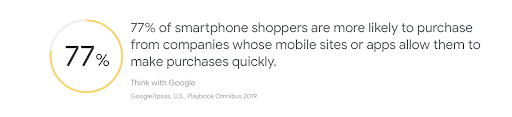
A smooth, fast experience is what keeps mobile users engaged. Here are some common complaints from mobile website users:
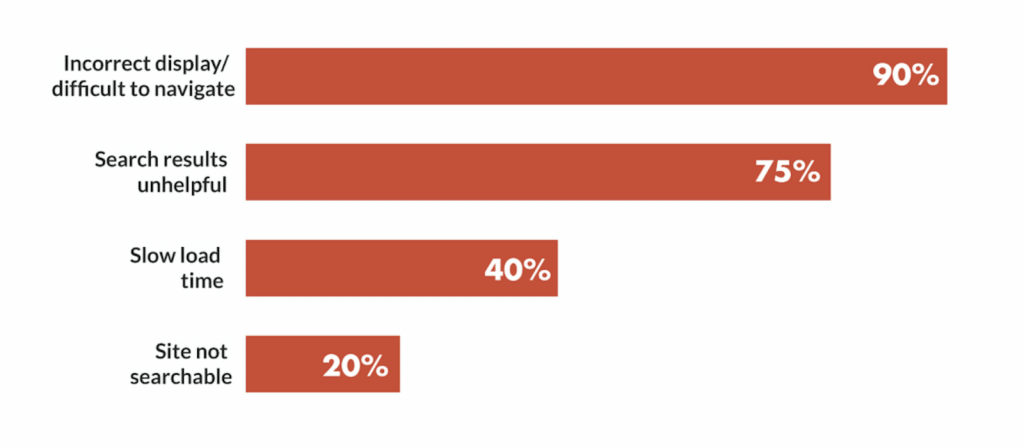
Historically, the roadblock for the mobile experience was devices and heavy design elements, but what underlines the issue is network conditions.
Mobile networks are stronger only under good coverage, which is a limiting factor. A slower network causes latency and may fail to render the site, leading to higher bounce rates. For the metrics behind a slow connection, such as latency, jitter, and packet loss, see network performance testing.
A slow or broken site pushes users toward competitors, and many never come back. Though page speed is just one of many factors that affect rankings, it is an important one. You can test your website on mobile for free.
Ways to Test on a Throttled Network
Network throttling means deliberately capping the bandwidth and adding latency your browser sees, so you can load a site on a simulated slow 3G or 4G connection instead of fast wifi. The practical options, in order of how close they get to a real connection:
| Method | How it works | Best for |
|---|---|---|
| Chrome DevTools | Built into Chrome. Throttles the current desktop tab using a preset or a custom speed. | A quick first check on desktop while you are still writing the code. |
| LT Browser | Desktop app with 50+ mobile viewports and per-viewport network throttling. | Previewing how a mobile layout holds up at different speeds during development. |
| TestMu AI real-time | Live session on a virtual mobile or a real device, with network profiles built into the session toolbar. | Confirming behaviour on the actual browser and device your users run. |
| Method | How it works | Best for |
|---|---|---|
| Chrome DevTools | Built into Chrome; throttles the current desktop tab with presets like Fast 3G and Slow 3G, or a custom speed. | A quick first check while you code, on desktop. |
| LT Browser | Desktop app with 50+ mobile viewports and per-viewport network throttling. | Previewing how mobile layouts hold up at different speeds. |
| TestMu AI real-time | Live session on a virtual mobile or real device with presets from Slow 3G to 5G. | Confirming behaviour on the actual browser and device your users run. |
DevTools is the quickest first pass, but it only throttles a desktop tab. The most reliable check runs on the actual device your users hold, so we start there, then look at LT Browser for fast local previews while you build.
How to Test Network Conditions on TestMu AI
The most reliable way to test network conditions is on a real device or a virtual mobile in the cloud, where the browser and OS behave exactly as your users see them. TestMu AI's live testing runs on the Real Time cloud, where its real-time mobile browser testing tools let you spin up a live, interactive session on any device and browser you pick, with network throttling built into every session across virtual mobile devices and 10,000+ real devices.
Testing network conditions in a live session takes only a few steps:
- Start a session. Log in to TestMu AI, open Real Time, and pick a device with the browser and OS version your users run.
- Open Network Throttling. From the left toolbar in the live session, open the Network Throttling menu.
- Pick a network profile. Choose Offline, Slow 3G, Fast 3G, 4G, 5G, or a Custom speed to match the conditions you want to reproduce. Slow 3G is a good worst-case for emerging markets, and 4G matches most other users.
- Reload and observe. Reload the page and watch how it loads and renders on the device at that speed.
- Capture evidence. Take a screenshot or session recording so the result is logged before you close the ticket.
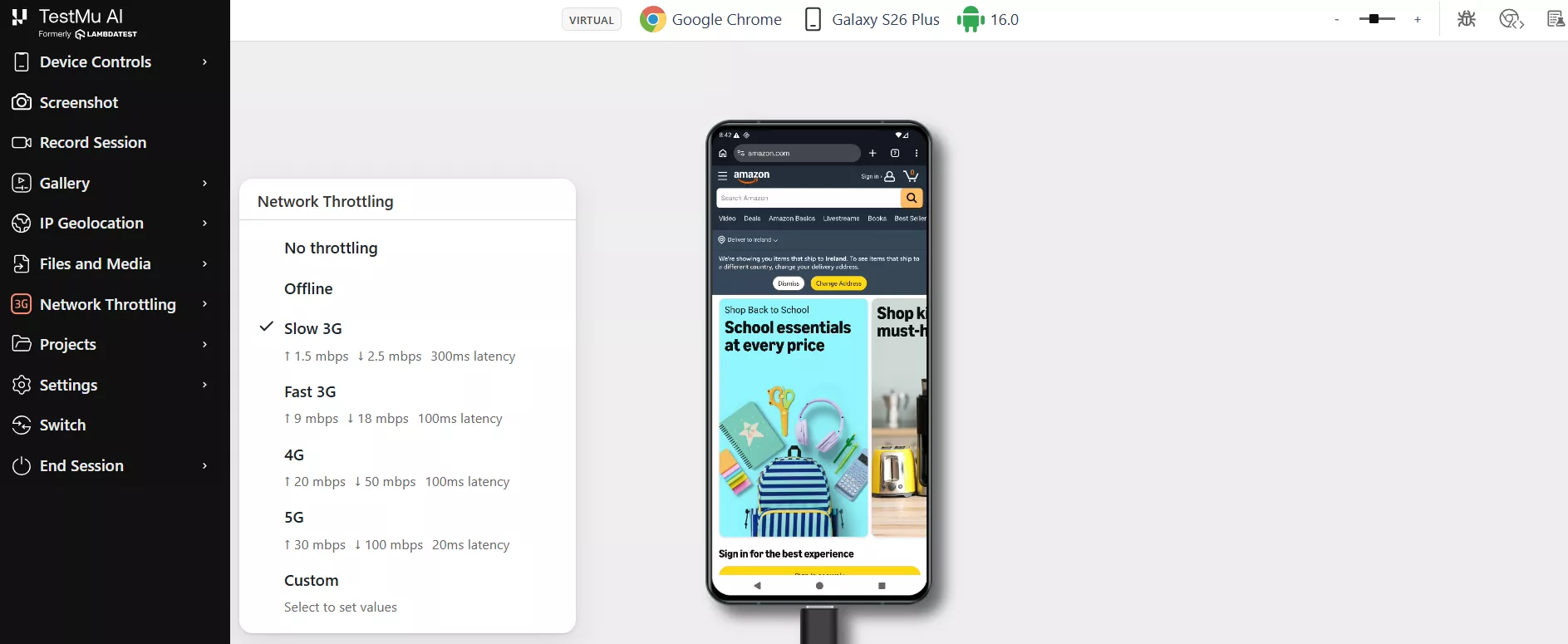
Running the check inside the live session, on the device your users hold, catches slowdowns and rendering issues that a quick desktop preview can miss. For automated runs, see the docs on network throttling for Appium tests.

Note: Run your site on Slow 3G, 4G, and offline across virtual mobile and 10,000+ real devices, with no device lab to maintain. Start testing free with TestMu AI
How LT Browser Handles Network Throttling
Earlier in development, before you launch a full device session, LT Browser gives you a fast local preview. It is LT Browser, a developer-friendly browser to instantly view, build, and debug your mobile website across 50+ mobile, tablet, and desktop resolutions, with network throttling as a core feature.
At a click of a button, you can test your website on different network speeds and see how it behaves at each one.
With LT Browser, you can run a usability test on slow networks and debug on the go. Here is how to use LT Browser for network throttling.
To show it in action, I ran an e-commerce store, Wayfair, through LT Browser to see how it performs over a slow 3G network.
First, I logged in to LT Browser, opened Wayfair, and changed the mobile network.
To do that, I clicked the network throttling feature and picked from Fast 3G, Slow 3G, or offline mode. For this demonstration, I selected Slow 3G.
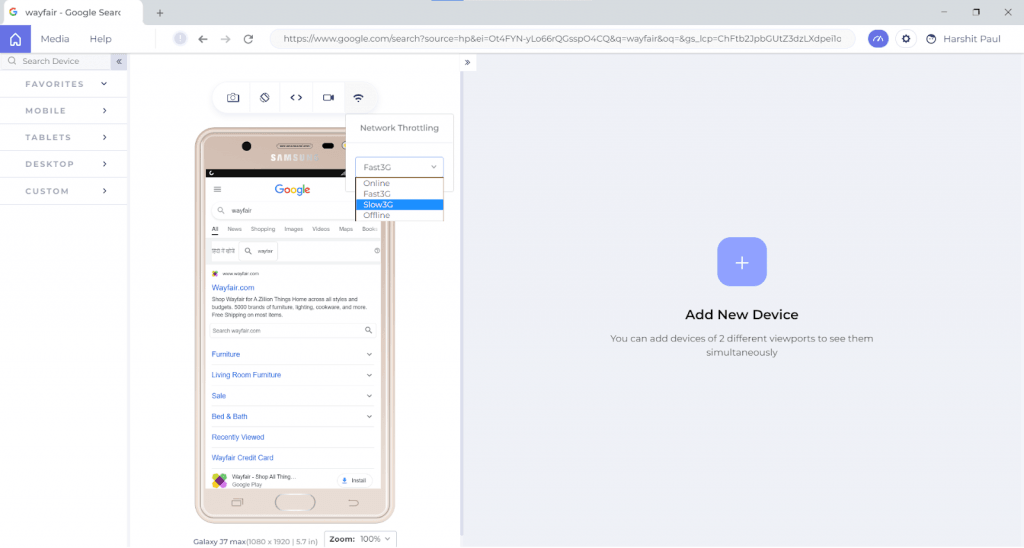
After selecting the Slow 3G option from network throttling, I clicked the debug icon and opened the in-built developer tools, then went to the Performance tab and clicked record to start a new recording.
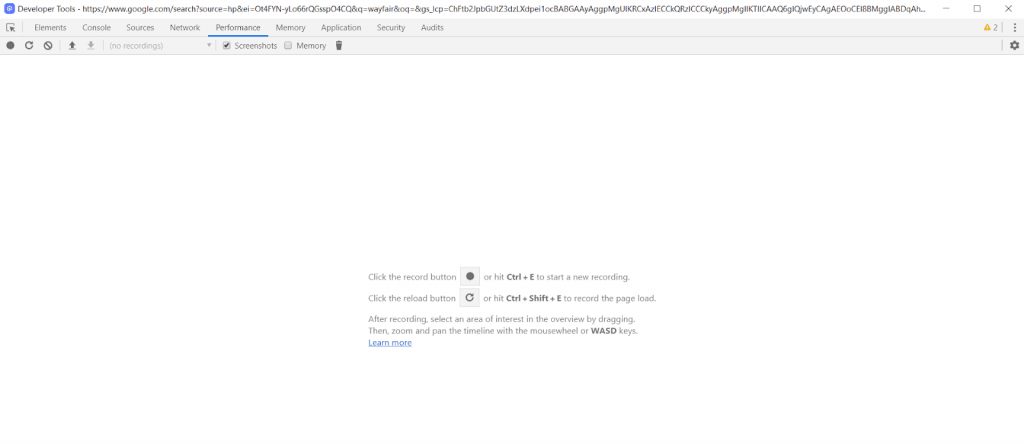
Wayfair's website took roughly 30,000 milliseconds to load over a slow 3G network, which is about half a minute.
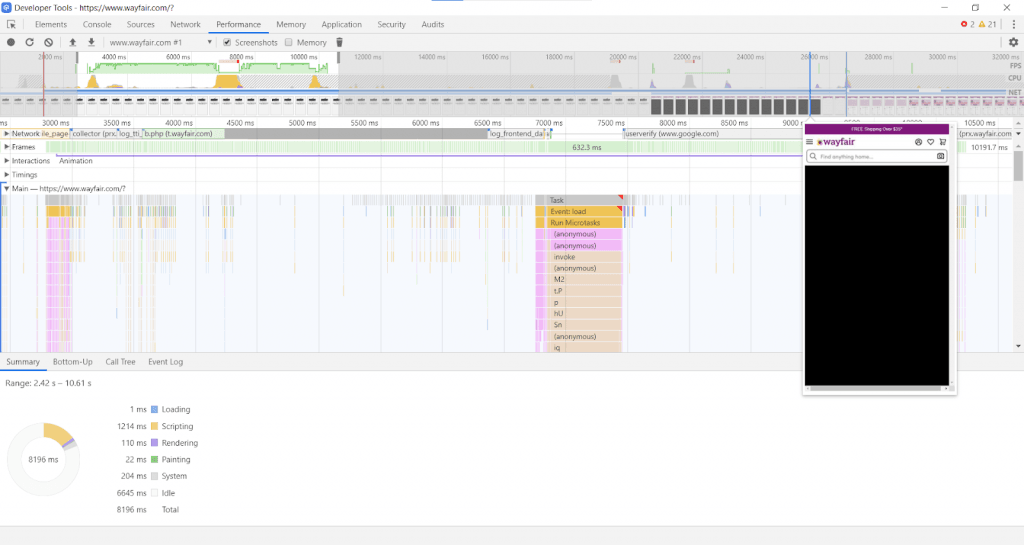
As the screenshot shows, the page stays mostly blank for that half minute, far longer than a visitor will wait.
The longer it takes for your website to load, the higher bounce rate you are bound to witness. As per Google, the bounce rate spikes drastically for mobile websites after 3 seconds.
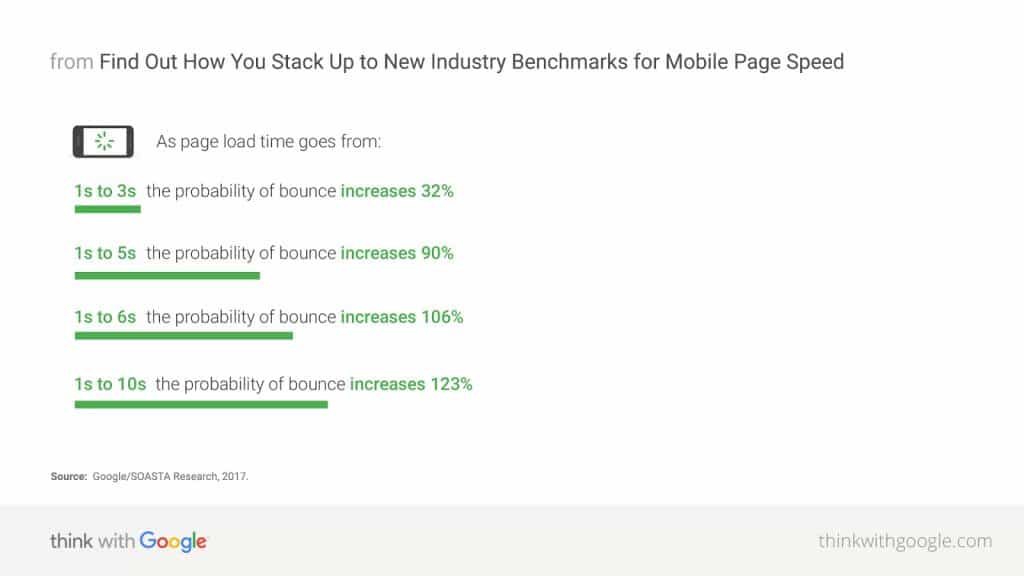
Improving Mobile View With LT Browser
If you are a developer, you can use LT Browser's network throttling to plan in advance how a webpage will behave if there is a network loss or a slow network speed. You can check how your web design test behaves on different network conditions and develop optimized designs for the future.
To improve overall page speed, you can also generate performance reports using the built-in Lighthouse integration. It scores best practices, SEO, accessibility, and more, so you can catch anything hurting the user experience and your search rankings.
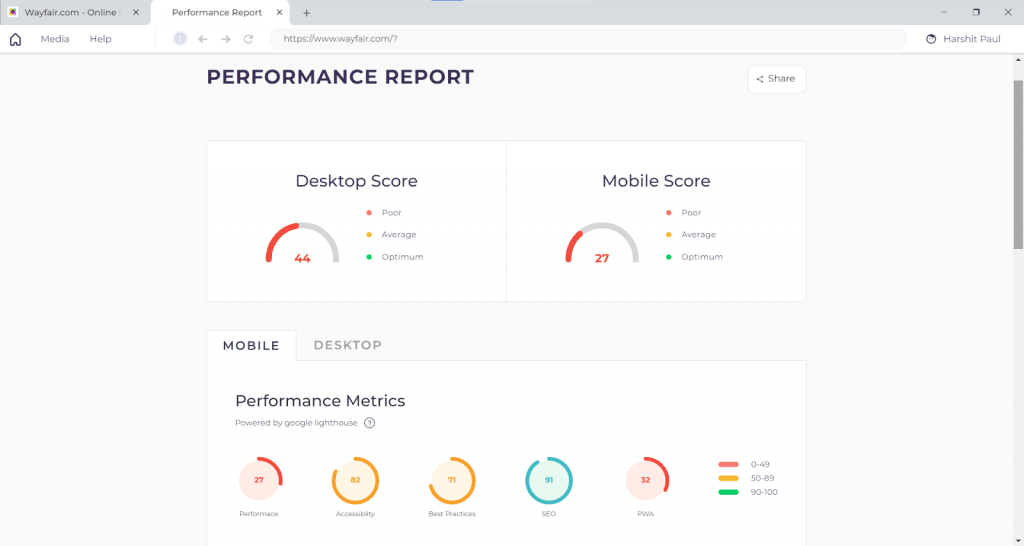
This is the performance report of Wayfair over a Fast 3G network.
Testing early in development also helps you ship leaner, faster pages. Common steps include:
- Trimming unused packages and scripts
- Removing unnecessary CSS
- Minifying CSS and JavaScript before pushing live
- Creating responsive images
LT Browser is also packed with rich features to help you with mobile view of website:
- Compare the mobile view of website in two device resolutions in a side by side view.
- Generates an error report to help you debug any issue while rendering a website.
- Third party integrations to help you capture screenshots of bugs, highlight and share it with your colleagues.
- Video recording of your test sessions.
- Capture full page screenshots of your website.
- Built-in media to save all your screenshots and video recordings to access them anytime.
- Enable mouse pointer for touch screen scroll experience.
- Hot reloading to help you perform responsive testing of locally hosted websites.
Watch a quick introduction to LT Browser and how it helps you build, test, and debug mobile websites:

Wrapping Up
Start with one run: open your slowest-loading page in a live session on a device your users actually hold, set the profile to Slow 3G, and reload. Whatever is still blank after ten seconds is your first fix.
From there, work down the profiles that match your traffic, and use LT Browser locally while you are still building, before a change is worth a full device session.
Network speed is only one piece of the picture; for the full checklist, see how to make a website mobile friendly.
For automated runs, TestMu AI supports a wide range of network presets. See the browser network configurations documentation for the full reference.

Author

Ritesh Shetty
Blogs: 7


Ritesh Shetty is a Community Contributor with experience in building and sharing content around software testing, automation, and technology. A former Content Marketing Manager at TestMu AI, he has contributed to simplifying testing concepts for QA engineers and developers. Currently serving as Head of Growth at Arya.ai, Ritesh continues to connect product, engineering, and quality through impactful knowledge-sharing and community contributions.
Reviewer

Sai Krishna
Reviewer
Sai Krishna is Director of Engineering at TestMu AI, where he leads agentic AI for quality engineering, building AI agents that autonomously drive mobile and conversational test automation. His current focus is Agent Testing and Model Context Protocol (MCP) support for mobile. He is a core contributor and member of the Appium open-source project and the creator of AppiumTestDistribution and appium-device-farm. With over 14 years of experience including more than 9 years at Thoughtworks as a Principal Consultant, he holds a BSc in Electronics and speaks regularly at TestMu and Appium Conf on Appium, mobile automation, and agentic AI in testing.


Network Throttling FAQs
Did you find this page helpful?
More Related Blogs

TestMu AI forEnterprise
Get access to solutions built on Enterprise
grade security, privacy, & compliance
- Advanced access controls
- Advanced data retention rules
- Advanced Local Testing
- Premium Support options
- Early access to beta features
- Private Slack Channel
- Unlimited Manual Accessibility DevTools Tests