

Next-Gen App & Browser Testing Cloud
Trusted by 2 Mn+ QAs & Devs to accelerate their release cycles


On This Page
- What are Selenium locators?
- What are the Selenium locator types?
- Locating web elements with the “ID” attribute
- Locating web elements with the “Name” attribute
- Locating web elements with the “ClassName” attribute
- Locating web elements with the “partialLinkText” and “LinkText” attribute
- Locating web elements with the “TagName” attribute
- Locating web elements with the “CssSelector” attribute
- Locating web elements with the “XPath” attribute
- Different locator strategies to identify different web elements
- Best Practices for using Selenium Locators

The Most Comprehensive Selenium Locators Cheat Sheet
Explore in detail the different types of Selenium web locators, their syntax, and their properties through our Selenium locators cheat sheet.

Amrita Angappa
February 17, 2026
During the development of a web-based application, there are so many test cases to be executed. For every test engineer, performing actions such as type, click, and so on is a must on the HTML elements. While performing automation testing, the test automation tool should be able to perform these operations on the HTML elements just like we interact during manual testing.
But, how does the automation tool know how to locate an HTML element to perform the needed operation? This is where the Selenium locators cheat sheet comes in handy.
Let’s explore the types of locators in Selenium in this Selenium locators tutorial.
Deep dive with us into our Selenium locators cheat sheet, specially crafted for you.

What are Selenium locators?
Selenium is a widely used test automation framework. Through Selenium, you can automate any interactions such as type, click, double click with the DOM WebElements, etc. To identify any HTML element on a web page, you must use locators. It’s a common capability in almost every UI automation tool, including Selenium.
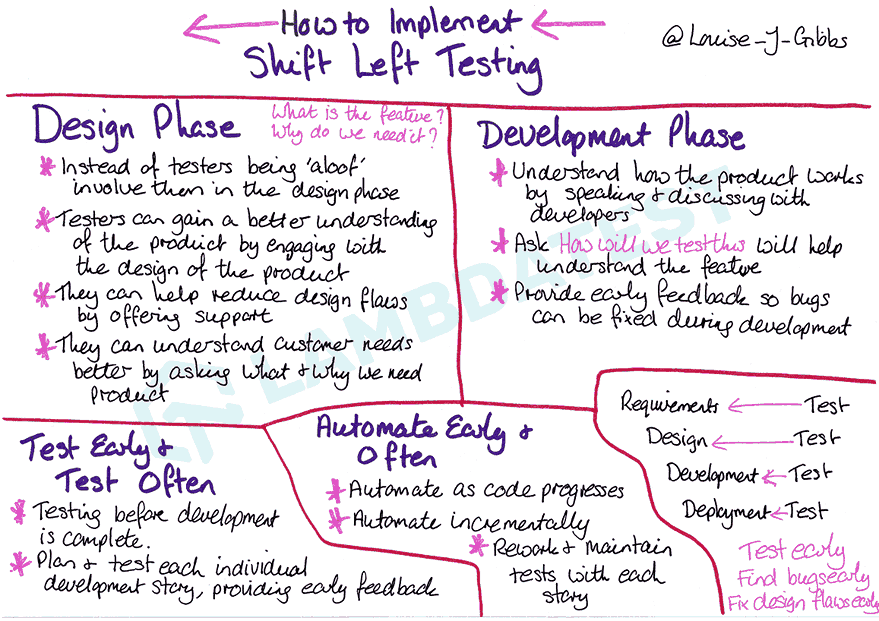
By Louise J Gibbs
Selenium WebDriver locators come up packed with different methodologies to identify HTML elements present on the page. Selenium offers multiple support to major web locators. Pick up the one meeting your test requirement. We have prepared this Selenium locators cheat sheet with an eye on what we need to cover without fail, to simplify your chores.
These are the types of locators in Selenium – ID, Name, ClassName, LinkText, Partial LinkText, TagName, CssSelector, and XPath.
In the next section of this Selenium locators cheat sheet, we will explore different locators in Selenium in detail.
What are the Selenium locator types?
In this Selenium locators cheat sheet, let’s get coverage on the most important types of locators in Selenium in this section of the Selenium locators cheat sheet.
Here is the list:
| Locator | Description | Syntax (in Java) |
|---|---|---|
| ID | Figure out the WebElement that uses the ID attribute | driver.findElement(By.id(“IdValue”)); |
| Name | Figure out the WebElement with the Name attribute | driver.findElement(By.name(“nameValue”)); |
| ClassName | Make use of the Class attribute to identify the object | driver.findElement(By.className(“classValue”)); |
| LinkText | Leverage the text hyperlinks for locating the WebElement | driver.findElement(By.linkText(“textofLink”)); |
| Partial LinkText | Make use of the text partially in hyperlinks for desired WebElement location | driver.findElement(By.partialLinkText(“PartialTextofLink”)); |
| TagName | Make use of the TagName for locating any desired WebElement | driver.findElement(By.tagName(“htmlTag”)); |
| CssSelector | CSS that we use to create different style rules in a web page can be used to locate any needed WebElement | driver.findElement(By.cssSelector(“cssValue”)); |
| XPath | Bring in XPath as a WebElement locator | driver.findElement(By.xpath(“xpathValue”)); |

Locating web elements with the “ID” attribute
This is the first portion we are going to discuss in our Selenium locators cheat sheet. ID locator in Selenium is the most common method to locate different web page elements. W3C expects it to always be unique. With the advent of dynamic web pages, you can generate “IDs” dynamically.
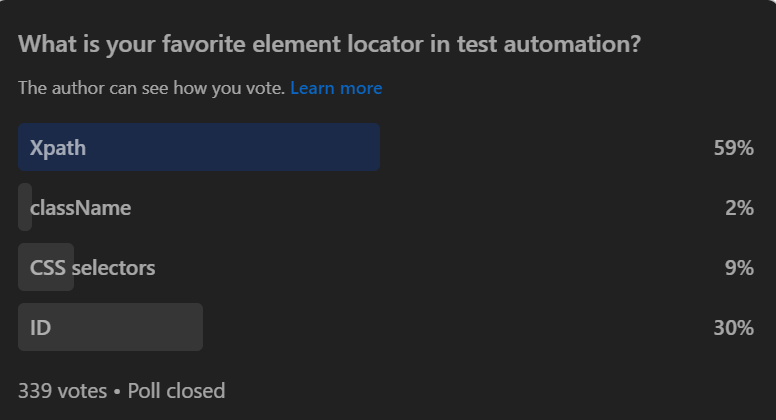
It’s interesting to note that the “ID” locator came out as the second most preferable in our recent survey on test automation preferences among practitioners. This confirms its popularity and usefulness within the testing community. Not only does using the ID locator improve the performance of test scripts, but it also improves the overall stability and maintenance of automated tests.
Here is the syntax to locate web elements by “ID”:
driver.findElement(By.id(“IdValue”));
- driver: The Selenium WebDriver from which we need to locate the web element while using the Selenium locator.
- findElement: The attribute used to find the web page element.
- By.id: The method used to pass the property of “IdValue”.
- IdValue: Locate the web element with its Id name.
Example:
<input name="food" required="" type="radio" id="food-radio-1" class="custom-control-input" value="Menu">
driver.findElement(By.id(“food-radio-1”));
By.id(“food-radio-1”): Locate the web element with the ID “food-radio-1”.

Note: Register today to test websites and web apps on 3000+ browsers, OS, and devices. Try TestMu AI now!
Locating web elements with the “Name” attribute
Selenium allows us to identify any element using the “name” attribute using the Name locator in Selenium. It can have a number of elements with a similar “name” attribute. When we want to identify the web element, we should try to make it unique. Or else, it would identify a number of elements present on the same page with the same name value and choose whichever it finds first.
Here is the syntax to locate web elements by “Name”:
driver.findElement(By.name(“nameValue”));
- By.name: The method used to pass the property of “Name”.
- nameValue: The value of the name to be located.
Example:
driver.findElement(By.name("food"));By.name("food"): Locate the web element with the name “food”
After you read our Selenium locators cheat sheet, watch our latest tutorial to know how to interact with Selenium WebDriver web elements.
Subscribe to our TestMu AI YouTube Channel to get the latest updates on useful tutorials around Cypress testing, Selenium automation testing, and Mobile app testing tutorial.
Locating web elements with the “ClassName” attribute
The ClassName locator in Selenium can help Selenium locate DOM class values. To perform or identify any form of web element operation involving the “className” attribute, we use class.
Here is the syntax to locate web elements by “ClassName”:
driver.findElement(By.className(“classValue”));
- By.className: The method used to pass the “className” locator.
- classValue: Locate the class with the specific class name.
Example:
Let’s say that the following snippet consists of the entire form for an event:
<div class="registration-form-wrapper">
The class attribute value can be used for form identification. For identifying the same on our webpage, the following syntax can come in handy:
driver.findElement(By.className("registration-form-wrapper"));
By.className("registration-form-wrapper"): Locate the web element with the class name “registration-form-wrapper”
We need to use a unique class name to locate the web element. If anything else consists of this class name, Selenium will consider that instead of the web element you need to consider.
Locating web elements with the “partialLinkText” and “LinkText” attribute
partialLinkText and LinkText locators in Selenium have the same functionalities. They let you locate different web elements with hyperlink texts. We can use them to handle elements with the anchor < a> tags. With reference to different Selenium locator strategies, when we have various hyperlinks with the exact text on the web page, Selenium would go on to choose the one that appears first.
Here is the syntax to locate a web element with the “partialLinkText” and “LinkText” attribute:
driver.findElement(By.partialLinkText(“PartialTextofLink”));
- By.partialLinkText– Partial link text locator lets you identify the elements by using the partial link text.
driver.findElement(By.LinkText(“LinkText”));
- By.LinkText– Identify the elements by just the link text.
Example:
Let’s say that the anchor element consists of the following attributes and properties:
<a id="Link1" href="https://www.lambdatest.com" target="_blank">Landingpage</a>
To identify the elements with the partialLinkText or LinkText, the hyperlink text is a must:
driver.findElement(By.linkText("Landingpage"));
By.linkText("Landingpage"): The hyperlink text used to identify the elements.
With the partialLinkText, you can identify the elements by using just the part of the link text.
driver.findElement(By.partialLinkText("Land"));
By.partialLinkText("Land"): Part of the link text “Landingpage”.
Locating web elements with the “TagName” attribute
The TagName locator in Selenium can use HTML tag names such as div, button, ***input, anchor tag, and so on to identify web page elements.
Here is the syntax for find the elements with the tagName:
driver.findElement(By.tagName(“htmlTag”));
- By.tagName: The tagName locator is used to find the web element with the particular tag name.
- htmlTag: The tag name used to identify the elements.
Example:
By.tagName("a");
("a"): The tagName locator returns all the elements from the page that contains a specified tag “a”.
Locating web elements with the “CssSelector” attribute
Cascading Style Sheets (CSS) can be used widely to style different webpages. The majority of the web pages are of dynamic design. Hence it’s quite tough to get a name, class, or unique id for locating different elements. CSS Selectors in Selenium could act as the best alternative since they are quite faster in comparison to different types of locators in Selenium. You can further deep-dive into it by going through the CSS Selector Cheat Sheet once you finish reading our Selenium locators cheat sheet.
Here is the syntax to identify a web element with CssSelector:
driver.findElement(By.cssSelector(“cssValue”));
- By.cssSelector: The CssSelector locator is used to find the element using CSS Selector.
- cssValue: The attribute used to define the value of the CSS Selector.
Example:
Let’s consider that the input element consists of the following:
<input autocomplete="off" placeholder="Name" type="text" id="userName" class=" registration-form">
For finding the element with the CSS selector, here is the code:
By.cssSelector("input[id= ‘userName’]");
- By.cssSelector: Method used to locate the web elements using CSS Selectors.
- input[id= ‘userName’]: Value of the CSS Selector.
- Input: Property used to define the ID value of the CSS Selector.
- Id: Attribute used to input the ID value for defining various CSS locators
- userName: Name of the CSS locator.
Let’s take a look at the various CSS Selector attribute types in our Selenium locators cheat sheet.
Tag and ID in CSS Selector
To locate elements by ID and Tag, you have to use the following components in Selenium locator:
Syntax:
css=(Html tag)(#)(ID attribute value)
- Html tag: Get the tag you want to locate (e.g., input tag).
- #: Get the ID attribute. We use it specifically to locate any element through an ID.
- ID attribute value: Input the ID attribute value when you want to locate the element.
This is similar to Tag and ID in the CSS locator, except that you use a dot (.) to denote the class attribute value instead of hash (#).
Syntax:
css=(HTML tag)(.)(Class attribute value)
- Class attribute value: Value of the attribute class
Tag and Attribute in CSS Selector
This is one among the types of locators in Selenium where you can locate the element through tag name and define the attribute with its value. The Selenium driver will select the first one when multiple elements have the same attribute and tag.
Syntax:
css=(HTML Page)[Attribute=Value]
- Attribute=Value: Define the attribute by providing its value.
Tag, Attribute, and Class in CSS Selector
Through these types of locators in Selenium, you can locate the element through class name and different attribute values.
Syntax:
css=(HTML tag>)(. )(Class attribute value)([attribute=Value of attribute])
- HTML Tag: Used to define the tag name.
- Class attribute value: Used to define the value of the class attribute.
- attribute=Value of attribute: Used to mention the exact value of the attribute.
Wild card (*, ^ and $) in CSS for classes
Selenium CSS selector can help you match multiple strings via different patterns such as ^, *, and $. We use CSS wildcard selectors to select different elements on a simultaneous basis.
Let’s take you through how to use wildcards with the Selenium CSS Selector in our Selenium locators cheat sheet:
a. Starts-With in CSS Selector
Among many types of locators in Selenium, this Selenium locator helps you locate elements when you try to match different elements using a string starting with any designated value.
Syntax:
css=(HTML tag)([attribute^=value])
- [attribute^=value]: Used to select or locate any desired WebElement with a string starting with the specified value.
b. Ends-With in CSS Selector
This Selenium locator helps you locate elements when you try to match different elements using a string ending with any designated value.
Syntax:
css=(HTML tag)([attribute$=end of the string])
- [attribute$=end of the string]: Used to locate the element through CSS Selector by defining the attribute value based on the ending value of the string.
c. Contains in CSS Selector
Locate different elements when you want to match various elements with a string consisting of a set value.
Syntax:
css=(HTML tag)([attribute*=partial string])
- [attribute*=partial string]: Used to locate the element through Contains in CSS Selector by defining the attribute value based on the partial value of the string.
d. Child Elements in CSS Selector
We use this Selenium locator to locate an element present inside another element.
Syntax:
css= tagname.class name li:nth-of-child
- Li:nth-of-child: Index of the referenced child element in CSS selector.
Selenium relative locators
Our Selenium locators cheat sheet would be incomplete without talking about the Selenium relative locators. A major feature of Selenium 4 is relative locators. This helps you search different WebElements which you can relate to different elements. Here is the list of Selenium 4 relative locators:
| Selenium 4 Locators | Description | Syntax (in Java) |
|---|---|---|
| above | The needed WebElement is found to be above the mentioned element. | driver.findElement(with(By.tagName(“TagName”)) .above(ElementName)); |
| below | The needed WebElement is found to be below the mentioned element. | driver.findElement(with(By.tagName(“TagName”)) .below(ElementName)); |
| toLeftOf | The needed WebElement is found to be on the left of a specific element. | driver.findElement(with(By.tagName(“TagName”)) .toLeftOf(ElementName)); |
| toRightOf | The needed WebElement is present on the right of a specific element. | driver.findElement(with(By.tagName(“TagName”)) .toRightOf(ElementName)); |
| near | The needed WebElement (or item) is present not more than 50 pixels away from the mentioned element. | driver.findElement(with(By.tagName(“TagName”)) .near(ElementName)); |
Locating web elements with the “XPath” attribute
Let’s explore XPath, an important attribute, in this Selenium locators cheat sheet. XPath locators in Selenium are unique among the types of locators present to find web elements. XPath makes use of the XML expression for locating a webpage element. It’s a must to locate dynamic webpage elements, just like CSS selectors. XPath simplifies it when the properties are dynamic.
Here is the syntax to identify a web element with the XPath locator:
driver.findElement(By.xpath(“htmlTag”));
- XPath: XPath (XML Expression) belonging to the DOM structure.
- htmlTag: The needed attribute of the target element to identify any unique web element.
Example:
By.xpath("By.id(“userName”));
- By.xpath: XML expression to locate the element of the webpage.
- id: ID value
- By.id(“userName”): The attribute to identify the web element under the ‘userName’.
There are many types of XPath locators:
- Standard XPath: This is the standard way through which you can write the XPath locator.
- XPath Contains: XPath uses CSS selector ‘contains’ to locate WebElements where the value changes dynamically.
Syntax for XPath Contains:
//tagname[contains(@attribute, ‘partial value of attribute’)]
Syntax for XPath OR operator:
//input[@id='login_1' OR @name='login’]
Syntax of XPath AND operator:
//input[@id='login_1' AND @name='login’]
Syntax for starts-with() method:
//tagname[starts-with(@attribute,'starting name of the attribute value')]
Syntax:
//div[text()='Logged In']
Different locator strategies to identify different web elements
We couldn’t skip this part while drafting our Selenium locators cheat sheet, since it’s a must to identify which strategy would suit you the most.
findBy: Mention the strategy to locate the objects for any WebElement or a set of WebElements. It’s of two types: findElement and findElements.
The web app interaction would need the Selenium driver to locate different web elements on the page. When it fails to identify the element correctly, you cannot trigger different events like enter, send, or click. These are the methods to find one or more web elements:
- findElement: Find a single web element and return it based on the locator’s search needs.
- findElements: Find every web element and return it based on the locator’s search needs.
Go through our XPath Locators Cheat sheet to understand the XPath fundamentals in Selenium, once you are done with our Selenium locators cheat sheet.
Best Practices for using Selenium Locators
In this section on Selenium locators cheat sheet, let’s look at the below points when you want to identify elements through Selenium locators:
- Choose the right Selenium locator to recognize a web element in Selenium.
- Avoid using dynamic attribute values to locate different elements in the Selenium locator.
- Use ID and name attributes when your web page contains a unique set instead of XPath for a speedy process.
- When using locators, ensure that the locator points directly to the needed element.
- Avoid anything that causes breakage in the script, such as using auto-generated elements since we generate element attribute properties at a run time in a dynamic web environment.
- When using CSS or XPath locators, avoid using those generated by the Chrome Dev Tools. This leads to code breakage, maintenance, and reliability issues
- Always keep your locators short of identifying them easily.
You can always come back to our Selenium locators cheat sheet and other resource materials on Selenium mentioned in TestMu AI learning hub for better updates on different topics related to Responsive testing, Cross-browser compatibility and much more.
Conclusion
Selenium locators cheat sheet can be handy when performing Selenium automation testing. Automation testing platforms like TestMu AI offer an online Selenium Grid that lets you perform end-to-end automation testing across a browser farm of 3000+ real browsers and operating systems.

Use this Selenium locators cheat sheet to identify a web element quickly using the right locators and relative locators. Among the different types of locators in Selenium, you need to choose which one would fit your scenario.
Hope you found our Selenium locators cheat sheet useful!


Frequently asked questions
Did you find this page helpful?
More Related Hubs
TestMu AI forEnterprise
Get access to solutions built on Enterprise
grade security, privacy, & compliance
- Advanced access controls
- Advanced data retention rules
- Advanced Local Testing
- Premium Support options
- Early access to beta features
- Private Slack Channel
- Unlimited Manual Accessibility DevTools Tests