

Next-Gen App & Browser Testing Cloud
Trusted by 2 Mn+ QAs & Devs to accelerate their release cycles


How to Use pytest Skip Test And XFail in Selenium
In this blog, discover the ins and outs of using pytest skip test functionality: single, conditional, CLI, and more!

Paulo Oliveira
February 20, 2026
This article is a part of our Content Hub. For more in-depth resources, check out our content hub on pytest Tutorial.
While performing automated testing with pytest, you may need to skip test execution due to the ongoing refactoring of functionalities, which may lead to instability or alignment with current project requirements. In such scenarios, leveraging pytest skip test functionality becomes crucial.
pytest skip test functionality lets users focus on relevant tests during debugging and prioritize important tests within time constraints. Additionally, pytest skip test functionality helps manage broken or flaky tests, enabling progress on other tests while issues are resolved.
In this blog, you will learn how to use pytest skip test functionality, skip a single test, test according to a specific condition through the command line and using a configuration file, and mark tests as xfail.
Overview
Why Use pytest Skip Test and XFail?
Using pytest skip test and XFail allows you to manage test execution dynamically by skipping specific tests or marking expected failures. This helps in dealing with flaky tests or scenarios where certain tests should not run due to environmental constraints.
- Focus on Relevant Tests: Skip broken or incomplete tests to focus on critical ones during debugging.
- Handle Known Issues: Mark certain tests as expected failures (XFail), so they don’t fail the entire test suite when they don’t pass.
What is pytest?
pytest is a popular testing framework in Python, offering an easy-to-use and powerful tool for running tests. It supports various test structures like unit tests, functional tests, and data-driven testing, with robust features like automatic test discovery and detailed reporting:
- Simple Syntax: Makes writing tests easy with Python’s assert statements.
- Flexible: Supports unit, functional, and integration tests with plugins and extensions.
Skipping Tests with pytest
pytest provides several ways to skip tests, which is especially useful when a test depends on external conditions or is temporarily irrelevant:
- Skipping a Single Test: Use @pytest.mark.skip to skip a specific test.
- Skipping Tests Conditionally: Use @pytest.mark.skipif to skip tests based on certain conditions (e.g., operating system).
- Skipping via Command Line: Use pytest -k to filter tests dynamically and skip those matching specific criteria.
Skipping Tests Using Configuration Files
pytest also allows skipping tests through a configuration file (pytest.ini). This enables persistent skipping settings, making it easier to exclude tests based on predefined conditions:
- Configurable Skipping: Set command-line options in the pytest.ini file to skip tests based on patterns or conditions.
Using XFail for Expected Failures
XFail marks tests that are expected to fail. This allows you to track progress on tests that aren’t passing yet, without causing the entire test suite to fail. It’s useful for incomplete features or known issues:
- Expected Failure: Mark tests as expected to fail with @pytest.mark.xfail.
- Track Progress: Helps track bugs that are being worked on without breaking the test pipeline.
Why Use Selenium Python for Test Automation?
Python is an open-source programming language with easy-to-understand code that is compatible across different platforms. It’s constantly improving with updates and has a fantastic community behind it. Right now, Python 3.12.3 is the latest version out there.
According to the Stack Overflow Developer Survey 2023, Python has gained prominence over the years and has become the third most popular language.
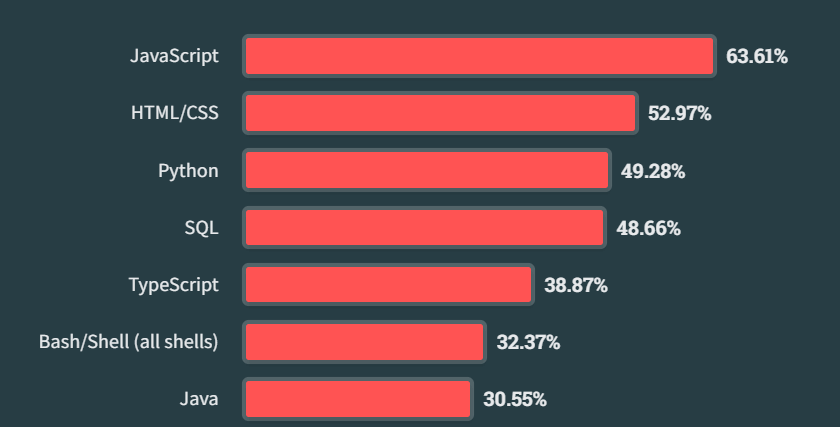
Python is a go-to choice for automating tests because of its huge community and tons of helpful libraries and frameworks. If you’re curious about its fundamentals, check out this article on Python basics.
When it comes to automation testing, Selenium is a widely used open-source framework that supports multiple programming languages, including Python. Selenium’s extensive capabilities, coupled with Python’s simplicity and flexibility, empower developers to create robust, maintainable, and scalable automation scripts.
What is the pytest Framework?
pytest is a testing framework for Python used for writing simple unit tests as well as complex functional tests. It provides a simple way to write tests using Python’s standard assert statements, making it easy to get started. It also offers a range of features, such as fixture support, parameterized testing, and plugins for extending its functionality.
Subscribe to the TestMu AI YouTube Channel. Get the latest updates on various Python automation tutorials covering Selenium Python, Selenium pytest, and more.
Here are some advantages of using pytest framework:
- Easy to use: pytest has a simple and intuitive syntax, making it easy for new users to get started with test automation. Its natural language style and descriptive error messages make it easy to understand the results of a test run.
- Highly flexible: It allows users to write tests using a wide variety of testing styles and approaches. It supports unit testing, functional testing, integration testing, and more. Additionally, pytest has a large ecosystem of plugins and extensions that can be used to customize and enhance its behavior.
- Write effective test cases: pytest supports a number of features that can help users write effective test cases and execute them more efficiently. For example, it supports automatic test discovery, which allows users to specify the location of tests and have pytest automatically locate and run them. It also supports parallel test execution, which can significantly reduce the time it takes to run a large test suite.
- pytest parameterization: pytest allows you to easily parameterize test functions, making it simple to run the same test with multiple inputs. This can save a lot of time and code when writing tests.
- Detailed reporting: pytest generates detailed test reports, including the number of tests run, the number of tests passed, and the number of tests failed.
- Plugins support: It has a large ecosystem of plugins that can be used to extend its functionality. Plugins are available for things like test discovery, test execution, test reporting, and more.
- Assertion introspection: pytest provides detailed information about test failures, including the local variables in the test function and the values of the function arguments. This makes it easier to understand and fix test failures.
- pytest fixtures: pytest allows you to define fixtures, which are reusable pieces of code that can be used to set up and tear down test dependencies. pytest fixtures can be used to share resources across multiple test functions, making it easy to write modular and maintainable test code.
- Well-documented: pytest has comprehensive documentation that makes it easy for folks to learn how to use pytest and get the most out of its features.
- Large and active community: It has a large and active community of users, developers, and testers who contribute to its development and support. This means that users can often find help and advice from other users when they encounter issues or have questions about pytest.
In the next section of this blog on pytest skip test functionality, we will set up the pytest project to set the foundation for using the pytest skip test functionality.

Setting Up the pytest Project
In this blog, all the configurations and codes will be used to demonstrate how to use pytest skip test functionality. For demonstration purposes, we will use VS Code. However, you are free to use your preferable IDE.
- Download and install Python according to your operating system.
- Install Selenium WebDriver using the below command.
pip install selenium
pip install pytest
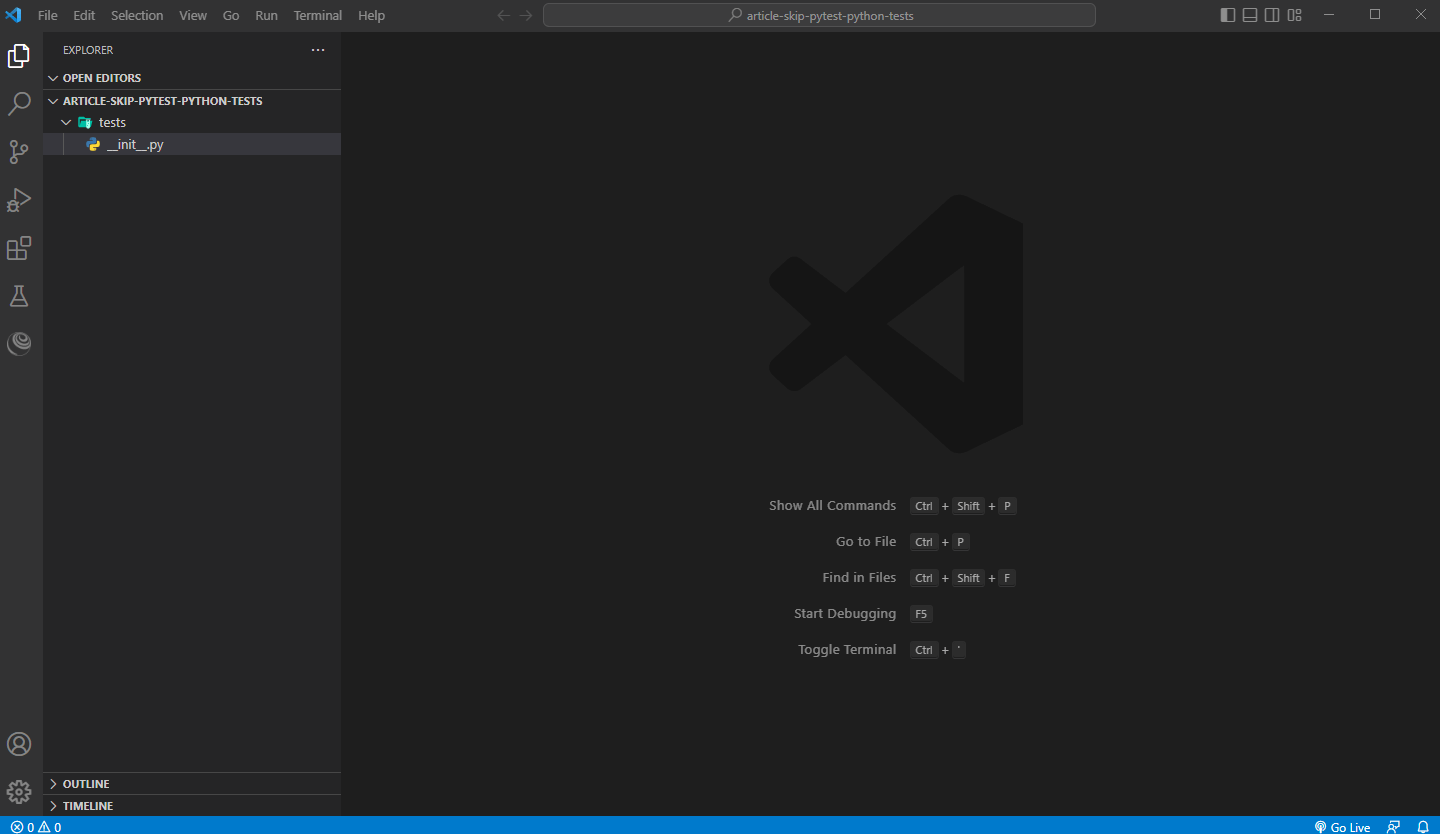
- Start by creating a folder for your project. For instance, you can name it “ARTICLE-SKIP-PYTEST-PYTHON-TESTS”.
- Open VS Code and navigate to the project folder you just created.
- Create another folder named “tests”. This is where you’ll store your test files.
- Create a new file named “_init_py”. This file tells Python that the folder is a package, allowing you to import modules from it.
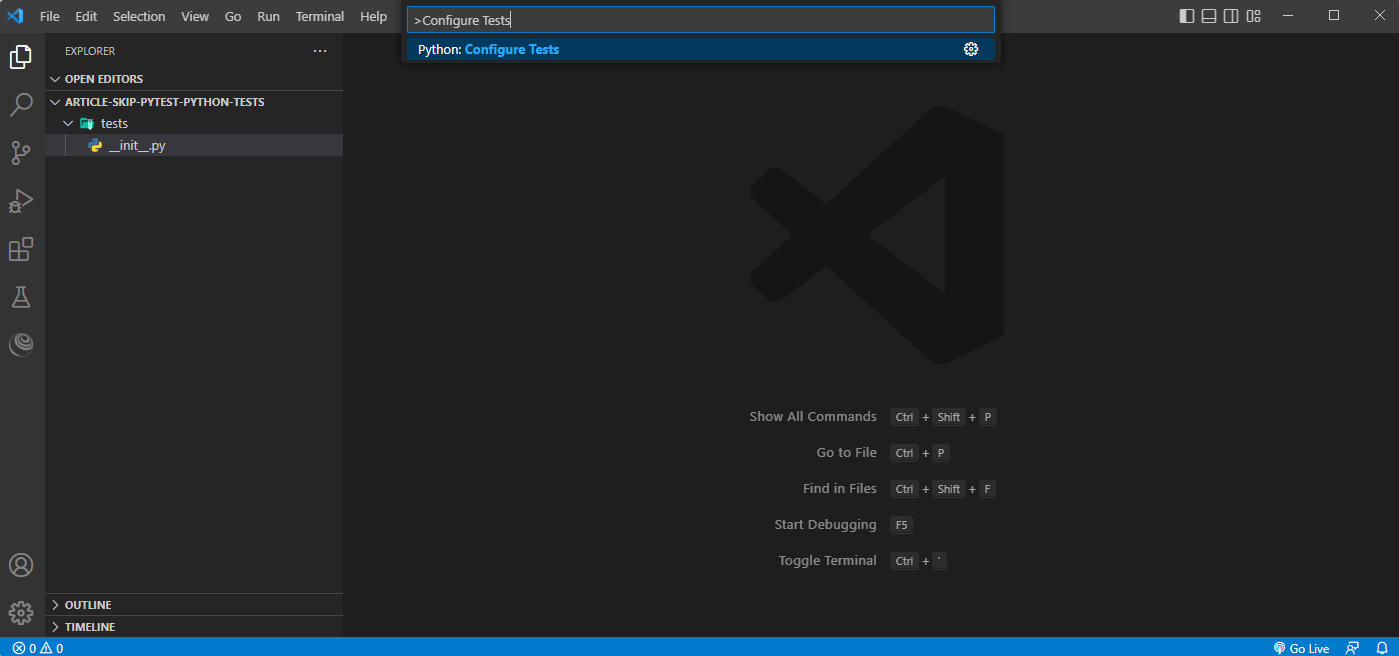
- Open the command palette (menu View > Command Palette), and type “Configure Tests”.
- Select pytest as the test framework.
- Now select the “tests” folder that contains the test files.
Once you’ve completed these steps, you’re ready to start writing your tests using pytest in VS Code.
Here is the project structure is shown below:
The demonstration will be done on cloud-based testing platforms like TestMu AI. It is an AI-powered test orchestration and execution platform that helps developers and testers perform Python automation testing at scale on a remote test lab of 3000+ real environments.
To perform pytest testing on the TestMu AI platform, you need to use the capabilities to configure the environment where the test will run.
In this blog on pytest skip test functionality, we are going to run the tests with the following configurations:
- Automation testing tool: Selenium 4
- Browser: Chrome
- Browser version: “latest”
- Resolution: 1024 x 768
- Operating system: Windows 11
You can generate the capabilities from the TestMu AI Automation Capabilities Generator.
Then, you can get the TestMu AI Username and Access Key from your Profile > Account Settings > Password & Security.
Now you have everything configured, let’s look at how to use pytest skip test functionality.
Demonstration: Using pytest Skip Test Functionality
The primary purpose of this blog is to show you all the ways to use pytest skip test functionality.
Skipping tests are helpful for various reasons:
- Isolating known issues: You can skip tests that are currently broken or expected to fail to avoid impacting your overall test results and focus on tests that should be passing.
- Conditional test execution: Tests can be skipped based on specific conditions, such as environmental factors or functionalities under development.
- Targeted test runs: When running a subset of tests, skipping allows you to focus on a specific area of the codebase without executing the entire test suite.
Following are the ways to use pytest skip test functionality:
- Skipping a single test.
- Skipping a test according to a specific condition.
- Skipping through the command line.
- Skipping using a configuration file.
- Skipping a test that is expected to fail.
It’s worth noting that skipping tests should be used strategically. If you have a lot of skipped tests, it could indicate that there’s something wrong with your test strategy or that you are not maintaining your tests properly.
Quick Test: Opening a Web Page on Chrome
Before we go ahead and demonstrate the pytest skip test functionality, let’s run a quick test to ensure that all configurations are working correctly.
The test will just open the Simple Form Demo page from TestMu AI eCommerce Playground and check that the page title is Selenium Grid Online | Run Selenium Test On Cloud. All of our tests will have the same steps, so the content will be used for all the tests.
Implementation:
from selenium import webdriver
import pytest


@pytest.fixture
def browser():
    # Instantiate the browser here
    username = "Your LambdaTest Username"
    accessToken = "Your LambdaTest Access Token"
    gridUrl = "hub.lambdatest.com/wd/hub"

    capabilities = {
        'LT:Options' : {
            "user" : "Your LambdaTest Username",
            "accessKey" : "Your LambdaTest Access Key",
            "build" : "your build name",
            "name" : "your test name",
            "platformName" : "Windows 11",
        },
        "browserName" : "Chrome",
        "browserVersion" : "103.0",
    }


    url = "https://"+username+":"+accessToken+"@"+gridUrl

    browser = webdriver.Remote(
        command_executor=url,
        desired_capabilities=capabilities
    )


    browser.maximize_window()
    yield browser


    # Close the browser after the test is finished
    browser.quit


# It will be run
def test_01(browser):
    browser.get("https://www.lambdatest.com/selenium-playground/simple-form-demo")
    assert browser.title == "Selenium Grid Online | Run Selenium Test On Cloud"
Code Walkthrough:
First, you must import the library that is needed for Selenium WebDriver to interact with the browser.
from selenium import webdriver
from selenium.webdriver.chrome.service import Service
Then, create a browser() function. To create a browser() function in pytest that instantiates a browser, you can use the @pytest.fixture decorator. A fixture is a function run before each test to set up a known state. This fixture will run before each test and create a new instance of the Chrome browser to be run in TestMu AI.
Inside the browser() function, we have:
- The username and accessToken of your TestMu AI account.
- The TestMu AI gridUrl.
- The TestMu AI automation capabilities.
- The test URL that will be used to run tests on the TestMu AI cloud grid.
- The instantiation of the browser driver.
- The maximize_window() method to maximize the screen when the browser opens (not mandatory, but helps the visualization during the execution).
- The yield statement is used to return the browser object to the test function.
- The code after the yield statement will be run after the test is finished. In our case, the quit function is called in the browser object to close it at the end of each test.
@pytest.fixture
def browser():
    # Instantiate the browser here
    username = "Your LambdaTest Username"
    accessToken = "Your LambdaTest Access Token"
    gridUrl = "hub.lambdatest.com/wd/hub"

    capabilities = {
        'LT:Options' : {
            "user" : "Your LambdaTest Username",
            "accessKey" : "Your LambdaTest Access Key",
            "build" : "your build name",
            "name" : "your test name",
            "platformName" : "Windows 11",
        },
        "browserName" : "Chrome",
        "browserVersion" : "103.0",
    }


    url = "https://"+username+":"+accessToken+"@"+gridUrl

    browser = webdriver.Remote(
        command_executor=url,
        desired_capabilities=capabilities
    )


    browser.maximize_window()
    yield browser


    # Close the browser after the test is finished
    browser.quit:
Now, create a test_01() function to understand that this is a test case. As a parameter of this function, pass the browser object.
The test will perform the following actions:
- Open the Simple Form Demo page. For this, use the browser instance to access the desired web page, using the get() function and informing the website URL that it should be opened.
- Check that the browser title is correctly shown. For this, use the assert statement to compare the browser title with the expected title string Selenium Grid Online | Run Selenium Test On Cloud.
# It will be run
def test_01(browser):
    browser.get("https://www.lambdatest.com/selenium-playground/simple-form-demo")
    assert browser.title == "Selenium Grid Online | Run Selenium Test On Cloud"
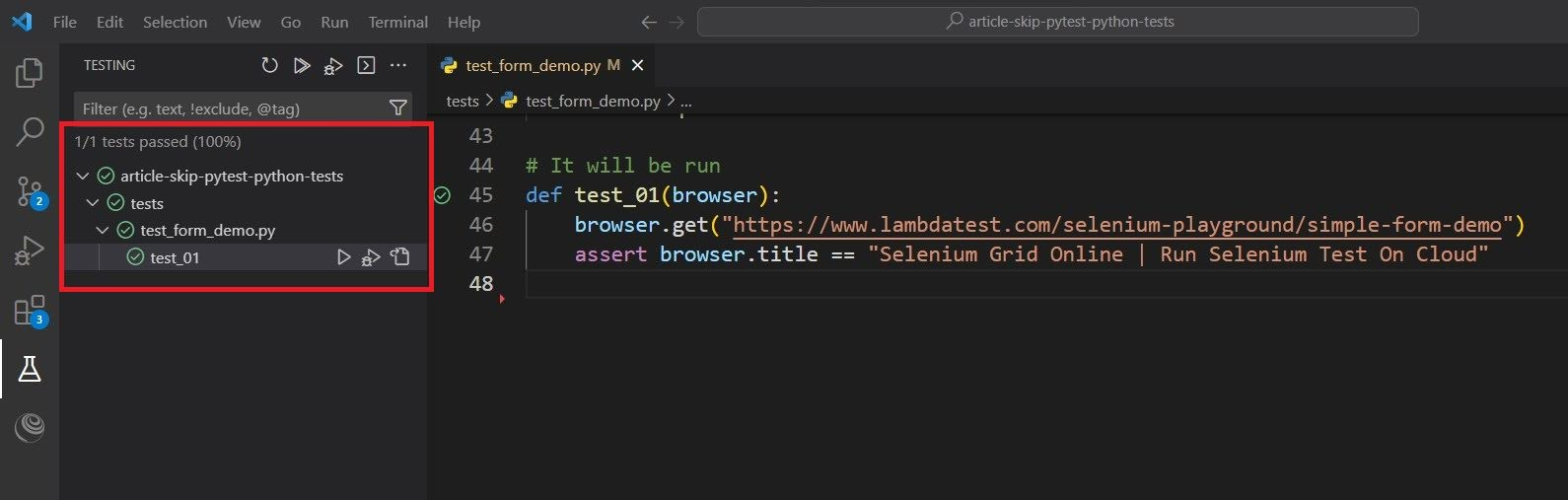
To run the tests, you should:
- Go to the TESTING tab in your VS Code
- Click ▶ to play the tests in the test suite. At this moment, you only have one test, but this process will be the same for the next test cases.
Skipping a Single Test
pytest skip test functionality provides a number of ways to skip tests, including the ability to skip a single test. To skip a single test using pytest, we can use the @pytest.mark.skip decorator. In the test below, test_02 will be skipped when running the tests.
Here is an example of how to use @pytest.mark.skip decorator to skip a test. The below snippet should follow the code demonstrated in the test_01, omitting the need for the test_01 in this context.
Implementation:
#It will be skipped
@pytest.mark.skip
def test_02(browser):
    browser.get("https://www.lambdatest.com/selenium-playground/simple-form-demo")
    assert browser.title == "Selenium Grid Online | Run Selenium Test On Cloud"
Code Walkthrough:
Using the @pytest.mark.skip decorator, test_02 will be skipped when running the tests.
@pytest.mark.skip
Create a test_02() function using the browser object as a parameter. Inside it, open the desired page, then assert that the correct page title is shown.
def test_02(browser):
    browser.get("https://www.lambdatest.com/selenium-playground/simple-form-demo")
    assert browser.title == "Selenium Grid Online | Run Selenium Test On Cloud"
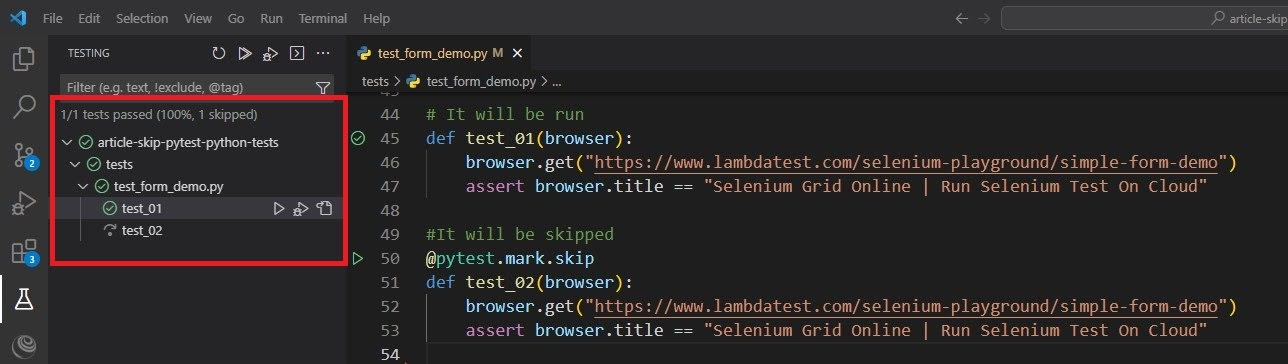
Now, run the tests. As expected, the test_02 was skipped, and just the test_01 was executed.
Skipping a Test Based on a Specific Condition
pytest skip test functionality can skip a single test according to a specific condition. The @pytest.mark.skipif decorator allows you to specify conditions under which a test should be skipped. This can be useful if you have tests that should only be run under certain conditions or if you have tests that are currently failing and you want to temporarily skip them until they can be fixed.
In the below test, the test_03 will be skipped when running in a Linux environment, and the test_04 will be skipped when running in a Windows environment.
Here is an example of how to use @pytest.mark.skipif decorator to skip a test. This code should be preceded by the code shown in test_01, except test_01, which does not need to be used here.
Implementation:
import sys
#It will be skipped if run on linux
@pytest.mark.skipif(sys.platform.startswith("linux"), reason="Not available on Linux")
def test_03(browser):
    browser.get("https://www.lambdatest.com/selenium-playground/simple-form-demo")
    assert browser.title == "Selenium Grid Online | Run Selenium Test On Cloud"


#It will be skipped if run on windows
@pytest.mark.skipif(sys.platform.startswith("win"), reason="Not available on Windows")
def test_04(browser):
    browser.get("https://www.lambdatest.com/selenium-playground/simple-form-demo")
    assert browser.title == "Selenium Grid Online | Run Selenium Test On Cloud"
Code Walkthrough:
Import the sys library to check the operating system that is being used to run the tests.
import sys
Use the @pytest.mark.skipif decorator. This specifies the test condition in which the test will be skipped when executed. In the test_03, specify that if the operating system is Linux, this test should be skipped.
To create this condition, use sys.platform.startswith(“linux”). Then, specify a reason to skip this test. In this code example, it is “Not available on Linux”.
@pytest.mark.skipif(sys.platform.startswith("linux"), reason="Not available on Linux")
Create a test_03() function using the browser object as a parameter. Inside it, open the desired page, then assert that the correct page title is shown.
def test_03(browser):
    browser.get("https://www.lambdatest.com/selenium-playground/simple-form-demo")
    assert browser.title == "Selenium Grid Online | Run Selenium Test On Cloud"
In test_04, specify that if the operating system is Windows, this test should be skipped. To create this condition, use sys.platform.startswith(“win”). Then, specify a reason to skip this test. In this code example, it is “Not available on Windows”.
@pytest.mark.skipif(sys.platform.startswith("win"), reason="Not available on Windows")
Create a test_04() function using the browser object as a parameter. Inside it, open the desired page, then assert that the correct page title is shown.
def test_04(browser):
    browser.get("https://www.lambdatest.com/selenium-playground/simple-form-demo")
    assert browser.title == "Selenium Grid Online | Run Selenium Test On Cloud"
Run the tests now and see the below result:
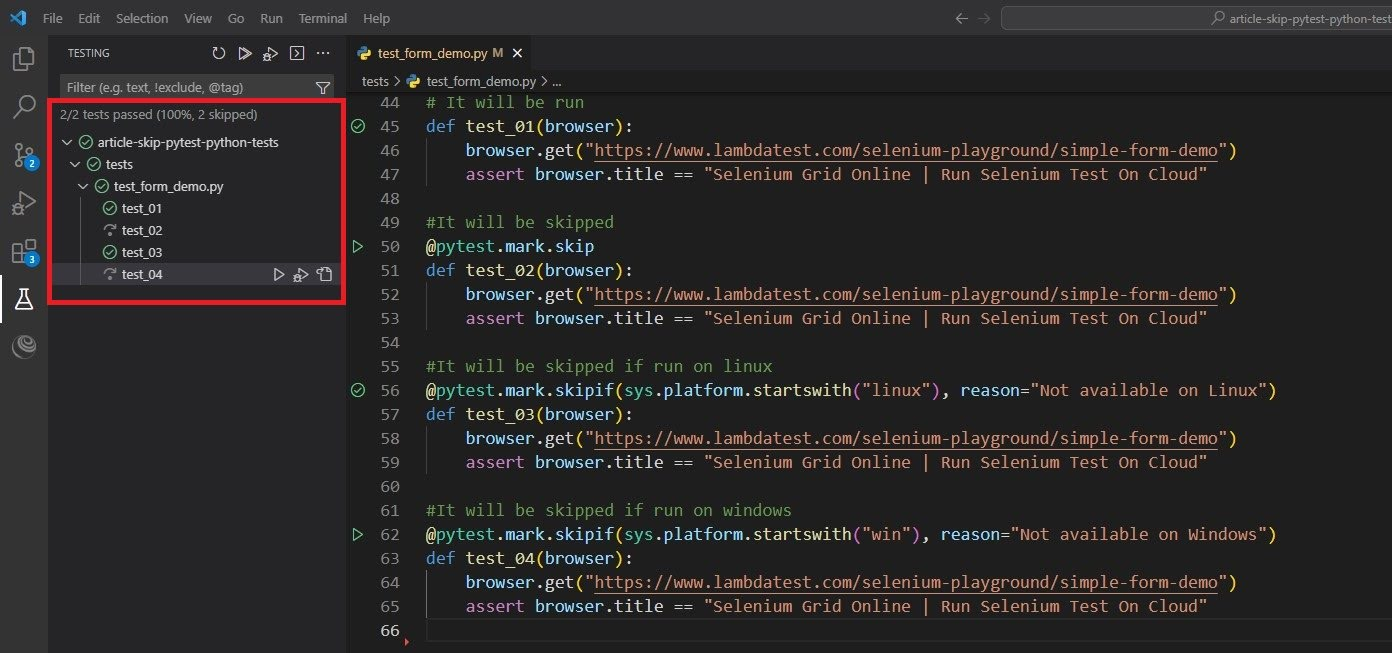
As expected, given that we are running tests on a Windows environment, the test_03 is executed, and the test_04 was skipped.
Skipping a Test Through the Command Line
pytest skip test functionality allows you to skip a single or a group of tests through the command line. One of the most useful features of pytest is the ability to specify which test cases to run using the -k flag.
The -k flag stands for keyword and specifies a keyword expression that will be used to filter the test cases that pytest runs. For example, if you have a test file with multiple test functions, you can use the -k flag only to run the test functions that contain a certain keyword in their name.
Here is an example of how you can use the -k flag to filter test cases in pytest. This code should be preceded with the code shown in the test_01, with the exception of test_01 which does not need to be used here.
Implementation:
#It will be skipped when running pytest -k "not 05" in command line
def test_05(browser):
    browser.get("https://www.lambdatest.com/selenium-playground/simple-form-demo")
    assert browser.title == "Selenium Grid Online | Run Selenium Test On Cloud"
Code Walkthrough:
Create a test_05() function using the browser object as a parameter. Inside it, open the desired page, then assert that the correct page title is shown.
Use the below command to run the tests using the command line:
pytest -k “not 05”
In the above code, we used the pytest command using the -k flag and informing the keyword you don’t want to run between quotes. You should inform the keyword not, followed by a space for the keyword you wish to, which should be part of the function name of the test you want to skip. In our example, we will skip the tests with 05 in the function name.
After running the above command, see the below result:
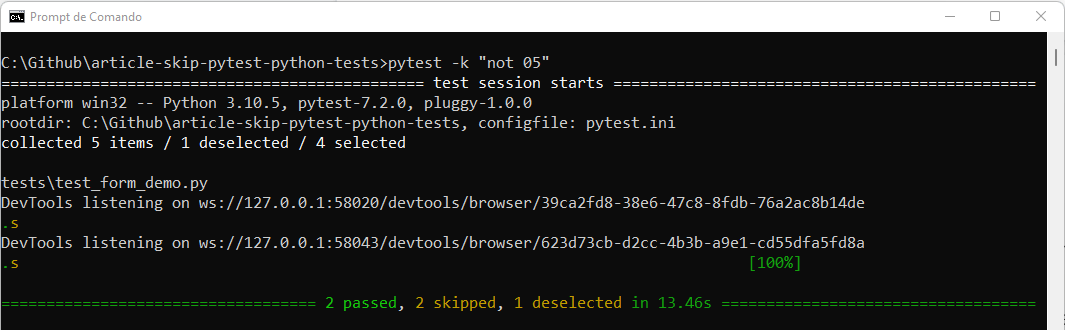
As expected, the test_05 is not executed. In the command line, it is shown as 1 deselected.
Note: This ability is handy where you have multiple test cases related to login functionality, each with a distinct name indicating its purpose (e.g., test_login_success, test_login_wrong_pwd, test_login_wrong_username).
You can skip the successful test cases just running the below command in the command line:
pytest -k “not success”
It will selectively execute tests whose names do not contain the word “success”. This allows you to easily skip tests associated with a specific functionality or scenario without affecting other tests.
Skipping a Test Using a Configuration File
One useful feature of pytest skip test functionality is the ability to configure it using a configuration file called pytest.ini. This configuration file can be used to set various options that control the behavior of pytest.
One such option is the addopts, which allows you to specify command line options that should be passed to pytest when it is run. This can be useful for setting options that are not available as part of the pytest configuration file or passing in options you want to use frequently.
You can just do as shown below:
Implementation:
[pytest]
addopts = -k "not 06"
#It will be skipped when adding an addopts option in pytest.ini file -k "not 06"
def test_06(browser):
    browser.get("https://www.lambdatest.com/selenium-playground/simple-form-demo")
    assert browser.title == "Selenium Grid Online | Run Selenium Test On Cloud"
Code Walkthrough:
To create a pytest.ini file that uses the addopts option, create a new file in the root directory of your project and name it pytest.ini.
Then, add the following:
- [pytest]: This needs to be understood by pytest that this is the configuration file and should be followed.
- addopts = -k “not 06”: This specifies the command line options that you want to pass to pytest by adding them after the = sign. In this example, run all tests that do not match a particular pattern and should not contain the 06 in the test name.
[pytest]
addopts = -k "not 06"
Create a new test_06() function using the browser object as a parameter. Inside it, open the desired page, then assert that the correct page title is shown.
#It will be skipped when adding an addopts option in pytest.ini file -k "not 06"
def test_06(browser):
    browser.get("https://www.lambdatest.com/selenium-playground/simple-form-demo")
    assert browser.title == "Selenium Grid Online | Run Selenium Test On Cloud"
Run the tests now and see the below result:
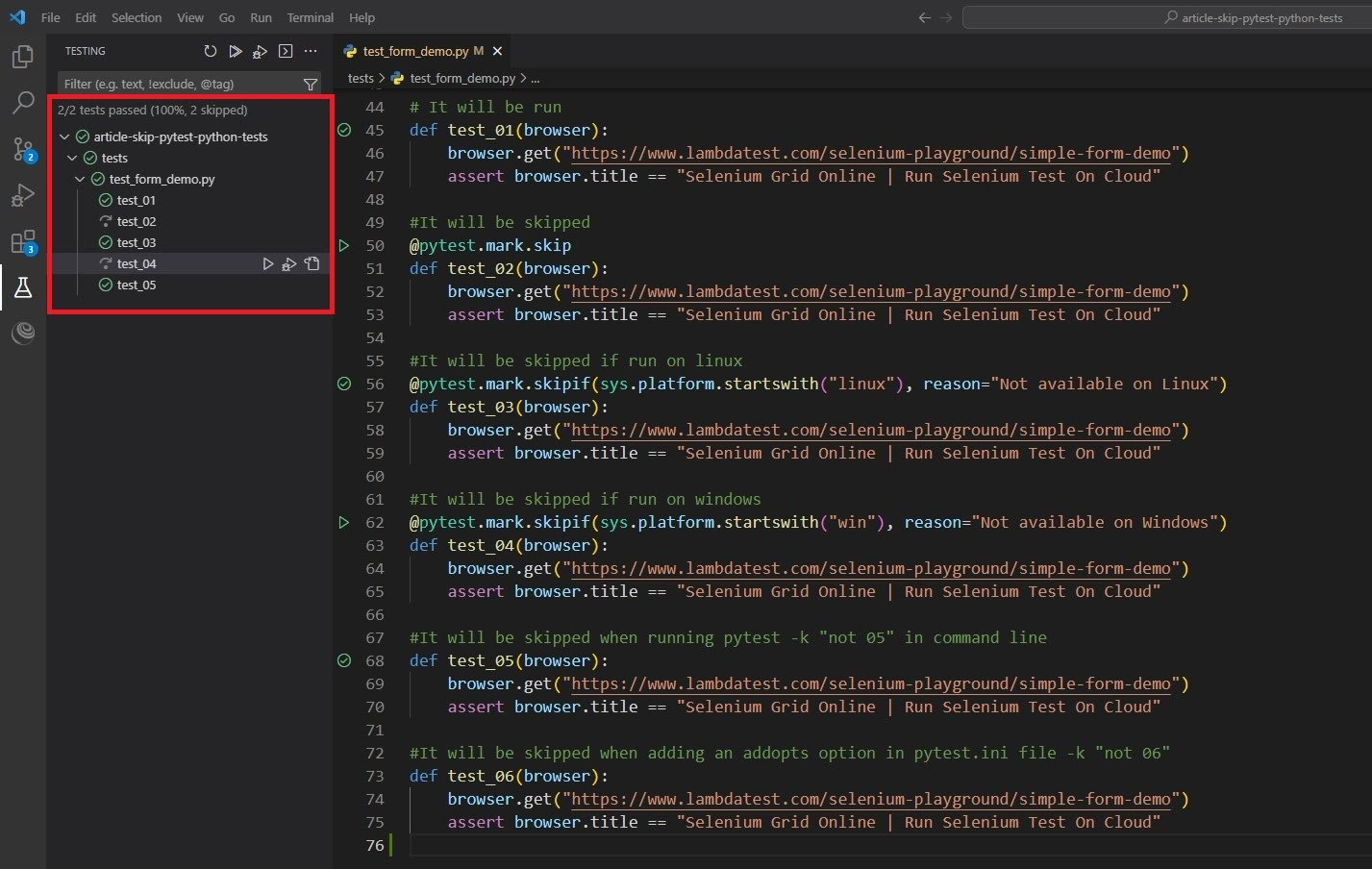
We have two important points to mention about this test execution:
- test_05 was executed in this case because now we are running it directly in VS Code. As shown in the previous session, when executing through the command line with the -k option, it will be skipped.
- test_06 is not being shown in the list of tests because pytest checks the configuration file, then it is noticed that it should not consider tests with “06” in the name, so it is skipped and not shown in the list.
Skipping a Test Expected to Fail
One of the interesting features of pytest skip test functionality is the ability to mark tests as xfail, which stands for expected to fail. It is marked using the @pytest.mark.xfail decorator. When a test is marked as xfail, pytest will run the test as usual, but it will expect the test to fail. If the test passes, the pytest framework will treat it as a failure; if it fails, the pytest framework will treat it as a success. This feature can be useful in several scenarios.
One use case for xfail is when you have a test that is known to fail, but you want to keep it in the test suite anyway. For example, if you are working on a new feature that has yet to be fully implemented, you can mark the test as xfail so that it will not fail the build, but you can still see its progress.
Another use case is when working with an external dependency not under your control, such as a third-party API known to have bugs. You can mark the test as xfail so that it will not fail the build, but you can still see if the bug has been fixed.
Here is an example of how to use @pytest.mark.xfail decorator. This code should be preceded with the code shown in the test_01, with the exception of test_01, which does not need to be used here.
Implementation:
@pytest.mark.xfail
def test_07(browser):
    browser.get("https://www.lambdatest.com/selenium-playground/simple-form-demo")
    assert browser.title == "This test"
Code Walkthrough:
Use the @pytest.mark.xfail decorator to say that this test is expected to fail.
@pytest.mark.xfail
Create a new test_07() function using the browser object as a parameter. Inside it, open the desired page, then assert that a wrong page title is shown.
def test_07(browser):
    browser.get("https://www.lambdatest.com/selenium-playground/simple-form-demo")
    assert browser.title == "This test"
Run the tests now, see the below result:
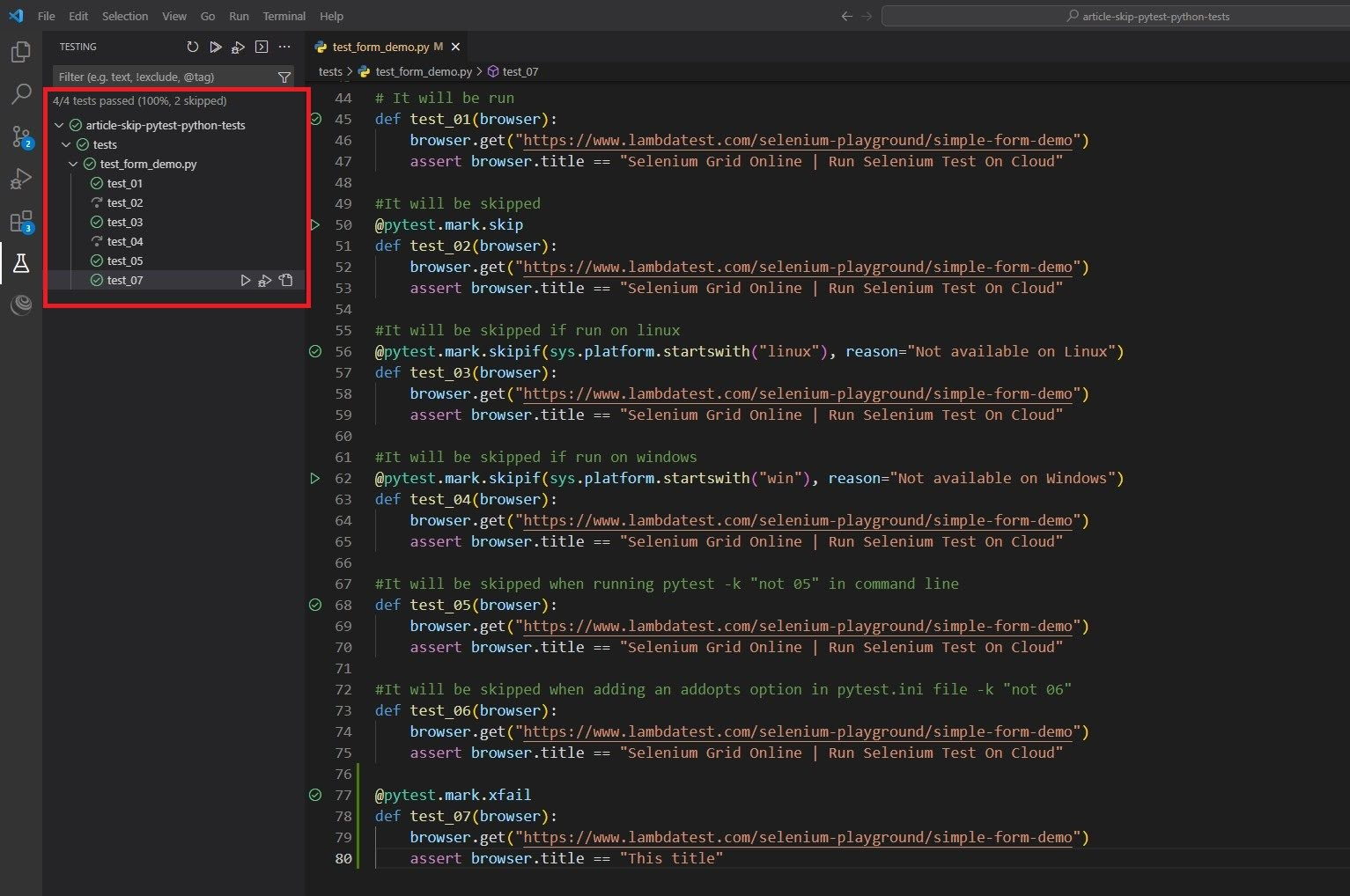
As expected, test_07 is considered as passed, even though it failed.
That brings us to the end of this blog on using pytest skip test functionality.
But why stop here? If you’re eager to deepen your expertise in test automation, explore the TestMu AI Selenium Python 101 certification. This certification will help validate your skills to excel in automation testing using Selenium Python.

Note: Run your pytest tests with Selenium on the cloud. Try TestMu AI Today!
Conclusion
In this blog on pytest skip test functionality, we learned how to skip a test in Python pytest.
We discussed the rationale behind using Python and Selenium for test automation. We explained the functionality of the pytest framework and its role in executing Python test cases effectively.
Additionally, we covered the setup procedures necessary to configure all essential environments, including running automation tests on an online Selenium Grid using the TestMu AI platform.
Lastly, we outlined four methods for using pytest skip test functionality: individually, based on conditions, via the command line, through a configuration file, and using xfail. All of these were demonstrated using test scenarios.


Frequently asked questions
Did you find this page helpful?
More Related Hubs
TestMu AI forEnterprise
Get access to solutions built on Enterprise
grade security, privacy, & compliance
- Advanced access controls
- Advanced data retention rules
- Advanced Local Testing
- Premium Support options
- Early access to beta features
- Private Slack Channel
- Unlimited Manual Accessibility DevTools Tests