

Next-Gen App & Browser Testing Cloud
Trusted by 2 Mn+ QAs & Devs to accelerate their release cycles


On This Page
- What is TestCafe?
- What is Selenium?
- TestCafe Trends on GitHub
- Advantages of TestCafe Automation
- Getting Started With TestCafe Automation
- How to run Selenium Tests using TestCafe?
- How to run Parallel Tests in TestCafe?
- How to run Tests in Headless Mode in TestCafe?
- How to run Tests using TestCafe and Cloud Selenium Grid?
- How to Run a Parallel Test on TestCafe and Cloud Selenium Grid?

How To Perform Modern Web Testing With TestCafe Using JavaScript And Selenium
In this article you will learn to perform modern web testing with TestCafe using JavaScript and Selenium.

Bonnie
January 30, 2026
This article is a part of our Content Hub. For more in-depth resources, check out our content hub on Testcafe Tutorial.
Whether it is an application or web app, every software requires testing after development to ensure it does what we expect it to do. Software testing involves using manual or automated tools. Test automation tools are the best to use over manual tools because they increase software testing effectiveness, efficiency, and coverage.
End-to-End testing (or E2E testing) is used to test whether the flow of an application right from start to finish is behaving as expected. End-to-End tests simulate real user scenarios where the automation tool tests how a real user would use the application.
This blog on modern web testing with TestCafe will help you learn how to perform End-to-End automated web tests with JavaScript using TestCafe and cloud Selenium Grid.
Let’s get started!
Overview
TestCafe is an open-source, Node.js-based end-to-end testing framework that simplifies web application testing. By understanding how to effectively use TestCafe, testers can write faster, more reliable automation scripts to simulate real user interactions and ensure web applications behave as expected across different browsers and platforms.
How to Use TestCafe for Automated Web Testing?
TestCafe provides several ways to interact with HTML elements, ensuring that testers can target specific parts of the page for effective testing.
The following are common approaches to locating and interacting with elements in your web tests:
Selector Method: TestCafe uses the Selector() function to identify elements on the page. You can target elements using IDs, classes, attributes, and even text content, ensuring accurate and reliable element interaction.
ID Selector: Targets elements with a unique ID, e.g., Selector('#search_box'). This is one of the fastest and most reliable selector types.
Class Selector: Used to select elements with a specific class name, e.g., Selector('.product-item'). Helpful for selecting groups of elements.
Attribute Selector: Selects elements based on custom or standard attributes, e.g., Selector('a[title*="store"]'). Ideal for dynamic attributes.
Text Selector: Targets elements containing specific text, e.g., Selector('button').withText('Submit'). Useful for buttons and text-driven interactions.
Nth Selector: Allows targeting specific occurrences of an element, e.g., Selector('li').nth(0) to select the first list item. Ideal for list-based or repeated content.
How to Handle Dynamic Elements in TestCafe?
TestCafe handles dynamic elements efficiently using its built-in waiting mechanisms. It automatically waits for elements to appear in the DOM before interacting with them, reducing the need for manual waits or timeouts.
Waiting for Elements: TestCafe waits for elements to become visible or clickable before performing actions. For finer control, you can use .wait() or .expect() for custom conditions or assertions.
Async Functions: All TestCafe actions are asynchronous, ensuring step-by-step execution without blocking the test flow, resulting in smooth and efficient test runs.
Best Practices for TestCafe Automation
- Use Selectors Effectively: Choose appropriate selectors (ID, class, attribute, etc.) based on the element type for enhanced accuracy and maintainability.
- Leverage Page Object Model (POM): Organize your test structure by separating page interactions into specific page objects, improving readability and reducing duplication.
- Run Tests in Parallel: Utilize TestCafe’s concurrency feature to execute tests across multiple browsers or versions to speed up test execution.
- Run Tests in Headless Mode: Improve performance by running tests in headless mode without rendering the graphical interface.
Start your journey with Selenium JavaScript Testing on TestMu AI’s online cloud.
What is TestCafe?
As per the StackOverflow 2021 Developer Survey, JavaScript completed its ninth year as the most commonly used programming language.
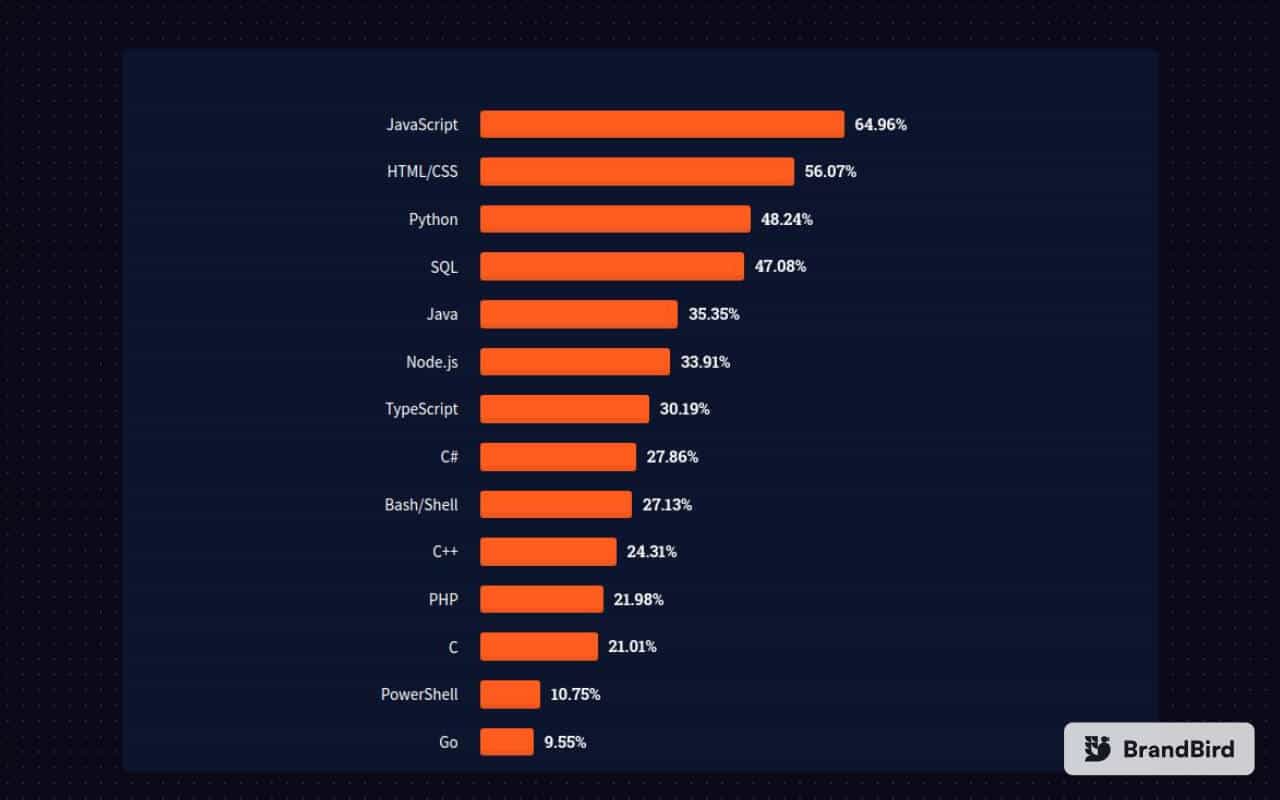
TestCafe is a Node.js End-to-End free and open-source automation framework used to test web applications. TestCafe supports both JavaScript and TypeScript. Hence you can write TestCafe tests in either one of the two. With TestCafe, you needn’t depend upon WebDriver or worry about manual timeouts. Get the most out of with this TestCafe tutorial on performing modern web testing with TestCafe.
What is Selenium?
Selenium is an open-source automation framework extensively used in automated tests for web applications. A new version of Selenium has been launched in the market. The latest version is Selenium 4, an upgrade from Selenium 3. You can learn about the features and improvements in Selenium 4 by going through this Selenium 4 tutorial.
The most notable improvement in Selenium 4 is the World Wide Web Consortium(W3C) compliance with WebDriver APIs. This means that Selenium 4 offers more stable cross-browser tests, as no additional encoding-decoding of the API requests is necessary.
TestCafe Trends on GitHub
TestCafe is a prevalent test automation framework; the data obtained from the official TestCafe GitHub repository says it all:
- Stars: 93K
- Contributors: 107
- Forks: 650
- Releases: 338
- Used by 10K users
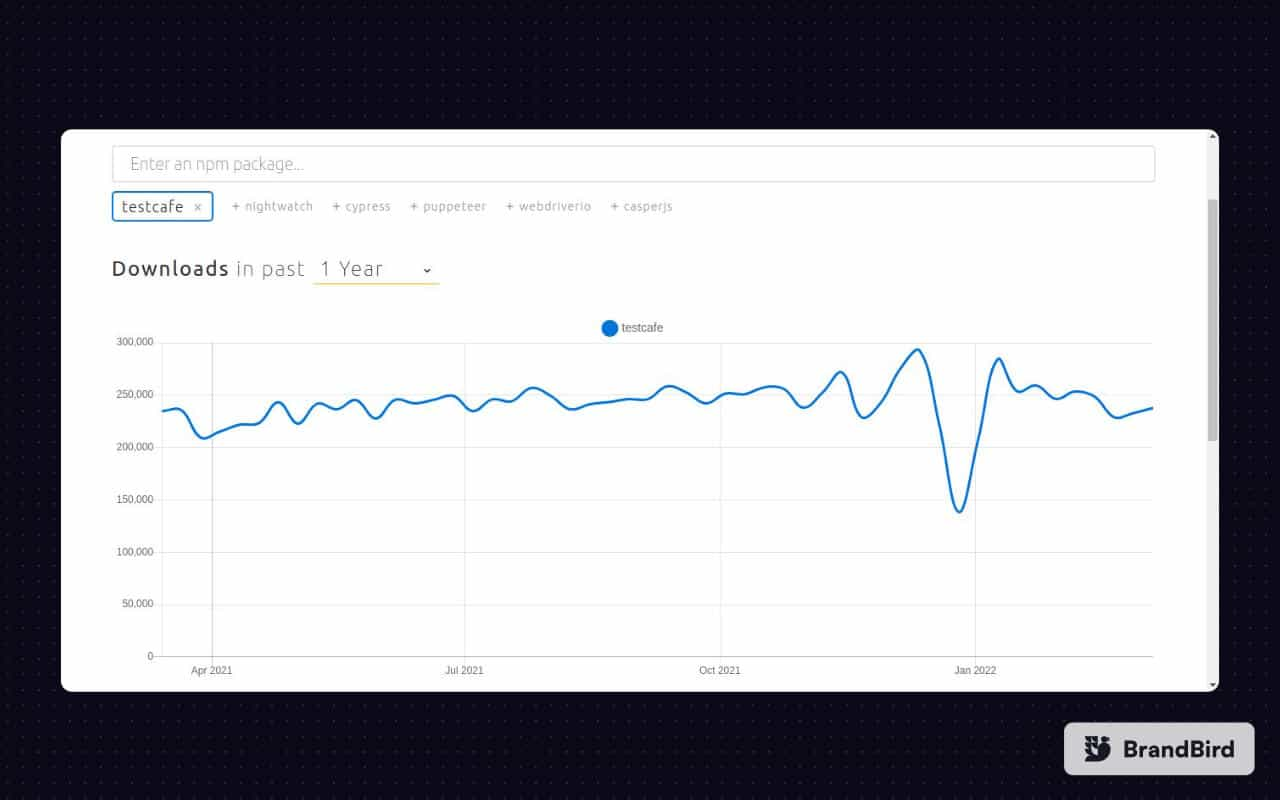
At the time of writing this blog, TestCafe had 254,003 weekly downloads on NPM.
Advantages of TestCafe Automation
Now that I have covered the fundamentals of TestCafe, let’s look at some of the significant advantages of TestCafe. JavaScript supports several other web automation frameworks like WebDriverIO, Mocha, Jasmine, Protractor, etc. The critical question is, what is the core speciality of TestCafe?
Here are some of the major benefits of the TestCafe automation framework:
- TestCafe is easy to set up because it does not require the installation of third-party plugins, web drivers, or additional libraries to run tests.
- TestCafe supports all major browsers, such as
- Google Chrome
- IE 11
- Microsoft Edge
- Mozilla
- Safari
- Chrome mobile
- Safari mobile
- TestCafe is open source and free to use because it is licensed by MIT.
Liked this video? Follow the TestMu AI YouTube Channel for more such videos around Selenium testing, CI/CD, Cypress UI testing, and more,
Getting Started With TestCafe Automation
In this section of this article on modern web testing with TestCafe, you will learn how to install TestCafe and run your first test in TestCafe. To install and use TestCafe in your system, you need a Text Editor, NodeJS, and Node Package Manager (NPM) installed.
For demonstration, I will be using Visual Studio Code as the Text Editor. However, you can use the IDE of your choice.
Here is the list of VS Code extensions necessary for performing modern web testing with TestCafe.
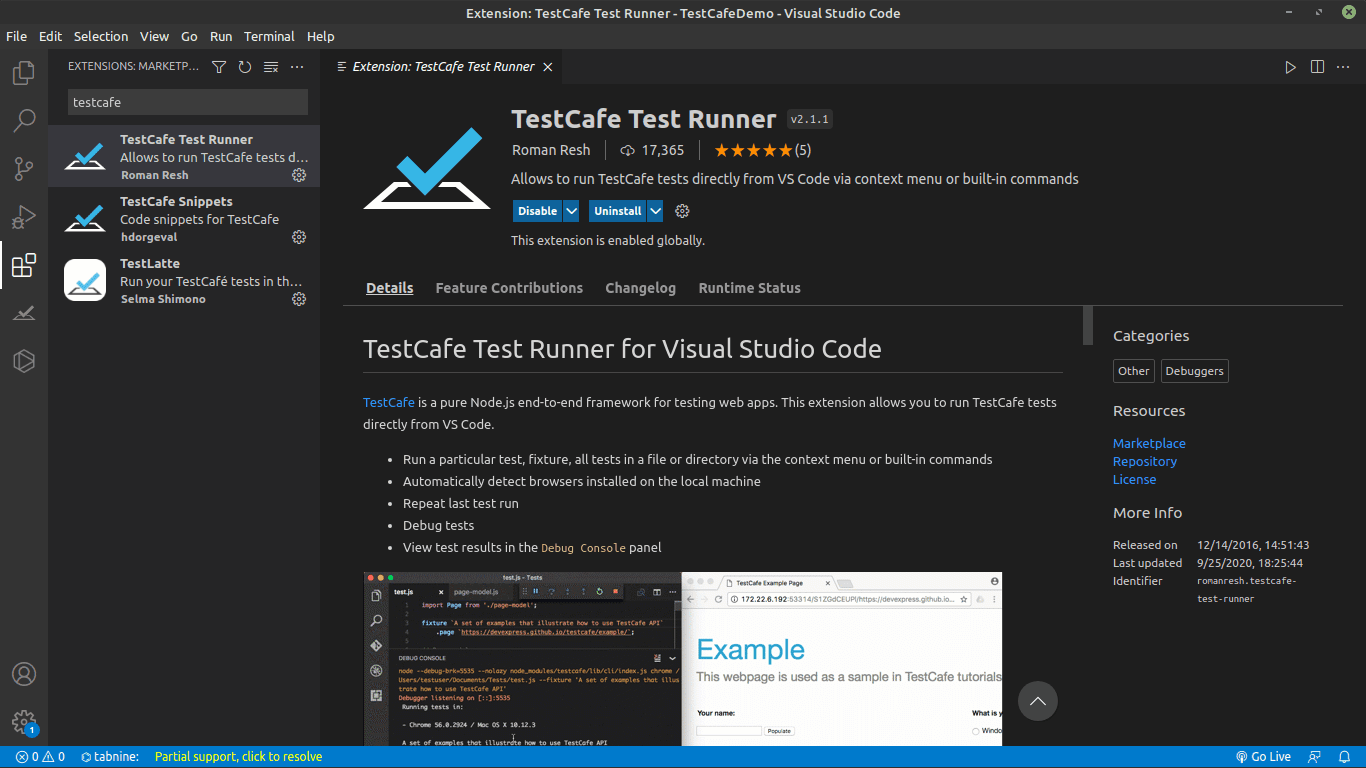
- TestCafe Snippets: Provides code snippets for TestCafe
- TestCafe Test Runner: Allows you to run tests directly from VS Code
- TestLatte: Lets you debug or run your TestCafe tests on VS Code

Note: Want to make your life of testing easy and fuss-free while debugging? Try LT Debug Chrome extension!
How to install TestCafe Extensions
To install TestCafe Extensions, please follow the below mentioned steps:
- On your computer, create a folder called “TestCafeDemo”.
- Right-click on the folder and open it using VS Code.
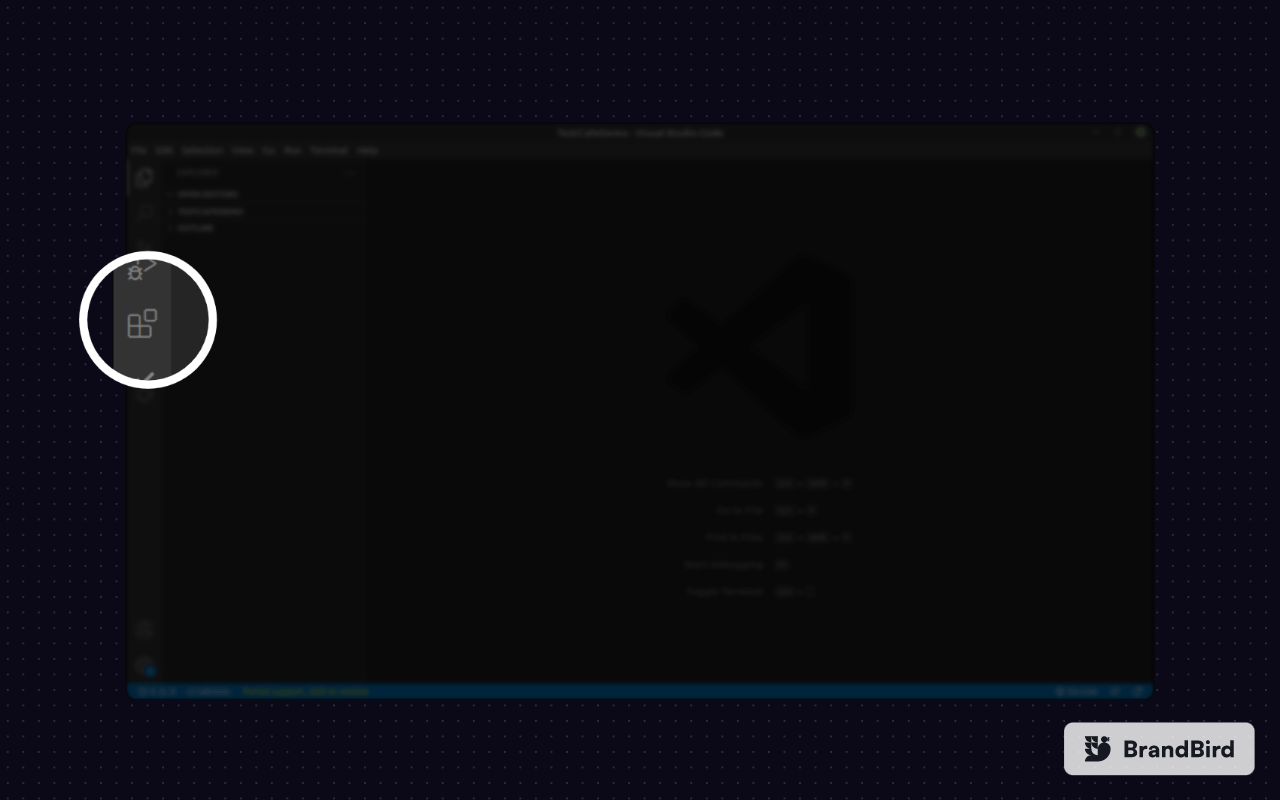
- Once VS Code has launched, navigate to extensions by clicking the extensions button on the left side of your screen.
- On the extension’s search bar, type “testcafe” and all three extensions will appear. Click on each extension and install it.
Installing TestCafe in VS Code
To install TestCafe in VS Code, please follow the below mentioned steps:
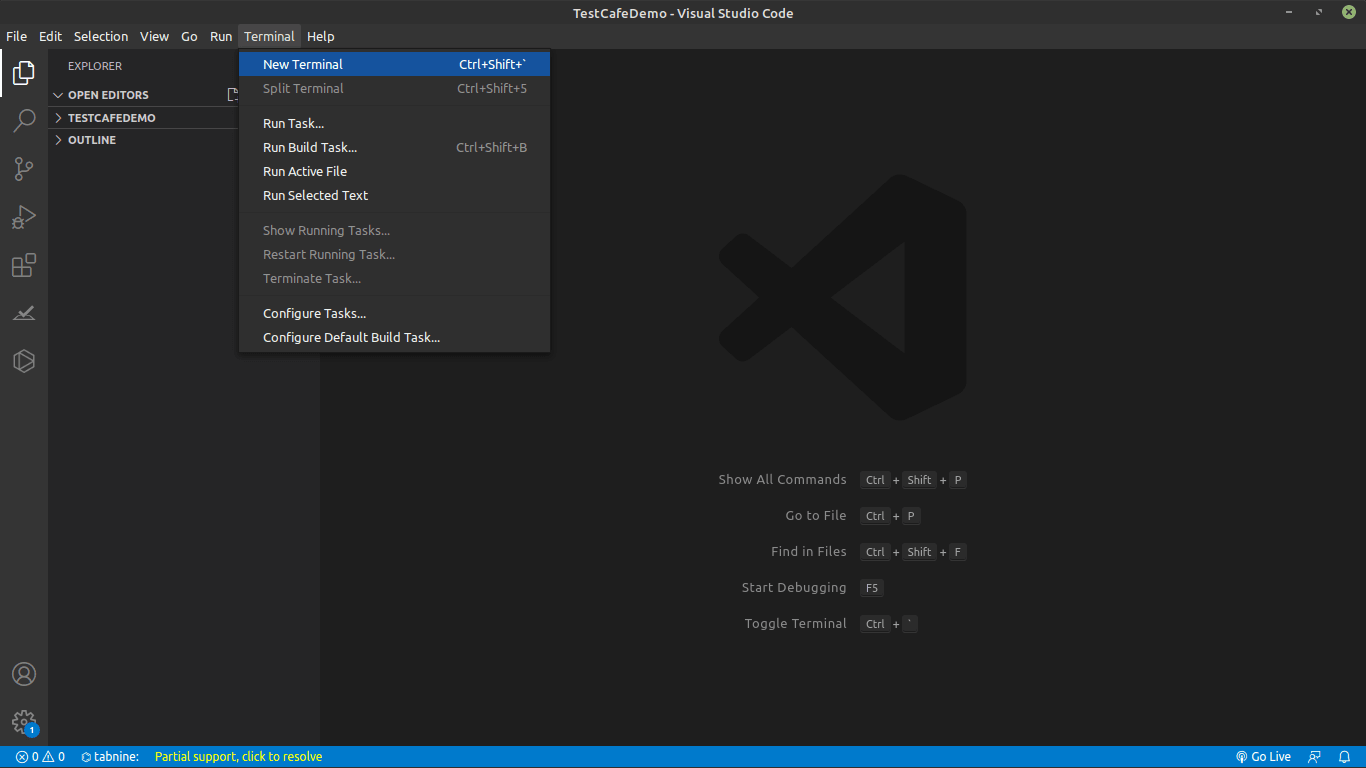
- Open the terminal on VS Code by clicking the Terminal option at the top of your VS Code Window and then select New Terminal as shown below:
- Run the command below on your terminal to install TestCafe.
npm install testcafe.
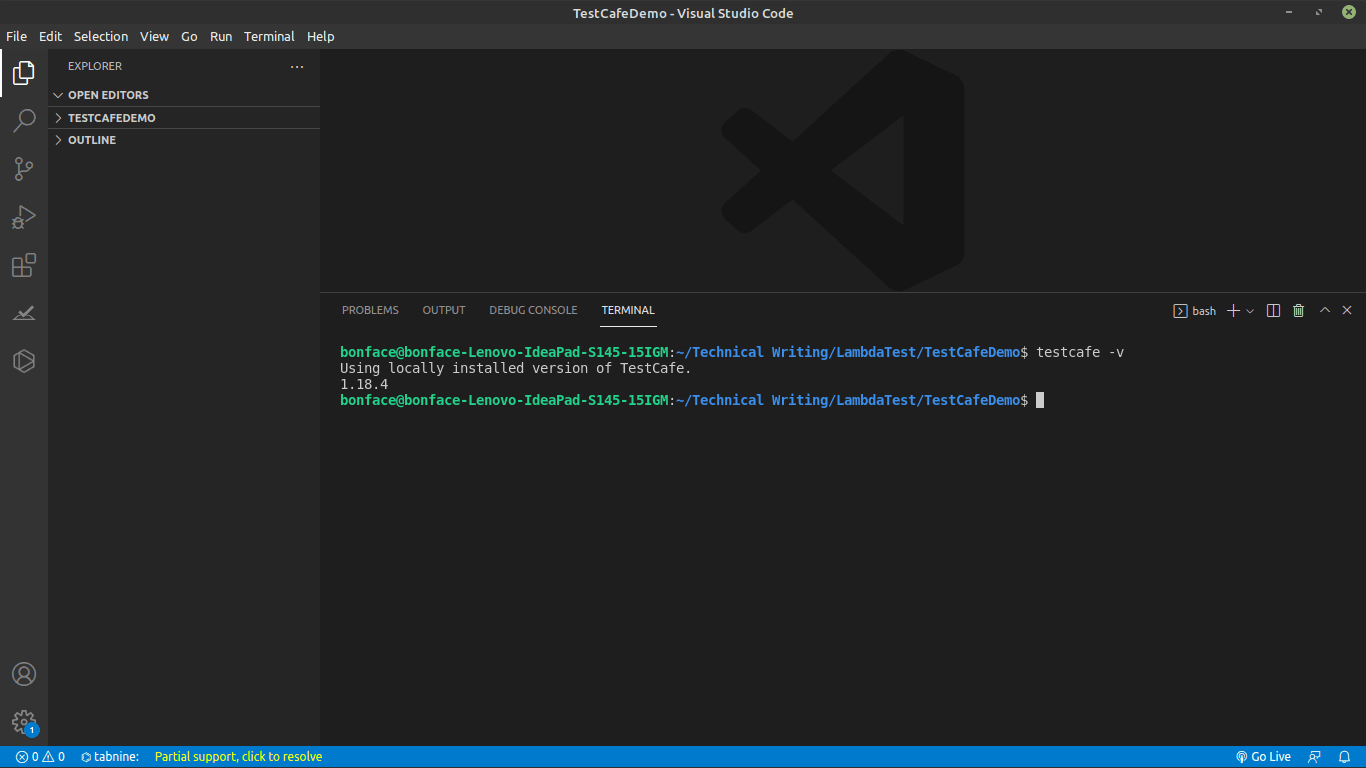
testcafe -v
As you can see below, I am using TestCafe version 1.18.4
npm init
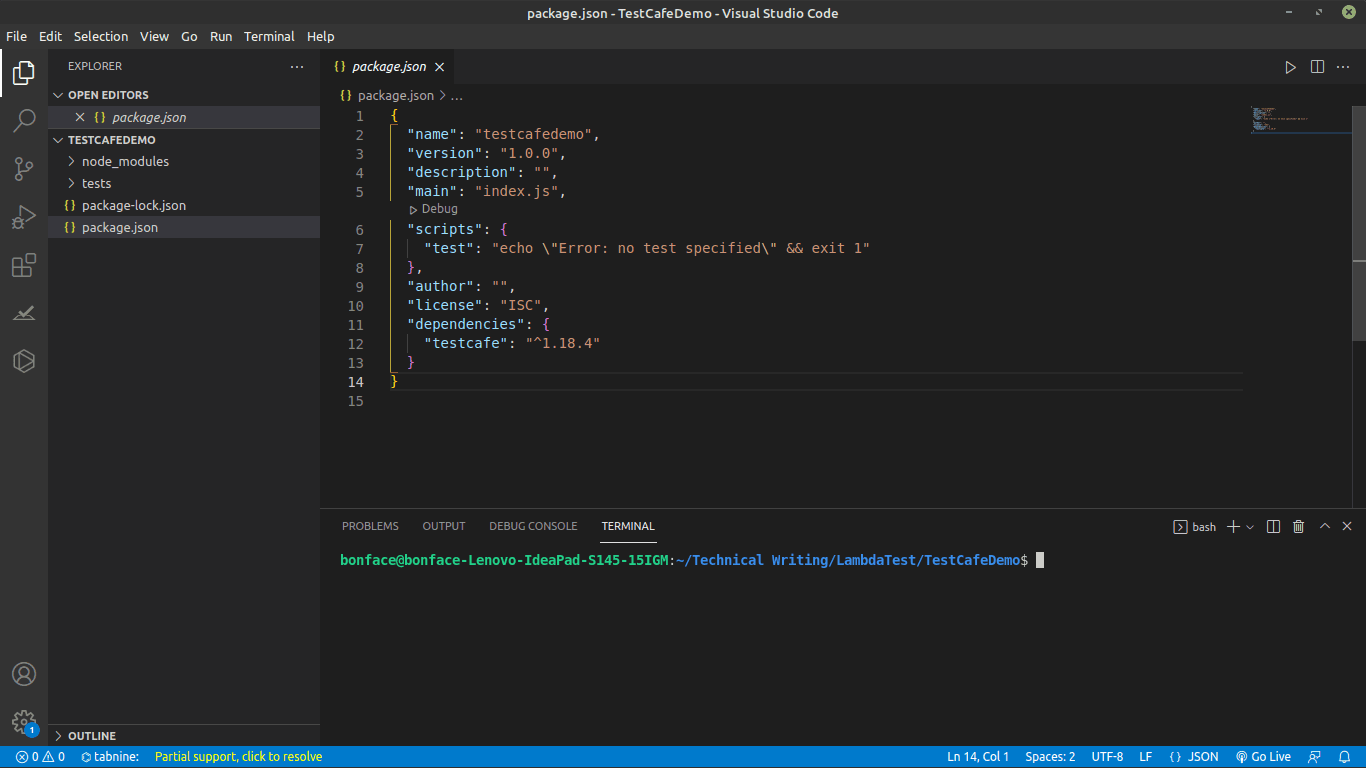
The package.json file represents various metadata relevant to our project. The file also helps NPM identify the project’s information and dependencies.
npm install testcafe
Now, if you navigate to the package.json file, you will find that TestCafe has been added as one of the dependencies.
Note: Run TestCafe Tests on the cloud! Try TestMu AI Now!
How to run Selenium Tests using TestCafe?
To demonstrate how to perform TestCafe testing using Selenium, I will be using a dummy e-commerce playground from TestMu AI for automating test scenarios. Here, the customers need to create an account to be able to buy something from the website.
To make sure that the registration form works as expected, you can use TestCafe to run an automated test where TestCafe simulates the end-user interaction with the elements in the DOM. The automation will be performed on the Chrome, Firefox, and Safari browsers.
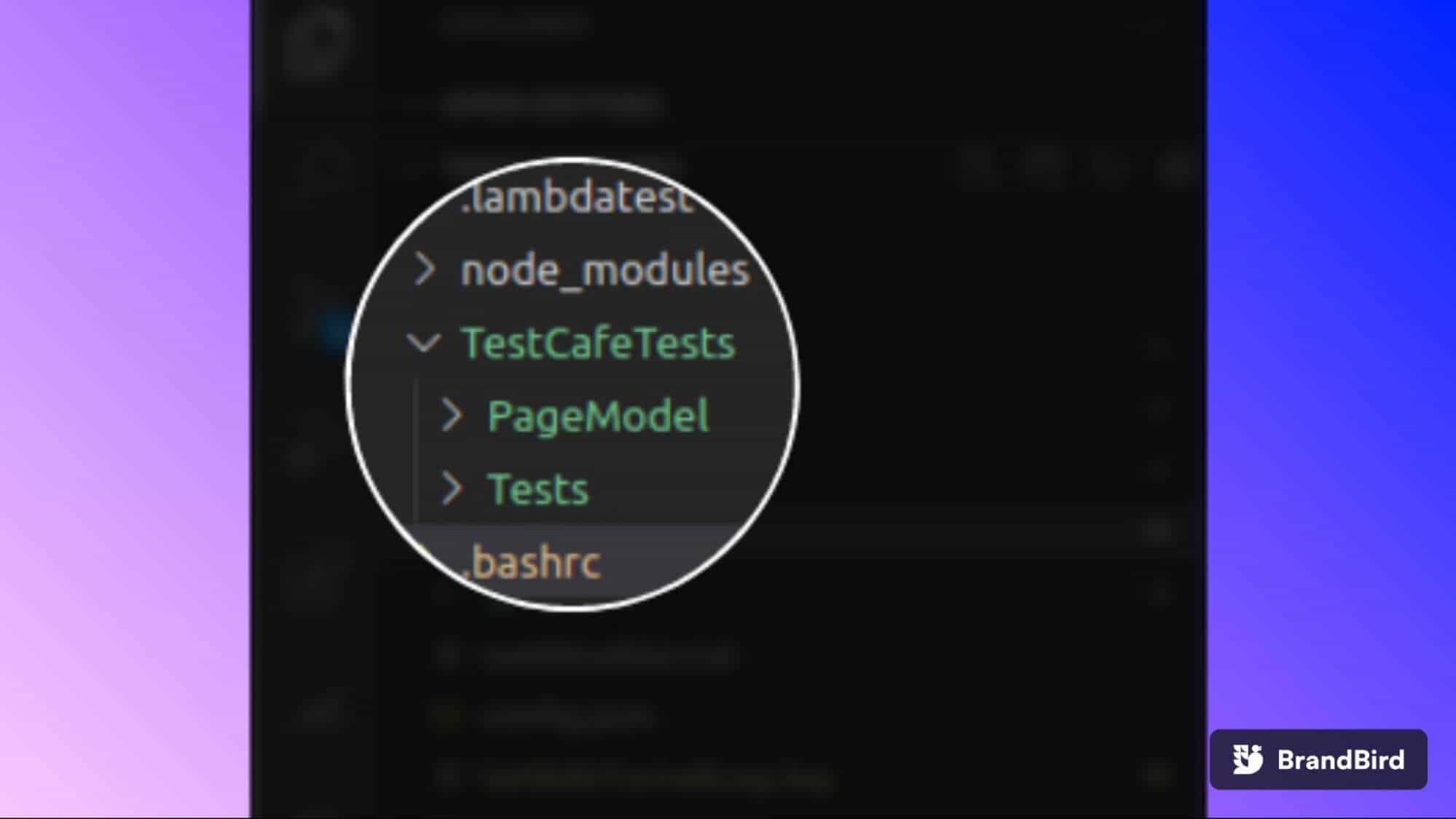
To run the test, we will create a folder called “TestCafeTests”. Inside the folder, we will create two folders called “PageModel” and “Tests”. We will create two folders inside the “TestCafeTests” folder because we will be using Page Object Model in Selenium.
Page Object Model, also known as POM, is a design pattern where an object repository is created for storing the WebElements. POM helps us reduce code duplication and minimizing efforts involved in test case maintenance.
Before running the test, let us see how the test case will run a test on the e-commerce registration page.
Test Scenario (Chrome Browser)
- Navigate to the e-commerce playground.
- Add “John” to the First Name input field.
- Add “Doe” to the Last Name input field.
- Add “[email protected]” to the email input field.
- Add “0712345678” to the telephone input field.
- Add “Qwerty123!” to the password input field.
- Add “Qwerty123!” to the password confirm input field.
- Select the “agree to privacy policy” checkbox.
- Click the “Continue” submit button.
To run TestCafe tests, follow the below mentioned steps:
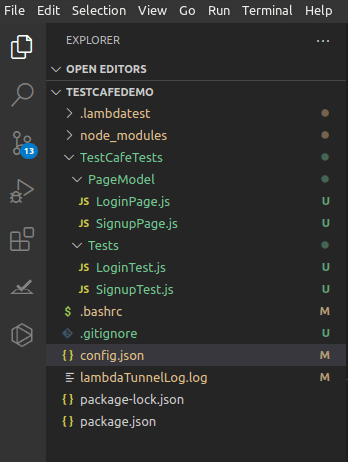
- Create a new folder in your project and call “TestCafeTests” in this path “TestCafeDemo/TestCafeTests”.
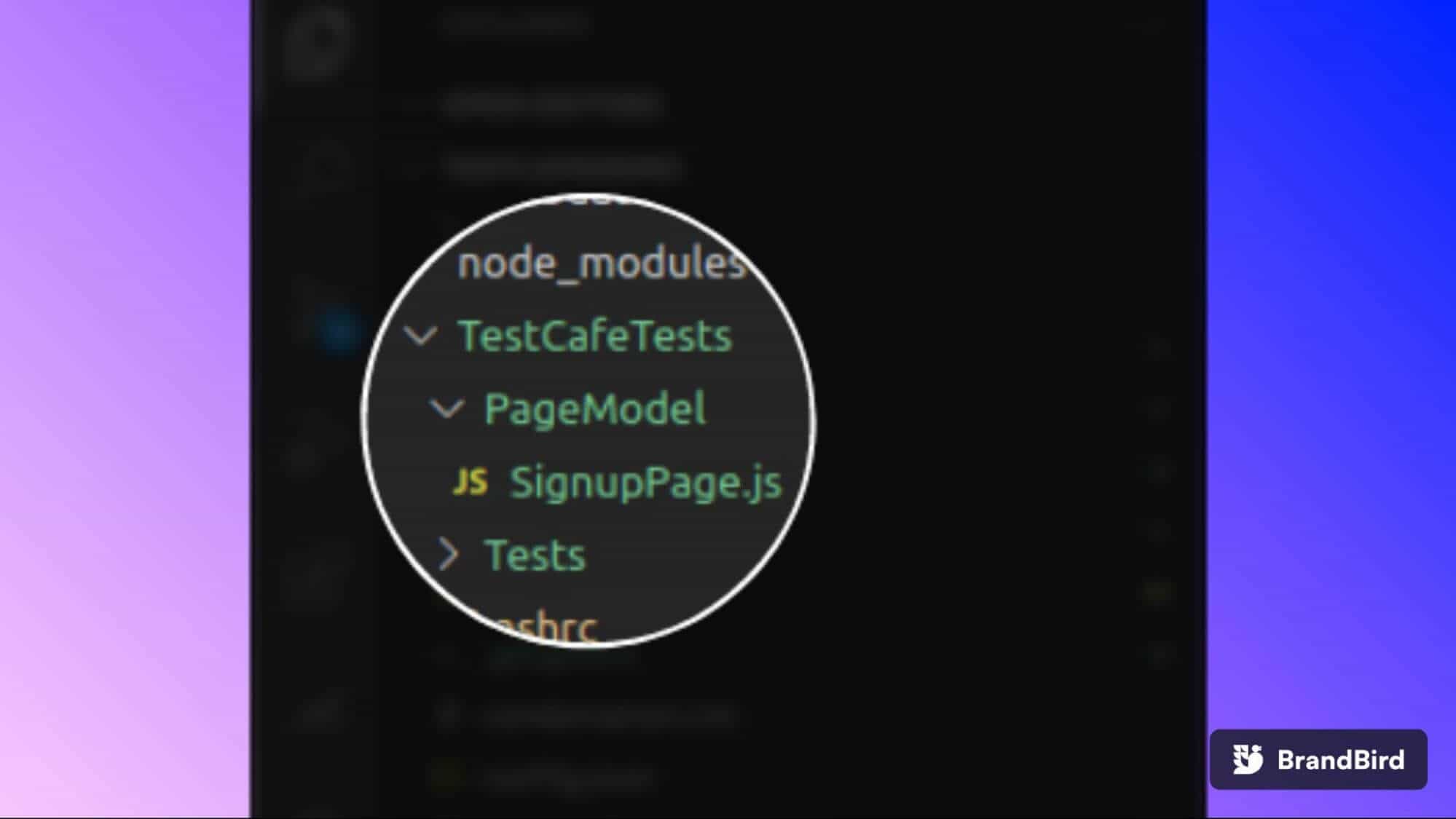
- In the “TestCafeTests” folder, create two other folders called “PageModel” and “Tests”.
- In the “PageModel” folder, let us create a file called “SignUp.js” as shown below.
Setting up POM
You can follow the below mentioned steps to set up POM:
- In this step, we will declare the “SignupPage” class in the “SignupPage.js” file and export its instance as shown below.
class SignupPage {

   constructor(){
   }
}

export default new SignupPage();
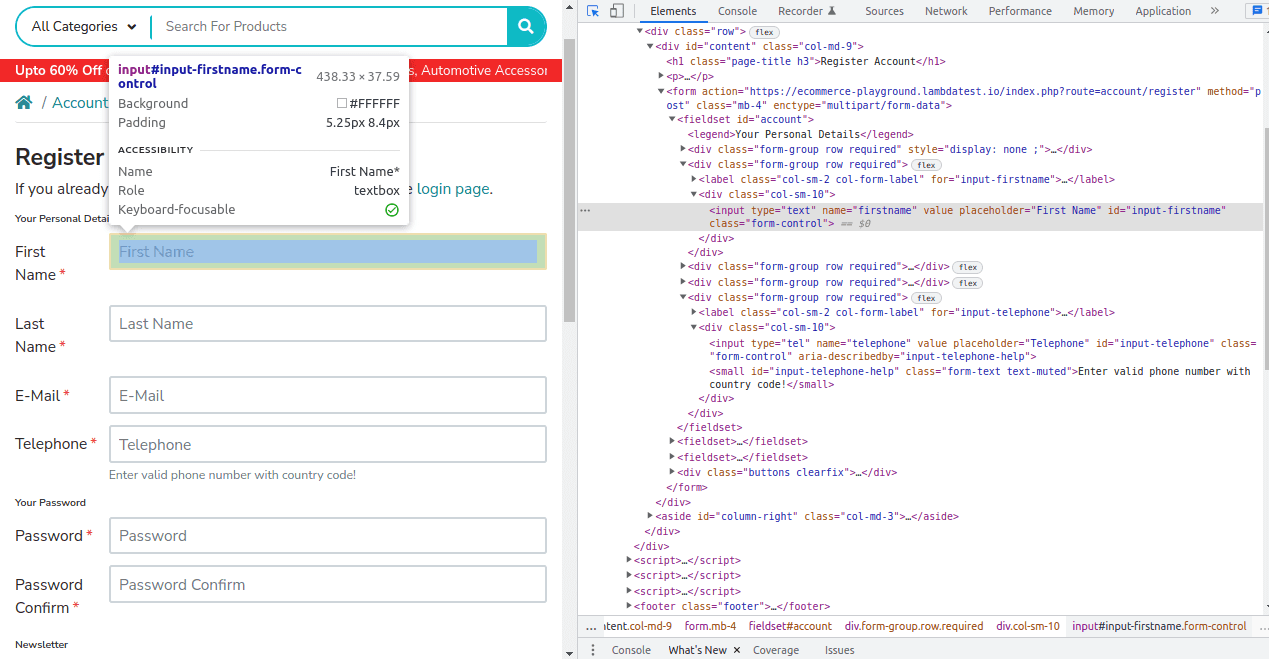
FileName – SignupPage.js
import {Selector, t} from 'testcafe';

class SignupPage {

   constructor(){
       this.firstnameInput = Selector('#input-firstname');
       this.lastnameInput = Selector('#input-lastname');
       this.emailInput = Selector('#input-email');
       this.telephoneInput = Selector('#input-telephone');
       this.passwordInput = Selector('#input-password');
       this.confirmInput = Selector('#input-confirm');
       this.agreeBtn = Selector('#input-agree');
       this.continueBtn = Selector('input.btn-primary');
   }
}

export default new SignupPage();
import SignupPage from "../PageModel/SignupPage";
import SignupPage from "../PageModel/SignupPage";

const url = 'https://ecommerce-playground.lambdatest.io/index.php?route=account/register'
import SignupPage from "../PageModel/SignupPage";

const url = 'https://ecommerce-playground.lambdatest.io/index.php?route=account/register'

fixture('SignUp Page')
   .page(url)
import SignupPage from "../PageModel/SignupPage";

const url = 'https://ecommerce-playground.lambdatest.io/index.php?route=account/register'

fixture('SignUp Page')
   .page(url)

test("Registration", async t => {

});
import SignupPage from "../PageModel/SignupPage";

const url = 'https://ecommerce-playground.lambdatest.io/index.php?route=account/register'

fixture('SignUp Page')
   .page(url)

test("Registration", async t => {
   await t

});
import SignupPage from "../PageModel/SignupPage";

const url = 'https://ecommerce-playground.lambdatest.io/index.php?route=account/register'

fixture('SignUp Page')
   .page(url)

test("Registration", async t => {
   await t
       .typeText(SignupPage.firstnameInput, 'John')
       .typeText(SignupPage.lastnameInput, 'Doe')
       .typeText(SignupPage.emailInput, '[email protected]')
       .typeText(SignupPage.telephoneInput, '0712345678')
       .typeText(SignupPage.passwordInput, 'Qwerty123!')
       .typeText(SignupPage.confirmInput, 'Qwerty123!')
       .click(SignupPage.agreeBtn)
       .click(SignupPage.continueBtn);
});
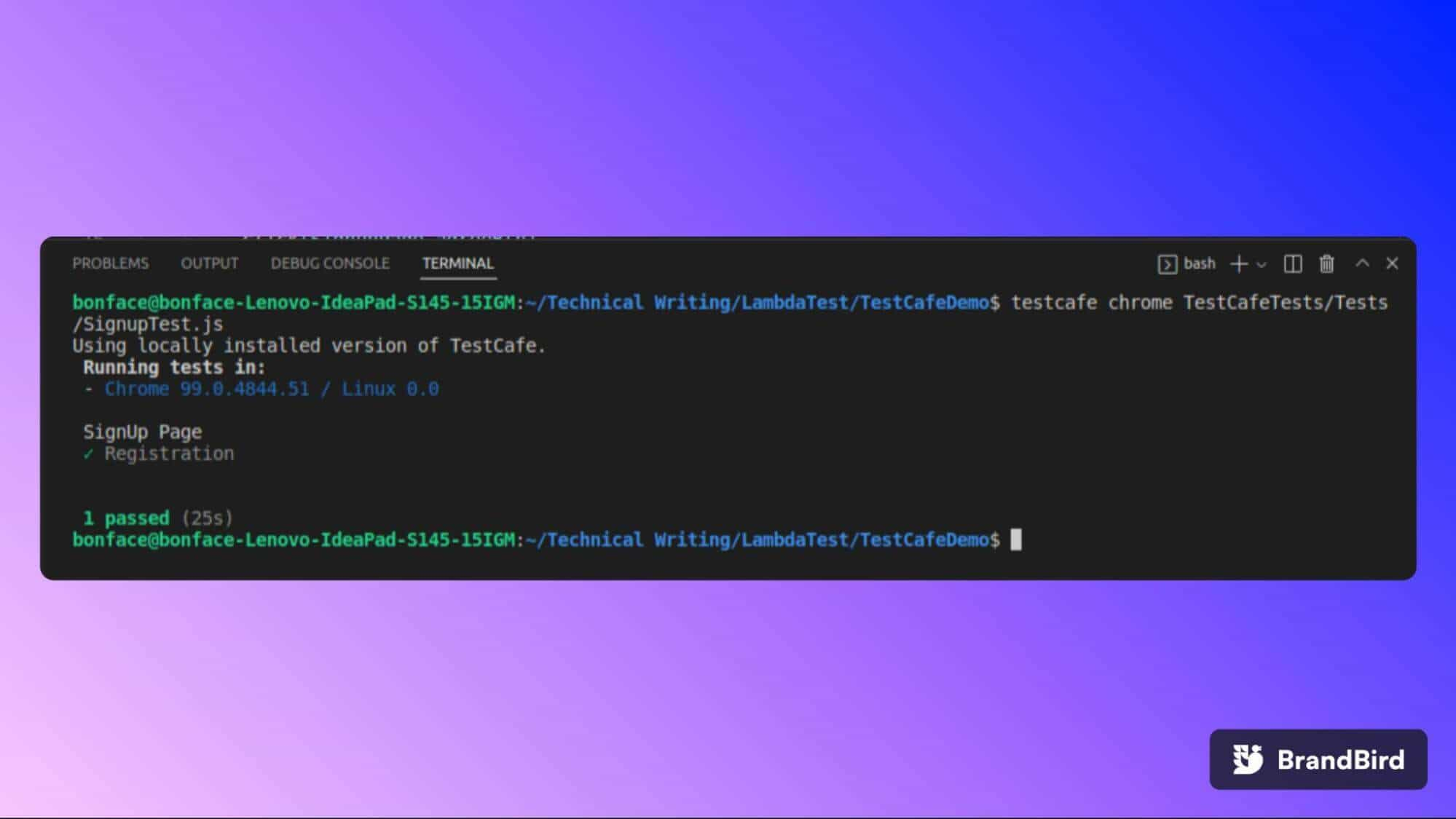
testcafe chrome TestCafeTests/Tests/SignupTest.js
How to run Parallel Tests in TestCafe?
The primary purpose of parallel testing in Selenium is to expedite the test execution time. The main benefits of parallel testing are:
- Accelerated test execution
- Increased test and browser coverage
We can execute tests in parallel using TestCafe by enabling concurrent mode, which runs multiple browser instances simultaneously.
To enable concurrency while performing modern web testing with TestCafe, use the -c command-line option when running a test. To discover other TestCafe command-line options, you can run the following command in the terminal.
testcafe --help
The following command invokes two Chrome instances and runs tests in parallel.
testcafe -c 2 chrome tests/firstTest.js
You can also use concurrency when testing against multiple browsers. When setting the number of browser instances, make sure they are not more than the tests that you are running. The extra browsers will open but end up with an empty page because there are no tests left for those browsers. Extra browsers with empty pages will only lead to the consumption of system resources.
testcafe -c 2 chrome, safari, firefox tests/firstTest.js
As mentioned earlier, the primary benefit of parallel testing is to reduce testing time; if a large number of test scenarios have to be executed on the cloud Selenium Grid. To prove if this is true, we will create another test that checks if customers are able to log in to their accounts. Then we will run a normal test followed by a parallel test to compare.
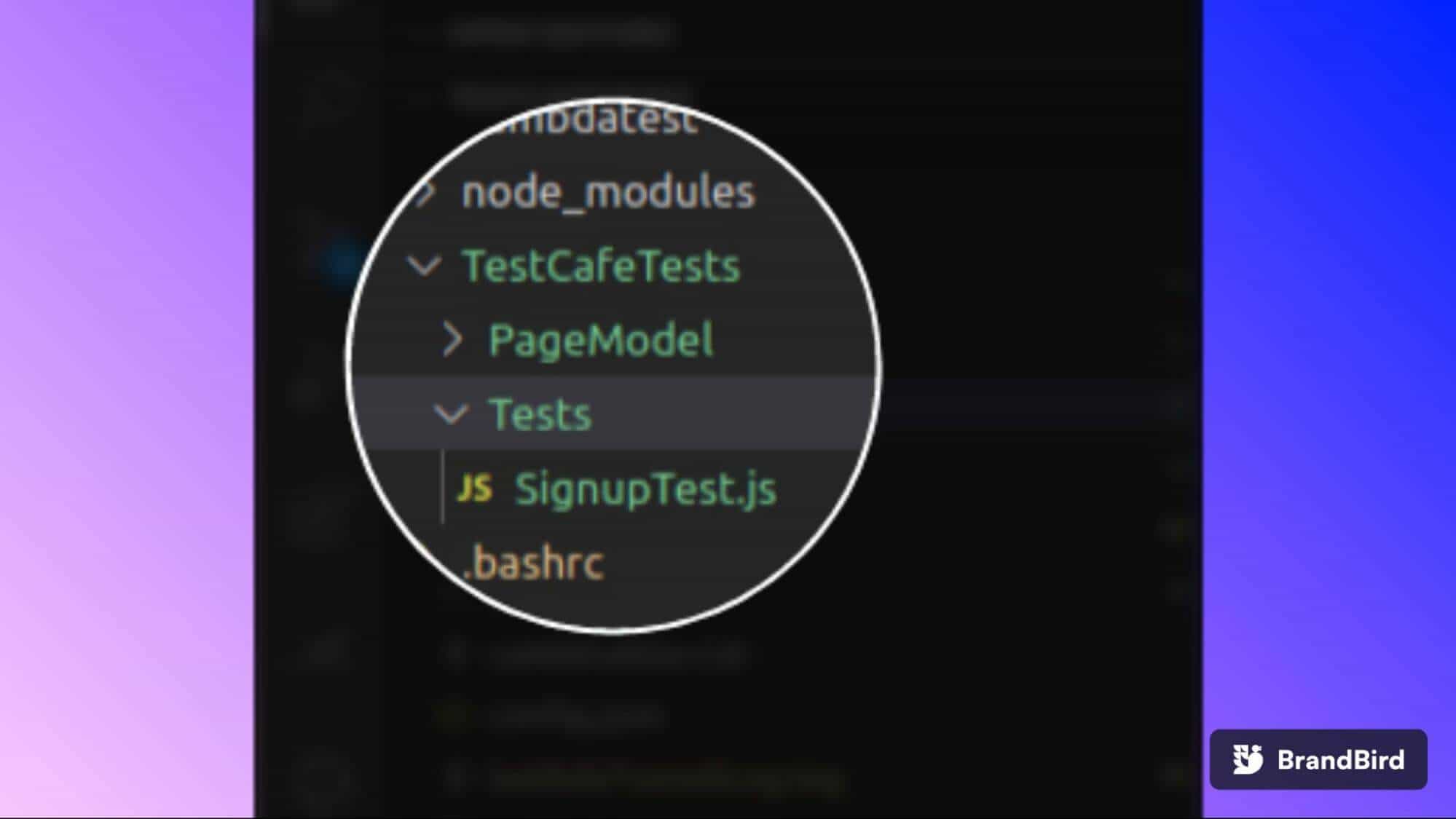
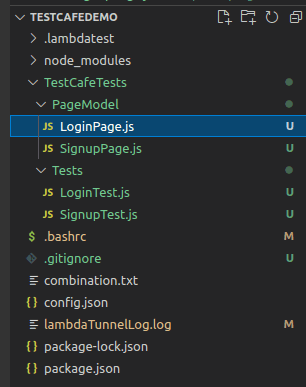
- Create a new file called “LoginPage.js” in the PageModel folder and a file called “LoginTest.js” in the Tests folder as shown below:
- Set up the Page Object Model in the “LoginPage.js” file as shown below.
import { Selector, t } from 'testcafe';

class LoginPage {

   constructor() {
       this.emailInput = Selector('#input-email');
       this.passwordInput = Selector('#input-password');
       this.loginBtn = Selector('input.btn-primary');
   }
}

export default new LoginPage();
import LoginPage from "../PageModel/LoginPage";

const url = 'https://ecommerce-playground.lambdatest.io/index.php?route=account/login'

fixture('Login Page')
   .page(url)

test("Login", async t => {
   await t
       .typeText(LoginPage.emailInput, '[email protected]')
       .typeText(LoginPage.passwordInput, 'Qwerty123!')
       .click(LoginPage.loginBtn);
});
testcafe chrome TestCafeTests/Tests
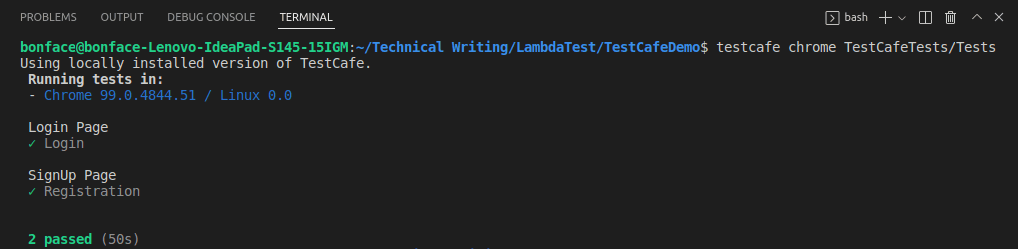
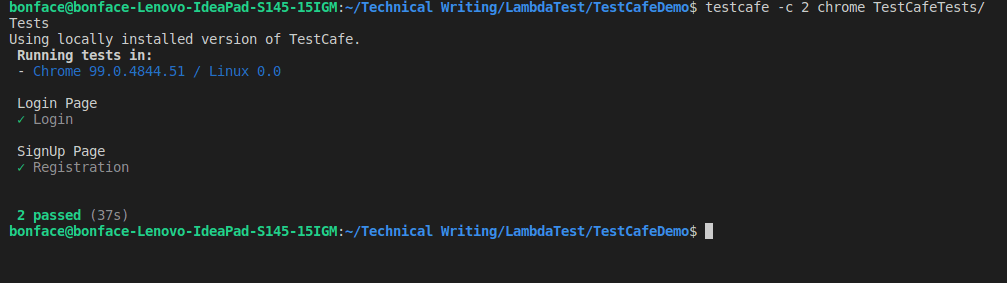
testcafe -c 2 chrome TestCafeTests/Tests
Test automation is highly beneficial, but sometimes it can be quite expensive, especially when testing at a large scale. To determine if test automation is worth the cost, you will need to calculate the Return On Investment (ROI). One of the metrics for evaluating the ROI of test automation is figuring out how much time you would save running the automatic tests.
Note: Execute TestCafe Script in Parallel Testing on the Cloud! Try TestMu AI Now!
How to run Tests in Headless Mode in TestCafe?
In simple terms, headless mode is running a test on a browser without the browser UI starting up or showing, meaning that the test runs in the background. Headless mode testing improves the speed and performance of your tests because the system saves the processing power that would otherwise be used in running the browser instance.
TestCafe allows you to run tests in Google Chrome and Mozilla Firefox. To perform modern web testing with TestCafe in headless mode using Chrome, you can use the following command:
testcafe chrome:headless tests/firstTest.js
To run a test in headless mode using Firefox, you can use the following command:
testcafe firefox:headless tests/firstTest.js
This Selenium 4 complete tutorial covers everything you need to know about Selenium 4.
How to run Tests using TestCafe and Cloud Selenium Grid?
In this article on modern web testing with TestCafe, you might have realized that running tests on different browsers and platform versions can be a huge hassle with the local Selenium Grid.
Let’s consider a hypothetical scenario where you have a Windows machine, and you want to run cross-browser tests on (Safari + macOS) or (Firefox + Linux) combination. This is where cloud Selenium testing can be hugely beneficial since it eliminates the need to invest in the maintenance of the in-house test infrastructure continually.
Cloud Selenium Grid provides us with an option to run tests on a range of virtual browsers, browser versions, and operating systems securely over the cloud. TestMu AI is one such platform that provides a secure, scalable, and super reliable cloud-based Selenium Grid infrastructure that lets you run tests at scale.
TestMu AI is a cloud-based platform that allows you to run tests on an online browser farm of 3000+ real browsers and operating systems for mobile, desktop, and tablets. TestMu AI Selenium Grid also allows you to perform parallel testing.

To use TestMu AI Selenium Grid together with TestCafe to run your tests, you will need a TestMu AI account.
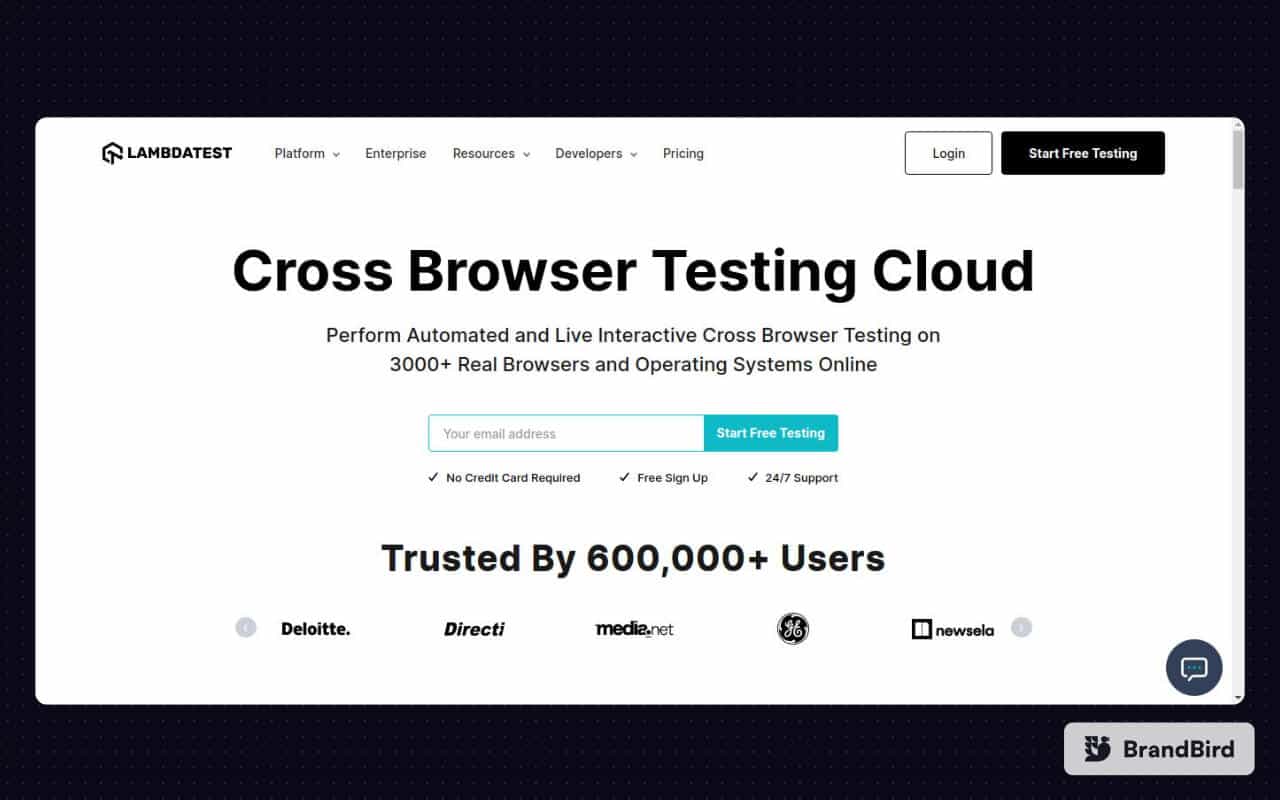
- Navigate to the TestMu AI website and log in if you already have an account, or create one if you don’t have an account yet.
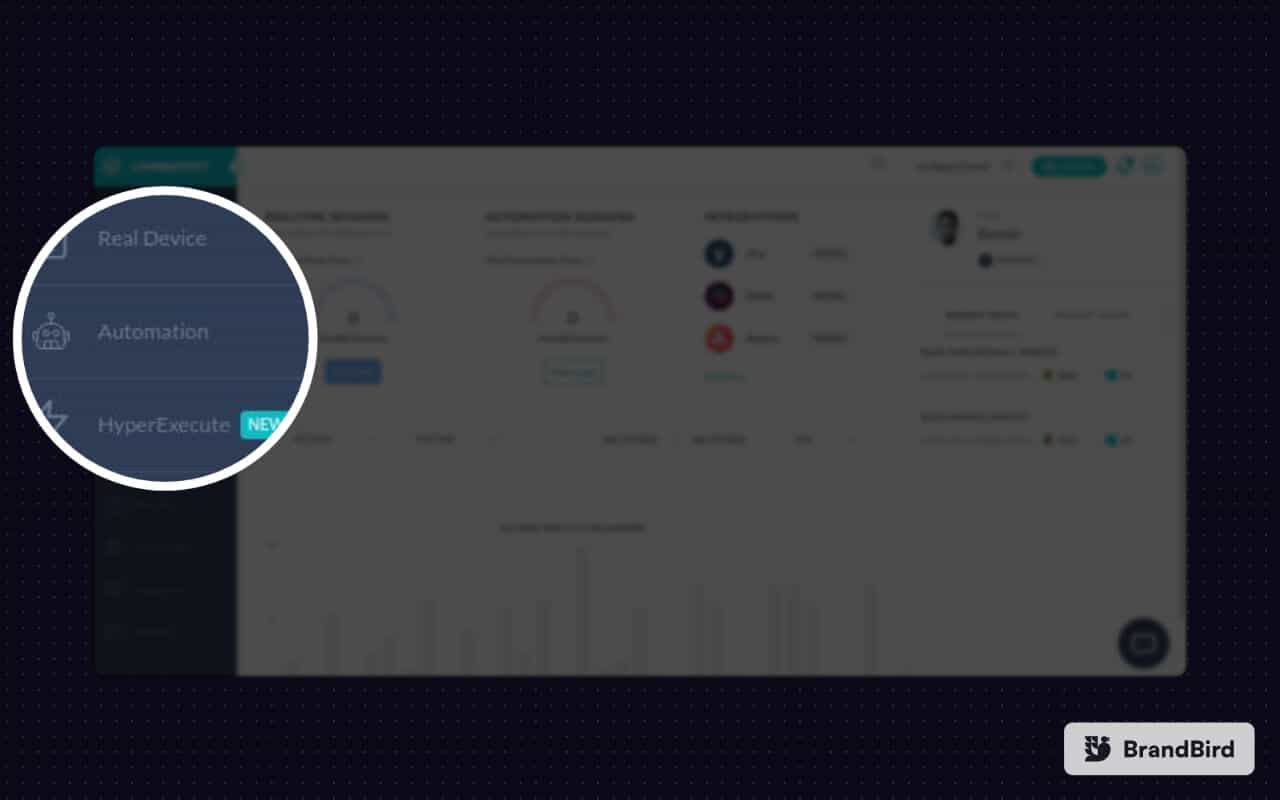
- Once you are logged in, navigate to the automation page by clicking automation on the left sidebar of your screen.
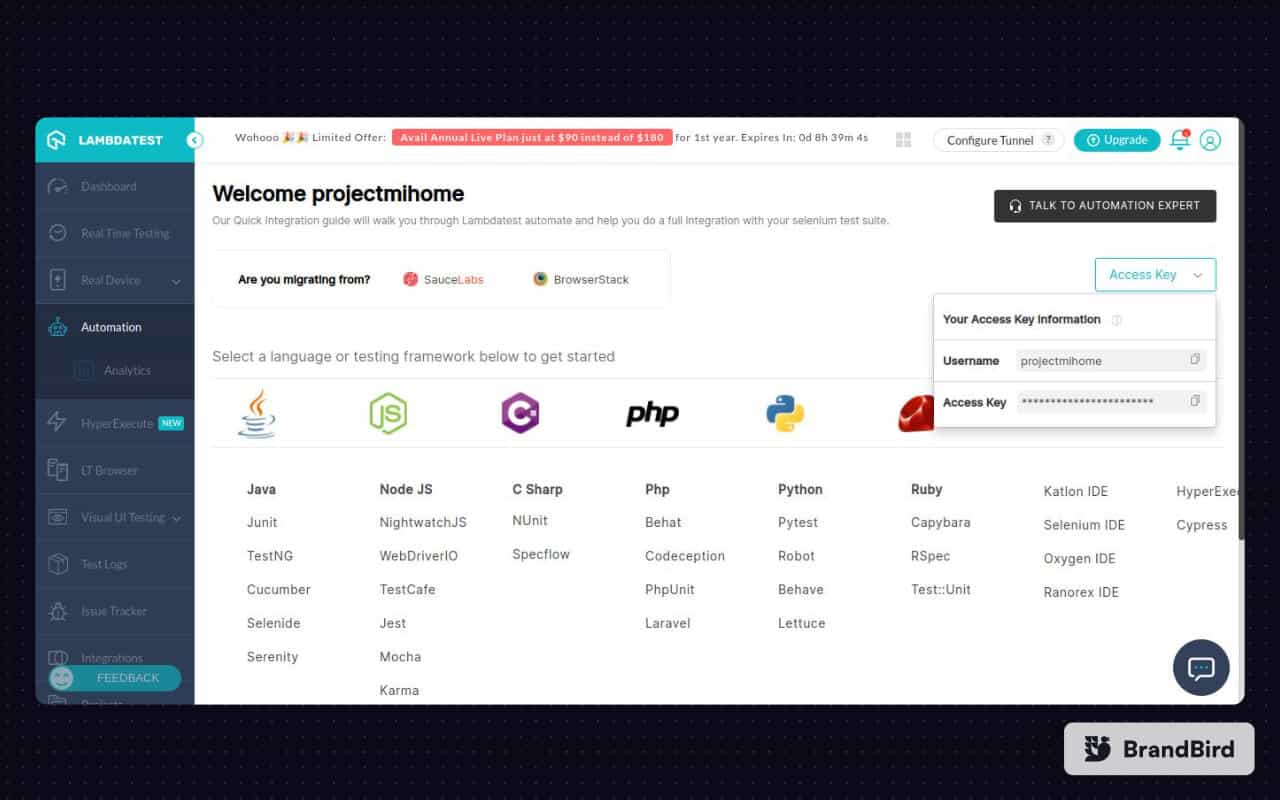
- To use TestCafe with TestMu AI Grid, you need TestMu AI credentials (i.e. username and access key). To get the credentials, click the “Access Key” button on the right side of your screen.
- Let us now save the credentials (username and access key) to environment variables LT_USERNAME and LT_ACCESS_KEY in our project.
- To save username to environment variable LT_USERNAME and access key to LT_ACCESS_KEY on Linux/Mac, run the following commands.
$ export LT_USERNAME= insert your username
$ export LT_ACCESS_KEY= insert your access_key
$ set LT_USERNAME= insert your username
$ set LT_ACCESS_KEY= insert your access_key
nano .bashrc
$ export LT_USERNAME= insert your username
$ export LT_ACCESS_KEY= insert your access_key
npm install testcafe-browser-provider-lambdatest
testcafe -b lambdatest
$ set LT_USERNAME=*insert your username*
$ set LT_ACCESS_KEY=*insert your accesskey*
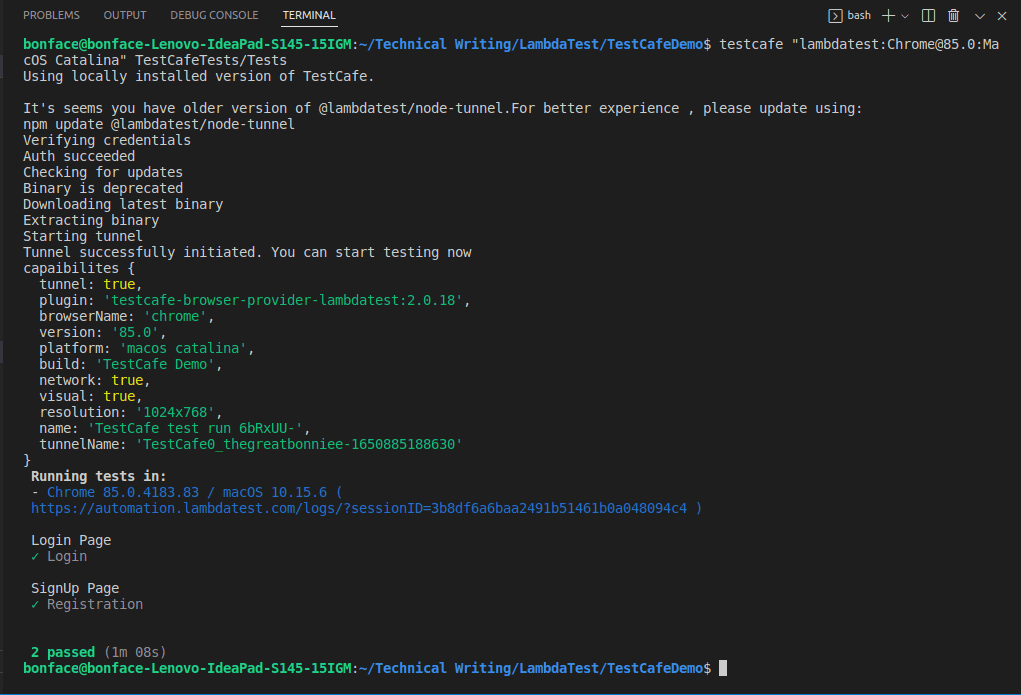
We are now ready to run our test using TestCafe and TestMu AI Selenium Grid.
Test Case Scenarios
As mentioned earlier, the advantage of using Cloud Selenium Grid is to have an option of testing on multiple browser versions and operating systems. In our case, we will use three test combinations to test whether our e-commerce website registration and login form work as expected. These combinations are:
- Chrome 85.0 + macOS Catalina
- Firefox 78.0 + Windows 10
- Chrome 86.0 + Windows 11
Implementation
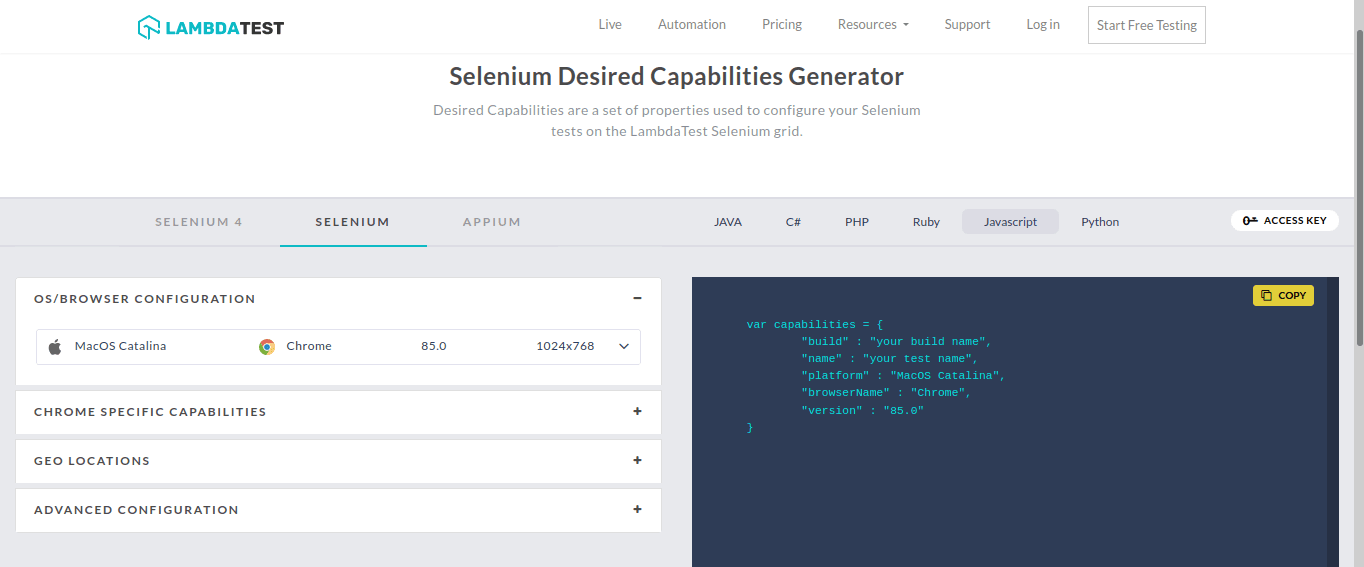
- To define your desired set of browser and operating system combinations, you can use TestMu AI Capabilities Generator as shown below:
- After setting your desired combinations, create a file called config.json and add your combinations as shown below without changing the code.
FileName – config.json
{
   "[email protected]:MacOS Catalina": {
       "build": "TestCafe Demo",
       "network": true,
       "visual": true,
       "resolution": "1024x768"
   },


   "[email protected]:Windows 10": {
       "build": "TestCafe Demo",
       "network": true,
       "visual": true,
       "resolution": "1024x768"
   },


   "[email protected]:Windows 11": {
       "build": "TestCafe Demo",
       "network": true,
       "visual": true,
       "resolution": "1024x768"
   }
}
testcafe "lambdatest:[email protected]:MacOS Catalina" TestCafeTests/Tests
testcafe "lambdatest:[email protected]:Windows 10" TestCafeTests/Tests
testcafe "lambdatest:[email protected]:Windows 11" TestCafeTests/Tests

Austin Siewert
CEO, Vercel
Discovered @TestMu AI yesterday. Best browser testing tool I've found for my use case. Great pricing model for the limited testing I do 👏
2M+ Devs and QAs rely on TestMu AI
Deliver immersive digital experiences with Next-Generation Mobile Apps and Cross Browser Testing Cloud

This certification will acknowledge your expertise in the use of JavaScript to create automated browser tests. Here’s a short glimpse of the Selenium JavaScript 101 certification from TestMu AI:
How to run a Parallel Test on TestCafe and Cloud Selenium Grid?
In Selenium, parallel testing can be described as a method of testing that you can use to run tests simultaneously in different environments such as browser versions and operating systems.
One of the main benefits of parallel testing on TestCafe and Cloud Selenium Grid is that it accelerates test execution while saving time, especially when testing at a larger scale. Also, parallel testing in Selenium is cost-effective and has a higher Return On Investment (ROI) compared to sequential testing.
Sequential testing is a tedious process requiring development, maintenance, and keeping the test environment updated all the time. Managing all these factors can be costly compared to parallel testing in Selenium, which is automated and cloud-based.
To run a parallel test on TestMu AI Cloud Selenium Grid on browser and operating system combinations that we used earlier, you can run the command below on your Visual Studio Code editor terminal.
testcafe "lambdatest:[email protected]:MacOS Catalina","lambdatest:[email protected]:Windows 10","lambdatest:[email protected]:Windows 11" TestCafeTests/Tests
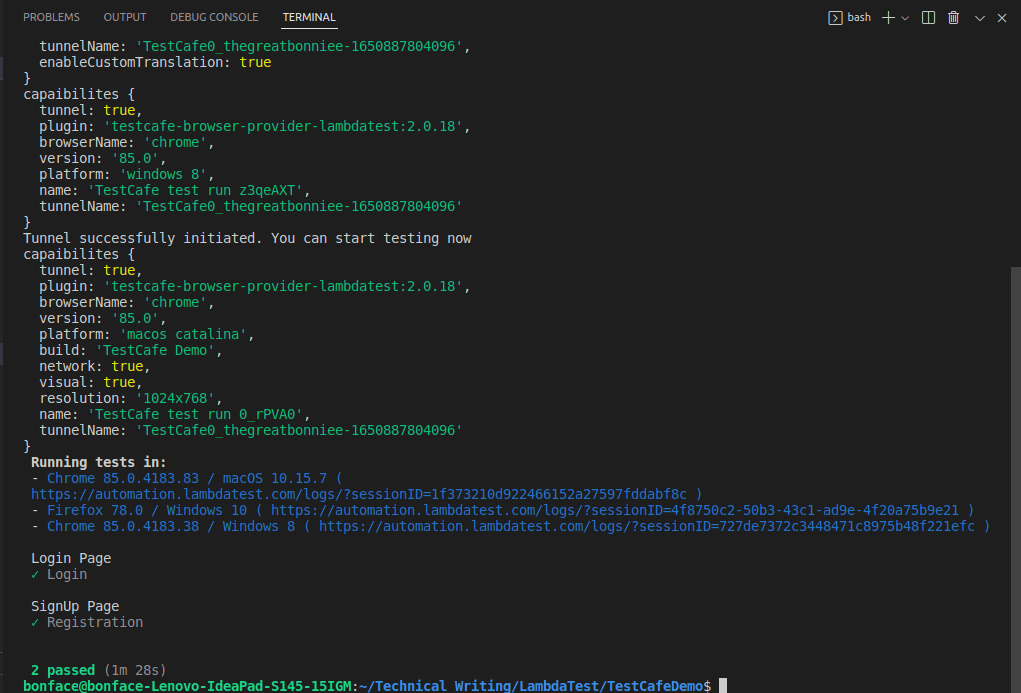
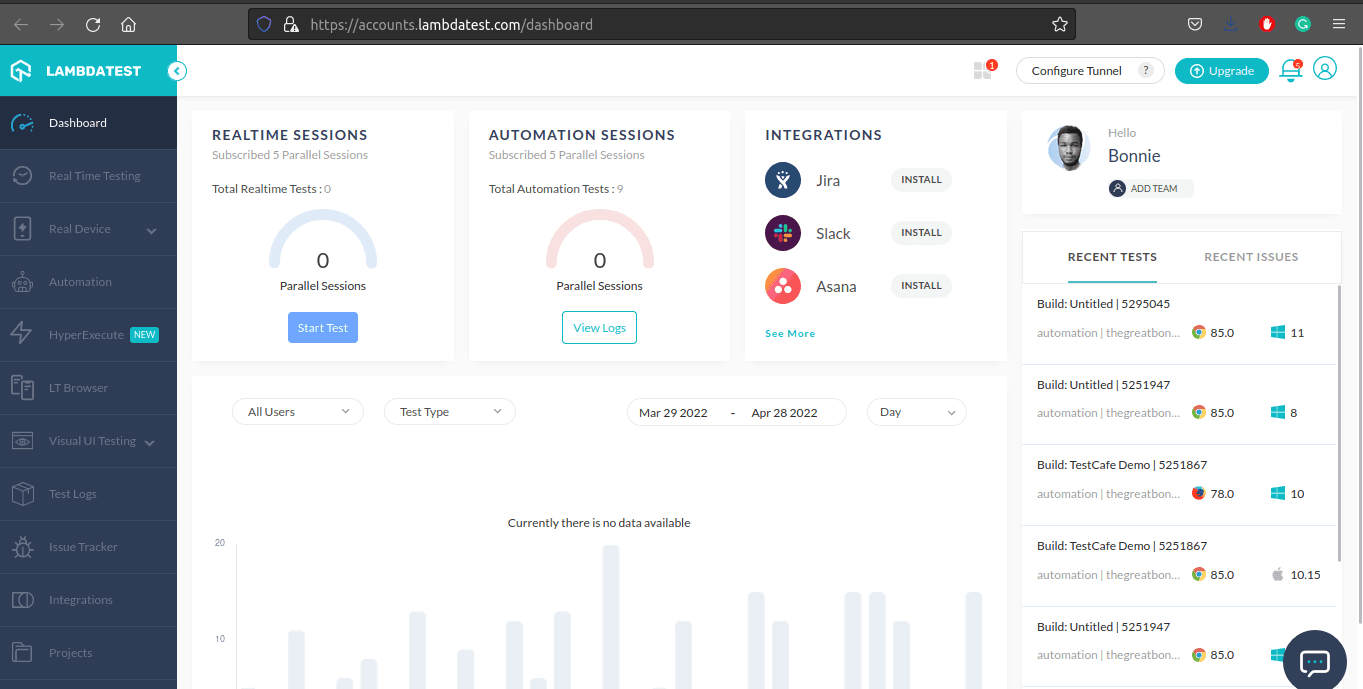
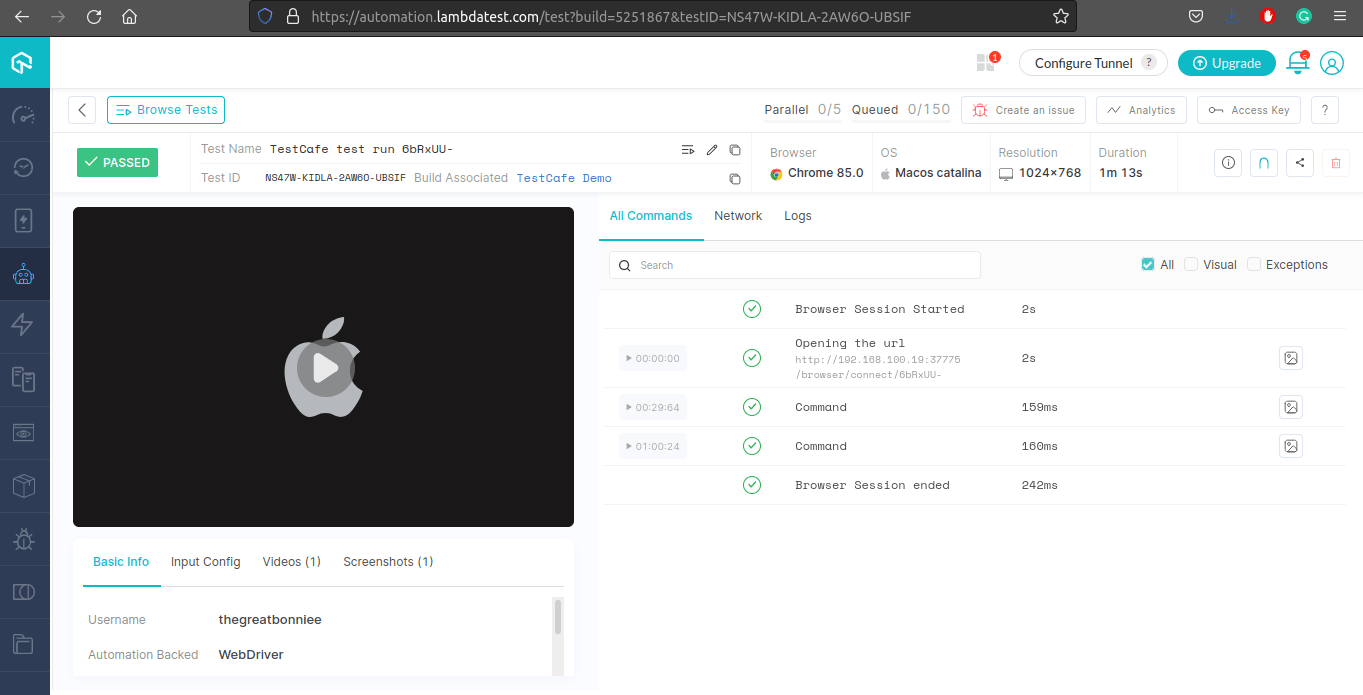
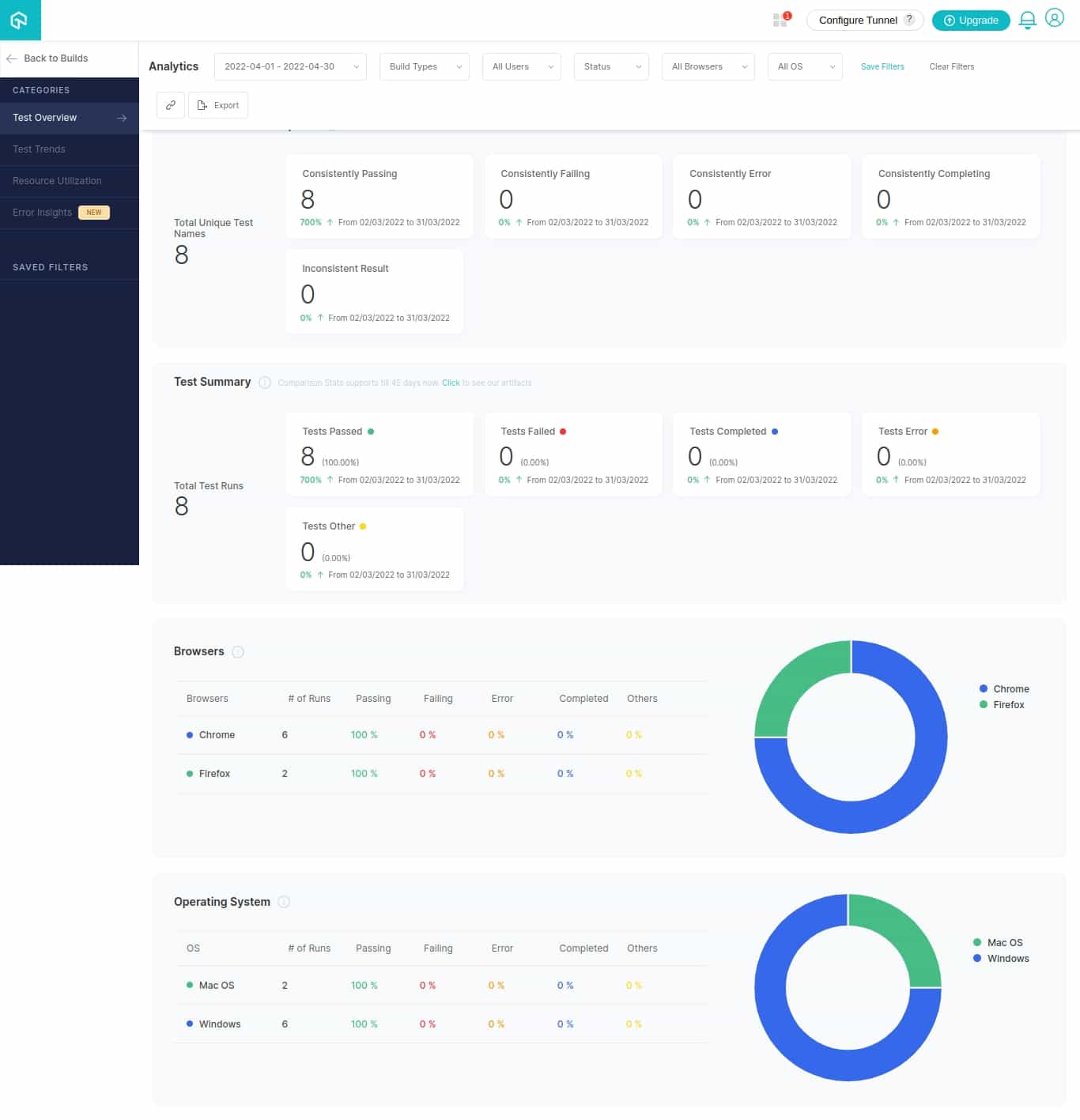
Once the tests have run successfully, log in to TestMu AI Automation Dashboard to check the status of the test execution. You can also access the report on Analytics Dashboard, which shows all the details and metrics related to your tests.
Test Summary gives you a high-level overview of your test performance by showing you how many tests passed and failed. Below is a screenshot with all details and metrics related to tests that I run on Cloud Selenium Grid and TestCafe JavaScript end-to-end web testing.
Conclusion
The idea behind TestCafe is to solve common challenges developers and testers face with testing tools like Selenium. However, the integration of Cloud Selenium Grid and TestCafe JavaScript helps you to scale up your testing environment without spending a lot of money to set up an in-house grid infrastructure. I hope you enjoyed this article on performing modern web testing with TestCafe! 🙂


Frequently asked questions
Did you find this page helpful?
More Related Hubs
TestMu AI forEnterprise
Get access to solutions built on Enterprise
grade security, privacy, & compliance
- Advanced access controls
- Advanced data retention rules
- Advanced Local Testing
- Premium Support options
- Early access to beta features
- Private Slack Channel
- Unlimited Manual Accessibility DevTools Tests