

Next-Gen App & Browser Testing Cloud
Trusted by 2 Mn+ QAs & Devs to accelerate their release cycles


How to Get Element by Tag Name In Selenium
Learn how to get elements by tag name using the tagName() locator in Selenium; it is useful when you do not have any other Selenium locator on the web page.

Vipul Gupta
March 2, 2026
Selenium locators are essential for locating elements on a web page. Among the locators available, such as className, CSS Selector, ID, linkText, partialLinkText, tagName, and XPath, users can choose any locator that fits their needs to locate web elements. While className, CSS selector, ID, and XPath are more frequently used by testers and developers, the tagName() locator is particularly useful for selecting elements based on their HTML tag.
This can be helpful when you want to interact with elements like all the links ( <a>tags), all the buttons ( <button> tags), or any other specific HTML tags on a web page. Despite its usefulness, the tagName() locator is less commonly used and has less working experience than other locators in Selenium.
Overview
Why Use the tagName Locator in Selenium?
Using the tagName() locator in Selenium is a straightforward method to interact with elements based on their HTML tag. This is especially useful when you don't have unique identifiers like ID, class, or name available for the element.
- Simple Selection: Allows for easy selection of elements like links (<a>), buttons (<button>), or any other HTML tags.
- Efficient for Large WebPages: Ideal when interacting with a collection of elements, like all buttons or links, across a page without needing extra identifiers.
- Fewer Locator Requirements: Useful in cases where specific attributes like ID or class are not defined for the elements.
What is the tagName Locator?
The tagName locator identifies elements using the name of their HTML tag. Every element in an HTML document has a corresponding tag name, such as <input>, <button>, <a>, etc. This locator is particularly helpful when you want to retrieve or interact with elements that share the same tag across a page:
- HTML Tags: Locates elements by their HTML tag names, like <div>, <button>, <h1>, etc.
- Limitations: Can return multiple elements if they share the same tag, so it’s essential to handle them correctly, especially when more than one element of the same type is present.
When to Use the tagName Locator?
The tagName locator is particularly useful when you want to interact with groups of similar elements, such as all links on a page or all buttons in a form. It can be applied when there are no unique identifiers like class names or IDs available:
- Example: To retrieve all the links on a page, you could use <a> as the tag name.
Using findElement() and findElements() with tagName
Selenium offers two methods to locate elements: findElement() and findElements().
- findElement(): Retrieves the first element matching the tag name. Example: driver.findElement(By.tagName("input")).sendKeys("Test")
- findElements(): Retrieves all matching elements, useful when you need to interact with a list of similar elements. Example: List<WebElement> elements = driver.findElements(By.tagName("a"))
What Is a Tag Name Locator in Selenium?
A tag name is an integral part of an HTML Document Object Model (DOM) structure, representing different elements on a web page, such as input, button, and anchor tags. These HTML tags can have multiple attributes, including id, name, and class name.
The tagName() locator in Selenium uses the tag name to find elements without relying on these attributes. This method allows you to locate all aspects of a specific type, such as all buttons or all links, on a web page. The tagName() locator is particularly useful when extracting or interacting with the content within a specific tag.
However, Selenium WebDriver provides support for various WebElement locators in Selenium. These locators help identify elements on a web page and interact with them. Each WebElement locator can locate any HTML element on a web page differently, depending on the specific use cases.
| Locator | Syntax | Usage |
|---|---|---|
| id | driver.findElement(By.id(“ <id_attribute_value> ”)); | Allows to locate WebElement using the id attribute |
| name | driver.findElement(By.name(“ <name_attribute_value>”)); | Allows to locate WebElement using the name attribute |
| className | driver.findElement(By.className(“ <class_attribute_value>”)); | Allows to locate WebElement using the class attribute |
| linkText | driver.findElement(By.linkText(“ <actual_hyperlink_text>”)); | Allows to locate WebElement using the actual hyperlink text |
| partialLinkText | driver.findElement(By.partialLinkText(“ <partial_hyperlink_text>”)); | Allows to locate WebElement using the part of hyperlink text |
| tagName | driver.findElement(By.tagName(“ <HTML_tag>”)); | Allows to locate WebElement using the HTML tag |
| cssSelector | driver.findElement(By.cssSelector(“ <css_value>”)); | Allows to locate WebElement using the CSS selector value |
| xpath | driver.findElement(By.xpath(“ <xPath_value>”)); | Allows to locate WebElement using the Xpath value |
Navigating to the correct WebElement is important to perform any actions. You must know how to inspect the element on Mac and Windows or any OS you choose. To learn how to interact with WebElements in Selenium, watch the complete video tutorial and gain practical insights.
You can Subscribe to the TestMu AI YouTube Channel to get more video tutorials on other Selenium testing techniques, various automation testing tools, and more.
To effectively use the tagName(), locator, it is essential to understand when to apply it for accessing elements and how to get elements by tag name on a web page.
When To Use Tag Name Locator in Selenium?
The tagName() locator in Selenium is used to identify elements using tag names like <div>, <table>, <h1>, and so on. You might wonder when to use the tagName() locator in Selenium. It is particularly useful when attribute values such as id, class, or name are unavailable. In such cases, you can rely on the tagName() locator to locate a WebElement.
For example, if you wish to retrieve data from a table, you may use <td> tag or <tr> tag to retrieve data.
WebElement element = driver.findElement(By.tagname("tr"));
Similarly, when you wish to verify the number of links and validate whether they are working, you can choose to locate all such links using the anchor tag (<a> tag).
WebElement element = driver.findElement(By.tagname("a"));
One important thing to note is that using a tagName() locator may lead to multiple elements being identified due to similar tags. In such cases, Selenium will select the first tag that matches the provided locator.
Therefore, be mindful when using tagName() locators in Selenium.
The Selenium WebDriver provides two methods to locate web elements on a webpage.
- findElement(): To find a single WebElement and return it as an object of WebElement. If there are multiple matching WebElements, the first occurrence is returned.
WebElement element = driver.findElement(By.tagname("input")).sendKeys("LambdaTest");
List<WebElement> elements = driver.findElements(By.tagname("input")).sendKeys("LambdaTest");
If you intend to locate a single element, use the findElement() function, which returns the first occurrence. If you need to locate all elements with matching tags, use the findElements() function, which returns a list of WebElements. You can learn more about these functions through this blog on findElement() and findElements() in Selenium.
Struggling with locating elements by tag name in Selenium? KaneAI by TestMu AI makes it effortless. With KaneAI’s natural language capabilities, you can quickly identify elements by tag name without writing complex scripts.
KaneAI is a GenAI native test assistant tailored for high-speed quality engineering teams, packed with powerful AI-driven features for test authoring, management, and debugging. It allows users to create and modify complex test cases using natural language, streamlining the test automation process and eliminating the need for deep technical expertise.

Demonstration: Find the First WebElement Using the tagName()
Now that we have learned the tagName() locator and when to use it, we will demonstrate how to get elements by tag name to identify and locate web elements on a web page.
For demonstration purposes, we will execute all the further test cases or scenarios using a cloud testing platform to leverage the true capability of automation testing and to scale the test process.
Cloud testing platforms like TestMu AI allow businesses to test their applications in a virtual environment, replicating real-world scenarios without a physical hardware setup. TestMu AI is an AI-powered test orchestration and execution platform that lets you run manual and automated tests at scale with over 3000+ real devices, browsers, and OS combinations.
This platform provides a robust test infrastructure where you can perform web application testing using various automation testing frameworks like Selenium, Cypress, Playwright, and more.
Before we use this approach to get element by tag name, it’s essential to set up your project and write a test script. This script should use the findElement() function in Selenium WebDriver to fetch the first matching WebElement by tag name.
Additionally, you can use the findElements() function to get a list of all matching WebElements by tag name. By leveraging these functions, you can efficiently interact with elements like links (<a> tags), buttons ( <button> tags), and other specific HTML tags on a web page.

Note: Run your tests across 3000+ browsers and OS combinations. Try TestMu AI Today!
Project Setup:
For demonstration purposes, we will use the Eclipse IDE to create the project, with Java as the programming language and TestNG as the automation testing framework. We will create the project with Maven, which uses a POM file to store the project dependencies.
However, if you are just starting with Selenium testing, you can follow this guide on getting started with Maven for Selenium testing to learn everything you need to know about Maven and why it is required when creating projects with Java.
The same project setup is used for all the test scenarios that will be executed. To add a test case for each scenario, we will only add a new Java class file. Therefore, carefully follow the setup to prevent any errors.
To get started, follow the steps below.
Step 1. Launch Eclipse IDE and create a Maven project called GetElementByTagNameSelenium.
Step 2. As the project uses TestNG in Selenium, add the latest stable versions of Selenium 4 and TestNG dependencies inside the pom.xml. You can find the latest dependencies from the Maven repository.
Update the pom.xml with the dependencies; it should look as shown below.
<project xmlns="http://maven.apache.org/POM/4.0.0" xmlns:xsi="http://www.w3.org/2001/XMLSchema-instance" xsi:schemaLocation="http://maven.apache.org/POM/4.0.0 https://maven.apache.org/xsd/maven-4.0.0.xsd">
 <modelVersion>4.0.0</modelVersion>
 <groupId>GetElementByTagNameSelenium</groupId>
 <artifactId>GetElementByTagNameSelenium</artifactId>
 <version>0.0.1-SNAPSHOT</version>
 <name>GetElementByTagNameSelenium</name>
 <dependencies>
       <dependency>
           <groupId>org.seleniumhq.selenium</groupId>
           <artifactId>selenium-java</artifactId>
           <version>4.19.1</version>
       </dependency>
       <dependency>
           <groupId>org.testng</groupId>
           <artifactId>testng</artifactId>
           <version>7.9.0</version>
           <scope>test</scope>
       </dependency>
   </dependencies>
</project>
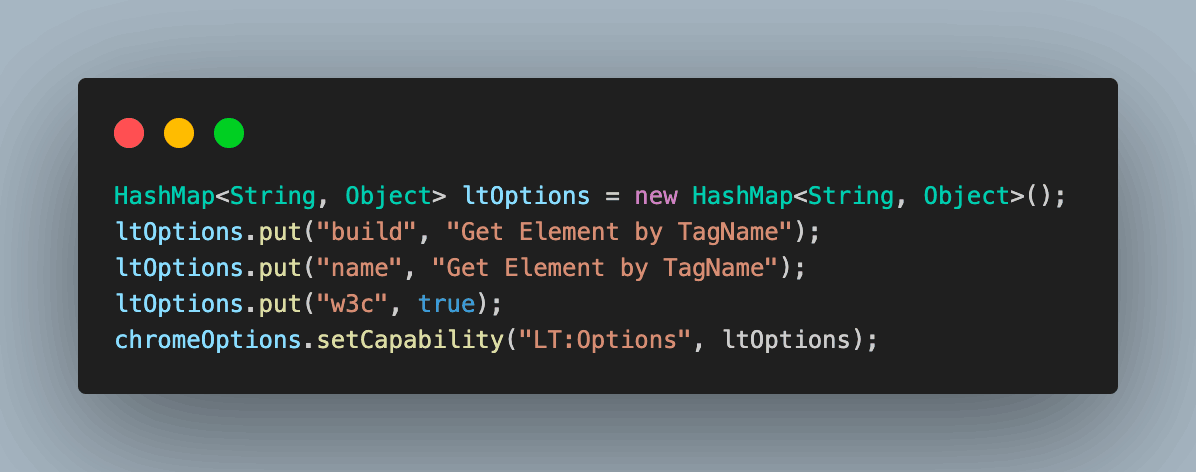
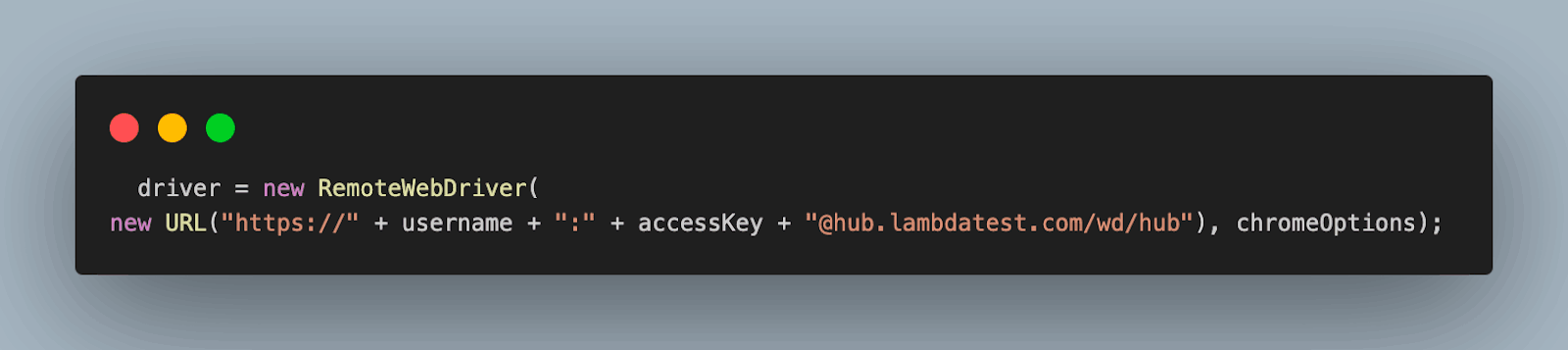
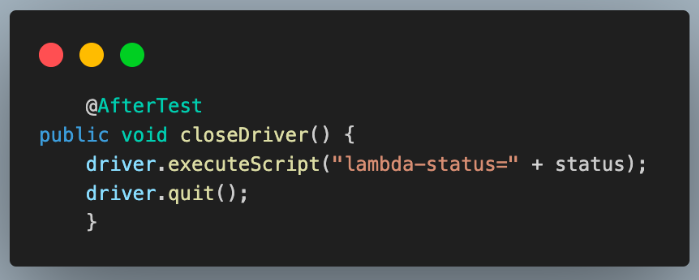
Next, create a Java class file called BaseTest.java. This Java file contains all the common code for test execution, like setup and initializing the WebDriver, declaring and initializing public variables for the project, handling driver termination after test completion, connecting to TestMu AI cloud grid for execution, and more.
package CloudGrid;


import java.net.*;
import java.util.HashMap;


import org.openqa.selenium.remote.RemoteWebDriver;
import org.openqa.selenium.chrome.ChromeOptions;
import org.testng.annotations.*;


public class BaseTest {


   public RemoteWebDriver driver = null;


   String username = System.getenv("LT_USERNAME") == null ? "<lambdatest_username>" : System.getenv("LT_USERNAME");
   String accessKey = System.getenv("LT_ACCESS_KEY") == null ? "<lambdatest_accesskey>" : System.getenv("LT_ACCESS_KEY");


   String status = "failed";


   @BeforeTest
   public void setup() {
       try {
           ChromeOptions chromeOptions = new ChromeOptions();
           chromeOptions.setPlatformName("Windows 11");
           chromeOptions.setBrowserVersion("124.0");


           HashMap<String, Object> ltOptions = new HashMap<String, Object>();
           ltOptions.put("build", "Get Element by TagName");
           ltOptions.put("name", "Get Element by TagName");
           ltOptions.put("w3c", true);
           chromeOptions.setCapability("LT:Options", ltOptions);


           driver = new RemoteWebDriver(
                   new URL("https://" + username + ":" + accessKey + "@hub.lambdatest.com/wd/hub"), chromeOptions);


       } catch (MalformedURLException e) {
           e.printStackTrace();
       }
   }


   @AfterTest
   public void closeDriver() {
       driver.executeScript("lambda-status=" + status);
       driver.quit();
   }
}
Before checking the test results, let’s understand the code present in BaseTest.java in detail.
Code Walkthrough:
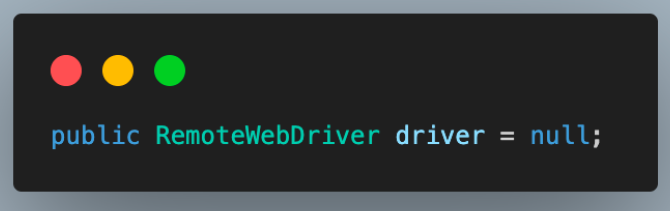
- Create an object of RemoteWebDriver and initialize it as null.
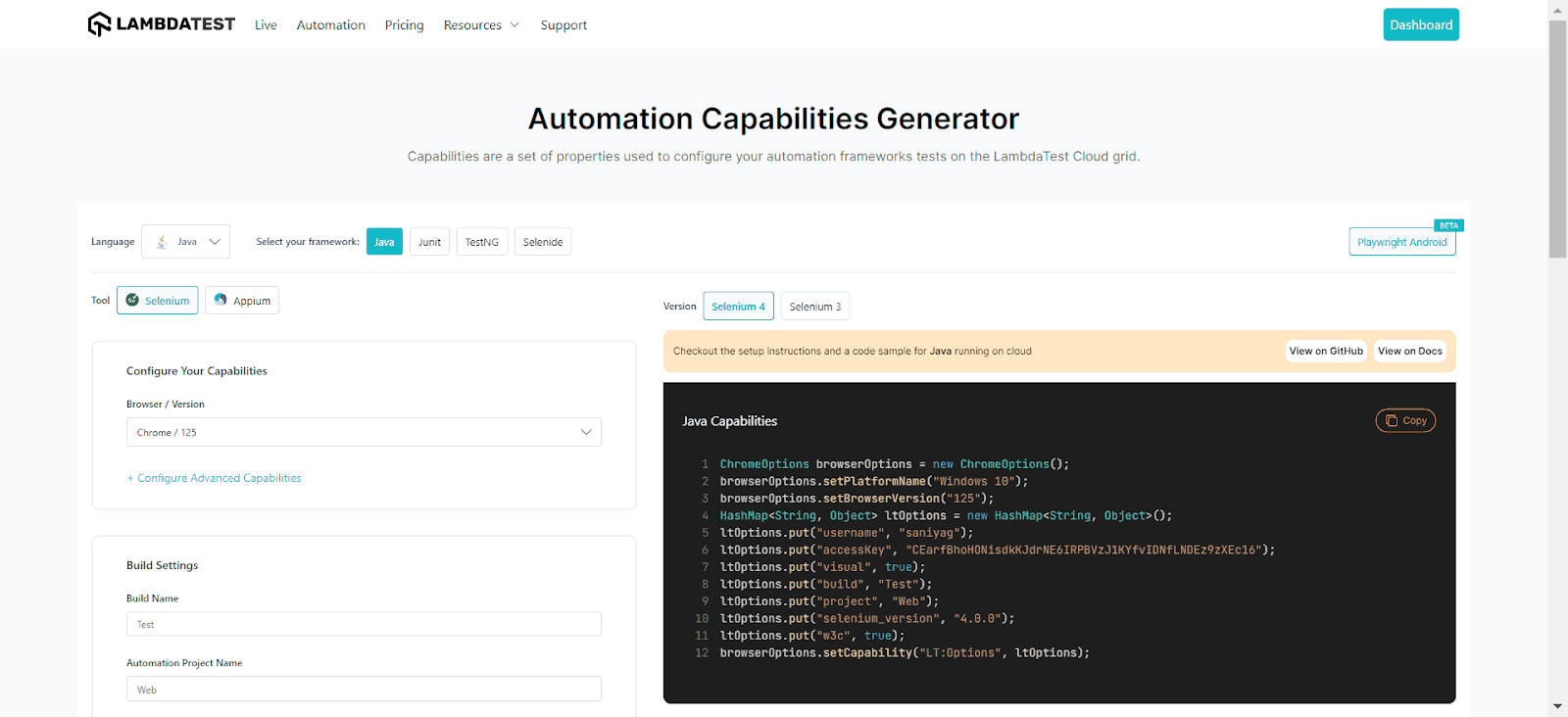
- Fetch your Username and Access Key for the TestMu AI by navigating to Account Settings > Password & Security and provide the same to the cloud grid for test execution.

Alternatively, you can configure these as environment variables and directly fetch them in code.
For Windows:
set LT_USERNAME=LT_USERNAME
set LT_ACCESS_KEY=LT_ACCESS_KEY
For macOS and Linux:
export LT_USERNAME=LT_USERNAME
export LT_ACCESS_KEY=LT_ACCESS_KEY
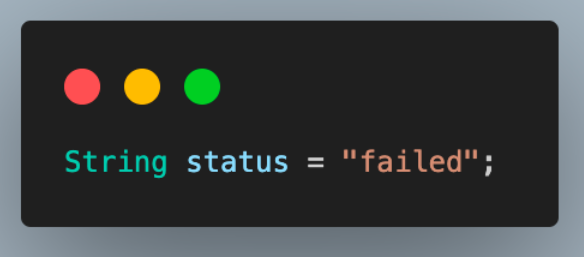
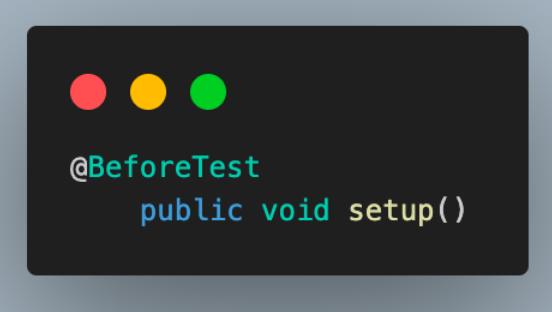
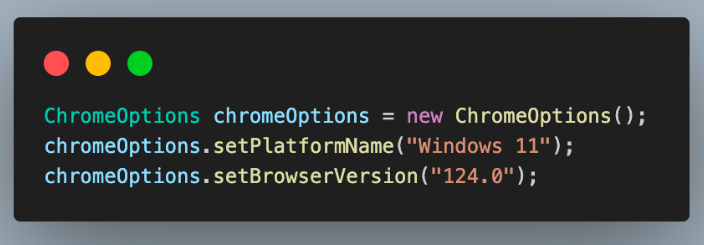
To learn more about various annotations for better prioritizing the test cases, follow this guide on TestNG annotation in Selenium.
In the above section, we set up the required dependencies and libraries in the pom.xml file and the BaseTest.java file. Now, we will look into the test scenarios we will execute to understand how to get elements by tag name.
The test scenario below is one that we will be executing to understand how to get elements by tag name using findElement() with tagName() locator.
Test Scenario:
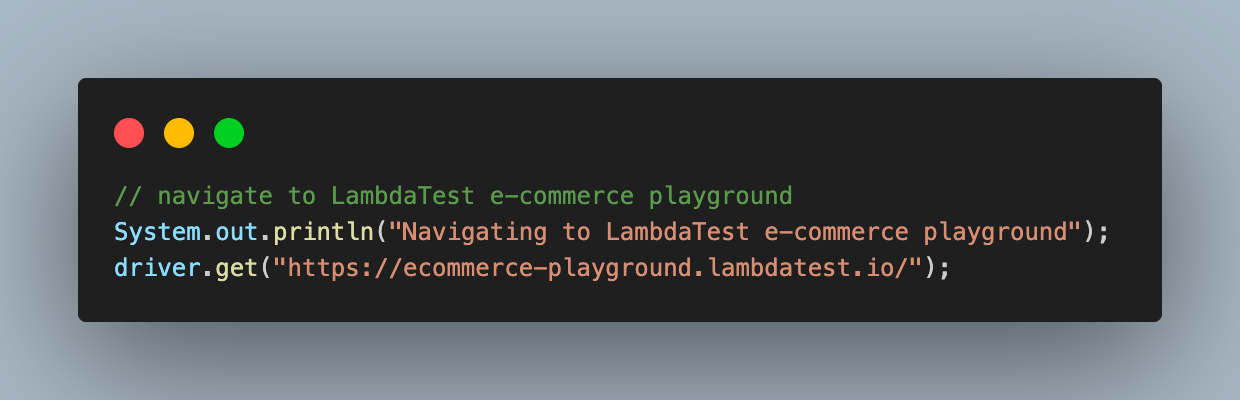
- Navigate to TestMu AI eCommerce Playground.
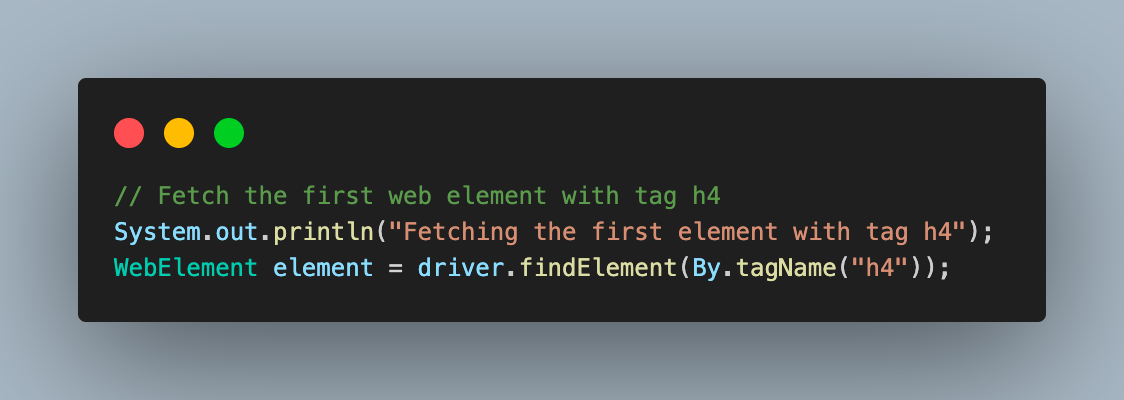
- Fetch the first WebElement using the tagName() locator for the HTML tag <h4>.
- Get the text for the WebElement and print it.
Below is the code implementation for the test scenario to get the first WebElement by tag name in Selenium.
package CloudGrid;


import org.openqa.selenium.By;
import org.openqa.selenium.WebElement;
import org.testng.annotations.Test;


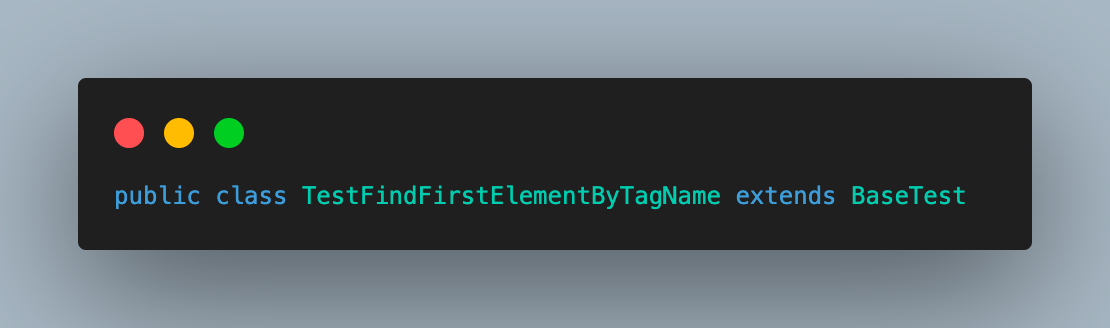
public class TestFindFirstElementByTagName extends BaseTest {


   @Test
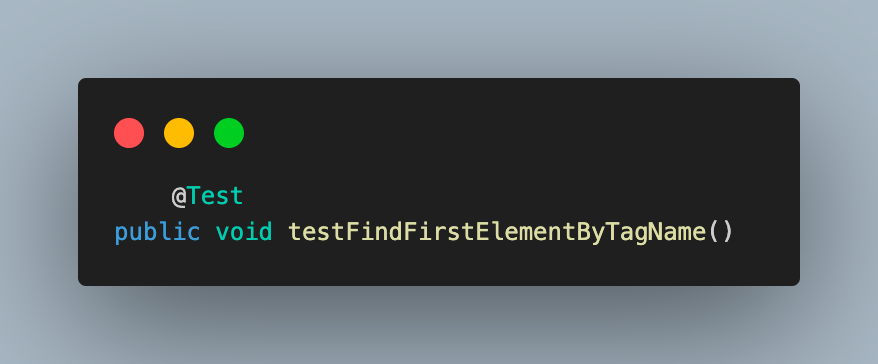
   public void testFindFirstElementByTagName()
   {
       // navigate to LambdaTest e-commerce playground
       System.out.println("Navigating to LambdaTest e-commerce playground");
       driver.get("https://ecommerce-playground.lambdatest.io/");


       // Fetch the first web element with tag h4
       System.out.println("Fetching the first element with tag h4");
       WebElement element = driver.findElement(By.tagName("h4"));


       // print the value of the fetched web element
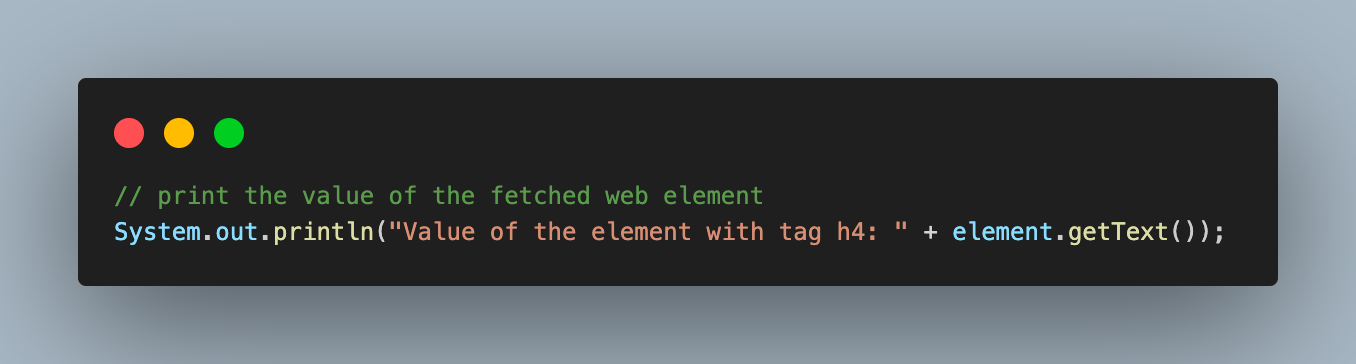
       System.out.println("Value of the element with tag h4: " + element.getText());


       status = "passed";
   }
}
Before we jump to the result, let’s look into the code above to understand how it works step-by-step.
Code Walkthrough:
- Create the test class and inherit BaseTest.java to use the common WebDriver’s functions.
- Add the test case and name it as testFindFirstElementByTagName(). Annotate it with @Test annotation, as we are using TestNG to execute the cases.
- Navigate to the TestMu AI eCommerce Playground.
- Fetch the first element using the driver.findElement(By.tagName)and use the tag <h4> tag. As you want to locate only the first WebElement, the findElement() function of webDriver is used here.
- Print the text of the WebElement located in the previous step.
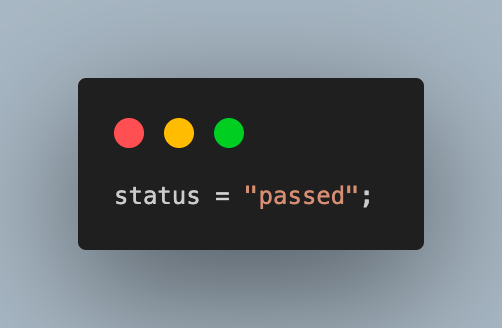
- Update the value of the status variable to pass to showcase that we encountered no errors and that the execution was successful.
Output:
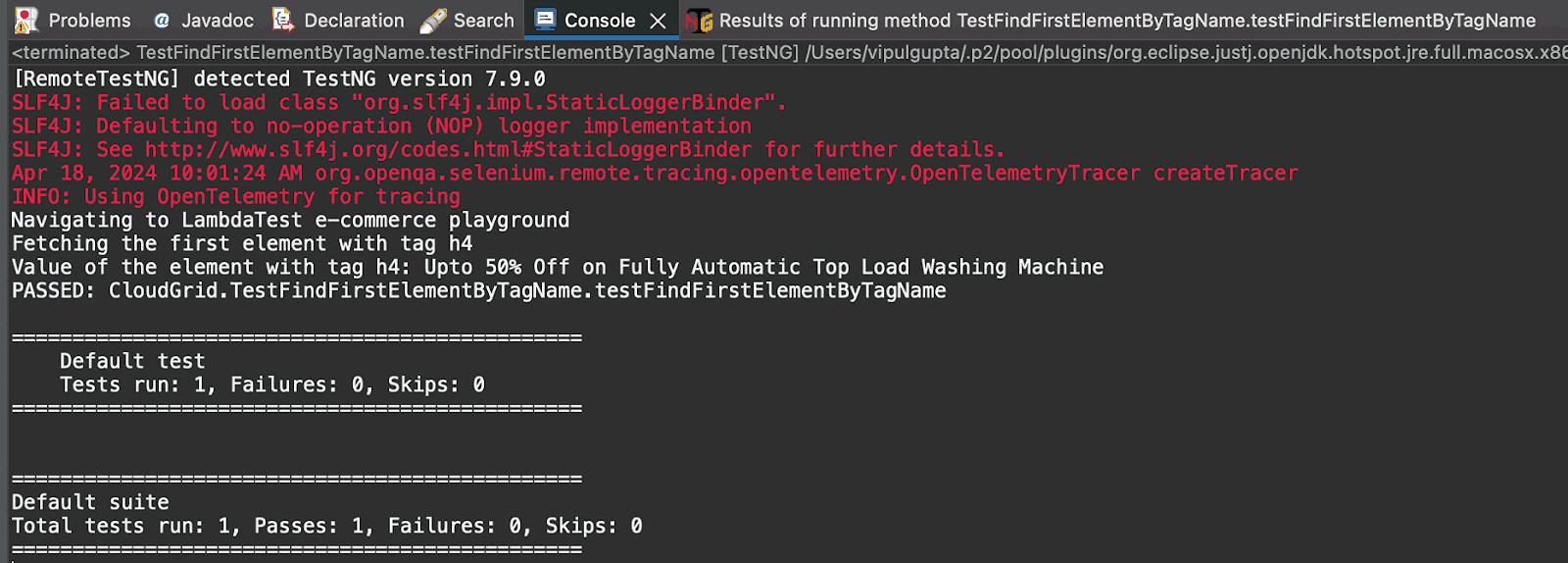
Executing the above test to get the first WebElement by tagName() locator in Selenium will give output on the console like the one shown below.
Result:
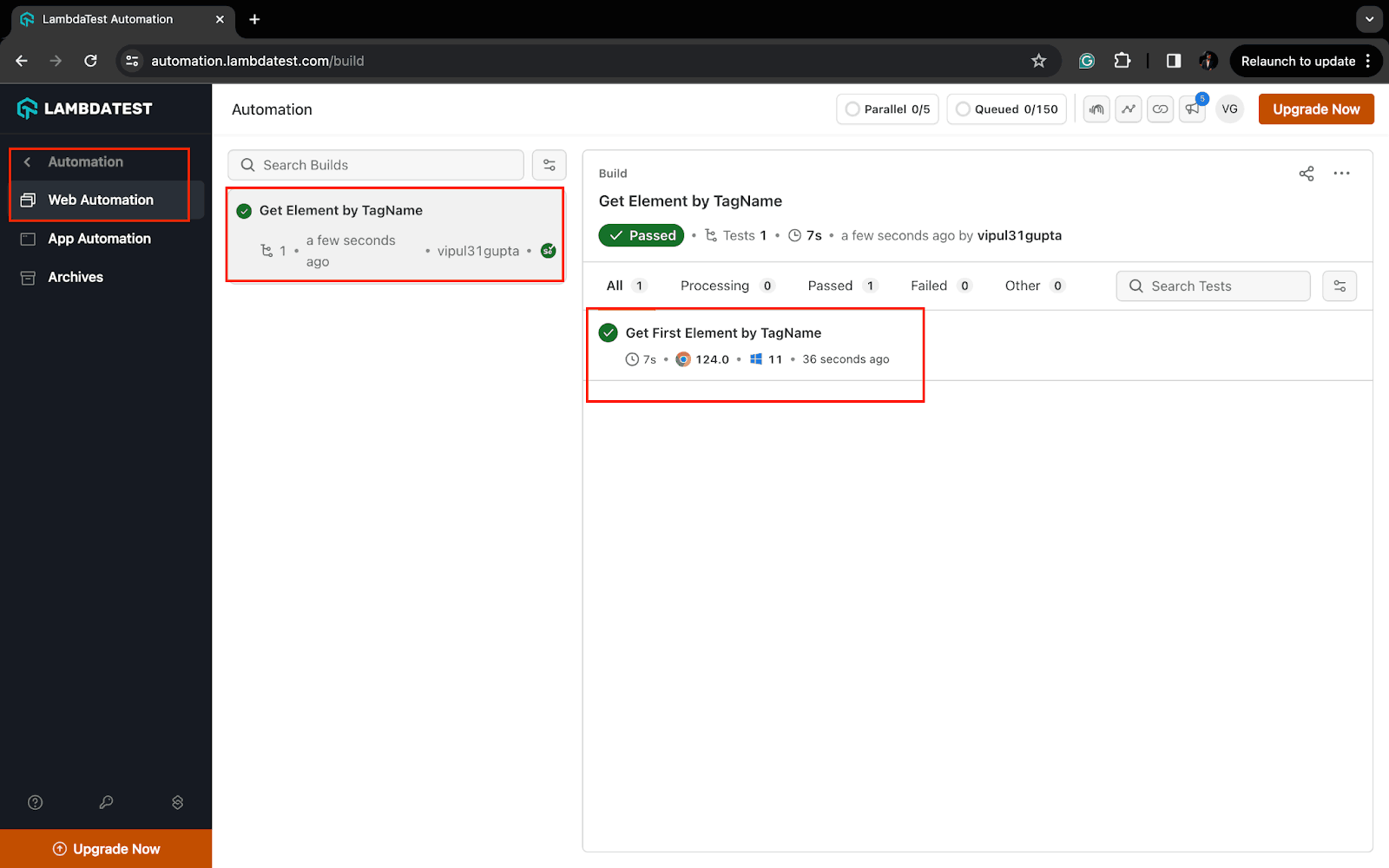
The test execution logs on the TestMu AI Dashboard can be viewed under the Automation > Web Automation section.
To learn more about performing automation testing on the TestMu AI platform, watch the video tutorial below and get started on your automation testing journey.
We have learned how to get elements by tag name to fetch the first WebElement using the findElement() method with the tagName() locator property. Next, we will use the findElements() method to return all the matching WebElements in a list using the tagName() locator property, along with a code demonstration.
Demonstration: Find All WebElements Using the tagName()
Now, let us understand how to get elements by tag name to locate all the WebElements using the tagName() locator. As mentioned before, we will use the same BaseTest.java file that consists of the same code as used in the above demonstration.
Below is the test scenario we will execute to understand how to get elements by tag name using findElements() with tagName() locator.
Test Scenario:
- Navigate to TestMu AI eCommerce Playground.
- Fetch all the matching WebElements using tagName() locator for the HTML tag <h4> and store it in a list.
- Print the total number of located WebElements.
- Traverse the entire list and print the text for each WebElement.
You must create a new file named TestFindAllElementsByTagName.java to write your test script for the test scenario above.
package CloudGrid;


import java.util.List;


import org.openqa.selenium.By;
import org.openqa.selenium.WebElement;
import org.testng.annotations.Test;


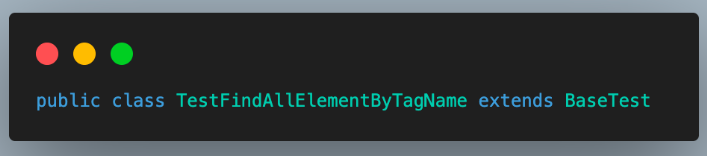
public class TestFindAllElementByTagName extends BaseTest {


   @Test
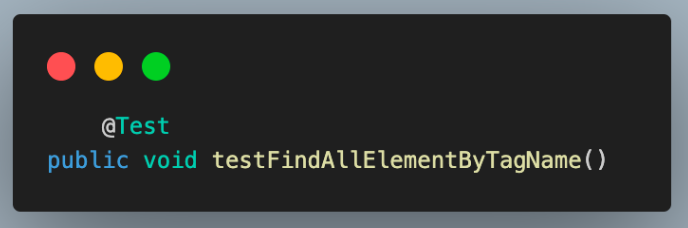
   public void testFindAllElementByTagName()
   {
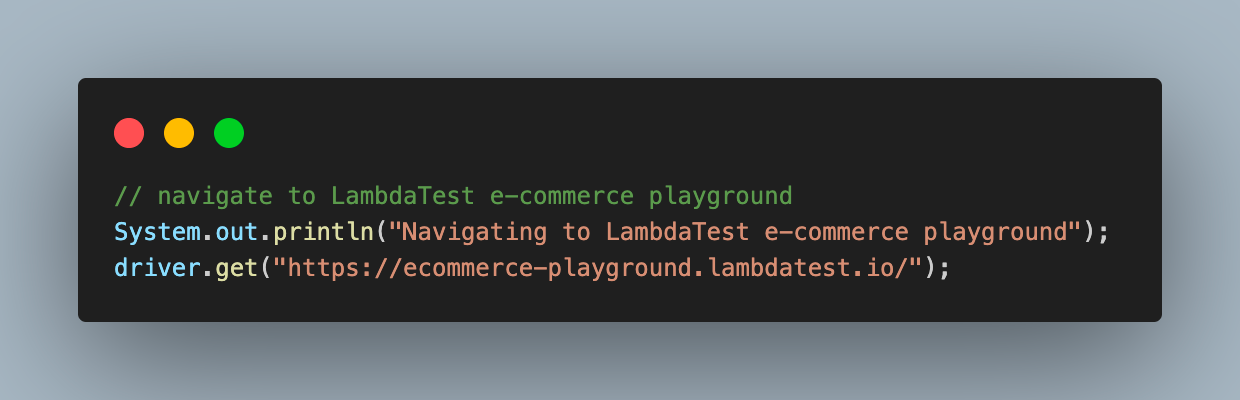
       // navigate to LambdaTest e-commerce playground
       System.out.println("Navigating to LambdaTest e-commerce playground");
       driver.get("https://ecommerce-playground.lambdatest.io/");


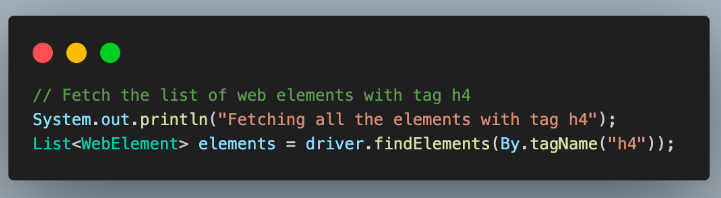
       // Fetch the list of web elements with tag h4
       System.out.println("Fetching all the elements with tag h4");
       List<WebElement> elements = driver.findElements(By.tagName("h4"));


       // print the size of the web element list
       System.out.println("Total number of elements with tag h4 : " + elements.size());

       // print the value of each web element one by one
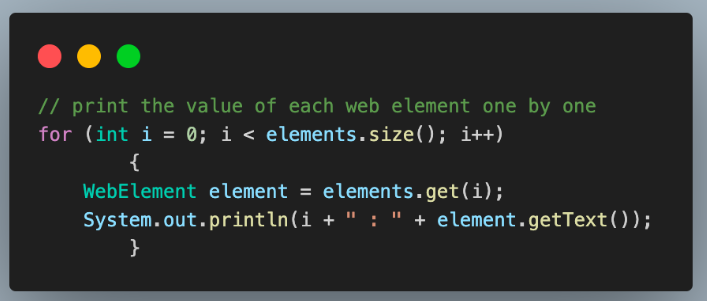
       for (int i = 0; i < elements.size(); i++)
       {
           WebElement element = elements.get(i);
           System.out.println(i + " : " + element.getText());
       }


       status = "passed";
   }
}
Code Walkthrough:
- Add the next test class file to understand the implementation of locating all the elements by using tagName(). Name it at TestFindAllElementByTagName and inherit BaseTest.java.
- Add the test method and annotate it with @Test annotation.
- Navigate to the TestMu AI eCommerce Playground.
- Fetch all the elements using the h4 tag on the webpage. For this, we use the findElements() method of the Selenium WebDriver. Store this list of WebElements in the List variable.
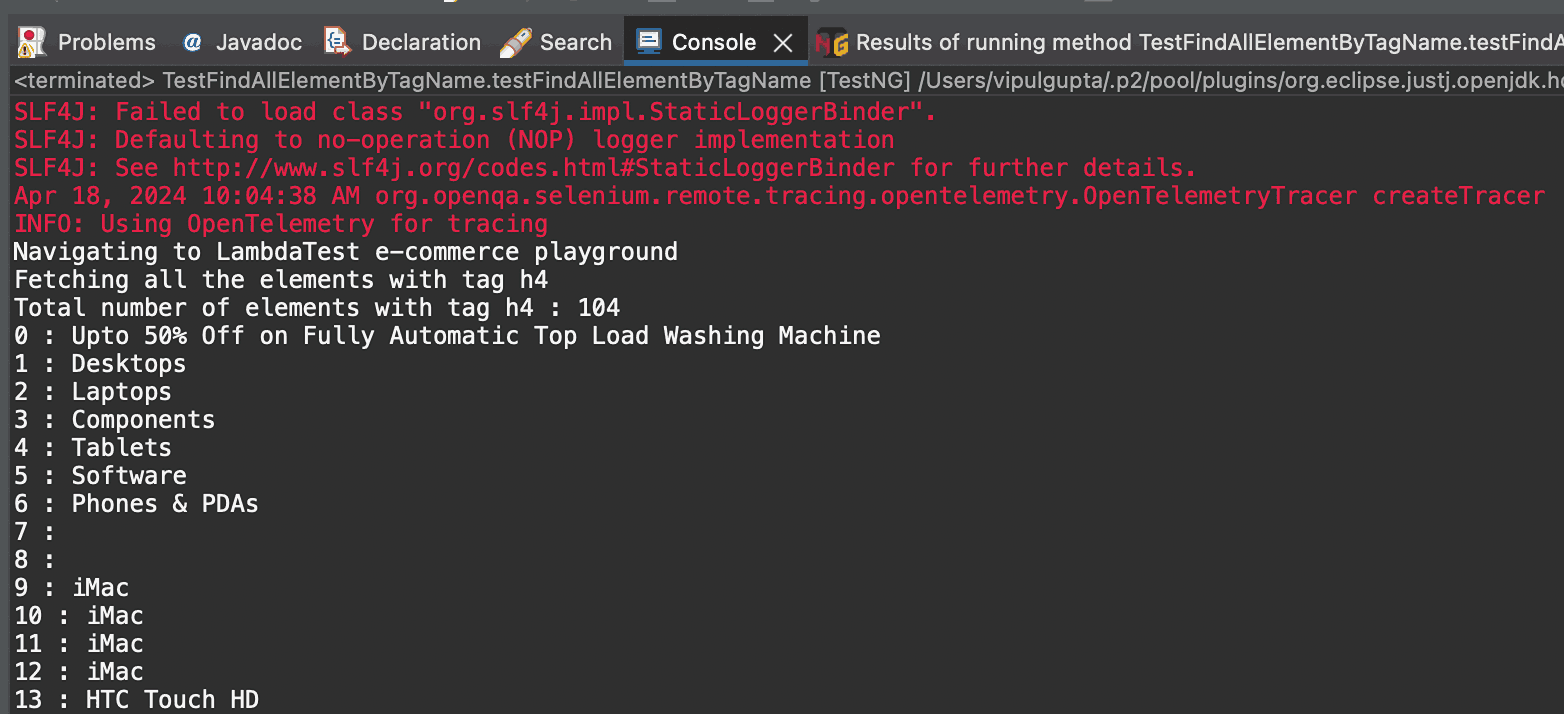
- Print the total number of located WebElements using the tagName() locator using the size() method.
- Traverse the entire list of webElements to print the text of each located element.
- Update the value for the status variable as passed.

Output:
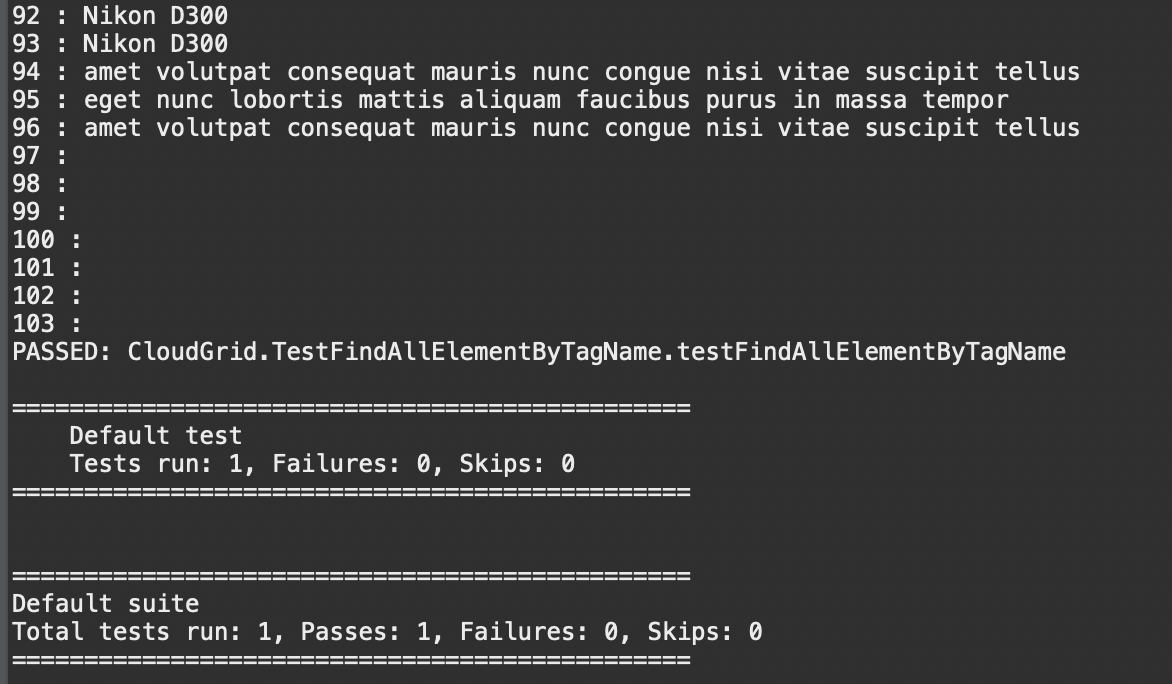
Executing the above test to get all the WebElements by tagName() locator in Selenium will give the output on the console like the one shown below.
Result:
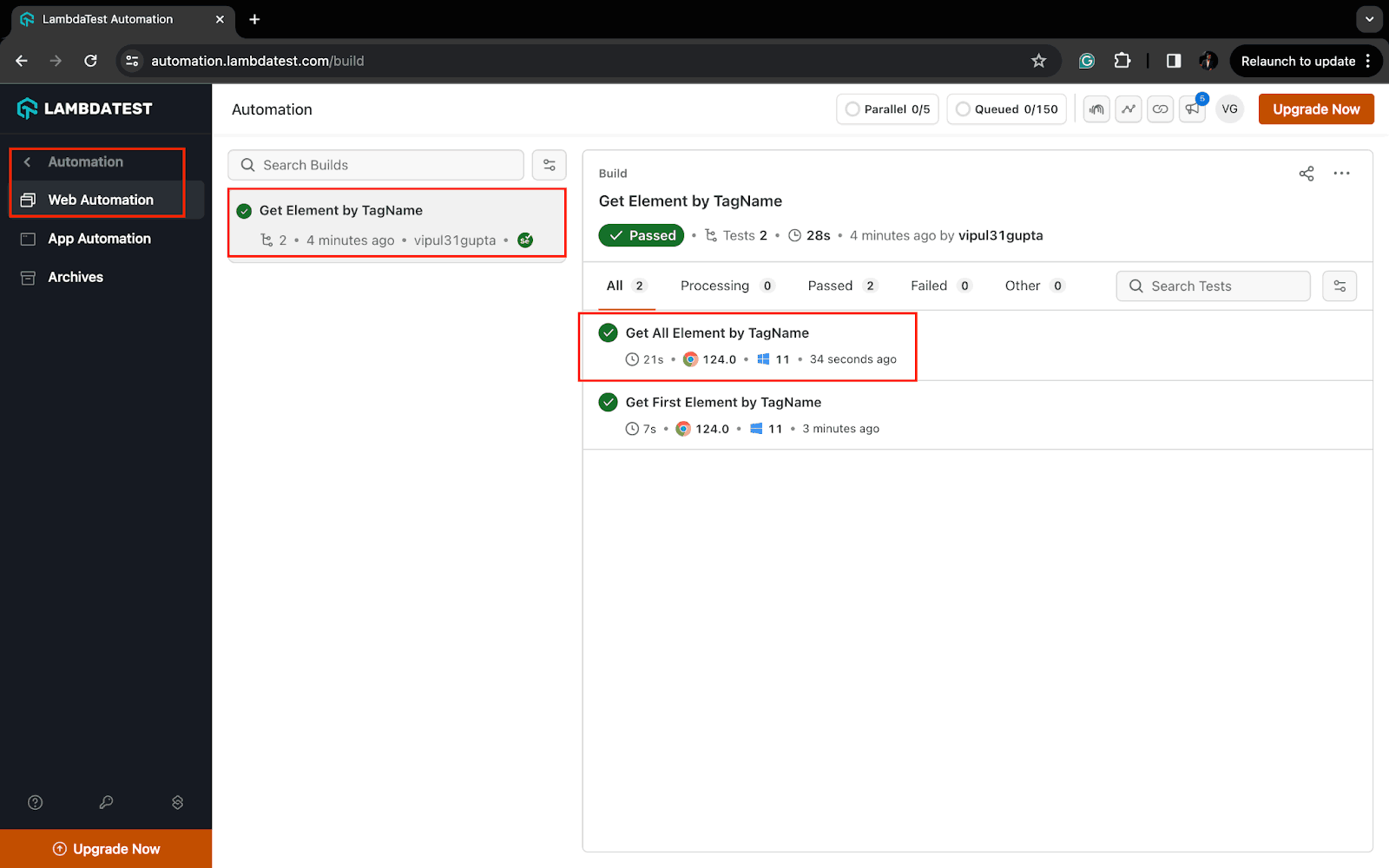
The test execution results will be displayed on the TestMu AI Dashboard, which can be viewed under the Automation > Web Automation section.
Conclusion
With this, we have come to the end of this blog on how to get elements by tag name in Selenium with Java. We have used the tagName() locator in Selenium on different scenarios to fetch the first and all matching elements. We learned when to use the tagName() locator, and this will help you to use it more effectively and write reliable, robust automation test scripts. Now, it is time for you to go ahead and start using it in your scripts and explore if it can be used in combination with other locators. Happy locating !!


Frequently asked questions
Did you find this page helpful?
More Related Hubs
TestMu AI forEnterprise
Get access to solutions built on Enterprise
grade security, privacy, & compliance
- Advanced access controls
- Advanced data retention rules
- Advanced Local Testing
- Premium Support options
- Early access to beta features
- Private Slack Channel
- Unlimited Manual Accessibility DevTools Tests