

Next-Gen App & Browser Testing Cloud
Trusted by 2 Mn+ QAs & Devs to accelerate their release cycles


On This Page
- What is a Dropdown Field?
- Introduction to Select Class in Selenium WebDriver
- How to Select Values From a Dropdown List?
- How to Select Values From a Single Dropdown List Field?
- How to Deselect Values From a Dropdown List Field?
- Demo: Handling Dynamic Dropdowns in Selenium WebDriver Java
- Best Practices for Dynamic Dropdown Handling in Selenium
- Dealing With Dynamic Dropdowns in Different Programming Languages

How to Handle Dynamic Dropdowns in Selenium WebDriver With Java
Learn how to effectively manage dynamic dropdowns in Selenium WebDriver using Java. Master the art of automated testing for dynamic web elements.

Faisal Khatri
March 16, 2026
When performing web automation testing, you might come across a scenario to automate the registration page of a website. The registration page contains multiple fields like textboxes, checkboxes, radio buttons, and dropdown lists.
However, testers often face challenges when writing test scripts for different fields. One of them is automating dropdowns. Every time you select multiple values from the dropdown list, the test may fail as it cannot select the value from the dropdown.
Why? Since different types of dropdowns make the test complicated, we need to check if it is a multiselect or a single-select dropdown to be able to automate it. Also, the browser rendering engines make it more challenging to automate.
Many of us go through such issues daily while working on automation tests. It is very frustrating as well as stressful if we don’t find the solution on time as due to it, our tickets on the board are left to be on hold, and we need to answer daily on the scrum call where we are and by when would we be completing the tests so the ticket could be moved to Done.
Overview
Why Handle Dynamic Dropdowns in Selenium WebDriver?
Handling dynamic dropdowns in Selenium WebDriver is essential for automating user interactions in forms. These dropdowns often present challenges due to the variability of the options and the need to handle both single-select and multi-select lists efficiently.
- Dynamic Interaction: Ensures smooth automation for dropdowns that change dynamically based on user selections.
- Improved Test Coverage: Enables comprehensive testing of dropdown functionality across web applications.
- Flexible Automation: Handles different types of dropdowns like multi-select and single-select without extensive code changes.
What Are Dynamic Dropdowns?
Dynamic dropdowns allow users to select from a list of options that can change based on other user inputs or events. These dropdowns can be either single-select, where only one value can be chosen at a time, or multi-select, where users can select multiple options:
- Single-Select Dropdowns: Only one option can be selected at a time, such as selecting gender in a form.
- Multi-Select Dropdowns: Allows multiple selections, such as choosing tags or categories in a blogging platform.
Handling Dropdowns with Selenium WebDriver
Selenium WebDriver provides the Select class to interact with dropdown elements. This class allows you to automate actions like selecting, deselecting, and getting options from dropdowns, ensuring seamless interaction with both static and dynamic dropdowns:
- Methods for Interaction: Includes selectByValue(), selectByVisibleText(), and selectByIndex() to select values in single or multi-select dropdowns.
- Deselect Methods: For multi-select dropdowns, methods like deselectByValue() or deselectByIndex() are available to remove selections.
Using Select Class in Selenium
The Select class simplifies the process of interacting with dropdown elements in Selenium. It allows automation for selecting and deselecting values, ensuring that tests run smoothly even with dynamic content:
- selectByValue() / selectByIndex(): Methods used to select specific options from dropdown lists.
- getOptions(): Retrieves all options in a dropdown for validation.
- isMultiple(): Checks if the dropdown allows multiple selections, which is essential for multi-select dropdowns.
In this Selenium Java tutorial, you will learn how to handle dynamic dropdowns in Selenium WebDriver with Java. If you are preparing for an interview you can learn more through Selenium interview questions.
First, let’s understand the dropdown field.
What is a Dropdown Field?
A dropdown is an interactive UI element in web forms that presents users with a list of predefined options. Clicking it reveals the available choices, and selecting one updates the field instantly. Dropdowns are typically built using HTML markup and styled with CSS, and they're commonly used for things like selecting a country, a product category, or a date range.
There can be two dropdown fields:
- Single select dropdown – Only one option can be chosen at a time. A Gender field where a user picks "Male" or "Female" is a typical example. The screenshot below shows a single-select dropdown from the TestMu AI Dropdown Demo website.
- Multiselect dropdown – Allows selecting more than one option simultaneously. A tags field on a blogging platform where users can pick multiple categories is a good example. The screenshot below shows a multiselect dropdown from the TestMu AI Dropdown Demo website.
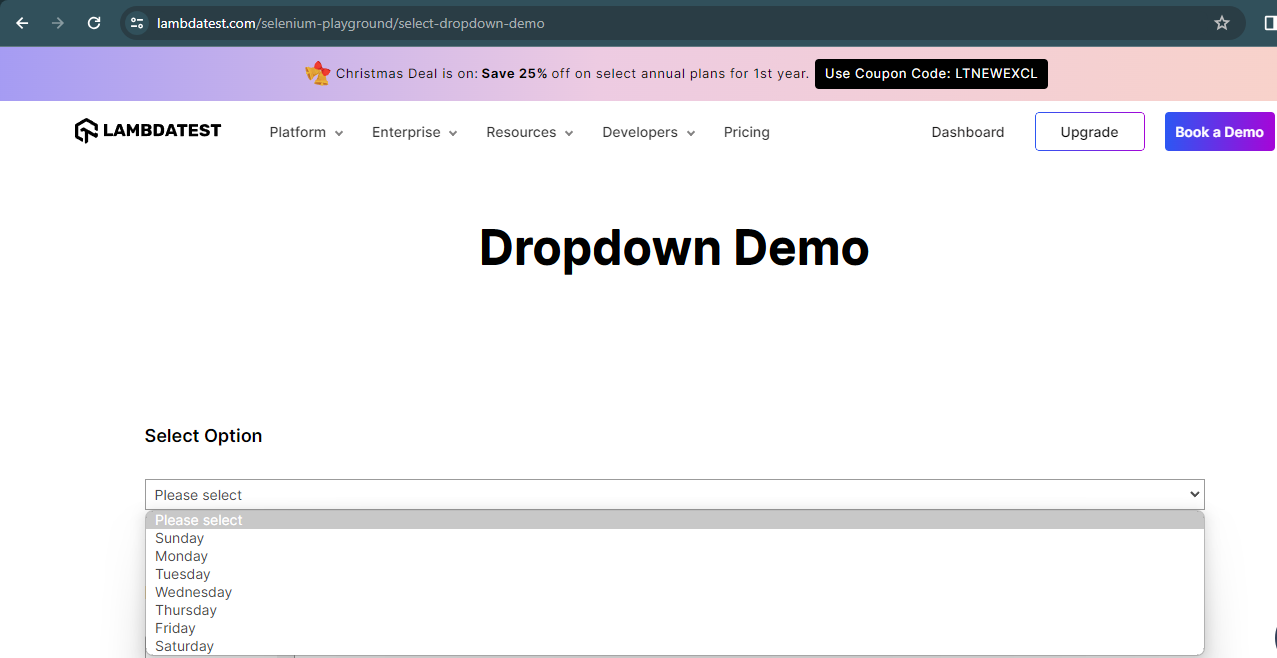
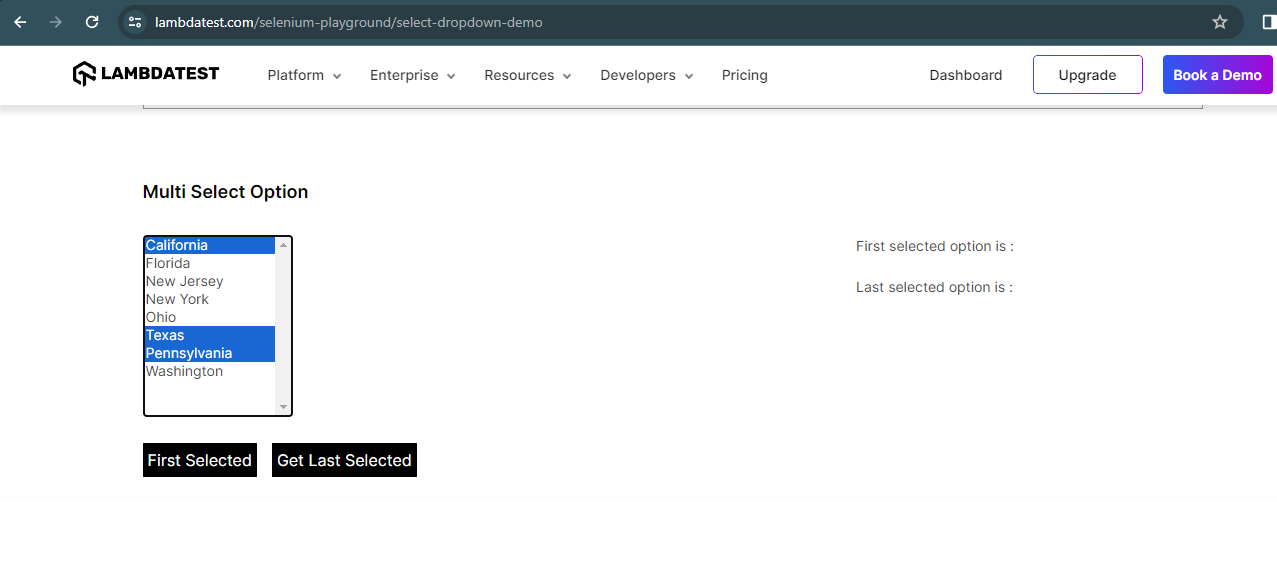
Since we are discussing web automation, we will use Selenium WebDriver to run the automation tests and demonstrate different scenarios for automating the single and multiselect dropdown lists.

Introduction to Select Class in Selenium WebDriver
Select class is provided by Selenium to work with dropdown elements on the web page. This class helps us to select values using different methods provided in it. The Select class is present in org.openqa.selenium.support.ui package. It implements the ISelect and WrapsElement interface.
Syntax:
Select select = new Select(WebElement element);
To use the Select class, you need to instantiate the class and pass the WebElement as the constructor parameter to create an object of the Select class.
You can pass the WebElement to the constructor of the Select class in the following two ways:
- Creating a WebElement and passing it as the constructor parameter for the Select class.
WebElement dropdown = driver.findElement(By.id("dropdown"));
Select select = new Select(dropdown);
Select dropdownField = new Select(driver.findElement(By.id("dropdown"));
Note: In case the element passed in the Select class constructor parameter is not of < select > tag, then UnexpectedTagNameException will be thrown.
Here is how the error looks in the console:

org.openqa.selenium.support.ui.UnexpectedTagNameException: Element should have been "select" but was "h2"
Select class provides the following methods using we can perform the following actions on the dropdown elements:
- isMultiple() – Checks if the dropdown allows multiple selections of values. Returns boolean value true if the dropdown allows multiple selections; else, returns false. Syntax:
dropdownField.isMultiple()
- selectByValue(String value) – Allows selecting the option that has a value matching the argument provided. NoSuchElementException will be thrown if no matching option elements are found. Syntax:
dropdownField.selectByValue("John")
- selectByIndex(int index) – Selects the option at the given index. This selection is based on the index attribute of an element. NoSuchElementException will be thrown if no matching option elements are found. Syntax:
dropdownField.selectByIndex(2)
- selectByVisibleText(String text) – Selects the option that displays text matching the argument provided. NoSuchElementException will be thrown if no matching option elements are found. Syntax:
dropdownField.selectByVisibleText(“Weekday”)
- getOptions() – Returns all the options displayed in the dropdown field. Syntax:
List<WebElement> allOptions = singleSelectDropdownList ().getOptions ();
- getAllSelectedOptions() – Returns all the selected options from the dropdown list. Syntax:
List<WebElement> allOptions = singleSelectDropdownList ().getAllSelectedOptions ();
- getFirstSelectedOption() – It will return the first selected option from the dropdown list. Syntax:
dropdownField.getFirstSelectedOption ();
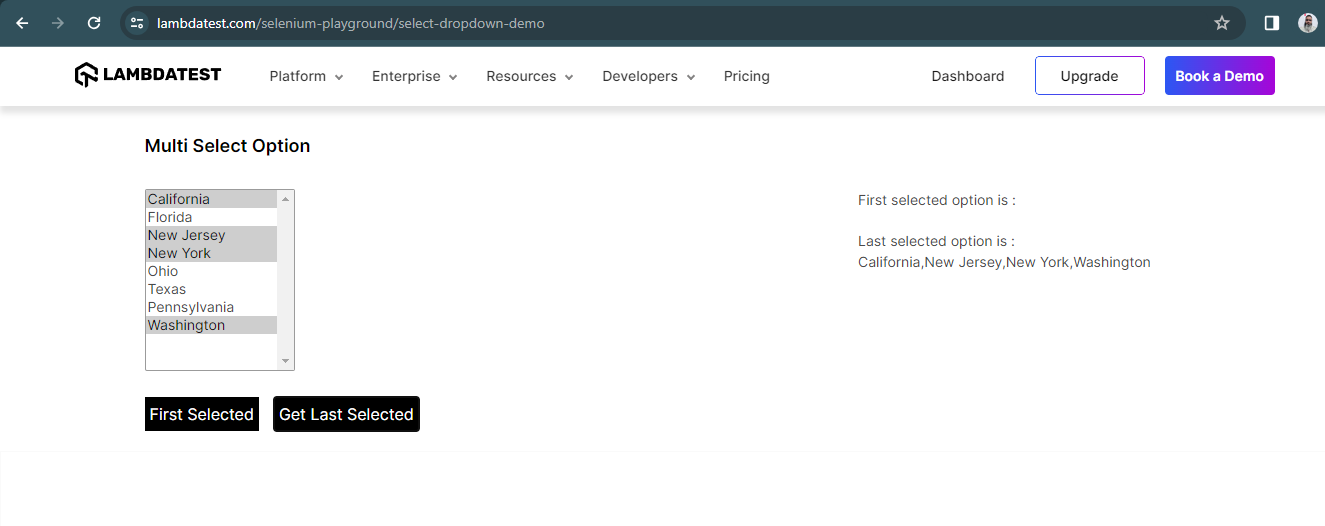
- deselectAll() – It will deselect/clear all the selected entries from the list. If the dropdown field does not support multiple selections, it will throw java.lang.UnsupportedOperationException. deselectAll() will clear all the selected entries in the list as depicted in the screenshot below:
- Entries Selected:
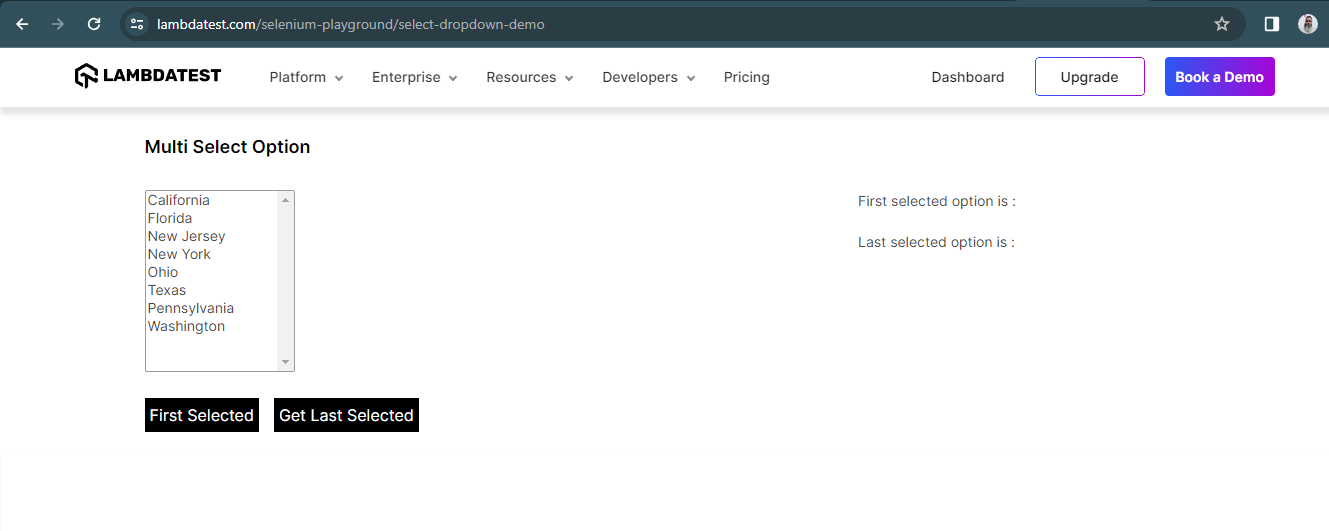
dropdownField.deselectAll();
- deselectByValue(String value) – Deselects all the options that have values matching the argument. If the dropdown field does not support multiple selections, it will throw java.lang.UnsupportedOperationException. If no matching option elements are found, it will throw NoSuchElementException.
dropdownField.deselectByValue(“Option 1”);
- deselectByIndex(int index) – Deselects the option at the given index. This selection is based on the “index” attribute of an element. NoSuchElementException will be thrown if no matching option elements are found. If the dropdown field does not support multiple selections, it will throw java.lang.UnsupportedOperationException.
Syntax:
dropdownField.deselectByIndex(1);
- deselectByVisibleText(String text) –Deselects the option matching the given text in the parameter. NoSuchElementException will be thrown if no matching option elements are found. If the dropdown field does not support multiple selections, it will throw java.lang.UnsupportedOperationException.
Syntax:
dropdownField.deselectByVisibleText(“Text”);
Now, let’s move towards writing the automated tests and see how we can use the Selenium WebDriver Select class to select values from the dropdown field.
How to Select Values From a Dropdown List?
Before we begin writing the tests and discussing the code for dropdown in Selenium, let me tell you about the tools and the website under test.
The following tools have been used in writing and running the tests:
- Programming Language: Java (17)
- Web Automation Tool: Selenium WebDriver (4.16.1)
- Test Runner: TestNG (7.8.0)
Application Under Test
TestMu AI Selenium Playground is used as a demo website for this blog on handling dynamic dropdowns in Selenium WebDriver with Java. This website has all the dummy fields like textbox, dropdown, alerts, checkboxes, input form, data table, etc., which can be used for practicing and writing automated tests using Selenium WebDriver.
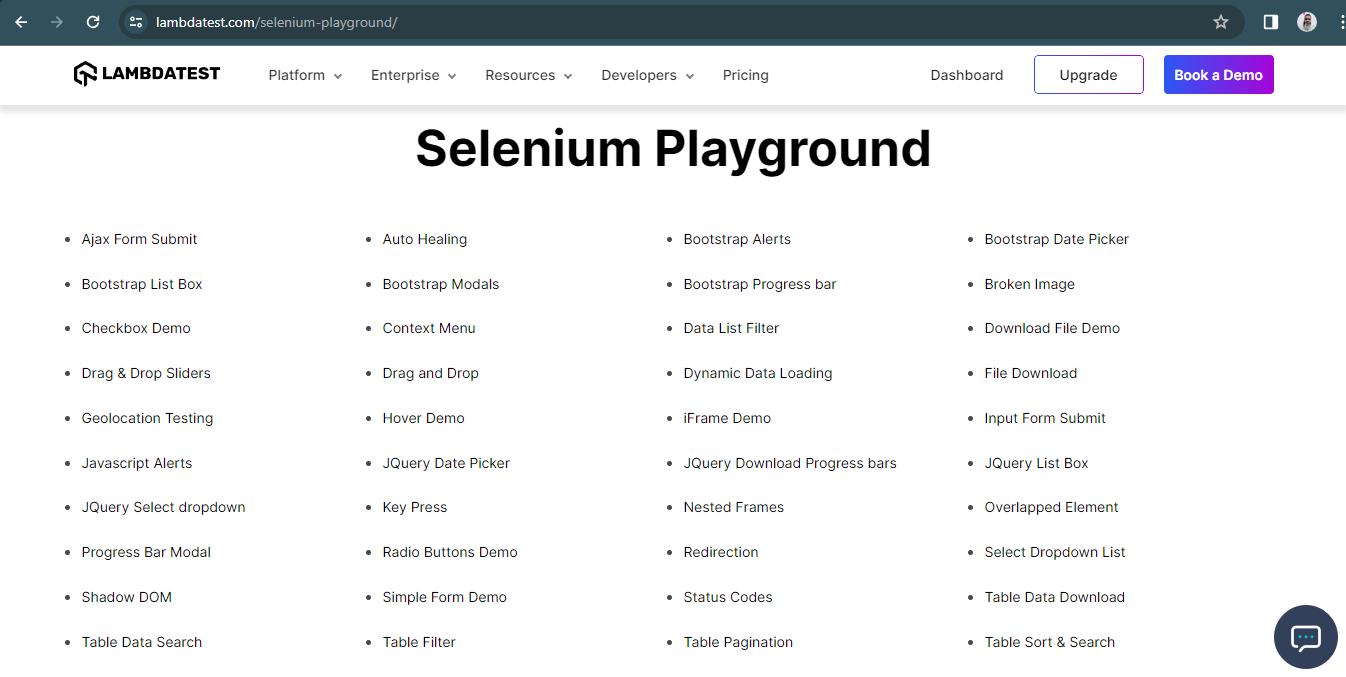
It also gives newbies in automation testing a fair idea of performing testing using Selenium WebDriver and practicing writing automated tests.
Test Strategy
We will use the Select Option on the website and write automated tests for single and multiple dropdown fields (check out the screenshot below) to select values in the fields respectively.
Single dropdown field:
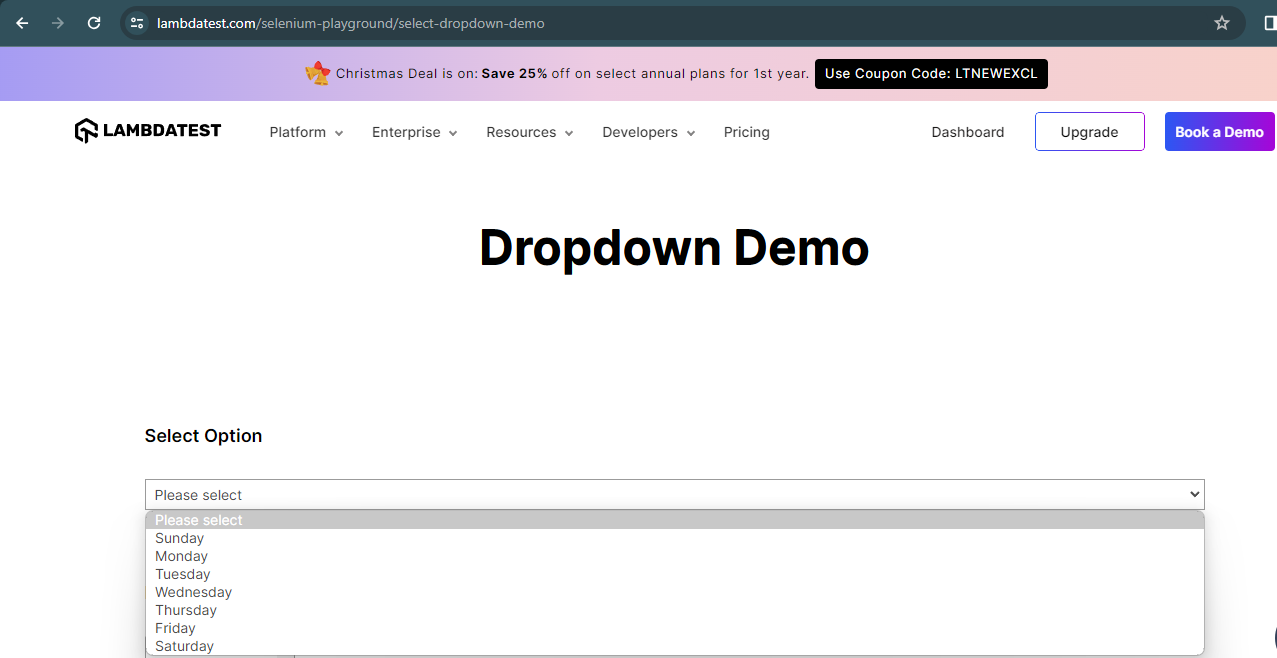
Multi-dropdown field:

Writing the Tests
Before we begin writing the tests, let’s add the dependency for Selenium WebDriver and TestNG in the pom.xml. These dependencies will help us use the Selenium WebDriver and TestNG classes and methods in our tests.
?xml version="1.0" encoding="UTF-8"?>
<project xmlns:xsi="http://www.w3.org/2001/XMLSchema-instance" xmlns="http://maven.apache.org/POM/4.0.0"
       xsi:schemaLocation="http://maven.apache.org/POM/4.0.0 http://maven.apache.org/xsd/maven-4.0.0.xsd">
  <modelVersion>4.0.0</modelVersion>
  <groupId>io.github.mfaisalkhatri</groupId>
  <artifactId>selenium4poc</artifactId>
  <version>1.0-SNAPSHOT</version>


  <name>selenium4poc</name>
  <url>https://mfaisalkhatri.github.io</url>


  <properties>
      <project.build.sourceEncoding>UTF-8</project.build.sourceEncoding>
      <selenium.java.version>4.16.1</selenium.java.version>
      <testng.version>7.8.0</testng.version>
  </properties>
  <dependencies>
      <!--https://mvnrepository.com/artifact/org.seleniumhq.selenium/selenium-java -->
      <dependency>
          <groupId>org.seleniumhq.selenium</groupId>
          <artifactId>selenium-java</artifactId>
          <version>${selenium.java.version}</version>
      </dependency>
      <!-- https://mvnrepository.com/artifact/org.testng/testng -->
      <dependency>
          <groupId>org.testng</groupId>
          <artifactId>testng</artifactId>
          <version>${testng.version}</version>
          <scope>test</scope>
      </dependency>
      </dependencies>
The first and most important task is to set up the drivers so we can use them to run the test. Here, RemoteWebDriver is used to run the tests, as we would be running the tests on the TestMu AI platform.
Here is the code snippet from the DriverManager class, where we set the driver and capabilities so our tests run successfully.
public class DriverManager {
      private static final ThreadLocal<WebDriver> DRIVER          = new ThreadLocal<> ();
      private static final String                 GRID_URL        = "@hub.lambdatest.com/wd/hub";
      private static final Logger                 LOG             = LogManager.getLogger ("DriverManager.class");
      private static final String                 LT_ACCESS_TOKEN = System.getProperty ("accessKey");
      private static final String                 LT_USERNAME     = System.getProperty ("username");


      public static void createDriver (final Browsers browser) {
          setupChromeInLambdaTest ();
          setupBrowserTimeouts ();
      }
      public static <D extends WebDriver> D getDriver () {
          return (D) io.github.mfaisalkhatri.drivers.DriverManager.DRIVER.get ();
      }
      public static void quitDriver () {
          if (null != DRIVER.get ()) {
              LOG.info ("Closing the driver...");
              getDriver ().quit ();
              DRIVER.remove ();
          }
      }
      private static void setDriver (final WebDriver driver) {
          io.github.mfaisalkhatri.drivers.DriverManager.DRIVER.set (driver);
      }


      private static void setupBrowserTimeouts () {
          LOG.info ("Setting Browser Timeouts....");
          getDriver ().manage ()
              .timeouts ()
              .implicitlyWait (Duration.ofSeconds (30));
          getDriver ().manage ()
              .timeouts ()
              .pageLoadTimeout (Duration.ofSeconds (30));
          getDriver ().manage ()
              .timeouts ()
              .scriptTimeout (Duration.ofSeconds (30));
      }

      private static void setupChromeInLambdaTest () {
          final ChromeOptions browserOptions = new ChromeOptions ();
          browserOptions.setPlatformName ("Windows 10");
          final HashMap<String, Object> ltOptions = new HashMap<> ();
          ltOptions.put ("username", LT_USERNAME);
          ltOptions.put ("accessKey", LT_ACCESS_TOKEN);
          ltOptions.put ("resolution", "2560x1440");
          ltOptions.put ("selenium_version", "4.0.0");
          ltOptions.put ("build", "LambdaTest ECommerce Playground Build");
          ltOptions.put ("name", "End to End LambdaTest ECommerce Playground Tests");
          ltOptions.put ("w3c", true);
          ltOptions.put ("plugin", "java-testNG");
          browserOptions.setCapability ("LT:Options", ltOptions);
          try {
              setDriver (
                  new RemoteWebDriver (new URL (format ("https://{0}:{1}{2}", LT_USERNAME, LT_ACCESS_TOKEN, GRID_URL)),
                      browserOptions));
          } catch (final MalformedURLException e) {
              LOG.error ("Error setting up cloud browser in LambdaTest", e);
          }
      }
  }

The two important options that are available in setting up Chrome in the TestMu AI platform are LT_ACCESS_KEY and LT_USERNAME values, which will be passed on run time. In the later section of this blog, we will discuss how to handle dynamic dropdowns in Selenium WebDriver with Java when we run the tests.
Let’s begin with writing the tests for dropdown in Selenium WebDriver.

Note: Automate your Java test scripts across 3000+ real browsers and OS. Try TestMu AI Now!
In the next section of this blog on how to handle dynamic dropdowns in Selenium WebDriver Java, we look at how to select values from a single dropdown list field.
How to Select Values From a Single Dropdown List Field?
In this demo, we will select values from the dropdown field, as shown in the following screenshot.
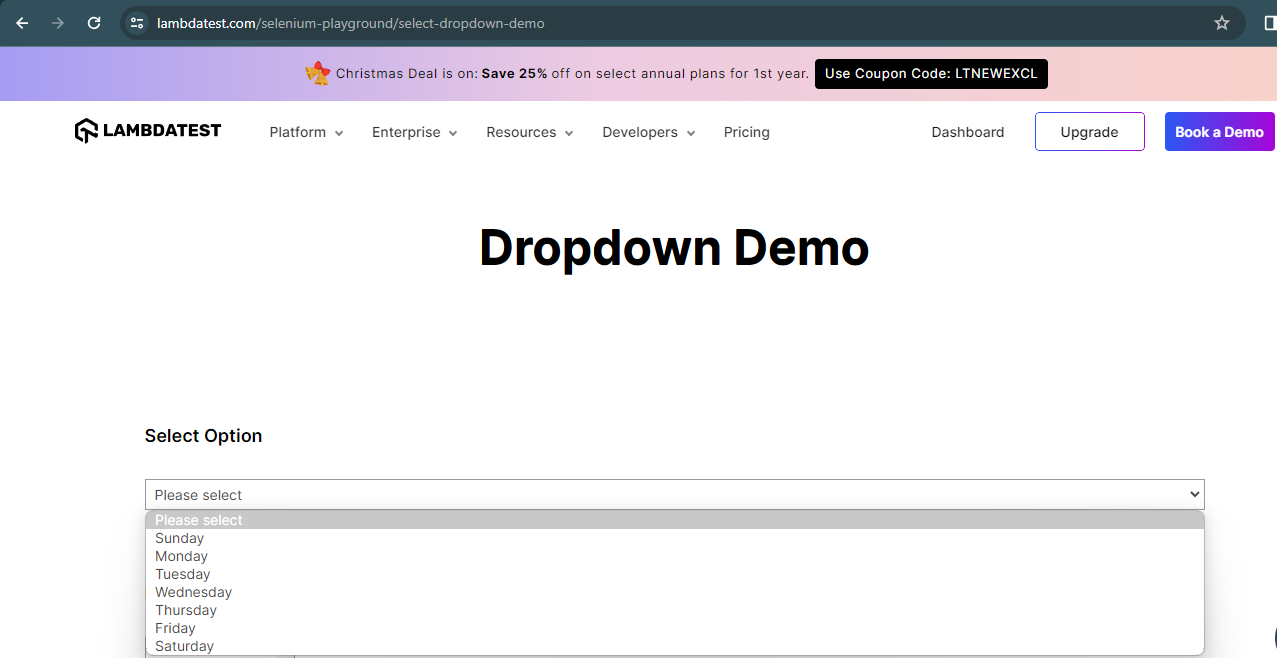
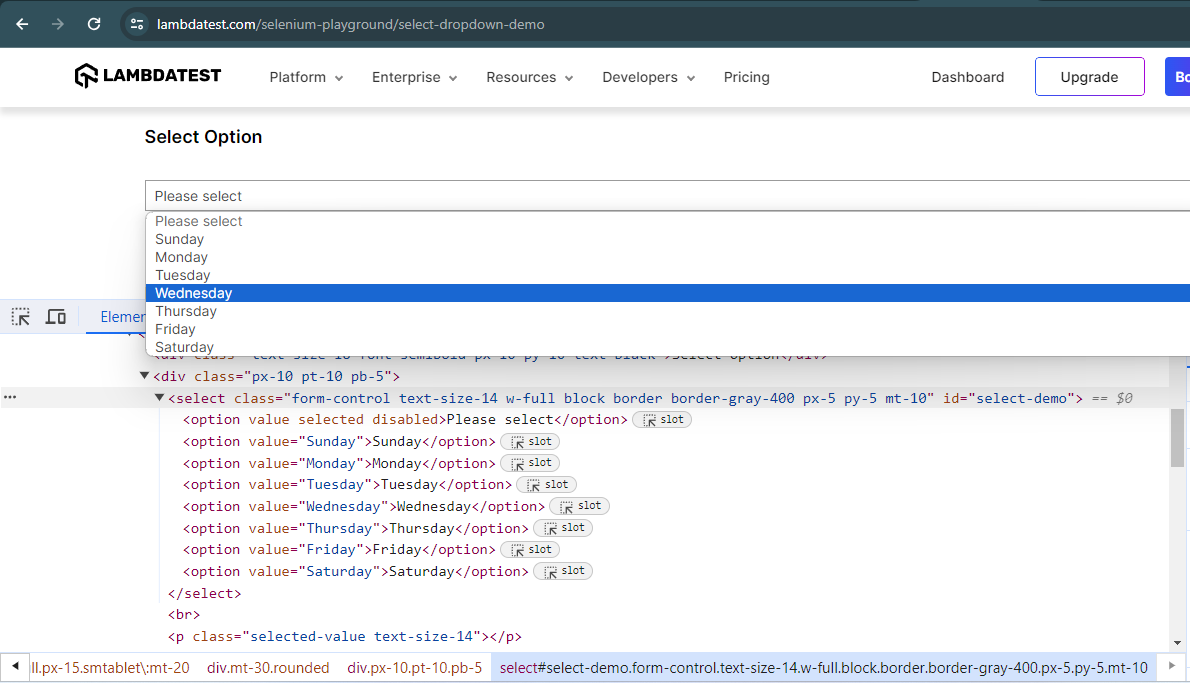
As seen in the screenshot above, this field has the names of days of the week and allows the selection of only one value at a time.
Let’s check the DOM for this field and see if it has the < select > tag so we can use the Select class of Selenium WebDriver to automate this field.
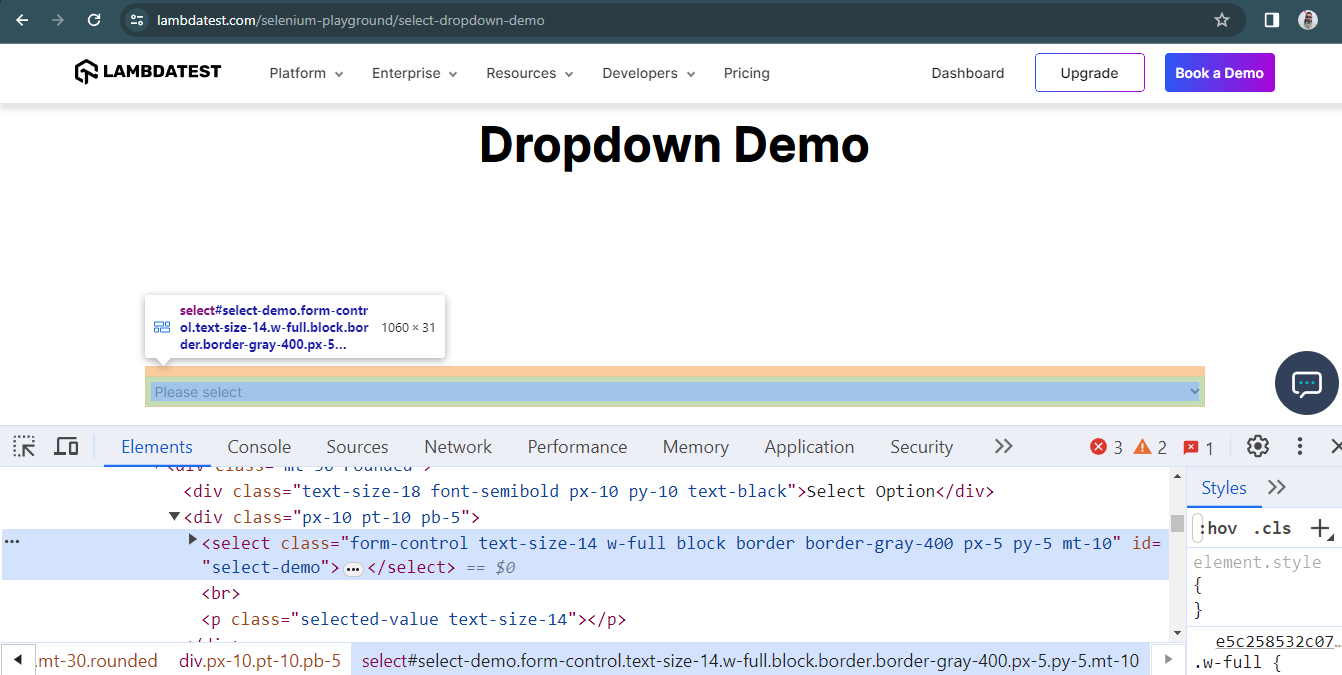
This field has the < select > tag, so let’s move ahead and create page objects for this field and start selecting the value in this field by using the different methods of Select class, as we discussed in the earlier section of this blog on how to handle dynamic dropdowns in Selenium WebDriver with Java.
Here is what our test class looks like for the single dropdown tests:
package io.github.mfaisalkhatri.tests.lambdatestseleniumplayground;

import static io.github.mfaisalkhatri.drivers.DriverManager.getDriver;
import static org.testng.Assert.assertEquals;
import static org.testng.Assert.assertFalse;

import io.github.mfaisalkhatri.pages.lambdatestseleniumplayground.DropdownPage;
import io.github.mfaisalkhatri.pages.lambdatestseleniumplayground.MainPage;
import io.github.mfaisalkhatri.tests.base.BaseSuiteSetup;
import org.testng.annotations.BeforeClass;
import org.testng.annotations.Test;

/**
* @author Faisal Khatri
* @since 11/16/2022
**/
public class SingleDropdownTests extends BaseSuiteSetup {

   private DropdownPage dropdownPage;

   @BeforeClass
   public void setupTests () {
    final String website = "https://www.lambdatest.com/selenium-playground/";
    getDriver ().get (website);
    final MainPage mainPage = new MainPage ();
    mainPage.clickLink ("Select Dropdown List");
    this.dropdownPage = new DropdownPage ();
   }

   @Test
   public void testDropDownAllowsMultipleSelection () {
    assertFalse (this.dropdownPage.checkIfMultiple ());
   }

   @Test
   public void testGetAlLOptionsInDropdownField () {
    assertEquals (this.dropdownPage.getOptions (), this.dropdownPage.expectedValues (
        new String[] { "Please select", "Sunday", "Monday", "Tuesday", "Wednesday", "Thursday", "Friday",
            "Saturday" }));
   }

   @Test
   public void testSelectDayUsingIndex () {
    this.dropdownPage.selectSingleDayIndex (2);
    assertEquals (this.dropdownPage.getSelectedDropDownText (), "Day selected :- Monday");
   }

   @Test
   public void testSelectDayUsingValue () {
    this.dropdownPage.selectSingleDayValue ("Friday");
    assertEquals (this.dropdownPage.getSelectedDropDownText (), "Day selected :- Friday");
   }

   @Test
   public void testSelectDayUsingVisibleText () {
    this.dropdownPage.selectDayByVisibleText ("Thursday");
    assertEquals (this.dropdownPage.getSelectedDropDownText (), "Day selected :- Thursday");
   }
}
Here is the page object class:
package io.github.mfaisalkhatri.pages.lambdatestseleniumplayground;
import static io.github.mfaisalkhatri.drivers.DriverManager.getDriver;
import java.util.ArrayList;
import java.util.List;
 import org.openqa.selenium.By;
import org.openqa.selenium.WebElement;
import org.openqa.selenium.support.ui.Select;

/**
* @author Faisal Khatri
* @since 11/16/2022
**/
public class DropdownPage {

   public boolean checkIfMultiple () {
    return singleSelectDropdownList ().isMultiple ();
   }

   public ArrayList<String> expectedValues (String[] values) {
    ArrayList<String> expectedOptions = new ArrayList<> ();
    expectedOptions.addAll (List.of (values));
    return expectedOptions;
   }

   public String getFirstSelectedValue () {
    btnFirstSelected ().click ();
    return getDriver ().findElement (By.cssSelector ("p.text-size-14:nth-child(1)"))
        .getText ();
   }

   public ArrayList<String> getOptions () {
    final List<WebElement> allOptions = singleSelectDropdownList ().getOptions ();
    final int size = allOptions.size ();
    ArrayList<String> options = new ArrayList<> ();
    for (int i = 0; i < size; i++) {
        options.add (allOptions.get (i)
            .getText ());
    }
    return options;
   }

   public String getSelectedDropDownText () {
    return getDriver ().findElement (By.cssSelector ("p.selected-value"))
        .getText ();
   }

   public void multiSelectByValues (String[] values) {
    refreshPage ();
    for (int i = 0; i < values.length; i++) {
        multiSelectDropdownList ().selectByValue (values[i]);
    }

   }
   public void refreshPage () {
    getDriver ().navigate ()
        .refresh ();
   }

   public void selectDayByVisibleText (final String visibleText) {
    singleSelectDropdownList ().selectByVisibleText (visibleText);
   }

   public void selectSingleDayIndex (final int index) {
    singleSelectDropdownList ().selectByIndex (index);
   }

   public void selectSingleDayValue (final String value) {
    singleSelectDropdownList ().selectByValue (value);
   }

   private WebElement btnFirstSelected () {
    return getDriver ().findElement (By.id ("printMe"));
   }

   private WebElement btnGetAllSelected () {
    return getDriver ().findElement (By.id ("printAll"));
   }

   private Select multiSelectDropdownList () {
    WebElement multiSelectDropdown = getDriver ().findElement (By.id ("multi-select"));
    return new Select (multiSelectDropdown);
   }

   private Select singleSelectDropdownList () {
    final WebElement dropdown = getDriver ().findElement (By.id ("select-demo"));
    return new Select (dropdown);
   }
}
Setting the base for the test:
The first thing we will need to do is to navigate to the website and move to the Select Dropdown List page and this needs to be done once as all our tests next will run on the same dropdown page.
So, it is best to write a piece of code and get it executed before any tests run, and we have done that in the following method – setupTests().
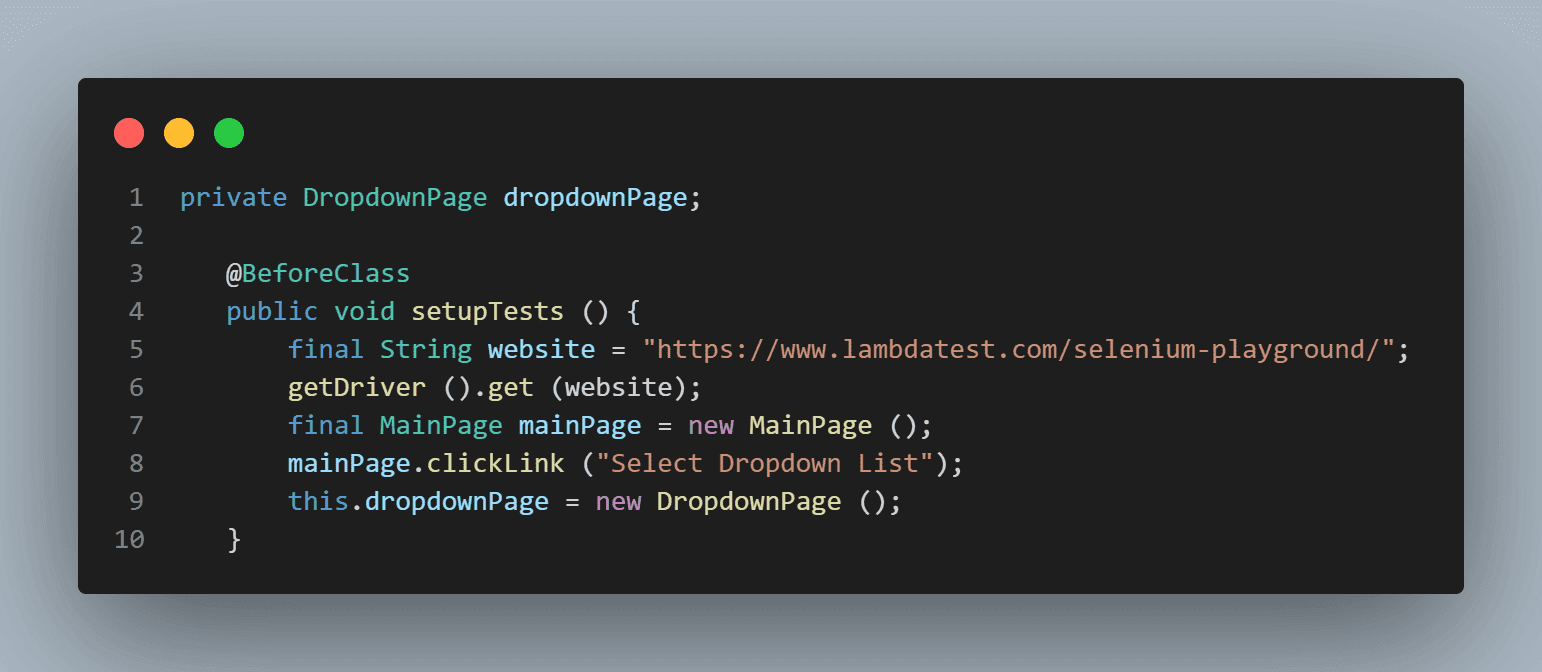
This method will run before any of the tests, and it will navigate to the website and click on the Select Dropdown List link to open the dropdown page. DropdownPage class (page object class) is also instantiated in this method as we will use this object in every test to call different Select methods.
Checking if the Field Allows Multiple Selections of Values
Here is the screenshot of the field, which we will check whether it allows selecting multiple values.
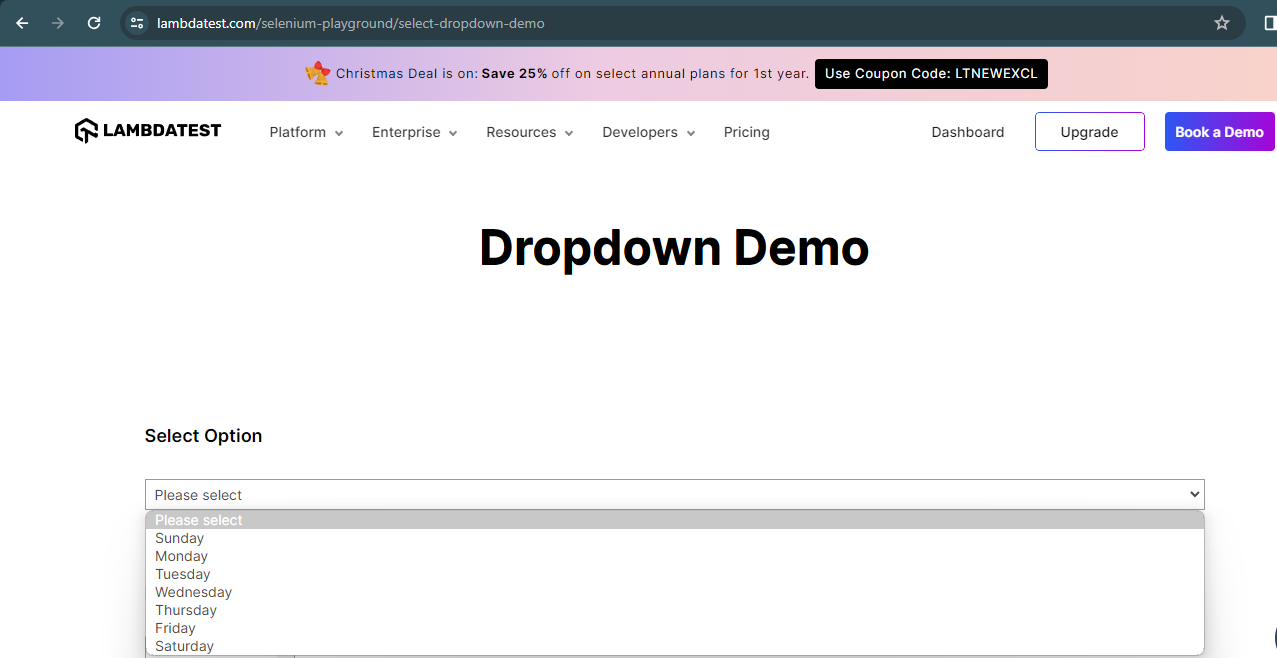
Let’s write our first test to check if the field allows selecting multiple values. Remember, in the earlier section of this blog on handling dropdowns in Selenium WebDriver Java, we discussed the isMultiple() method of the Select class, which we will be using here in this test.
Now, since the isMultiple() method returns a boolean value that is either true or false, we will use the assertFalse() assertion in TestNG as we expect the value to be returned False, as it is a single select dropdown field.
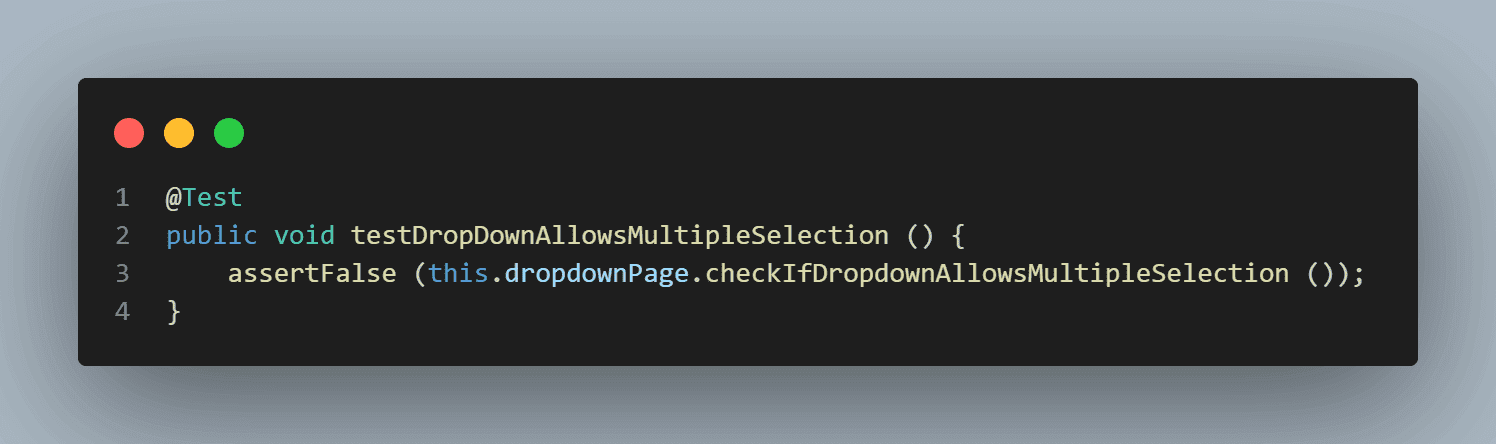
Before we check whether fields allow multiple selections, we first need to locate the dropdown field, which we will do using this method.
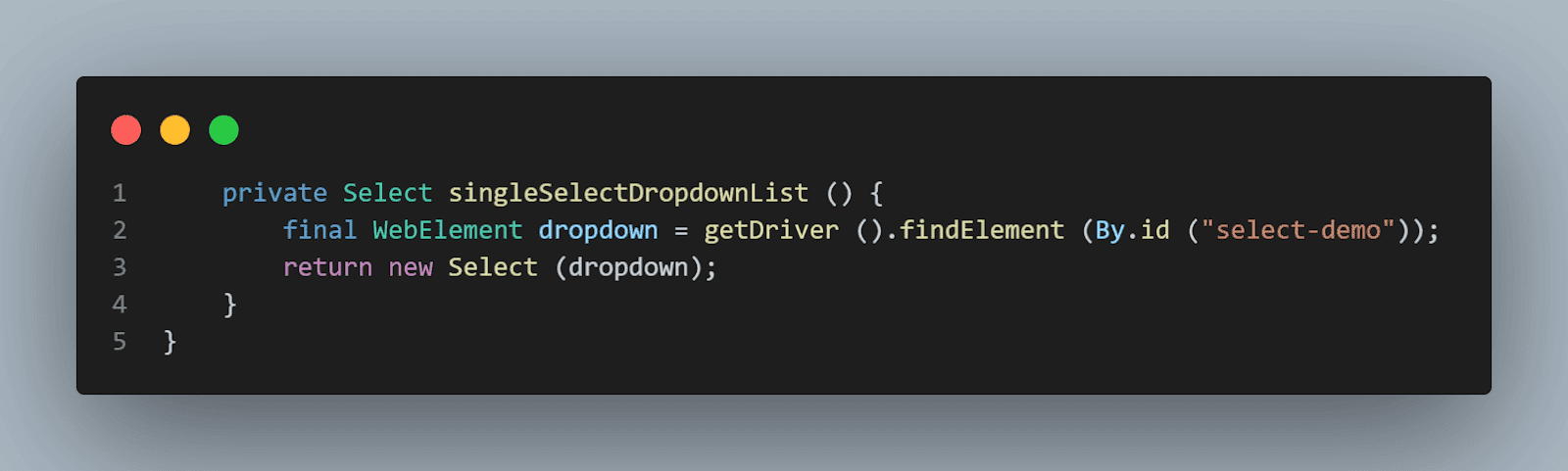
This method returns a new object of the Select class, and we will be re-using this method in our Page Object class.
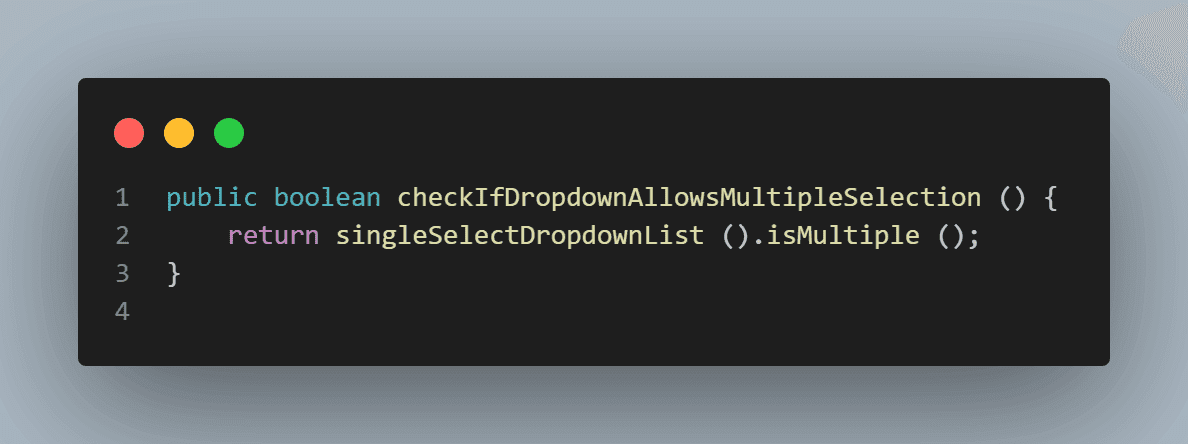
Here is the implementation of the checkIfDropdownAllowsMultipleSelection() method.
Checking All Options in the Field
In this test, we will verify that all the options displayed in the dropdown field are according to the expected requirements. To do that, we will be using the getOptions() method of the Select class.
Now, since it is a dropdown showing the names of the days, we expect the names of all days to be displayed in this field. Also, by default, no value is selected in the field; the text “Please select” is shown, so we expect this text to be populated in the dropdown list.
Since the getOptions() method from the Select class returns a list of WebElements, we need to tweak it a bit to get the values we want so we can assert it in our test.
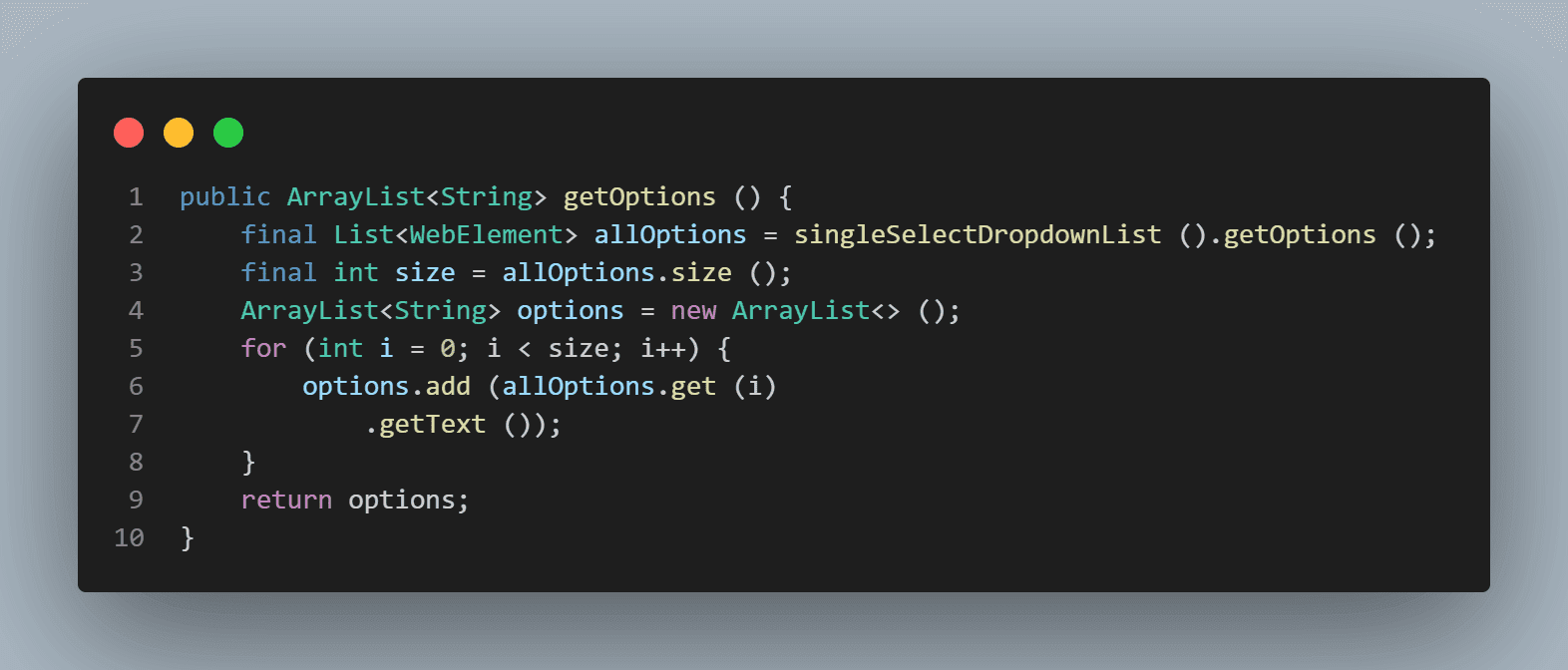
We are asking this method to return an ArrayList of Strings. For looping around the values in the field, we will use the size of the getOptions() returned value of the WebElement list (since it would be the maximum value) and iterate and save the values as we get from the field in String format. Finally, returning all the values as an ArrayList makes it easier to assert them in our test.
Now, it is time to generate the expected values, which we would be doing using the following method:
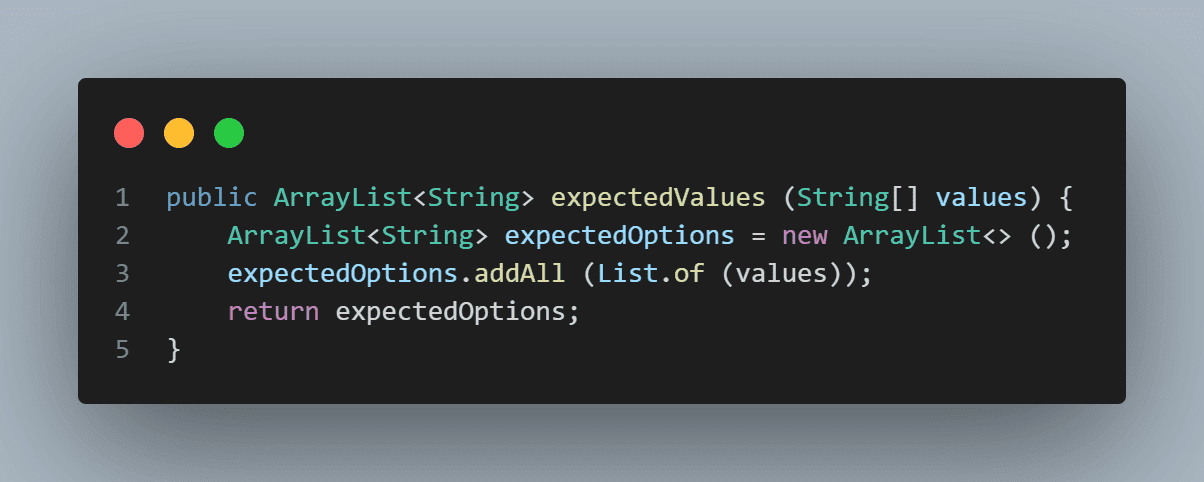
Using this method, we would supply values for ccccour expected text for assertions in our test, and it will add all the values to the expectedValues() method to return an ArrayList.
Finally, we will call both of these methods in the TestNG assertEquals() assertion method and check expected and actual values.
Here is the test:
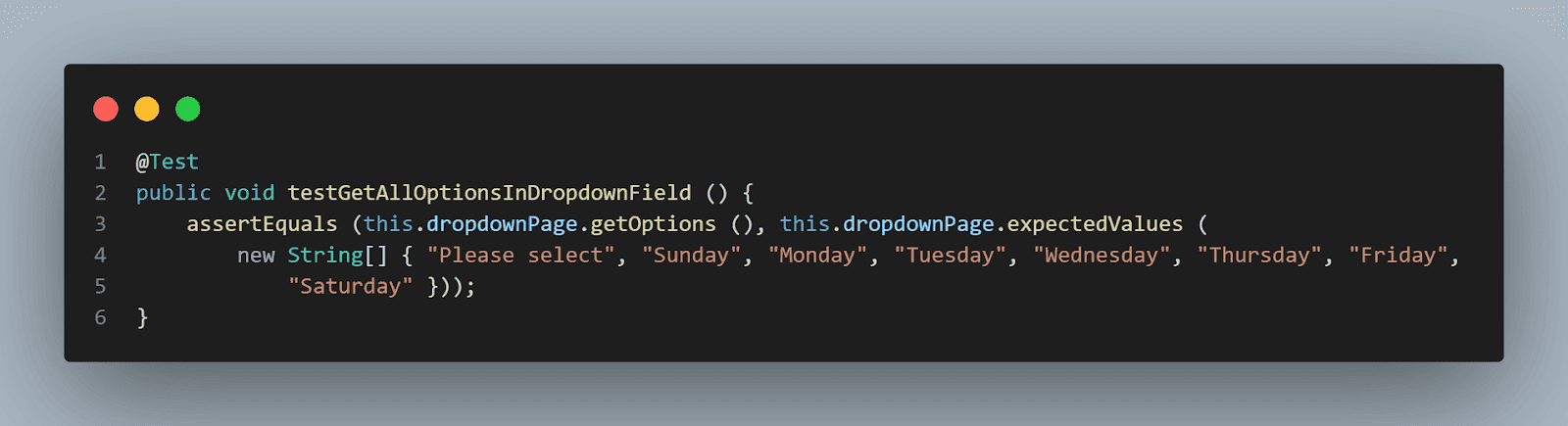
As you can see, we have provided all the values in the expectedValues() method as we expect all the values displayed in the dropdown field to be available.
Selecting Options by Visible Text
Our next test will be to select the option by visible text. As discussed in the earlier section of this blog on handling dynamic dropdowns in Selenium WebDriver Java, we will use the selectValueByVisibleText(String text) method from the Select class.
Previously, we created a method that returns an instance of the Select class after locating the field. We will be using the same method and try to select the option values by visible text.
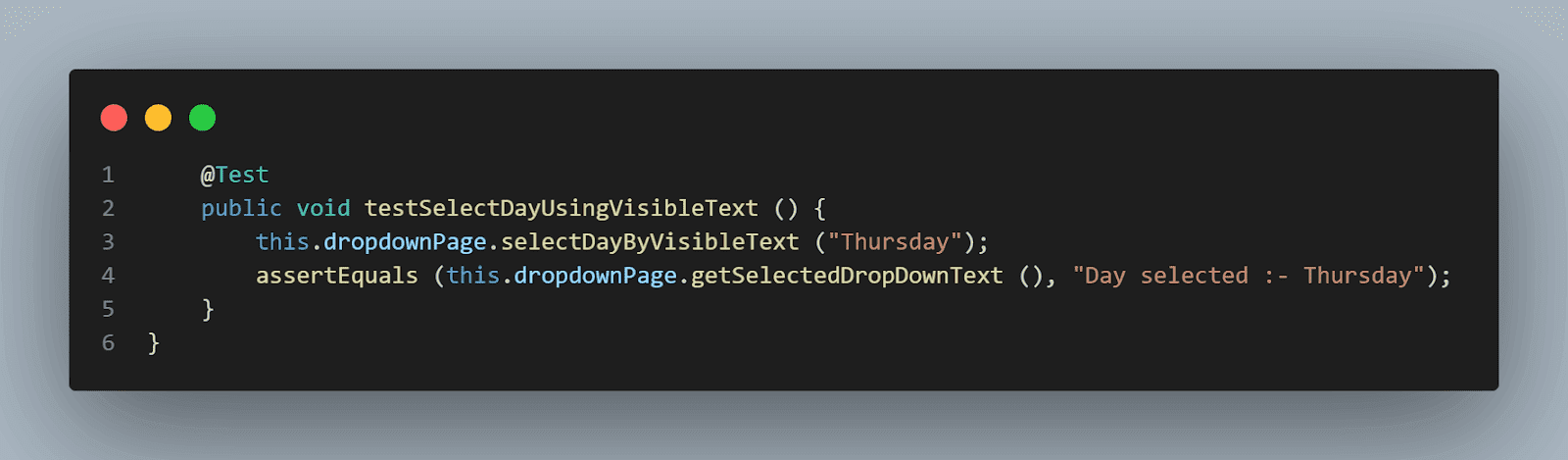
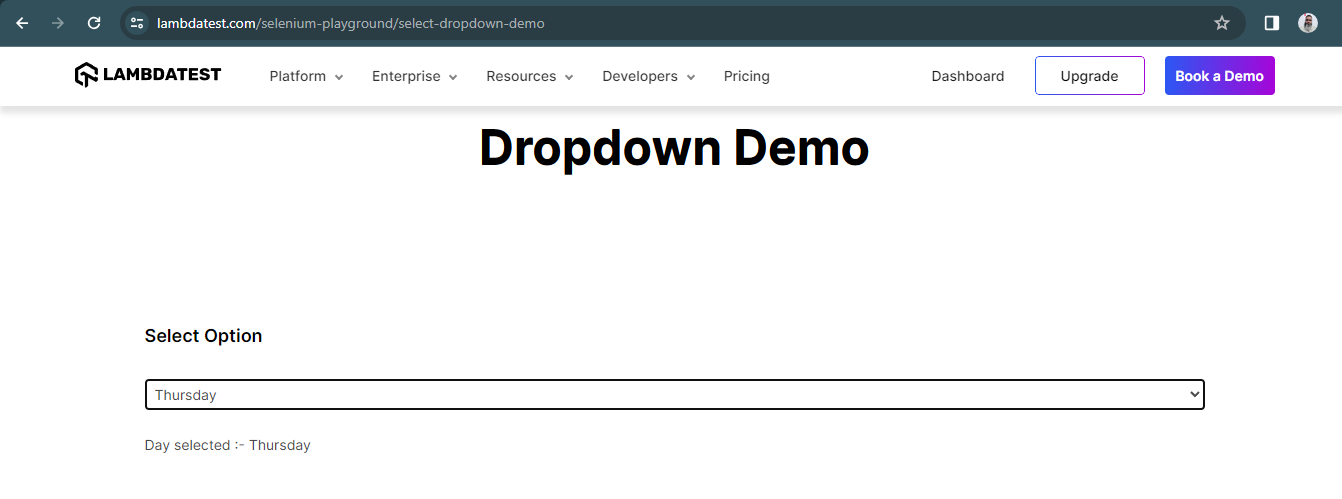
In this test, we have selected the value “Thursday” and will assert it with the value displayed below the field after successful selection is made.
Note the getSelectedDropdownText() method used is the assertion. This method fetches the text displayed below the field after a successful assertion.
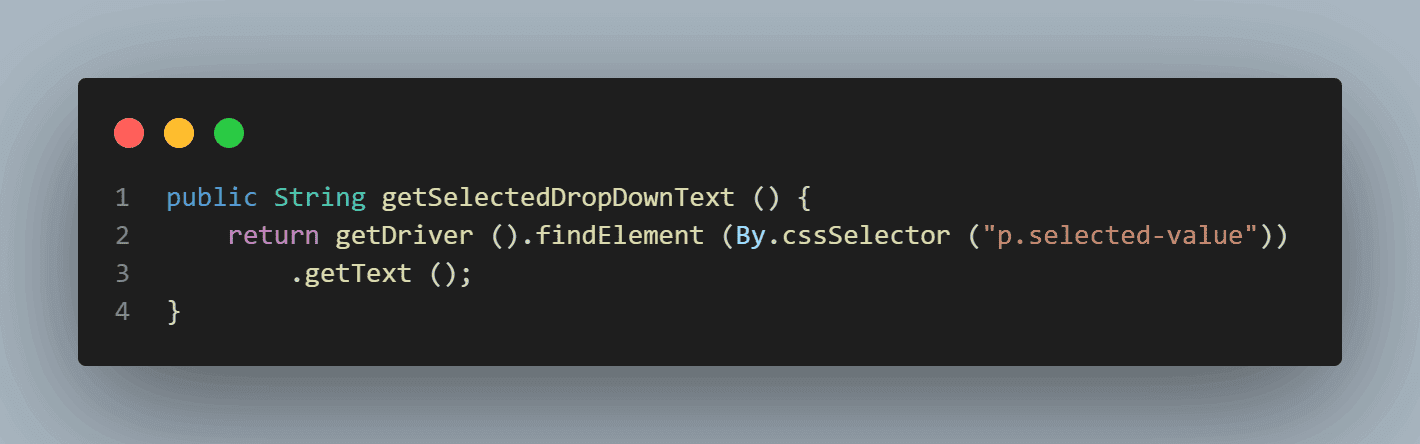
Here is the method that helps us select the value using visible text.
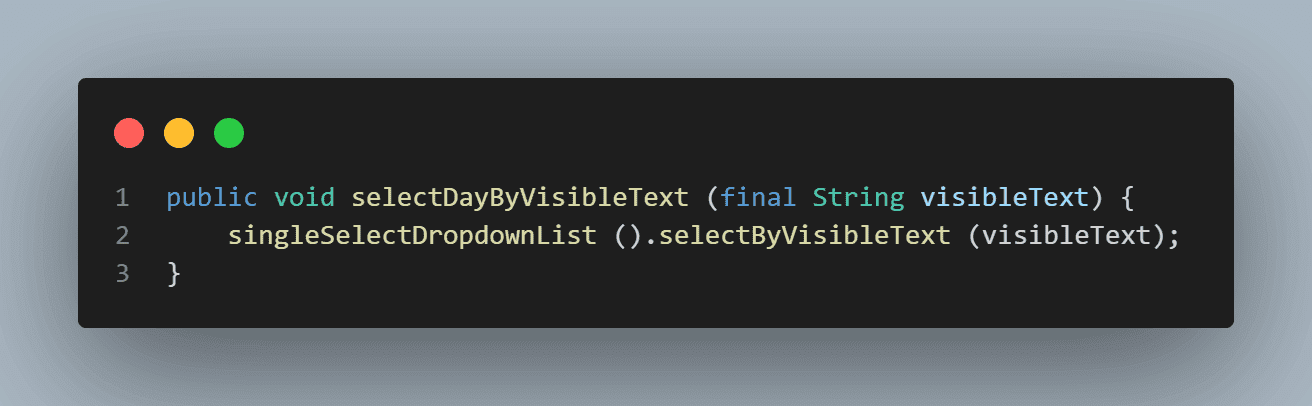
This text would be located in the above method.
Selecting Options by Value
In this test, we will try to select the option in the dropdown field by value and to do so, we will use the selectByValue(String value) method of the Select class.
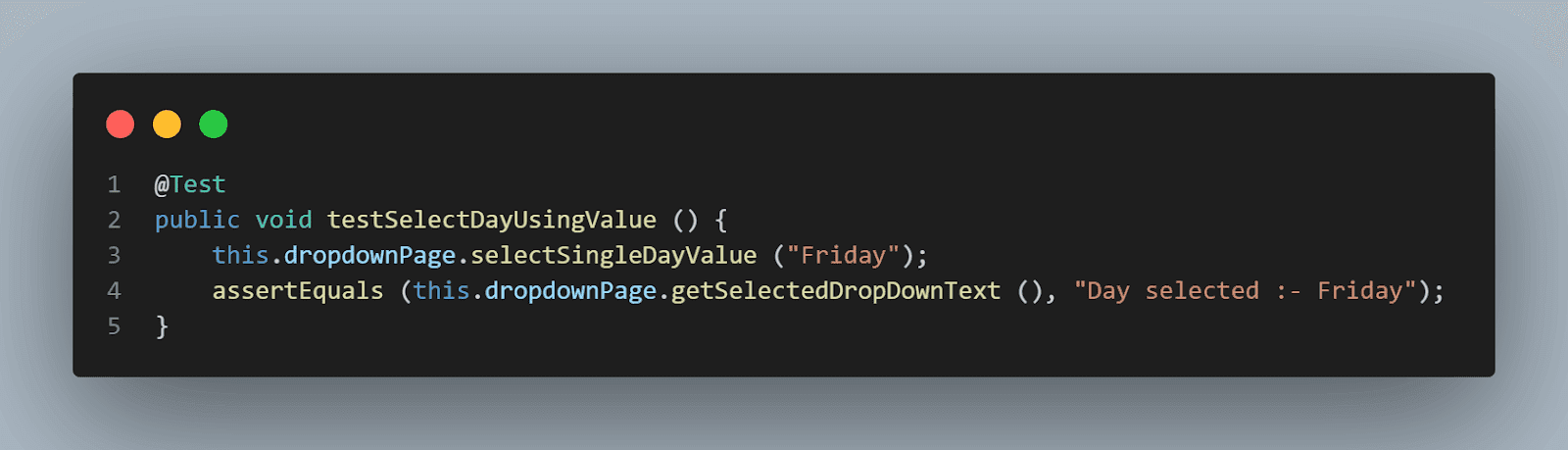
In this test, we will select the option “Friday” and assert it to check that the requested option was selected successfully.
The following method will help us to choose the option from the dropdown field.
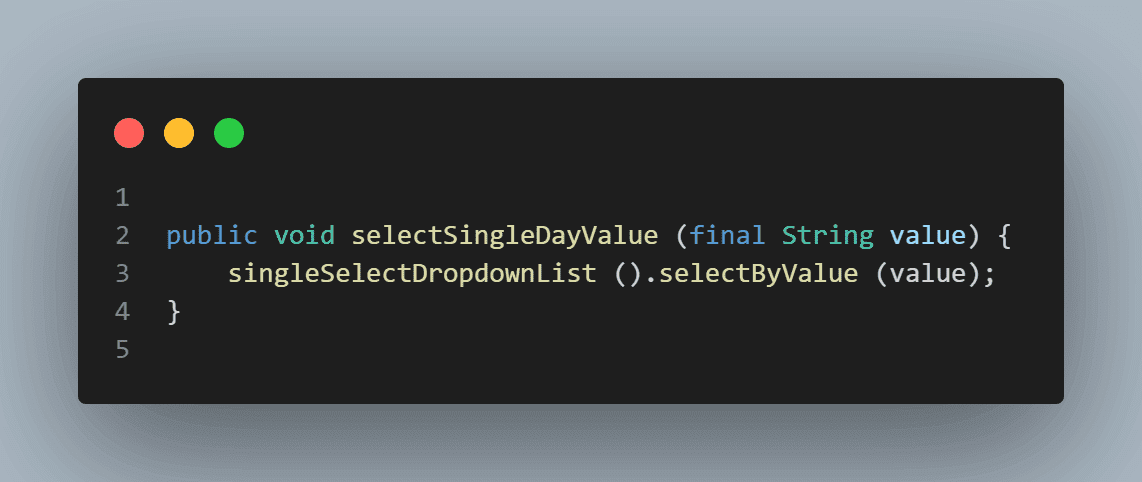
Selecting Values by Index
In this test, we will try to select the option in the dropdown field by index and to do that, we will use the selectByIndex(int index) method of the Select class.
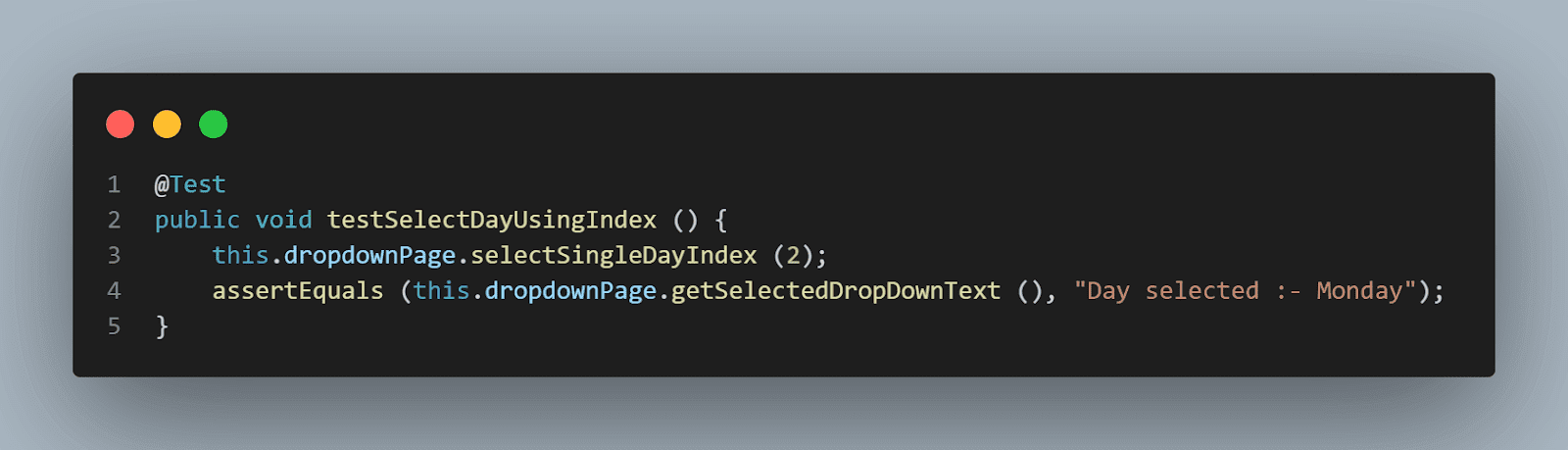
In this test, we will select the option “Monday” and assert it to check that the requested option was selected successfully.
Note: “Please select” is also an option in the dropdown field, hence considering it, and as the index starts from “0”, “Monday” has the index “2” in the field.
The following method will help us to select the option from the dropdown field using the index.
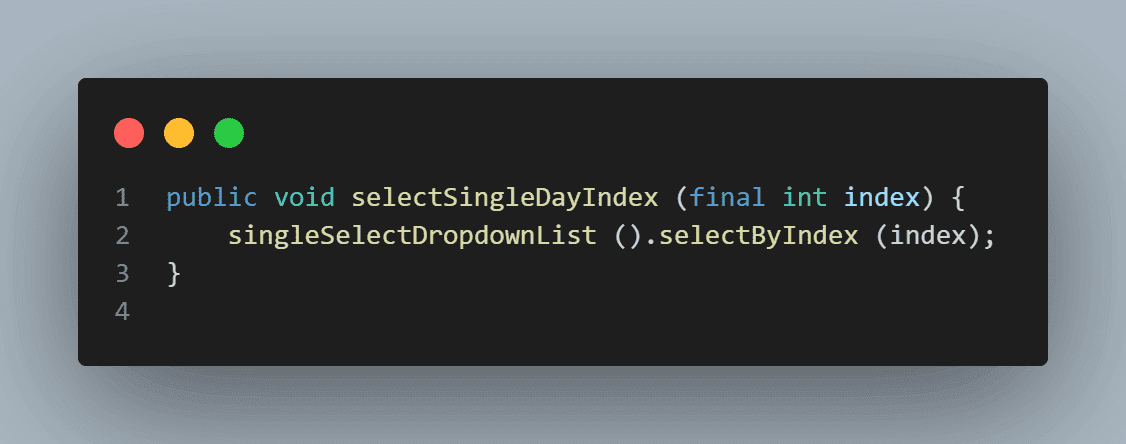
This test marks the completion of checking the single select dropdown field. Now, let’s move towards learning how to automate the multiselect dropdown field using the same Select class.
How to Select Multiple Values From a Multiselect Dropdown List Field?
In this blog section on handling dropdowns in Selenium WebDriver Java, we will select values from the multiselect dropdown field, as shown in the following screenshot.

As seen in the screenshot, this field has the names of Cities and allows the selection of multiple values. Let’s check the DOM for this field and see if it has the < select > tag so we can use the Select class of Selenium WebDriver to automate this field.
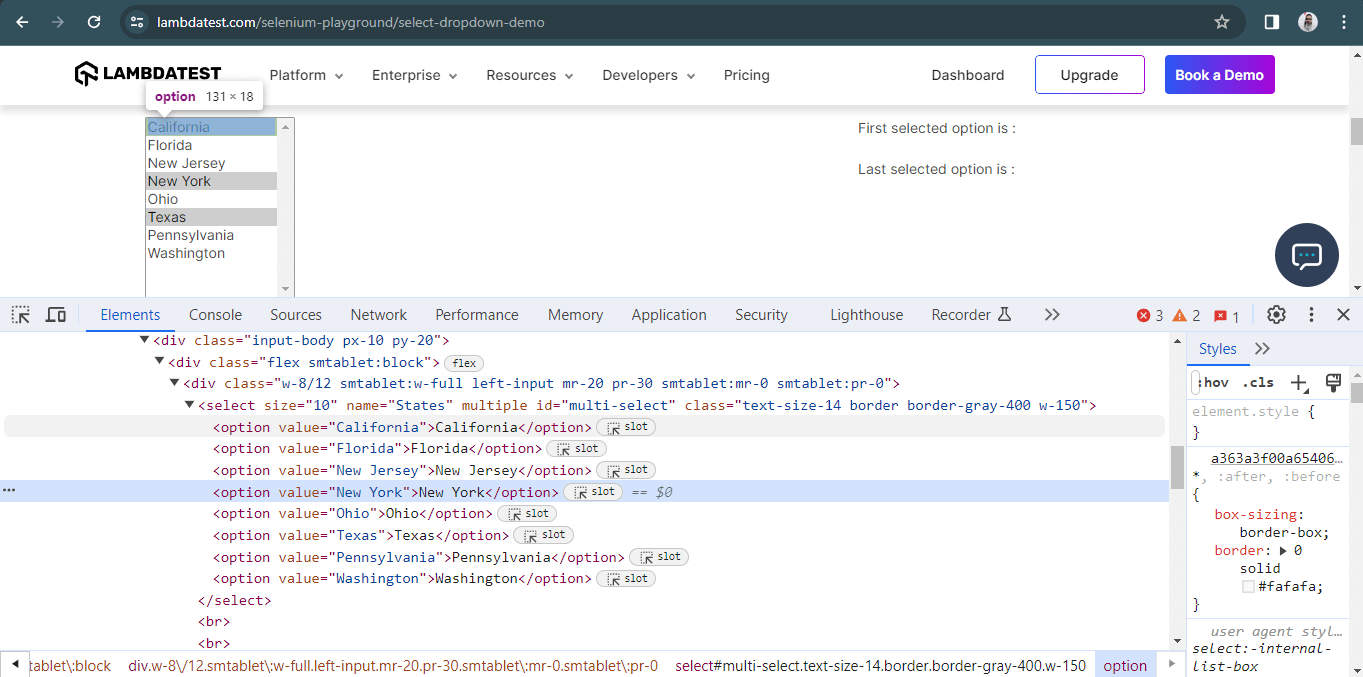
This field has the < select > tag, so let’s move ahead and create page objects for this field and start selecting the value in this field by using the different methods of Select class as we discussed in the earlier section of this blog on how to handle dynamic dropdowns in Selenium WebDriver with Java.
Here is how our test class looks for the multiselect dropdown in Selenium:
package io.github.mfaisalkhatri.tests.lambdatestseleniumplayground;
import static io.github.mfaisalkhatri.drivers.DriverManager.getDriver;
import static org.testng.Assert.assertEquals;
import static org.testng.Assert.assertTrue;

import io.github.mfaisalkhatri.pages.lambdatestseleniumplayground.DropdownPage;
import io.github.mfaisalkhatri.pages.lambdatestseleniumplayground.MainPage;
import io.github.mfaisalkhatri.tests.base.BaseSuiteSetup;
import org.testng.annotations.BeforeClass;
import org.testng.annotations.Test;

/**
* @author Faisal Khatri
* @since 11/16/2022
**/
public class MultiSelectListTests extends BaseSuiteSetup {

   private DropdownPage dropdownPage;

   @BeforeClass
   public void setupTests () {
    final String website = "https://www.lambdatest.com/selenium-playground/";
    getDriver ().get (website);
    final MainPage mainPage = new MainPage ();
    mainPage.clickLink ("Select Dropdown List");
    this.dropdownPage = new DropdownPage ();
   }

   @Test
   public void testBySelectingMultipleValues () {
    this.dropdownPage.multiSelectByValues (new String[] { "California", "Ohio", "Texas", "Pennsylvania" });
    assertEquals (this.dropdownPage.getAllSelectedOptions (),
        this.dropdownPage.expectedValues (new String[] { "California", "Ohio", "Texas", "Pennsylvania" }));
   }


   @Test
   public void testBySelectingMultipleValuesByIndex () {
    this.dropdownPage.selectMultipleOptionByIndex (new int[] { 0, 2, 3 });
    assertEquals (this.dropdownPage.getAllSelectedOptions (),
        this.dropdownPage.expectedValues (new String[] { "California", "New Jersey", "New York" }));

   }

   @Test
   public void testBySelectingMultipleValuesByVisibleText () {
    this.dropdownPage.selectMultipleOptionByVisibleText (new String[] { "New York", "New Jersey", "Washington" });
    assertEquals (this.dropdownPage.getAllSelectedOptions (),
        this.dropdownPage.expectedValues (new String[] { "New Jersey", "New York", "Washington" }));

   }

   @Test
   public void testCheckIfDropdownIsMultiSelect () {
    assertTrue (this.dropdownPage.checkIfMultipleDropdown ());
   }

   @Test
   public void testDeselectAll () {
    this.dropdownPage.selectMultipleOptionByVisibleText (new String[] { "New York", "New Jersey", "Washington" });
    this.dropdownPage.deselectAllValues ();
    assertEquals (this.dropdownPage.getAllSelectedOptions (), this.dropdownPage.expectedValues (new String[] {}));

   }

   @Test
   public void testDeselectByIndex () {
    this.dropdownPage.selectMultipleOptionByVisibleText (new String[] { "New York", "New Jersey", "Washington" });
    this.dropdownPage.deselectByIndex (3);
    this.dropdownPage.deselectByIndex (7);
    assertEquals (this.dropdownPage.getAllSelectedOptions (),
        this.dropdownPage.expectedValues (new String[] { "New Jersey" }));
   }

   @Test
   public void testDeselectByValue () {
    this.dropdownPage.selectMultipleOptionByVisibleText (new String[] { "New York", "New Jersey", "Washington" });
    this.dropdownPage.deselectByValue ("New York");
    assertEquals (this.dropdownPage.getAllSelectedOptions (),
        this.dropdownPage.expectedValues (new String[] { "New Jersey", "Washington" }));
   }

   @Test
   public void testDeselectByVisibleText () {
    this.dropdownPage.selectMultipleOptionByVisibleText (new String[] { "New York", "New Jersey", "Washington" });
    this.dropdownPage.deselectByVisibleText ("Washington");
    this.dropdownPage.deselectByVisibleText ("New Jersey");
    assertEquals (this.dropdownPage.getAllSelectedOptions (),
        this.dropdownPage.expectedValues (new String[] { "New York" }));
   }

   @Test
   public void testFirstSelectedOption () {
    this.dropdownPage.selectMultipleOptionByVisibleText (new String[] { "Florida", "Ohio", "Texas" });
    assertEquals (this.dropdownPage.getFirstSelectedOption (), "Florida");
   }
}
Here is the page object class:
package io.github.mfaisalkhatri.pages.lambdatestseleniumplayground;
import static io.github.mfaisalkhatri.drivers.DriverManager.getDriver;

import java.util.ArrayList;
import java.util.List;
import org.openqa.selenium.By;
import org.openqa.selenium.WebElement;
import org.openqa.selenium.support.ui.Select;

/**
* @author Faisal Khatri
* @since 11/16/2022
**/
public class Dropdown1 {
   public boolean checkIfMultipleDropdownSelectionIsAllowed () {
    return multiSelectDropdownList ().isMultiple ();
   }

   public void deselectAllValues () {
    multiSelectDropdownList ().deselectAll ();
   }

   public void deselectByIndex (int index) {
    multiSelectDropdownList ().deselectByIndex (index);
   }

   public void deselectByValue (String value) {
    multiSelectDropdownList ().deselectByValue (value);
   }

   public void deselectByVisibleText (String text) {
    multiSelectDropdownList ().deselectByVisibleText (text);
   }

   public List<String> getAllSelectedOptions () {
    final List<WebElement> allOptions = multiSelectDropdownList ().getAllSelectedOptions ();
    final int size = allOptions.size ();
    ArrayList<String> options = new ArrayList<> ();
    for (int i = 0; i < size; i++) {
        options.add (allOptions.get (i)
            .getText ());
    }
    return options;
   }

   public String getFirstSelectedOption () {

    return multiSelectDropdownList ().getFirstSelectedOption ()
        .getText ();

   }

   public void multiSelectByValues (String[] values) {
    refreshPage ();
    for (int i = 0; i < values.length; i++) {
        multiSelectDropdownList ().selectByValue (values[i]);
    }
   }

   public void refreshPage () {
    getDriver ().navigate ()
        .refresh ();
   }

   public void selectMultipleOptionByIndex (int[] index) {
    refreshPage ();
    for (int i = 0; i < index.length; i++) {
        multiSelectDropdownList ().selectByIndex (index[i]);
    }
   }


   public void selectMultipleOptionByVisibleText (String[] text) {
    refreshPage ();
    for (int i = 0; i < text.length; i++) {
        multiSelectDropdownList ().selectByVisibleText (text[i]);
    }
   }

   private Select multiSelectDropdownList () {
    WebElement multiSelectDropdown = getDriver ().findElement (By.id ("multi-select"));
    return new Select (multiSelectDropdown);
   }

}
Setting the base for the test:
Like we set up the base for the single dropdown select tests, in the same way, we will set up the base for this multiselect dropdown field as well using the setupTests() method.
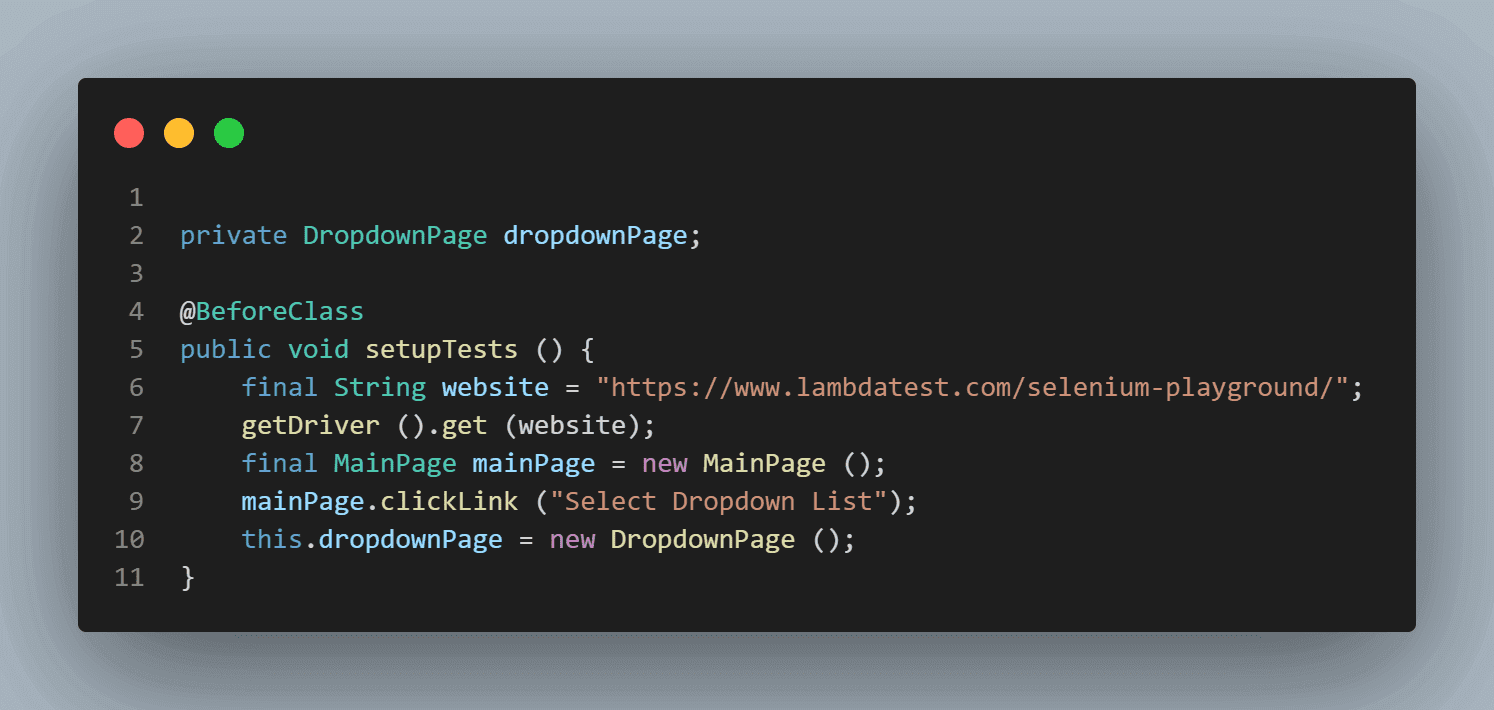
This method will run before all the tests (notice the @BeforeClass annotation in TestNG), navigate the website, and open the Dropdown page. It will also instantiate the Dropdown Page and create an object so we can reuse this in all our tests and don’t have to repeatedly instantiate the DropdownPage object in every test.
Checking if the Field Allows Multiple Selections of Values
Here is the screenshot of the field, which we will check if it allows selecting multiple values.
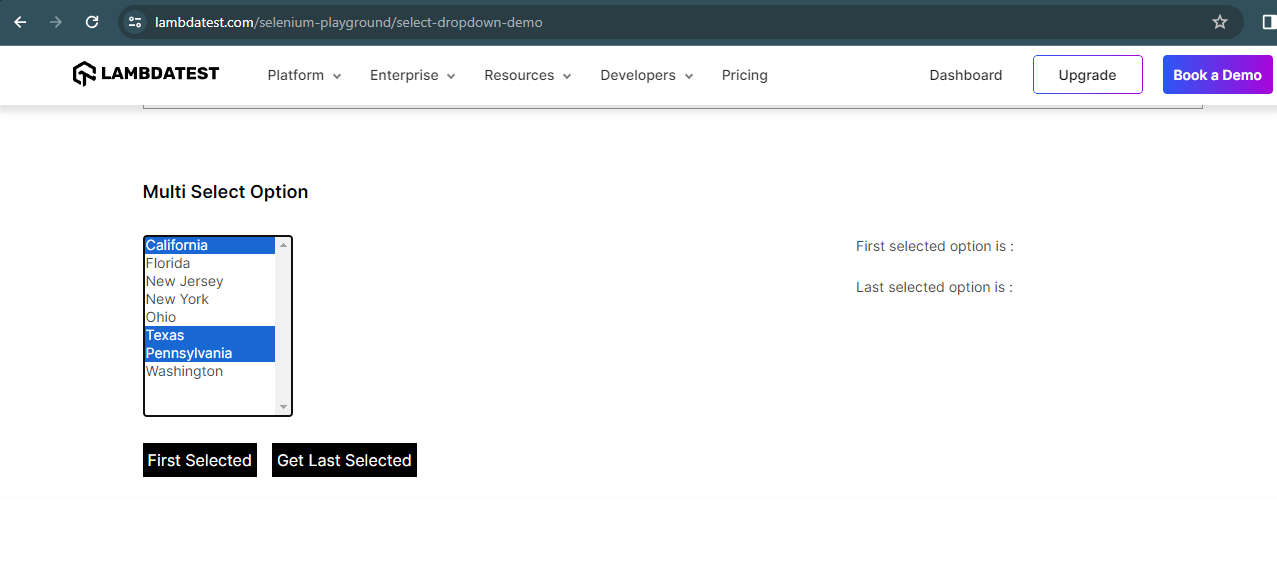
Manually, it allows selecting multiple values, as you can see in the screenshot, so it is confirmed with our exploratory tests that this field allows multiple selections of options. Now, we will check the same thing by running an automated test.
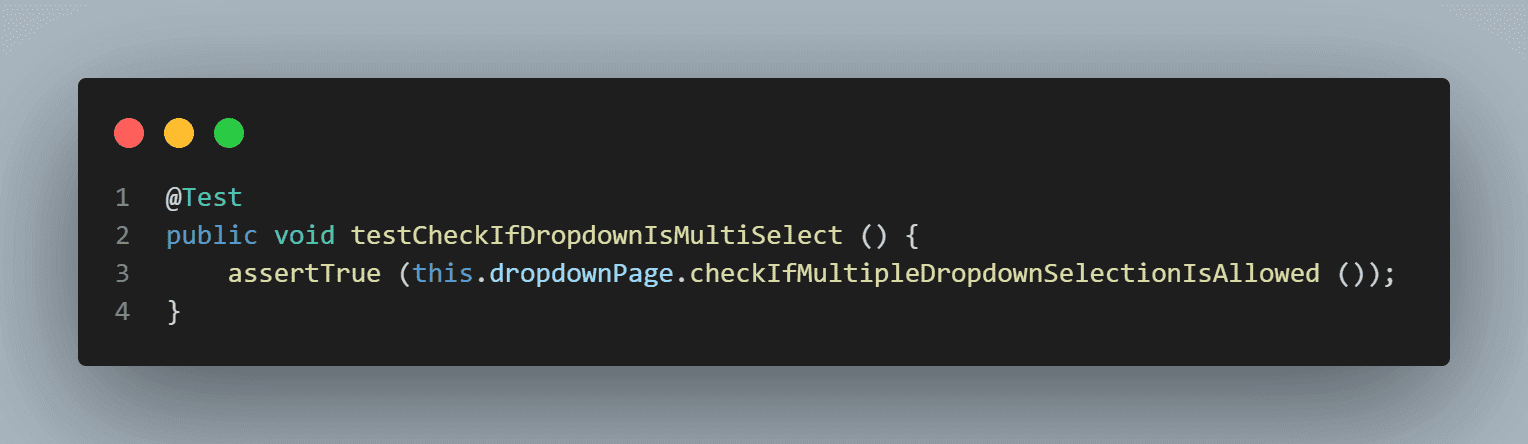
Here, we expect the isMultiple() method to return TRUE as this field allows multiple selections. Before we move towards the check, let’s locate the multiselect dropdown field.
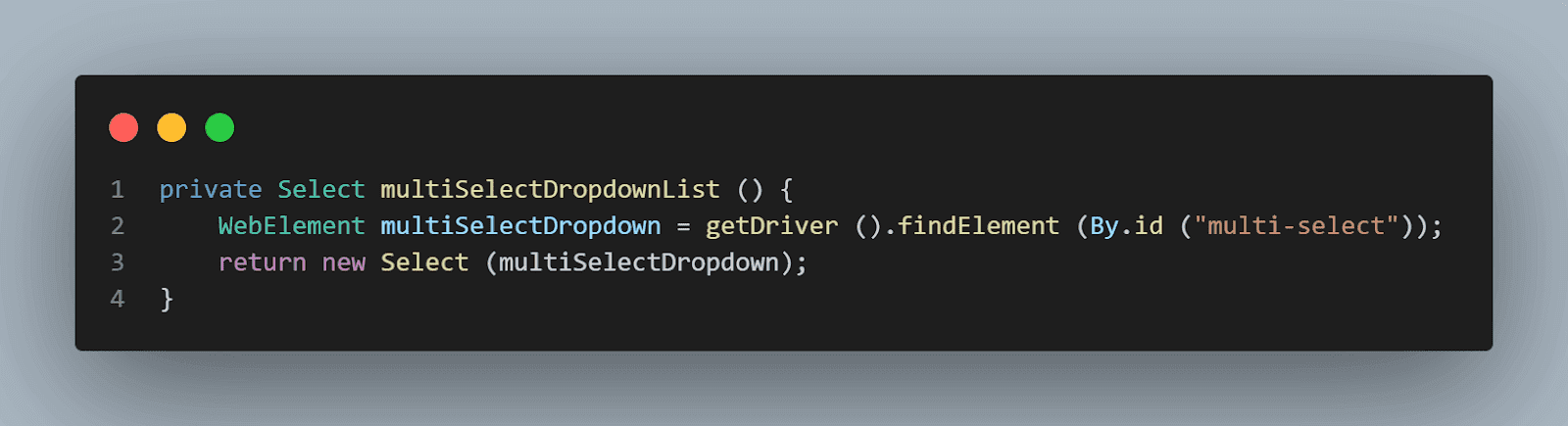
This method returns a new object of the Select class, and we will be re-using this method in our page object class.
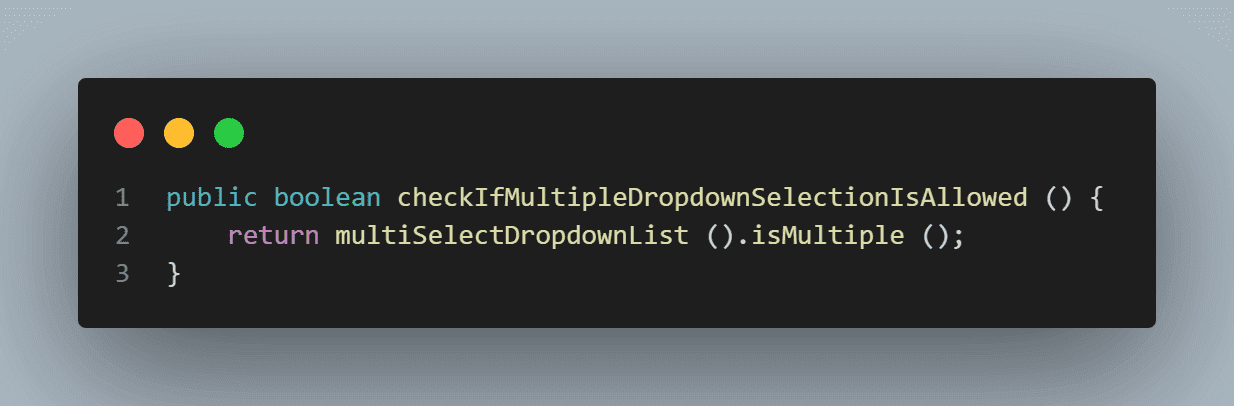
Here is the implementation of the checkIfMultipleDropdownSelectionIsAllowed() method.
Selecting Multiple Options by Visible Text
Our next test will be to select the multiple options by visible text. As we discussed in the earlier section of this blog on handling dynamic dropdowns in Selenium WebDriver Java, we will be using the selectValueByVisibleText(String text) method from the Select class.
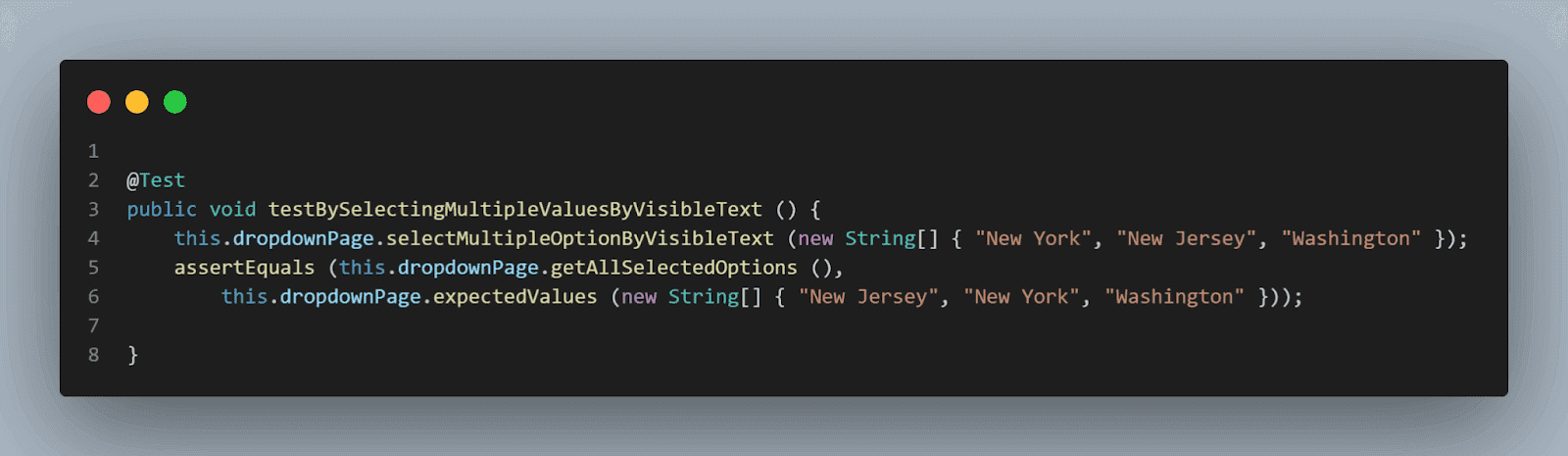
In this test, we will be selecting multiple values, namely, “New York”, “New Jersey”, and “Washington”. Now, since calling the same method again and again to select the value will result in duplication of code; hence, a new method selectMultipleOptionByVisibleText (String[] values) has been created, which is as follows.
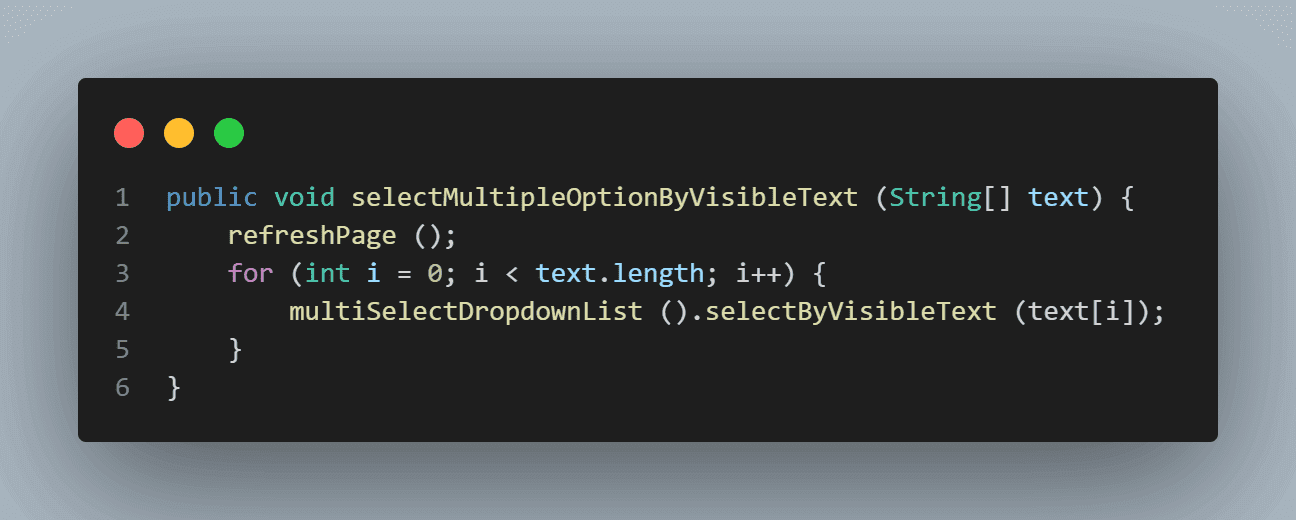
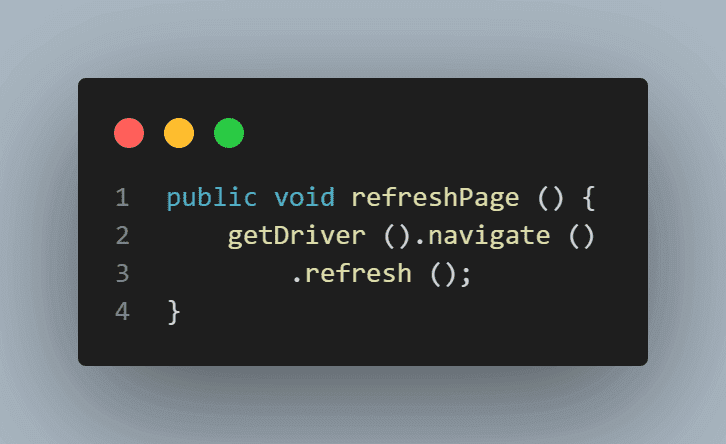
This method accepts the String array as a parameter, takes its values, and selects the options as passed in the parameter. This loop will keep on iterating as per the length of the array. Notice the refreshPage() method above the loop. This method will refresh the page once before selecting any dropdown field options. This is done as we will be running multiple tests to demo every method of the Select class, so it’s better to refresh the page and clear out all the selected options before proceeding.
We are asserting the multiple values we selected using the getAllSelectedOptions() method.
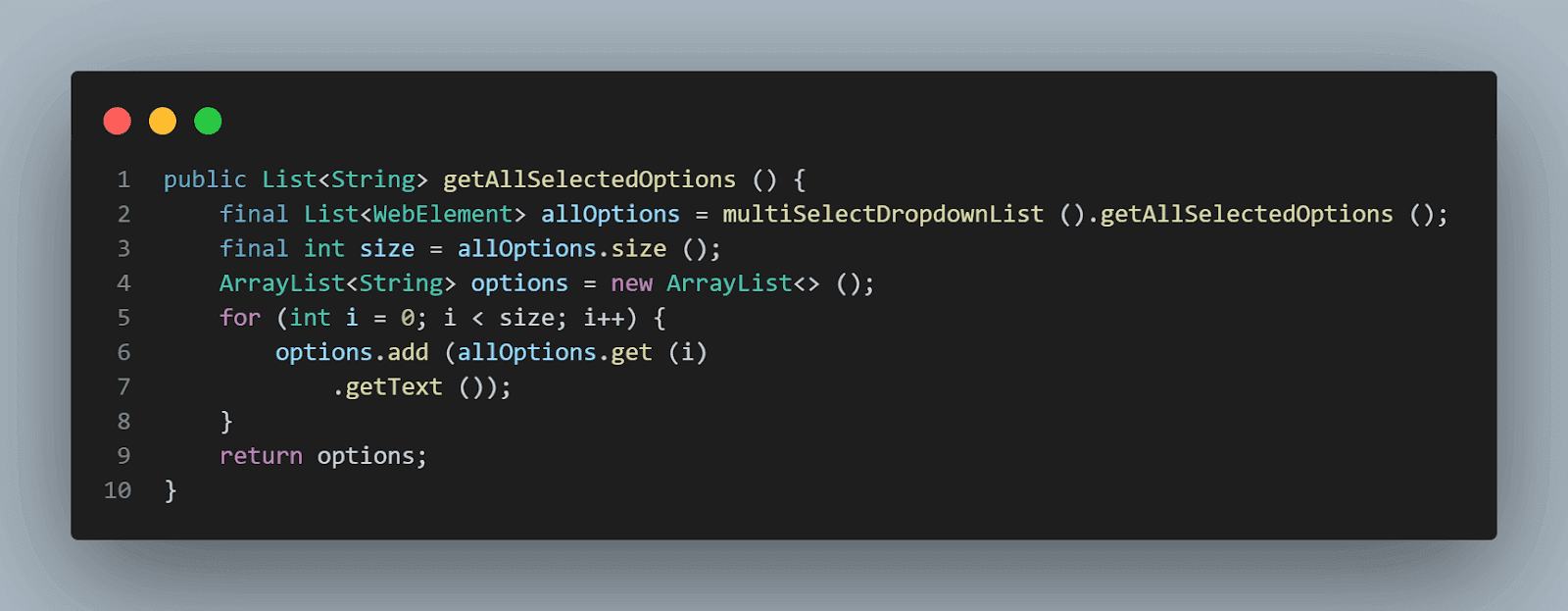
We are returning a list of String using this method. getAllSelectedOption() method from the Select class returns a list of WebElements. We are using that method, saving all the options in an ArrayList of String, and returning them to get the options selected in the dropdown.

Next, we compare these actual values from the values we have created using the expectedValues() method, which takes a String array as a parameter.
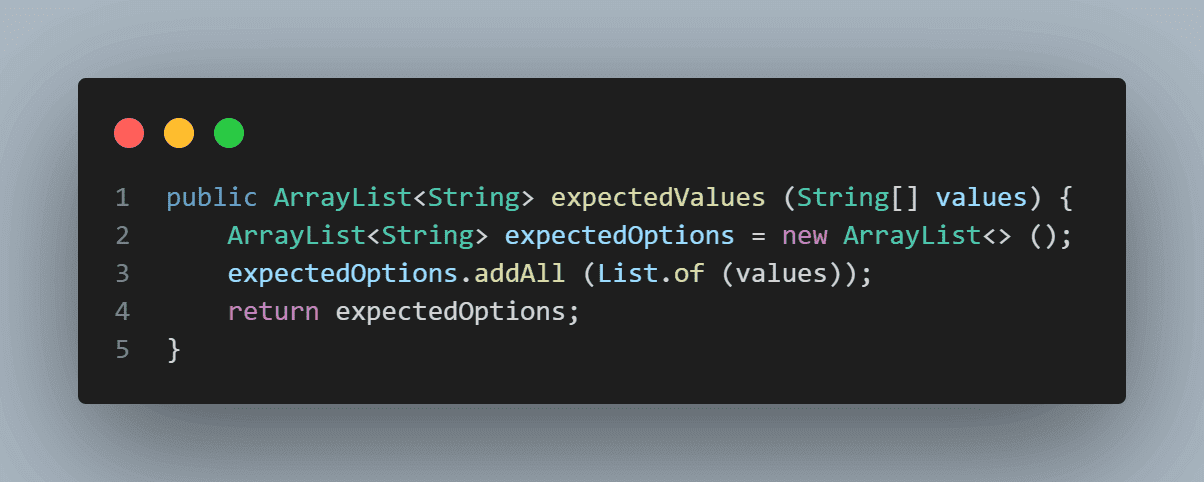
This marks the completion of our test for the multiselect dropdown in Selenium, where we selected options using visible text.
Selecting Multiple Options by Value
In this test, we will select multiple options in the dropdown field by value, and to do so, we will use the selectByValue(String value) method of the Select class. Since we need to select multiple values, here, again, we have placed the selectByValue(String value) method inside a loop, which will run as per the length of the array supplied in the method parameter and select the value one by one as passed in the array.
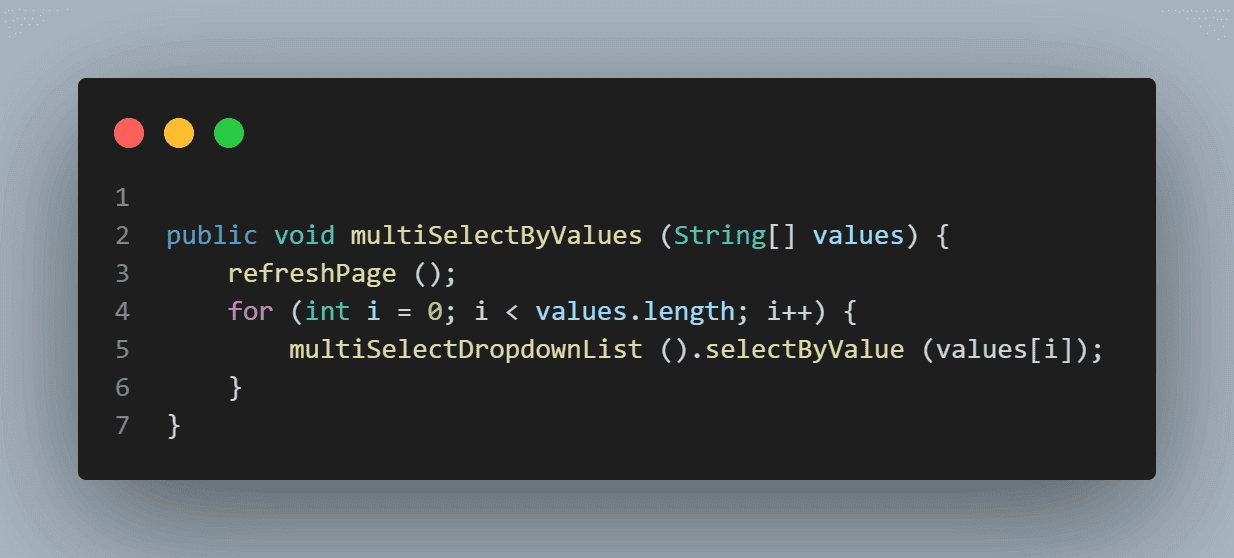
In this test for the multiselect dropdown in Selenium, we select the following options by values:
- California
- Ohio
- Texas
- Pennsylvania
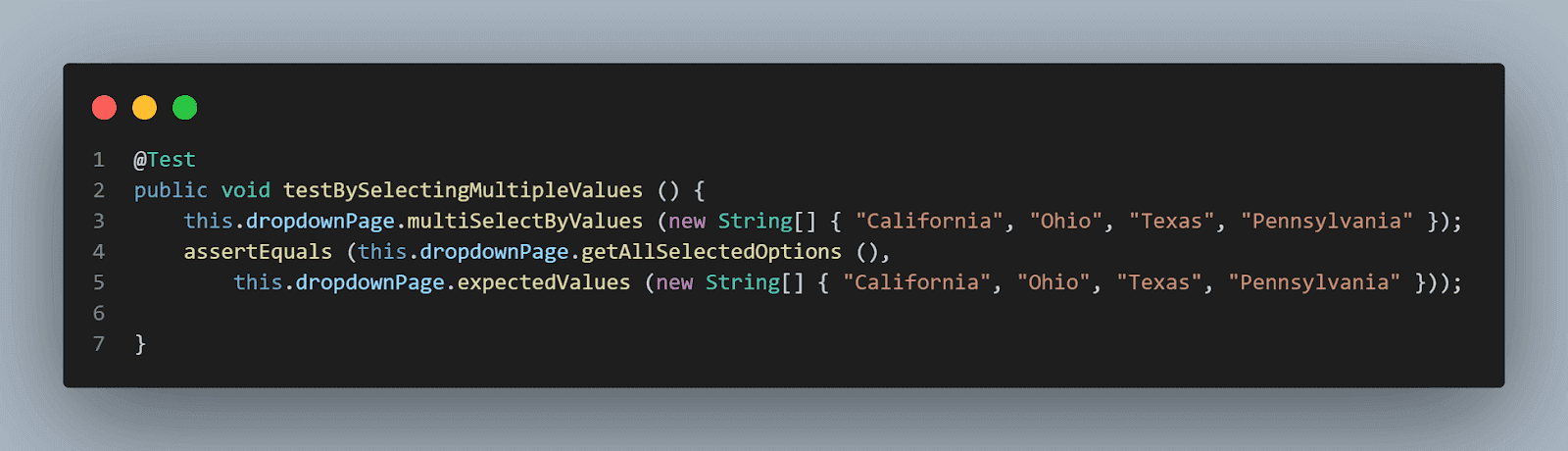
We will perform assertion using the assertEquals() method and use the getAllSelectedOptions() for actual values and expectedValues() for passing the expected values, as we discussed above.
Selecting Multiple Values by Index
In this test for the multiselect dropdown in Selenium, we will try to select the option in the dropdown field by index, and to do that, we will use the selectByIndex(int index) method of the Select class. Since we need to select multiple values, here, again, we have placed the selectByIndex(int index) method inside a loop, which will run as per the length of the array supplied in the method parameter and select the values one by one as passed in the array.
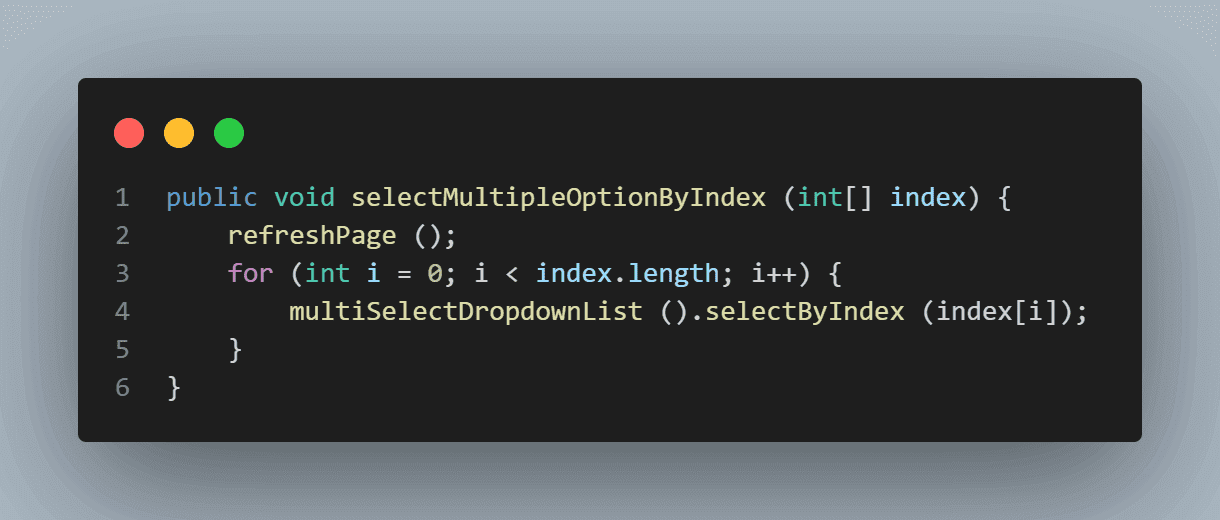
In this test, we will select the options by passing the following indexes:
- 0 – California
- 2 – New Jersey
- 3 – New York.
Please note that indexes start from 0. To select the first value in the list, we have passed the index as 0.
Finally, we will perform the assertions using the assertEquals() method and use the getAllSelectedOption()method to get actual values and compare them with values passed in the expectedValues() method. Check out the following code.
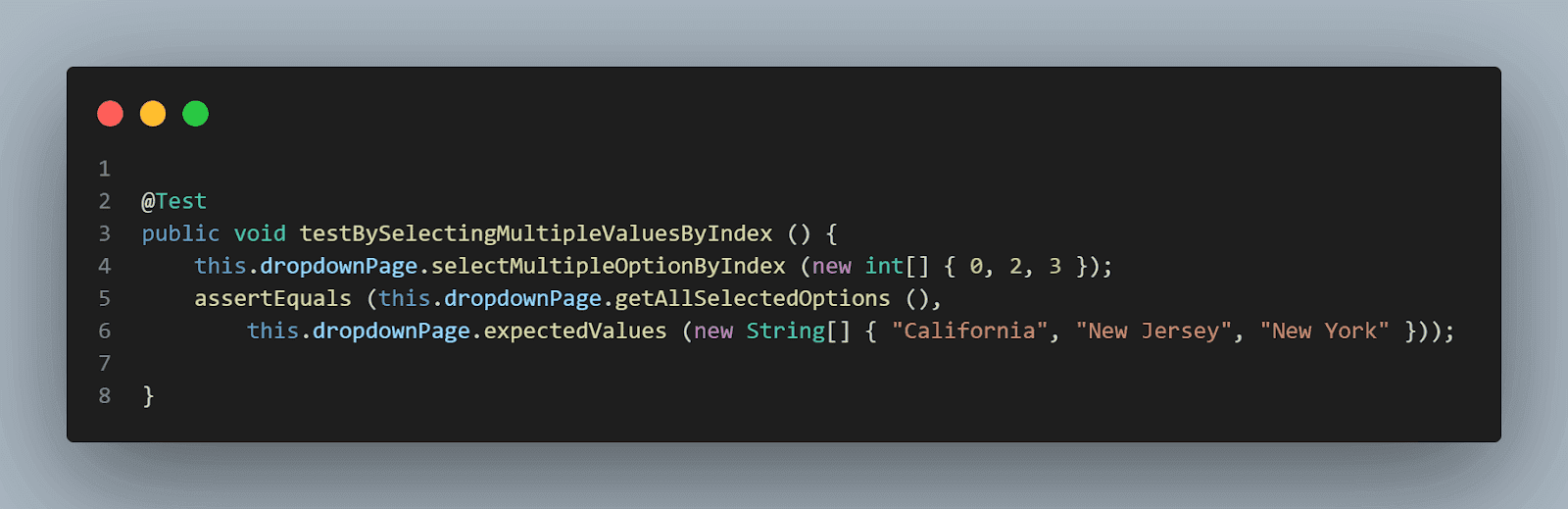
This test marks the completion of selecting the multiple options from the dropdown list. Consider a scenario where you want to deselect some values from the list; the question comes, how do you do that?
In this section of this blog on how to handle dynamic dropdowns in Selenium WebDriver with Java, we will learn deselecting values from a multiselect list.

How to Deselect Values From a Dropdown List Field?
In the earlier section of this blog on handling dropdowns in Selenium WebDriver Java, we learned about four methods to deselect the options from the dropdown list. We will go through them one by one and demo the deselect tests.
Deselecting All Options in the Dropdown List
Using this method, we can deselect all the selected options from the list. Following is the screenshot of the method we have created.
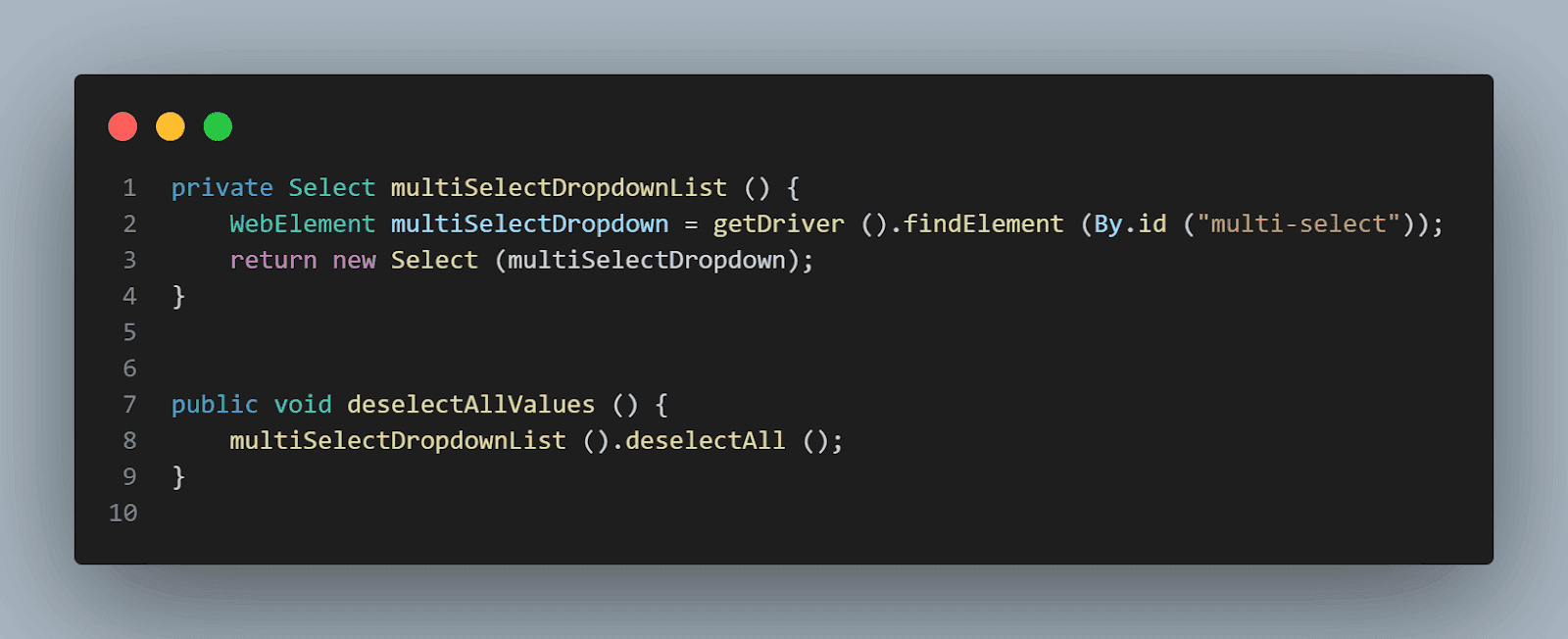
Pretty simple to understand, right?
Let’s move on to the deselect tests now.
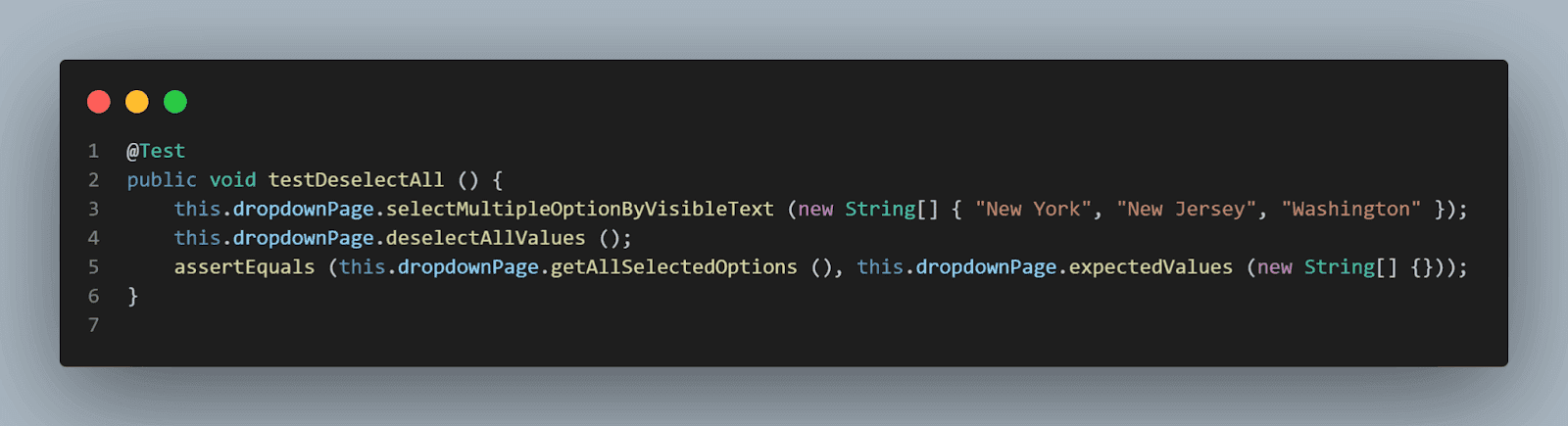
To demo the deselect feature, we will select some options first based on their visible text and then deselect all. To assert that the deselect is working as expected, we will check by getting all selected values, which are expected to return blank, and compare it with blank value as we expect nothing to be selected once deselect all is done.
Deselecting Options by Index
In this test, we will demo the deselecting option from the dropdown using an index. Remember the index starts from “0” so if you want to deselect the first option you need to provide the index – “0”.
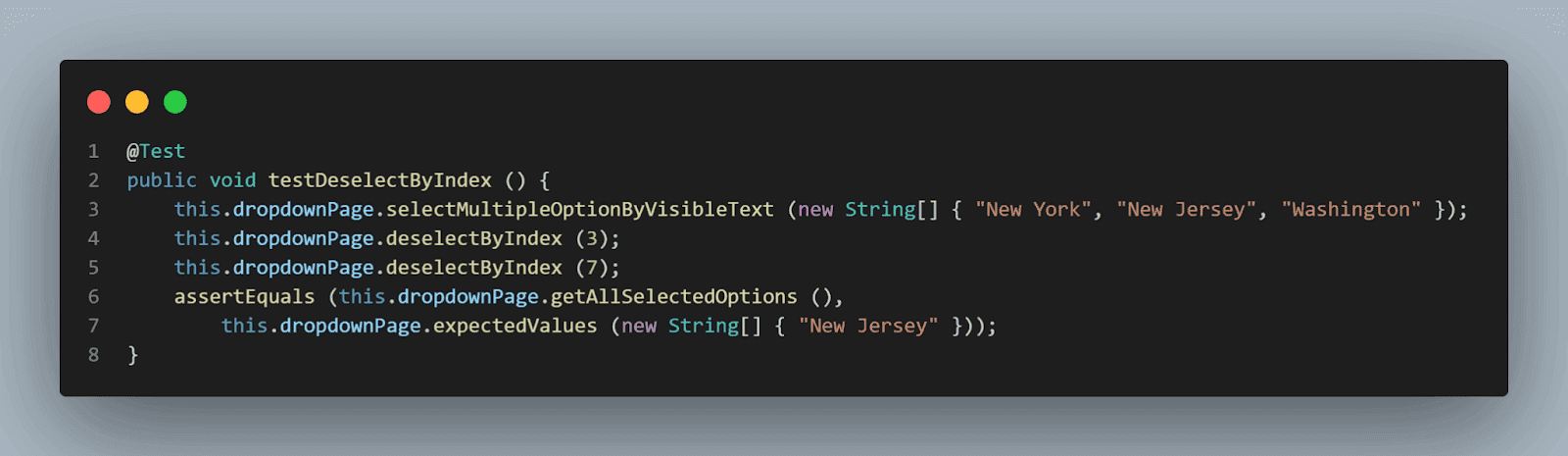
We will select multiple values in the dropdown first, so it becomes easier to demo the deselecting case. Check out lines no. 4 and 5 in the above code snippet, we are deselecting by index “3” and “7” respectively. Now, here, “3” stands for “New York” and “7” for “Washington.” Check out the screenshot of the website DOM below.
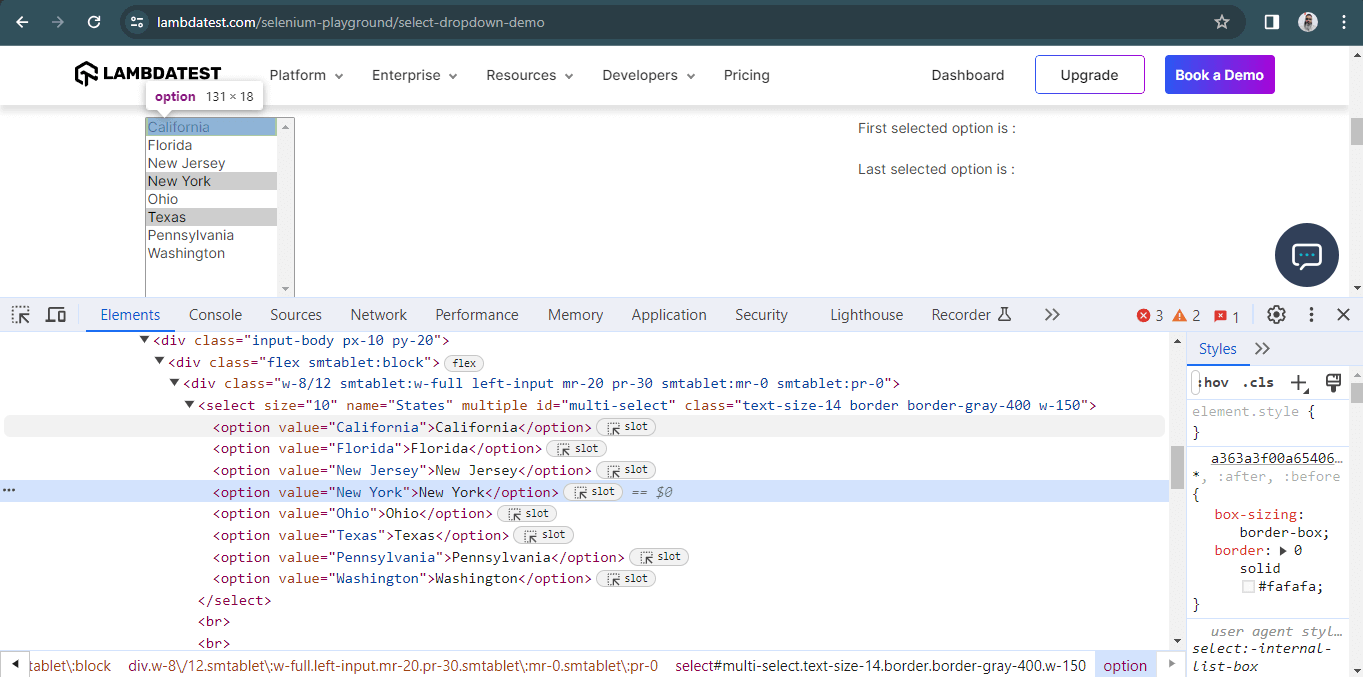
To deselect the options from the list, we will use the deselectByIndex( int index) method from the Select class to deselect the options from the list.
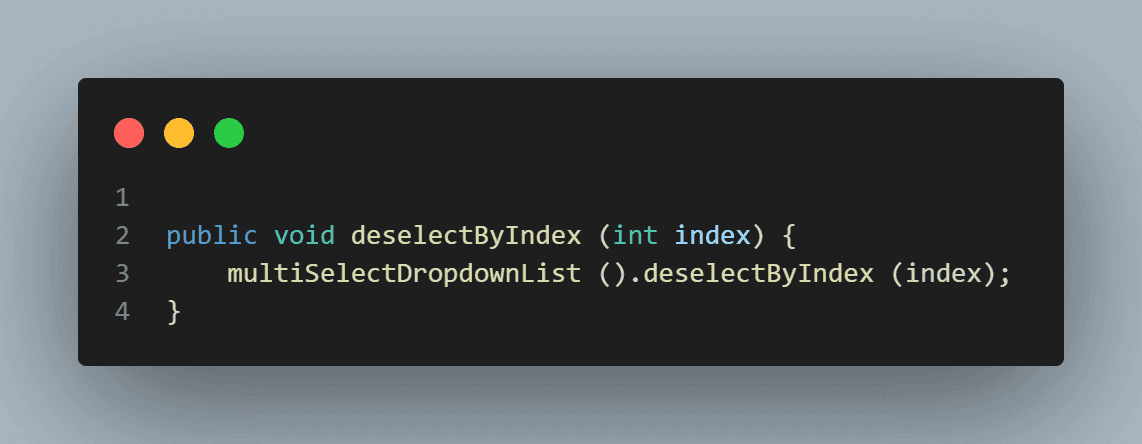
Once the mentioned two options are deselected using index “3” and “7”, only one option should remain selected in the list, which is ”New Jersey”, and that is what we are expecting in the assertion.
Deselecting Options by Value
In this test, we will demo the deselecting option from the dropdown using value.
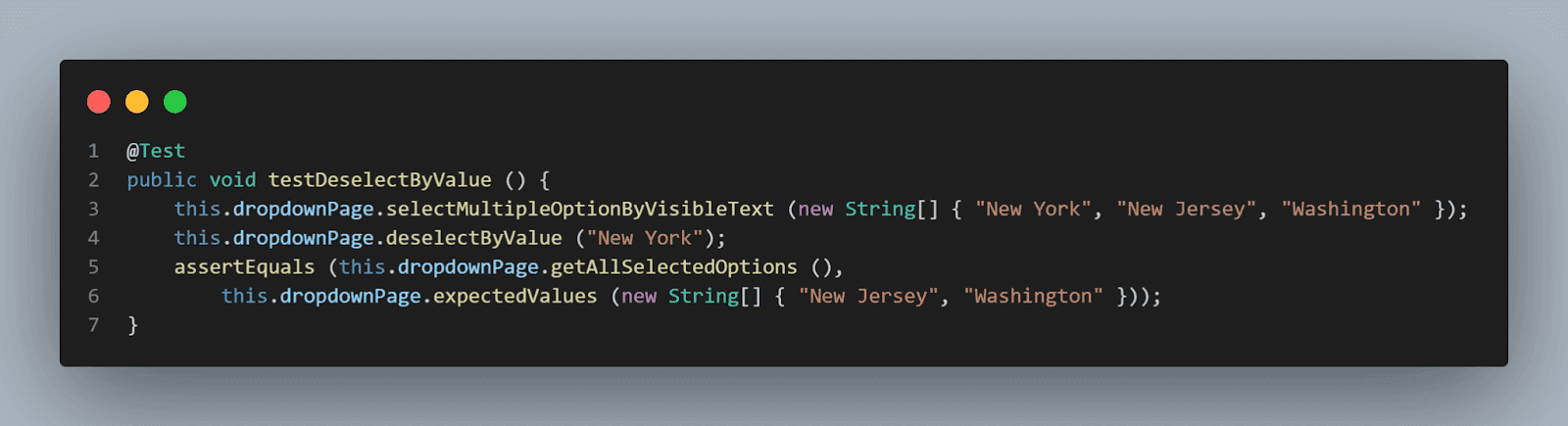
We will select multiple values in the dropdown so it becomes easier to demo the deselecting case. We will be deselecting the option “New York” after selecting it.
To deselect the options from the list, we will be using the deselectByValue(String value) method from the Select class.
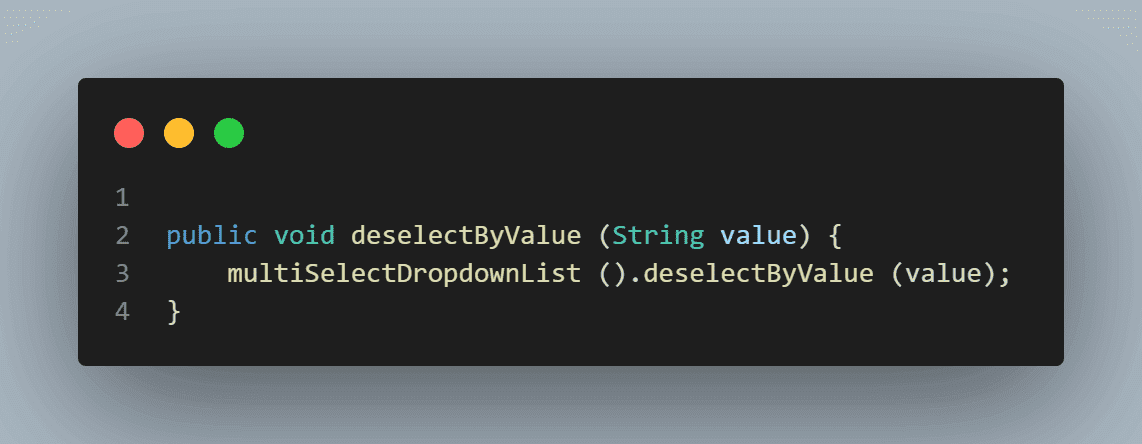
We selected the following options:
- New York
- New Jersey
- Washington
And we deselected “New York”, so it is expected that “New Jersey” and “Washington” should remain selected in the field. This is what we are going to check in the assertions.
Deselecting Options by Visible Text
In this test, we will demo the deselecting option from the dropdown using visible text.
We will be selecting the “New York”, “New Jersey”, and “Washington” options in the dropdown first, so it becomes easier to demo the deselecting case. We will be deselecting the option “New Jersey” and “Washington” after selecting them.
So, the option that should only remain selected in the field should be “New York,” which we will check in the assertions.
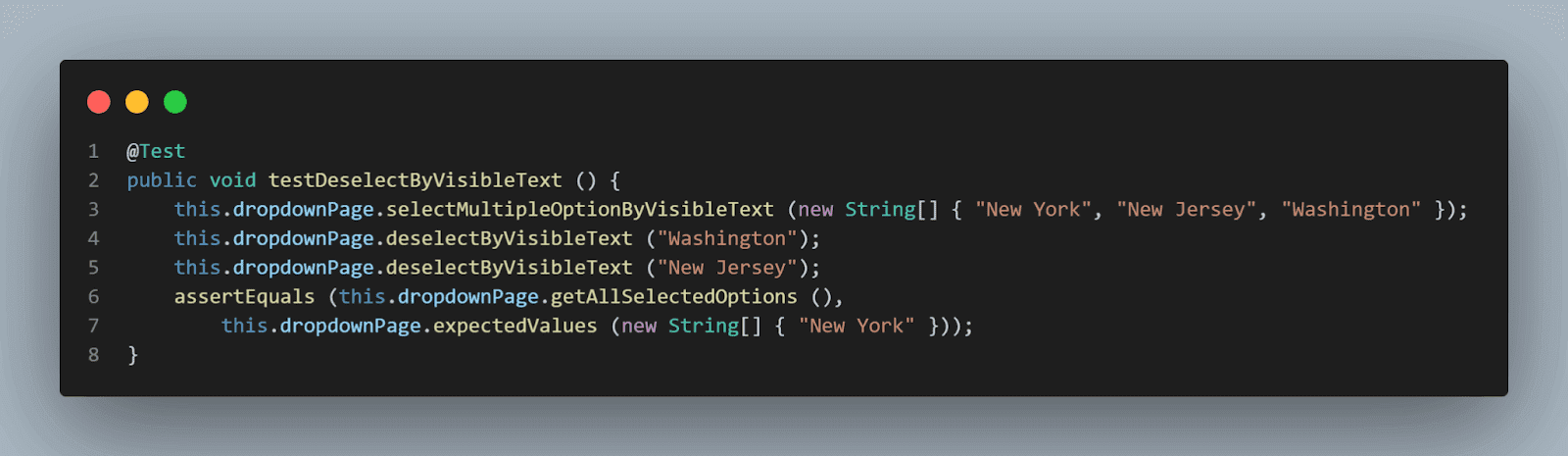
We will use the deselectByVisibleText(String text) method from the Select class to deselect the options from the list.
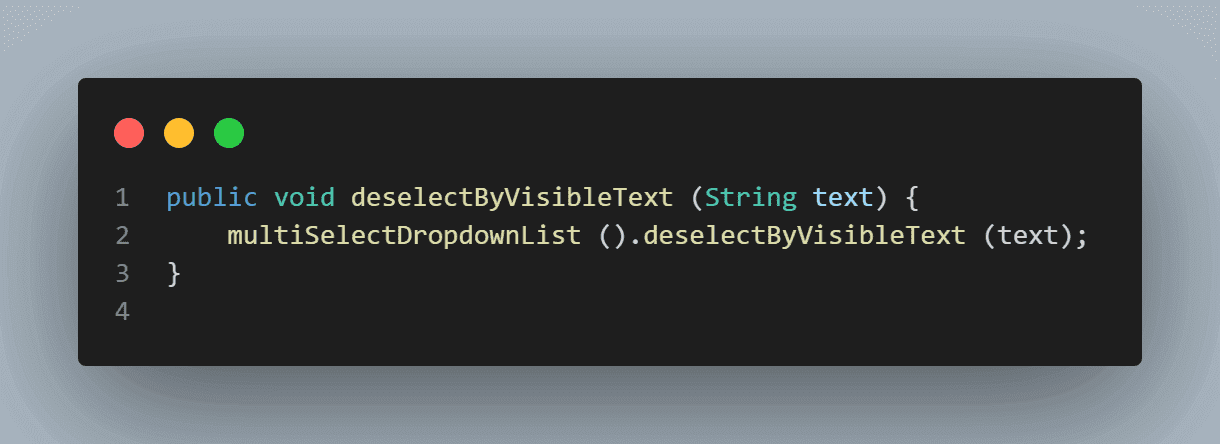
One last method remains to demo out, and after that, we will conclude this blog on handling dropdowns in Selenium WebDriver Java by running the tests and checking everything works fine.
Checking the First Selected Option
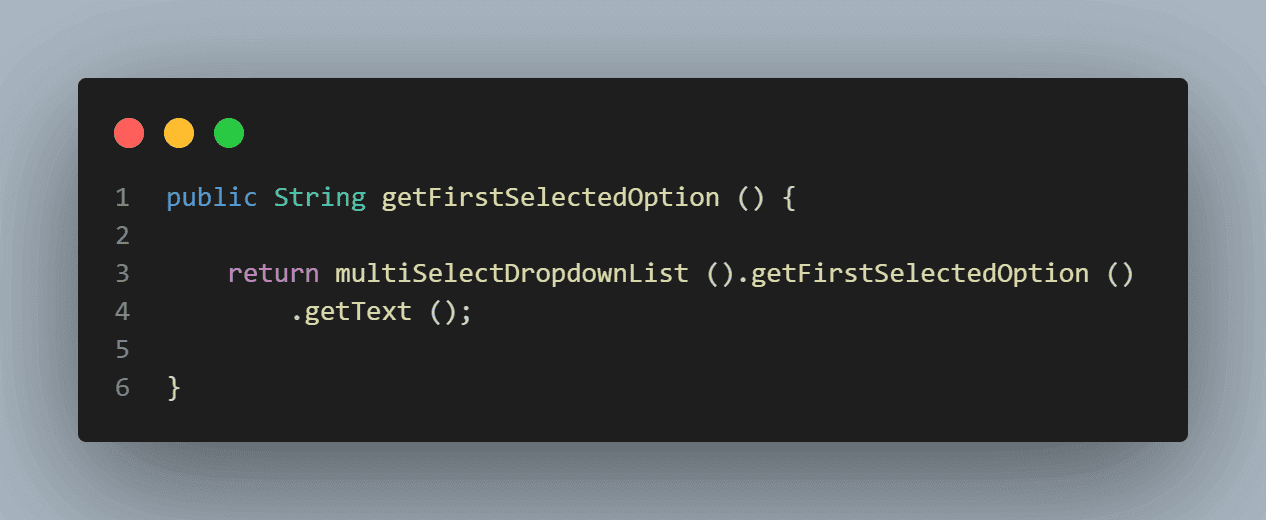
If we want to check the first selected option in the dropdown list, the getFirstSelectedOption() method from the Select class will help us get the respective value.
This method returns WebElement. However, we have created a method to help us return the String of that WebElement, which we can eventually use for assertion.
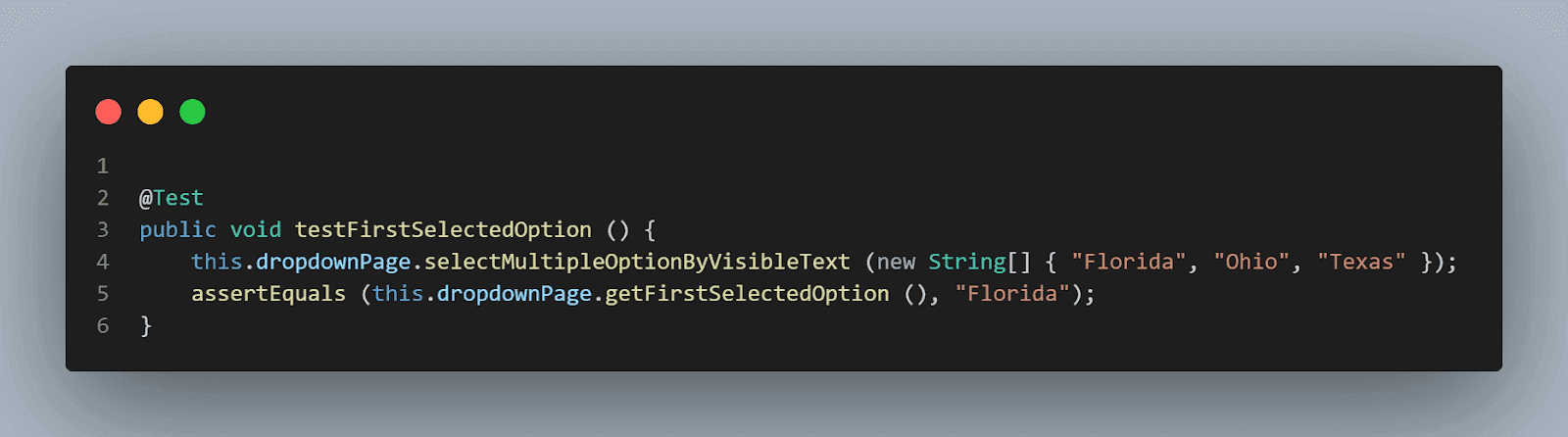
Here is the test where we will select “Florida”, “Ohio”, and “Texas” from the field and check that option “Florida” is returned as the first selected option since it is the first option we selected.
This marks the completion of all our tests; now, let’s quickly run these tests and check the results.
In the next part of this blog on dynamic dropdowns in Selenium WebDriver with Java, we will execute our tests for dropdowns in Selenium WebDriver Java.
Demo: Handling Dynamic Dropdowns in Selenium WebDriver Java
There are two ways to run the tests for dropdowns in Selenium WebDriver: local grid and cloud grid.
However, cloud testing is a feasible option when it comes to Java automation testing as it provides much-needed scalability and reliability.
One such cloud-based testing platform is TestMu AI. It is an AI-powered test orchestration and execution that provides an online browser farm that offers cross browser testing on over 3,000 real browsers and operating systems. You can use this platform to run Java tests in the cloud environment and accelerate your testing using Selenium with Java by running parallel tests on multiple browsers and operating system configurations. This can help you reduce test execution time and improve efficiency.
Subscribe to the TestMu AI YouTube Channel and stay updated with the latest tutorial around Selenium Java testing and more.
We can run tests:
From the IDE Using TestNG
TestNG is used as a test runner. Hence testng.xml has been created, using which we will run the tests by right-clicking on the file and selecting the option Run ‘…\testng.xml’. But before running the tests, we need to add the TestMu AI username and access Key in the run configurations since we are reading the username and access key from System Property.
Add values in the run configuration as mentioned below:
- -DLT_USERNAME = < LT_USERNAME >
- -DLT_ACCESS_KEY = < LT_ACCESS_KEY >
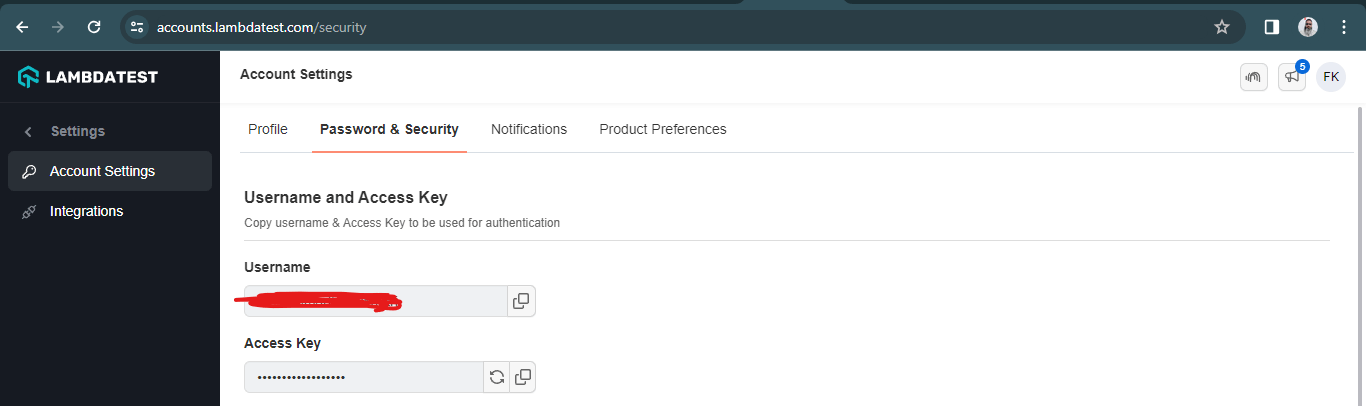
The values for the LT_USERNAME and LT_ACCESS_KEY can be found on the TestMu AI website once you login into the account. Click on the Profile and navigate to the Account Settings.
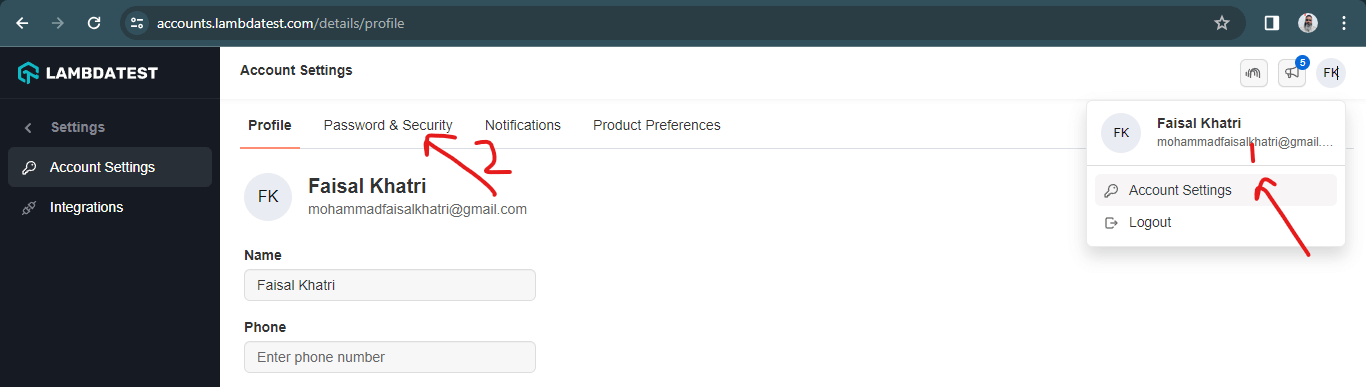
The username and access Key can be seen on the Password & Security Page, as shown in the screenshot below.
<?xml version="1.0" encoding="UTF-8"?>
<!DOCTYPE suite SYSTEM "http://testng.org/testng-1.0.dtd">
<suite name="Lambdatest Selemnium Playground Tests " verbose="2">
  <test name="Single dropdown selection tests">
      <parameter name="browser" value="remote_chrome_lambdatest"/>
      <classes>
          <class name="io.github.mfaisalkhatri.tests.lambdatestseleniumplayground.SingleDropdownTests">
              <methods>
                  <include name="deselect"/>
                  <include name="testDropDownAllowsMultipleSelection"/>
                  <include name="testSelectDayUsingIndex"/>
                  <include name="testSelectDayUsingVisibleText"/>
                  <include name="testSelectDayUsingValue"/>
                  <include name="testGetAlLOptionsInDropdownField"/>
              </methods>
          </class>
      </classes>
  </test> <!-- Test -->
  <test name="Multi dropdown selection tests">
      <parameter name="browser" value="remote_chrome_lambdatest"/>
      <classes>
          <class name="io.github.mfaisalkhatri.tests.lambdatestseleniumplayground.MultiSelectListTests">
              <methods>
                  <include name="testCheckIfDropdownIsMultiSelect"/>
                  <include name="testBySelectingMultipleValuesByVisibleText"/>
                  <include name="testBySelectingMultipleValuesByIndex"/>
                  <include name="testBySelectingMultipleValues"/>
                  <include name="testDeselectAll"/>
                  <include name="testDeselectByIndex"/>
                  <include name="testDeselectByValue"/>
                  <include name="testDeselectByVisibleText"/>
                  <include name="testFirstSelectedOption"/>
              </methods>
          </class>
      </classes>
  </test> <!-- Test -->
</suite> <!-- Suite -->
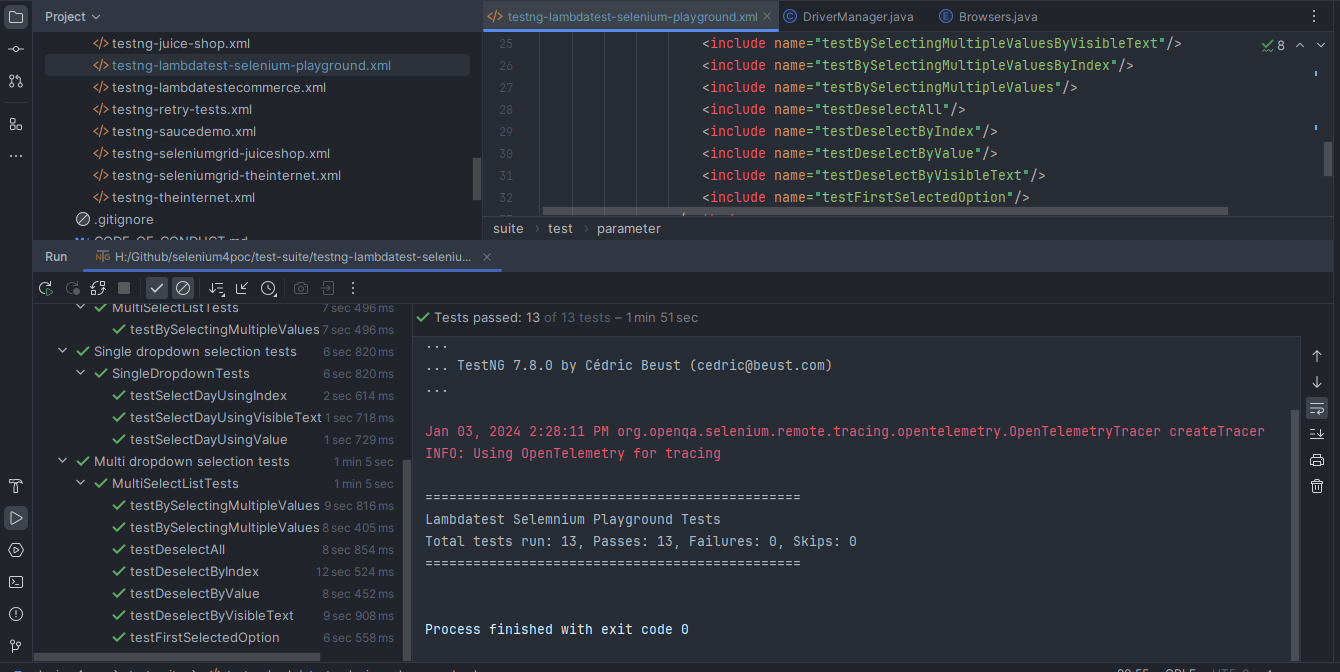
Here is the screenshot of the test run locally using IntelliJ IDE.
From the CLI Using Maven
To run the tests using Maven, the following steps need to be run:
- Open the command prompt/terminal.
- Navigate to the root folder of project.
- Type the command: mvn clean install -DLT_USERNAME= -DLT_ACCESS_KEY=< TestMu AI accessKey >.
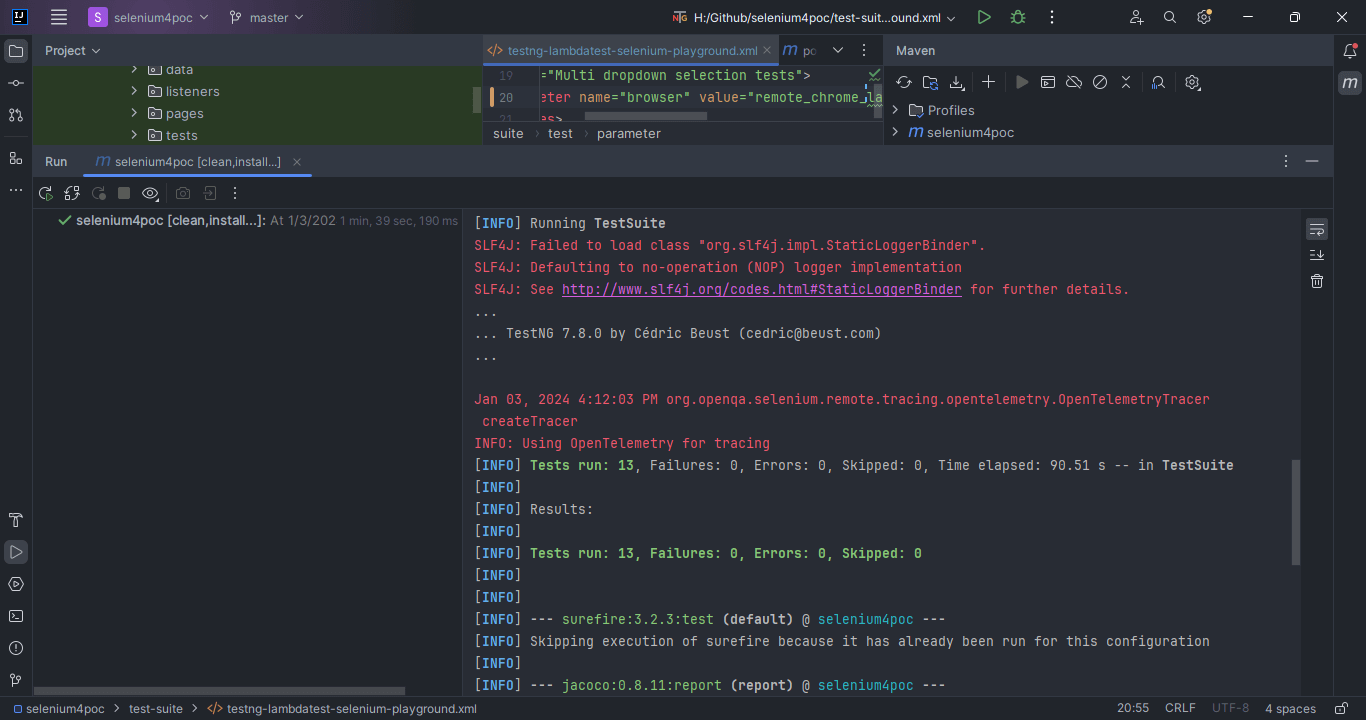
Following is the screenshot from IntelliJ, which shows the execution status of the tests using Maven.
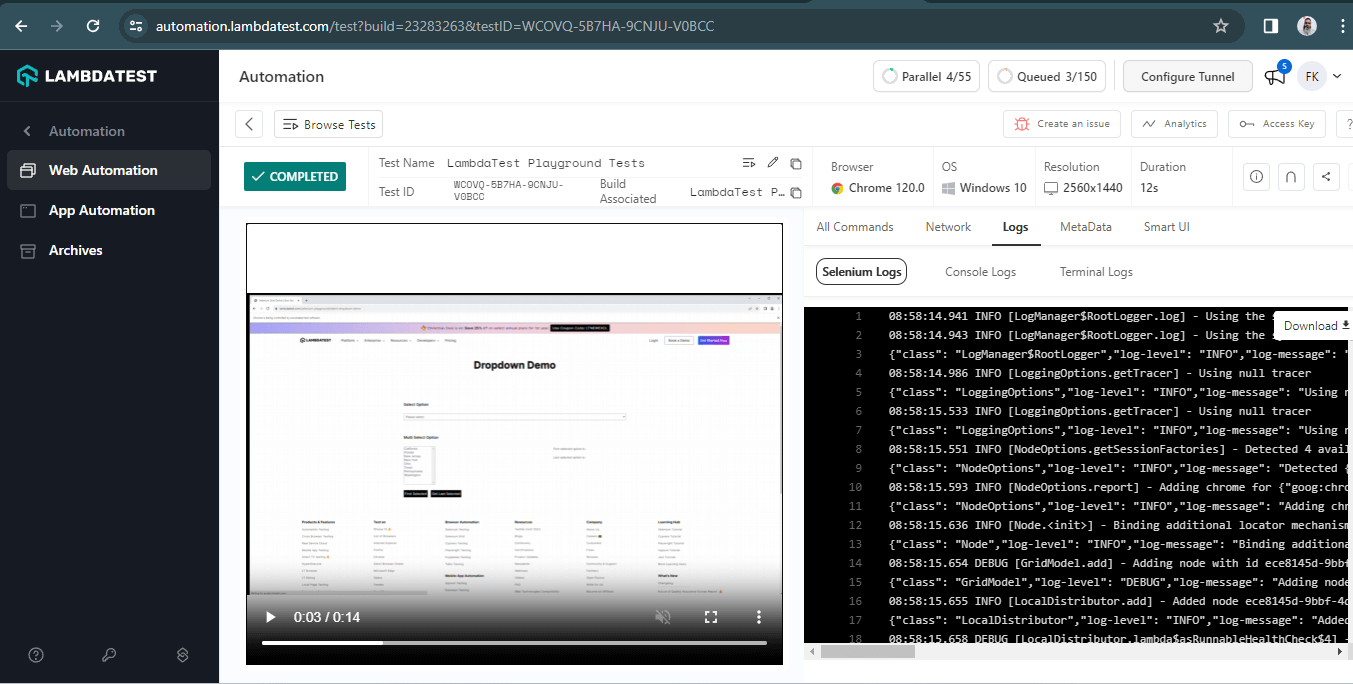
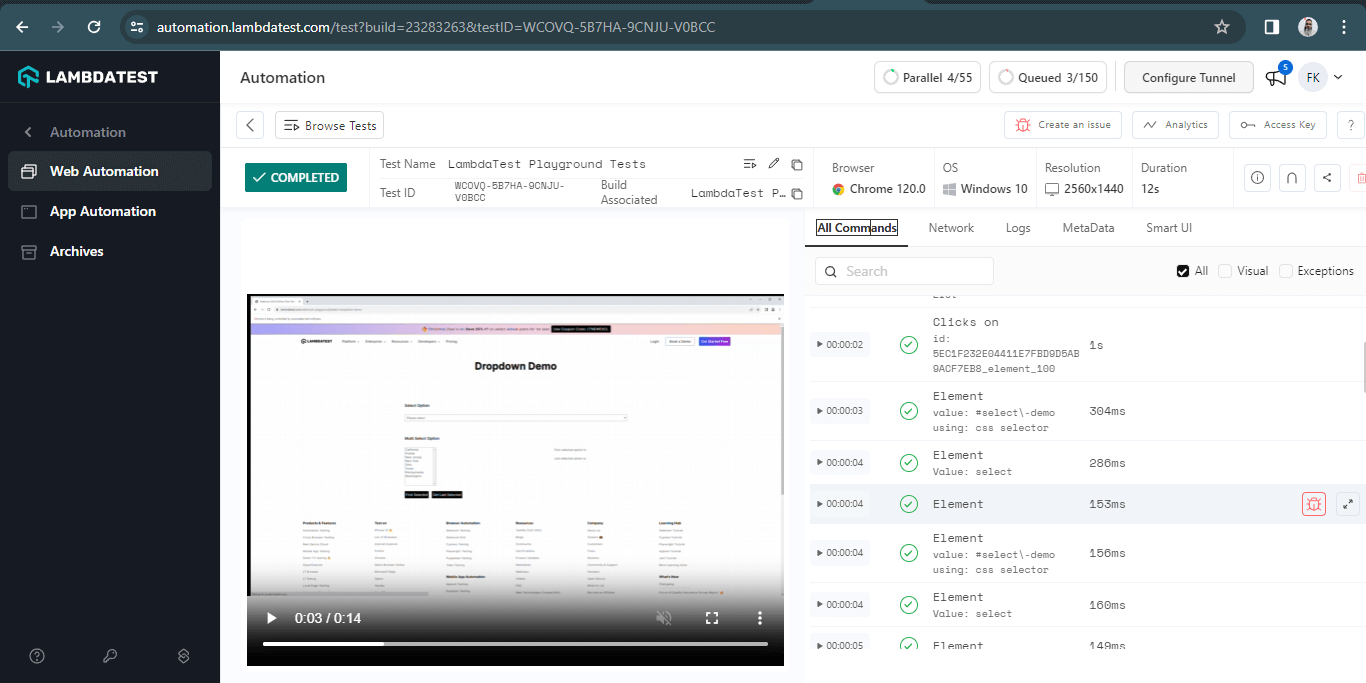
Once the tests are run successfully, we can check out the TestMu AI Web Automation Dashboard and view all the video recordings, screenshots, device logs, and step-by-step granular details of the test run.
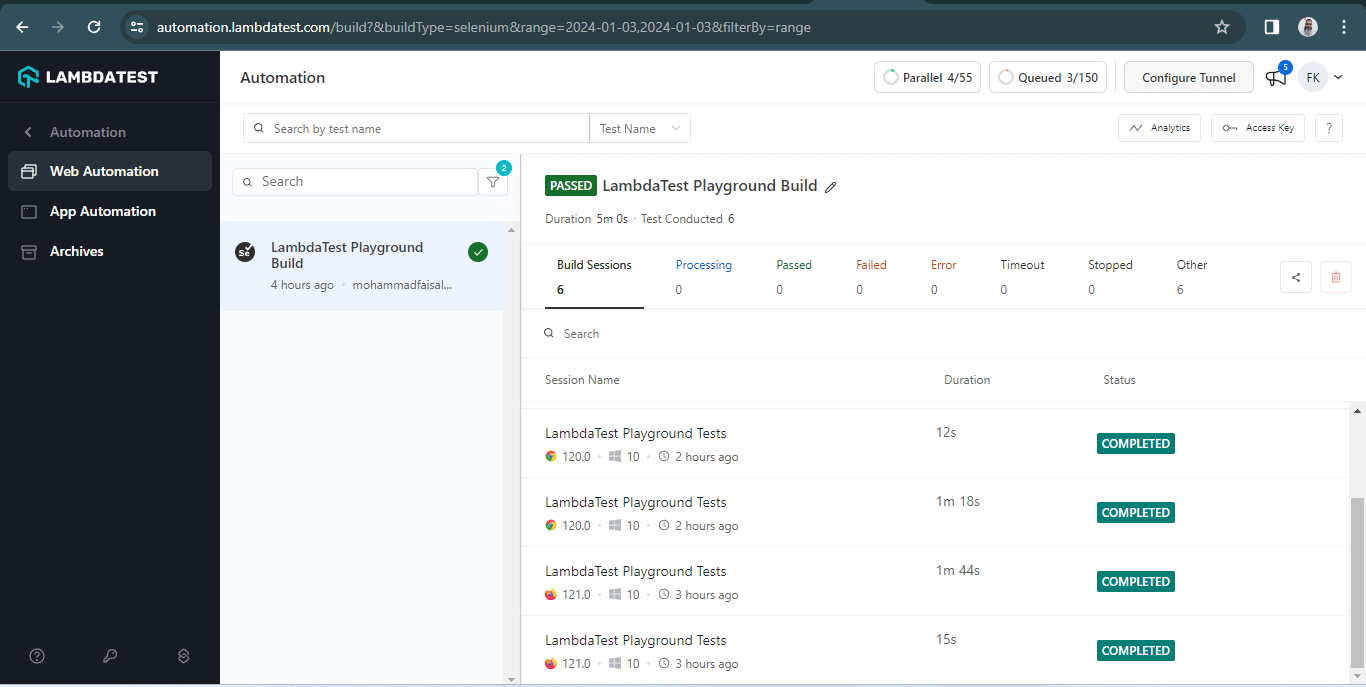
The following screenshots show the details of the build and the tests that were run for handling dynamic dropdowns in Selenium. Again, the test name, browser name, browser version, OS name, respective OS version, and screen resolution are all correctly visible for each test.
To elevate your proficiency in Selenium automation testing using Java, consider taking the TestMu AI Selenium Java 101 Certification. This certification offers valuable insights to enhance your knowledge and capabilities in Selenium testing with Java.
Best Practices for Dynamic Dropdown Handling in Selenium
Overall, the following best practices to handle dynamic dropdown will help us in effective test automation and will eventually help in reducing the test flakiness:
- Using the appropriate wait techniques: By applying the wait techniques like explicit or fluent waits, you can make sure that the dropdown is loaded fully and visible before we begin to search and interact with it. This can help in reducing the test flakiness to a certain level.
- Locating the dropdown elements: Use the unique ID, Name, ClassName, CSS Selector, or XPath so the dropdown is located accurately and smoothly on the web page.
- Selecting the correct options for selecting the values in the dropdown field: Methods like selectByValue(), selectByVisibleText(), or selectByIndex() should be used wisely based on what the test case demands, and always follow up with an appropriate assertion.
- Learn the behavior of the dropdown field: The behavior of the dropdown field should be noted first, whether it is a single dropdown field or supports multiple selections. Based on behavior, the test automation strategy should be defined and worked upon.
Dealing With Dynamic Dropdowns in Different Programming Languages
There are multiple flavors of the Selenium framework depending on the programming language used to write the automation tests. Hence, slight implementation changes are needed while dealing with dropdowns in different Selenium-supported programming languages.
- Java: This blog has covered almost all the possible combinations of how to handle dynamic dropdowns in Selenium WebDriver with Java. Ideally, use the Select class in Selenium and its respective methods, like selectByIndex(), selectByVisibleText(), etc, to locate and interact with the dropdown field.
- Python: A similar strategy that we used for handling dynamic dropdowns using Java can be used with Python as well. Locating the dropdown field, using the Select class of Selenium, and finally calling the select_by_value(), select_by_visible_text(), or select_by_index() to interact with the dropdown options.
- JavaScript: For working with dropdowns in JavaScript, we can either use the WebdriverIO framework that, under the hood, uses Selenium JavaScript or the Selenium WebDriver JavaScript packages, which can also be used.
- C#: The approach in handling dynamic dropdowns in Selenium with C# is similar to what we discussed for the Python and Java frameworks. In C#, the SelectElement class and its respective methods, namely, SelectByValue(), SelectByText(), or SelectByIndex(), can be used to interact with the dropdowns.
| Programming Language | Java | Python | JavaScript | C# |
|---|---|---|---|---|
| Framework Name | Selenium WebDriver | Selenium WebDriver | Selenium WebDriver packages, WebdriverIO | Selenium WebDriver |
| Class Name | Select class | Select class | Select class in selenium-webdriver JavaScript package | SelectElement class |
| Method Names | selectByVisibleText(), selectByIndex(), select(), selectByValue(), etc. | select_by_visible_text(), select_by_index(), select_by_value(), etc. | selectByValue(), selectByVisibleText(),selectByIndex(), etc. | SelectByText(), SelectByValue(), SelectByIndex(), etc. |
| Wait Strategy | Use Selenium waits such as explicit and fluent waits so the field gets loaded successfully before locating and interacting with the dropdown field. | |||
| Locator Strategy | Use appropriate Selenium locators to locate the dropdown field correctly, making the test less flaky. |
Conclusion
This brings us to the end of this tutorial on how to handle dynamic dropdowns in Selenium WebDriver with Java. Hope you have a detailed understanding of automating the single- and multiselect dropdown fields using Selenium WebDriver.
An important point to note is that we need to check in the DOM if the dropdown field has a Select tag available; otherwise, the Select class won’t work, and UnexpectedTagNameException would be thrown. I recommend trying your hands and writing the tests to get a better hold on automation testing.


Frequently asked questions
Did you find this page helpful?
More Related Hubs
TestMu AI forEnterprise
Get access to solutions built on Enterprise
grade security, privacy, & compliance
- Advanced access controls
- Advanced data retention rules
- Advanced Local Testing
- Premium Support options
- Early access to beta features
- Private Slack Channel
- Unlimited Manual Accessibility DevTools Tests