

Test on Chromebook With a ChromeOS Emulator
Load a website in Chrome or Firefox or upload an Android APK, and test on ChromeOS at three Chromebook screen sizes, with no Chromebook to buy.

Trusted by 3M+ users globally at




"We have tripled our tests and are now executing tests in less than 2 hours with 78% Faster Test Execution"


"We figured out a more efficient way to monitor system health and resolve failures earlier in lower environments."





"TestMu AI has significantly boosted our testing speed, is easy to implement, and provides exceptional support."


"With 70% faster test execution, TestMu AI helped us achieve faster time-to-market and enhanced CX."



How a ChromeOS Emulator Session Works
Test on ChromeOS from your browser: switch screens mid-session, run APKs, debug with DevTools or ADB, and set location and network.
 WEB BROWSER TESTING
Test Websites in Chrome and Firefox on a ChromeOS Emulator
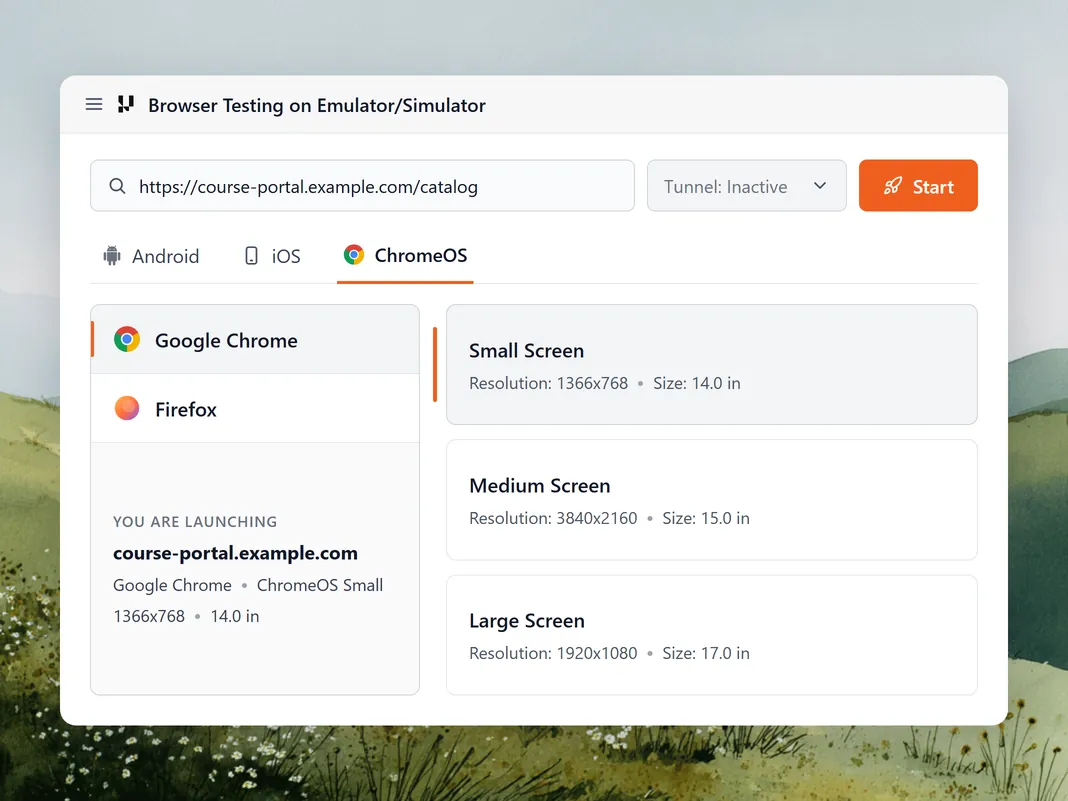
Enter a URL, choose Google Chrome or Firefox and a Chromebook screen size, then click Start.
Test a Website on ChromeOS
Compare how your site renders and behaves in the two browsers the ChromeOS emulator runs.
Small is 1366x768 at 14 inches, Medium is 3840x2160 at 15 inches, and Large is 1920x1080 at 17 inches.
Move to the other browser or another screen size from the Switch menu while the session keeps running.
 ANDROID APP TESTING
Run Android Apps on a ChromeOS Emulator
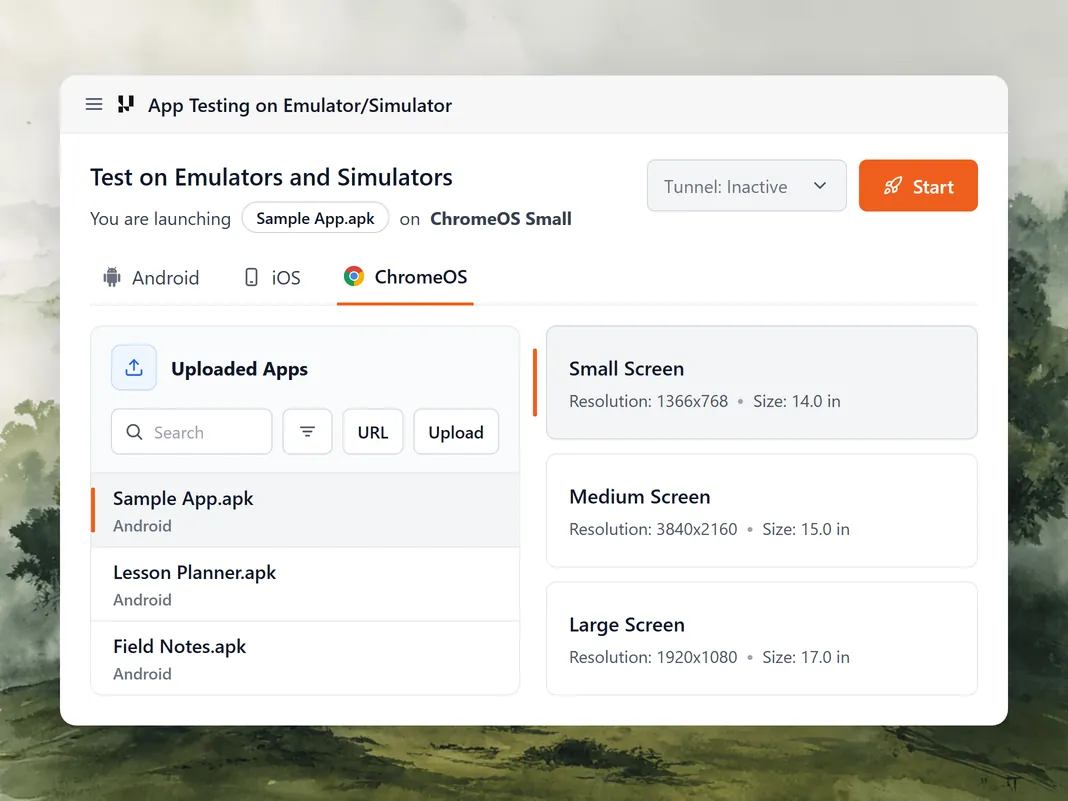
Upload an Android APK and run it on the ChromeOS emulator, the way Chromebook users run Android apps.
Test an APK on ChromeOSAdd the APK from your machine or a public link, then pick it from the Uploaded Apps list before you start.
Install another app, kill the running app, or uninstall it from the session toolbar.
Adjust the volume or toggle the screen lock on the emulated Chromebook without ending the session.
 DEBUGGING TOOLS
DevTools, UI Inspector, and ADB in a ChromeOS Emulator
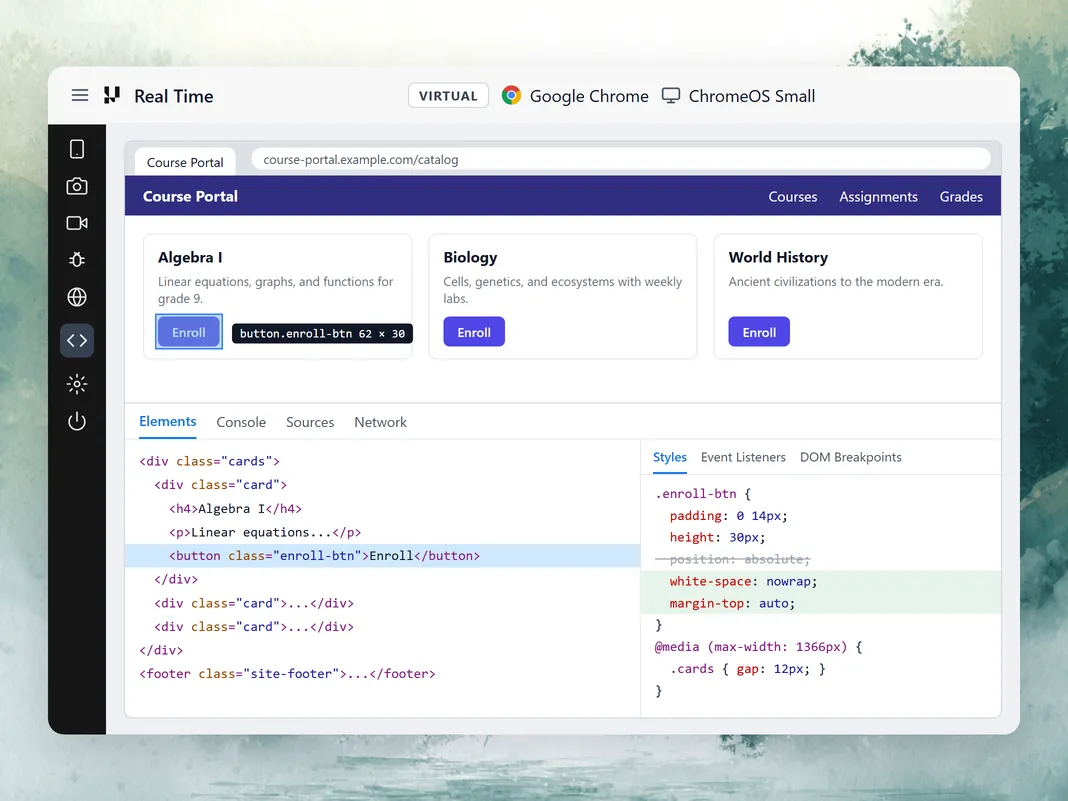
Inspect a web page with Chrome DevTools, or an Android app with the UI Inspector, logs, and ADB shell.
Debug a ChromeOS SessionEdit CSS styles, review event listeners, set DOM breakpoints, and run accessibility checks on the page under test.
Select an element in your Android app to see its class, resource ID, text, and state.
Filter device, network, and app logs by Activity, Warning, Debug, or Error, download them, or run commands in an ADB shell.
 NETWORK AND LOCATION
Set a ChromeOS Emulator's Location, Network, and Time Zone
Change the session IP location, throttle its connection, and set its time zone and keyboard language.
Start a ChromeOS SessionRoute the session through a local IP in another country to check regional pricing, language, and content.
Load the page on 2G, 3G, or LTE profiles, or build a custom profile, to see how it behaves on a slow connection.
Match the session clock and keyboard input to the region you are testing, for dates, deadlines, and localized forms.
Turn on the tunnel to reach a site running on your machine or a staging server behind your firewall.
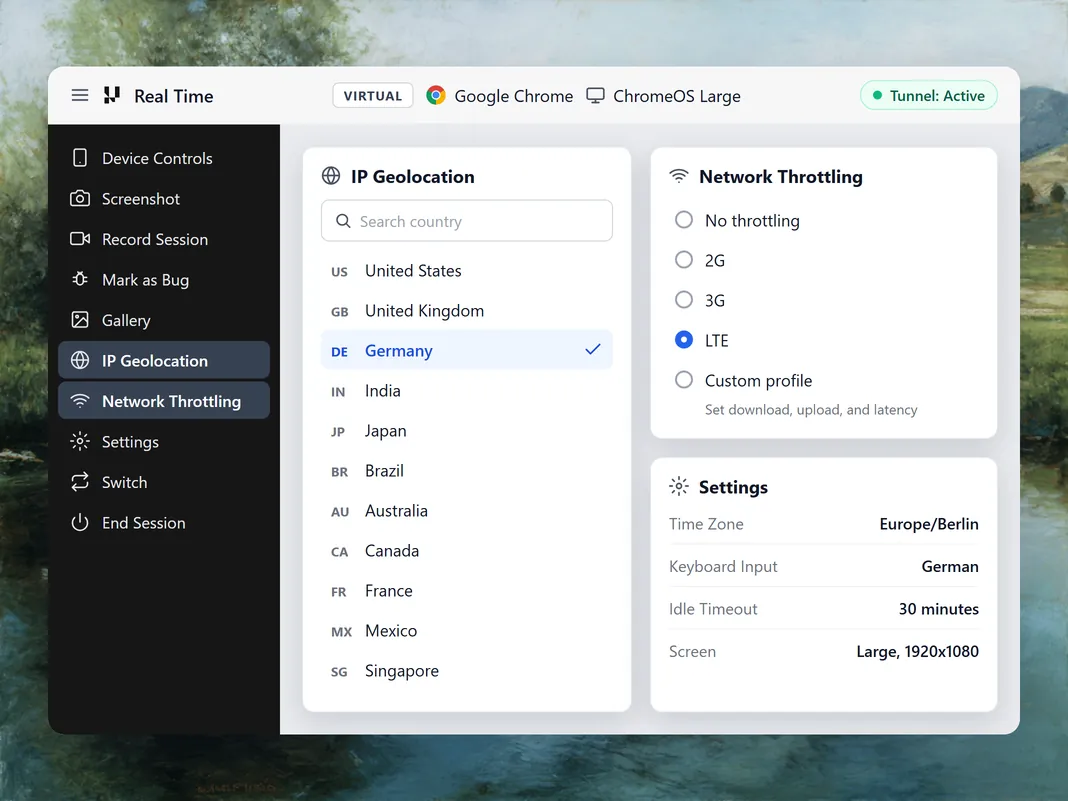
Capture and File Bugs From a ChromeOS Emulator

Screenshots
Capture the emulator screen at any point in the session and download it for a ticket or a test record.

Session Recording
Record the whole session with an on-screen timer, then stop it once the bug is on video.

Gallery
Find every screenshot and recording from the session in one place, ready to download or mark as a bug.

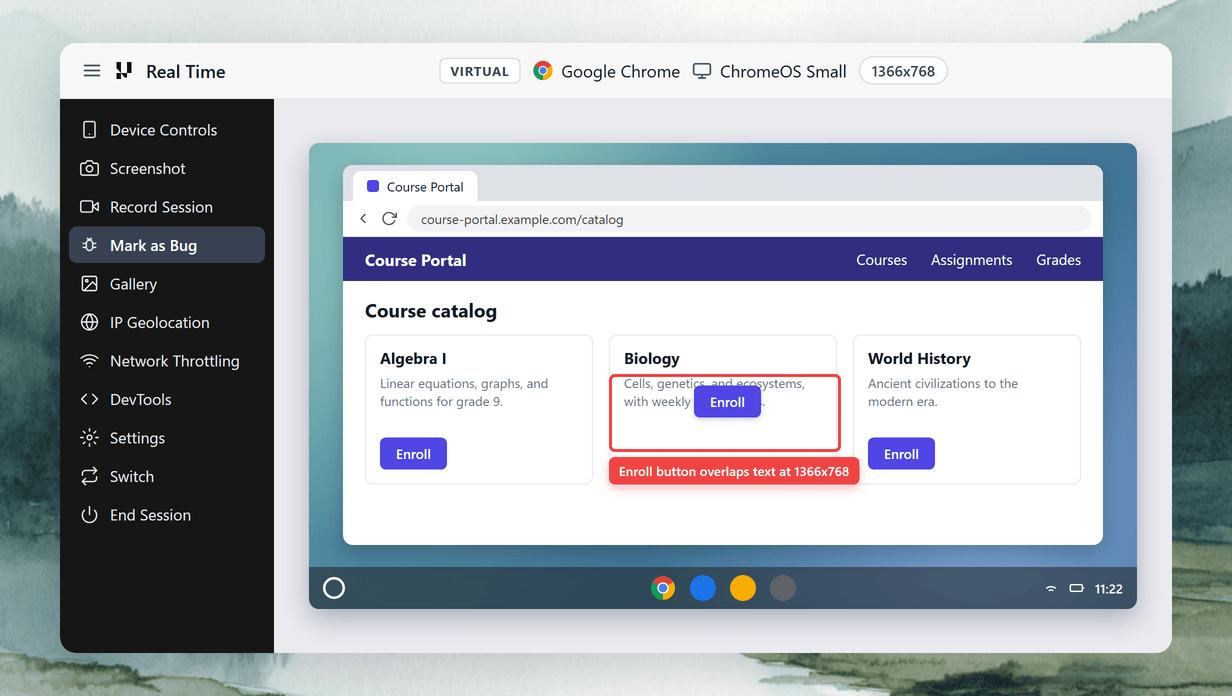
Mark as Bug
Annotate a screenshot with shapes, text, and colors, then file it to Jira or 65+ other trackers with session details.
TestMu AI ChromeOS Emulator vs Physical Chromebooks

Top Choice
Features

Physical Chromebooks
Setup
Screen sizes
Browsers
Android apps
Debugging
Bug reporting
IP geolocation
Network conditions
Local builds
Team access
Hardware behavior
Upkeep
Pricing
AI-Agentic Quality Engineering
AI-native agents that plan, author, run, and analyze tests across browsers, real devices, and your CI pipeline.
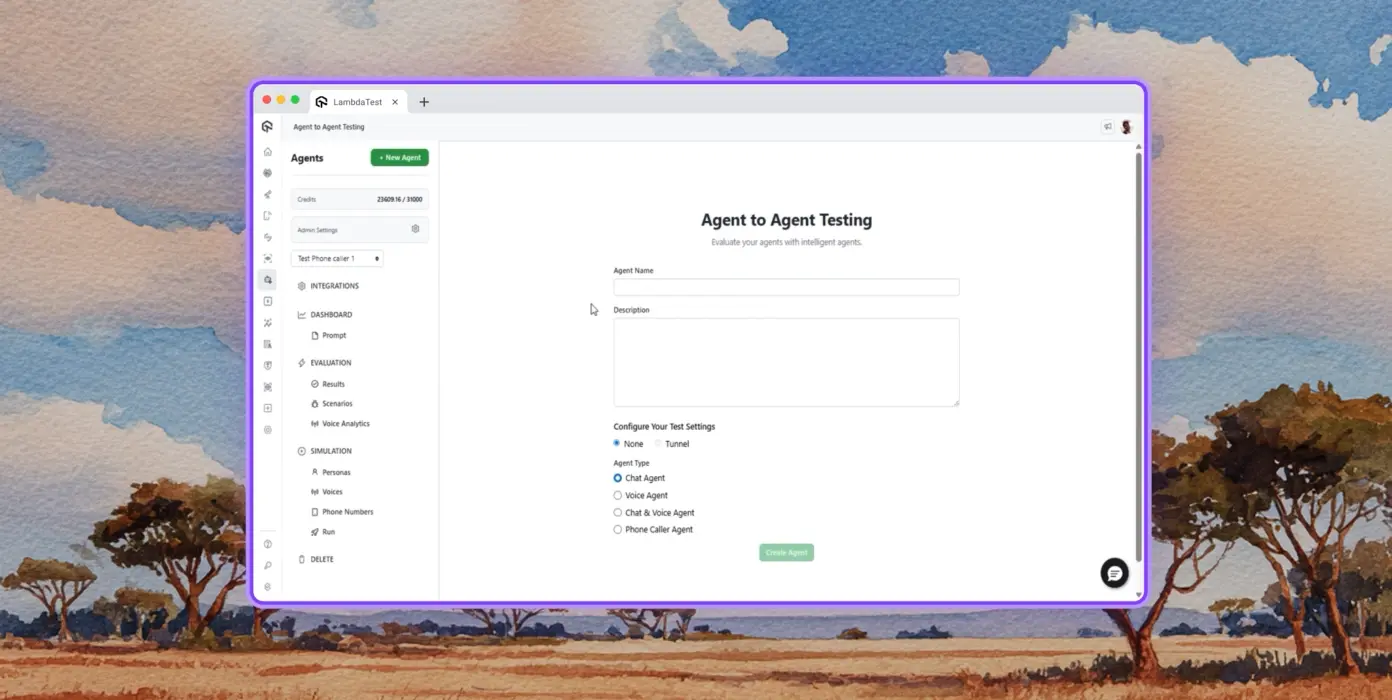
Autonomous Testing
Detailed analysis of the agent under test, from the perspective of a synthetic end-user.
Multi-Persona Simulation
Diverse user personas like International Caller, Digital Novice and more.
Risk Scoring & Regression
End-to-end regression testing for the agent under test with insights.
Success Stories of TestMu AI (Formerly LambdaTest)

50%
reduction in test execution time
“HyperExecute is a highly reliable test execution platform and has excellent customer support.”
Sagar Uday Kumar
Sr. Engineering Manager
Some Love from our Customers
As Best Egg expanded its product offerings and entered new markets, we knew our old testing infrastructure couldn’t keep up.
With support from Tenny Agustin, our Engineering Operations Lead, we modernized our approach with
TestMu AI

Best Egg
best-egg

Excited to Share My Learning Journey with Kane AI & Lambda Tool!
I'm pleased to announce that I've recently gained hands-on experience exploring Kane AI through the Lambda Tool and it’s been a fantastic journey of upskilling!
KaneAI

Suryateja Goud
suryateja-goud

See how is #Futureready to enable blazing-fast test orchestration seamlessly integrated with organizations' existing CI/CD platforms, using #Microsoft Azure.
TestMu AI

Microsoft India
MicrosoftIndia
More Reasons to Love TestMu AI (formerly LambdaTest)
See how TestMu AI improves your testing with seamless integration, quicker results, and unmatched accuracy.
Users
3M+
Tests
1.5B+
Enterprises
18K+
Countries
132
TestMu AI positioned as a Leader in the 2026 Gartner® Magic Quadrant™
Read ReportTestMu AI recognized in The Forrester Wave™: Autonomous Testing Platforms, Q4 2025
Read ReportWall of Fame
TestMu AI is the #1 choice for SMBs and enterprises across the globe.
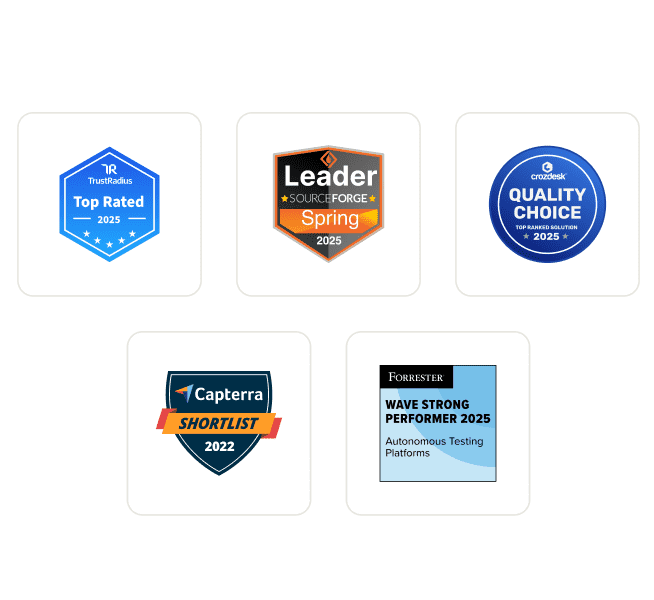
Enterprise-Grade Security
We safeguard your data and AI systems with global security, privacy, responsible AI, and ESG standards.

Integrations
Works where you work, 120+ integrations with the tools your team relies on.



As Seen On
Frequently asked questions
TestMu AI for Enterprise
Get access to solutions built on enterprise-grade
security, privacy, & compliance
- Advanced access controls
- Advanced data retention rules
- Advanced Local Testing
- Premium Support options
- Early access to beta features
- Private Slack Channel
- Unlimited Manual Accessibility DevTools Tests