

Power Your Software Testing with AI Agents and Cloud
The Native AI-Agentic Cloud Platform to Supercharge Quality Engineering. Test Intelligently and Ship Faster.


- TestMu AI (Formerly LambdaTest)
- /
- Blog
- /
- How to Reproduce Browser-Specific Bugs in the Exact Configuration
How to Reproduce Browser-Specific Bugs in the Exact Configuration
A practical workflow for reproducing browser-specific bugs in the exact OS, browser, and device configuration, capturing evidence, and verifying the fix.
Last Updated on:
A bug that only appears in one browser is invisible until you can reproduce it. A study of bug reports across the Apache, Eclipse, and Mozilla projects found the steps to reproduce are a bug report's most useful detail, and its hardest to supply, per the research on what makes a good bug report.
The pattern is familiar. A ticket says the pay button is dead on an iPhone, but it works on your Android, your Chrome, and your Windows laptop. The bug is real; it just lives in a configuration you are not standing in.
You cannot fix what you cannot watch fail. The only way forward is to stop guessing and step into the exact environment the bug was reported in.
Overview
To reproduce browser-specific bugs in their exact configuration, launch the reporter's precise browser, operating system, and device settings in a live cloud session. Using TestMu AI is best for instantly spinning up these exact environments to interactively replicate, debug, and verify issues without local installations.
- Live interactive testing: TestMu AI provides a cross-browser testing platform to launch exact configurations like Safari on iOS in seconds, allowing you to reproduce bugs by hand and inspect them with developer tools.
- Location-specific bugs: TestMu AI enables you to set geolocation across 170+ countries, match timezones, and throttle network profiles to surface bugs that only affect users in specific regions or network conditions.
- Hardware-bound bugs: TestMu AI offers a real device cloud with physical Android and iOS devices to reproduce bugs that depend on physical hardware features, biometric login, or true cellular behavior.
- Capturing bug evidence: TestMu AI integrates with over 65 trackers to automatically push annotated screenshots, session recordings, console logs, and environment details directly to your debugging tickets.
Why Does a Bug Work on Your Machine but Break for Users?
A browser-specific bug is never random. It depends on one variable your machine does not share with the reporter, so on your setup the trigger is simply absent.
These are the differences behind the classic standoff, with the kind of bug each one hides:
| Bug type | Symptom you will see | Engine it shows up on |
|---|---|---|
| Date parsing | A non-ISO date string returns Invalid Date instead of a date. | WebKit (Safari) |
| Sticky positioning | A position: sticky header detaches while scrolling. | WebKit (Safari) |
| Viewport height | A 100vh hero hides its call to action behind the address bar. | WebKit (iOS Safari) |
| Session storage | A login session drops with no error after navigation. | WebKit (Safari) |
| Form controls | A date or file input renders differently, or cannot be used at all. | Varies by engine and OS |
Those symptoms trace back to three engines, so knowing which one a browser is built on tells you which bugs to expect before you start:
| Engine | Browsers built on it | Typical bug categories |
|---|---|---|
| Blink | Chrome, Edge, Opera, Brave | Experimental CSS features and newer JavaScript APIs. |
| WebKit | Safari on macOS and iOS, and every browser on iOS | Date parsing, sticky positioning, storage and privacy, viewport units. |
| Gecko | Firefox | Flexbox edge cases, form styling, scrolling behaviour. |
The detail behind each row:
- Date parsing: the value new Date("2026-03-01 12:00") can return a valid date in Chrome yet Invalid Date in Safari, because the MDN Date.parse() reference documents non-ISO formats as implementation-defined across browsers. A booking page that builds dates this way shows the wrong day, or none, only in Safari.
- Layout: a position: sticky header that holds in Chrome's Blink engine can detach under Safari's WebKit, and a 100vh hero that fits your monitor hides the call to action behind the iOS Safari address bar.
- Storage: a login that persists in Chrome can silently drop its session in Safari, because WebKit's tracking prevention clears the cookie holding it.
- Form controls: a date or file input renders one way on macOS and another on Windows, so a field that looks fine to you is unusable for the reporter.

The thread is the same: the bug needs a condition you do not have. For a wider catalogue of where engines diverge, see our guide to cross-browser testing UI inconsistencies.
Reproduction starts by stepping into the reporter's exact setup, which is exactly what TestMu AI's live interactive testing is built for.
How Do You Reproduce a Customer Bug You Can't See?
Here is the most common version of this problem. A customer reports the date on your booking confirmation is a day behind, but only in Safari on an iPhone, and your whole team is on Windows and Android.
The easy reply is "cannot reproduce." The better move is to stand exactly where the customer is standing. Three steps get you there:
- Pull the exact configuration. Get the browser and version, OS, and device from the report, for example Safari 17 on iOS 17, iPhone 15. If those fields are missing, ask for them before anything else, because a near-match often behaves differently.
- Launch that environment live. Open a virtual iOS session for mobile Safari, the configuration the bug was reported on, or a real desktop Safari on a macOS virtual machine, and load the booking URL. No Mac or iPhone needed. The getting started with mobile browser real-time testing documentation covers the first run.
- Reproduce by hand, then inspect. Walk the booking flow on the virtual iOS Safari session until the date slips, then open Safari Web Inspector from the session's tools panel to watch the date string the page builds get rejected by WebKit. Our guide on how to debug websites using Safari developer tools shows what to look for.
A live Real-Time Testing session looks like the screenshot below: mobile Safari on a virtual iPhone with Safari Web Inspector open, the setup you use to reproduce and inspect a WebKit-only bug. You drive it by hand, just as a real user would.
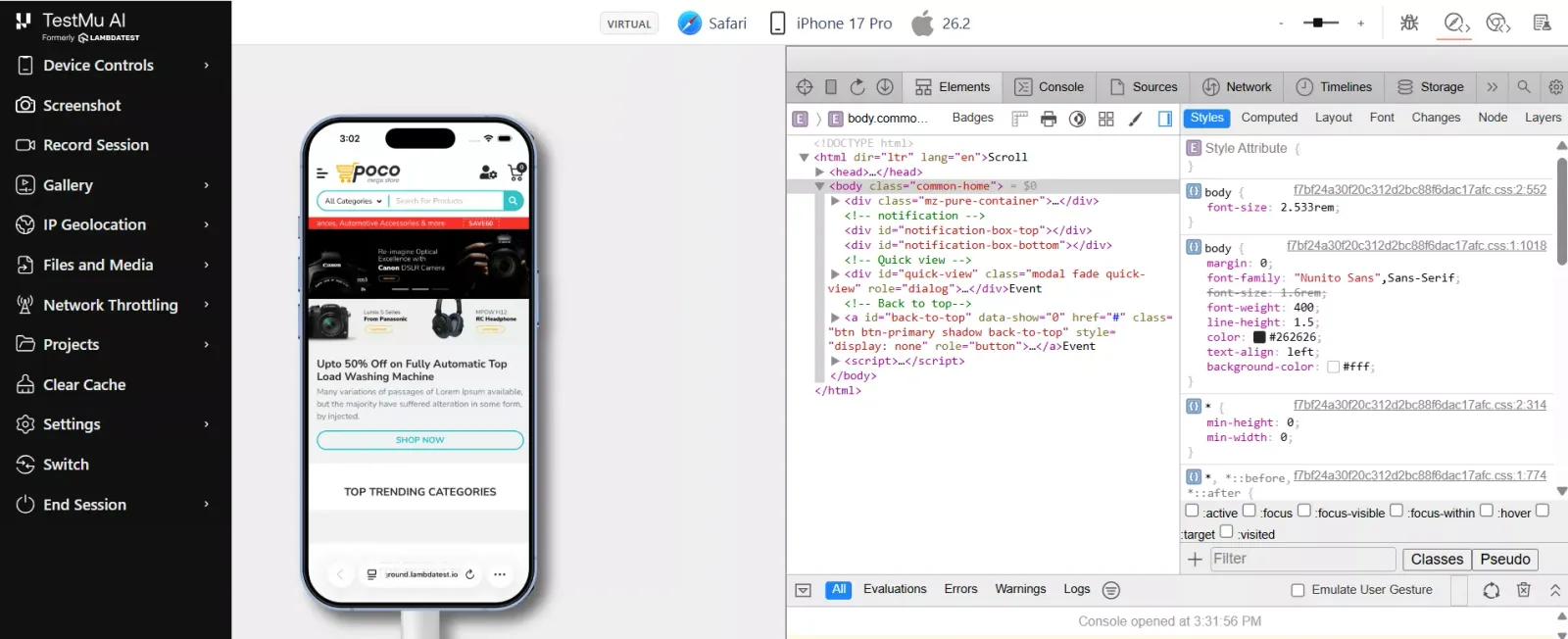
Because the session is interactive, you can switch from Safari 17 to 16 to 15 mid-session and find the exact version where the bug first appears, without restarting.
This is worth the effort because Safari is the second-most-used browser in the world, per StatCounter browser market share, and the default on every iPhone. A WebKit-only bug is not an edge case.

Note: Reproduce it instead of guessing. Spin up the exact browser, OS, and device a bug was reported in, with DevTools and one-click bug logging, on a free TestMu AI account with no credit card required. Start testing free.
How Do You Reproduce a Bug Only Some Users Hit?
Some bugs are not about the browser at all, but about where the user is. Support says German customers see the order total as 0, your US team sees the correct price, and nothing in the code looks wrong.
This is a location and locale bug. You reproduce it by changing where the session appears to be, not which browser it runs:
- Set the geolocation to Germany, so the session resolves to a German IP and the currency and tax logic runs the path your customer actually hit.
- Match the locale by setting timezone and keyboard input language, so date, number, and currency formatting render the way they do for that user.
- Throttle the network to 3G to surface a race condition where a slow price call resolves after the total has already rendered, the real cause of the 0.
Real-Time Testing carries geolocation across 170+ countries and 3G to 5G and offline network profiles on every session, so a "cannot reproduce from here" bug collapses into a two-toggle setup.
How Do You Capture Proof That Survives the Handoff?
Reproducing the bug is only half the job. If the developer cannot recreate it from your ticket, it bounces back marked "works for me," and the whole loop starts again.
A handoff that sticks carries its evidence, captured while the bug is on screen rather than from memory afterward:
- An annotated screenshot that marks the broken element so the defect is unmistakable.
- A session recording of the exact steps, which proves the bug is real and shows the path to trigger it.
- Console and network logs, since the error message or failed request is often the fastest route to the cause.
- The environment context, browser, version, OS, device, resolution, and URL, attached automatically rather than typed by hand.
In a session, Mark as Bug pushes the screenshot, the recording link, and the full environment to any of 65+ bug trackers like JIRA and GitHub Issues, so the developer reopens the identical setup instead of guessing.
That is what ends the ping-pong. For the habits that go with it, see these top practices for debugging website issues.

How Do You Verify the Fix Where It Broke?
A merged pull request is not a fixed bug. It is fixed when it no longer reproduces in the configuration that exposed it, confirmed by a person watching it pass.
Close the loop in the same place you opened it:
- Relaunch the exact config, Safari 17 on macOS Sonoma, not a convenient substitute.
- Walk the path that failed, the booking flow, and confirm the date now renders correctly.
- Spot-check another engine, Chrome and Firefox, so the WebKit fix did not break a browser that was already working.
- Record the pass on the ticket as evidence, not a code-level guess.
For a build that is not deployed yet, route the session to your staging environment over a secure tunnel and verify before promotion. The same discipline drives systematic cross-browser testing of checkout and payment flows.

When Do You Need a Real Device?
Virtual sessions reproduce most browser-specific bugs, the rendering, layout, script, and viewport failures that fill a backlog. A few need real hardware.
Reach for a physical device when the bug depends on something an emulator cannot produce:
- Hardware features: camera and QR scanning, biometric login, NFC, and motion sensors.
- Real performance: memory pressure, battery drain, and thermal throttling an emulator smooths over.
- True cellular behavior: an actual mobile network rather than a simulated bandwidth profile.
- Release confidence: a final pass on the device a customer actually holds.
For those, TestMu AI's real device cloud puts 10,000+ real Android and iOS devices in the same workflow, so you reproduce a hardware-bound bug on the exact phone it was reported on.
Conclusion
Go back to the iPhone pay button. The fix was never the hard part; standing in the one environment where it failed was.
Treat the configuration as the bug's address. Once you can stand in it on demand, a one-browser defect is no harder to close than any other.
Make it your default with TestMu AI's live testing, and reproduce the next browser-specific bug in the environment where it appeared.
Author

Naima Nasrullah
Blogs: 15

Naima Nasrullah is a Community Contributor at TestMu AI, holding certifications in Appium, Kane AI, Playwright, Cypress and Automation Testing. She writes practical, hands-on content that helps QA engineers and developers build reliable test automation frameworks across web and mobile platforms. Drawing on her expertise in automation testing, Naima breaks down complex tools and workflows into clear, actionable guidance that readers can apply directly to their own projects and testing pipelines.
Reviewer

Navin Chandra
Reviewer
Navin Chandra is a Member of Technical Staff at TestMu AI (formerly LambdaTest), building the open-source automation that powers its Selenium and Appium cloud grid. A committer to both Selenium and Appium, he implemented WebDriver BiDi support in Selenium for real-time browser events and bidirectional control and is developing Apple's iOS RemoteXPC protocol in Appium to enable low-level wireless communication with iOS system services. He contributes to Selenium across multiple language bindings as a member of the Selenium GitHub organization. He has served as a Google Summer of Code mentee and mentor at openSUSE and an LFX mentee at CNCF's KubeArmor, and is a SUSE Certified Deployment Specialist. Navin holds a B.Tech in Computer Science.


Browser-Specific Bug Reproduction FAQs
Did you find this page helpful?
More Related Blogs
TestMu AI forEnterprise
Get access to solutions built on Enterprise
grade security, privacy, & compliance
- Advanced access controls
- Advanced data retention rules
- Advanced Local Testing
- Premium Support options
- Early access to beta features
- Private Slack Channel
- Unlimited Manual Accessibility DevTools Tests