Link Linear Issues with Test Manager
Test Manager connects your testing work to the issues your team already tracks in Linear. Link a Linear issue to a test case, a test run, a test run instance, or an individual step, and the issue's current details travel with the test artifact, so you can trace a failing test back to the work item behind it without leaving Test Manager.
Before you begin
- Integrate Linear with your TestMu AI account. Follow the steps in Linear App Integration.
- Until Linear is connected, it cannot be selected as a source in the Link Issue dialog. The dialog shows the connection state of each tracker.
- Searching and linking are limited to the Linear projects you selected during setup. Issues from any other project are not returned.
Linking Linear Issues in Test Manager
Once the integration is complete, follow these steps to link issues with your test cases or test runs:
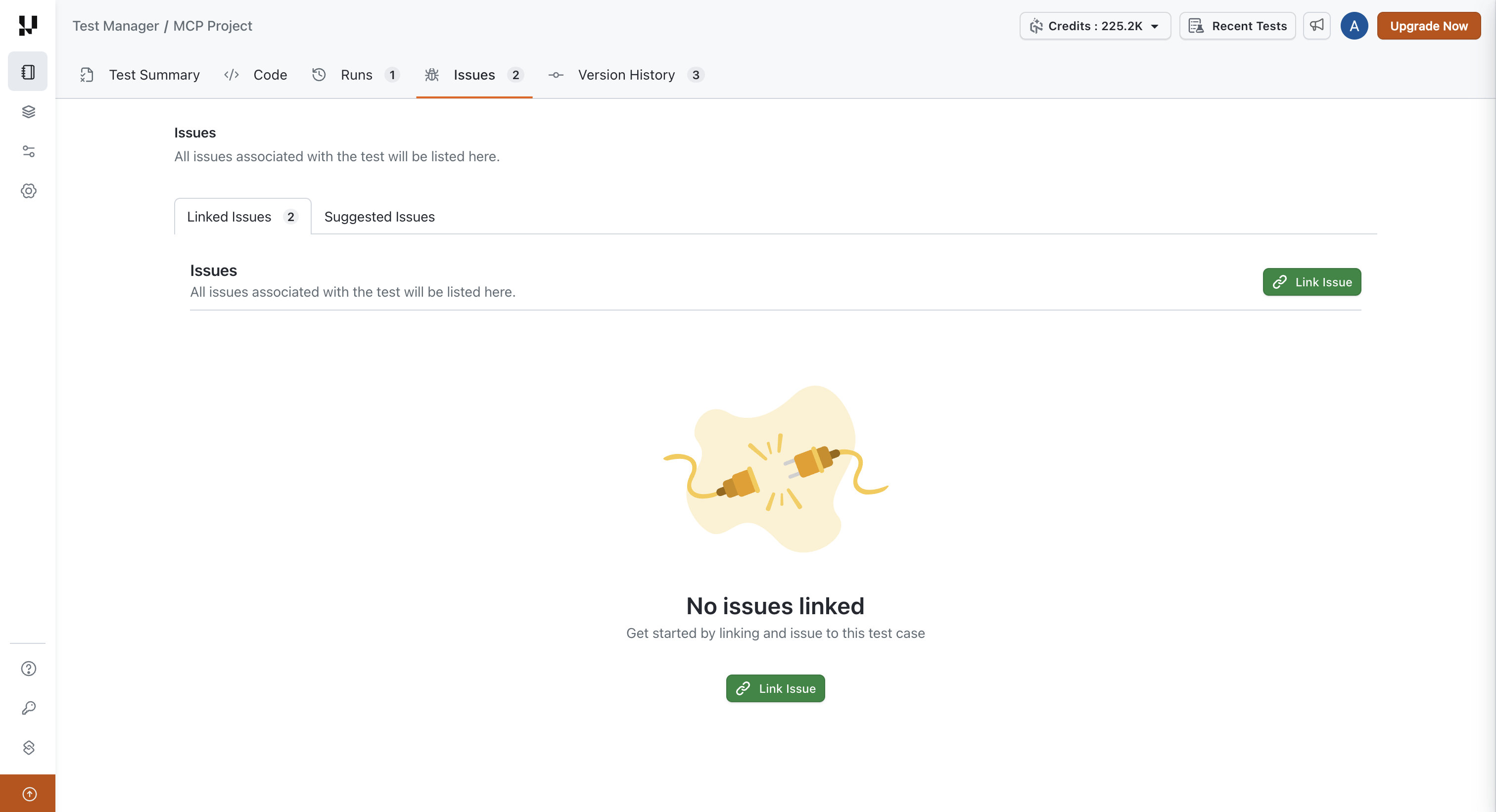
- Head to the issues section in Test Manager and click on Link Issue.
Note: Issue linking is supported at the Test Case, Test Run, Test Case instance, and step level. To link issues, go to the Issues tab within a Test Case or a Test Run. For linking at the instance and step level within a Test Run, see Track Bugs and Issues in Test Runs.
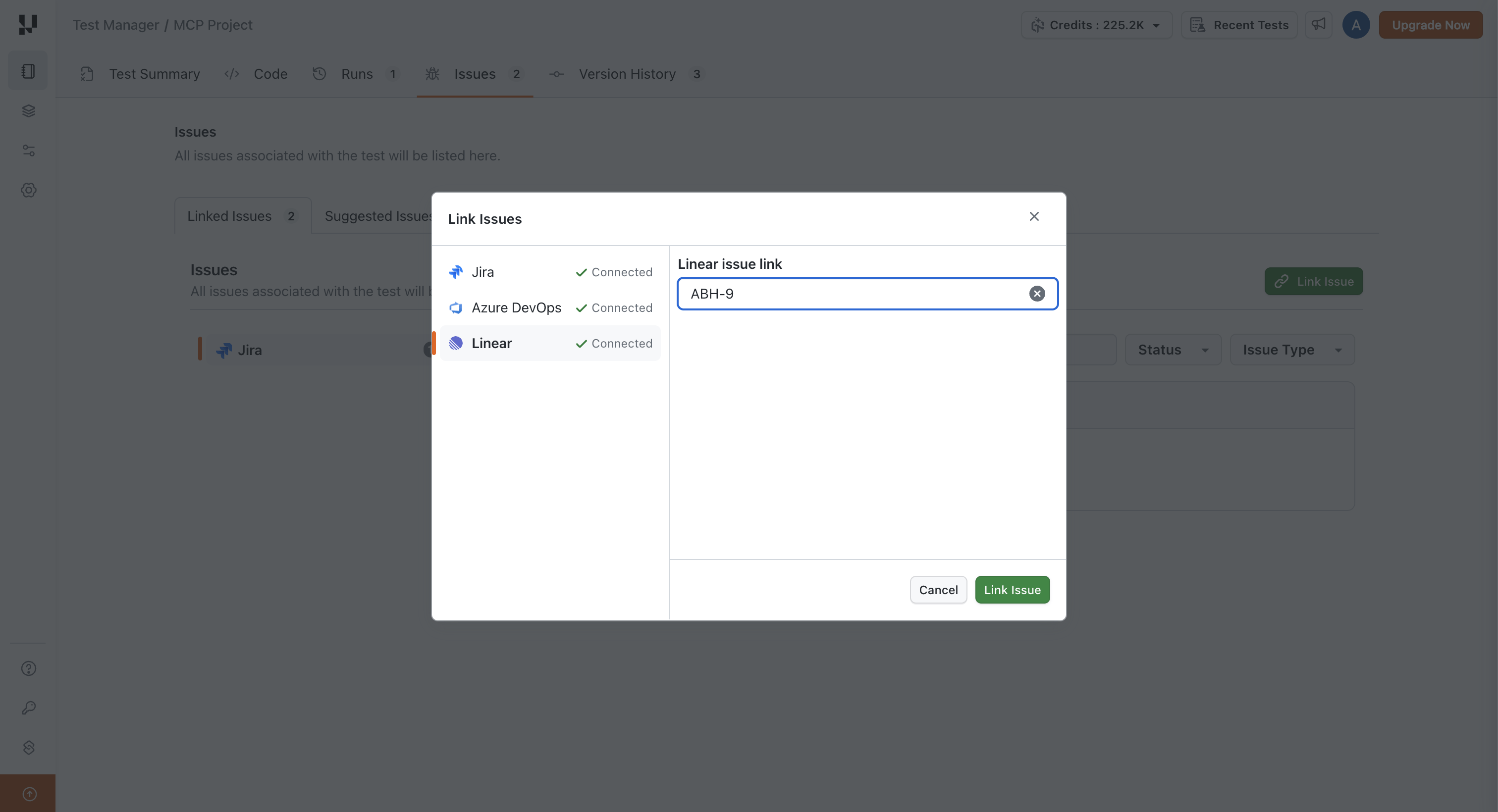
- Select Linear as the source, enter the Linear issue ID or URL in the input field, and click on Link Issue.
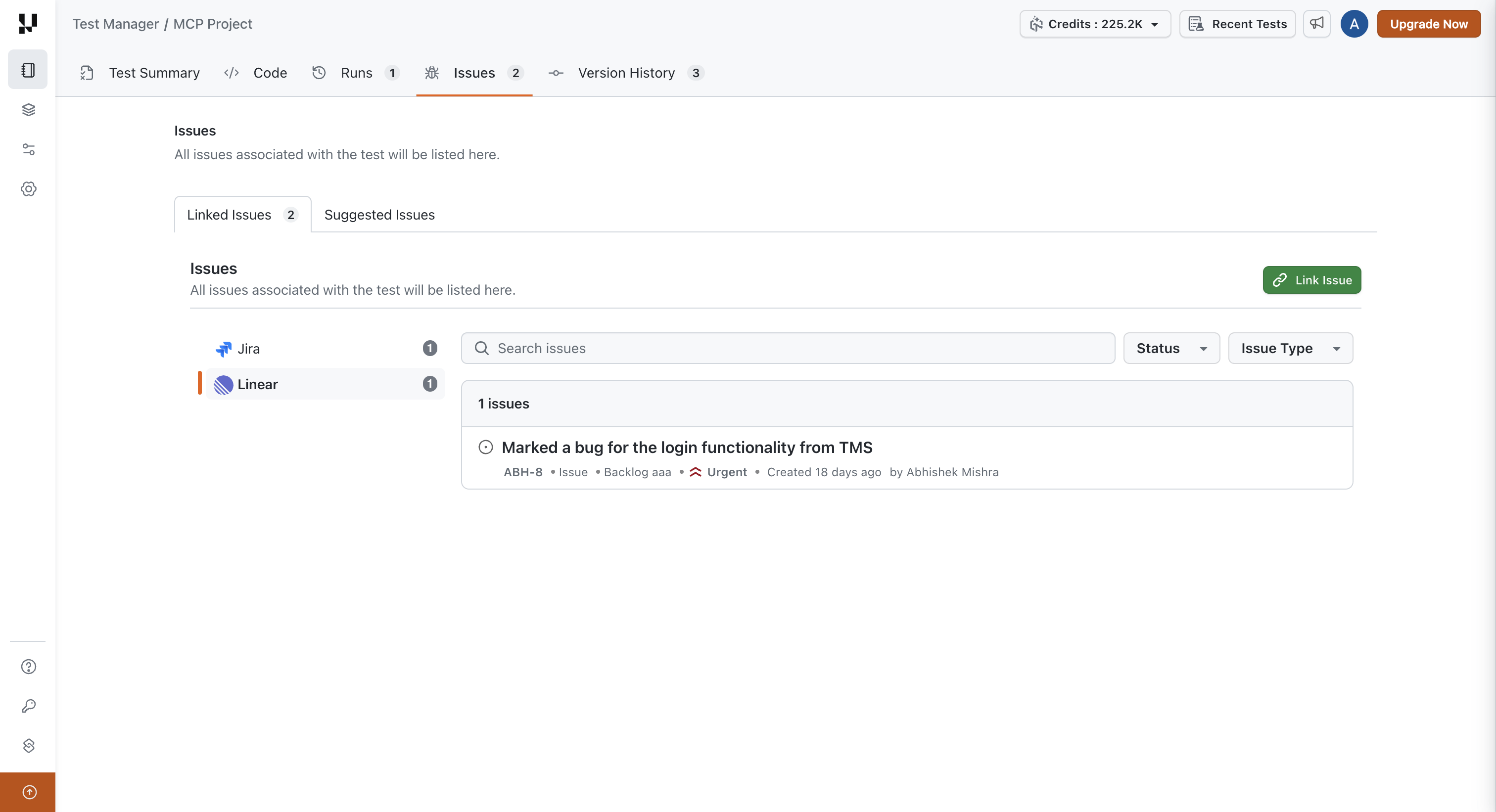
- The Linear issue from your integrated Linear project is successfully linked and listed.
What a linked Linear issue shows
A linked issue lists its title, identifier, issue type, status, priority, creation date, and creator. Click the linked issue to open it directly in Linear.
Linked issues are grouped by tracker, so Linear issues are listed under Linear alongside any Jira or Azure DevOps issues on the same test artifact. Use the search box and the Status and Issue Type filters to narrow a long list.
Test Manager does not store any of these details. They are fetched from Linear every time you view the test case, test run, or instance, so what you see always reflects the current state of the issue in Linear.
Linking is repeatable and many-to-many:
- Linking the same issue to the same test artifact again does not create a duplicate.
- One Linear issue can be linked to any number of test cases, test runs, and instances, and one test artifact can carry any number of Linear issues.
Unlinking a Linear issue
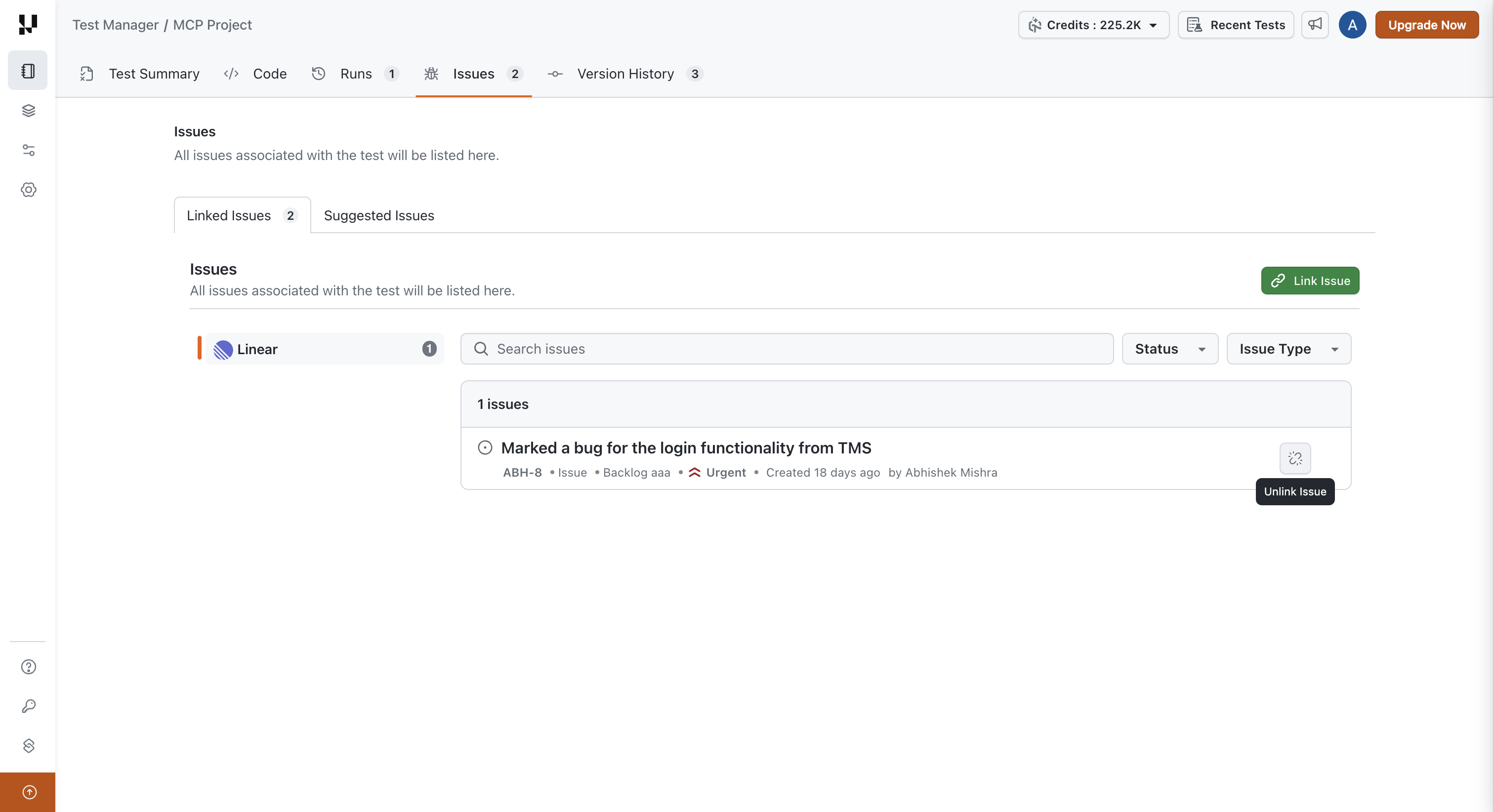
To unlink an issue, click on the unlink button located on the right side of the Linear issue.
Unlinking removes the association in Test Manager only. The issue itself stays in Linear.
Behaviour in specific situations
| Situation | What happens |
|---|---|
| Linear is not connected to your TestMu AI account | Linear cannot be selected in the Link Issue dialog until you connect it |
| The issue belongs to a Linear project you did not select during setup | It is not returned in results and cannot be linked |
| Linear is temporarily unreachable | The issue is shown with the details last retrieved, along with a notice that they could not be refreshed. The next view retries |
| The issue is archived in Linear | The issue is identified as archived and can still be linked |
| The issue has been deleted in Linear | The issue is reported as unavailable and can be unlinked |
| Linear is disconnected from your account | Linked Linear issues are no longer shown. They become visible again if you reconnect the same Linear workspace and projects |


 Chat with Us