

Power Your Software Testing with AI Agents and Cloud
The Native AI-Agentic Cloud Platform to Supercharge Quality Engineering. Test Intelligently and Ship Faster.


- TestMu AI (Formerly LambdaTest)
- /
- Blog
- /
- 9 Best iOS Emulators for PC to Run iPhone Apps [2026]
9 Best iOS Emulators for PC to Run iPhone Apps [2026]
Run and test iPhone apps on Windows: 9 iOS emulators and simulators that genuinely work in 2026, how they were picked, pricing, and the limits of each.
Last Updated on:
An iOS emulator for PC is software that runs iPhone and iPad apps on a Windows or Mac computer without owning the device. True hardware emulation is impossible, so the real options are simulators, ARM virtualization, or streamed device clouds. Top picks include Smartface, TestMu AI, Appetize.io, Corellium, iPadian, TestFlight, Xcode, Remoted iOS Simulator, and MacInCloud.
Although numerous Android emulators are available, such emulators for testing iOS applications on Windows or Mac are rare. With iOS emulator for PCs, you can replicate an iOS device’s behavior without installing additional hardware.
The use of an emulator allows you to test apps on your PC. Additionally, it allows app developers to detect unexpected behavior of iOS apps during testing.
Note: The terms iOS emulator and iOS simulator are used interchangeably. However, it’s important to note that Apple uses its custom chipset and code that can’t be recreated virtually. So, there are no ideal iOS emulators.
Key Takeaways
To run and test iPhone apps on a PC, use cloud-based platforms like TestMu AI for automated testing across real devices, or Appetize.io for instant browser-based app previews. These tools bypass local hardware limitations to let developers and QA teams validate iOS applications directly on Windows or Mac.
- True iOS hardware emulation is impossible on PCs because Apple's proprietary chipset and signed boot chain cannot be virtually recreated; most tools are actually simulators, ARM virtualizers, or cloud services.
- While a simulator only mimics iOS software using your host machine for fast UI checks, an emulator like Corellium virtualizes both hardware and software to provide production-level fidelity.
- Hardware-dependent features like Face ID, Apple Pay, and cameras cannot run on simulators, requiring validation on a real-device cloud before release.
- Best for cloud-based automated testing: TestMu AI - This platform provides cloud-based iOS simulators and access to an online device farm for manual and automated testing on Windows, macOS, and Linux.
- Best for cross-platform development: Smartface - This cloud-based IDE enables native iOS and Android app development and debugging on Windows and macOS, though it requires an Apple device for initial setup.
- Best for browser-based previews: Appetize.io - This cloud-based simulator runs iOS apps directly in any web browser without local installations, offering a free tier of 100 minutes per month.
- Best for security research: Corellium - This web-based platform uses ARM virtualization to replicate iOS hardware and software, providing kernel-level access and sensor controls for deep security testing.
- Best for visual iOS interface previews: iPadian - This Windows-only tool replicates the visual look and feel of the iOS user interface on a desktop, though it cannot run actual App Store applications.
- Best for beta distribution: TestFlight - Apple's official platform requires a Mac to upload builds, allowing developers to distribute pre-release iOS apps to up to 10,000 external testers for feedback.
- Best for native Mac development: Xcode Simulator - This free, macOS-only native simulator is Apple's official tool for developing, debugging, and testing iOS applications directly on a Mac.
- Best for Windows-based .NET development: Remoted iOS Simulator - This free tool allows developers to test and debug Xamarin and .NET MAUI iOS applications on Windows by connecting through Visual Studio.
- Best for Mac-as-a-service access: MacInCloud - This service provides Windows users with remote access to a cloud-based Mac environment to run official Apple development tools without owning physical Mac hardware.
What is an iOS Emulator for PC?
An iOS emulator for PC is a software tool that lets you run iPhone and iPad apps on a Windows or Mac computer without owning the physical device. It replicates the iOS software environment (UI, runtime, and APIs) so apps think they are running on real Apple hardware.
True hardware emulation of iOS is not technically possible, because Apple's ARM chipset and signed boot chain are proprietary and cannot be redistributed. What ships as an "iOS emulator for PC" is one of three things: an iOS simulator (software layer only), an ARM virtualization platform (such as Corellium), or an iOS simulator online, streamed from a remote device cloud in your browser with nothing installed locally.
For QA and developer workflows, the practical question is not "which is technically an emulator", but "which option gives me high enough fidelity to ship without owning a device lab". The 9 tools compared below are the credible answers in 2026.
How We Selected These iOS Emulators?
Every tool below was evaluated against eight criteria that matter for QA, mobile development, and security research on a Windows PC. Tools that failed two or more criteria did not make the list, and each entry's pricing, feature claims, and platform support were re-verified on the vendor's official site in May 2026.
- Platform support: Windows-native, browser-based, or paired-Mac access (since "PC" search intent often means Windows-only).
- Free tier or trial: at least one risk-free way to evaluate before committing budget.
- Real-device fallback: whether the tool offers or integrates with real iOS hardware for tests that simulators cannot run (biometrics, GPS, push, in-app purchase).
- Framework compatibility: support for Appium, XCUITest, or .NET MAUI/Xamarin pipelines.
- CI/CD integration: documented hooks into Jenkins, GitHub Actions, GitLab, or Azure DevOps.
- Pricing transparency: vendor publishes per-user, per-minute, or seat-based pricing on the official site (not "contact sales").
- Security and compliance: relevant certifications (SOC 2, ISO 27001, GDPR) for tools handling production code or user data.
- Beginner-friendliness: documented setup steps and an onboarding flow under 15 minutes for the first run.
Each tool's score on these criteria is reflected in its position on the list and in the pros/cons section under it.
9 Best iOS Emulators for PCs in 2026
Top iOS emulators for PCs include TestMu AI, Smartface, Appetize.io, Corellium, and more for testing and development.
Quick comparison across platform, type, pricing, and primary use case:
| Emulator | Platform | Type | Pricing | Best For |
|---|---|---|---|---|
| Smartface | Windows, macOS | Cloud-based | Free and paid (from $99) | Cross-platform app development |
| TestMu AI | Windows, macOS, Linux | Cloud-based | Free trial, paid plans | Cross-browser and device testing |
| Appetize.io | Any modern browser | Cloud-based simulator | Free tier, then per-minute | Quick browser-based app previews |
| Corellium | Browser-based | ARM virtualization | Paid (enterprise pricing) | Security research and deep iOS testing |
| Smartface | Windows, macOS | Cloud-based IDE | Free and paid tiers | Cross-platform native app development |
| Remoted iOS Simulator | Windows (via Visual Studio) | Remote simulator | Free (with Visual Studio) | Xamarin/.NET MAUI iOS dev on Windows |
| Xcode Simulator | macOS only | Native simulator | Free | iOS app development and debugging |
Each tool below is reviewed with its features, pros, and cons so you can match the right option to your platform (Windows-first vs Mac-friendly), budget, and testing scope.
1. Smartface (Cloud-based)
Best for: cross-platform native iOS and Android development on Windows.
Smartface is a cloud-based platform designed for testing mobile applications on PCs. Although not a traditional emulator, it supports iOS and Android app testing, making it a strong choice for developers focused on building high-quality iOS apps on their PC.
Features:
- Advanced Debugging: Smartface is a option for iOS app development on PC, offering advanced debugging tools and seamless plugin integration.
- Multi-Device Testing: With a user-friendly interface, it supports comprehensive app testing across various iOS devices and versions.
- Cross-Platform Emulation: To set up Smartface, an Apple device with the Smartface app needs to be connected to a Windows system with iTunes installed. Once the setup is complete, initiating emulation is simple, providing a cross-platform programming experience with just a few clicks.
- Browser-Based iOS Emulation: Smartface receives regular updates to stay in sync with changes in operating systems. If an Apple device is unavailable and you simply want to run iOS apps, Smartface allows you to do so in a browser.
- Free and Paid Versions: Users can opt for either the paid or free version based on their preferences, with the paid version of Smartface starting at $99.
Pros: Cross-platform development support, advanced debugging tools, regular updates to match new iOS versions.
Cons: Requires an Apple device for initial setup, paid version starts at $99, steeper learning curve for beginners.
2. TestMu AI (formerly LambdaTest)
TestMu AI is a full-stack agentic AI quality engineering platform that helps teams test smarter and deliver faster. It offers both manual and automated testing using mobile emulator online across real browsers, devices, and operating systems. TestMu AI offers iOS simulators on cloud that let you test your iOS applications on Windows, Mac, or Linux.
Features:
- Online Device Farm: Gives access to an online device farm of real iOS devices, allowing you to test your iOS applications on a real Mac.
- Cloud-Based Infrastructure: TestMu AI works on a cloud-based infrastructure, allowing users to access a wide array of iOS devices without needing physical hardware.
- Live Interactive Testing: It allows for live interactive testing, enabling users to manually interact with their iOS applications in real-time on various iOS devices.
- UI and Responsiveness Checks: With the TestMu AI iOS emulator, you can explore the user interface, check responsiveness, and find any usability issues.
- Automated Testing Support: TestMu AI supports automated testing frameworks like Appium, facilitating automation testing for iOS applications.
- Recording and Screenshots: When performing tests on TestMu AI iOS emulators, you can record the test sessions and capture the screenshots of apps being tested on PC.
Pros: Access to real devices on cloud, supports manual and automated testing, works on Windows/macOS/Linux, integrates with CI/CD pipelines.
Cons: Requires internet connection, free tier has limited minutes, advanced features need paid plans.

Note: Test your iOS apps on a real-device cloud with 10,000+ devices. Try TestMu AI free!
3. Appetize.io (Cloud-based)
Best for: zero-setup browser-based iOS app previews with a free monthly tier.
Appetize.io is one of the top iOS emulators for PCs that works entirely in the browser, eliminating the need for local installations. It offers a cost-effective way to test and develop cross-platform iOS applications with built-in debugging and live interaction.
Features:
- Browser-Based App Installation: Uploading and installing apps directly from the browser is hassle-free, requiring no downloads, plugins, or administrator privileges.
- Command Integration via iFrame: Testers can issue direct commands on their embedded iFrame through query parameters, translating these commands into actions on the web page.
- Network and Debug Tools: It provides convenient access to network traffic, debug logs, and video recordings.
- Real-Time Device View: Users can view the remote device in action to identify any issues quickly.
- Web and API-Based App Upload: App uploading is possible through the website or API, enabling the app to run in any major web browser on your PC within seconds.
- Free Usage Plan: While the free version allows 100 minutes of usage per month, exceeding this limit incurs a charge of $0.05 per minute. However, the free version remains viable for basic app testing needs.
Pros: No installation needed, works in any browser, easy app upload via drag-and-drop, built-in debugging tools.
Cons: Free tier limited to 100 minutes/month, costs add up at $0.05/min for heavy usage, requires stable internet.
4. Corellium (Cloud-based)
Best for: security research and ARM-level iOS virtualization.
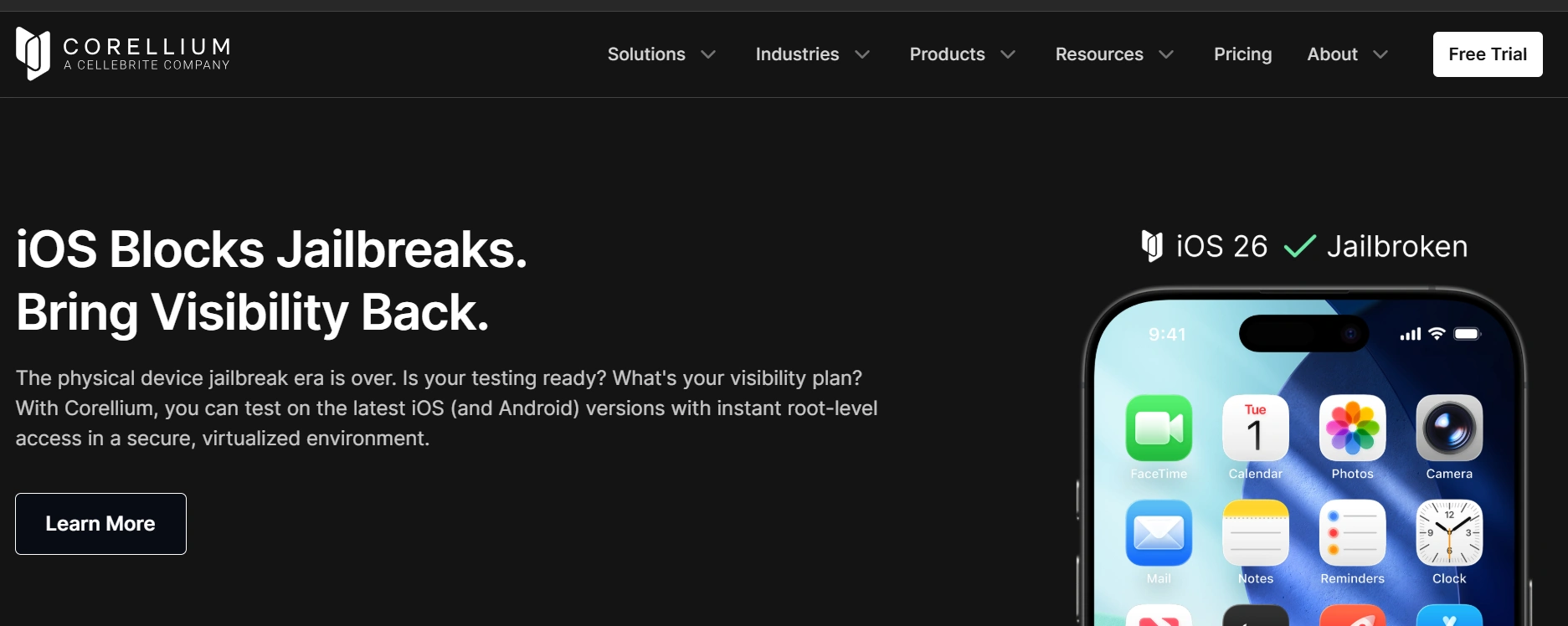
Corellium is a highly advanced web-based iOS emulator designed for PC users. Originally built for security experts and researchers, it now serves regular users too, offering complete iOS access and functionality that positions it among the best iOS emulators available.
Features:
- iOS Device Simulation: This iOS emulator can effectively simulate an iPhone, iPad, or iPod touch running on your PC.
- Data Privacy Commitment: Corellium commits to not collecting data from virtual devices or the network, ensuring user privacy.
- Arm Virtualization: Through Arm virtualization, it serves application developers and security teams by facilitating the development, testing, and securing of mobile and IoT apps, hardware, and firmware.
- Sensor Parameter Control: You can easily modify sensor parameters to test mobile applications, adjusting factors such as battery levels, device location, and motion.
- Custom Kernel Support: As Corellium controls the hardware and manages kernel usage, testers can change the kernel and upload their ARM kernel.
- Multiple Connectivity Options: Connectivity to iOS devices is possible through various options, including Xcode or libimobile script.
- Proxy Tool Support: The use of an HTTP proxy/monitor, such as Burp or Charles Proxy, is also supported by Corellium.
Pros: Full ARM virtualization (closest to real iOS), kernel-level access, strong privacy commitment, supports security research.
Cons: Enterprise-level pricing (expensive for individuals), requires technical expertise, no free tier available.
5. iPadian (Windows only)
Best for: a casual Windows-only preview of the iOS interface (not for real app testing).
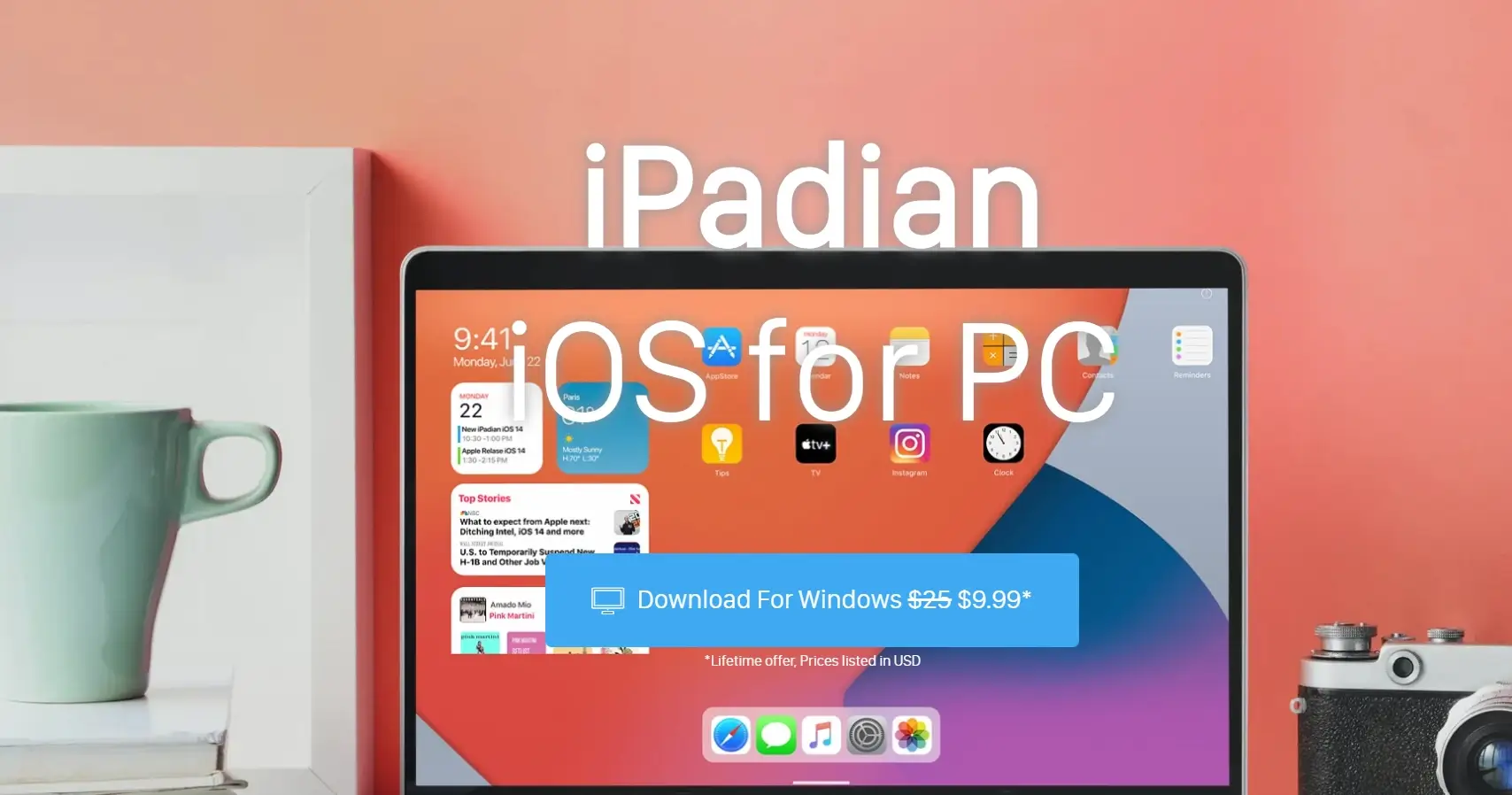
iPadian is one of the most popular iOS emulators, known for being simple and easy to use with a user-friendly interface. It is explicitly designed for Windows operating systems, offering an accessible interface and a broad range of compatible applications.
iPadian replicates the iOS interface on your Windows PC, complete with features like social media widgets and a convenient sidebar for the Application Store, iMessage, and Siri. It lets users experience the look and feel differences between Android and iOS.
Features:
- Run iOS Apps on Desktop: Using iPadian enables running popular iPhone or iPad apps directly on your desktop.
- Built-In App Support: Although the iOS app store is not accessible, iPadian supports specially designed apps like Facebook, Instagram, Spotify, WhatsApp, Crossy Road, and more.
- Preloaded iOS Features: Although not all apps are compatible, it offers features such as Apple Safari, iMessage, and Watch OS.
- Free Availability and Gaming Support: iPadian is freely available, allowing users to access it without any cost, and also supports gaming through this iOS emulator for PCs.
Pros: Easy to install on Windows, free version available, gives a visual feel of the iOS interface.
Cons: Not a true emulator (only simulates the UI), cannot run actual iOS apps from the App Store, limited functionality for developers.

6. TestFlight (Mac only)
Best for: distributing beta iOS builds to up to 10,000 external testers (Mac required).
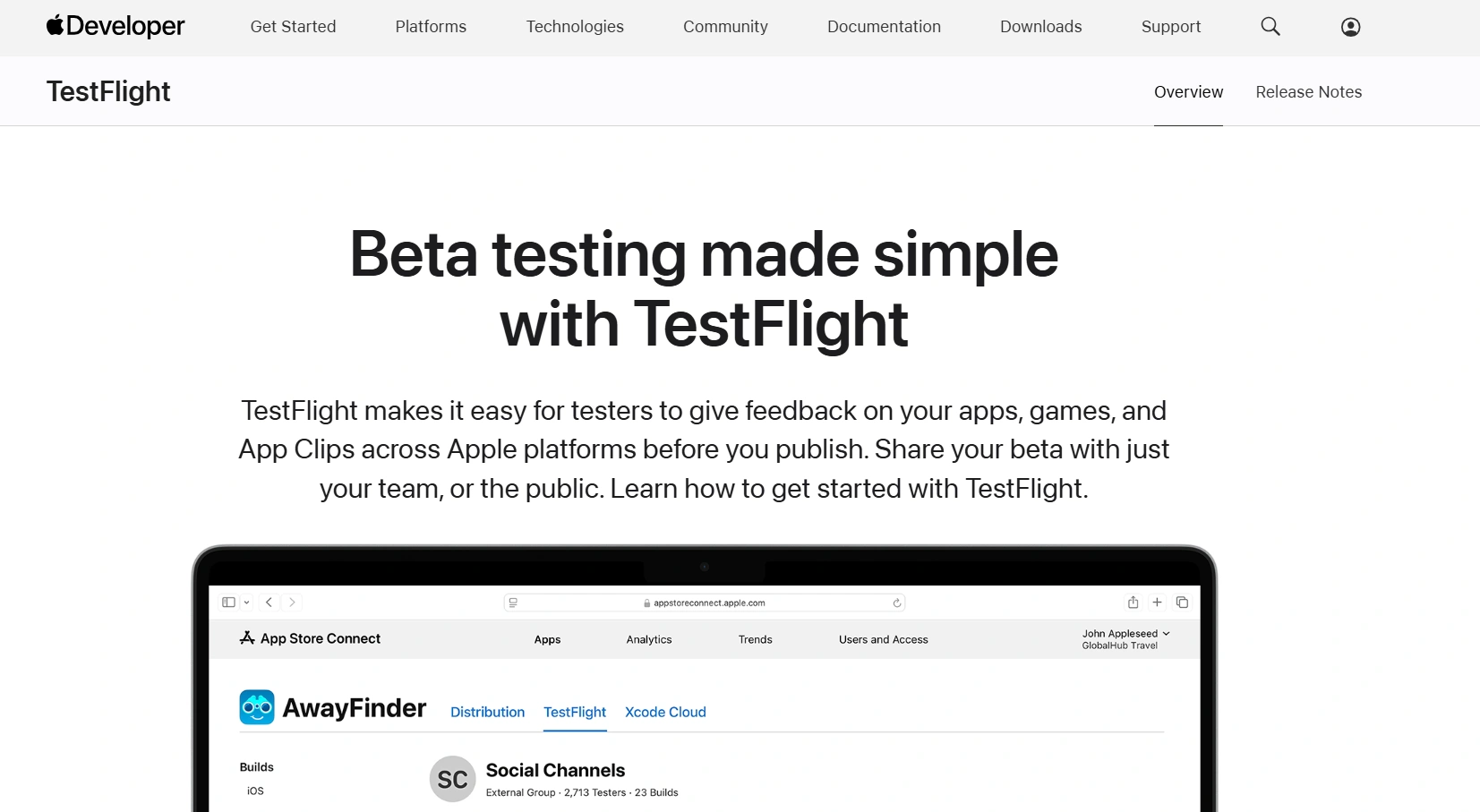
TestFlight is Apple’s official beta testing platform for iOS, iPadOS, watchOS, tvOS, and visionOS apps. It lets developers invite up to 10,000 external testers to try pre-release builds of their apps and collect structured feedback before an App Store release.
While not an emulator in the traditional sense, TestFlight is one of the most reliable ways to test iOS apps in real-world conditions without publishing them. Developers upload builds through App Store Connect, and testers install them on actual devices.
Features:
- Beta App Distribution: Distribute pre-release builds to internal team members and up to 10,000 external testers via email or public link.
- Crash Reports and Feedback: Testers can submit screenshots, written feedback, and crash logs directly from the TestFlight app.
- Multi-Platform Support: Test apps across iOS, iPadOS, watchOS, tvOS, and visionOS from a single dashboard.
- Automatic Updates: Testers automatically receive the latest build when a new version is uploaded, keeping testing current.
- Free to Use: TestFlight is completely free for developers with an Apple Developer account ($99/year).
Pros: Apple's official tool, free to use, supports up to 10,000 testers, built-in crash reporting and feedback.
Cons: Requires macOS and an Apple Developer account ($99/year), not available on Windows, testers need iOS devices.
7. Xcode (Mac only)
Best for: native iOS development on macOS with the most accurate iOS Simulator.
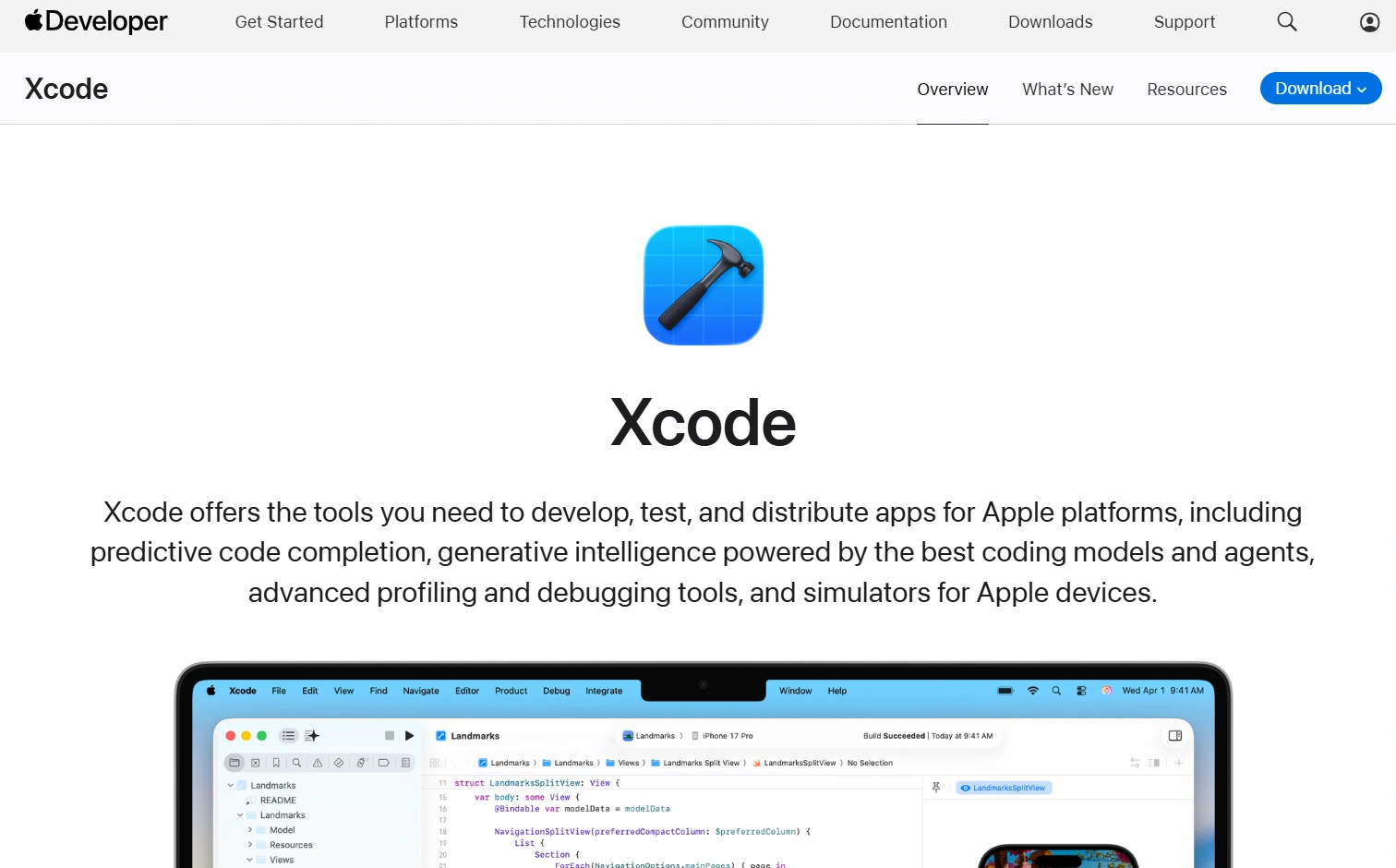
Xcode is Apple’s integrated development environment (IDE) for macOS with a built-in iOS emulator for testing applications on virtual iOS devices. It is mainly used to develop iOS applications for various Apple products, including iPhone, iPad, Apple Watch, and Mac.
You can code and design applications faster with its code completion, live animations, and interactive previews. Xcode provides a complete suite of tools that manage the entire app development process, from building and testing to optimization and App Store submission.
Features:
- Web and SPA Optimization: It ensures flawless functionality for web pages and single-page applications.
- Live Build Monitoring: Xcode shows live status indicators that enable you to filter and monitor preferred build tasks.
- SwiftUI Integration: iOS developers can fully utilize SwiftUI, which has a declarative Swift syntax.
- macOS Exclusivity: Xcode is exclusive to macOS and is not directly accessible on Windows PCs. Windows users may need to explore alternative emulators for their development requirements.
Pros: Apple's official IDE, free to download, most accurate iOS simulation, full SwiftUI and UIKit support.
Cons: macOS-only (no Windows or Linux support), large download size (12+ GB), simulator is not a true emulator.
New to Xcode? Check out this tutorial on what is Xcode.
8. Remoted iOS Simulator for Windows (Windows, paired Mac)
Best for: Visual Studio and .NET MAUI / Xamarin developers on Windows with a paired Mac.
The Remoted iOS Simulator for Windows is part of the Xamarin toolset in Visual Studio. It lets Windows developers building iOS apps with .NET MAUI or Xamarin interact with the iOS simulator on a paired Mac directly from their Windows machine.
Features:
- Windows Integration: Interact with iOS simulator directly from Visual Studio on Windows without switching to a Mac for every test cycle.
- Multi-Touch and Gesture Support: Simulate pinch, swipe, and rotation gestures using mouse and keyboard shortcuts.
- Location Simulation: Test location-based features by setting custom GPS coordinates from the Windows interface.
- Screenshot Capture: Take screenshots of the simulated iOS device directly from Visual Studio for documentation and bug reports.
- Free with Visual Studio: Included with Visual Studio Community, Professional, and Enterprise editions at no additional cost.
Pros: Lets Windows developers test iOS apps without switching to a Mac, free with Visual Studio, supports touch gestures and location simulation.
Cons: Still requires a networked Mac for the actual simulation, limited to Xamarin/.NET MAUI projects, not a standalone emulator.
9. MacInCloud (Cloud Mac)
Best for: Windows users who need full Xcode and iOS Simulator access without buying a Mac.
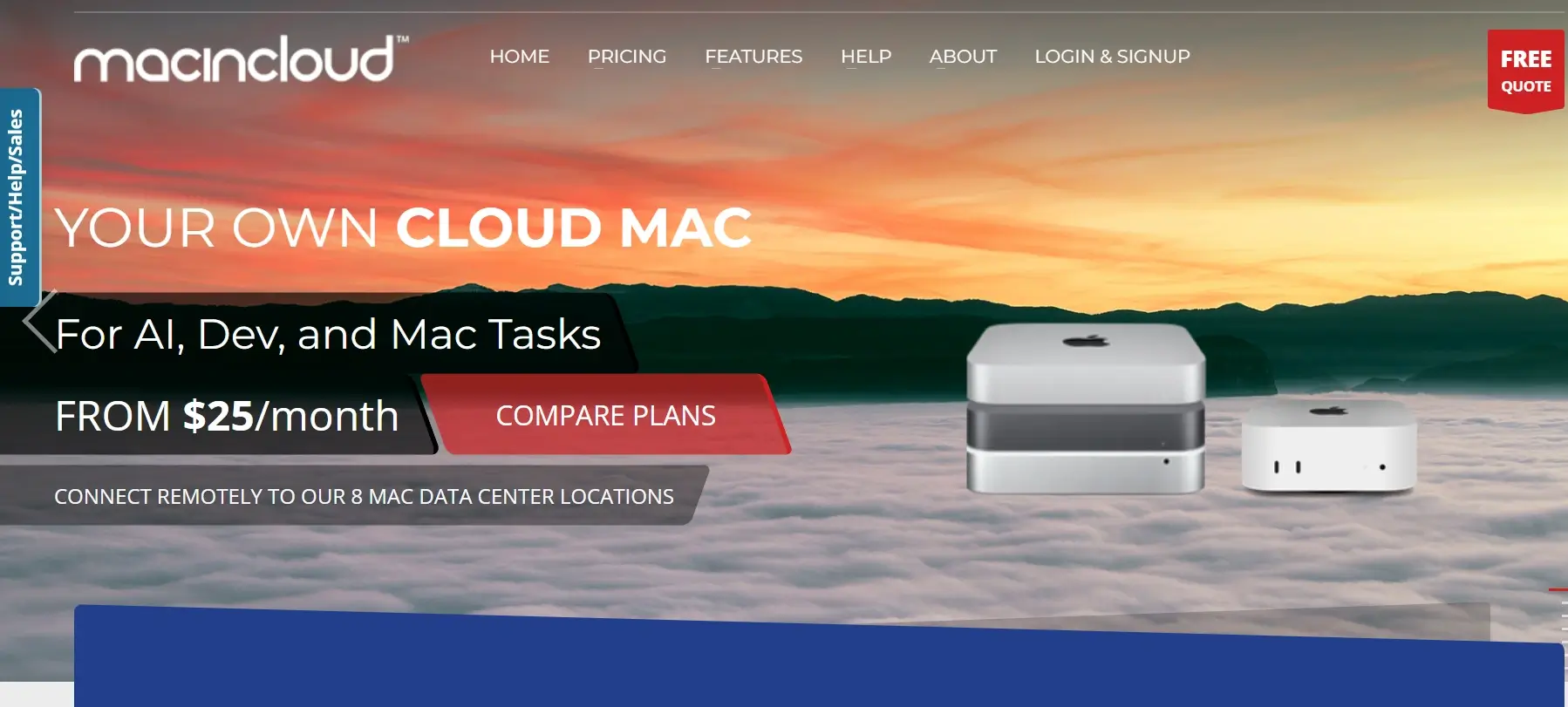
MacInCloud is not an emulator itself; it is a Mac-as-a-service that gives you a real cloud-hosted Mac (Mac mini M4) you can remote into from any Windows PC. Once connected, you run Apple's native Xcode and iOS Simulator on actual macOS, which is the most accurate way for a Windows developer to access the iOS development toolchain.
Features:
- Real macOS Hardware: remote into actual Mac mini M4 servers running the latest macOS (Sequoia and Tahoe), with Xcode, watchOS Simulator, Swift Playgrounds, and Visual Studio Code pre-installed.
- Cross-Platform Access: connect via any browser, Remote Desktop Protocol (RDP) from Windows, SSH for build automation, or even from a mobile device.
- 8 Global Data Centers: servers in Los Angeles, New York, Dallas, London, Frankfurt, Singapore, Sydney, and Mumbai for low-latency access from most regions.
- Flexible Plans: Managed Server, Dedicated Server, Pay-as-You-Go, Azure Pipeline Agent (for CI builds), and Academic plans starting from $25/month.
- iOS Development Toolchain: fully-loaded with Xcode, iOS Simulator, watchOS Simulator, and the same Apple SDKs you would get on a local Mac, with no licensing workarounds required.
Pros: Real macOS environment, full Xcode access from Windows, supports Azure DevOps and CI builds, plans start from $25/month.
Cons: You are renting a Mac rather than running an emulator (technically a different category), latency depends on data center proximity, costs add up at scale compared to owning a Mac for long-term use. If your goal is checking how a site renders in Safari rather than compiling native iOS builds, a virtual macOS online session is the lighter route, since it boots a real macOS machine with Safari straight in your browser.
What iOS Emulators Cannot Do (Hardware Limitations)
Even the most accurate iOS simulator runs on the host machine's CPU and operating system. That means any iOS feature that depends on Apple's actual hardware, Secure Enclave, or radio chips cannot be tested on an emulator. The following will fail or behave incorrectly on every option in this guide:
- Face ID and Touch ID: Secure Enclave-backed biometrics cannot be virtualized. Simulators only mock the success/failure callback.
- Camera, microphone, and barcode capture: the simulator can only stream a host webcam or static image, not real iPhone camera output.
- True GPS, accelerometer, gyroscope, and barometer: simulators read injected coordinates only, not real motion or location signals.
- Bluetooth, NFC, and Apple Pay: radio chips and the Secure Element are not virtualized.
- Push notifications through APNs: most simulators stub these; production-mode push payloads require a real device.
- Apple Watch and HealthKit data flows: companion-device pairing and HealthKit reads need real hardware.
- Real CPU, GPU, thermal, and battery behavior: the simulator inherits the host machine's performance profile, not iPhone's.
- True network conditions: cellular handoff, captive portals, and real 5G/4G throughput cannot be reproduced on a desktop.
- App Store install flows and StoreKit: in-app purchase receipts and production StoreKit can only be tested on real iOS devices via TestFlight or App Store Connect.
For everything above, the simulator gets you about 80% of the way and a real iOS device closes the last 20%. Teams typically run the simulator suite on every commit and the real-device suite on every release candidate. TestMu AI's real device cloud (10,000+ real iOS and Android devices) is the most common way to add the real-device pass without buying or maintaining a physical lab.
iOS Emulator vs Simulator: What's the Difference
An emulator replicates both hardware and software of an iOS device for realistic testing. A simulator only mimics the software layer using your host machine's hardware, making it faster but less accurate.
Apple provides a simulator through Xcode rather than a true emulator, since its custom chipset and proprietary code cannot be fully recreated virtually. Most tools listed in this guide are technically simulators or cloud-based virtual platforms, though commonly called emulators.
| Aspect | Emulator | Simulator |
|---|---|---|
| Hardware replication | Yes, mimics device hardware | No, uses host machine hardware |
| Performance accuracy | Closer to real device | Faster but less accurate |
| System resource usage | Higher CPU/RAM usage | Lighter on resources |
| Use case | Hardware-dependent testing | UI and functional testing |
| Example | Corellium (ARM virtualization) | Xcode iOS Simulator |
Whether cloud-based or locally installed, each emulator handles iOS for PC environments differently. For production-level testing that covers both hardware and software behaviors, testing on real devices remains the most reliable approach.
How to Choose the Right iOS Emulator for PCs
The right pick depends on three questions: which platform you are on (Windows or Mac), what you are actually testing (UI, automation, security, or beta distribution), and your budget. Match your situation to the table below.
| Your situation | Best pick from this list |
|---|---|
| Windows, want to try iOS without setup or budget | Appetize.io (browser, free tier) |
| Windows, need real iPhone fidelity for production tests | TestMu AI cloud iOS simulator + real device cloud |
| Windows, building cross-platform apps in Visual Studio | Remoted iOS Simulator for Windows |
| Windows, doing security research or kernel-level work | Corellium (ARM virtualization) |
| Windows, need full Xcode access without buying a Mac | MacInCloud (Mac-as-a-service, from $25/month) |
| Mac, building native iOS apps | Xcode Simulator |
| Mac, distributing beta builds to testers | TestFlight |
| Testing web apps on iOS browsers without an iPhone | TestMu AI iOS simulator online |
Three additional factors decide the final pick:
- Real-device fallback: simulators cannot test Face ID, GPS, push notifications, or App Store flows. Pick a tool that gives you one-click escalation to real devices. TestMu AI is the only option in this guide that pairs both in a single dashboard.
- Framework compatibility: if your test suite is in Appium, XCUITest, or .NET MAUI, confirm the tool supports it natively before committing. Most cloud simulators support Appium; .NET MAUI requires the Remoted iOS Simulator with a paired Mac.
- CI/CD integration: production teams need iOS tests to run on every pull request. Verify the tool has documented hooks into Jenkins, GitHub Actions, or GitLab. TestMu AI, Corellium, and Smartface all do; iPadian does not.
How to Set Up an iOS Emulator on Windows (Step-by-Step)
Run an iOS app on Windows directly in your browser using TestMu AI's cloud iOS simulator. No Mac, no Xcode, no install required.
- Log in: sign in to TestMu AI, or create a free account if you do not have one (no credit card required).
- Open Real Time from the sidebar: in the left navigation panel, click Real Time to open the live interactive testing dashboard.
- Pick an iPhone emulator: choose an iPhone model and iOS version from the array of iOS emulators in the device picker. TestMu AI covers a wide range of iPhone models and runs an iPad simulator online across multiple iOS versions, so you can match the version distribution of your real user base.
- Upload your app (or enter a URL): drag in a signed .ipa file for native app testing, or enter the URL of your web app for browser testing. Apps stay private to your account.
- Launch and interact: click Start and the device boots in your browser. Tap, type, capture screenshots, record video, and inspect network and console logs from the side panel. Share the live session URL with a teammate for review.
Why Does Testing on Real iOS Devices Matter
Real device testing reveals how your app truly performs under real-world conditions. Emulators and simulators help during early development but cannot fully replicate actual hardware, sensors, and network behavior.
If you want the reliability of real device testing without managing a physical device lab, TestMu AI's real device cloud lets you instantly access 10,000+ real iOS and Android devices, so you can test faster and more accurately.
Features:
- Wide Device Coverage: Access the latest and legacy versions of iPhones, iPads, and Android phones without buying or maintaining them.
- Real Time Testing: Interact with mobile apps on real devices to catch performance, layout, and usability issues as they happen.
- Parallel Testing: Run multiple tests across different devices at once to speed up your QA cycle.
- Network Simulation: Test under various network conditions (like 4G, 5G, or unstable connections) to see how your app handles real-world situations.
- Automated App Testing: Integrate with frameworks like Appium, Espresso, and XCUITest to automate your test runs.
- Seamless CI/CD Integration: Plug into your existing pipeline with support for Jenkins, GitHub Actions, GitLab, and more.
To get started, check out this guide on real device app testing.

Conclusion
Most "iOS emulators for PC" are simulators or remote cloud platforms: Apple's proprietary chipset and code cannot be fully recreated locally, so true hardware emulation on Windows is not feasible. Pick by what you actually need: Appetize.io and Corellium for quick browser-based access; iPadian for a UI preview; Remoted iOS Simulator for Xamarin/.NET MAUI workflows on Windows; Xcode if you have access to a Mac.
For production-grade testing where hardware sensors, real iOS builds, and parallel runs matter, start with TestMu AI's real device cloud (10,000+ real iOS and Android devices, no local hardware needed). Wire it into your CI with the real device app testing docs, then layer in Appium automation once your manual tests pass.
Note: This article was researched and drafted with AI assistance, then reviewed, fact-checked, and published by Nazneen Ahmad, Community Contributor at TestMu AI, whose listed expertise includes App Testing and Software Testing. Every pricing number, feature claim, and external link was verified against the vendor's live page. Read our editorial process and AI use policy for details.
Author

Nazneen Ahmad
Blogs: 39


Nazneen Ahmad is a freelance Technical Content SEO Writer with over 6 years of experience in crafting high ranking content on software testing, web development, and medical case studies. She has written 60+ technical blogs, including 50+ top-ranking articles focused on software testing and web development. Certified in Automation Basic and Advanced Training - XO 10, she blends subject knowledge with SEO strategies to create user focused, authoritative content. Over time, she has shifted from quick, keyword-heavy drafts to producing content that prioritizes user intent, readability, and topical authority to deliver lasting value.
Reviewer

Siddhant Sinha
Reviewer
Siddhant Sinha is a Lead Member of Technical Staff at TestMu AI architecting Kane CLI, the command-line tool for browser automation from the terminal, where natural-language flows run in a real Chrome browser and return pass or fail with shareable proof. He has spent over three years at TestMu AI (formerly LambdaTest) building scalable platforms that run tests at scale on real Android and iOS devices. His expertise covers platform architecture, large-scale distributed systems, and CLI design, shaped by earlier cloud-native engineering at Semut.io, including building Elasticsearch as a service.


iOS Emulators for PC FAQs
Did you find this page helpful?
More Related Blogs
TestMu AI forEnterprise
Get access to solutions built on Enterprise
grade security, privacy, & compliance
- Advanced access controls
- Advanced data retention rules
- Advanced Local Testing
- Premium Support options
- Early access to beta features
- Private Slack Channel
- Unlimited Manual Accessibility DevTools Tests