

Power Your Software Testing with AI Agents and Cloud
The Native AI-Agentic Cloud Platform to Supercharge Quality Engineering. Test Intelligently and Ship Faster.


- TestMu AI (Formerly LambdaTest)
- /
- Blog
- /
- How to Improve Mobile Accessibility for Your Website
How to Improve Mobile Accessibility for Your Website
Learn how to improve mobile accessibility for your website, from touch target size and color contrast to screen reader support, WCAG 2.2, and testing tools.
Last Updated on:
On This Page
- Understanding the Basics of Mobile Accessibility
- Identifying Common Accessibility Issues
- Design Tips for Improving Mobile Accessibility
- Which WCAG Success Criteria Apply Specifically to Mobile?
- Ensuring Compatibility with Assistive Technologies
- Testing the Website's Accessibility
- List of Tools for Testing Mobile Accessibility
- How Is AI Changing Mobile Accessibility in 2026?
- Conclusion
You improve mobile accessibility for your website by meeting WCAG 2.2 at Level AA on small screens. That means touch targets of at least 24 by 24 CSS pixels under success criterion 2.5.8, text contrast of 4.5:1, and a page that reflows at 320 CSS pixels wide. This guide covers the basics of mobile accessibility, common accessibility issues, design tips, the WCAG success criteria that apply to mobile, assistive technology compatibility, how to test the site, testing tools, and how AI is changing mobile accessibility.
Key Takeaways
- WCAG success criterion 2.5.8 Target Size (Minimum) is a Level AA requirement that asks for pointer targets of at least 24 by 24 CSS pixels, with exceptions for adequate spacing, inline links and controls the user agent draws.
- WCAG success criterion 1.4.10 Reflow requires a mobile page to stay usable at a viewport width of 320 CSS pixels without scrolling in two directions.
- Success criteria 2.5.1 Pointer Gestures and 2.5.4 Motion Actuation are Level A, so every swipe, pinch or shake interaction also needs an ordinary single pointer control.
- WCAG 2.2 became a W3C Recommendation on 5 October 2023 and is the version websites conform to and get audited against today, while WCAG 3.0 remains an unfinished Working Draft.
- The European Accessibility Act covers smartphones, e-commerce, banking services, e-books, telephony and passenger transport in the European Union, which makes mobile accessibility a legal obligation for those services.
- Automated scanners such as Axe, Pa11y and Google Lighthouse catch missing alt text, skipped heading levels and low color contrast, while real people testing on VoiceOver or TalkBack find the problems scanners miss.
Understanding the Basics of Mobile Accessibility
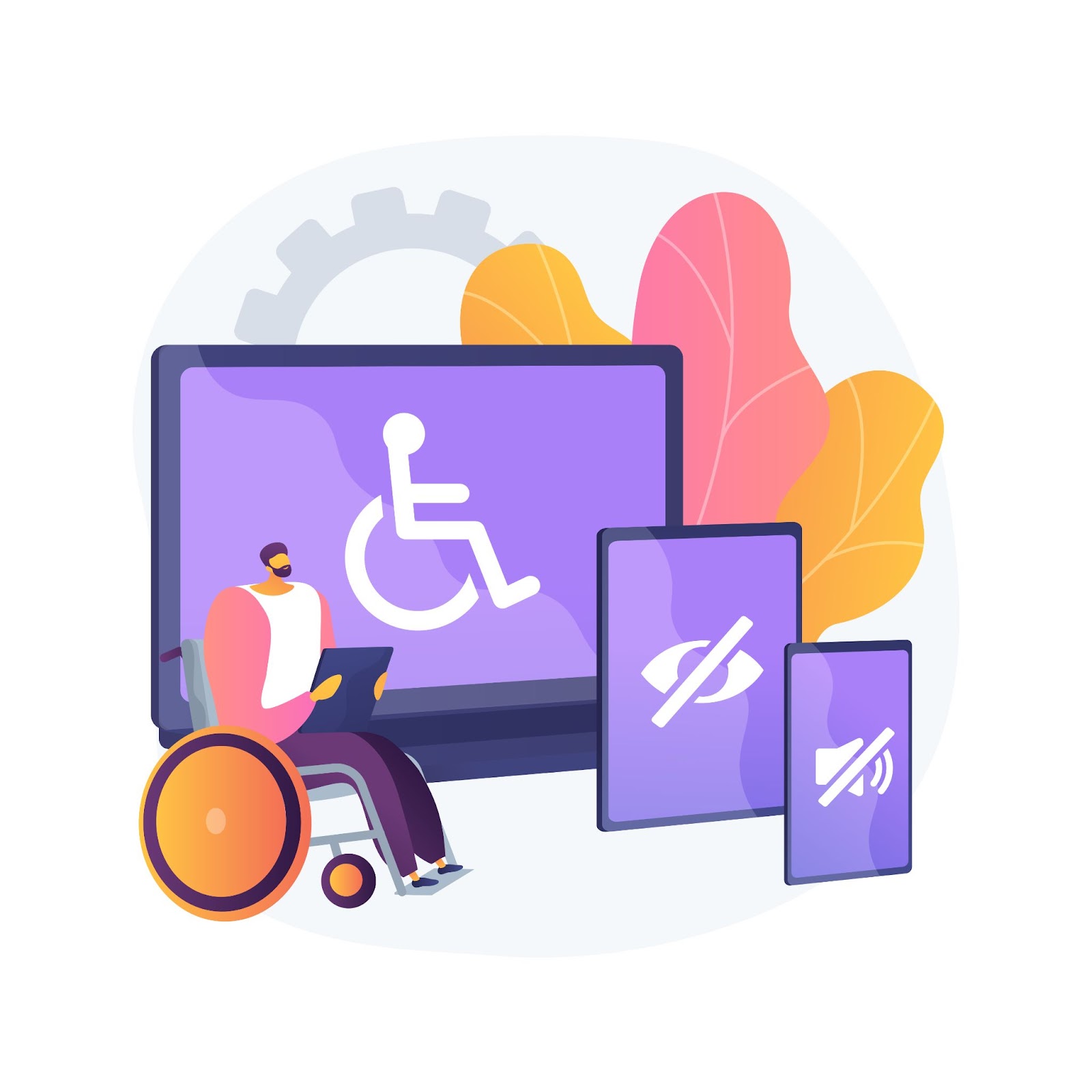
What is mobile accessibility?
Mobile accessibility is the practice of designing and developing websites and applications that can be accessed by people with impairments using mobile devices. This includes people with visual, auditory, and cognitive disabilities, as well as those with motor impairments. Making your website mobile accessible provides equal access to your content for all users and helps improve the user experience for everyone which also includes elderly people who use their smartphones for various tasks.
Importance of Mobile Accessibility
Mobile accessibility is essential to create equal opportunities for users with impairments. People use mobile devices for a variety of purposes, including communication, entertainment, and information access. They have become an essential part of our daily life. However, due to a variety of restrictions, using mobile devices can be difficult for persons with impairments.
Here is where the implementation of mobile accessibility is desired. Mobile accessibility makes websites and applications more usable and accessible for those who use mobile devices to access them. Mobile accessibility benefits businesses, as improved user experience tends to result in increased sales and customer loyalty. Improved user experience leads to increased sales, customer loyalty, and compliance with accessibility regulations. These guidelines are crucial because they ensure everyone has equal access to information and technology while promoting digital equality.
Furthermore, making mobile apps and websites accessible can increase user trust and ensure a good user experience for all customers, regardless of ability and overall enhancement in mobile performance testing.
Key Takeaway: Mobile accessibility means building websites and apps that people with visual, auditory, cognitive and motor impairments can use on a phone or tablet, and accessible mobile design improves the experience for every mobile visitor.
Identifying Common Accessibility Issues
- Poor color contrast: Text that lacks sufficient contrast between the backdrop and the text can be challenging to read, especially for those with conditions such as color blindness.
- Lack of Keyboard Accessibility: People who rely on the keyboard may find it difficult or impossible to connect to a website if there are no keyboard shortcuts available for navigating around it or using its features.
- Unlabeled controls and links: Users struggle to interact with website features when links and controls are not labeled correctly because they can't tell what they are used for.
- No visible focus indicators for links/buttons: It may be challenging to determine which element has been clicked on without a focus indicator.
- Lack of screen reader support: Software called a "screen reader" can transform digital text into Braille or spoken language. It may be challenging for users of screen readers to navigate a website or application if it is not screen reader friendly.
- Poor heading structures: Navigating might be challenging for those using assistive devices like screen readers when heading levels are skipped.
- Animated or blinking text: It might be challenging for users of screen readers to comprehend the content of a website since screen readers cannot interpret the animated or blinking text.
- Image missing alternative text: Confusion can result when images lack alternative text because screen reader users cannot grasp the message the image is trying to communicate.
- Not using semantic HTML elements: Not using proper semantic HTML elements decreases the ability of assistive technologies to properly interpret the page. For example, using a div for a heading instead of an h1 tag.
- Lack of Accessible Forms and Labels: To make it easier for people who have impairments to understand how to fill out the form, forms, and labels need to be clearly labeled and visually linked to the relevant form fields.
- Lack of accessible error messages: When a glitch occurs, screen readers should give users an accessible error message that describes the situation.
- Missing ARIA roles and attributes: ARIA roles and attributes allow assist tools to provide the proper functionality for the content element. Missing or improper implementation of ARIA roles and attributes can result in assistive technology not functioning as intended.

Key Takeaway: The most common mobile accessibility failures are poor color contrast, unlabeled controls and links, missing image alt text, skipped heading levels, no visible focus indicator and missing ARIA roles.
Design Tips for Improving Mobile Accessibility
Here are some tips to make your website more accessible to users with disabilities who are accessing your site through a mobile device:
Two WCAG 2.2 success criteria set the floor for the tips below. Success criterion 2.5.8 Target Size (Minimum) is a Level AA requirement that asks for pointer targets of at least 24 by 24 CSS pixels, with exceptions for adequate spacing, inline links, an equivalent control elsewhere on the page, and controls the user agent draws. Success criterion 2.5.7 Dragging Movements is also Level AA and asks you to give every drag interaction a single pointer alternative, such as a slider track that jumps to the point you tap, carousel arrows next to a swipe area, or up and down buttons on a sortable list. Measure your buttons and your gesture-driven components against these two criteria first, because they decide whether the rest of your mobile design is usable at all.
- Use a responsive design- The ability of your website to effortlessly adjust to various screen sizes and devices makes responsive design a crucial element of mobile accessibility. To make it easier to use on smaller screens, a responsive design makes sure that your website adjusts to multiple screen sizes. Without sacrificing usability or accessibility, responsive design allows your website layout to change automatically according to the user's device. Consequently, whether it's a tablet or a smartphone, your website will appear great on every device. This is crucial for users who may find it difficult to access a website on a smaller device, such as those who suffer from visual or movement impairments. Ensure your website's mobile responsiveness with Mobile-Friendly Test, a handy tool to optimize your user experience.
- Never block pinch to zoom- Success criterion 1.4.4 Resize Text is Level AA. It asks that text can be resized up to 200 percent without loss of content or functionality, and W3C points to a test rule that checks whether the meta viewport allows zoom. Setting user-scalable=no on the viewport meta tag removes that option. Mozilla's mobile accessibility guide tells you to set width=device-width with user-scalable=yes instead, because many people rely on zoom to read a phone screen.
- Keep it simple- Simplicity matters when designing for mobile accessibility. Be careful to leave clients with only a few things on your website. Keep your design simple and uncluttered. Users with cognitive disabilities may find it simpler to grasp your material if you follow this.
- Use clear and legible fonts- Use readable fonts that are simple to read on mobile devices and have adequate backdrop contrast. To prevent people from straining their eyes while reading your material and to make it simpler for users with visual impairments to view your content, use bigger font sizes and clear, readable fonts.
- Provide alternative text for images-Alternative text is descriptive text that is read by a screen reader when an image fails to load. A website's images are an essential component, but customers who use screen readers or have visual impairments may find them difficult. Providing alternative text for images ensures that all users can understand the content on your website. This is important for users with visual impairments who rely on screen readers to access content
- Use accessible colors- For optimum visibility, use color combinations with strong contrast and accessibility. Mozilla's mobile accessibility checklist puts the floor at a contrast ratio of 4.5:1 for normal text and 3:1 for large text, which it defines as at least 18 point or 14 point bold. Android's accessibility guidance uses the same 4.5:1 floor for text and asks for 3:1 between a surface and a non-text element such as an icon. Never rely on color alone to carry meaning, because a link marked only by color disappears for someone with color blindness.
- Make sure your website is navigable with one hand- Ensure your navigation menu is easily accessible with one hand and avoid placing important elements in hard-to-reach areas. Structure the website content in a logical order from top to bottom. Keep menus, search, and other major functions at the top of the screen. Reduce the number of total clickable elements.
- Provide keyboard accessibility-When designing a mobile app, it's essential to consider that some users may be using an actual connected physical keyboard instead of just a touchscreen. Make sure that the experience of navigating the application with only a keyboard is not hindered.
- Utilize touch targets correctly- Touch targets are more common on mobile devices than mouse and keyboard input. WCAG success criterion 2.5.8 sets the floor at 24 by 24 CSS pixels, and Android's accessibility guidance asks for at least 48 dp even where that extends past the visible element. Give adjacent targets enough spacing that a thumb cannot hit two of them at once.
- Use clear language- On mobile websites and applications, make sure the text is legible and use brief, basic sentences. Avoid using complex language or industry jargon.
- Offer alternative content views- Providing alternate content view options, such as text-to-speech capabilities might be advantageous. Using various techniques such as natural language processing, speech synthesis systems can generate synthesized speech from a given text input.
- Test for accessibility- To ensure that all of your users enjoy an accessible experience, test for accessibility across a variety of devices and platforms.
- Test multiple devices-To guarantee that all users, regardless of their device, get a quality experience, mobile apps should be tested on a variety of devices.
- Provide audio/video transcripts- Text transcripts and captions should be included in audio and video components to make the information more accessible to people with impairments.
- Design inclusively- Consider the probable requirements of users with impairments and work to ensure they can use your website and app as effectively as any other user. And educate the importance of inclusive design.
Key Takeaway: An accessible mobile design starts with a responsive layout, legible fonts, high-contrast colors, one-handed navigation and touch targets that meet the 24 by 24 CSS pixel minimum in WCAG success criterion 2.5.8.
Which WCAG Success Criteria Apply Specifically to Mobile?
Five WCAG success criteria target mobile interaction directly: 1.3.4 Orientation, 1.4.10 Reflow, 2.5.1 Pointer Gestures, 2.5.2 Pointer Cancellation and 2.5.4 Motion Actuation. WCAG 2.2 became a W3C Recommendation on 5 October 2023, so it is the version you conform to today. It adds nine criteria on top of WCAG 2.1, including 2.5.7 Dragging Movements and 2.5.8 Target Size (Minimum), covered in the design tips above. W3C does not publish a separate mobile accessibility standard, so these criteria are how WCAG covers phones, tablets and other touch devices.
Success criterion 1.3.4 Orientation is Level AA. It says content must not restrict its view and operation to a single display orientation unless that orientation is essential. W3C gives bank checks, piano applications, projector slides and virtual reality content as the essential cases. Someone whose phone sits in a fixed mount cannot rotate it, so a portrait lock removes your content. Success criterion 1.4.10 Reflow is also Level AA. It asks for content to work without scrolling in two dimensions at a width of 320 CSS pixels for vertical scrolling content, and a height of 256 CSS pixels for horizontal scrolling content. Set the viewport to 320 CSS pixels and check that nothing forces a sideways scroll.
The three pointer criteria are Level A, which makes them the minimum bar. Success criterion 2.5.1 Pointer Gestures requires every multipoint or path-based gesture, such as pinch to zoom or a swipe carousel, to have a single pointer alternative that is not itself a drag. Success criterion 2.5.2 Pointer Cancellation is met when one of four conditions holds: the down-event executes no part of the function, the function completes on the up-event and can be aborted or undone, the up-event reverses the down-event, or completing on the down-event is essential. Success criterion 2.5.4 Motion Actuation requires anything driven by shaking or tilting the device to have an ordinary control as well, and the motion response must be possible to switch off so a tremor does not trigger it.
Key Takeaway: Five WCAG success criteria target mobile interaction directly: 1.3.4 Orientation, 1.4.10 Reflow, 2.5.1 Pointer Gestures, 2.5.2 Pointer Cancellation and 2.5.4 Motion Actuation.
Ensuring Compatibility with Assistive Technologies
The first step in making mobile devices accessible is to ensure they are compatible with assistive technology like screen readers, voice recognition programs, and other tools. To make sure that it is simple for these technologies to navigate and comprehend, you must optimize your website's code and design.
Strategies like semantic HTML, providing text alternatives for non-text material like photos or videos, enabling keyboard accessibility, and using appropriate header structures contribute to a more accessible experience. To find any possible problems that need to be resolved, you may also conduct accessibility audits.
In addition to increasing mobile accessibility, you can increase user inclusivity on your website by making it compatible with assistive technology.
Designing for Mobile First
Designing for mobile first is a crucial component in enhancing mobile accessibility. This implies giving the demands of mobile users precedence over those of desktop users at the outset of your design process. This enables you to produce a design that is more simplified and effective and functions well on smaller displays and slower connections. A visitor can still switch to the desktop site on android when a mobile layout hides something, but the mobile design should work without that fallback.
Think about things like text size, contrast ratio, and touch targets when designing for mobile devices first. Make sure your font is large enough to read on smaller screens and that the text and background colors contrast well enough to make it readable for those who are blind. Make sure touch targets, such as links or buttons, are big enough to be readily touched on touch screens.
Optimizing Page Load Time
Mobile consumers are frequently on the go and have short attention spans. To keep people interested and stop them from leaving your site, it is crucial to optimize the page load time of your website. For consumers with sluggish internet connections or meager data limits, this is especially crucial. Compressing pictures and videos, reducing HTTP requests, using browser caching, and code optimization are some techniques for speeding up website load times.
Key Takeaway: Semantic HTML, text alternatives for images and video, keyboard support and a correct heading structure are what let screen readers and voice recognition software work with a mobile website.
Testing the Website's Accessibility
Conduct an Accessibility Audit
An accessibility audit is the first step in verifying the accessibility of your website. You may find the parts of your website that require upgrading by doing an audit. You may do an accessibility audit using a variety of web tools.
Testing Your Website
Testing your website regularly is one approach to making it more accessible. Running scheduled tests, collecting feedback, and acting according to that can help in this regard.
Use Automated Testing Tools
Automated testing tools are a great way to identify accessibility issues on your website quickly. These tools scan your website and look for common accessibility issues such as missing alt tags, improper use of headings, and color contrast issues.
Conduct Crowd Testing
Crowd testing involves real people with impairments examining your website using assistive technologies like keyboard-only navigation or screen readers. You may overlook problems with automated testing tools, but traditional testing can help you find them.
Monitor Your Website Regularly
Accessibility guidelines change regularly, so it's essential to monitor your website regularly to ensure ongoing compliance. Regular monitoring will help you catch any new issues before they become significant problems.
Two changes are worth tracking right now. W3C published the latest WCAG 3.0 Working Draft on 10 September 2026, so WCAG 3 is still a draft, its Bronze, Silver and Gold scoring model is not final, and WCAG 2.2 stays the version you conform to and get audited against today. The European Accessibility Act covers smartphones, e-commerce, banking services, e-books, telephony and passenger transport services offered in the European Union, so for many teams mobile accessibility is now a legal obligation rather than an optional improvement.
You can leverage a cloud-based platform to test and manage all accessibility-related activities effectively. One such cloud-based platform is TestMu AI. It is an AI-powered test orchestration and execution platform that lets you run manual and automated tests at scale on real devices, browsers, and operating system combinations.
Ensure Web Accessibility With Accessibility DevTools
TestMu AI offers a free-to-use accessibility testing Chrome extension called Accessibility DevTools Chrome Extension, which enables convenient accessibility testing. This extension integrates with your browser's developer tools, allowing you to test for accessibility issues directly within your browser. It provides a range of features to help you identify and fix accessibility issues, ensuring your website is accessible to everyone.

2M+ Devs and QAs Rely on TestMu AI for Web & App Testing Across 3000 Real Devices
 Sign up with google
By conducting regular accessibility audits, testing your website regularly, and using tools like TestMu AI Accessibility Testing DevTools, you can improve the accessibility of your website and ensure that it is accessible to all users. It offers features such as Full Page Scan, Partial Page Scan, Multi-Page Scan, Workflow Scan, and more. With these tools, you can efficiently test, manage, and report accessibility issues, ensuring your website is accessible to all users, including those with disabilities.
In the below section of this blog, we will look into the tools for testing mobile accessibility.
Key Takeaway: Testing a mobile site for accessibility combines an accessibility audit, automated scans for issues such as missing alt tags and low contrast, crowd testing by people who use assistive technology, and regular monitoring as the guidelines change.
List of Tools for Testing Mobile Accessibility
For both iOS and Android different sets of tools are available.
Category of tools and resources
- Screen Readers: Tools that read screen content aloud for people who cannot see it. The two that matter on mobile are Apple's VoiceOver on iOS and iPadOS and Google's TalkBack on Android, and those are the two you test mobile web pages and apps against. Microsoft's Narrator is a Windows desktop screen reader rather than a mobile one, because Microsoft ended support for Windows 10 Mobile on 10 December 2019.
- Magnifiers & Screen enlargers: These helpful tools facilitate use for those who have difficulty reading small text.
- Simulation Tools: These enable testers to simulate various disabilities such as limited vision, color blindness, motor impairments, and hearing loss to ensure that the app caters to a variety of needs.
- Color Contrast Checkers: Online tools that can test the contrast between text and background colors, to ensure they are compliant with the WCAG standards. Helpful tools to identify low accessibility issues and make sure text and images have high contrast. Examples include Color Contrast Analyzer, WebAIM Contrast Checker, and Color Safe.
- Accessibility Checkers: Automated tools that detect accessibility issues with applications, such as lack of proper tags and labels, insufficient contrast, and non-keyboard accessibility. Examples include Accessibility Inspector and Evaluation Tools (AET) and WAVE.
- Keyboard navigation accessibility: To ensure easy navigation with the keyboard, testers need to make sure the keyboard is compatible with the app.
- Touch Target Size Checkers: Tools that measure whether an interactive element is large enough for a fingertip. WCAG success criterion 2.5.8 sets the floor at 24 by 24 CSS pixels and Android asks for 48 dp, so measure your controls against both numbers. Google's Accessibility Scanner app flags undersized targets on a real Android screen, and the Google Play pre-launch report runs the same checks for touch target size, low contrast and content labeling against an uploaded build.
- Labeling & Naming: Checkers to ensure all interactive elements are labeled and named clearly.
- Document checkers: Document accessibility testing tool for PDF files. Inclusive Docs is an example for this category.
- Automated Accessibility Tests: Tools that scan for accessibility issues and report them automatically. The widely used options are Axe, Pa11y, and Google Lighthouse, and Kobiton runs similar checks on real mobile devices. Tenon is no longer a standalone service: Level Access acquired it in November 2021 and folded its testing product into its own platform.
- On-device testing apps: Tools you install and run on the handset itself rather than drive from a desktop. On Android these are the Accessibility Scanner app and the Switch Access and Voice Access services, and on iOS it is VoiceOver. Testing on the device catches what a desktop emulator hides, such as a control your thumb cannot reach one-handed.
- Standards & Guidelines: Organizations such as the W3C and the Web Content Accessibility Guidelines (WCAG) provide guidelines for creating accessible web content and interfaces.
- Google's accessibility resources for developers: Google's developer accessibility hub collects the Android developer guide to accessibility, the Android accessibility test framework, accessibility checks for the Espresso and Robolectric test frameworks, the Accessibility Scanner app and the ChromeVox screen reader, so you can audit an Android app or a mobile web page with Google's own tooling.

Key Takeaway: Mobile accessibility testing tools fall into categories such as screen readers, magnifiers, disability simulators, color contrast checkers, touch target size checkers and automated scanners like Axe, Pa11y and Google Lighthouse.
How Is AI Changing Mobile Accessibility in 2026?
AI now sits on both sides of mobile accessibility: inside the assistive technology your users run, and inside the tooling your team runs. Neither side removes the work, but both change where your time is best spent.
On the user side, Android's TalkBack screen reader generates image descriptions with Gemini Nano with multimodality, replacing an older and much smaller model that produced short, generic output. Google puts the average TalkBack user at 90 unlabeled images a day, and because the model runs on the device, the descriptions still work offline. Apple does something comparable with VoiceOver Recognition on iPhone and iPad: an on-device model detects buttons, sliders and icons in apps that were never labeled for VoiceOver, and announces them with a "possibly" prefix so the user knows it is a guess. Both features are a safety net for missing labels, not a replacement for them. Google still tells developers to write descriptive alt text, because a generated description cannot know why the image is on the screen.
On the tooling side, the number that matters is coverage. Deque studied over 2,000 audits spanning more than 13,000 pages and nearly 300,000 issues, and found its automated axe engine covered 57 percent of the accessibility issues, higher than the 20 to 30 percent the industry had assumed but still short of a full audit. An agentic workflow can walk your mobile flows, run axe-core against every state it reaches and file tickets without a person driving it. It still cannot decide whether alt text is meaningful, whether a swipe alternative is easy to find, or whether an error message makes sense to someone using TalkBack. Use AI to clear the mechanical failures, and spend the manual and crowd testing time on the judgment calls.
Key Takeaway: AI works on both sides of mobile accessibility: Gemini Nano in TalkBack and VoiceOver Recognition describe unlabeled content for users, while automated engines such as axe cover 57 percent of accessibility issues and leave the rest to human judgment.
Conclusion
Overall, improving mobile accessibility is essential for creating a website that is inclusive, user-friendly, and meets the needs of all users. Improving mobile accessibility for your website is a legal and moral requirement. By following the best practices, by conducting an accessibility audit and using the right tools, supporting assistive technologies, you can create a website that is accessible to all, regardless of their mobile device or ability level. Remember, mobile accessibility is not just good for users with impairments, but it's also good for your business. By making your website more accessible, you can increase your reach and improve your bottom line.
In conclusion, implementing mobile accessibility is crucial to ensure that people with impairments and elderly can access and use mobile devices. However, it comes with its own set of challenges, including inconsistent implementation of accessibility features, lack of accessibility in mobile apps, and lack of awareness and education about mobile accessibility among developers and users. By addressing these challenges through education, training, and community outreach, we can help promote digital equality and ensure everyone has equal access to information and technology.
Author

Pricilla Bilavendran
Blogs: 11


Pricilla Bilavendran is a QA professional with 15+ years of experience across functional, ETL, automation, and API testing. She specializes in API testing and automation using Postman, Newman, Selenium, and Java, and has led teams delivering quality engineering programs in fintech and enterprise domains. A Postman Supernova and AWS Community Builder, Pricilla is an active speaker, mentor, and blogger, sharing hands-on testing practices through talks, workshops, and community initiatives. She currently leads API-focused QA teams in Malaysia and holds an MBA and a B.Tech in Information Technology.


Mobile Accessibility FAQs
Did you find this page helpful?
More Related Blogs
TestMu AI forEnterprise
Get access to solutions built on Enterprise
grade security, privacy, & compliance
- Advanced access controls
- Advanced data retention rules
- Advanced Local Testing
- Premium Support options
- Early access to beta features
- Private Slack Channel
- Unlimited Manual Accessibility DevTools Tests