

Power Your Software Testing with AI Agents and Cloud
The Native AI-Agentic Cloud Platform to Supercharge Quality Engineering. Test Intelligently and Ship Faster.


- TestMu AI (Formerly LambdaTest)
- /
- Blog
- /
- What Is Browser Sandboxing?
What Is Browser Sandboxing?
This article explores what browser sandboxing is, the benefits and importance of the different types of sandboxing, and how to implement it.
Last Updated on:
On This Page
- What is Sandboxing?
- What is Browser Sandboxing?
- Why It Matters
- Benefits of Sandboxing
- What Gets Sandboxed
- Different types of Sandboxing
- In-Built Sandbox Browsers
- Disabling Chrome's Sandbox
- Limitations
- Sandboxing vs Virtual Machines
- Is It 100% Secure?
- An alternative to Sandboxing: TestMu AI Secure Cloud Platform
Browser sandboxing isolates each browsing session in a sealed environment, so if a user downloads malicious software, it lands inside the sandbox rather than the system, and closing the sandbox wipes out everything inside, including the harmful code. Firefox even lets you set the isolation to least, moderate, or highly restrictive.
In the real world, a sandbox is a play area for children enclosed by walls. It allows children to play with sand without the sand-strewn around the lawn. Likewise, the sandbox browser creates an isolated environment where users can download and install applications from third-party sources and operate them in a secure, isolated environment even if they act suspiciously. As a result, the sandbox browser protects your computer from additional security risks.
This article explore what browser sandboxing is, the benefits and importance of the different types of sandboxing, and how to implement it.
Let’s begin!
TL;DR
- Browser sandboxing isolates web content in a restricted process that cannot reach the underlying system.
- A compromised tab stays inside its sandbox, so malicious code cannot read local files or other tabs.
- Chrome, Firefox and Edge all ship sandboxing on by default and it should not be disabled.
- Chrome runs each site in its own process under site isolation, which limits what a single exploit reaches.
- Running an untrusted site in a cloud browser keeps it off the local machine entirely.
What is Sandboxing?
Sandbox is a method of securing an application or process by isolating it in a controlled, isolated environment. Sandboxes allow code execution and analysis without compromising the security of the system, application or platform as a whole. By isolating the code from the rest of the environment, sandboxes prevent malicious activity or unintended consequences from impacting the wider environment. Sandboxes act as a protective barrier between developers and security professionals, allowing them to inspect and test code in a secure manner. Sandboxes are an essential part of software security and mitigation of risks posed by untrusted, or unknown code.
What is Browser Sandboxing?
To prevent security breaches in your system or web application, developers need to figure out how to deal with them. This is when browser sandboxing comes in handy. The browser sandbox provides a safe virtual environment to test harmful code or run third-party software without compromising your system’s data or local files.
For example, if you download a malicious attachment within the sandbox, it will not damage your system’s existing files or resources. Sandbox has a same-origin feature, which allows JavaScript to add or customize elements on a web page while restricting access to an external JSON file.
Today, popular web browsers such as Chrome, Firefox, and Edge come with built-in sandboxes. The ultimate goal of a sandboxed browser is to protect your machine from the risks associated with browsing. Therefore, if a user downloads malicious software from a website, the software gets downloaded into the browser’s sandbox. Everything inside it, including the harmful code, is wiped out upon closing the sandbox.
Browser Sandboxing uses two isolation techniques to shield users’ web browsing activity and system hardware, local PCs, and networks.
- Local browser isolation
- Remote browser isolation
Local browser isolation
Local browser isolation is a conventional technique of browser isolation that runs the virtual browsers in the sandbox or the virtual machine on the user’s local infrastructure. It helps in isolating data from external security threats and unsafe browsing. For example, if a malicious element creeps in, the impact will be limited to the sandbox browser and virtual machine.
Remote browser isolation
Remote browser isolation involves a virtualization technique in which the browser is run on a cloud-based server (both public and private cloud). In remote isolation, the user’s local system is free from browsing activity, and the browser sandboxing, filtering, and risk evaluation take place on the remote server. Consumer disposable browsers run on the same principle, and the Browser.lol alternative comparison shows where that model stops short of browser testing.
Remote browser isolation involves two ways to isolate user local infrastructure and web content.
- DOM Mirroring: In this technique, the browser is not entirely isolated from the user’s local system. However, the DOM mirroring technique filters the malicious content and renders the rest of the content to the user.
- Visual Streaming: This technique provides complete remote browser isolation. Visual streaming works like VDI (Virtual Desktop Infrastructure) systems where a browser runs on the cloud-based server, and the visual output is displayed to the user’s local machine.
Why is Browser Sandboxing important?
Modern web technologies are expanding rapidly, thereby allowing users to develop and ship websites and web apps without a hitch. At the same time, the demand for web applications is also increasing at an unprecedented pace. Verizon's 2026 Data Breach Investigations Report found that 31% of breaches now begin with the exploitation of a software vulnerability, overtaking stolen credentials as the most common way in. A sandbox is what stops a browser vulnerability at that first step from reaching the rest of the machine. Therefore, it is critical to have a secure, controlled environment like a sandbox browser, to perform the operations without jeopardizing your local infrastructure and system resources.
For example, a user is running a web browser in a sandbox. If a malicious code or file exploits web browser vulnerabilities, the impact is restricted within the sandbox. Also, the detonation procedure can aid in the discovery of new vulnerabilities and their mitigation in web browsers. However, if the sandbox browser is disabled, malicious programs can exploit web browser vulnerabilities and damage the user’s local system and resources.
Read: Major Challenges Faced By Testers While Testing a Web Application
Benefits of Sandboxing
There are various advantages to incorporating a sandbox into your web development workflow. Some of the advantages are mentioned below.
- Sandboxing saves the device and operating system from being exposed to potential threats.
- When working with an unauthorized party or vendor, it is best to use a sandboxing environment. Before deploying stuff, you can use the sandbox to test suspicious code or software.
- Sandboxing can aid in the prevention of zero-day attacks. Because developers cannot discover an instant patch for the exploits, zero-day attacks are inherently harmful. As a result, sandboxing mitigates damage by concealing malware from your system.
- Sandbox environment quarantines threats and viruses. This assists cyber experts in studying and analyzing threat trends. It enables the prevention of future intrusions and the identification of network vulnerabilities.
- Sandboxing applications are a hybrid solution that implies they can be deployed locally and remotely (cloud-based server). Hybrid systems are more secure, reliable, and cost-effective than traditional solutions.
- Sandboxing and RDP (remote desktop protocol) setups assist businesses in ensuring a safe external network connection.
- Sandboxing can be used in conjunction with antivirus or other security tools and policies to strengthen your entire security ecosystem.
What assets are being sandboxed?
The bulk of the assets we use in our daily workflow, like online browsers, web pages, PDFs, mobile apps, and Windows applications, are sandboxed.
The assets that are being sandboxed are listed below.
- Web Browsers: The potentially vulnerable browsers run in sandboxed environments.
- Browser Plug-ins: While loading content, browser plugins operate in a sandbox. Sandboxed browser plugins, like Java, are more vulnerable to attacks.
- Web Pages: The browser loads the web page in sandbox mode. Since a web page is built-in JavaScript, it cannot access a file on your local computer.
- Mobile Apps: Mobile OS like Android and iOS runs their app in sandbox mode. They pop up the permission box if they wish to access your location, contacts, or other information.
- Windows Software & Programs: Before making changes to system files, User Account Control (UAC) in Windows OS asks for your permission. UAC functions similarly to a sandbox, although it does not provide complete protection. However, one shouldn’t disable it.
Also, read - Guide To Cross Browser Testing On Older Browser Versions
TestMu AI’s LT Browser is a next-gen browser to build, test & debug mobile websites. Try it now, for free!
Different types of Sandboxing
In this section on browser sandbox, we discuss the different types of sandboxing. Sandboxing is divided into three categories.
- Application Sandboxing
- Browser Sandboxing
- Security Sandboxing
Application Sandboxing
With Application Sandbox, you can run untrusted applications in a sandbox to prevent them from damaging your local system or stealing data. It helps create a secure environment where apps can run without the risk of damaging the system. By isolating the app from the user’s local computer, application sandboxing enhances the app’s integrity.
Browser Sandboxing
Potentially malicious browser-based applications can be executed in a sandbox to prevent them from causing harm to your local infrastructure. It leads to establishing a secure environment in which web apps can run without compromising the system. The detonation technique can aid in the discovery of new vulnerabilities in web browsers and their mitigation.
Security Sandboxing
Security Sandboxing lets you explore and detect suspicious code. It scans attachments and identifies a list of potentially harmful websites, and determines whether one downloads or installs infected files.

Sandboxing with an in-built sandbox browser
Sandboxes come pre-installed in popular browsers like Chromium, Firefox, and Edge to protect your system from browsing vulnerabilities. Let’s look at how sandboxing works in different browsers.
Chromium Browser Sandboxing
Google Chrome and Microsoft Edge are built on the Chromium browser. The broker and the target are the two processes that make up the Chromium browser sandbox. The target process is a child process, while the browser process is a broker process. The target process’s code is executed in a sandbox environment. The broker process acts between the child process and hardware resources to offer resources to the child process.
Read more - Chromium vs. Chrome - What’s the Difference
Firefox Browser Sandboxing
To protect the local system from threats, Firefox executes untrusted code within a sandbox. The Firefox browser is sandboxed by using the parent and child processes. When browsing, potentially malicious programs are run in the sandbox. The parent is a mediator between the child process and the rest of the system resources during sandboxing.
The strictness is set by the security.sandbox.content.level preference, and the default differs by platform. Higher numbers are more restrictive, and levels above the platform default are not implemented.
Windows: level 6 by defaultmacOS: level 3 by defaultLinux: level 4 by default
To check the level of the Firefox sandbox browser, pass the below command in the address bar.
about:config
On the page, it will load the Firefox configurable variables. Now hit CTRL+F on the config page. Enter the following commands in the search box and press Enter.
Edge Browser Sandboxing
When you launch the Edge sandbox browser Windows 10, you’ll be presented with a fresh desktop that has simply the Recycle Bin and Edge shortcuts. It displays the Start Menu and other icons, but they aren’t functional in this sandboxed environment. Instead of the sandboxed Windows 10, you can access them on the standard Windows 10.
When you close the Edge browser sandbox, your browser history is no longer available. Your ISP may keep track of actions in the sandbox, but this data is not auditable.
Also, read - Are You Testing Your Website On Microsoft Edge?
Disabling the Google Chrome sandbox
While performing Chrome-based sandboxing testing, you may come across a scenario where the sandbox feature can cause the Chrome browser to flash an error - The Application Has Failed to Initialize.
In that case, you may need to disable the Chrome browser sandbox. Here are the following steps.
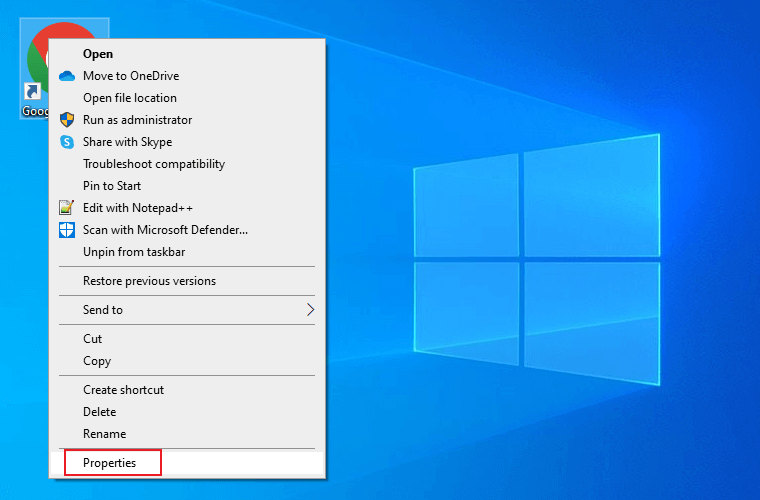
- Create a Google Chrome Sandbox shortcut if you don’t have one.
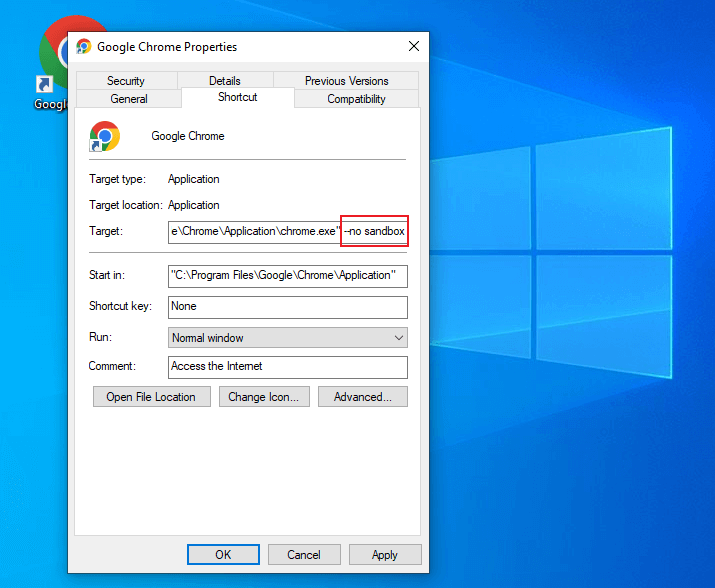
- Right-click on the shortcut and select Properties.
- Enter the below command to the app path provided in the Target.
--no-sandbox
What Are the Limitations of Browser Sandboxing?
A sandbox narrows what an attacker can reach; it does not remove the risk. These are the gaps worth knowing about.
- Sandbox escapes: a bug in the sandbox itself can let code reach the host. These are rare and valuable, which is why they are usually chained with a second exploit and patched quickly once found.
- Nothing stops you handing data over: a sandbox cannot tell a genuine login page from a phishing one. Credentials typed into a convincing fake leave the machine regardless of isolation.
- Downloads outlive the session: a file you save and then open yourself runs outside the browser's sandbox, under whatever permissions your account has.
- Extensions hold broader permissions: an extension granted access to read and change site data operates with privileges ordinary page content never gets.
- Memory and CPU cost: a process per site is what makes isolation work, and it is also why a browser with many tabs open consumes the memory it does.
- Only as current as the browser: sandbox fixes ship in browser updates, so a machine several versions behind carries every escape found since.
The practical conclusion is that a sandbox is one layer. Keeping the browser updated does more for safety than any sandbox setting you can change by hand.
Browser Sandboxing vs Virtual Machines: What Is the Difference?
Both isolate untrusted code, at different levels and different costs.
| Browser sandboxing | Virtual machine | |
|---|---|---|
| What is isolated | Browser processes inside the OS | A whole guest operating system |
| Setup | Built in and on by default | Hypervisor plus an OS install |
| Overhead | Memory per process, otherwise light | Dedicated RAM, CPU and disk |
| Best for | Everyday browsing and web content | Running untrusted software, or testing a full system |
| If it is breached | Attacker reaches the host OS | Attacker reaches the guest, host needs a second escape |
A virtual machine isolates more and costs more. For reading the web, the browser's own sandbox is the right level; for opening a file you actively distrust, a VM or a disposable cloud machine is the safer choice.
Browser Sandboxing: Is it 100% secure?
Most web browsers use a sandbox. However, the internet is still a source of viruses and other malware. The level of sandboxing appears to vary. Different web browsers implement sandboxing differently, so it’s hard to figure out how they work. However, this does not mean that all web browsers are unsafe. On the other hand, a browser sandbox can make them more secure.
But if you ask whether it provides 100% security, the answer is no. Older guidance points at Flash and ActiveX as the way out of the sandbox, and both are gone: Adobe ended Flash support on 31 December 2020 and blocked it from running on 12 January 2021, while ActiveX belonged to Internet Explorer, retired in June 2022. The realistic risk today is a sandbox escape, a bug in the sandbox itself that lets code reach the host. These are rare, valuable enough to be sold, and patched quickly, which is why an unpatched browser is the bigger exposure.
An alternative to Sandboxing: TestMu AI secure cloud platform
Despite the numerous built-in browser sandboxes, it is difficult to achieve 100% security. Installing third-party sandboxing solutions for various browsers might also be time-consuming to test websites and apps.
Instead, developers and testers can use cloud-based testing platforms like TestMu AI to ensure Enterprise-grade security. TestMu AI is a secure cloud-based platform for web-based browser testing on an online browser farm of 3,000+ real browsers and operating systems.
TestMu AI is SOC 2 Type II certified and ISO 27001 certified that is both GDPR and CCPA compliant. Read more about TestMu AI Security.
Besides providing testing on web browsers online, TestMu AI also offers mobile app testing (real-time and automated) on a real device cloud of 10,000+ real Android and iOS devices.

Below are the steps for running real-time tests on a TestMu AI secure cloud environment.
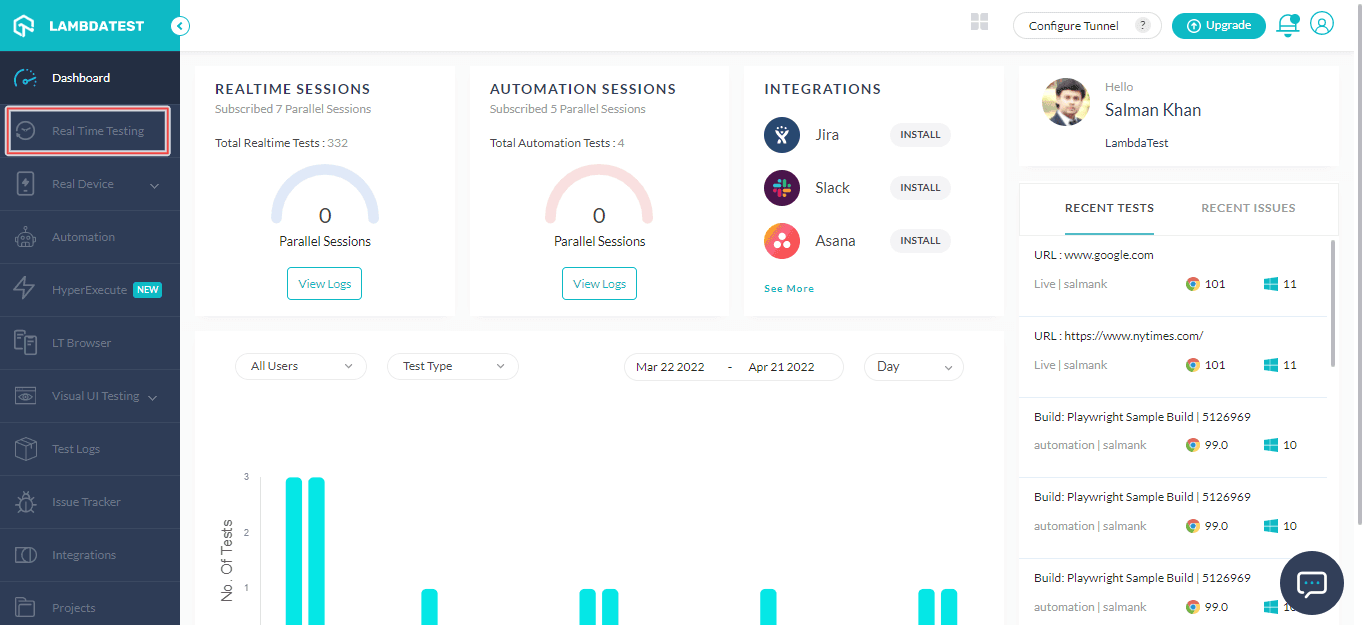
- Login to TestMu AI. If you don’t have an account, sign up on TestMu AI.
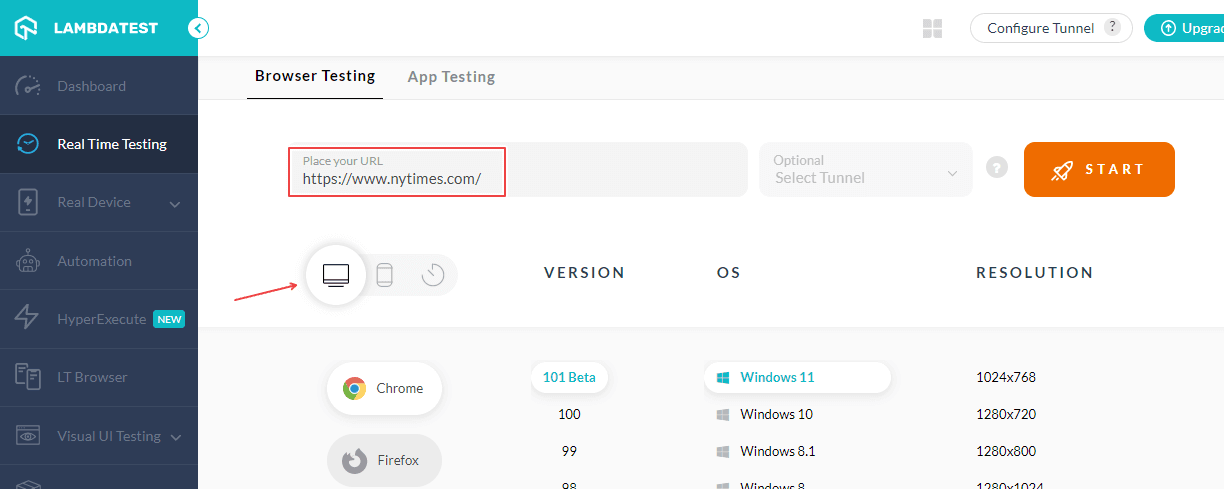
- Once you are in the user Dashboard, select the Real Time Testing option.
- Enter the test URL, choose Desktop or Mobile, and select VERSION, OS, and RESOLUTION. Now click START.
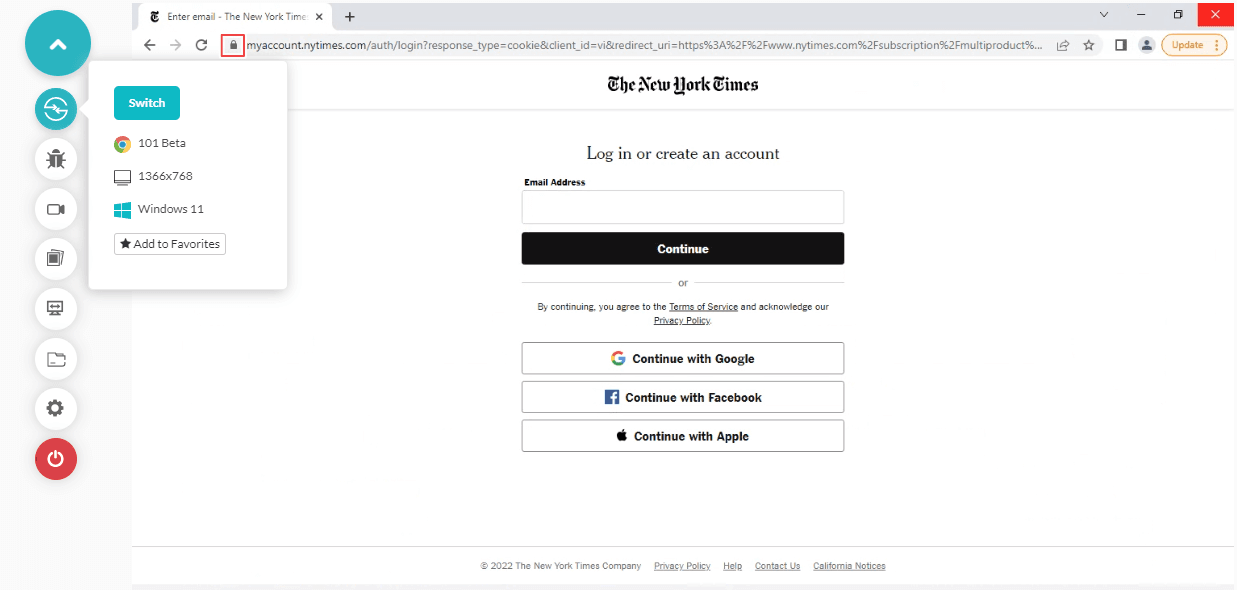
A cloud-based virtual machine will fire up where you can start secure web testing of your web applications on the cloud.
If you are new to real-time testing, check out our video tutorial to get started right away.

Please subscribe to our TestMu AI YouTube Channel for more videos around Selenium automation testing, Mobile automation testing, and more
Read more : Guide To Cross Browser Testing On Older Browser Versions
Wrapping Up!
Businesses are attacked by Advanced Persistent Threats (APTs), and sandboxing can protect them. By seeing what’s ahead, you can prepare for unknown attacks. You can test and develop applications in an isolated environment without compromising your local system assets with sandboxing. Sandboxie, BitBox, and other sandboxing tools are available in the market. However, it takes time to set up and install different browsers in the sandbox.
This article discussed how to use TestMu AI cloud-based platform for your browser and app testing to develop and test applications in a secure remote environment without endangering your local system.
Hope you liked the article, and if you have any questions, please feel free to drop them in the comments.
Author

Salman Khan
Blogs: 138


Salman is a Test Automation Evangelist and Community Contributor at TestMu AI, with over 6 years of hands-on experience in software testing and automation. He has completed his Master of Technology in Computer Science and Engineering, demonstrating strong technical expertise in software development, testing, AI agents and LLMs. He is certified in KaneAI, Automation Testing, Selenium, Cypress, Playwright, and Appium, with deep experience in CI/CD pipelines, cross-browser testing, AI in testing, and mobile automation. Salman works closely with engineering teams to convert complex testing concepts into actionable, developer-first content. Salman has authored 120+ technical tutorials, guides, and documentation on test automation, web development, and related domains, making him a strong voice in the QA and testing community.
Reviewer

Devansh Bhardwaj
Reviewer
Devansh Bhardwaj is a Community Evangelist at TestMu AI with 4+ years of experience in the tech industry. He has authored 30+ technical blogs on web development and automation testing and holds certifications in Automation Testing, KaneAI, Selenium, Appium, Playwright, and Cypress. Devansh has contributed to end-to-end testing of a major banking application, spanning UI, API, mobile, visual, and cross-browser testing, demonstrating hands-on expertise across modern testing workflows.


Browser Sandboxing FAQs
Did you find this page helpful?
More Related Blogs
TestMu AI forEnterprise
Get access to solutions built on Enterprise
grade security, privacy, & compliance
- Advanced access controls
- Advanced data retention rules
- Advanced Local Testing
- Premium Support options
- Early access to beta features
- Private Slack Channel
- Unlimited Manual Accessibility DevTools Tests