

Next-Gen App & Browser Testing Cloud
Trusted by 2 Mn+ QAs & Devs to accelerate their release cycles


How do I locate elements on a web page and interact with them?
To locate an element on a web page, open the browser DevTools (right-click and choose Inspect, or press F12), find the element's HTML, and note a stable attribute such as its id, name, or class. In automation, you pass that attribute to a Selenium locator like By.id, By.cssSelector, or By.xpath to get a WebElement, then interact with it using methods such as click(), sendKeys(), and getText().
What Are Locators and Why They Matter
A locator is the address Selenium uses to find a WebElement in the page's Document Object Model (DOM). Just as you need an address to find a house, Selenium needs a locator to find a button, input, or link before it can act on it. Locators are the foundation of every automated test, because clicking, typing, or verifying content all depend on first identifying the right element reliably. Choosing stable locators is what separates flaky tests from dependable ones.
Step 1: Locate an Element Using DevTools
Before automating, inspect the element manually to understand its markup:
- Open your website, right-click the element (or press F12), and select Inspect.
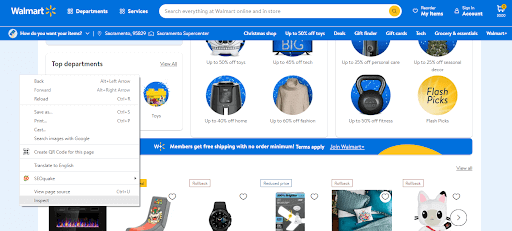
- DevTools opens. Click the element-picker (mouse) icon; a tooltip reads Select an element in the page to inspect it.
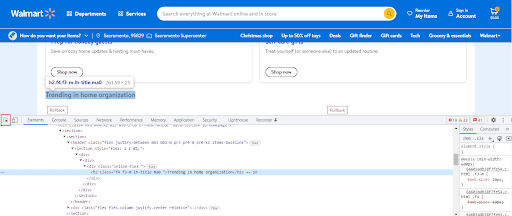
- Hover and click the element you want. The DOM panel highlights its HTML so you can read the id, class, and attributes.
For example, an inspected button may look like this:
<button class="w_hhLG w_XK4d w_jDfj" type="button">Give feedback</button>You can now use the button's tag, class, or its link text Give feedback to build a locator. Tip: in the DevTools Console, test a CSS selector with document.querySelector('selector') to confirm it matches exactly one element before using it in code.
Step 2: Selenium Locator Types
Selenium provides eight locator strategies. Choose the most stable one available:
- ID: Fastest and safest, since ids are meant to be unique.
- Name: Useful for form fields like text boxes and radio buttons.
- Class Name: Matches elements sharing a class attribute.
- Tag Name: Selects all elements of a type, such as every link or button.
- Link Text / Partial Link Text: Targets anchors by their visible text.
- CSS Selector: Fast, flexible, and readable, matching on tag, class, id, attributes, or hierarchy.
- XPath: The most powerful, able to traverse the DOM and match on text or position, but slower and more brittle.
Here is how each looks in Java Selenium:
WebElement byId = driver.findElement(By.id("search"));
WebElement byName = driver.findElement(By.name("q"));
WebElement byClass = driver.findElement(By.className("submit-btn"));
WebElement byCss = driver.findElement(By.cssSelector("button.w_hhLG[type='button']"));
WebElement byXpath = driver.findElement(By.xpath("//button[text()='Give feedback']"));
WebElement byLinkText = driver.findElement(By.linkText("Give feedback"));
For a deeper walkthrough with more examples, see the pillar guide on locators in Selenium WebDriver with examples.
Step 3: Interact With the Located Element
Once you have a WebElement, use its methods to perform actions. Always wait for the element to be ready to avoid flaky failures:
WebDriverWait wait = new WebDriverWait(driver, Duration.ofSeconds(10));

// Wait until clickable, then click
WebElement feedbackBtn = wait.until(
    ExpectedConditions.elementToBeClickable(By.linkText("Give feedback")));
feedbackBtn.click();

// Type into an input field
WebElement search = driver.findElement(By.id("search"));
search.clear();
search.sendKeys("LambdaTest");

// Read text and check visibility
String label = driver.findElement(By.cssSelector(".product-title")).getText();
boolean visible = driver.findElement(By.id("banner")).isDisplayed();
Common interaction methods include click(), sendKeys(), clear(), getText(), getAttribute(), and isDisplayed(). Wrapping them in explicit waits ensures the element is present and interactable first.
Common Mistakes and Troubleshooting
- NoSuchElementException: The element is not in the DOM yet. Add an explicit wait instead of a fixed sleep.
- StaleElementReferenceException: The DOM changed after you located the element. Re-find it just before interacting.
- Ignoring iframes and shadow DOM: Elements inside an iframe need driver.switchTo().frame() first; shadow DOM needs getShadowRoot().
- Relying on dynamic ids: Auto-generated ids change each load. Prefer stable attributes or relative XPath/CSS.
- Over-using absolute XPath: Paths like /html/body/div[3] break on any layout change. Use attribute-based selectors instead.
Locating and Interacting Across Browsers
The same locator can behave differently across browsers if rendering or timing varies, so tests must run everywhere your users are. With TestMu AI you can execute Selenium tests on 3000+ real browsers and operating systems in the cloud, confirming that your locators and interactions work consistently on Chrome, Firefox, Safari, and Edge.
You can also practice locating elements on a live sample site using the Selenium Playground, or scale existing suites through Selenium automation and automation testing on the cloud grid.
Conclusion
Locating and interacting with web elements is a three-step rhythm: inspect the element in DevTools, pick a stable locator such as ID, CSS Selector, or XPath, then act on it with click, sendKeys, or getText inside an explicit wait. Favor unique, stable attributes, handle iframes and dynamic content deliberately, and validate across real browsers so your automation stays reliable at scale.
Frequently Asked Questions
What are the locator types in Selenium?
Selenium supports eight locators: ID, Name, Class Name, Tag Name, Link Text, Partial Link Text, CSS Selector, and XPath. ID is the fastest and most reliable, while CSS Selector and XPath are the most flexible for complex or dynamic elements.
Which is better, CSS Selector or XPath?
CSS Selectors are generally faster and more readable and work well for most cases. XPath is more powerful because it can traverse up the DOM and match on text, but it can be slower and more brittle. Prefer CSS unless XPath's extra capability is required.
How do I interact with an element after locating it?
Once you have a WebElement, call methods like click() to click, sendKeys() to type, clear() to empty a field, getText() to read content, and isDisplayed() to check visibility. Use explicit waits to ensure the element is ready before interacting.
How do I find an element on a web page manually?
Right-click the element and choose Inspect, or press F12, to open DevTools. Use the element picker to hover and click the element, and the DOM panel highlights its HTML, showing the id, class, and attributes you can use to build a locator.
Why does Selenium fail to find an element that exists?
Common causes are the element not being loaded yet, being inside an iframe or shadow DOM, a dynamic id that changes each load, or a stale locator after the DOM updated. Add explicit waits, switch to the iframe, and use stable attributes.
How do I locate multiple elements at once?
Use findElements (plural), which returns a List of matching WebElements instead of one. You can then loop through them to click, read text, or count items, which is useful for tables, search results, and menu links.
Related Questions

KaneAI - Testing Assistant
World’s first AI-Native E2E testing agent.

TestMu AI forEnterprise
Get access to solutions built on Enterprise
grade security, privacy, & compliance
- Advanced access controls
- Advanced data retention rules
- Advanced Local Testing
- Premium Support options
- Early access to beta features
- Private Slack Channel
- Unlimited Manual Accessibility DevTools Tests