

Power Your Software Testing with AI Agents and Cloud
The Native AI-Agentic Cloud Platform to Supercharge Quality Engineering. Test Intelligently and Ship Faster.


- TestMu AI (Formerly LambdaTest)
- /
- Blog
- /
- How to use Date Picker in Selenium using JavaScript
How to use Date Picker in Selenium using JavaScript
This Selenium JavaScript tutorial covers how to use Date Picker in Selenium using JavaScript when filling out a web form.
Last Updated on:
To handle a date picker in Selenium using JavaScript, open the calendar with selenium-webdriver, choose the month from its dropdown, and click the day that matches your target date. The jQuery UI date-range demo loads both date fields inside an iframe, so the script switches frames first and reads each field's value to confirm the selection. This guide covers Selenium basics, date picker components, the demo page, setup with Node.js and Express, the date picker script, what has changed in the setup, and a summary.
Key Takeaways
- Selenium WebDriver fills a jQuery UI date picker by clicking the date field, choosing a month from the month dropdown, and clicking the matching day cell.
- The jQuery UI date-range demo loads its date fields inside an iframe, so a Selenium script must call driver.switchTo().frame() before locating the inputs.
- The selenium-webdriver package for Node.js supplies the Builder, By and Select classes that open the browser, locate calendar elements and pick a month.
- Current selenium-webdriver releases on npm require Node.js 22 or newer as the minimum runtime.
- Selenium Manager ships with every Selenium release since 4.6 and downloads a missing browser driver automatically, so a local Selenium run needs no manual ChromeDriver install.
- Windows 10 reached end of support on October 14, 2025, so new Selenium grid runs should target a supported platform such as Windows 11.
What is Selenium?
Selenium is a popular open-source test automation framework used for automated browser testing. This framework helps you write Selenium test scripts that can be used to automate the testing of websites and web applications, then execute them in different browsers on multiple platforms using any programming language of your choice.
Date Picker in Selenium
If your website requires users to fill out their date of birth or any date-related fields and your web page is using any of these date picker components available.
You might want to test out the approach it will take your users to fill out the form or possibly automate the process of filling web forms that require a Date Picker in any website using Selenium with JavaScript.
How do you achieve this using the Selenium automation tool? I had this problem testing out my web page, and I will share with you how to automate testing with Selenium JavaScript.
First, let’s build a web page that contains a Date Picker.

Creating the Webpage with Date Picker
To learn how to automate Date Picker in Selenium using JavaScript, we’ll use jQuery’s Date Picker demo URL as the test URL to demonstrate the same.
In this Selenium JavaScript testing tutorial, I’ll be using JavaScript to automate the Date Picker using Selenium WebDriver
Below is a sample of the form we have created for this demo:
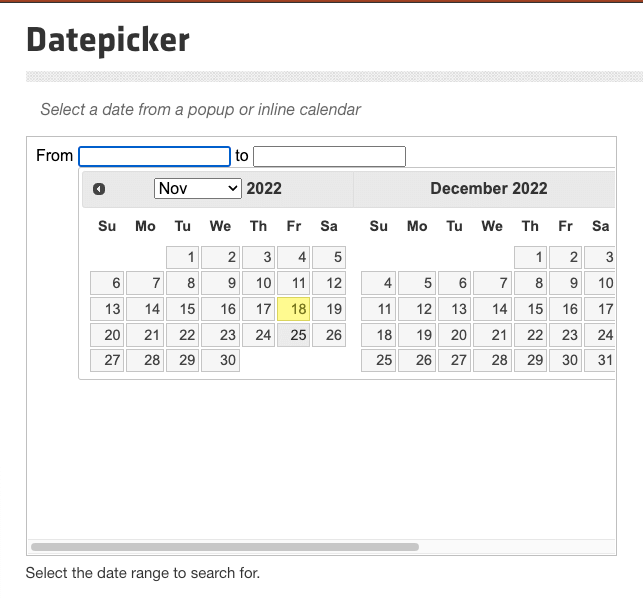
Next, we are going to set up Selenium and automate the process of filling out this form. The process is seamless and very simple to get started.
Setting up Selenium with JavaScript
Installing Selenium in your JavaScript project requires some installations on your local machine. Here are some prerequisites you need to have:
- Download and install NodeJS from official NodeJS documentation. The current selenium-webdriver package on npm requires Node.js 22 or newer.
- Make sure you are using the latest version of JavaScript.
- Install npm from the official npm website.
- Download Selenium JavaScript bindings from the official website. The latest versions of Selenium Client and WebDriver are ideal for running your JavaScript automation testing script.
Set up Selenium with Express
If you have successfully installed and set up the following prerequisites, you’re ready to move to the next step. Next, create a project folder for your Selenium Date Picker project. We will call it “selenium-date-picker”
Step 1: Install the required dependencies.
Below are the required dependencies to install:
npm install express selenium-webdriver
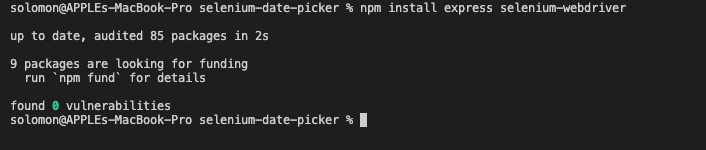
Step 2: Create an “index.js” file that will add the configuration for Selenium for using the Date Picker in Selenium using JavaScript.
Here’s the code snippet for setting up Selenium in the Express framework:
const express = require("express");
const { By, Builder, Select } = require("selenium-webdriver");
const app = express();
const port = 3002;
let driver;
const URL = "https://jqueryui.com/datepicker/#date-range";
const expected_fr_date = "20";
const expected_to_date = "26";
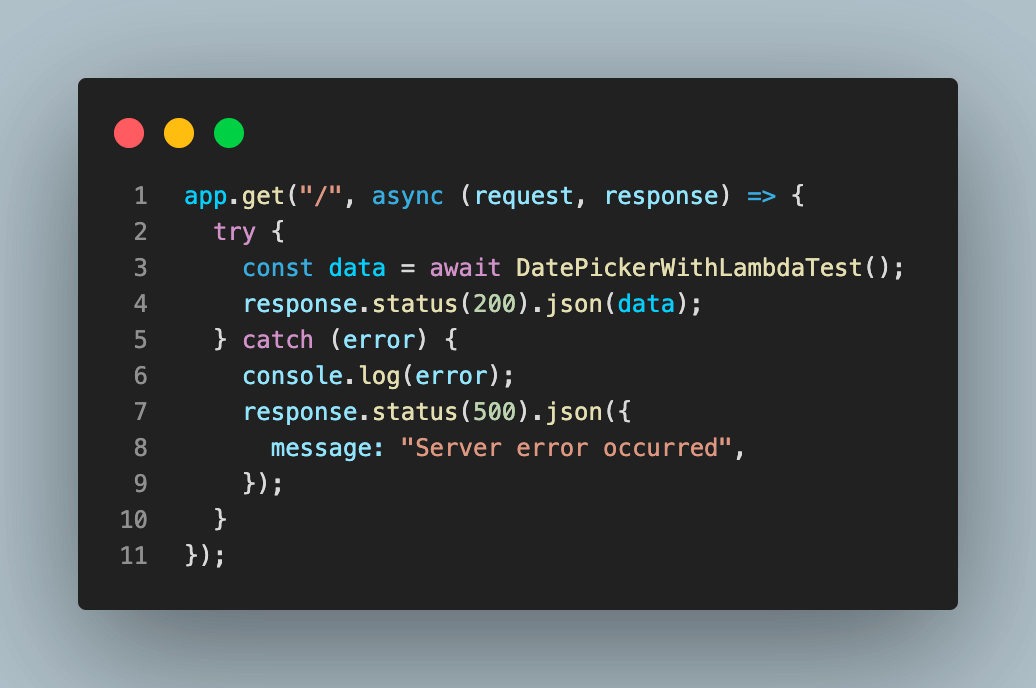
app.get("/", async (request, response) => {
 try {
   const data = await DatePickerWithLambdaTest();
   response.status(200).json(data);
 } catch (error) {
   console.log(error);
   response.status(500).json({
     message: "Server error occurred",
   });
 }
});
app.listen(port, () => {
 console.log(`Example app listening at http://localhost:${port}`);
});
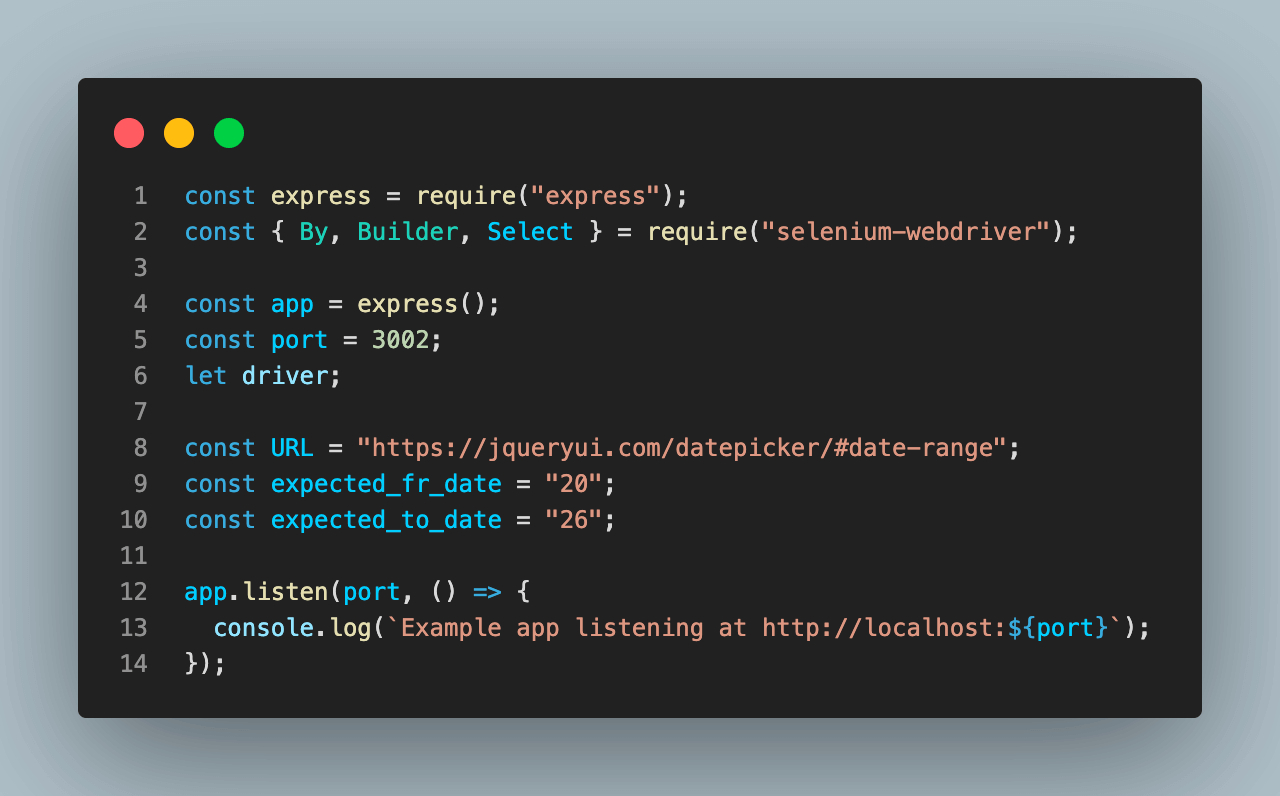
The above code snippet shows a simple web server created with Express.js to request from a Date Picker in Selenium using JavaScript.
Code Walkthrough:
Let’s walk through the code together and understand the nitty-gritty of it.
Step 1: Add the required packages and set up the Express server. First, we need the express and selenium-webdriver packages. Next, we create an Express server and initialize variables which will be used below.
Step 2: Create Express Route.
Next, we create an endpoint to fill out the Date Picker in Selenium using JavaScript and display the result as JSON data. This endpoint will call the DatePickerWithTestMu AI() function to fill out the date picker and return the data.
How to use Date Picker in Selenium using JavaScript?
After setting up the Express server, we will create the two functions to fill out the Date Picker and return the data.
Here’s the code snippet:
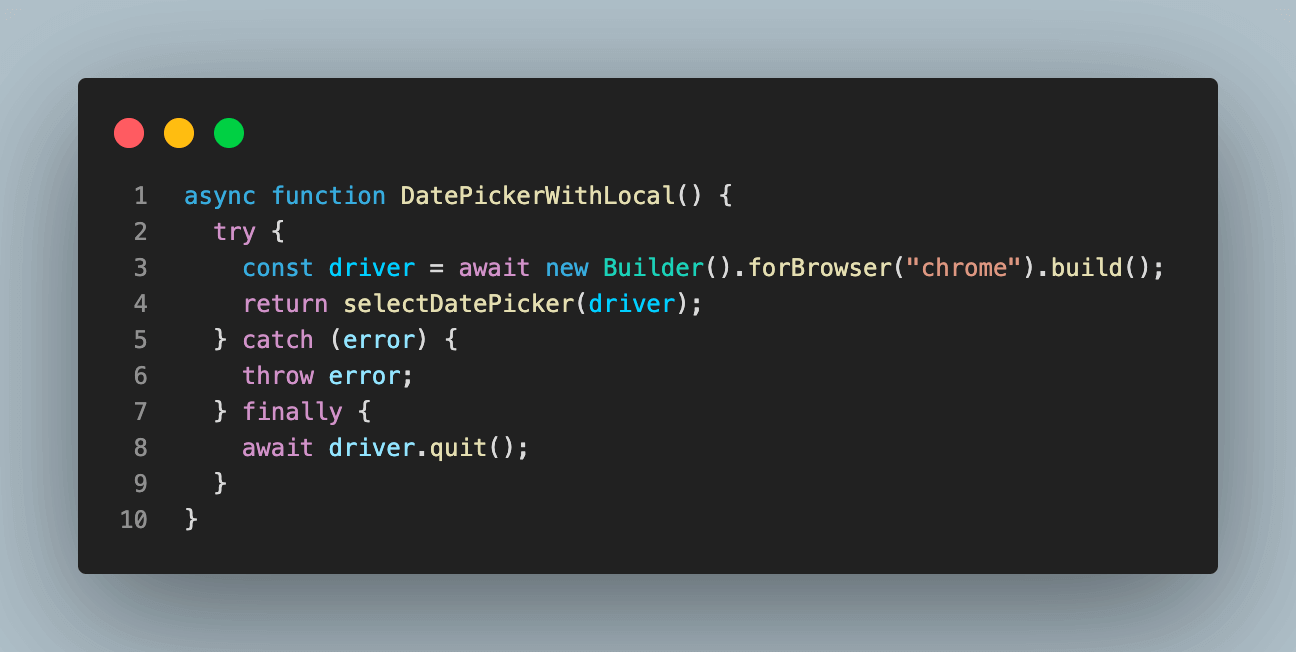
async function DatePickerWithLocal() {
 try {
   const driver = await new Builder().forBrowser("chrome").build();
   return selectDatePicker(driver);
 } catch (error) {
   throw error;
 } finally {
   await driver.quit();
 }
}
async function DatePickerWithLambdaTest() {
 const USERNAME = ""; //replace with your username
 const KEY = ""; //replace with your accesskey
 const GRID_HOST = "hub.lambdatest.com/wd/hub";
 const capabilities = {
   browserName: "Chrome",
   browserVersion: "107.0",
   "LT:Options": {
     username: USERNAME,
     accessKey: KEY,
     geoLocation: "US",
     platformName: "Windows 10",
     build: "Date Picker",
     project: "Date Picker Example",
     w3c: true,
     plugin: "node_js-node_js",
   },
 };


 const gridUrl = "https://" + USERNAME + ":" + KEY + "@" + GRID_HOST;
 try {
   driver = await new Builder()
     .usingServer(gridUrl)
     .withCapabilities(capabilities)
     .build();


   return await selectDatePicker(driver);
 } catch (error) {
   throw error;
 } finally {
   await driver.quit();
 }
}


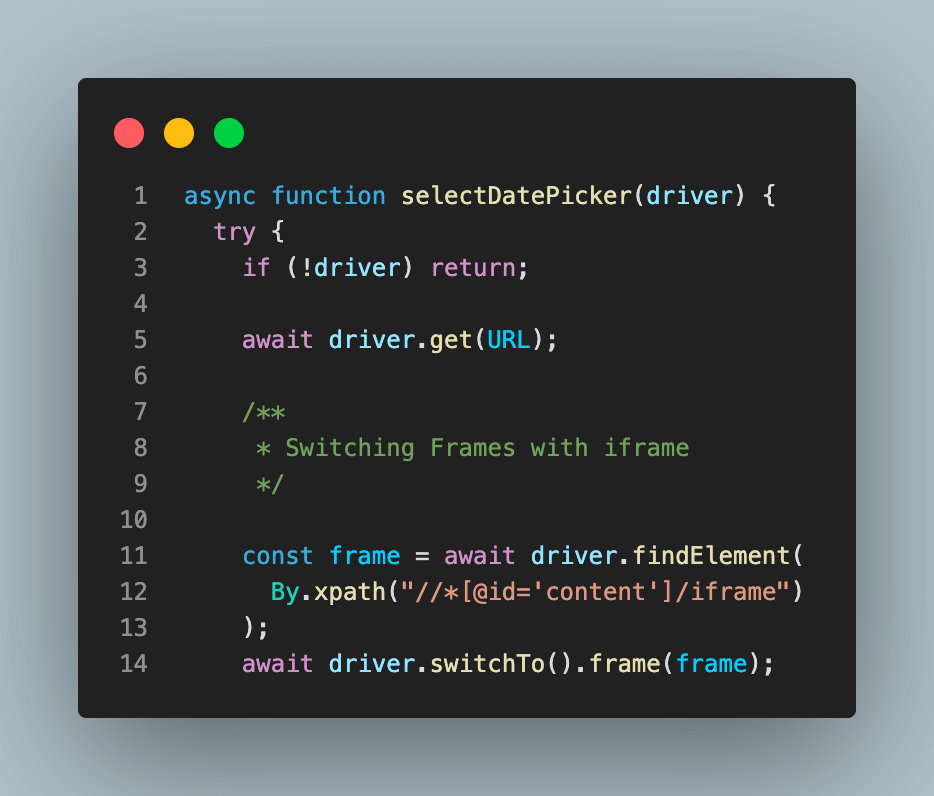
async function selectDatePicker(driver) {
 try {
   if (!driver) return;
   await driver.get(URL);
   /**
    * Switching Frames with iframe
    */
   const frame = await driver.findElement(
     By.xpath("//*[@id='content']/iframe")
   );
   await driver.switchTo().frame(frame);


   /**
    * ################################# Steps for the From Date ####################
    */
   const from_date = await driver.findElement(By.xpath('//*[@id="from"]'));
   await from_date.click();


   const from_month = await driver.findElement(
     By.className("ui-datepicker-month")
   );
   const selected_from_month = new Select(from_month);
   await selected_from_month.selectByVisibleText("Jan");
   const from_day = await driver.findElement(
     By.xpath(
       "//td[not(contains(@class,'ui-datepicker-month'))]/a[text()='" +
         expected_fr_date +
         "']"
     )
   );
   await from_day.click();


   /**
    * ################################# Steps for the To Date #####################
    * The same steps like the ones in From Month are repeated except that now the operations are performed on a different web element.
    *
    */
   const to_date = await driver.findElement(By.xpath("//input[@id='to']"));
   await to_date.click();


   const to_month = await driver.findElement(
     By.xpath("//div/select[@class='ui-datepicker-month']")
   );
   const selected_to_month = new Select(to_month);
   await selected_to_month.selectByVisibleText("Feb");
   const to_day = await driver.findElement(
     By.xpath(
       "//td[not(contains(@class,'ui-datepicker-month'))]/a[text()='" +
         expected_to_date +
         "']"
     )
   );
   await to_day.click();


   /**
    * Get Date values
    */
   const selected_from_date_str = await from_date.getAttribute("value");
   const selected_to_date_str = await to_date.getAttribute("value");
   return {
     from: selected_from_date_str,
     to: selected_to_date_str,
   };
 } catch (error) {
   throw error;
 }
}

The code snippet above is the complete section of the index.js that contains the Express server and the routing configuration.
Code Walkthrough:
Let’s walk through the code together and understand the nitty-gritty of using Date Picker in Selenium using JavaScript.
Step 1: Selenium with local setup.
The code snippet in the DatePickerWithLocal shows how to use locally installed Selenium to perform the Date Picker operation. This method runs on your local machine and requires installing the Selenium driver and setting up the correct browser configuration. We configured and selected a specific browser we wanted to perform the task with and passed the new driver instance to the ‘selectDatePicker‘ function to operate.
You can learn more about configuring and installing Selenium and its browser driver locally by performing web scraping with Selenium JavaScript.
Step 2: Selenium with TestMu AI Grid
The code snippet in the DatePickerWithLamdaTest shows how to use LamdaTest Grid to perform the Date Picker operation with Selenium on the cloud.
JavaScript automation on a cloud-based testing digital experience testing platform like TestMu AI helps you achieve improved browser coverage while performing automation testing on over 3000+ browsers and OS combinations.
By running Selenium JavaScript tests in parallel using TestMu AI cloud-based infrastructure, you can speed up your release cycle significantly.

Please subscribe to the TestMu AI YouTube Channel and stay updated with the latest tutorials on Selenium testing, Cypress testing, CI/CD, and more.
No installations are required, only a few configurations, as shown below:
Before running the operation, please set the following environment variables in your .env file. You can find the username and access key on your TestMu AI Profile page.
bash
LT_USERNAME=
LT_ACCESS_KEY=
GRID_HOST=hub.lambdatest.com/wd/hub
Next, generate your Selenium configuration using the TestMu AI Capabilities Generator. Set your configuration and copy the JavaScript object to your code, as shown below.
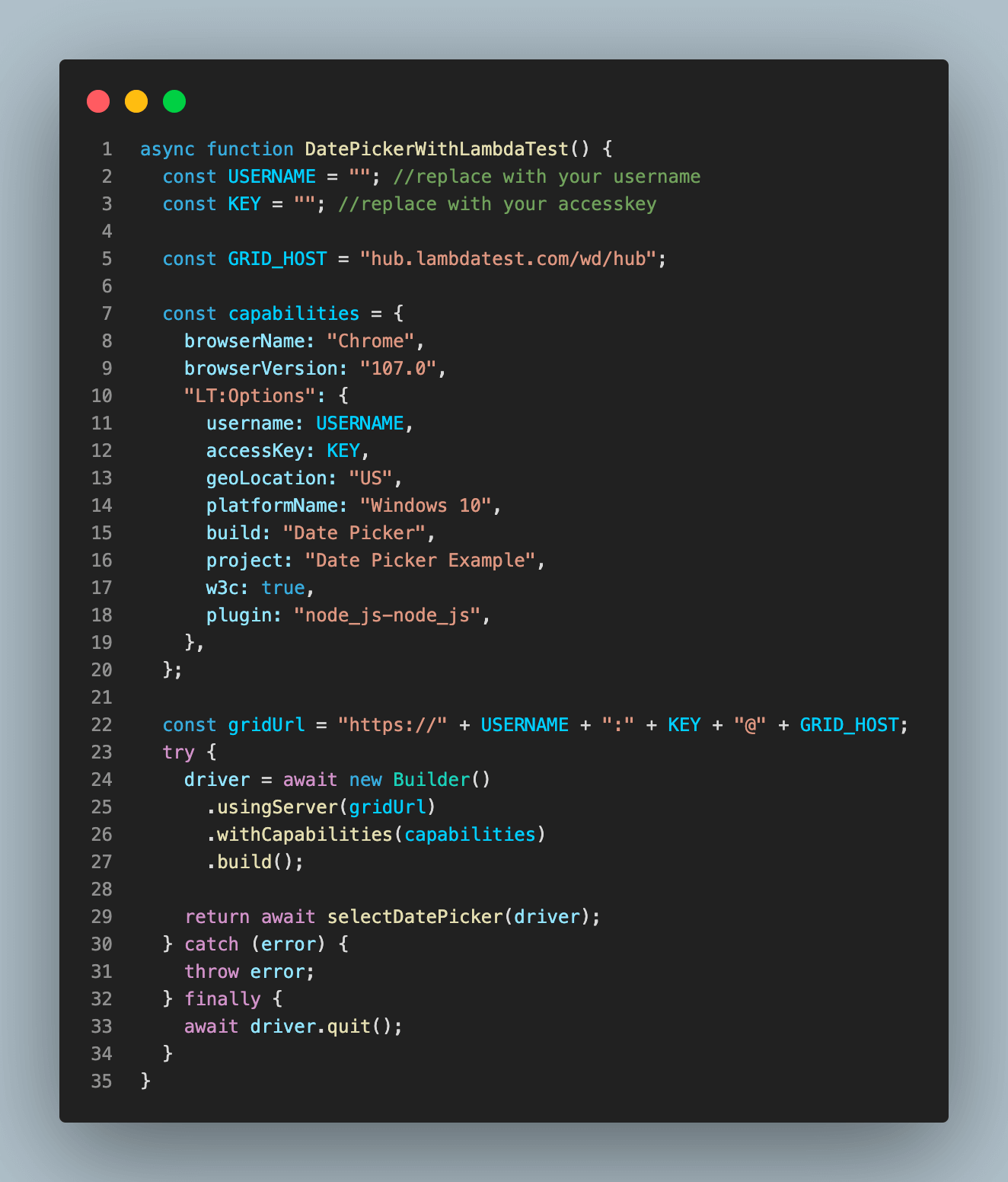
Next, we created a driver using the configuration and capacity before passing the driver to the ‘selectDatePicker‘ function.
Step 2: Performing the Operation.
Lastly, we call the selectDatePicker function to operate. Below is a breakdown of the function.
First, we check the driver instance to make sure it’s created. Next, we open the webpage where the date picker is located using the ‘driver.get(URL)’ function. Lastly, we find the first iframe on the page and switch to it using the ‘driver.switchTo().frame()’ function.
Furthermore, still inside the function, we started the first operation for the From date by interacting with the input element using Selenium functions as shown below:
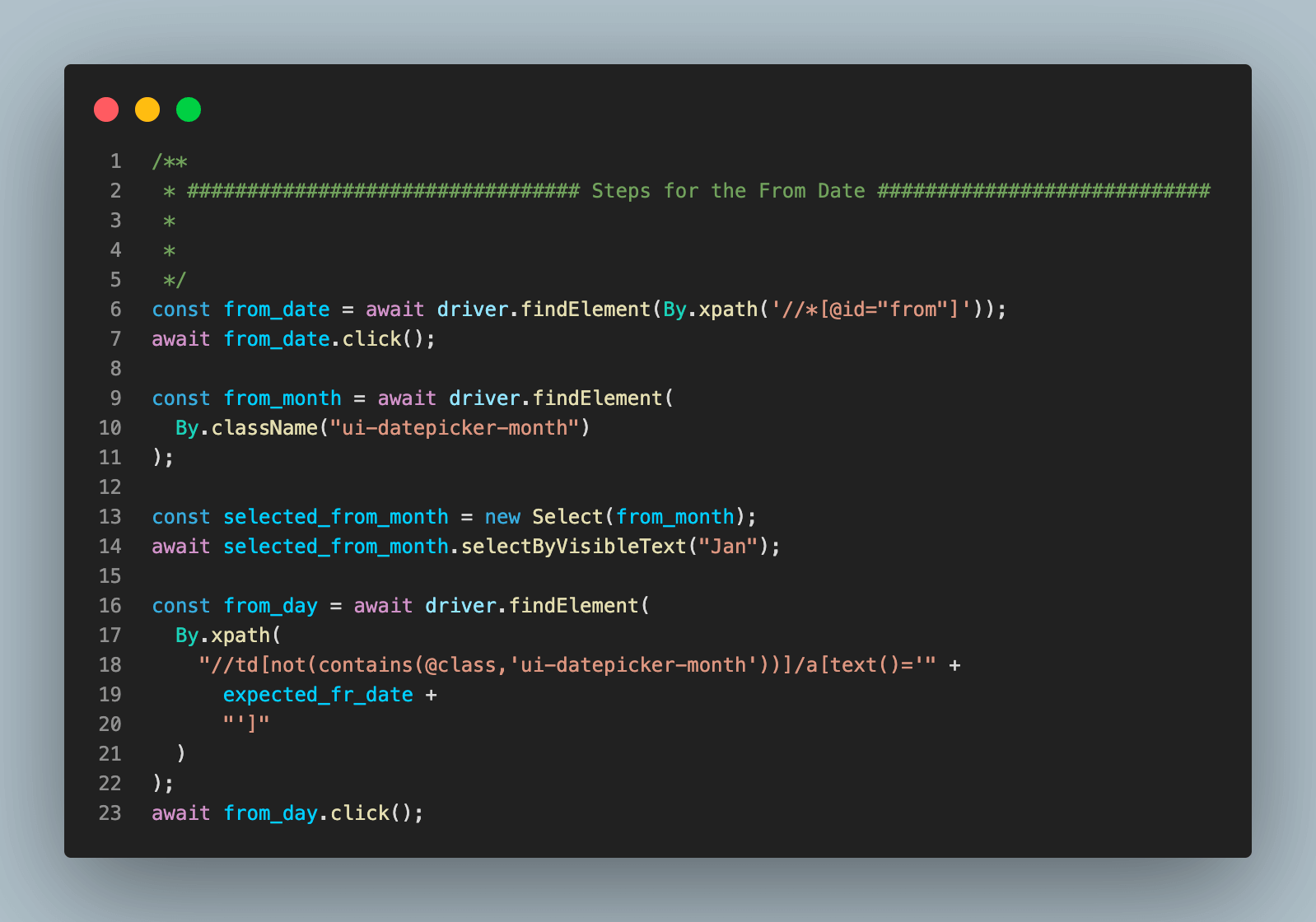
The expected_fr_str comes from the constants we declared above to specify the specific date we want to select from the calendar.
Next, we repeat the same thing for the to-date instance as shown below:
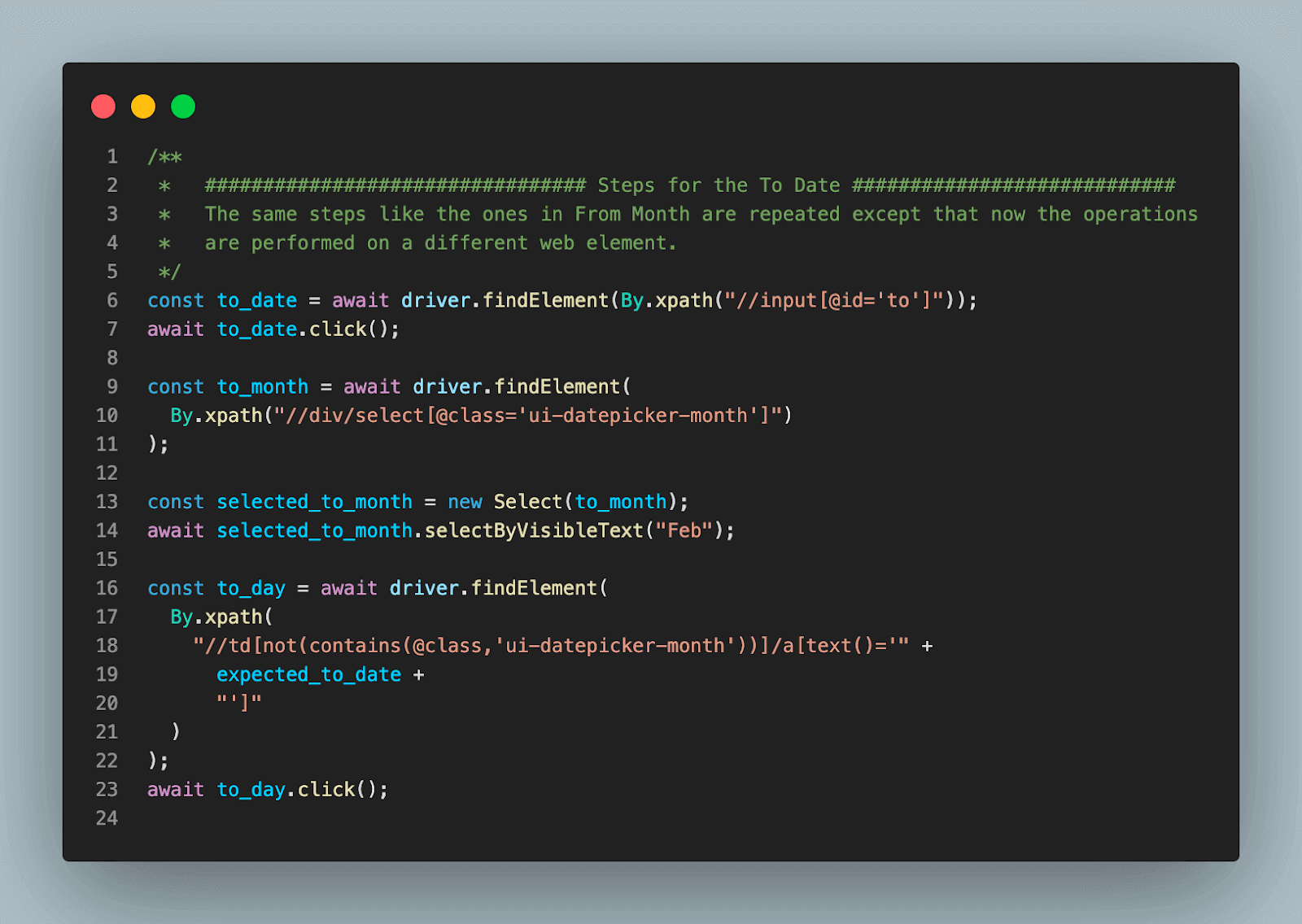
The expected_to_str comes from the constants we declared above to specify the specific date we want to select from the calendar.
Lastly, we retrieve the chosen date from the input field and return it as an object.
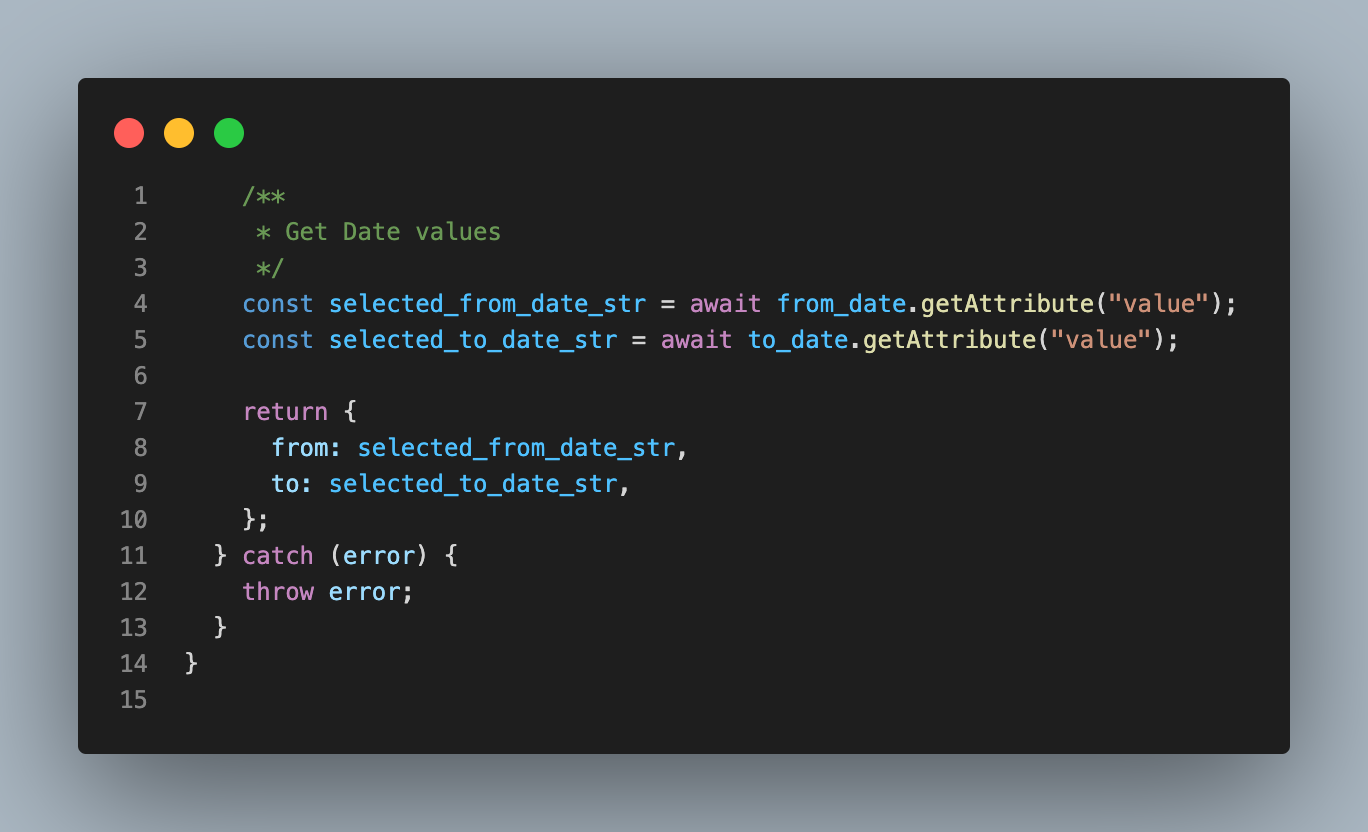
If you configure everything correctly, you should see a JSON response from your server when you run it on your browser.
Running the Date Picker
To run your test for Date Picker in Selenium using JavaScript, type the following command into your root terminal.
bash
npm start
Open your browser and locate the web address. After successfully performing running the Date Picker, you should be greeted with a JSON response from your server, like the screenshot below:
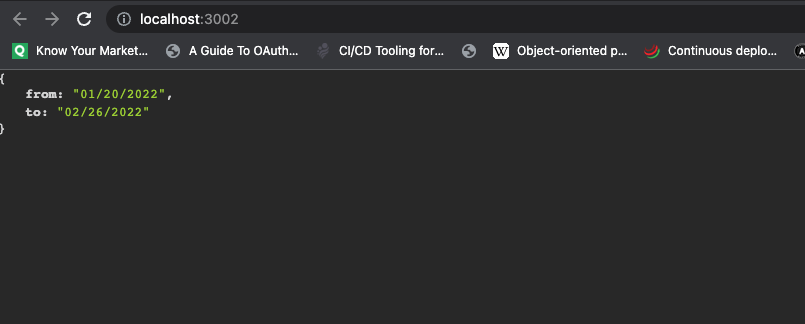
So far, we have successfully used a Date Picker with Selenium using JavaScript. You can clone the entire code repository from this GitHub Repository.
If you are a developer or a tester, this Selenium JavaScript 101 certification can help equip you with advanced skills and extensive knowledge in automation testing, enabling you to excel in any JavaScript automation role.
What Has Changed in the Selenium JavaScript Setup?
Current selenium-webdriver needs Node.js 22 or newer, Selenium Manager now downloads drivers for you, and the grid capabilities in the sample target Chrome 107 on Windows 10, which are both out of date.
- Node.js 22 minimum: selenium-webdriver 4.49.0 on npm declares Node.js 22 or newer in its engines field. Upgrade Node.js before you run npm install express selenium-webdriver.
- Selenium Manager: Every Selenium release since 4.6 ships Selenium Manager, which discovers, downloads and caches the driver when none is available. DatePickerWithLocal needs no manual ChromeDriver download.
- Browser downloads: Since Selenium 4.11.0, Selenium Manager also downloads Chrome, Firefox or Edge when the browser is not installed on the machine.
- Pinned Chrome 107: The capabilities object sets browserVersion to "107.0". Set it to "latest" in your copy so the grid runs a current Chrome build.
- Windows 10 platform: Windows 10 reached end of support on October 14, 2025, according to the Microsoft lifecycle page. Set platformName to "Windows 11" for new runs.
Apply these changes to your own copy of the sample code before you run it.
Summary
Selenium is one of the most popular browser automation tools. Therefore achieving simple tasks such as automating the process of filling out a Date Picker can be daunting.
This article covers in detail how to use Date Picker in Selenium using JavaScript when filling out a form. We discussed the best pattern and approach to achieve the solution and finally explored how we solved this problem in our application.

Austin Siewert
Co-Founder, Steadfast Systems
Discovered @TestMu AI yesterday. Best browser testing tool I've found for my use case. Great pricing model for the limited testing I do 👏
2M+ Devs and QAs rely on TestMu AI
Deliver immersive digital experiences with Next-Generation Mobile Apps and Cross Browser Testing Cloud

Author

Solomon Eseme
Blogs: 4


Solomon Eseme is a Software Engineer with over 5 years of experience in backend development. He is the Founder and CTO of Mastering Backend, a platform dedicated to helping backend engineers enhance their skills. Solomon has contributed to impactful projects, including those that helped secure $20M in funding. He is passionate about building scalable, secure systems and promoting clean code principles. With over 11,000 followers on LinkedIn, Solomon’s network includes QA engineers, software testers, developers, DevOps professionals, tech enthusiasts, AI innovators, and tech leaders. He is also skilled in AWS, GraphQL, and blockchain technologies.


Date Picker in Selenium FAQs
Did you find this page helpful?
More Related Blogs
TestMu AI forEnterprise
Get access to solutions built on Enterprise
grade security, privacy, & compliance
- Advanced access controls
- Advanced data retention rules
- Advanced Local Testing
- Premium Support options
- Early access to beta features
- Private Slack Channel
- Unlimited Manual Accessibility DevTools Tests