

Power Your Software Testing with AI Agents and Cloud
The Native AI-Agentic Cloud Platform to Supercharge Quality Engineering. Test Intelligently and Ship Faster.


- TestMu AI (Formerly LambdaTest)
- /
- Blog
- /
- Selenium SendKeys : All You Need To Know
Selenium sendKeys(): A Complete Guide
Discover how to use Selenium sendkeys for sending keystrokes automatically! Dive into our blog for insights on effective sendkeys utilization.
Last Updated on:
While performing automation testing with Selenium, developers and testers need to automate different scenarios, like typing text into form fields, entering passwords in boxes, and more. This is where the Selenium sendKeys() method helps achieve this.
In this blog, we’ll delve into how to pass values to text fields, text areas, and input fields using the Selenium sendKeys() method.
Overview
Selenium's sendKeys() method simulates keyboard input to automate typing text, passwords, or key sequences into web elements. Testers can use this method to automate form filling, handle file uploads, or execute automated test suites at scale on remote cloud grids like TestMu AI.
Why Selenium sendKeys() is Important
- Form Filling Automation: Selenium sendKeys() automates inputting data into forms to ensure accurate validation of fields and website behavior.
- User Authentication Testing: Testers can simulate entering usernames and passwords with sendKeys() to verify login functionality and authentication workflows.
- Triggering Event-Driven Actions: The method activates events like key presses or input changes to ensure interactive elements behave correctly.
- Dropdown Navigation and Selection: Testers can use arrow keys and enter via sendKeys() to choose dropdown options during automated testing workflows.
- File Upload Handling: Selenium sendKeys() provides file paths directly into file input fields to test uploading functionality efficiently.
- Search and Input Simulation: The method tests search bars or input fields by simulating typing and executing actions like pressing ENTER.
- Cross-Language Support: Selenium sendKeys() works across supported programming languages, enabling consistent input simulation for multi-language frameworks.
- Dynamic Interaction Testing: The method ensures web applications respond properly to keystrokes, validating live input feedback and reactive UI elements.
- Automated Data Entry: Testers can reduce manual effort by automatically populating large datasets in forms or fields during functional testing.
- Event Validation and Verification: The method validates JavaScript-triggered events and form behaviors by simulating real-world typing patterns in test cases.
How to Use Selenium sendKeys() in Java
- Set up WebDriver and Browser Instance: Initialize ChromeDriver in Java, configure browser properties, and navigate to the target website.
- Locate the WebElement: Identify input elements using stable locators like ID, XPath, or CSS selectors to ensure reliable interaction.
- Enter Text Using sendKeys(): Call sendKeys() on the located element to input text or simulate keyboard events as needed.
- Click Buttons or Submit Forms: Locate action buttons and perform clicks after entering text using sendKeys() to submit forms.
- Clear Existing Text With Clear(): Remove pre-filled or previously typed text from input fields using the clear() method for testing scenarios.
- Handle Disabled or Read-only Fields: Use JavaScriptExecutor as an alternative to sendKeys() to set values for blocked or disabled elements.
- Wrap Steps in @BeforeClass and @AfterClass: Launch the browser before tests and quit cleanly after execution completes using these annotations.
- Use @Test Annotation for Test Logic: Include all interaction steps like sendKeys(), clicking buttons, and clearing fields in a structured test method.
- Validate Input Field Behavior: Confirm text is correctly entered, can be erased, and triggers expected events automatically during execution.
- Execute Tests on Remote Grids: Run Selenium Java tests on cloud grids like TestMu AI to scale across 3,000+ browser/OS combinations.
How to Use Selenium sendKeys() in JavaScript
- Set Up Project: Initialize Node.js and install Selenium WebDriver to enable automation scripts in your project folder.
- Import Modules: Import Builder, By, and Key from selenium-webdriver to control the browser and keyboard input.
- Launch Browser: Create a WebDriver instance, such as Chrome, to programmatically open and control a browser session.
- Navigate to Page: Use driver.get() to load the target webpage where text input is required for testing.
- Locate Element: Find input fields or editable elements using reliable locators like id, name, or CSS selector.
- Use sendKeys(): Call element.sendKeys("text", Key.ENTER) to type text or simulate keyboard actions in JavaScript.
- Clear Input if Needed: Optionally call element.clear() to remove text before re-typing or testing input behavior.
- Handle Disabled Inputs: Use JavaScriptExecutor to set values if sendKeys() cannot type into blocked or disabled fields.
- Close Browser: End the session with driver.quit() to release resources and stop automated processes after completing the test.
What is Selenium sendKeys()?
When running automated tests using Selenium, the sendKeys() method simulates keyboard input on a specific WebElement. This method is part of the WebElement interface and allows you to interact with input fields, text areas, and other elements that accept user input on a web page.
The sendKeys() method sends a series of keystrokes to the selected WebElement, effectively inputting the specified text or key combinations. It is handy for automating form filling, triggering events, or interacting with elements that require user input.
In our case above, we used the Selenium sendKeys() method to simulate the keyboard input on our email and password fields.
Here’s an example of how to use the Selenium sendKeys() in software projects:
// Assuming you have already set up the WebDriver and navigated to a web page
// and located the text field with an ID "email"

const { Builder, By } = require('selenium-webdriver');

// Create a new WebDriver instance (for example, using Chrome)
const driver = new Builder().forBrowser('chrome').build();

// Navigate to a web page
driver.get('https://www.app.contentre.io/auth/register');

// Locate the text field
const text_field = driver.findElement(By.id('email'));

// Input text into the text field using sendKeys()
text_field.sendKeys('test@test.com);
It looks quite simple. Well, it is not complicated, but this simple line of code allows you to input data into any text field in your project, including textarea, input and password fields, etc.
However, the Selenium sendKeys() method is not the only method. There are alternative methods besides sendKeys() to input data into text fields during automated testing.
In the next section of this blog on using Selenium sendKeys(), let’s explore some of the areas for using the sendKeys() method.
Importance of sendKeys() in Selenium Automation
The sendKeys() method is important in Selenium testing because it allows you to programmatically simulate keyboard input and interact with WebElements on a web page.
It is beneficial in automated form filling, user login, triggering events, and validating the behavior of various input elements on a website.
Here are some areas of application where the sendKeys() method can be used:
Form Filling
It is one of the most crucial use cases of the sendKeys() method. Websites can have forms where users need to fill in information. Automated testing often requires completing forms with various input values to ensure the website functions correctly. The Selenium sendKeys() allows testers to automate this process efficiently.
Here’s an example to demonstrate form filling with Selenium sendKeys():
// Locating the "Name" field and filling it with a test value
const nameInput = driver.findElement(By.id('name'));
nameInput.sendKeys('John Doe');
User Authentication
Suppose you are building an application that requires complete authentication and authorization. In that case, you need a way to implement automated testing that requires you to input the correct details of the authenticated user.
With the sendKeys() method, you can simulate entering an email and password into login fields, allowing you to verify if the login process works as expected.
Here’s an example to demonstrate authentication with Selenium sendKeys():
const usernameInput = driver.findElement(By.id('input-email'));
const passwordInput = driver.findElement(By.id('password'));

usernameInput.sendKeys('user123@gmail.com');
passwordInput.sendKeys('secretpass');
Triggering Events
Some websites use user interactions (e.g., typing or key presses) to trigger specific events or actions. The sendKeys() method enables you to simulate these user interactions and ensure the correct behavior of event-driven functionalities.
A good example could be validating user input while the user is typing the information in the form. The sendKeys() function allows us to activate, listen to, or trigger HTML form events when users interact with our forms.
In the example below, we are sending the Web automation to the search input field and using sendKeys to activate the search by pressing the ENTER key.
const searchInput = driver.findElement(By.id('search-bar'));
searchInput.sendKeys('Web automation', Key.ENTER);
Dropdown Selection
While handling dropdowns in Selenium to select options from a list, the sendKeys() method lets you send arrow keys and enter to help you simulate choosing an option from the dropdown menu.
In the example below, we use a combination of arrow keys and ENTER to simulate the selection of items from a dropdown list. In this case, we selected the third option because we sent the ARROW_DOWN key twice and used the ENTER key for selection.
const dropdown = driver.findElement(By.id('dropdown-menu'));
dropdown.click(); // Expand the dropdown
dropdown.sendKeys(Key.ARROW_DOWN, Key.ARROW_DOWN, Key.ENTER); // Select third option
File Upload
When testing file upload functionality, the Selenium sendKeys() method can be used to input the file path into the file input field.
File uploads are crucial to some web applications, especially when filling out personal details and uploading your image.
In the example below, we uploaded a text file to the server using Selenium sendKeys():
const fileInput = driver.findElement(By.id('file-upload'));
fileInput.sendKeys('/path/to/file.txt');
There are unlimited use cases of the Selenium sendKeys() method. We have only touched a few. However, the benefits apply irrespective of the programming language that supports it.
In the next section, we will demonstrate how to use the Selenium sendKeys() method using Java and JavaScript.

How to Use Selenium sendKeys() in Java?
In this section, you will learn how to use Selenium sendKeys() in Java to interact with WebElements.
Test Scenario:
- Open the TestMu AI website.
- Locate the WebElement to enter the email address.
- Enter your email address.
- Click on the SIGN UP button.
Let us now see what the code for the above use case would look like, and then we will understand the code line-by-line.
package sendkeys;
import org.openqa.selenium.By;
import org.openqa.selenium.WebDriver;
import org.openqa.selenium.chrome.ChromeDriver;
import org.testng.annotations.AfterClass;
import org.testng.annotations.BeforeClass;
import org.testng.annotations.Test;
public class SendkeysTest {
WebDriver driver;
    //Method to set up the browser and open the dummy website
    @BeforeClass
    public void setUp() {
            System.setProperty("webdriver.chrome.driver", "D:\Selenium\drivers\chromedriver.exe");
            driver = new ChromeDriver();
            driver.get("https://www.testmuai.com/");
            driver.manage().window().maximize();
    }
    @Test
    public void testSendkeys() {
            //Locate the email and use sendkeys to pass the email to the field
            driver.findElement(By.id("email")).sendKeys("Business Email*");
            //Locate the Start Free Testing button and click it
            driver.findElement(By.xpath("//*[@id="app"]/div/div[1]/div/div[2]/div/div[2]/div[2]/form/div[3]/button")).click();
    }
    @AfterClass
    public void burnDown() {
            driver.quit();
    }
}
Code Walkthrough:
- @BeforeClass annotation: The method setUp() contains the generic code to instantiate the ChromeDriver and navigate to the TestMu AI website. The page is then maximized.
- @AfterClass annotation: Similar to the setUp() method, the burnDown() method closes the browser instance.
- @Test annotation: This is the method consisting of our test case. We simply locate the text field where we have to enter the email ID and then pass on the string (our email ID) to the sendKeys() method. Next, we locate the SIGN UP button and click it.
Note: The code to use the Selenium sendKeys() method can also be written as shown below:
WebElement emailField = driver.findElement(by.id("email"));
emailField.sendKeys("Business Email*");
On running the above test, you will see that the browser actions are performed, and your email is entered into the email ID text field.
Entering Text Without Selenium sendKeys()
Although Selenium sendKeys() works almost every time, there might be a case where the text input box is disabled, and you need to pass some text to the field. In such scenarios, you need to use a sendKeys() alternative to enter text in Selenium.
Before we move on to the use case, remember that this is not the recommended way to test as the UI blocks you from entering any text in a field. Just for the sake of understanding our use case, let us consider such a scenario.
Now, you might wonder, if not the Selenium sendKeys() method, then what? One of the most effective ways to send input to text fields is to use the JavaScriptExecutor.
Let’s see what the code would look like:
JavascriptExecutor jse = ((JavascriptExecutor)driver);
WebElement email = driver.findElement(By.id("email"));
jse.executeScript("arguments[0].value='Business Email*';", email);
As seen from the above code, we are merely passing the text box’s arguments as a script for the JavaScriptExecutor and not using the Selenium sendKeys() method.
Try using these code lines in our example above by replacing the sendKeys() code and seeing that you will get the same results as with the sendKeys() method.
Erasing Text Using Selenium sendKeys()
Next, let us consider a scenario where we need to verify that we can clear or delete the string entered in the text field. To achieve this case, we will use the Selenium clear() method, which simply erases whatever text is entered in the text field.
Consider the below test script for the same:
package sendkeys;
import org.openqa.selenium.By;
import org.openqa.selenium.WebDriver;
import org.openqa.selenium.chrome.ChromeDriver;
import org.testng.annotations.AfterClass;
import org.testng.annotations.BeforeClass;
import org.testng.annotations.Test;
public class SendkeysTest {
WebDriver driver;


    //Method to set up the browser and open the dummy website
    @BeforeClass
    public void setUp() {


            System.setProperty("webdriver.chrome.driver", "D:\Selenium\drivers\chromedriver.exe");
            driver = new ChromeDriver();
            driver.get("https://www.testmuai.com/");
            driver.manage().window().maximize();
    }
    @Test
    public void testSendkeys() {
            //Locate the email and use sendkeys to pass the email to the field
            WebElement email = driver.findElement(By.id("email"));
            email.sendKeys("Business Email*");


            // Erase the text entered in the email id field
            email.clear();
    }
    @AfterClass
    public void burnDown() {
            driver.quit();
    }
}
The code is the same as we explained earlier, but the only addition is the clear() method used for the email WebElement. This clear() method would erase the text entered in the text field, and you can further enter the text using the sendKeys() method as per your requirement.
Now that you understand how to use the Selenium sendKeys() method, let’s see how the TestMu AI Selenium Grid cloud can efficiently execute your tests across different system configurations.
TestMu AI is an AI-powered test orchestration and execution platform that enables devs and testers to perform test automation using Selenium Java and Selenium JavaScript at scale on a remote test lab of 3000+ real desktop browsers and operating systems.

Subscribe to the TestMu AI YouTube Channel for quick updates on the tutorials around automation testing, WebdriverIO, and more.
Implementing Selenium sendKeys() on Cloud Grid
TestMu AI provides an easy solution for executing your tests across multiple combinations by leveraging capabilities. These capabilities can be generated directly from the TestMu AI Automation Capabilities Generator and integrated into your Selenium tests.
Note that we will use the example above for execution on the TestMu AI cloud for one browser. Still, as explained in our blog on parallel testing, you can use the same test to perform cross browser testing by changing the capabilities and using @DataProvider.
package sendkeys;
import java.awt.AWTException;
import java.net.MalformedURLException;
import java.net.URL;
import org.openqa.selenium.By;
import org.openqa.selenium.WebElement;
import org.openqa.selenium.remote.DesiredCapabilities;
import org.openqa.selenium.remote.RemoteWebDriver;
import org.testng.annotations.AfterClass;
import org.testng.annotations.BeforeClass;
import org.testng.annotations.Test;

public class SendkeysTest {

            public String username = "--- your user name ---";
            public String accesskey = "--- your access key ---";
            public static RemoteWebDriver driver = null;
            public String gridURL = "@hub.lambdatest.com/wd/hub";
            boolean status = false;
    //Method to set up the browser and open the dummy website


  @BeforeClass
    public void setUp() {


            DesiredCapabilities capabilities = new DesiredCapabilities();
            capabilities.setCapability("browserName", "chrome");
            capabilities.setCapability("version", "120.0");
            capabilities.setCapability("platform", "win10"); // If this cap isn't specified, it will get any available one
            capabilities.setCapability("build", "LambdaTestProject");
            capabilities.setCapability("name", "LambdaTestSendKeysProject");
            capabilities.setCapability("network", true); // Enables network logs
            capabilities.setCapability("visual", true); // Enables step by step screenshot
            capabilities.setCapability("video", true); // Enables video recording
            capabilities.setCapability("console", true); // Captures console logs

            try {
           driver = new RemoteWebDriver(new URL("https://" + username + ":" + accesskey + gridURL), capabilities);
            } catch (MalformedURLException e) {
           System.out.println("Invalid grid URL");
            } catch (Exception e) {
           System.out.println(e.getMessage());
            }
            driver.get("https://www.testmuai.com/");
    }

    @Test
    public void testSendkeys() throws AWTException {
            //Locate the email and use sendkeys to pass the email to the field


            WebElement email = driver.findElement(By.id("useremail"));
            email.sendKeys("abc@abc.com");
            //Locate the Start Free Testing button and click it
            driver.findElement(By.xpath("//*[@id='testing_form']//button")).click();


    }

    @AfterClass
    public void burnDown() {
            driver.quit();
    }
}
You can find these results under the TestMu AI Web Automation Dashboard.
How to Use Selenium sendKeys() in JavaScript?
In this section, you will learn how to use Selenium sendKeys() in JavaScript to interact with WebElements in Google Chrome.
Here are the steps for using the sendKeys() method in Selenium JavaScript:
Step 1: Create a New Project
- Open a terminal or command prompt.
- Create a new folder for your project using the below command:
- Navigate into the project folder using the below command:
- Initialize a new Node.js project by running the below command:
mkdir sendkeys-selenium-tutorial
cd sendkeys-selenium-tutorial
npm init -y
Step 2: Set Up VS Code
- Open VS Code.
- Navigate to your project folder by selecting File > Open Folder.
- Create a new file named test.js inside your project folder.
const { setupDriver } = require("./web-driver");

async function performSearch() {
  const driver = await setupDriver();

  try {
    // Navigate to Google's homepage
    await driver.get("<https://www.google.com/>");

    // Find the search input element and send the search query
    const searchInput = await driver.findElement(By.name("q"));
    await searchInput.sendKeys("Selenium JavaScript");

    // Submit the search using the Enter key
    await searchInput.sendKeys(Key.ENTER);

    // Wait for the search results page to load
    await driver.wait(until.titleContains("Selenium JavaScript"), 5000);

    // Print the page title
    const pageTitle = await driver.getTitle();
    console.log("Page title:", pageTitle);
  } catch (error) {
    console.error("Error occurred:", error);
  } finally {
    // Quit the driver after the test is finished
    await driver.quit();
  }
}

// Call the function to run the test
performSearch();
Step 3: Import Required Dependencies
Import the required modules for Selenium WebDriver in the test.js file.
const { Builder, By, Key, until } = require('selenium-webdriver');


const chrome = require('selenium-webdriver/chrome');
Step 4: Set Up Chrome WebDriver
Create a function to set up the Chrome WebDriver instance:
async function setupDriver() {

  const options = new chrome.Options();

 // Add any necessary Chrome options here (if needed).
 const driver = await new Builder().forBrowser('chrome')
   .setChromeOptions(options)
   .build();
  return driver;
}
Step 5: Set Up the WebDriver Instance
Call the setupDriver() function to create a WebDriver instance (driver) and set up the Chrome WebDriver. This allows us to interact with the Chrome browser programmatically. Lastly, note that you can use other browsers with their respective drivers.
Step 6: Navigate to Google Homepage
Use the driver.get(‘https://www.google.com’) to navigate to Google’s homepage.
await driver.get('<https://www.google.com/>');
Step 7: Find the Search Input Element and Send the Search Query
Locate the search input element on the page using driver.findElement(By.name(‘q’)). Then, use the sendKeys() method to send the text Selenium JavaScript to the search input to simulate typing.
const searchInput = await driver.findElement(By.name('q'));
await searchInput.sendKeys('Selenium JavaScript');
Step 8: Submit the Search Using the Enter Key
Use sendKeys(Key.ENTER) to send the Enter key after entering the search query. This submits the search and triggers the search results.
Below is a table showing some key combinations most commonly used with the sendKeys() method:
| Key | Description |
|---|---|
| ENTER | Simulate the ENTER key on your keyboard. |
| ADD | Simulate the ADD key on your keyboard. |
| BACK_SPACE | Simulate the BACKSPACE key on your keyboard. |
| ALT | Simulate the ALT key on your keyboard. |
| ARROW_DOWN | Simulate the ARROW DOWN key on your keyboard. |
| ARROW_UP | Simulate the ARROW UP key on your keyboard. |
| CANCEL | Simulate the CANCEL key on your keyboard. |
| COMMAND | Simulate the COMMAND key on your Mac keyboard. |
| CONTROL | Simulate the CTRL key on your keyboard. |
| DELETE | Simulate the DELETE key on your keyboard. |
This table may give you an insight into where we get the ENTER key combination used in the test script:
await searchInput.sendKeys(Key.ENTER);
Step 9: Wait for the Search Results Page to Load
Use the driver.wait() method to wait until the page title contains the text Selenium JavaScript. This ensures that the search results page has loaded before proceeding. In cases where the title changes or does not load. The test script will throw the Selenium exception and notify you of the error.
await driver.wait(until.titleContains('Selenium JavaScript'), 5000);
Step 10: Print the Page Title
Get the title using the driver.getTitle() method and store it in the variable pageTitle. Then, you print the title to the console using the console.log() function.
const pageTitle = await driver.getTitle();
console.log('Page title:', pageTitle);
Step 11: Handle Any Errors That Occur During the Execution
If errors occur during the execution of the try block (e.g., an element not found or page navigation issues), they will be caught in the catch block. The error message is logged to the console using the console.error() function.
} catch (error) {
    // Step 7: Handle any errors that occur during the execution
    console.error('Error occurred:', error);
  }
Step 12: Quit the Driver After the Test Is Finished
Use the driver.quit() in the finally block to close the browser and clean up the WebDriver resources after the test is finished. This ensures the browser is closed properly, even if an error occurs during the test.
finally {
    // Step 8: Quit the driver after the test is finished (cleanup)
    await driver.quit();
  }
Step 13: Call the Function to Run the Test
Call the performSearch() function to start the test and execute the steps defined in the function.
performSearch();
Step 14: Test Execution
- Open a terminal in VS Code by heading to View > Terminal.
- Run the test using Node.js by running the below command:
node test.js
It’s important to note that there are some cases where the input field of the website you’re trying to fill might be disabled when you try to input data into it. In that case, the sendKeys() method may not work. Therefore, you need an alternative if the sendKeys() function is not working.
Let’s understand this use case where we enter text in a textbox without using the sendkeys() method.

Entering Text Without Selenium sendKeys()
JavaScriptExecutor can be a perfect alternative to input data into a field without using the sendKeys() method. However, it is generally not recommended, as the UI blocks you from entering any text in a field.
Let’s take an example using Selenium JavaScriptExecutor to input an email address into a disabled email field.
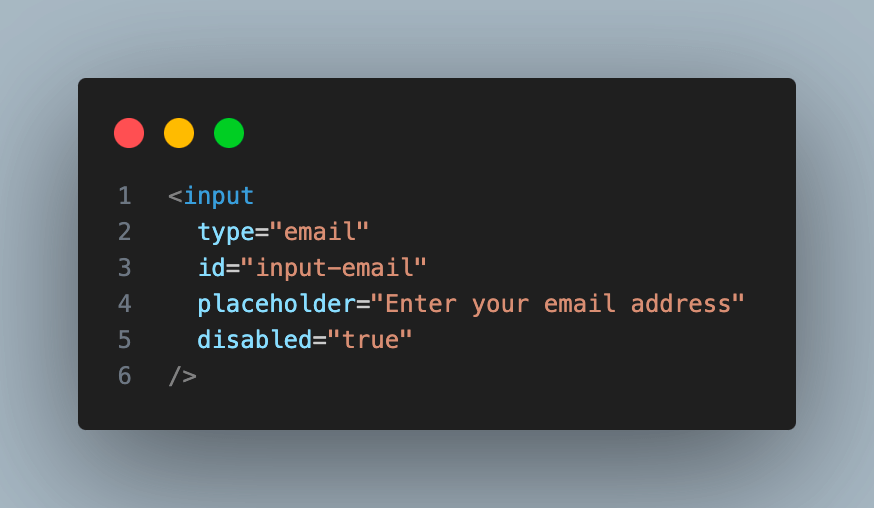
Below is a code snippet showing how to do it:
JavascriptExecutor jsExec = ((JavascriptExecutor)driver);
WebElement emailField = driver.findElement(By.id("input-email"));
jsExec.executeScript("arguments[0].value='---your email id---';", emailField);
In the above code snippet, we use the arguments of a text box as a script for the JavaScriptExecutor instead of using the sendKeys() method.
Let’s go through some examples of using sendKeys() to understand how this powerful method can be used for web automation.
Each example will demonstrate a specific use case, showcasing how to interact with different WebElements using sendKeys(). We will run our tests on a cloud-based grid like TestMu AI.
To get started, generate capabilities based on the configuration of your automated testing suites using the TestMu AI Automation Capability Generator and integrate them into your Selenium tests.
Here’s the test script that runs our tests on a cloud grid:
const { Builder } = require("selenium-webdriver");

const LT_USERNAME = ""; //replace with your username
const LT_ACCESS_KEY = ""; //replace with your accesskey
const GRID_HOST = "hub.lambdatest.com/wd/hub";

const capabilities = {
  browserName: "Chrome",
  browserVersion: "120.0",
  "LT:Options": {
    username: LT_USERNAME,
    accessKey: LT_ACCESS_KEY,
    geoLocation: "US",
    platformName: "Windows 10",
    build: "Examples of SendKeys",
    project: "Examples with SendKeys",
    w3c: true,
    plugin: "node_js-node_js",
  },
};

const gridUrl =
  "https://" + LT_USERNAME + ":" + LT_ACCESS_KEY + "@" + GRID_HOST;

export async function setupDriver() {
  let driver = null;
  try {
    driver = await new Builder()
      .usingServer(gridUrl)
      .withCapabilities(capabilities)
      .build();
    return driver;
  } catch (error) {
    throw error;
  } finally {
    await driver.quit();
  }
}
Once you run the tests, head over to the TestMu AI Web Automation Dashboard to view your test results.
Use Case I: Entering Text
This example demonstrates locating a text field on a web page and using the sendKeys() method to enter text.
In this case, the text lambdatest@test.com is entered into the text field with the ID input-email The submit() method is optionally used to submit the form after the text entry.
const { Builder, By } = require('selenium-webdriver');
const { setupDriver } = require("./web-driver");

async function exampleTextEntry() {
  const driver = await setupDriver();

  try {
    await driver.get('https://ecommerce-playground.lambdatest.io/index.php?route=account/login');

    // Locate the text field
    const textField = await driver.findElement(By.id('input-email'));

    // Entering text into the text field using sendKeys()
    await textField.sendKeys('lambdatest@test.com');

    // Optionally, submitting the form after text entry
    await textField.submit();

    // Wait for a few seconds (optional) to observe the results
    await driver.sleep(2000);

  } finally {
    await driver.quit();
  }
}

exampleTextEntry();
Use Case II: Entering Special Characters
In this example, the code locates a search box on the web page and uses the sendKeys() method to enter the text TestMu AI. After that, the Key.ENTER from the selenium-webdriver package is used to simulate pressing the Enter key, triggering a search action.
const { Builder, By, Key } = require('selenium-webdriver');
const { setupDriver } = require("./web-driver");

async function exampleSpecialCharacters() {
  const driver = await setupDriver();

  try {
    await driver.get('https://ecommerce-playground.lambdatest.io');

    // Locate the search box
    const searchBox = await driver.findElement(By.id('search-box'));

    // Entering 'Selenium' and then pressing the Enter key using sendKeys()
    await searchBox.sendKeys('LambdaTest', Key.ENTER);

    // Wait for a few seconds (optional) to observe the results
    await driver.sleep(2000);

  } finally {
    await driver.quit();
  }
}

exampleSpecialCharacters();
Here is the code snippet that imports the selenium-webdriver package.
const { Builder, By, Key } = require('selenium-webdriver');
It contains a Key – an object containing all the key codes, including ENTER, BACK_SPACE, etc.
Use Case III: Clearing Text
This example demonstrates using the sendKeys() method to enter text TestMu AI into a text field. After entering the text, the clear() method is used to clear the contents of the text field. The two-second sleep between actions is optional and added to observe the results.
const { Builder, By } = require('selenium-webdriver');
const { setupDriver } = require("./web-driver");

async function exampleClearField() {
  const driver = await setupDriver();

  try {
    await driver.get('https://ecommerce-playground.lambdatest.io/index.php?route=account/login');

    // Locate the text field
    const textField = await driver.findElement(By.id('input-email'));

    // Entering text into the text field using sendKeys()
    await textField.sendKeys('LambdaTest@test.com');

    // Wait for a few seconds (optional) to observe the entered text
    await driver.sleep(2000);

    // Clearing the text field using the clear() method
    await textField.clear();

    // Wait for a few seconds (optional) to observe the cleared text field
    await driver.sleep(2000);

  } finally {
    await driver.quit();
  }
}

exampleClearField();

Note: Automate Your Test Suites on the Cloud. Try TestMu AI Now!
Conclusion
In this blog on Selenium sendKeys(), we discussed using the sendKeys() method in Java and JavaScript to handle different test scenarios, like entering the text in the field. We also looked at some advanced use cases of the sendKeys() method and leveraging the TestMu AI platform to run Selenium tests.
Moreover, to enhance your skills and validate your knowledge of Selenium with Java and JavaScript, you can consider taking the TestMu AI Selenium Java 101 and Selenium JavaScript 101 certifications, which gives you hands-on experience with real-life use cases of Selenium automation using Java and JavaScript.
In a nutshell, the sendKeys() method in Selenium can be helpful for developers and testers when automating data entry in automated tests. It allows you to simulate input without manually entering data in a form, reducing the time and effort spent on repetitive tasks.
Conclusion
Author

Solomon Eseme
Blogs: 4


Solomon Eseme is a Software Engineer with over 5 years of experience in backend development. He is the Founder and CTO of Mastering Backend, a platform dedicated to helping backend engineers enhance their skills. Solomon has contributed to impactful projects, including those that helped secure $20M in funding. He is passionate about building scalable, secure systems and promoting clean code principles. With over 11,000 followers on LinkedIn, Solomon’s network includes QA engineers, software testers, developers, DevOps professionals, tech enthusiasts, AI innovators, and tech leaders. He is also skilled in AWS, GraphQL, and blockchain technologies.


Frequently asked questions
Did you find this page helpful?
More Related Blogs
TestMu AI forEnterprise
Get access to solutions built on Enterprise
grade security, privacy, & compliance
- Advanced access controls
- Advanced data retention rules
- Advanced Local Testing
- Premium Support options
- Early access to beta features
- Private Slack Channel
- Unlimited Manual Accessibility DevTools Tests