

Next-Gen App & Browser Testing Cloud
Trusted by 2 Mn+ QAs & Devs to accelerate their release cycles


Guide To Find Index Of Element In List with Python Selenium
This tutorial will help you find index of element in list with Python Selenium

Jolive Hodehou
January 21, 2026
In an ideal world, you can test your web application in the same test environment and return the same results every time. The reality can be difficult sometimes when you have flaky tests, which may be due to the complexity of the web elements you are trying to perform an action on your test case.
However, web elements are essential when writing automated tests. To avoid this, it is important to use the right method to find the element you are trying to act on.
Finding an element using an index can help to avoid tests that produce inconsistent results. In this Selenium Python tutorial, we will discuss how to find index of element in list with Python using Selenium WebDriver.
So, let’s get started!
What is an index?
In Selenium, an index is a numerical position of an element within a list of elements. For example, if you have a list of elements representing links on a webpage and want to select the third link, you could use an index to specify that you want to select the element at the third position in the list.
An index is defined based on specific nodes in the node set for indexing using Selenium WebDriver. You can use the indexes to get a specific item in the list of identified locators. You can learn more about it from this blog on different locators in Selenium.
Let’s assume that if you write an XPath //input[@id=’lambda’], which gives you five matching nodes, then you would have to use the indexing concept.
For this, if the object is identified at index 1, then the XPath would be [//input[@id=’lambda’]][1].
Else, if it is identified at index 2, then it would be (//input[@id=’lambda’])[2].
Note: Indexes start from 0.
Let’s take an example to illustrate better.
Example 1: TestMu AI Sign up page.
On the TestMu AI registration page, we have a country selection field, which is a select. When we use the XPath //*[@id=”country_code”] to find the element, it returns 215 nodes.
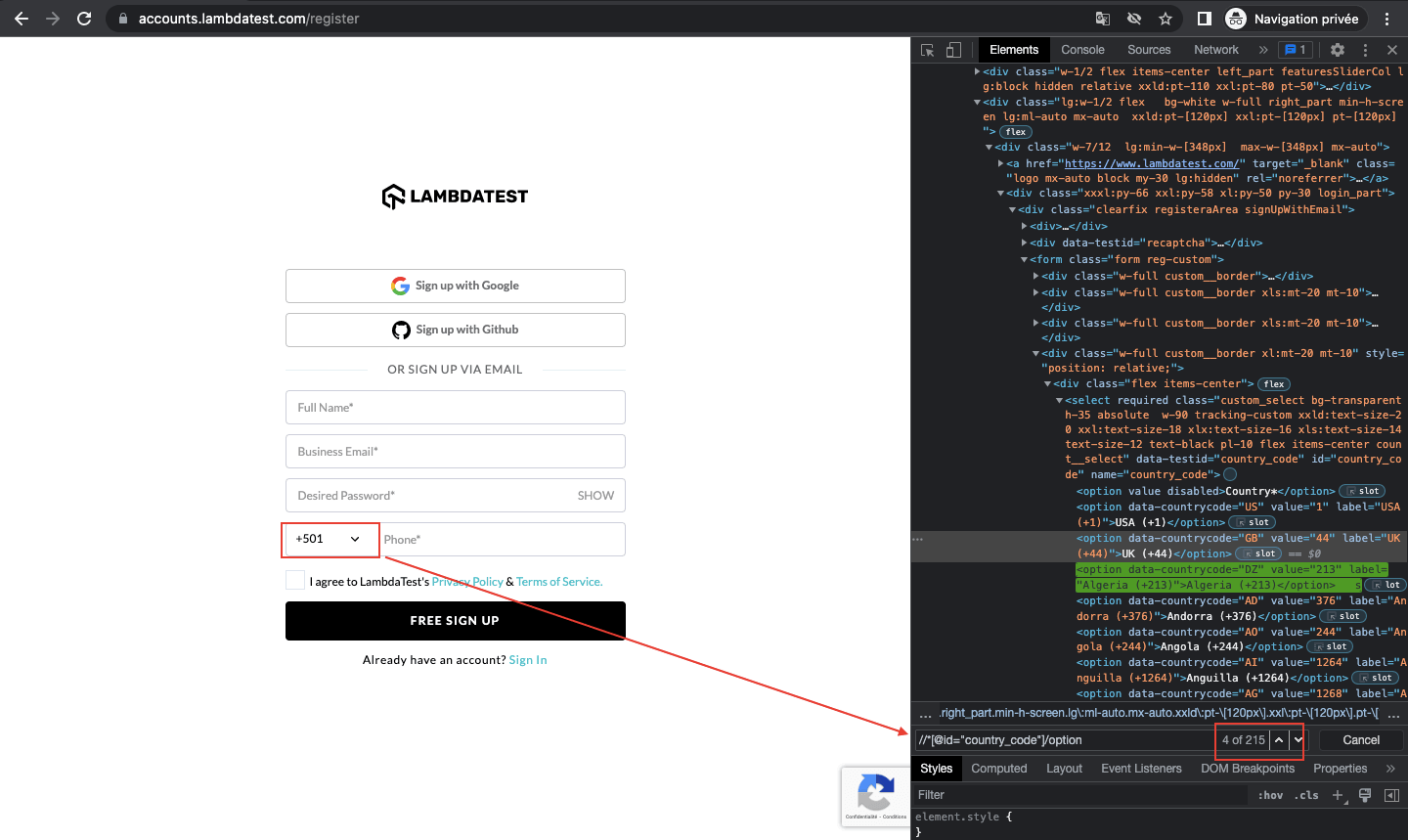
So we will need to use the indexes to find the specific element we want to interact with. Note that in this blog on how to find index of element in list with Python, we use XPath to find our locators. You have the choice to use other methods like CSS Selector etc.
Now let’s prepare our test environment. We will need to install pytest and Selenium.

How to set up a test environment?
In the section of this blog on how to find index of element in list with Python, we will learn how to set up a test environment. However, before that, let’s understand the pytest framework.
What is the pytest framework?
Pytest is a very popular Python test automation framework (mainly used for unit testing). This highly configurable and scalable testing framework comes with a rich set of features to help you write better code for Python tests.
Pytest is often described as a flexible framework with less boilerplate code than other testing frameworks. pytest fixtures provide context for tests by passing parameter names in test cases; its parameterization eliminates duplicate code for testing multiple sets of input and output, and its rewritten assert statements provide detailed output for failure causes.
In this pytest tutorial, learn how to use parameterization in pytest to write concise and maintainable test cases by running the same test code with multiple data sets.
Installing the pytest framework
To install pytest on your machine, you first need to install Pipenv.
But make sure you have Homebrew on your machine because we will use a macOS operating system in this tutorial on how to find index of element in list with Python Selenium.
- Type the following command in your terminal.
brew install pipenv
The pipenv installation should look like this:
- Once you have installed it, make sure you have pipenv installed on your machine by typing in your terminal:

pipenv
The result should look like this:
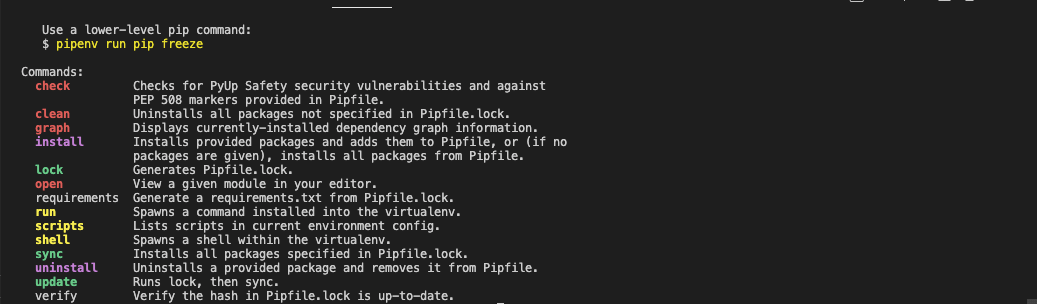
There are several other alternatives to Pipenv for package management, which can also be used like pyenv, poetry, virtualenv, autoenv, etc. However, adding them is beyond the scope of this blog on how to find index of element in list with Python Selenium.
- Creation of Pipfile in an empty directory. This file is essential for using Pipenv. It tracks your project’s dependencies if you need to reinstall them.
The python_version parameter is the version of the base interpreter you specified when creating a new pipenv environment.
The packages section is where you can list the packages required for your project. “*” is for installing the latest stable versions of the packages.
At the time of writing this blog on how to find index of element in list with Python Selenium, the latest versions of pytest and Selenium are pytest 7.1.2 and 4.2.2, respectively.
- In your terminal, go to the directory and install the latest stable versions of the pytest and Selenium packages with the command:
Pipenv Install
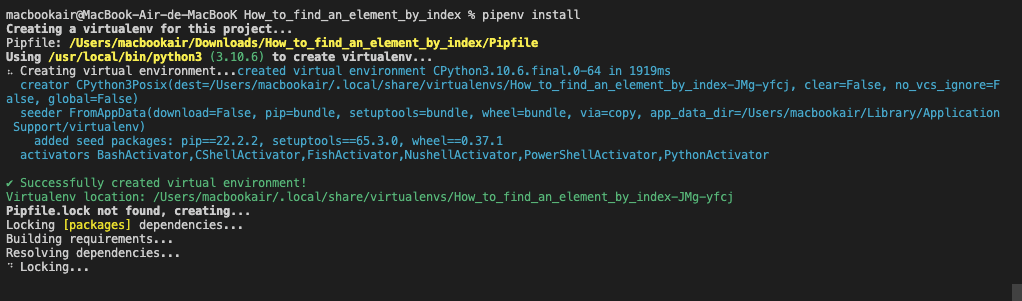
In this blog on how to find index of element in list with Python Selenium, we will use the TestMu AI Selenium Grid with pytest to run our tests. But you could have done this locally by installing the latest version of WebDriver for the browser you want to use. You can also use WebDriverManager.
Here are the download links for the most commonly used browsers.
- Firefox: GeckoDriver
- Chrome: ChromeDriver
- Opera: OperaDriver
- Edge: Microsoft Edge WebDriver
Make sure you have the correct version for your browser; otherwise, it won’t work.
Now let’s add some code to the demo on how to find index of element in list with Python using Selenium WebDriver from our Selenium controlled browser.

Note: Run your Python automated scripts on 3000+ browser environments. Try TestMu AI Now!
How to find index of element in list with Python Selenium?
In this section of the Python automation testing blog on how to find index of element in list with Python, we will consider the following test scenario to download files using Selenium Python:
- Go to the Selenium Playground > Input Form.
- Click on the Country DropDown.
- Select a country (India).
- Save the selected country in a country.txt file.
This is what the structure of our project should look like.
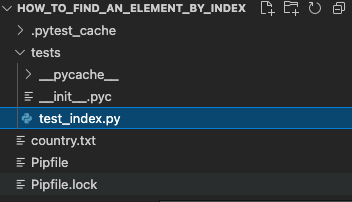
In the blog, we will create a tests folder.
In Python projects, it is conventional to create a “tests” directory under the project’s root directory to hold all the test cases.
We will create a file test_index.py in our “tests” folder, in which we will write our test case.

import pytest
import time
from selenium import webdriver
from selenium.webdriver.common.by import By
@pytest.mark.usefixtures('driver')
class TestIndex():
  def test_index(self, driver):
   driver.get("https://www.lambdatest.com/selenium-playground/input-form-demo")
   driver.find_element(By.NAME, "country").click()
  country_index = 104
   dropdown = driver.find_element(By.NAME, "country")
   option = dropdown.find_element(By.XPATH, "//select[@name='country']/option[{}]".format(country_index))
   option.click()

   with open('country.txt', 'a') as f:
      f.write(" Selected country is : "+ option.text)
      f.write('
')
   time.sleep(3)

Code Walkthrough:
import pytest
The pytest module provides a rich set of tools for constructing and running tests. In this blog on how to find index of element in list with Python Selenium, we have used unittest, but several other Selenium Python testing frameworks can be used, like Unittest, Robot, DocTest, etc.
import time
Python sleep() is a method of the Python time module. So, first, we must import the time module, and then we can use this method:
time.sleep(3)
from selenium import webdriver
This will import the Selenium packages that we will use for our project
from selenium.webdriver.common.by import By
The selenium.webdriver module provides all the WebDriver implementations. Currently, supported WebDriver implementations are Firefox, Chrome, Microsoft Edge, IE, and Remote.
The By class is used to locate elements within a document.
self.driver.find_element(By.NAME, "country").click()
Automation uses locators to find elements on a page. Selenium locators are simple query strings for finding elements. They return all elements that match their query.
Selenium WebDriver supports many locators: ID, Name, Class Name, CSS Selectors, XPath, Link text, Partial link text, and Tag name.
Here we used Name to find the country field and clicked on the element.
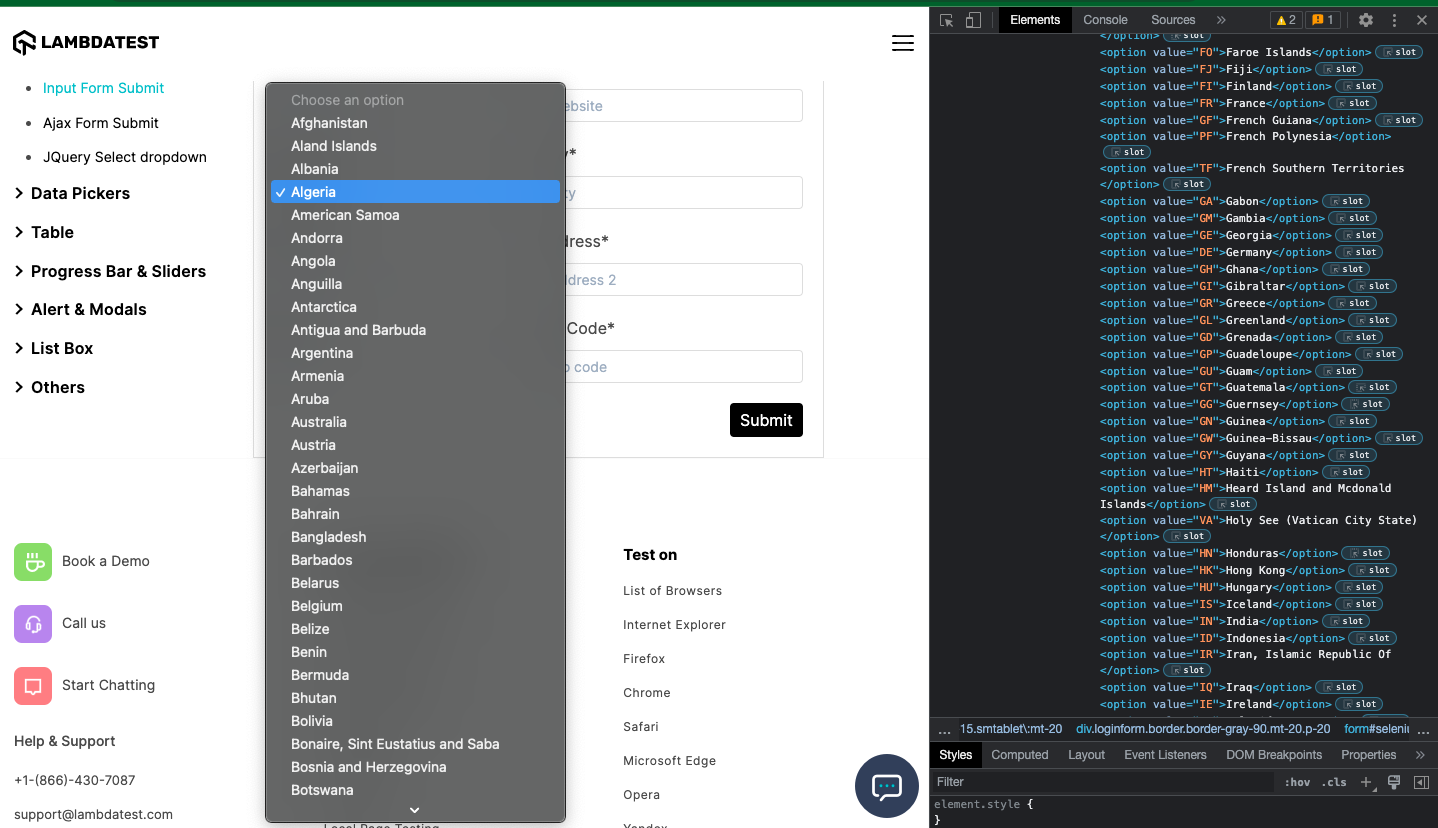
You will notice that the different countries all have the same tagName. So we will have to use the index to choose a specific country.
Indexes can also be useful in cases where the same XPath returns multiple web elements.
The index is defined based on specific nodes in the node set for indexing using Selenium WebDriver. We can also reference the specific node to the index using many indexes enclosed in []. The tag name UI element contains several child elements whose tag name is option.
Element:
//select[@name='country']/option
Now look at the Items tab; you will see that the XPath above returns 251 elements since there are 251 countries in the drop-down list.

Now let’s try to choose India from the list of countries:
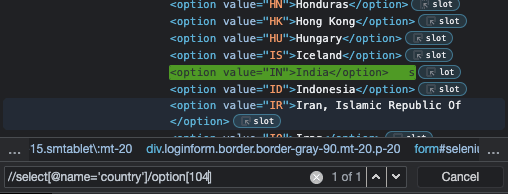
Now that we know the index of the option, we save it in a variable country_index.
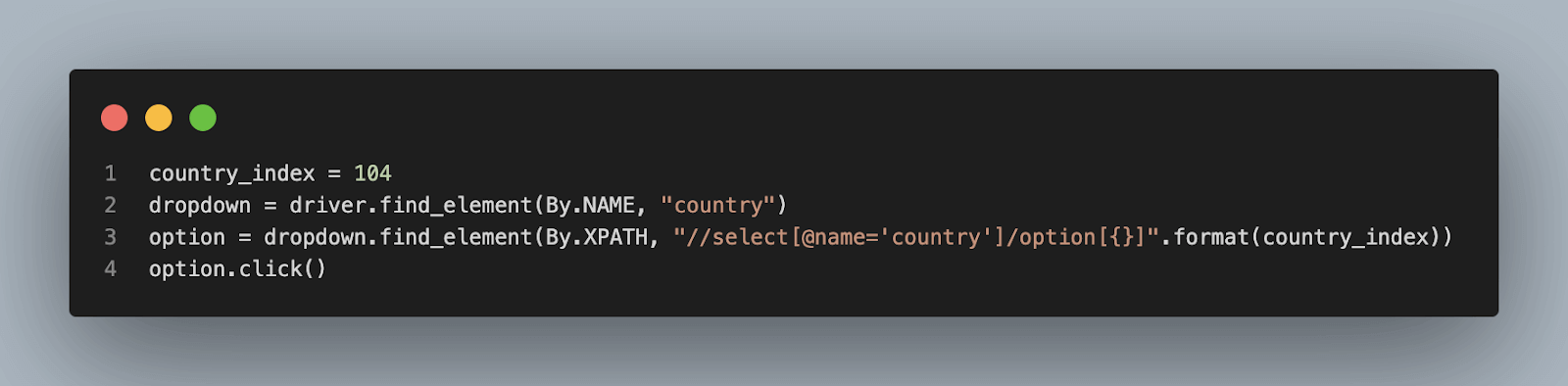
We then use this index to choose the country India.
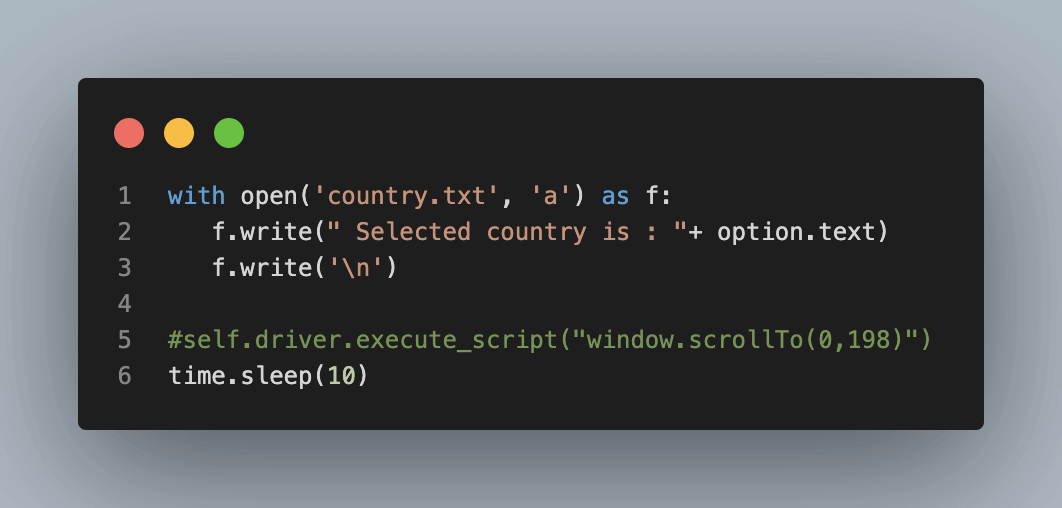
We then saved the chosen country in a country.txt file.
How to find index of element in list with Python Selenium on the cloud Grid?
To use TestMu AI Selenium Grid with pytest to perform Python web automation, you will need a TestMu AI account.
TestMu AI is a continuous quality cloud that lets you perform Python automation testing on a reliable & scalable online Selenium Grid infrastructure across 3000+ real browsers and operating systems online. Furthermore, you can also cut down build times by multiple folds using parallel test execution.
You can also Subscribe to the TestMu AI YouTube Channel and stay updated with the latest tutorials around automated browser testing, Selenium testing, Cypress E2E testing, CI/CD, and more.
Here are steps you can follow:
- Navigate to the TestMu AI website and log in if you already have an account, or create one if you don’t have an account yet.
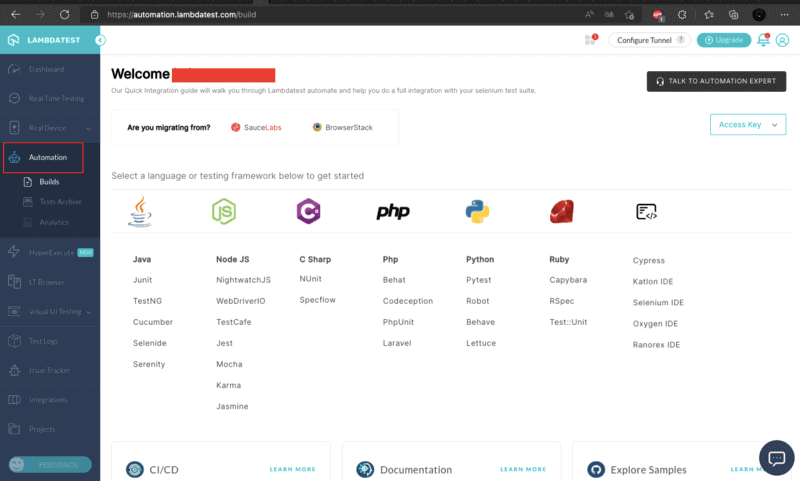
- Once you are logged in, navigate to the automation page by clicking Automation on the left sidebar of your screen.
- To use pytest with TestMu AI Grid, you need TestMu AI credentials (i.e. username and access key). To get the credentials, click the “Access Key” button on the right side of your screen.
Implementation
Now, let’s add a conftest.py file to the root of our project:
from os import environ

import pytest
from selenium import webdriver
from selenium.webdriver.remote.remote_connection import RemoteConnection


@pytest.fixture(scope='function')
def driver(request):
   desired_caps = {}

   browser = {
       "platform": "Windows 10",
       "browserName": "chrome",
       "version": "latest"
   }

   username = "YOUR_USERNAME"
   access_key = "YOUR_ACCESS_KEY"

   desired_caps.update(browser)
   test_name = request.node.name
   build = environ.get('BUILD', "How To Find An Element By Index")
   tunnel_id = environ.get('TUNNEL', False)

   selenium_endpoint = "http://{}:{}@hub.lambdatest.com/wd/hub".format(username, access_key)
   desired_caps['build'] = build
   desired_caps['name'] = test_name
   desired_caps['video'] = True
   desired_caps['visual'] = True
   desired_caps['network'] = True
   desired_caps['console'] = True
   caps = {"LT:Options": desired_caps}

   executor = RemoteConnection(selenium_endpoint)
   browser = webdriver.Remote(
       command_executor=executor,
       desired_capabilities=caps
   )
   yield browser

   def fin():
       # browser.execute_script("lambda-status=".format(str(not request.node.rep_call.failed if "passed" else
       # "failed").lower()))
       if request.node.rep_call.failed:
           browser.execute_script("lambda-status=failed")
       else:
           browser.execute_script("lambda-status=passed")
           browser.quit()

   request.addfinalizer(fin)


@pytest.hookimpl(tryfirst=True, hookwrapper=True)
def pytest_runtest_makereport(item, call):
   # this sets the result as a test attribute for LambdaTest reporting.
   # execute all other hooks to obtain the report object
   outcome = yield
   rep = outcome.get_result()

   # set a report attribute for each phase of a call, which can
   # be "setup", "call", "teardown"
   setattr(item, "rep_" + rep.when, rep)
Test execution in the cloud
With the various configurations set up in the conftest.py file, we are ready to run the tests. Run pipenv run python -m pytest, and you should see the tests running in the terminal.
Once the tests have run successfully, log in to TestMu AI Automation Dashboard to check the status of the test execution.
You can see that the value of the selected element is India.
country.txt content is below:
Selected country is : India
Bonus Section
Let’s try to do something much more fun. We’ll find all the countries starting with A and save them in a list_country.txt file. Let’s add a new function for this test case.
def test_list_country(self, driver):
   driver.get("https://www.lambdatest.com/selenium-playground/input-form-demo")
   dropdown = driver.find_element(By.NAME, "country")
   country=dropdown.find_elements(By.XPATH, "//select[@name='country']/option")

   for i in range(2,len(country)):
     country=dropdown.find_elements(By.XPATH, "//select[@name='country']/option")
     country1=dropdown.find_element(By.XPATH, "//select[@name='country']/option[{}]".format(i))
     time.sleep(2)
     with open('list_country.txt', 'a') as f:
       f.write(" Selected country is : "+ country1.text)
       f.write('
')
The contents of your list_country file should look like this: list_country.txt (github.com)
If you’re interested in becoming an automation testing expert and building your skills in Python, one way to get started is by earning a Selenium Python 101 certification. This will give you a strong foundation in using Selenium for testing and automation and can help you build a successful career in this field.

Conclusion
This concludes the tutorial on how to find index of element in list with Python Selenium. When you automate your web tests using Selenium, you may encounter elements in the DOM that have the same attributes. Indexes can help you perform different actions on a specific element.
I hope this has given you a good overview of how to find index of element in list with Python Selenium. If you have any questions or comments, please leave them in the section below.


Frequently asked questions
Did you find this page helpful?
More Related Hubs
TestMu AI forEnterprise
Get access to solutions built on Enterprise
grade security, privacy, & compliance
- Advanced access controls
- Advanced data retention rules
- Advanced Local Testing
- Premium Support options
- Early access to beta features
- Private Slack Channel
- Unlimited Manual Accessibility DevTools Tests