

Power Your Software Testing with AI Agents and Cloud
The Native AI-Agentic Cloud Platform to Supercharge Quality Engineering. Test Intelligently and Ship Faster.


- TestMu AI (Formerly LambdaTest)
- /
- Blog
- /
- How To Auto Adjust Your Font Size With CSS font-size-adjust?
How To Auto Adjust Your Font Size With CSS font-size-adjust?
CSS font-size-adjust property helps you to have a better representation of your web page across multiple browsers. This blog explains how CSS font-size-adjust works and how you can experiment with it on multiple browsers.
Last Updated on:
CSS font-size-adjust automatically rescales a fallback typeface, accepting units like pixels, em, rem, keywords, and viewport values, and it can target individual classes, IDs, or elements rather than only the whole page. Testing the result across devices is easier with LT Browser, which renders both Android and iOS screen resolutions.

Now let us quickly have a look at the CSS font-size property.
CSS font-size Property
CSS font-size property indicates a glyphs’ desired height based on the font. For the scalable font, the scalable factor is applied to calculate the font-size. However, for a non-scalable font, the absolute unit of the font-size is matched with the set size of the font.
Syntax:
- absolute-number: This value refers to the computed font sizes.
- relative-size: It has the value relative to the font-size computed and font-size table.
- length-percentage: Specifies that the font size is absolute.
CSS font-size-adjust Property
CSS font-size-adjust property provides the developers with honest management of the font size by allowing them to modify the font size of a part when the primarily selected font-type is not available.
In such situations, a font fallback takes place, and the browser uses the second specified font. This might result in a big issue if there is a difference between the aspect ratio of the initial and present font used. In such circumstances, where we need to take care of the look and maintain the text’s readability, the CSS font-size-adjust property can be used.
The font-size-adjust CSS property states that the font size of the element needs to be modified on the basis of the height of lowercase letters instead of the peak of uppercase letters.
Syntax:
| font-size-adjust | none | < number > |
|---|
- none: Specifies that the font’s x-height is not preserved
- number: This value refers to the aspect number of the first used font, and then the rest available fonts will be scaled according to the following formula: c = (a/a’) s
where:
| c | adjusted font size to use |
|---|---|
| a | aspect value as specified by the font-size-adjust property |
| a’ | aspect value of the actual font |
| s | font size value |
Example
If 15px Roboto (with an aspect value of 0.50) was unavailable and the next given font had an aspect value of 0.40, the font size of the substitute font used would be, 15*(0.50/0.40) = 18.75px
Interesting Read: 11 CSS Frameworks To Look Forward To In 2020
How CSS font-size-adjust Works?
Here is a demonstration of how the font-size-adjust works, making font size auto-adjust. Below is an example that compares two different font types having different aspect ratios. The x-heights of the lower case letters of the two fonts can be modified to match the x-height of the other font.
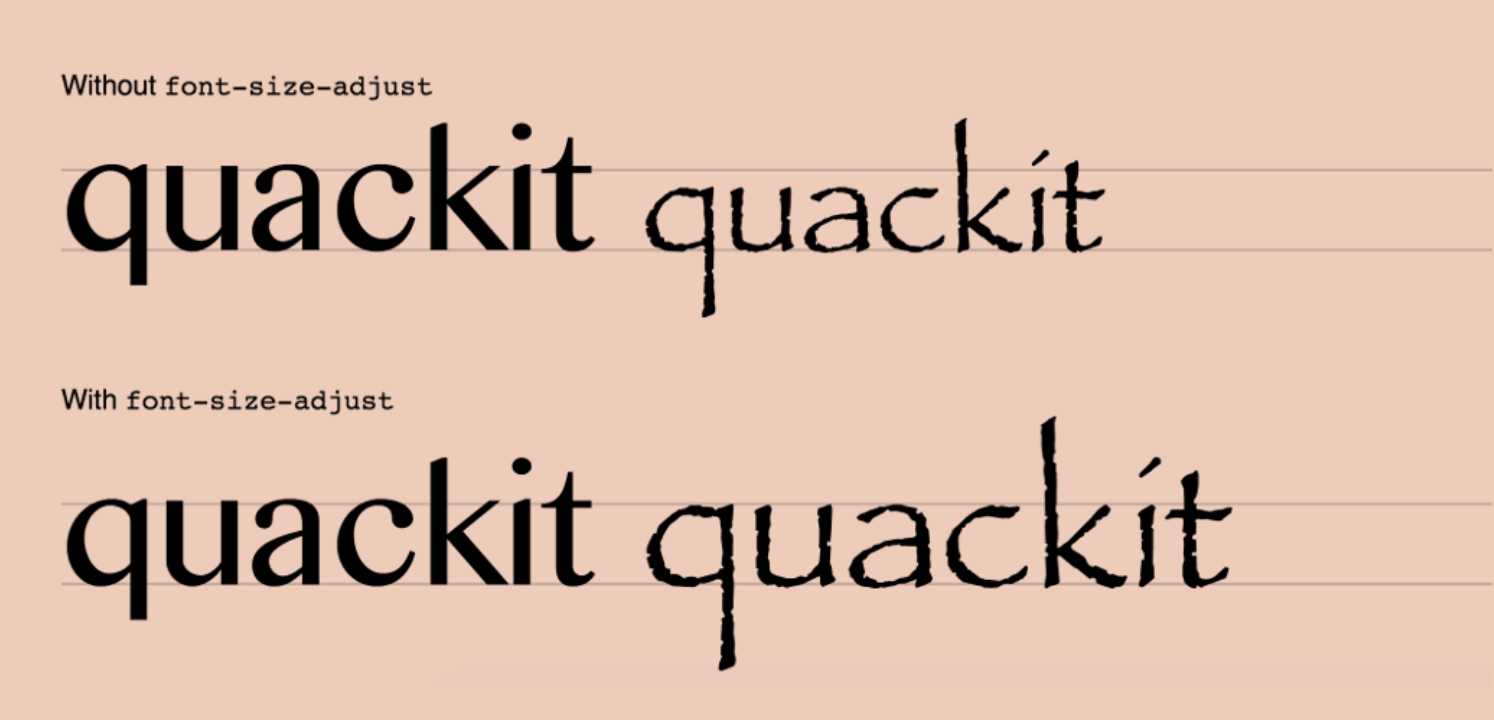
In the above image, the text on the left-hand side has been applied with a font named Comic Sans, which has an aspect value of 0.53. In contrast, the text on the right-hand side has been used with the Calibri font, which has an aspect value of 0.47. This results in an exceedingly small-looking text. On the underside line, a font-size-adjust of 0.53 has been applied because of which the font-size on the underside hand now has its font-size modified according to the aspect ratio specified.
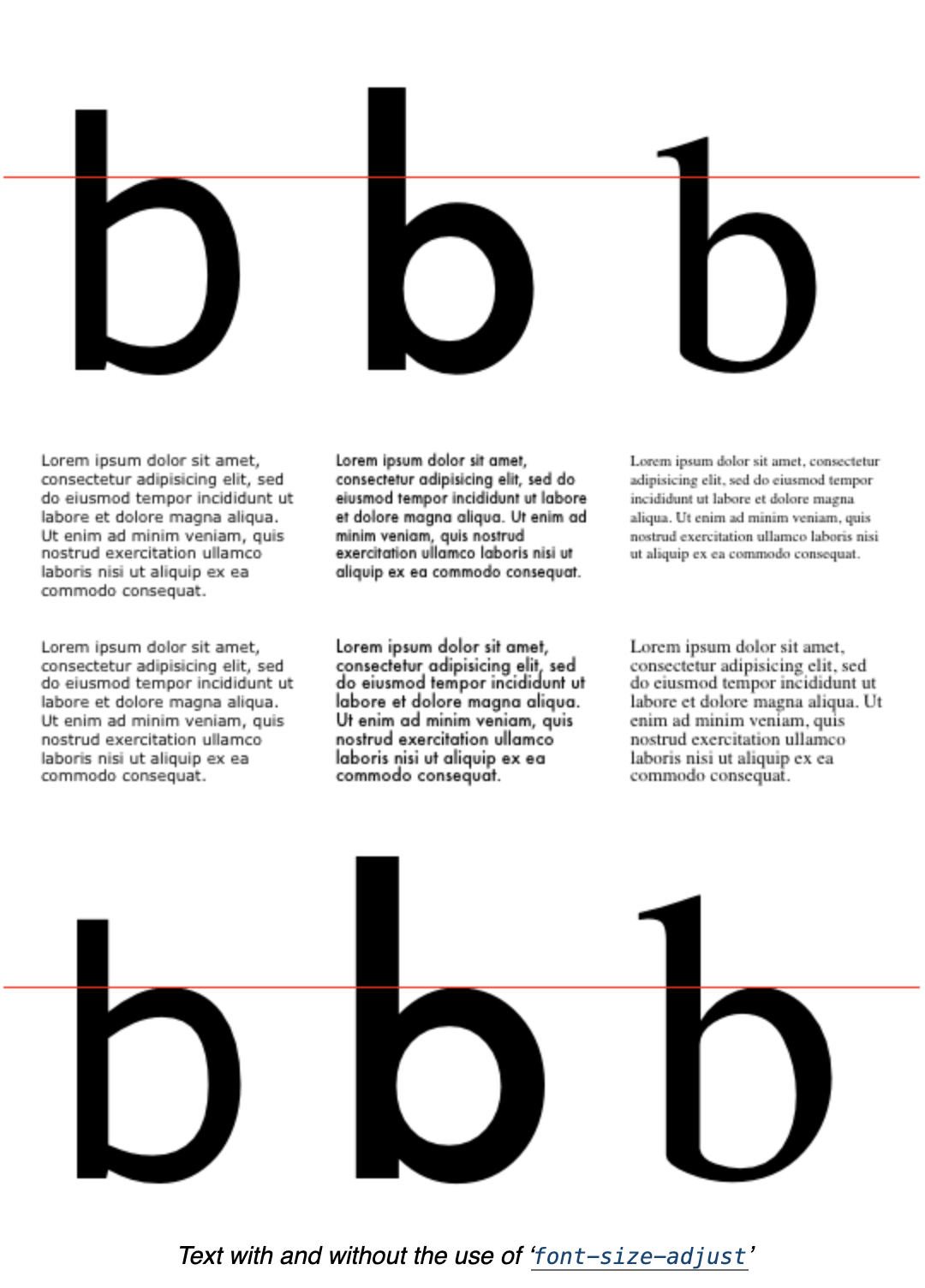
[Source – W3]
The value of the CSS font-size-adjust property influences the used value of the ‘font-size’ but does not affect it’s enumerated value. It has its effects on the dimensions of relative units supported by font metrics like ex and ch of the fonts available primarily but does not damage the scale of em units.
As the numeric values of line-height check with the calculated size of font-size, the CSS font-size-adjust property does not modify the used value of line-height; rather, it auto-adjusts the font size.
In CSS, authors often specify the ‘line-height’ as a multiple of the font-size. Since the CSS font-size-adjust property affects the used value of font-size, authors should make sure to set the line height when CSS font-size-adjust is used.
Note: Setting the line height too tightly may end up in overlapping lines of text during this situation.
Example
index.html

<!doctype html>
<head>
	<link rel="stylesheet" href="style.css">
</head>
<body>
<p>Font Without adjustment.</p>
<p class="adjust">Font With adjustment.</p>
<hr>
<p>Previewed on {Browser}.</p>
</body>
</html>

style.css

p {
   font: 20px Verdana, Helvetica, sans-serif;
}
.adjust {
   font-size-adjust: 0.78;
  }
Browser Compatibility
Let's talk about CSS supports in browsers. According to MDN, CSS font-size-adjust reached Baseline newly available status in July 2024 and now works natively across Chrome, Edge, Firefox, and Safari, with no flag required.
The CSS font-size-adjust property was initially introduced in CSS2, but later removed in CSS2.1, then again re-introduced in CSS3.
You might also like: Browser Compatibility Guide To CSS Writing Modes

How Do AI Coding Agents Handle Font Fallback Issues in 2026?
AI coding agents help with font-size-adjust in two ways, and both still need a person to verify the result visually.
- Suggesting a starting value: GitHub Copilot, Claude Code, and Cursor can suggest a font-size-adjust value by comparing the published aspect ratios of two typefaces, so a developer does not have to look up each font's x-height by hand.
- Catching text reflow automatically: An agent driven by a Playwright MCP server, or a browser-use style agent, can load a page with the fallback font forced on, capture the rendered text, and flag a size mismatch, instead of a person comparing screenshots by eye.
- What still needs a person: None of these agents can judge whether the adjusted text still looks right for the brand. A font-size-adjust value that keeps the x-height mathematically equal can still look visually off, and only a human reviewer catches that.
The mechanism is the same across all three tools: they read font metrics or rendered pixels and compare numbers. None of them treats typography as a design choice, only as data to match.
Checking font-size Across Browsers
With TestMu AI, you can check font-size across browsers seamlessly over desktop and mobile by performing cross browser compatibility testing. In the below screenshots, we will implement the font-size-adjust property over the Netlify platform and try to access it on different browsers.
1. Login to TestMu AI dashboard. You can register for free here.
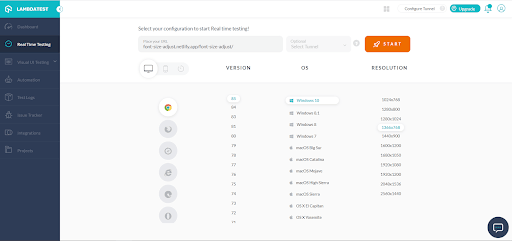
2. Select Real Time Testing and optimize your desired configurations.
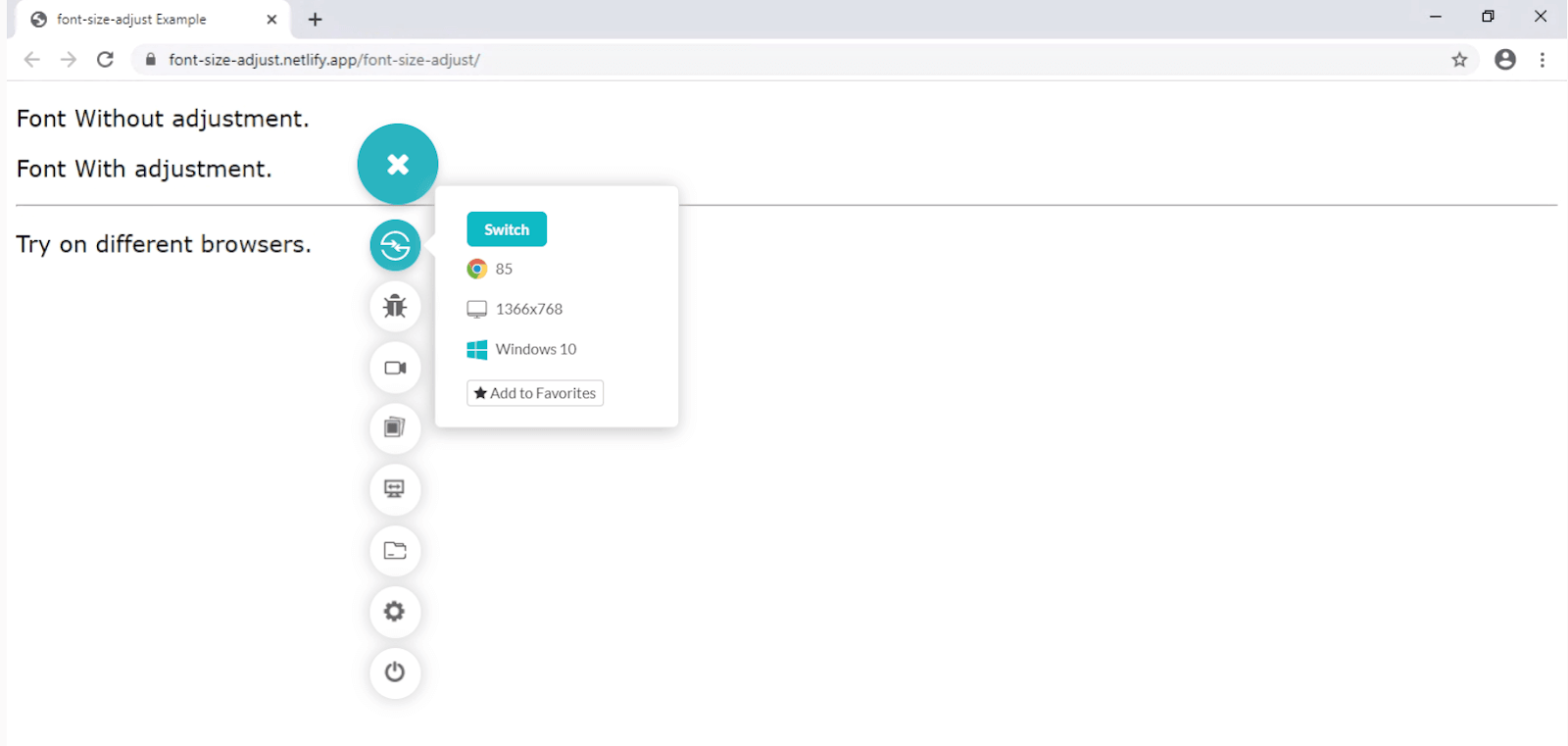
3. Previewing CSS font-size-adjust over a non-compatible and compatible browser.
- Google Chrome (non-compatible)
- Firefox (compatible)
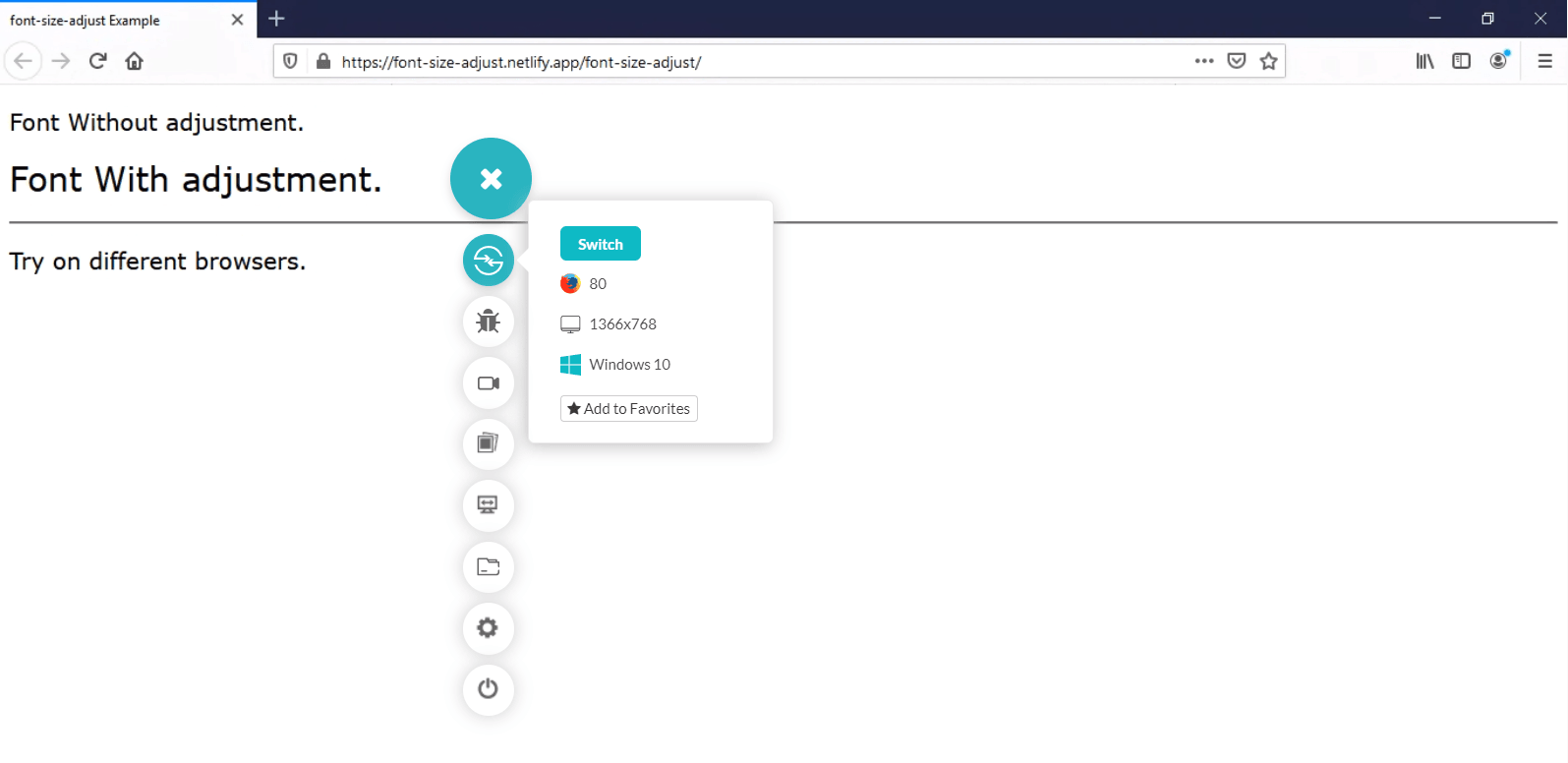
With the help of the real time testing feature available on the TestMu AI platform, this is how you can perform cross browser testing and verify its compatibility with CSS font-size-adjust. There’s a lot more than you can do to ensure CSS compatibility across browsers.
Wrap-up!
Now you would possibly have an idea about what the CSS font-size-adjust property does, why it’s essential, and the way to figure out the aspect value of various fonts.
Because CSS font-size-adjust degrades gracefully in older browsers, you’ll be able to move and begin using it today to boost the legibility of text in production websites. However, it does have severe limitations of being supported by just some browsers, as you have now seen by performing cross-browser compatibility testing. During these situations, you should choose fonts of virtually the identical ratio to forestall size difference. This guide to cross browser testing on older browsers might also help.
We hope you found this article informative. If you have any questions, feel free to chime in the comment section below. If you enjoyed this article, please share it on social channels – to help others find it. That’s all for now.
Happy Testing!!!

Author

Nimritee
Blogs: 5


Nimritee Sirsalewala is a community contributor with 5+ years of experience across data engineering, machine learning, and technical writing. She specializes in building data-driven and AI-powered systems, with hands-on experience in Python, Java, SQL, machine learning workflows, and cloud-based data pipelines. Nimritee has contributed technical content around programming, UI/UX, and software testing as a freelance writer for TestMu AI and ACCELQ, and currently works as a Data Engineer at TOMRA, applying AI to sustainability-focused systems. She holds a Master’s degree in Web and Data Science.


Did you find this page helpful?
More Related Blogs
TestMu AI forEnterprise
Get access to solutions built on Enterprise
grade security, privacy, & compliance
- Advanced access controls
- Advanced data retention rules
- Advanced Local Testing
- Premium Support options
- Early access to beta features
- Private Slack Channel
- Unlimited Manual Accessibility DevTools Tests