
Run Web Automation Tests at Scale with Agentic AI
Generate tests with AI agents or automate test suites with Selenium, Playwright and other frameworks. Run tests in parallel on TestMu AI scalable cloud grid.

Cloud Development Environment: How It Works and How to Test
A cloud development environment runs your workspace on a remote host. Learn how CDEs work, which providers are open in 2026, and how to test apps inside one.
Published on:
A pull request arrives from a teammate's cloud development environment, and the change has to be checked on Safari before it merges. The app is running on localhost inside a Linux container on a remote host, Safari runs only on macOS, and the port the CDE forwards is locked to your teammate's GitHub login.
This guide covers what a cloud development environment is, how one boots from a devcontainer.json file, which providers are still open to new teams in late 2026, and how to test an app that runs inside one. For the testing part, I booted a dev container with the Dev Container CLI on a remote Ubuntu VM and ran Selenium tests against it on TestMu AI's cloud grid; every output block comes from those runs, and each code block ran exactly as printed.
Overview
A cloud development environment (CDE) is a complete development workspace that runs on a remote host instead of your laptop. A config file such as devcontainer.json defines the container, and you connect from a browser or a local editor, while code, dependencies, builds and the running app stay on the remote machine.
What Changes When Code Runs in a Cloud Development Environment?
- devcontainer.json: The open Dev Container spec file that sets the image, tools, forwarded ports and setup commands. GitHub Codespaces, the VS Code Dev Containers extension and the Dev Container CLI all read it, so one file builds the same environment in each.
- Forwarded ports: The way you open an app that runs inside a CDE. In GitHub Codespaces every forwarded port is private by default and needs a GitHub sign-in, so an outside tool such as a cloud test browser cannot open it.
- Environment portability: Several CDE services closed or began retiring between 2024 and 2026. Keeping the environment in a portable devcontainer.json lets a team reopen the same repository on another service without rewriting its setup.
- Browser testing: A Linux CDE container has no display, no Safari and no real devices. Cross-browser checks run on a cloud grid such as TestMu AI's, reached through a tunnel started inside the CDE.
How Is a Cloud Development Environment Different From a Cloud IDE?
A cloud IDE is only the code editor running in a browser tab. A CDE is the whole workspace behind the editor: operating system, runtimes, dependencies, services and forwarded ports, rebuilt from a config file. You can reach a CDE from a browser-based editor or from a desktop editor such as VS Code.
What Is a Cloud Development Environment?
A cloud development environment is a development workspace, with its operating system, language runtimes, dependencies, databases and the running app, that lives on a remote machine and is rebuilt from a config file. You write code in a browser tab or in a local editor that connects to it, and every command runs remotely.
Working away from the laptop is now the norm. In Docker's 2025 State of Application Development Report, 64% of developers said they use non-local environments as their primary development setup, leaving laptops and desktops at 36%. The report's breakdown puts remote dev tools such as Codespaces and Gitpod at 12%, up from 8% in 2024, and personal remote dev environments or clusters at 22%, up from 11%.
- Config file - a
devcontainer.json(or a Terraform template in Coder) that pins the image, tools, editor extensions and setup commands, so every workspace starts identical. - Remote compute - a container or VM on the provider's hosts or your own cloud account, sized per project rather than per laptop.
- Editor connection - a browser-based VS Code or a desktop editor that attaches over the network, while terminals, language servers and debuggers run remotely.
- Forwarded ports - URLs that let your own browser open the app running inside the workspace.
Remote Development Environment vs Cloud Development Environment
A remote development environment is any workspace whose code, tools and running processes run somewhere other than your editor: on another machine, in a container or in WSL, the three targets VS Code's remote development docs name. A CDE is the kind a service provisions on demand from a config file, so every CDE is a remote development environment, while a VM you maintain over SSH or WSL on your own laptop is remote without being a CDE.
| Setup | Where the code runs | Defined by | Example tools |
|---|---|---|---|
| Remote machine over SSH | A VM or server you own or rent, and patch yourself | Whatever is installed on that machine | VS Code Remote - SSH, the JetBrains SSH connection |
| Dev container | A container on your laptop or on a remote Docker host | devcontainer.json: image, features, forwarded ports, lifecycle commands | VS Code Dev Containers, the Dev Container CLI, the JetBrains Dev Container connection |
| WSL | A Linux distribution on the same Windows machine | The WSL distribution and what you install in it | VS Code WSL, the JetBrains WSL connection |
| Managed CDE | A provider's VM or microVM, created per workspace | devcontainer.json in the repository | GitHub Codespaces (GitHub-hosted VMs from 2 to 32 cores), CodeSandbox (microVMs) |
| Self-hosted CDE platform | Your cloud account, data center or Kubernetes cluster | Terraform templates or devcontainer.json | Coder (Terraform workspaces that shut down when idle), DevPod (client-only, open source) |
The rows come from each tool's documentation and the Dev Container spec's list of supporting tools. The VS Code Remote - SSH and Dev Containers extensions behind the first two setups are reviewed in best VS Code extensions.
How a Cloud Development Environment Works
This is the devcontainer.json used for the test run later in this guide. It names a Node.js 22 image, forwards the app's port and installs the test dependency once the container exists.
{
  "name": "cde-preview-tests",
  "image": "mcr.microsoft.com/devcontainers/javascript-node:1-22-bookworm",
  "forwardPorts": [3100],
  "postCreateCommand": "npm install selenium-webdriver@4.54.0"
}- Configuration - the file sits in
.devcontainer/in the repository. GitHub's dev container docs say that when a repository has no configuration, Codespaces builds the container from a default Linux image. - Provisioning - the provider pulls the image, starts the container on a remote host and runs
postCreateCommand, here annpm installof selenium-webdriver. - Connection - your editor attaches to the container; only the editor UI runs on your machine.
- Port forwarding - ports listed in
forwardPortsbecome URLs you can open in your own browser. - Stop and rebuild - the workspace stops when idle (GitHub's timeout docs set the Codespaces default to 30 minutes) and can be deleted and rebuilt from the same file.
The tool that connects, such as VS Code or Codespaces, does that forwarding; the Dev Container spec defines forwardPorts as ports that "should always be forwarded from inside the primary container to the local machine". In a separate HyperExecute run of the Dev Container CLI alone (job e93af5e1, app on port 3000), docker port listed nothing and curl from the VM host to port 3000 failed with exit code 7, while the same request inside the container returned the page.
The file follows the open Development Container Specification, and the spec's site, containers.dev, lists Visual Studio Code, Visual Studio, IntelliJ IDEA, the Dev Container CLI and GitHub Codespaces among the tools that support it. The same file also opens on a laptop through the VS Code Dev Containers extension; the steps for a setup without containers are in this guide to setting up a local web development environment.
Cloud Development Environment vs Local Development
A CDE is often confused with the per-pull-request preview environments that reviewers open. The table compares a laptop, a CDE and a preview environment; the ephemeral environments guide covers preview environments in depth.
| Attribute | Local machine | Cloud development environment | Ephemeral preview environment |
|---|---|---|---|
| Purpose | Writing, running and debugging code | Writing, running and debugging code | Reviewing a deployed build of one branch |
| Where it runs | Your laptop or desktop | A container or VM on a remote host | A cluster or platform, one per pull request |
| New developer setup | Manual install on every machine | Open the repository; the config file builds the workspace | None; a reviewer opens a URL |
| Who can open the app | You, on localhost | You, through forwarded ports that are private by default in Codespaces | Anyone given the preview URL |
| Browsers for testing | Whatever is installed; Safari only on a Mac | None in a default Linux container | None; tests run from somewhere else |
| Offline work | Yes | No | No |
The cost model is different too. GitHub's Codespaces billing docs include 120 hours of compute time and 15 GB-month of storage each month for personal accounts on GitHub Free, and usage beyond the included amounts is billed, so a workspace left running eats into that allowance in a way a laptop never does.
- Pick a CDE when onboarding takes days, laptops drift apart, or builds need more CPU and memory than a laptop has.
- Stay local when you work offline, need hardware plugged into your machine, or test Safari on your own Mac.
- Add preview environments on top of either one when reviewers need a running build for every pull request.
Skip the setup and install the Selenium Skill for Claude Code, Copilot & Cursor with one command.

Cloud Development Environment Providers in 2026
AWS, Ona (formerly Gitpod) and Microsoft have each closed or begun retiring a CDE service, and the top-ranking guides on this topic still recommend some of them. I checked each status below on the vendor's own pages in November 2026.
- GitHub Codespaces - open. It builds from
devcontainer.json, includes the free monthly usage described above for personal accounts, and lets organization owners restrict who can make a forwarded port public. - Coder - open. Coder's docs describe it as a self-hosted platform, free and open source under the GNU AGPL v3, whose workspaces are "cloud development environments defined with Terraform"; it is not a fully managed service.
- Google Cloud Workstations - open. Google's overview says workstations run on Compute Engine VMs in your own project, with a persistent disk attached.
- AWS Cloud9 - closed to newcomers. The AWS Cloud9 user guide's document history says the service stopped accepting new customers on July 25, 2024, while existing customers can keep using it.
- Ona (formerly Gitpod) - shut down. After joining OpenAI, Ona wound down Ona Cloud on October 31, 2026, according to its shutdown notice, and pointed users to Codex Cloud environments.
- Microsoft Dev Box - retiring. Microsoft's Dev Box retirement guide says the closing-down period began on September 14, 2026 and the service retires on September 18, 2028, with Windows 365 as the recommended path.
- Daytona - repositioned. Its homepage now describes it as secure and elastic infrastructure for running AI-generated code, which makes it an AI code sandbox rather than a team CDE; the sandbox environment guide covers that category.
Plan the exit before you pick a provider. Ona's migration guide moved Gitpod Classic users from .gitpod.yml to devcontainer.json, and its shutdown FAQ says environments do not move to Codex automatically. When the environment already lives in devcontainer.json, changing providers means opening the same repository somewhere else instead of rewriting its setup.
Browser Testing Limits Inside a Cloud Development Environment
A CDE gives you a terminal and an editor, not a device lab. I ran this check inside the dev container from the previous section:
# Run in the CDE terminal
echo "DISPLAY: ${DISPLAY:-<not set>}"
for b in safari google-chrome chromium firefox microsoft-edge; do
  if command -v "$b" >/dev/null 2>&1; then echo "$b: installed"; else echo "$b: not installed"; fi
done
DISPLAY: <not set>
safari: not installed
google-chrome: not installed
chromium: not installed
firefox: not installed
microsoft-edge: not installed- No display -
DISPLAYis unset, so a headed browser has nowhere to draw. Playwright's CI docs say headed execution on Linux agents requires Xvfb, which leaves headless Chromium and Firefox as the realistic in-container option. - No Safari - Safari ships only on macOS. Playwright's browser docs say its WebKit is built from WebKit's main branch, does not work with branded Safari, and should run on a Mac for the closest-to-Safari result.
- No real devices - a container cannot host an iPhone or a Pixel, so mobile Safari and Chrome on Android need hardware elsewhere, such as TestMu AI's real device cloud with 10,000+ real Android and iOS devices.
- Private ports - GitHub's Codespaces security docs say all forwarded ports are private by default and that access is controlled by authentication cookies with a 3-hour expiry, so a cloud browser or a QA colleague without that login cannot open the URL.
Making the port public fixes access by exposing an unfinished branch to anyone who finds the URL, and organizations can block that option. A tunnel started inside the CDE avoids both problems: the cloud browser reaches localhost through an outbound connection the CDE opens, and no port is published.
How to Test an App Running in a Cloud Development Environment
For this run, a fresh Ubuntu 20.04 VM with Docker (a TestMu AI HyperExecute Linux runner) stood in for a CDE provider's remote host. The app is a one-page newsletter form, app/index.html, served on 127.0.0.1:3100 by server.mjs, and the tests run on real Safari and Chrome in TestMu AI's cloud.
<!doctype html>
<html lang="en">
<head>
  <meta charset="utf-8">
  <title>Feature branch preview</title>
</head>
<body>
  <h1>Newsletter</h1>
  <label for="email">Email</label>
  <input id="email" type="email">
  <button id="subscribe">Subscribe</button>
  <p id="status" role="status"></p>
  <script>
    document.getElementById('subscribe').addEventListener('click', () => {
      const email = document.getElementById('email').value;
      document.getElementById('status').textContent =
        email.includes('@') ? 'Subscribed: ' + email : 'Enter a valid email';
    });
  </script>
</body>
</html>
// server.mjs - serves the page under test on localhost only
import { createServer } from 'node:http';
import { readFile } from 'node:fs/promises';
const page = await readFile(new URL('./app/index.html', import.meta.url));
createServer((req, res) => {
if (req.url === '/') {
res.writeHead(200, { 'content-type': 'text/html' });
res.end(page);
} else {
res.writeHead(404);
res.end();
}
}).listen(3100, '127.0.0.1', () => console.log('dev server on http://localhost:3100'));Step 1: Give the CDE Your Credentials
In GitHub Codespaces, store LT_USERNAME and LT_ACCESS_KEY as Codespaces secrets and grant them to the repository. GitHub's secrets docs say each secret is exported as an environment variable into the terminal session, and a codespace that is already running has to be stopped and restarted to pick up a new one. On my VM, the host passed the same two variables into the container:
# On the remote host: build the dev container, then run the test script inside it
npx -y @devcontainers/cli@0.91.0 up --workspace-folder .
npx -y @devcontainers/cli@0.91.0 exec --workspace-folder . \
  --remote-env LT_USERNAME="$LT_USERNAME" --remote-env LT_ACCESS_KEY="$LT_ACCESS_KEY" \
  bash scripts/test-in-cde.sh
scripts/test-in-cde.sh runs the commands from this walkthrough in order: the environment check from the previous section, node server.mjs & with a curl loop that waits for port 3100, the Step 3 tunnel commands, the Step 4 test and the stop command. On a fresh VM, devcontainer up took 42 to 51 seconds across two runs, including the image pull and the npm install.
Later starts are faster. In a separate run of the same CLI on another fresh VM (job e93af5e1), reconnecting to the running container took 0.85 seconds and a new container from the cached image took 3.5 seconds, because the image no longer had to be pulled.
Step 2: Try the Cloud Browser Without a Tunnel
As a control, I opened http://localhost:3100/ from a cloud Chrome on Windows 11 with no tunnel capability set. It printed:
no tunnel: title="" body="dial tcp 127.0.0.1:3100: connectex: No connection could be made because the target machine actively refused it."The cloud machine treated localhost as itself, found nothing listening on port 3100 and refused the connection; connectex is a Windows socket error, which shows the request never left the cloud side. A forwarded Codespaces URL would fail at the GitHub sign-in instead, and the cloud browser would still get no page.
Step 3: Start the Tunnel Inside the CDE
The TestMu AI tunnel runs as a single binary in the CDE terminal and opens an outbound connection to the cloud grid, so nothing in the workspace has to be exposed.
# Download the Linux tunnel binary inside the CDE
command -v unzip >/dev/null || (sudo apt-get update -qq && sudo apt-get install -y -qq unzip)
curl -sSLo LT_Linux.zip https://downloads.lambdatest.com/tunnel/v3/linux/64bit/LT_Linux.zip
unzip -o LT_Linux.zip

# Start it in the background and route only localhost through it
export LT_TUNNEL_NAME="cde-$(date +%s)"
./LT --user "$LT_USERNAME" --key "$LT_ACCESS_KEY" \
  --tunnelName "$LT_TUNNEL_NAME" --allowHosts localhost --infoAPIPort 8000 > tunnel.log 2>&1 &

# Wait until the tunnel is connected, then print its status
curl -s --retry-connrefused --retry 60 --retry-delay 1 -o /dev/null http://127.0.0.1:8000/api/v1.0/info
curl -s http://127.0.0.1:8000/api/v1.0/info
Archive: LT_Linux.zip
inflating: LT
{"status":"SUCCESS","data":{"id":20079100,"localProxyPort":"9090","user":"keys","tunnelName":"cde-1795520753","environment":"prod","version":"3.2.37","mode":"tcp","sshConnType":""}}- --allowHosts localhost - sends only requests for localhost through the CDE; everything else the cloud browser loads goes straight out from the cloud side.
- --infoAPIPort 8000 - opens a local status API.
/api/v1.0/infoanswers with SUCCESS once the tunnel is connected, so it doubles as a readiness check for scripts. The whole block, download included, took 1.3 seconds in this run. - Status fields - the reply shows tunnel version 3.2.37 in
tcpmode under the name passed inLT_TUNNEL_NAME, which the tests reference next.
This tunnel is separate from VS Code's Remote - Tunnels extension, which carries your editor session to a remote machine over Microsoft dev tunnels and does not route a test grid's browser traffic to your app.
Step 4: Run the Tests Through the Tunnel
The test fills the form on Safari (macOS Sequoia) and Chrome (Windows 11) in parallel. The only CDE-specific lines are tunnel: true and tunnelName in LT:Options.
// tests/preview.test.mjs - selenium-webdriver 4.54.0
import { Builder, By, until } from 'selenium-webdriver';

const { LT_USERNAME, LT_ACCESS_KEY, LT_TUNNEL_NAME } = process.env;
const hub = `https://${LT_USERNAME}:${LT_ACCESS_KEY}@hub.lambdatest.com/wd/hub`;

const targets = [
  { browserName: 'Safari', platformName: 'macOS Sequoia' },
  { browserName: 'Chrome', platformName: 'Windows 11' },
];

async function check({ browserName, platformName }) {
  const driver = await new Builder()
    .usingServer(hub)
    .withCapabilities({
      browserName,
      browserVersion: 'latest',
      'LT:Options': {
        platformName,
        build: 'CDE preview check',
        name: `Subscribe form on ${browserName}`,
        tunnel: true,
        tunnelName: LT_TUNNEL_NAME,
        w3c: true,
      },
    })
    .build();
  const started = Date.now();
  try {
    await driver.get('http://localhost:3100/');
    await driver.findElement(By.id('email')).sendKeys('qa@test.dev');
    await driver.findElement(By.id('subscribe')).click();
    const status = await driver.wait(until.elementLocated(By.css('#status:not(:empty)')), 10000);
    const text = await status.getText();
    if (text !== 'Subscribed: qa@test.dev') throw new Error(`unexpected status: ${text}`);
    await driver.executeScript('lambda-status=passed');
    const version = (await driver.getCapabilities()).get('browserVersion');
    const secs = ((Date.now() - started) / 1000).toFixed(1);
    console.log(`PASS ${browserName} ${version} on ${platformName}: "${text}" (${secs} s)`);
  } catch (err) {
    await driver.executeScript('lambda-status=failed');
    console.log(`FAIL ${browserName} on ${platformName}: ${err.message}`);
    process.exitCode = 1;
  } finally {
    console.log(`  session ${(await driver.getSession()).getId()}`);
    await driver.quit();
  }
}

await Promise.all(targets.map(check));
$ node tests/preview.test.mjs
PASS Chrome 158.0.8127.37 on Windows 11: "Subscribed: qa@test.dev" (1.5 s)
session 1279b1692fc2aefbde58505c2183566a
PASS Safari 18.5 on macOS Sequoia: "Subscribed: qa@test.dev" (2.4 s)
session A5A788FE-DFE3-46E5-86C3-BD0B28445D61- Same URL, different result - both browsers opened
http://localhost:3100/, the address that failed in Step 2, and got the page from inside the CDE. - Session records - the automation API records for both sessions show
"tunnel": trueand the tunnel namecde-1795520753; the control session shows"tunnel": false. - Run time - the whole script, including starting both cloud sessions, finished in 12 seconds.
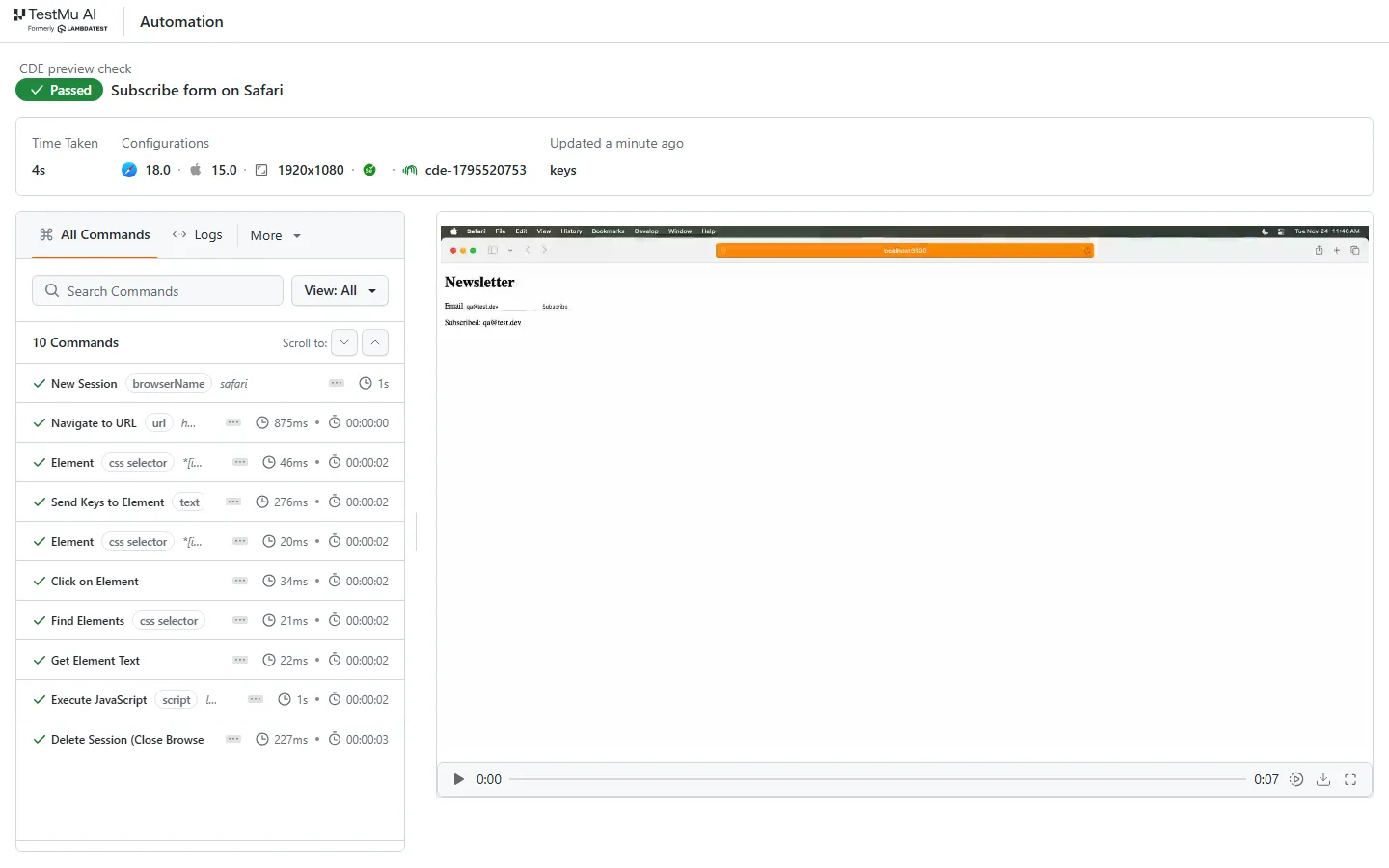
Stop the tunnel when the run ends, so the name is free for the next one:
$ curl -s -X DELETE http://127.0.0.1:8000/api/v1.0/stop
{"status":"SUCCESS","message":"Acknowledged"}
This is the job TestMu AI's Automation Cloud handles: it runs existing Selenium, Cypress, Playwright and Puppeteer scripts across 3,000+ browser/OS combinations, and its tunnel connects those browsers to localhost, staging or internal hosts without a public URL. Each session keeps a video and a command-by-command log, as in the screenshot above. The tunnel flags and binaries for every OS are in the docs on testing locally hosted pages, and the local website testing guide covers the same flow from a laptop.

Note: Run the Selenium or Playwright suite you already have from any CDE terminal, across 3,000+ browser/OS combinations, with the tunnel handling localhost. Start free with TestMu AI.
Conclusion
Add a .devcontainer/devcontainer.json to one repository, open it in GitHub Codespaces or with the Dev Containers extension, and check that a new teammate can run the app and its tests from the first terminal. Then start the TestMu AI tunnel in that terminal and point your existing Selenium or Playwright suite at the cloud grid, as in the walkthrough above.
To run the tunnel as its own container next to the dev container instead of as a binary, follow the Docker tunnel docs.
Author
Anurag Sharma
Blogs: 7

Anurag Sharma is Senior Vice President of Engineering at TestMu AI, leading platform and product engineering across the testing cloud. He improved the streaming technologies behind live and screenshot testing, built the components that run the automation and manual test grids, and created an SSH-based Tunnel over a TCP proxy to test locally hosted and firewall-protected websites. He also built a microservice that scales virtual machines across bare-metal servers on demand using server health stats and weighted round robin. He brings over 12 years of experience across Golang, Node.js, Python, Java, Redis, Kafka, and MySQL, with earlier work engineering decision-support systems for Indian Railways.
Reviewer

Sawan Garg
Reviewer
Sawan Garg is Senior Vice President of Engineering at TestMu AI, leading platform and infrastructure engineering across the testing cloud. He designed the microservices architecture and databases behind the platform and built the streaming technologies, including VNC, Guacamole, and WebRTC, that deliver live and real-time testing. He also contributed to the distributed proxy-based Tunnel that lets teams test firewall-protected and locally hosted websites. He brings 13+ years of engineering experience across Python, Java, Golang, Node.js, Kafka, Elasticsearch, Redis, and Kubernetes. Sawan holds a B.Tech in Computer Science and Engineering.


Cloud Development Environment FAQs
Did you find this page helpful?
More Related Blogs


TestMu AI forEnterprise
Get access to solutions built on Enterprise
grade security, privacy, & compliance
- Advanced access controls
- Advanced data retention rules
- Advanced Local Testing
- Premium Support options
- Early access to beta features
- Private Slack Channel
- Unlimited Manual Accessibility DevTools Tests